Free Microsoft SC-200 Practice Test Questions MCQs
Stop wondering if you're ready. Our Microsoft SC-200 practice test is designed to identify your exact knowledge gaps. Validate your skills with Microsoft Security Operations Analyst questions that mirror the real exam's format and difficulty. Build a personalized study plan based on your free SC-200 exam questions mcqs performance, focusing your effort where it matters most.
Targeted practice like this helps candidates feel significantly more prepared for Microsoft Security Operations Analyst exam day.
23610+ already prepared
Updated On : 12-Oct-2026361 Questions
Microsoft Security Operations Analyst
4.9/5.0
Topic 1: Contoso Ltd
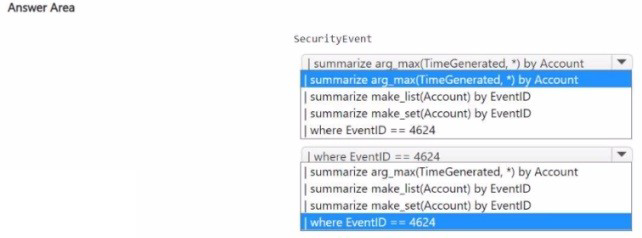
You need to build a KQL query in a Microsoft Sentinel workspace. The query must return
the SecurityEvent record for accounts that have the last record with an EventID value of
4624. How should you complete the query' To answer, select the appropriate options in the
answer area.
NOTE: Each coned selection is worth one point
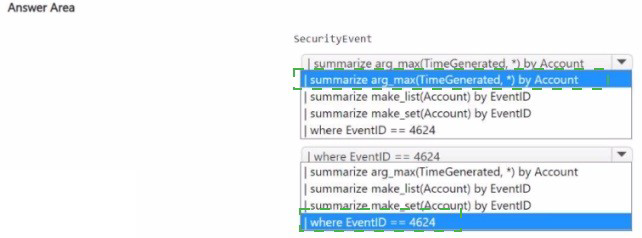
Explanation:
✅ Why this order is correct
Step 1 – summarize arg_max(TimeGenerated, *) by Account
This finds the most recent SecurityEvent record for each unique Account (user). It returns the full row (*) of that latest event for each account. This step identifies "the last record" per account as required.
Step 2 – | where EventID == 4624
After obtaining the latest record per account, this filters the results to only those accounts whose most recent event is a successful logon (EventID 4624). Accounts whose latest event is something else are excluded.
❌ Why other options are incorrect
where EventID == 4624 firstThis would first filter all events to only 4624, then take the latest per account. That would return accounts where any recent 4624 exists, not necessarily the last record being 4624.
make_list or make_setThese aggregate accounts into arrays but do not identify the latest record per account. They cannot determine which event is most recent.
📌 References
Microsoft Learn: arg_max() function – Returns the row with the maximum value of a specified column (e.g., TimeGenerated) per group
EventID 4624 – Windows security event for successful logon
You have multiple Azure subscriptions that contain multiple Microsoft Sentinel workspaces.
You are creating a Microsoft Sentinel workbook that will include references to the
AzureActivity table.
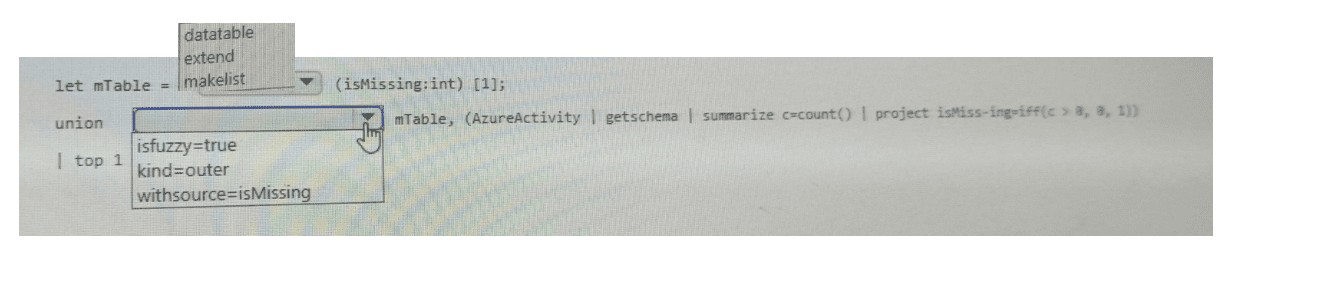
You need to create a KQL query that will perform the following actions:
. Check whether the AzureActivity table exists in each workspace.
. If the table exists, return a single row that has the isMissing column set to 0.
. If the table does NOT exist, return a single row that has the isMissing column set to 1.
How should you complete the query? To answer, select the appropriate options in the
answer area.
NOTE: Each correct selection is worth one point.
Explanation:
✅ Why these are correct
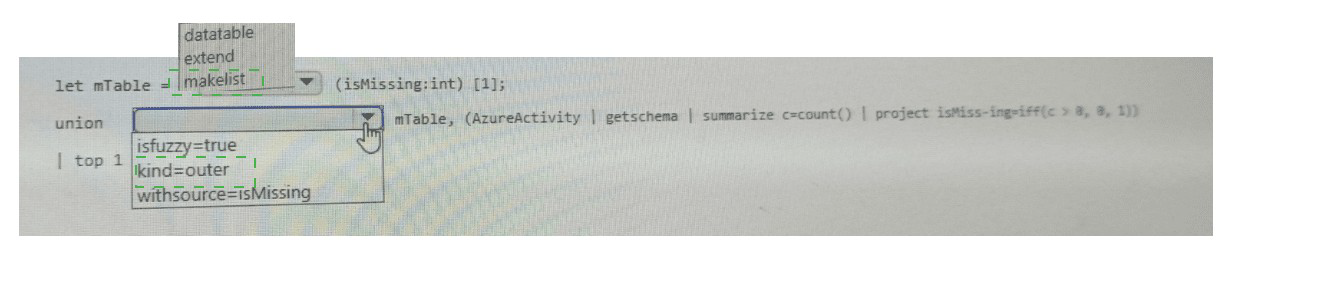
union (first dropdown): The union operator is required to combine results from multiple data sources (subscriptions and workspaces). The query needs to check table existence across workspaces, which union supports with cross-workspace queries using the workspace() expression. datatable, extend, and makelist cannot perform cross-resource table existence checks.
isFuzzy=true (second dropdown): isFuzzy=true is a critical setting for this scenario. When set to true, union continues execution even if one of the referenced tables or workspaces is missing or has schema issues, returning whatever data is available. Without fuzzy matching, a single missing table would cause the entire query to fail.
kind=outer (third dropdown): The union kind=outer ensures that even if one side of the union returns no rows (because the table doesn't exist in a particular workspace), the query still generates a result row. This is essential to return a 1 for missing tables, rather than no output at all.
withSource=isMissing (fourth dropdown): The withSource parameter adds a column (named isMissing) indicating which source each row came from. Combined with the later logic (project isMissing=iff(c > 0, 0, 1)), this enables the query to determine table existence per workspace.
❌ Why other options are incorrect
datatableCan only define static tables, cannot check existence of real tables across workspaces
extendAdds computed columns to existing rows, cannot check table existence or combine multiple sources
makelistCreates a dynamic array – not relevant for table existence checking
isFuzzy=falseWould cause the query to fail completely if any referenced table is missing, which is the opposite of the requirement
kind=innerOnly returns rows when matching records exist in all sources – would not return 1 for missing tables
📌 References
Microsoft Learn: union operator and fuzzy matching
Microsoft Kusto documentation: union with isFuzzy and kind=outer for schema mismatches
Microsoft Learn: Cross-resource queries with workspace() and union
You have an Azure subscription that contains the users shown in the following table
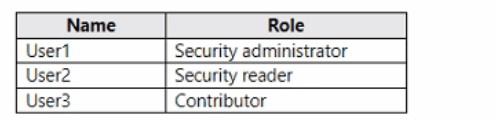
You need to delegate the following tasks:
• Enable Microsoft Defender for Servers on virtual machines.
• Review security recommendations and enable server vulnerability scans.
The solution must use the principle of least privilege.
Which user should perform each task? To answer, drag the appropriate users to the correct
tasks. Each user may be used once, more than once, or not at all. You may need to drag
the split bar between panes or scroll to view content.
NOTE: Each correct selection is worth one point.
Answer:


Explanation:
✅ Why these are correct
Enable Defender for Servers (User1 – Security administrator): Enabling Defender for Servers on virtual machines requires modifying security policies and turning on Defender plans at the subscription level. Microsoft documentation states that the Security administrator role "can update the security policy, dismiss alerts and recommendations" . This role has the necessary write permissions to enable Defender plans without granting full subscription management rights (like Contributor or Owner). The Security administrator is the least privileged role that can perform this task.
Review recommendations and enable vulnerability scans (User2 – Security reader): Reviewing security recommendations (read-only) is permitted by the Security reader role. However, enabling vulnerability scans requires write permissions to deploy the integrated vulnerability scanner (e.g., Microsoft Defender vulnerability management or Qualys). This action falls under "remediation" or "apply recommendations," which requires Contributor permissions.
❌ Why other assignments are incorrect
Enable Defender for ServersUser2 (Security reader) Read-only access – cannot modify policies or enable Defender plans
Enable Defender for ServersUser3 (Contributor) Can enable plans but violates least privilege (more permissions than needed)
Enable vulnerability scansUser2 (Security reader) Read-only – cannot perform write actions like deploying scanners
📌 References
Microsoft Learn: "Security Admin can update the security policy, dismiss alerts and recommendations"
Microsoft Learn: "Security Reader can view recommendations, alerts, and security policy"
Microsoft Learn: To apply recommendations (remediation), "you need Contributor or Owner permissions to the affected resource"
You have a Microsoft 365 E5 subscription that contains Windows 11 and Linux CentOS
devices.
In Microsoft Defender XDR, Deception is set to On.
You plan to create a deception rule that will use a custom lure.
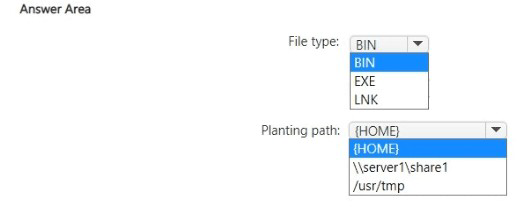
You need to specify the type of file, and the planting path for for the custom lure,
What should you specify? To answer, select the appropriate options in the answer area.
NOTE: Each correct selection is worth one point
Explanation:
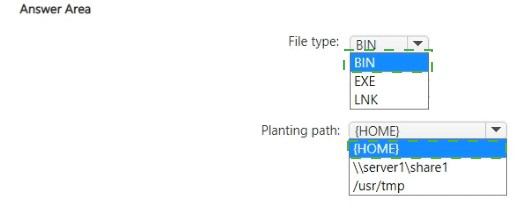
✅ Why BIN is Correct for the File Type
The correct answer is BIN. The official Microsoft documentation states: "Custom lures can be any file type (except .DLL and .EXE files)" . This means the only file types explicitly prohibited are DLL and EXE files.
While some discussion around the exam suggests BIN is the most suitable file type for Linux compatibility, the key factor is that EXE and LNK are invalid choices because:
📄 EXE is explicitly forbidden for custom lures according to Microsoft's own documentation
📄 LNK files are not mentioned as supported for custom lures in the official guidance
💻 BIN files are compatible with both Windows and Linux (CentOS) systems and can act as executable binaries, making them effective as lures in a mixed environment
The question specifies you have both Windows 11 and Linux CentOS devices, so you need a file type that works on CentOS. EXE and LNK are primarily Windows-specific formats and would not work well in a Linux environment .
✅ Why {HOME} is Correct for the Planting Path
The correct answer is {HOME}. Several official Microsoft documentation pages confirm that when setting up a Deception rule in Defender XDR, you can "Provide a lure name and a path where the lure will be planted" . The variable {HOME} represents the user's home directory on the target device.
When you set the planting path to {HOME}, the deception files are placed in the home directory of the active user on the device . This ensures the lure files are visible during an interactive session and accessible to adversaries using that account—precisely where attackers are most likely to browse or exfiltrate files .
The alternative options are incorrect because:
\\server1\share1 is a network share path (requires specific configuration and network connectivity)
/usr/tmp is a Linux system temp directory (less likely to be targeted by attackers for lateral movement)
The {HOME} variable works across both Windows and Linux systems, mapping to C:\Users\[User] on Windows and /home/[User] on Linux.
❌ Why the Other Options Are Incorrect
EXECustom lures cannot be .EXE files—Microsoft explicitly prohibits using EXE and DLL file types for custom lures
LNKNot validated as a supported custom lure file type in the official Microsoft documentation; no official guidance supports using .LNK files
\server1\share1Network share path is not the standard planting path—the {HOME} variable is the documented option for placing lures in user directories
/usr/tmpThis is a temporary system directory, not the standard home directory planting location
📌 References
Microsoft Learn: "Custom lures can be any file type (except .DLL and .EXE files)"
Exam SC-200: "BIN would be the most suitable choice for CentOS devices. BIN files are compatible with Linux and Windows systems"
Microsoft Learn: "Provide a lure name and a path where the lure will be planted"
You have a Microsoft 365 subscription that uses Microsoft Purview and Microsoft Teams.
You have a team named Team1 that has a project named Project 1.
You need to identify any Project1 files that were stored on the team site of Team1 between
February 1, 2023, and February 10, 2023.
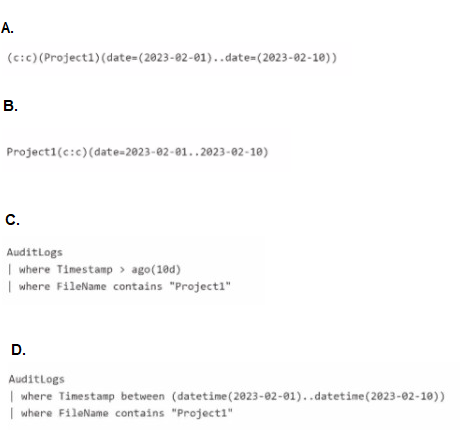
Which KQL query should you run?
A. Option A
B. Option B
C. Option C
D. Option D
Explanation:
✅Why D is correct
Uses the correct table: AuditLogs is the table within Microsoft Purview containing records of file activities (uploaded, accessed, modified, deleted) across workloads like SharePoint (which powers Teams team sites).
Correct date filtering: The where Timestamp between (datetime(2023-02-01)..datetime(2023-02-10)) precisely defines the 10-day range. This is the standard KQL syntax for inclusive yet bounded time periods.
Correct file filtering: where FileName contains "Project1" searches for any stored file on the team site with "Project1" in its name.
Correct scope: A Microsoft Teams team site is a SharePoint Online site. Queries against the AuditLogs table with Workload = "SharePoint" can be filtered by SiteUrl or SiteId to isolate Team1's specific site.
❌ Why other options are incorrect
A & B: These appear to be invalid/incomplete snippets. The documentation contains no such KQL syntax where a table name AuditLogs is omitted.
C: Using ago(10d) is not sufficiently precise to restrict the range to the exact 10-day window (2023-02-01 to 2023-02-10). If run on a different date (e.g., today), ago(10d) would retrieve 10 days prior to the current date, not the specified historical range.
📌 References
Microsoft Learn: Search the audit log in the compliance portal: describes reading AuditData/AuditLogs content.
Microsoft Learn: KQL between operator: confirms
You have an on-premises Linux server that runs a background process named App1 and
has the Azure Connected Machine agent installed.
You have a Microsoft Sentinel workspace named WS1.
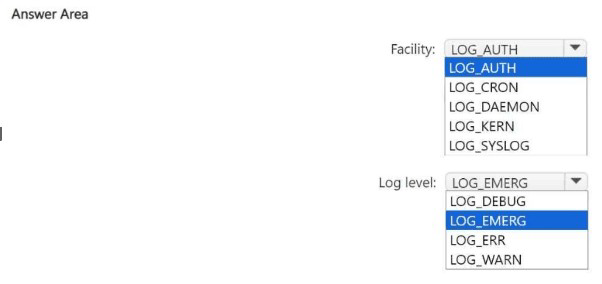
You need to configure a data collection rule (DCR) named DCR1 that will use the Syslog
via AMA connector to collect messages related to App1. The solution must meet the
following requirements:
• Only collect messages that have a priority level of critical.
• Minimize the volume of data collected.
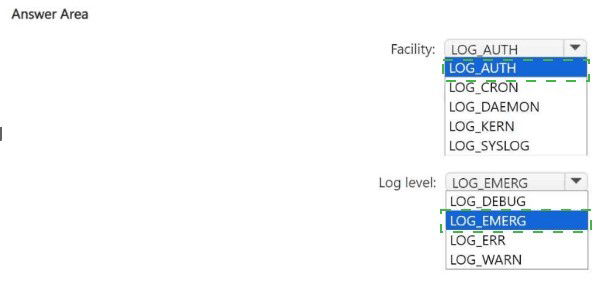
Which facility and log level should you configure for DCR1? To answer, select the
appropriate options in the answer area.
NOTE: Each correct selection is worth one point.
Explanation:
✅ Why these are correct
LOG_DAEMON (Facility): The question states that App1 runs as a background process on the Linux server. The standard Syslog facility for such system services and background processes is LOG_DAEMON . This is directly supported in the facilityNames parameter when configuring a DCR . Selecting this ensures you target the messages generated specifically by App1 and the system daemons associated with it, minimizing the collection of irrelevant logs.
LOG_ERR (Log level): The requirement is to "collect messages that have a priority level of critical." . However, when configuring a Data Collection Rule via the Azure portal, you cannot select a single severity level. Microsoft's official documentation states: "When you select a log level, Microsoft Sentinel collects logs for the selected level and other levels with higher severity" . Since LOG_CRIT (specific to critical) is not an available selection in the UI, and to avoid collecting higher volumes of less severe data (Warning, Notice, Info), the closest option is LOG_ERR. Selecting LOG_ERR will collect LOG_ERR (Error), LOG_CRIT (Critical), LOG_ALERT (Alert), and LOG_EMERG (Emergency) . This satisfies the "priority level of critical" requirement and best meets the requirement to "minimize the volume of data collected" by excluding levels lower than Error.
❌ Why other options are incorrect
Facility Options:
LOG_AUTH: Used for security and authorization related messages (e.g., sshd, sudo), not standard background application processes .
LOG_CRON: Specific to the Cron scheduling daemon, not a general background process App1.
LOG_KERN: Reserved for kernel messages, not user-space application logs .
LOG_SYSLOG: Typically used for messages generated internally by the Syslog daemon itself, not for third-party applications.
Log Level Options:
LOG_EMERG: Only collects the highest severity (Emergency), which would miss the specific Critical level messages .
LOG_DEBUG: This collects every message severity level (from Debug up to Emergency), which would violate the "minimize the volume of data collected" requirement. It includes levels with lower severity than Critical (Warning, Notice, Info, Debug) which are undesirable .
LOG_WARN: Collects Warning, Error, Critical, Alert, and Emergency. It includes "Warning" messages which are generally lower severity than "Critical" and add unwanted noise to the log volume .
📌 References
Microsoft Learn: Syslog data collection with AMA. "When you select a log level, Microsoft Sentinel collects logs for the selected level and other levels with higher severity" .
Microsoft Learn: Facility names support LOG_DAEMON for background processes .
Syslog Priority levels: Confirms LOG_CRIT is specifically critical, but UI selections start at LOG_ERR .
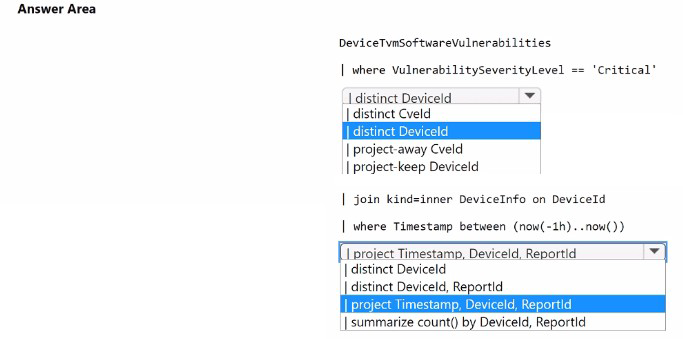
You have a Microsoft 365 E5 subscription that uses Microsoft Defender for Endpoint. You
need to create a detection rule that meets the following requirements:
• Is triggered when a device that has critical software vulnerabilities was active during the
last hour
• Limits the number of duplicate results
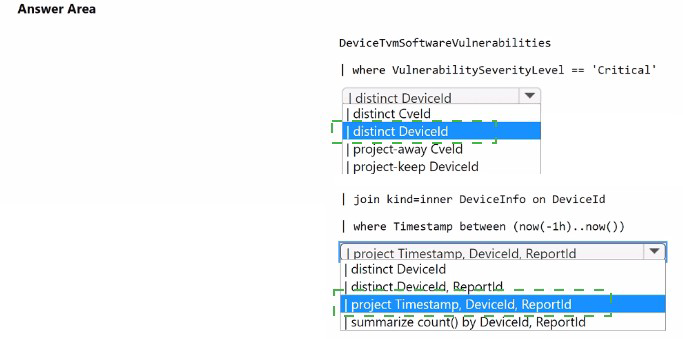
How should you complete the KQL query? To answer, select the appropriate options in the
answer area.
NOTE: Each correct selection is worth one point.
Explanation:
✅ Why these are correct
distinct DeviceId (first dropdown):
The requirement is to limit duplicate results. The distinct DeviceId operator ensures each device appears only once in the result set, even if a device has multiple critical vulnerabilities . This prevents the rule from triggering multiple times for the same device. The search result confirms: "Distinct DeviceID because DeviceID is required to successfully join the tables and distinct to limit the returns to unique devices" .
project Timestamp, DeviceId, ReportId (second dropdown):
Microsoft's official documentation for custom detection rules explicitly states that query results must include three required columns: Timestamp, DeviceId, and ReportId . Without these columns, the detection rule cannot be created. The search result confirms: "You need Timestamp, DeviceID and ReportID in the return to create a custom detection rule" . Additionally, for device that has critical vulnerabilities and was active during the last hour, the DeviceInfo join provides the activity timestamp, which must be projected to meet the requirement.
❌ Why other options are incorrect
distinct CveId
CveId column is not available in the DeviceInfo table, making the subsequent join impossible. The join condition in the detection rule requires DeviceId to correlate the two tables .
project-away / project-keep / distinct with ReportId
These operators do not correctly limit duplicate results per device. The distinct DeviceId is specifically needed to ensure each device appears only once .
summarize count()
The question requires limiting duplicate results, not counting them. A custom detection rule does not require a summarize count() operation .
distinct DeviceId, ReportId
This would create unique combinations of DeviceId and ReportId, which could still allow multiple rows per device if ReportId differs. The requirement is to limit duplicates at the device level .
📌 References
Microsoft Learn: Custom detection rules require Timestamp, DeviceId, and ReportId in query results
Exam SC-200 discussion: "Distinct DeviceID" and "project Timestamp, DeviceID, ReportID" are correct
You have a Microsoft Sentinel workspace that contains a custom workbook.
You need to query the number of daily security alerts. The solution must meet the following
requirements:
• Identify alerts that occurred during the last 30 days.
• Display the results in a timechart.
How should you complete the query? To answer, select the appropriate options in the
answer area. NOTE: Each correct selection is worth one point.
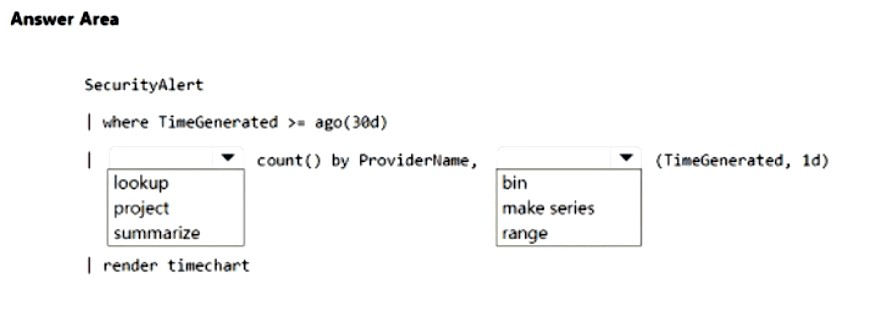
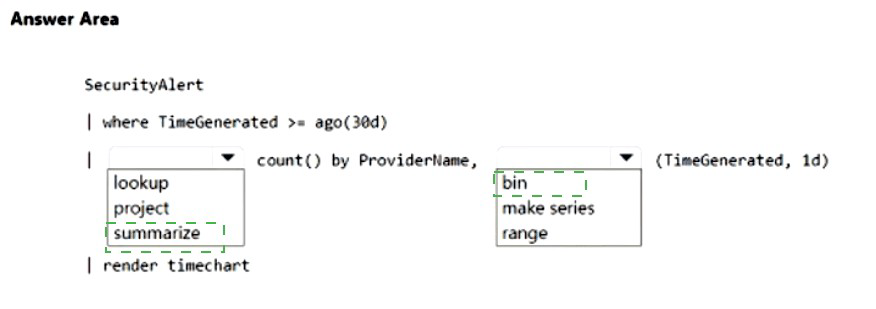
Explanation:
✅ Why these are correct
summarize (first dropdown):
The summarize operator is required to aggregate data. It groups raw security alerts into meaningful statistical results, such as counting the number of alerts per day. The project operator would just select columns without aggregation, and lookup or render are not appropriate as the first aggregation step.
bin(TimeGenerated, 1d) (second dropdown): The requirement is to display results by day (number of daily security alerts). The bin() function groups timestamps into fixed-size buckets (1-day intervals). Using bin(TimeGenerated, 1d) ensures that each day is treated as a single time unit in the timechart. The range function is not used for grouping timestamps, and make-series is typically used when you need to fill empty bins with default values—not required for a straight daily count.
timechart (third dropdown): The render timechart command explicitly creates a line or column chart with time on the x-axis and aggregated values on the y-axis. The question states: "Display the results in a timechart," so render timechart is the correct visualization command.
❌ Why other options are incorrect
project
Selects specific columns but does not aggregate data. Cannot produce a daily count.
lookup
Correlates two tables by matching columns. This query uses only one table (SecurityAlert).
range
Generates a series of numeric values. Cannot bin timestamps into 1-day intervals.
make-series
Creates time series with empty bins filled with a default value. More complex and not required for a simple daily count.
📌 References
Microsoft Learn: summarize operator documentation
Microsoft Learn: bin() function for grouping timestamps
Microsoft Learn: render timechart for time-based visualizations
| Page 1 out of 37 Pages |
Microsoft Security Operations Analyst Practice Exam Questions
These SC-200 practice questions with explanations help candidates understand security operations using Microsoft tools. Topics include threat detection, incident response, Microsoft Sentinel, and Defender solutions. Each explanation clearly describes the reasoning behind the correct answer, helping learners grasp real-world security scenarios. This approach strengthens analytical thinking and practical skills. By practicing consistently, candidates can improve their ability to monitor, investigate, and respond to security threats and confidently prepare for the certification exam.SC-200 - Microsoft Security Operations Analyst Official Exam Blueprint and Weight:
1. Manage a Security Operations Environment
Official Exam Weight: 40-45%
Subtopics: Configure email notifications in Microsoft Defender XDR including incidents actions and threat analytics, configure alert notifications in Microsoft Defender XDR including tuning suppression and correlation, configure Microsoft Defender for Endpoint advanced features, configure rules settings in Microsoft Defender for Endpoint, configure custom data collection in Microsoft Defender for Endpoint, configure security policies for Microsoft Defender for Endpoint including attack surface reduction (ASR) rules, manage automated investigation and response capabilities in Microsoft Defender XDR, configure automatic attack disruption in Microsoft Defender XDR, configure and manage device groups permissions and automation levels in Microsoft Defender for Endpoint, create and configure automation rules in Microsoft Sentinel, create and configure Microsoft Sentinel playbooks, specify Microsoft Sentinel roles, manage data retention for XDR and Microsoft Sentinel tables including Analytics Data lake and XDR tiers, create and configure Microsoft Sentinel workbooks, optimize Microsoft Sentinel platform including SOC optimization recommendations, select data connectors based on data source requirements including Windows logs and security events, configure collection of Windows Security events using Windows Security Events via AMA including data collection rules, plan and configure collection of Windows Security events using Windows Event Forwarding (WEF), plan and configure Syslog via AMA and Common Event Format (CEF) via AMA connectors, configure collection of Azure activities using Azure Policy and resource diagnostic settings, ingest threat indicators into Microsoft Sentinel, create custom log tables in workspace to store ingested data, create custom detection rules using Advanced Hunting in Microsoft Defender XDR, manage custom detection rules in Microsoft Defender XDR, configure and manage analytics rules in Microsoft Sentinel SIEM including scheduled near-real time (NRT) threat intelligence and machine learning, analyze attack vector coverage using MITRE ATT&CK matrix, configure anomalies in Microsoft Sentinel.
2. Respond to Security Incidents
Official Exam Weight: 35-40%
Subtopics: Investigate and remediate threats using Microsoft Defender for Office 365 including automatic attack disruption, investigate and remediate threats or compromised entities identified by Microsoft Purview, investigate and remediate alerts and incidents identified by Microsoft Defender for Cloud workload protections, investigate and remediate security risks identified by Microsoft Defender for Cloud Apps, investigate and remediate compromised identities identified by Microsoft Entra ID, investigate and remediate security alerts from Microsoft Defender for Identity, investigate and remediate alerts and incidents identified by Microsoft Sentinel, investigate incidents using agentic AI including embedded Copilot for Security, investigate complex attacks such as multi-stage multi-domain and lateral movement, manage security incidents using case management, investigate device timelines, perform actions on device including live response and collecting investigation packages, perform evidence and entity investigation, investigate and remediate incidents identified by automatic attack disruption, investigate threats using Audit from Microsoft Purview, investigate threats using Content Search in Microsoft Purview, investigate threats using Microsoft Graph activity logs.
3. Perform Threat Hunting
Official Exam Weight: 20-25%
Subtopics: Identify appropriate table to use in KQL query, identify threats using Kusto Query Language (KQL), create Advanced Hunting queries, interpret threat analytics in Microsoft Defender XDR, create hunting graphs including blast radius, analyze relationships between entities using Sentinel Graph, create and monitor hunting queries, create and manage KQL jobs in Data lake, create and manage Summary rule tables for querying, hunt for threats using Notebooks including connection to Sentinel MCP Server.
| Domain | Title | Exam Weight |
|---|---|---|
| 1 | Manage a Security Operations Environment | 40-45% |
| 2 | Respond to Security Incidents | 35-40% |
| 3 | Perform Threat Hunting | 20-25% |
My SC-200 Success Story: Conquering the Microsoft Security Operations Analyst Exam on the First Try
The Preparation Challenge
As a security professional aiming to validate my skills, the SC-200 Microsoft Security Operations Analyst exam seemed daunting. The broad syllabus, covering everything from threat mitigation to Microsoft 365 Defender and Microsoft Sentinel, required a strategic study plan. I knew theoretical knowledge alone would not suffice.
Discovering the Key Resource
My research led me to MSmcqs.com, which became the cornerstone of my preparation. Their comprehensive Microsoft Security Operations Analyst practice test perfectly mirrored the exams style and difficulty. Each SC-200 question was a learning opportunity, complete with detailed explanations that clarified complex concepts.
Crucial Exam Insights
The exam rigorously tests your ability to:
Investigate Threats: Using Azure Sentinel, Microsoft Defender, and Microsoft 365 Defender.
Mitigate Attacks: Implementing incident response and remediation actions.
Configure Security Tools: Managing data connectors, analytics rules, and automation in Sentinel.
Practicing with MSmcqs.com transformed my understanding. I did not just memorize answers; I learned to analyze scenarios, identify the correct security tools, and understand the "why" behind each step in the security operations process.
The Triumphant Result
On exam day, I felt confident and prepared. The practice had ingrained the required workflows and product-specific knowledge. I passed on my first attempt! The realistic practice was undeniably the main reason for my success. It bridged the gap between theory and practical application, turning a challenging goal into a achievable milestone. I highly recommend it to any aspiring Security Operations Analyst.
Real Stories From Real Customers
MSmcqs.com offered highly relevant practice exams for Microsoft Certified: Security Operations Analyst Associate (SC-200). The exam questions focused on threat detection, incident response, and security monitoring scenarios.
Lucas Pereira | Brazil