Topic 1: Contoso Ltd

You have a Microsoft 365 subscription that contains the following resources:
β€’ 100 users that are assigned a Microsoft 365 E5 license
β€’ 100 Windows 11 devices that are joined to the Microsoft Entra tenant
The users access their Microsoft Exchange Online mailbox by using Outlook on the web. You need to ensure that if a user account is compromised, the Outlook on the web session token can be revoked.
What should you configure?

A. Microsoft Entra ID Protection

B. Microsoft Entra Verified ID

C. a Conditional Access policy in Microsoft Entra

D. security defaults in Microsoft Entra

C.   a Conditional Access policy in Microsoft Entra

Explanation:

βœ… Why C is correct
Conditional Access policies in Microsoft Entra enable continuous access evaluation (CAE) for supported services like Exchange Online. When an account is compromised, you can revoke the user's session by:

Selecting "Revoke sessions" in the user profile page
Running the revoke-mgusersign PowerShell command

CAE then sends a revocation event to Exchange Online, which rejects existing access tokens and forces the user's Outlook on the web client to re-authenticate. This happens in near real-time (within minutes) rather than waiting for the token to expire naturally (default 1 hour).

According to Microsoft documentation: "Administrator explicitly revokes all refresh tokens for a user" is a critical event that triggers immediate session termination.

❌ Why other options are incorrect
A. Microsoft Entra ID Protection
Detects risky users and sign-ins but does not revoke active session tokens by itself.

B. Microsoft Entra Verified ID
Used for decentralized identity verification (verifiable credentials), not for session control.

D. Security defaults
Applies baseline security policies (like MFA enforcement) but provides no granular session token revocation capability.

πŸ“Œ References

Microsoft Learn: "Continuous access evaluation" - Critical events include administrator revoking all refresh tokens for a user

Microsoft Learn: "When Conditional Access policy changes need to be applied immediately, select 'Revoke Session' on the user profile page"

Microsoft 365 docs: "In near real time, all existing user sessions with Microsoft 365 services are invalidated"

You have a Microsoft 365 subscription that uses Microsoft Defender XDR. You discover that when Microsoft Defender for Endpoint generates alerts for a commonly used executable file, it causes alert fatigue. You need to tune the alerts. Which two actions can an alert tuning rule perform for the alerts? Each correct answer presents a complete solution. NOTE: Each correct selection is worth one point.

A. delete

B. hide

C. resolve

D. merge

E. assign

B.   hide
C.   resolve

Explanation:

βœ… Why B and C are correct
Alert tuning rules (suppression rules) in Microsoft Defender for Endpoint can perform exactly two actions on alerts: hide or resolve.

When you create a suppression rule for a commonly used executable file generating false positives:

Hide – Completely suppresses alerts from the entire system. Hidden alerts will not appear in the dashboard, device timeline, or API streams

Resolve – Automatically marks matching alerts as resolved, which moves them to the resolved section of the alerts queue

Both actions effectively reduce alert fatigue by preventing these benign alerts from requiring manual investigation.

❌ Why other options are incorrect

A. delete
Alert suppression rules cannot delete alerts. Microsoft documentation only lists hide and resolve as available actions

D. merge
No alert merging capability exists in suppression rules. Each alert remains distinct

E. assign
Alert assignment is a manual action performed through the Alert management pane, not an automated action that a suppression rule can perform

πŸ“Œ References

Microsoft Learn: "You can automatically resolve an alert or hide it from the portal"

Exam SC-200 discussion:"Alert tuning can only hide and resolve alerts to assist, it cannot merge alerts"

You need to correlate data from the SecurityEvent Log Anarytks table to meet the Microsoft Sentinel requirements for using UEBA. Which Log Analytics table should you use?

A. SentwlAuoNt

B. AADRiskyUsers

C. IdentityOirectoryEvents

D. Identityinfo

D.   Identityinfo

Explanation:

βœ… Why D is correct
To correlate data from the SecurityEvent table for use with UEBA in Microsoft Sentinel, you need the IdentityInfo table. This is the central repository where identity information synchronized from Microsoft Entra ID (and on-premises Active Directory via Microsoft Defender for Identity) is stored for UEBA . Enabling UEBA populates this table, which contains critical user metadata such as AccountName, AccountUPN, GroupMembership, Department, and AssignedRoles .

Using IdentityInfo allows you to enrich raw security events with identity context. For example, you can join SecurityEvent with IdentityInfo on SubjectUserSid == AccountSID to filter events based on department or group membership, which is essential for minimizing false positives .

❌ Why other options are incorrect

A. SentwlAuoNt (likely a typo or fake table name): This is not a valid Log Analytics table in Microsoft Sentinel for identity correlation.

B. AADRiskyUsers:
This table contains information about users detected as risky by Microsoft Entra ID Protection (e.g., RiskState, RiskLevel). While related to security, it does not contain the comprehensive static user attributes (like Department or GroupMembership) needed for general correlation with SecurityEvent logs for UEBA purposes .

C. IdentityDirectoryEvents:
This table captures identity-related events such as password changes or group modifications. It is used for tracking identity activities, not for storing the static, authoritative identity profile data required to enrich security events .

πŸ“Œ References:

Microsoft Learn: "IdentityInfo table in the advanced hunting schema" – Confirms Microsoft Sentinel uses an expanded version of this table for UEBA .

Microsoft Learn: "Microsoft Sentinel UEBA reference" – States user data is synchronized to the IdentityInfo table in Log Analytics

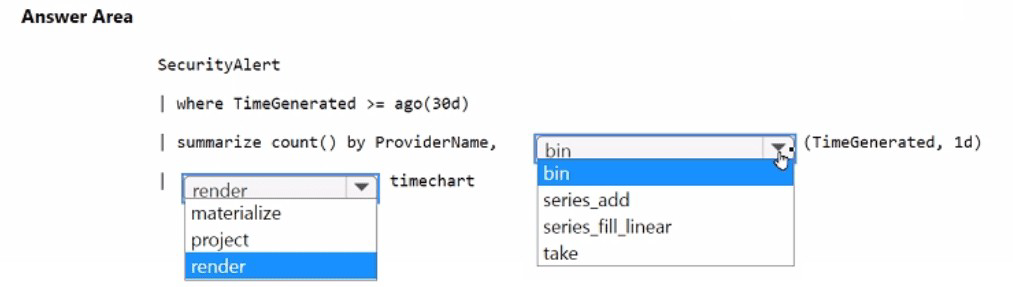
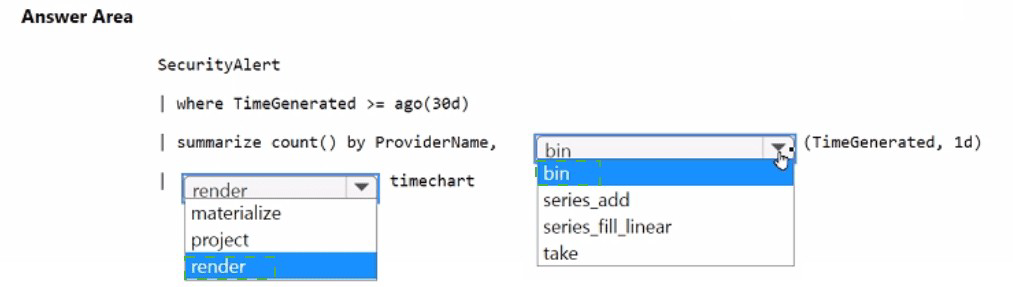
You have an Microsoft Sentinel workspace named SW1.
You plan to create a custom workbook that will include a time chart.
You need to create a query that will identify the number of security alerts per day for each provider.
How should you complete the query? To answer, select the appropriate options in the answer area.
NOTE: Each correct selection is worth one point.


Explanation

This query structure is the standard way to prepare data for a Time Chart visualization in Azure Monitor and Sentinel workbooks.

SecurityAlert (Table):

Why: This is the primary table where Microsoft Sentinel stores alerts generated by its own analytics rules and alerts ingested from other security providers (like Microsoft Defender for Endpoint, Identity, etc.).

Summarize with bin() and ProviderName:
summarize count(): This calculates the total number of alerts.

bin(TimeGenerated, 1d): For a time chart, you must "bucket" the data into time intervals. The bin (or startofday) function rounds the timestamp down to the nearest day, which creates the x-axis for your daily chart.

ProviderName: Including this in the by clause ensures that the chart can "split" the lines or bars by the alert source (e.g., "Detection", "Defender", "Azure Sentinel"). This allows the workbook to render a multi-series time chart.

References

Microsoft Learn: Visualize your data using Microsoft Sentinel workbooks
Microsoft Learn: KQL summarize operator

You have an Azure subscription that has the enhanced security features in Microsoft Defender for Cloud enabled and contains a user named User1. You need to ensure that User1 can export alert data from Defender for Cloud. The solution must use the principle of least privilege. Which role should you assign to User1?

A. Contributor

B. User Access Administrator

C. Owner

D. Reader

C.   Owner

Explanation:

βœ… Why C is correct
Exporting alert data from Defender for Cloud requires configuring continuous export settings, which is considered a management action beyond read-only access. The Owner role provides full access to all Defender for Cloud capabilities, including export configuration.

The Reader role allows viewing alerts but cannot perform any actions such as exporting data. The Contributor role can manage resources but lacks ability to assign initiatives and fully enable all Defender for Cloud capabilities. Microsoft documentation states: "to enable all capabilities of a plan the Owner role is required" β€” continuous export falls under this requirement.

❌ Why other options are incorrect

A. Contributor
Can manage most resources but lacks ability to fully enable all Defender for Cloud capabilities. May have insufficient permissions for export configuration.

B. User Access Administrator
Manages user permissions only. Has no ability to configure alert exports.

D. Reader
Provides view-only access to alerts. Cannot export data or perform any action.

πŸ“Œ References

Microsoft Learn: "User roles and permissions - Microsoft Defender for Cloud" – Reader cannot perform actions; Owner is required for full capabilities

You have a Microsoft 365 subscription that uses Microsoft Defender for Cloud Apps and has Cloud Discovery enabled. You need to enrich the Cloud Discovery data. The solution must ensure that usernames in the Cloud Discovery traffic logs are associated with the user principal name (UPN) of the corresponding Microsoft Entra ID user accounts. What should you do first?

A. From Conditional Access App Control, configure User monitoring.

B. Create a Microsoft 365 app connector.

C. Enable automatic redirection to Microsoft 365 Defender.

D. Create an Azure app connector.

D.   Create an Azure app connector.

Explanation:

βœ… Why D is correct
To enrich Cloud Discovery data by associating usernames in traffic logs with Microsoft Entra ID user principal names (UPNs), you must first ensure that Defender for Cloud Apps has a direct connection to your Microsoft Entra tenant. This is accomplished by creating an Azure app connector (also referred to as a Microsoft 365 app connector, as it connects to the Azure/Entra ID service within Microsoft 365) .

The official Microsoft documentation lists the Microsoft 365 app connector connected as a prerequisite for the user enrichment feature . This connector allows Defender for Cloud Apps to use Microsoft Entra ID data to match usernames from discovery logs with their corresponding UPNs, enabling features like investigating Shadow IT usage by Entra user and creating custom reports based on user groups . Once the connector is set up, you can then navigate to Settings > Cloud Apps > Cloud Discovery > User enrichment to enable the actual enrichment feature .

❌ Why other options are incorrect

A. From Conditional Access App Control, configure User monitoring
Conditional Access App Control is for real-time access and session controls, not for enriching historical Cloud Discovery data with UPNs.

B. Create a Microsoft 365 app connector
While this is essentially the same action as creating an Azure app connector (the documentation uses "Microsoft 365 app connector" as the prerequisite), the question specifically asks for the first step. The connector must be created before enrichment can be configured. However, option D ("Create an Azure app connector") is more precise as the connector integrates with Azure/Entra ID specifically for identity enrichment.

C. Enable automatic redirection to Microsoft 365 Defender
This setting controls portal navigation behavior and has no impact on Cloud Discovery data enrichment or username matching.

πŸ“Œ References
Microsoft Learn: "Prerequisites for user enrichment: Microsoft 365 app connector connected"

Microsoft Learn: "User enrichment tab: Enrich discovered user identifiers with Azure Active Directory usernames"

You have a Microsoft 365 subscription that uses Microsoft Defender for Endpoint Plan 2 and contains 500 Windows devices. As part of an incident investigation, you identify the following suspected malware files:

β€’ sys
β€’ pdf
β€’ docx
β€’ xlsx

You need to create indicator hashes to block users from downloading the files to the devices. Which files can you block by using the indicator hashes?

A. File1.sysonly

B. File1.sysand File3.docxonly

C. File1.sys. File3.docx, and File4jclsx only

D. File2.pdf. File3.docxr and File4.xlsx only

E. File1.sys, File2.pdf, File3.dooc, and File4.xlsx

D.   File2.pdf. File3.docxr and File4.xlsx only

Explanation:

βœ… Why D is correct
Microsoft Defender for Endpoint's file indicator feature (hash-based blocking) currently supports portable executable (PE) files only, including .exe and .dll files . According to Microsoft's official documentation: "This feature is designed to prevent suspected malware (or potentially malicious files) from being downloaded from the web. It currently supports portable executable (PE) files, including .exe and .dll files"

❌ Why other options are incorrect

A. File1.sys only
Incorrect because .sys driver files cannot be blocked via indicatorsβ€”they are critical system files that Defender for Endpoint excludes to prevent system damage.

B. File1.sys and File3.docx only
Incorrect because it includes the unblockable .sys file and excludes other blockable files (.pdf, .xlsx).

C. File1.sys, File3.docx, and File4.xlsx only
Incorrect because it includes the unblockable .sys file and excludes .pdf.

E. All four files
Incorrect because .sys cannot be blocked, and the question states you need to identify which files can be blocked.

πŸ“Œ References

Microsoft Learn: "Create indicators for files" β€” "Currently supports portable executable (PE) files, including .exe and .dll files"

Exam SC-200 discussions: .sys files are excluded from blocking because they are system-critical drivers

Your on-premises network contains two Active Directory Domain Services (AD DS) domains named contoso.com and fabrikam.com. Contoso.com contains a group named Group1. Fabrikam.com contains a group named Group2.
You have a Microsoft Sentinel workspace named WS1 that contains a scheduled query rule named Rule1. Rule1 generates alerts in response to anomalous AD DS security events. Each alert creates an incident.
You need to implement an incident triage solution that meets the following requirements: Β· Security incidents from contoso.com must be assigned to Group1.
Β· Security incidents from fabrikam.com must be assigned to Group2.
Β· Administrative effort must be minimized.
What should you include in the solution?

A. one automation rule assigned to Rule1

B. a playbook that is triggered by the creation of an incident

C. two automation rules assigned to Rule1

D. a playbook that is triggered by the creation of an alert

C.   two automation rules assigned to Rule1

Explanation:

βœ… Why C is correct
Automation rules in Microsoft Sentinel allow you to automatically assign incidents to specific owners based on conditions. Since you have two different domains that must route incidents to two different groups (contoso.com β†’ Group1, fabrikam.com β†’ Group2), you need two separate automation rules.

Each automation rule would:

Be triggered when an incident is created by Rule1
Use a condition on an entity property to filter incidents from a specific domain
Assign the incident to the appropriate group owner

The documentation confirms that automation rules can inspect incident contents and "assign an incident to an owner" to direct incidents to the personnel best suited to handle them.

❌ Why other options are incorrect

A. one automation rule assigned to Rule1
One rule cannot conditionally assign incidents to two different groups based on domain source, because a single automation rule can only have one Assign owner action.

B. a playbook triggered by incident creation
Playbooks are more complex to manage and maintain. Automation rules provide the built-in Assign owner action without requiring a playbook. Playbooks are best for complex multi-step logic, not simple assignment.

D. a playbook triggered by alert creation
Playbooks triggered by alerts are intended for alert-level automation, not incident triage. Additionally, playbooks add unnecessary administrative overhead compared to automation rules.

πŸ“Œ References

Microsoft Learn: Automation rules can triage incidents by changing status and assigning an owner

Microsoft Learn: Automation rules use conditions to filter which incidents trigger the rule

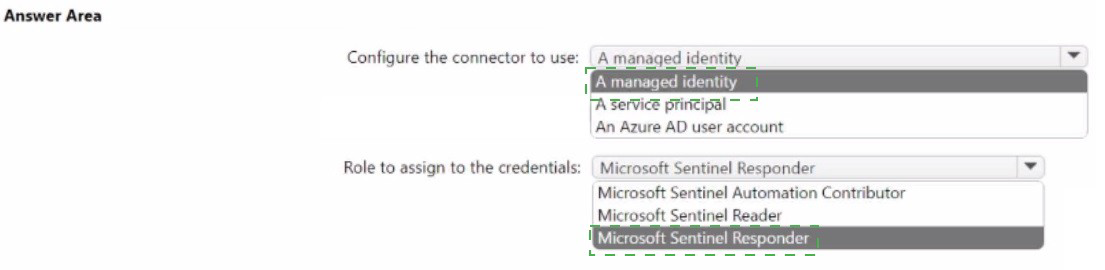
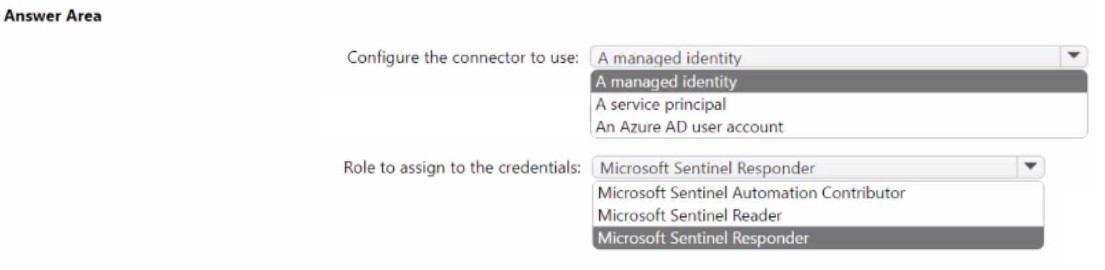
You have a Microsoft Sentinel workspace named sws1.
You plan to create an Azure logic app that will raise an incident in an on-premises IT service management system when an incident is generated in sws1.
You need to configure the Microsoft Sentinel connector credentials for the logic app. The solution must meet the following requirements:
β€’ Minimize administrative effort.
β€’ Use the principle of least privilege.
How should you configure the credentials? To answer, select the appropriate options in the answer area.
NOTE: Each correct selection is worth one point.


Explanation:

This configuration ensures a secure, passwordless connection between your automation workflow and your security data.

Managed Identity (Authentication):

Why: Using a Managed Identity (specifically a system-assigned one) eliminates the need for administrators to manage service principal credentials or rotate secrets. Azure handles the authentication automatically, which significantly minimizes administrative effort and improves security by removing hardcoded credentials.

Microsoft Sentinel Responder (Role):

Why: The Logic App needs to read incident data to send it to your on-premises ITSM system. The Microsoft Sentinel Responder role is the least privileged role that allows an entity to read incidents and perform basic updates (like adding comments or changing status).

Comparison: The Microsoft Sentinel Reader role would allow the Logic App to see the incident but might limit its ability to update the Sentinel incident with an ITSM ticket ID. The Microsoft Sentinel Contributor role provides excessive permissions (like deleting analytics rules) that the Logic App does not require.

References

Microsoft Learn: Authenticate Logic Apps to Microsoft Sentinel
Microsoft Learn: Roles and permissions in Microsoft Sentinel

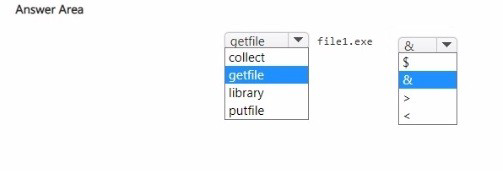
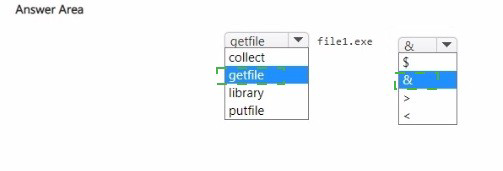
You have a Microsoft 365 subscription that uses Microsoft Defender for Endpoint Plan 2 and contains a Windows device named Device!.
You initiated a live response session on Device1.
You need to run a command that will download a 250-MB file named File! .exe from the live response library to Device1. The solution must ensure that Filel.exe is downloaded as a background process.
How should you complete the live response command? To answer, select the appropriate options in the answer area.
NOTE: Each correct selection is worth one point.


Explanation:

While the getfile command is typically used to move files from the library to a device, it has a significant limitation: it is a foreground command and is subject to a strict timeout (usually 10 minutes). For a 250-MB file, the download may exceed the foreground session timeout depending on the network speed.

run (Command):
In the context of the Live Response library, if you have uploaded an executable or a script, the run command executes that item on the target device.

Crucially, the run command has a built-in parameter (often used with the & suffix in many CLI environments, or specifically handled by the Live Response engine) that allows the execution/download of the library content to persist in the background. This ensures the process is not killed if the interactive session times out.

File1.exe (Parameter):
The parameter for the run command is simply the name of the file as it exists in the Live Response library.

References

Microsoft Learn: Live Response command reference - Check the descriptions for background execution capabilities.

Page 11 out of 37 Pages