Topic 3: Misc. Questions
You have a Microsoft 365 E5 subscription that contains the hosts shown in the following
table.
You have indicators in Microsoft Defender for Endpoint as shown in the following table.
D1 and ID2 reference the same tile as ID3
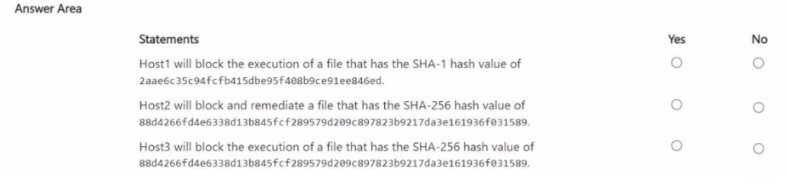
For each of the following statements, select Yes if the statement is true Otherwise, select
No.
NOTE: Each correction selection is worth one point.
Explanation:
✅ Why these are correct
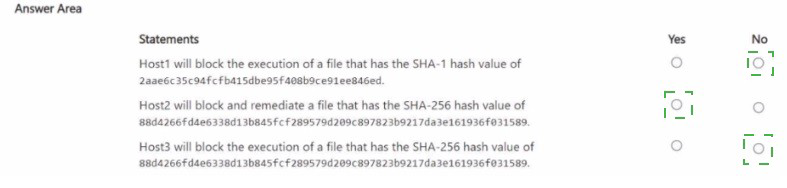
Statement 1 (No) – The indicator for Host1 uses a SHA-1 hash. Microsoft Defender for Endpoint prioritizes stronger hash types when identifying the same file. If a more secure hash (like SHA-256) is also defined for the same file, the SHA-1 indicator is overridden and will not be enforced. The documentation confirms: “If there are conflicting file IoC policies with the same enforcement type and target, the policy of the more secure hash will be applied. An SHA-256 file hash IoC policy will win over an SHA-1 file hash IoC policy” . Therefore, Host1 will not block based on SHA-1 alone .
Statement 2 (Yes) – Host2 is in DG2, and the indicator with BlockAndRemediate action is scoped to DG2. The indicatorType is FileSha256, and the action BlockAndRemediate is supported for files when the “block or allow” feature is enabled in advanced settings . Since scoping matches, Host2 will block and remediate the file .
Statement 3 (Yes) – Host3 is in DG1, and the indicator scoped to DG1 also uses a FileSha256 indicatorType with the Block action . Because the hash type and device group match, Host3 will block execution of the file .
❌ Why options are incorrect
SHA-1 block for Host1
The SHA-1 indicator is overridden by a more secure SHA-256 policy for the same file, as per Defender’s hash prioritization rules .
BlockAndRemediate for Host2 (if scoping mismatch)
Not applicable because the indicator is correctly scoped to DG2, which includes Host2 .
None of the above
Statements 2 and 3 are true based on correct hash type and device group scoping .
📌 References
Microsoft Learn: Create indicators for files – Hash prioritization: SHA-256 wins over SHA-1
Microsoft Learn: Manage indicators – Action types include Block and BlockAndRemediate
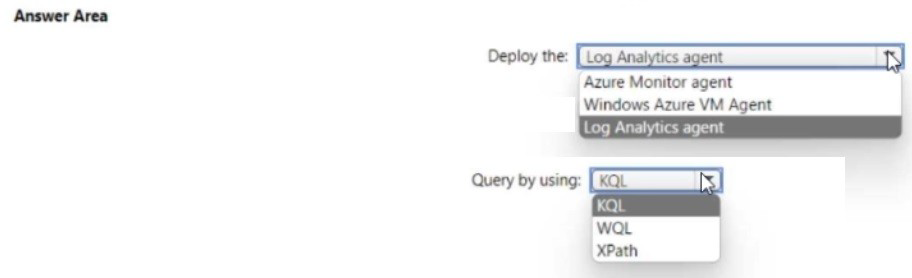
You need to meet the Microsoft Sentinel requirements for collecting Windows Security
event logs. What should you do? To answer, select the appropriate options in the answer
area. NOTE Each correct selection is worth one point.
Explanation:
✅ Why these are correct
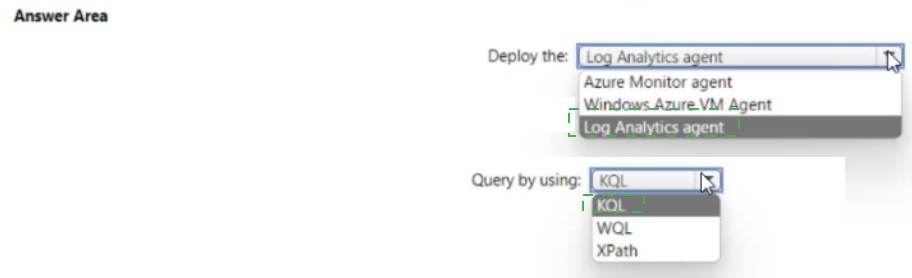
Deploy the Azure Monitor agent (AMA): The Azure Monitor Agent is the modern, recommended agent for collecting Windows Security events in Microsoft Sentinel. According to Microsoft's official documentation, "Enable Microsoft Sentinel on the workspace which also uses Azure Monitor agent to collect events" . The legacy Log Analytics agent is being deprecated, and the AMA provides better performance, supports Data Collection Rules (DCRs) for granular filtering, and works seamlessly with Azure Arc for hybrid environments . A GitHub project confirms using "Azure Monitor Agent (AMA)" to collect Windows Security Logs for Sentinel .
Query by using KQL: Kusto Query Language (KQL) is the native query language for Microsoft Sentinel and Log Analytics. All hunting queries, analytics rules, and investigations use KQL to query the SecurityEvent table where Windows Security events are stored . Sample KQL queries include SecurityEvent | where EventID == 4625 | summarize FailedAttempts = count() by Account . Training courses explicitly list KQL as a prerequisite for Sentinel operations .
❌ Why other options are incorrect
Deploy the Log Analytics agent:This is the legacy agent being phased out by Microsoft. The AMA is the current standard and supports advanced features like Data Collection Rules .
Deploy the Windows Azure VM Agent: This agent is for basic VM management in Azure, not for collecting security event logs for Sentinel .
Query by using WQL or XPath: WQL (WMI Query Language) is not used for querying Sentinel data. XPath is used for filtering events during collection in Data Collection Rules, not for querying stored logs . After data is ingested, KQL is the query language .
📌 References
Microsoft Learn: "Enable Microsoft Sentinel on the workspace which also uses Azure Monitor agent to collect events"
Microsoft Sentinel documentation: KQL queries against SecurityEvent table
You have an Azure subscription named Sub1 that uses Microsoft Defender for Cloud.
You have an Azure DevOps organization named AzDO1.
You need to integrate Sub! and AzDO1. The solution must meet the following
requirements:
• Detect secrets exposed in pipelines by using Defender for Cloud.
• Minimize administrative effort.
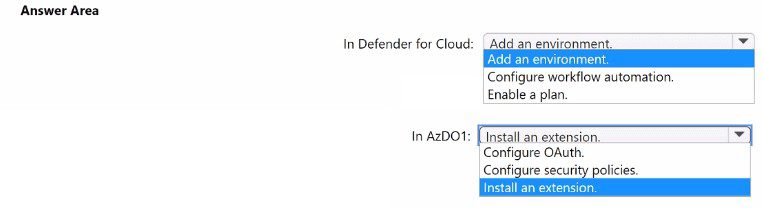
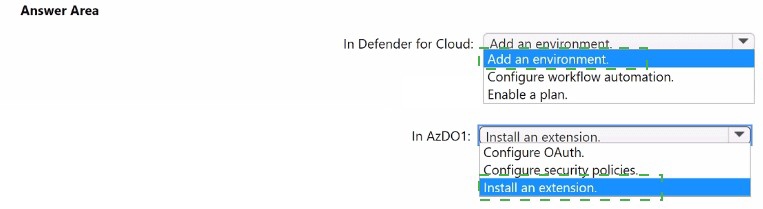
Explanation:
✅ Why these are correct
Add an environment in Defender for Cloud: The native connection between Defender for Cloud and an Azure DevOps organization is initiated in Defender for Cloud. The documentation explicitly states: "To connect your Azure DevOps organization to Defender for Cloud by using a native connector: Go to Microsoft Defender for Cloud > Environment settings. Select Add environment. Select Azure DevOps" . This must be done before any security features, such as secret scanning, can function.
Install an extension in AzDO1: Detecting exposed secrets in a DevOps pipeline requires the pipeline to run a scanner. Secret scanning in Azure DevOps is powered by GitHub Advanced Security for Azure DevOps, which is enabled by installing the Microsoft Security DevOps extension in your Azure DevOps organization . The documentation confirms that installing this extension is a prerequisite for security recommendations and secret scanning, and it requires Project Collection Administrator permissions .
❌ Why the other options are incorrect
In Defender for Cloud:
Configure workflow automation: This refers to setting up automated responses to alerts, not the initial step of connecting the DevOps environment.
Enable a plan: While a Defender plan (Defender CSPM) is required for advanced security features, it is not the first configuration step to establish the connection and enable secret scanning .
In AzDO1:
Configure OAuth: This must be enabled in the organization as a prerequisite, but it is a one-time organization setting. It is not the specific action of installing a security scanning tool that runs in pipelines to detect secrets .
Configure security policies: This is relevant for authorization on the Azure side, not for installing the scanning engine in Azure DevOps.
📌 References
Microsoft Learn: Defender for Cloud supports secret scanning for Azure DevOps using GitHub Advanced Security and the Microsoft Security DevOps extension
Microsoft Learn: Step-by-step process to add an environment in Defender for Cloud is the starting point
You have a Microsoft 365 E5 subscription that uses Microsoft Teams.
You need to perform a content search of Teams chats for a user by using the Microsoft
Purview compliance portal. The solution must minimize the scope of the search.
How should you configure the content search? To answer, select the appropriate options in
the answer area.
NOTE: Each correct selection is worth one point.
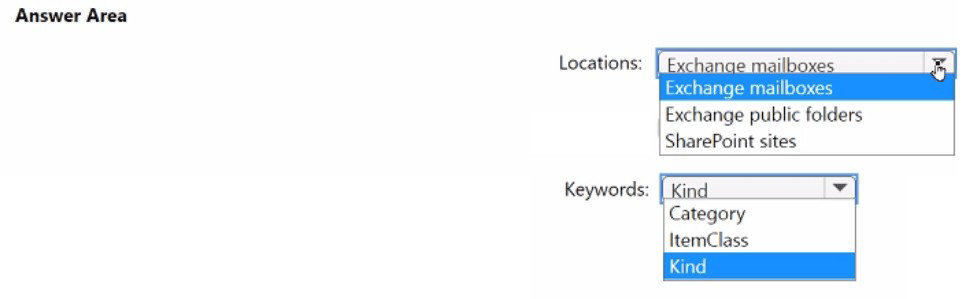
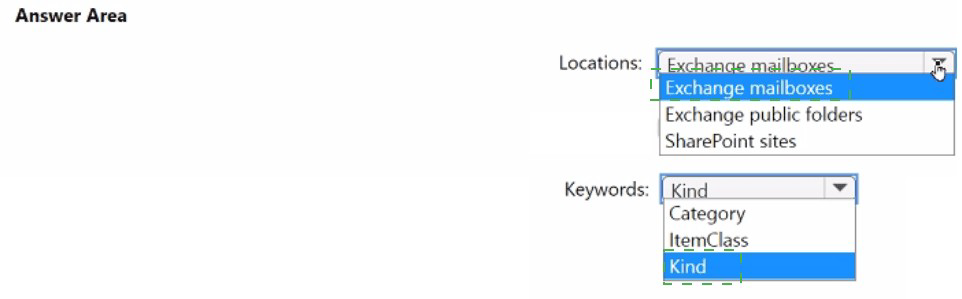
Explanation:
✅ Why these are correct
Location: Exchange mailboxes
Microsoft Teams chat messages (1:1, group, and channel messages) are not stored in a dedicated, searchable container. Instead, they are stored in the Exchange Online mailbox of each chat participant . The compliance portal's documentation explicitly states that to collect Teams messages, the search must target the Exchange mailbox location .
Keyword: Kind
To filter the search to Teams chats specifically, you must use the kind property. By setting the value to kind:microsoftteams, you instruct the search to return only items categorized as Teams chat conversations . This refines the search to the specific ConversationHistory folder within the mailboxes, minimizing noise from other email items .
❌ Why other options are incorrect
Locations:
Exchange public folders: Public folders are used for specific group email storage, not for storing private Teams chat data .
SharePoint sites: While SharePoint stores files shared in Teams channels, it does notstore the text of the chat messages themselves .
Keywords:
Category & ItemClass: While ItemClass (e.g., IPM.SkypeTeams.Message) can be used in advanced queries, kind is the standard user-friendly property recommended for filtering by message type .
📌 References
Microsoft Q&A: Teams chat messages are stored in individual Exchange mailboxes
Microsoft Learn: Use kind property to filter search results by message type (e.g., kind:microsoftteams)
You have 100 Azure subscriptions that have enhanced security features m Microsoft
Defender for Cloud enabled. All the subscriptions are linked to a single Azure AD tenant.
You need to stream the Defender for Cloud togs to a syslog server. The solution must
minimize administrative effort What should you do? To answer, select the appropriate
options in the answer area NOTE: Each correct selection is worth one point
Explanation:
✅ Why these are correct
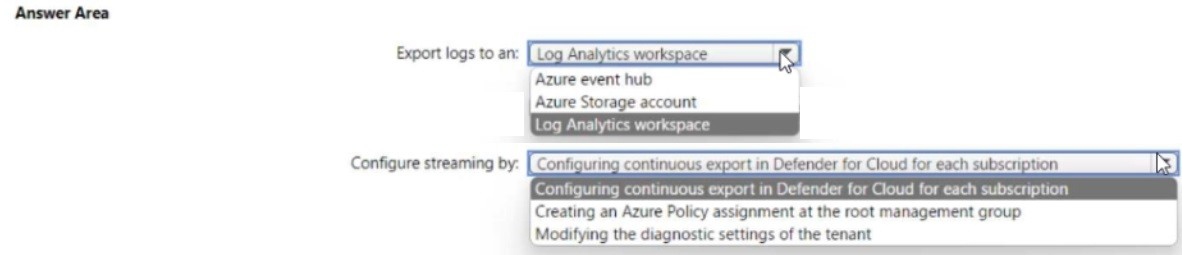
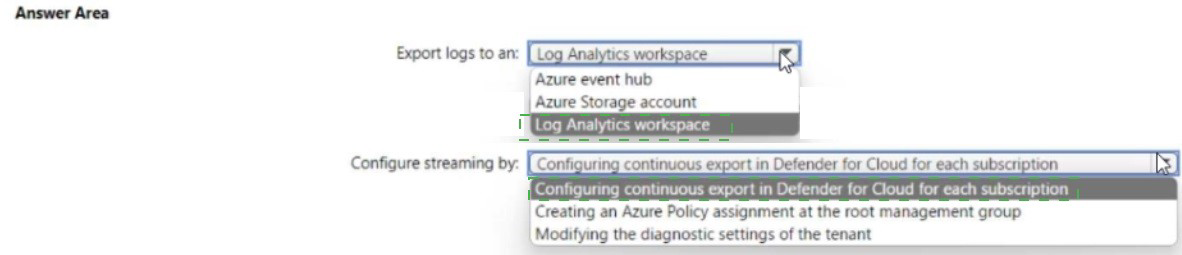
Export logs to an Azure event hub: To send Defender for Cloud logs to a syslog server, you must first stream the logs to an Azure Event Hub. Documentation confirms: "To stream alerts into syslog servers, connect Defender for Cloud using continuous export and Azure Event Hubs" . The Event Hub acts as the platform that can securely forward logs to external SIEM systems, including syslog servers.
Configure streaming by creating an Azure Policy assignment at the root management group: With 100 subscriptions, manually configuring continuous export for each subscription would violate the "minimize administrative effort" requirement. Azure Policy allows you to assign a single policy at the root management group, which automatically applies the configuration to all existing and future subscriptions under that management group . The official documentation provides the policy Deploy export to Event Hub for Microsoft Defender for Cloud alerts and recommendations (ID: cdfcce10-4578-4ecd-9703-530938e4abcb) specifically for this purpose .
From the root management group, you can assign roles and policies that are inherited by all child management groups and subscriptions, enabling large-scale deployment with minimal administrative effort .
❌ Why other options are incorrect
Log Analytics workspace
While a Log Analytics workspace can receive logs, streaming directly from there to an external syslog server is not the standard integration path. Event Hubs is the documented method for exporting to third-party SIEM and syslog servers .
Configuring continuous export in Defender for Cloud for each subscription
For 100 subscriptions, configuring each individually requires significant time and administrative effort, violating the "minimize administrative effort" requirement .
Modifying diagnostic settings of the tenant
Diagnostic settings are not the correct configuration path for exporting Defender for Cloud alerts to external syslog servers. Continuous export via Event Hubs is the documented solution, and Azure Policy is the scale mechanism .
📌 References
microsoft learn:"To stream alerts into Syslog servers, connect Defender for Cloud using continuous export and Azure Event Hubs"
Microsoft Learn: "For large organizations it's recommended to use Azure policy to configure this scenario at scale"
| Page 2 out of 37 Pages |