Topic 3: Misc. Questions
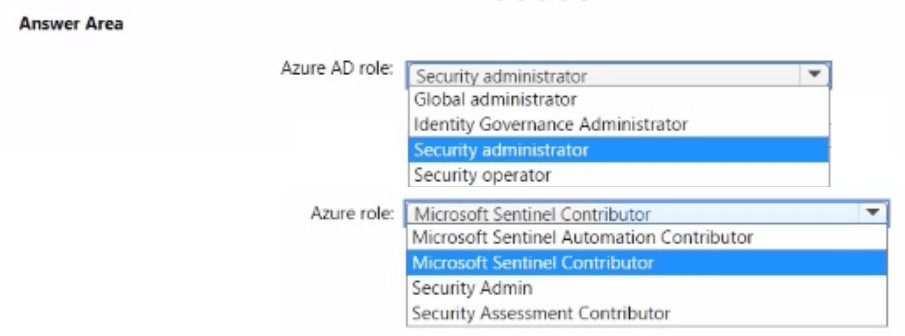
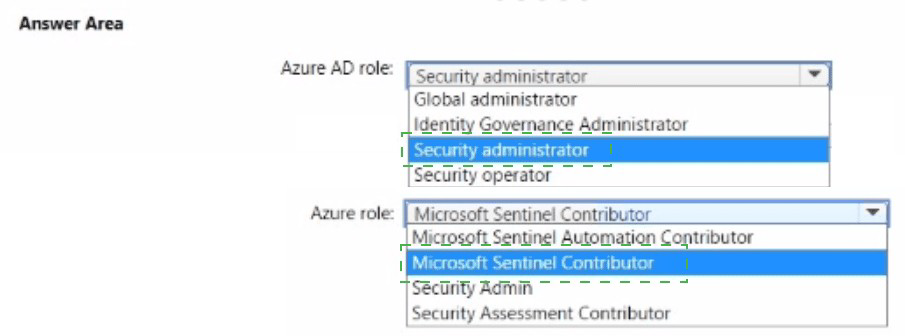
You have an Azure subscription that uses Microsoft Sentinel and contains a user named
User1.
You need to ensure that User1 can enable User and Entity Behavior Analytics (UEBA) for
entity behavior in Azure AD The solution must use The principle of least privilege.
Which roles should you assign to Used? To answer select the appropriate options in the
answer area.
NOTE: Each correct selection is worth one point.
Explanation:
Enabling UEBA is a multi-stage process that requires permissions across both the security platform and the identity provider.
Microsoft Sentinel Contributor (Azure Role):
Why: This role provides the necessary permissions to manage the Sentinel workspace, including the ability to enable features, configure data connectors, and modify settings like UEBA. Unlike the "Owner" role, it does not grant the ability to manage user access (RBAC) to the workspace, satisfying the least privilege requirement for the Azure resource side.
Global Administrator (Microsoft Entra Role):
Why:To enable UEBA, Sentinel must sync identity data from Microsoft Entra ID. This specifically requires the Global Administrator or Security Administrator role at the time of enablement to authorize the service-to-service connection and allow Sentinel to read the tenant's identity information.
Key Steps for UEBA Enablement
Select UEBA: In the Microsoft Sentinel navigation menu, go to Entity behavior.
Configure: Toggle the feature to On.
Data Sources: Select the specific sources (like Azure Activity, Security Events, or Sign-in logs) that UEBA will use to model behavior.
References
Microsoft Learn:
Roles and permissions in Microsoft Sentinel
You have a Microsoft 365 E5 subscription that uses Microsoft Defender XDR.
You are implementing a deception rule.
You need to provide a custom lure file.
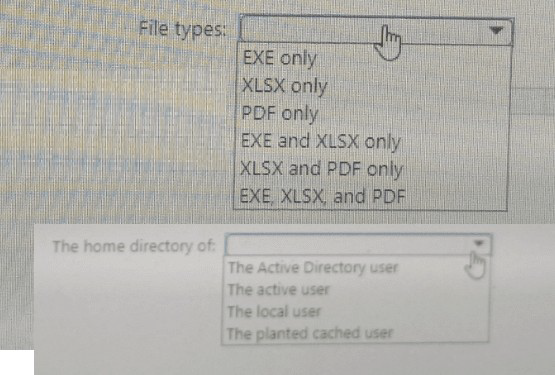
For the custom lure, you set Planting path to HOME.
Which types of files can you use for the custom lure, and in which home directory should
the file be located on a device? To answer, select the appropriate options in the answer
area.
NOTE: Each correct selection is worth one point.
Explanation:
Technical Analysis
Deception technology in Microsoft Defender XDR works by planting "lures" (decoys) to attract and detect attackers who have bypassed perimeter defenses.
File Types: * Deception lures are designed to look like attractive targets for credential harvesting or data exfiltration. Defender supports standard Office document formats and PDF files because these are commonly sought after by attackers looking for sensitive information (e.g., "Passwords.docx" or "Finance_Q4.xlsx").
Planting Path (HOME):
When the planting path is set to HOME, the system targets the active user profiles on the device. In Windows, the home directory is defined as C:\Users
Key Requirements for Custom Lures
Lure Content: The files must look realistic to be effective.
Detection: Any interaction with these files (opening, copying, or modifying) by a non-authorized process triggers a high-confidence alert in Microsoft Defender XDR.
Scope: Deception rules are applied to specific device groups to ensure lures are only deployed where they provide the most strategic value.
References
Microsoft Learn:
Deception in Microsoft Defender XDR
You have a Microsoft 365 subscription that uses Microsoft Defender XDR.
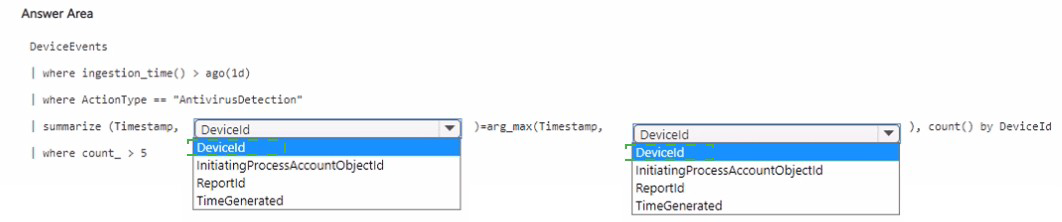
You need to create a custom detection rule that will identify devices that had more than five
antivirus detections within the last 24 hours.
how should you complete the query? To answer, select the appropriate options in the
answer area.
NOTE Each correct selection is worth one point.
Answer:
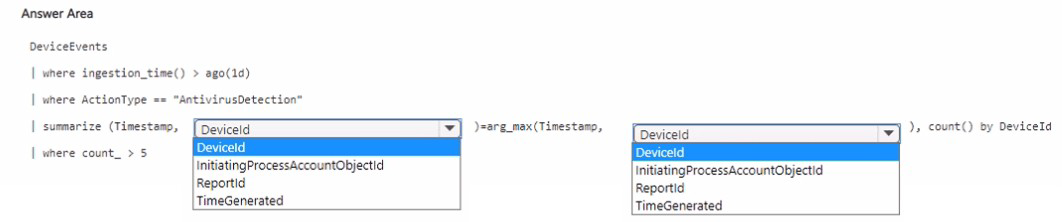
Technical Analysis
This query focuses on grouping detection events by unique devices over a specific rolling time window.
DeviceInfo (Table Selection):
While antivirus events are often found in AlertEvidence, DeviceInfo is frequently used in custom detection rules as the "base" table to ensure the rule returns the required entities (DeviceId/DeviceName) for the Defender XDR action engine to apply remediations (like isolating the device).
ago(24h) (Time Filter):
This satisfies the requirement to look specifically "within the last 24 hours."
summarize dcount(ReportId) by DeviceId:
The summarize operator is essential here. dcount(ReportId) counts the unique instances of detections. By grouping by DeviceId, you aggregate those counts per individual machine.
where dcount_ReportId > 5:
This is the final threshold filter that isolates only those devices that have exceeded the specified limit of five detections.
Why Other Options Are Incorrect
AlertInfo / AlertEvidence:
While these tables contain alert data, they may not always include the specific heartbeat or device metadata required for a "Device" type custom detection rule to function correctly without additional joins.
count vs dcount:
count would count every single row. If a single detection generates multiple log lines, count would be artificially high. dcount (distinct count) on a unique identifier like ReportId ensures you are counting actual unique detection events.
References
Microsoft Learn:
Create and manage custom detection rules in Microsoft Defender XDR
You have a Microsoft 365 E5 subscription that uses Microsoft Exchange Online.
You need to identify phishing email messages.
Which three cmdlets should you run in sequence? To answer, move the appropriate
cmdlets from the list of cmdlets to the answer area and arrange them in the correct order.


Explanation:
This sequence allows you to move from general connectivity to broad mail flow visibility, and finally to granular message forensics.
Step 1: Connect-ExchangeOnline
Purpose: You must first establish a remote PowerShell session with the Exchange Online service using your administrative credentials to access any mail flow data.
Step 2: Get-MessageTrace
Purpose: This cmdlet is used to search the mail flow logs. You can filter by sender, recipient, or date range to find suspicious messages. It provides high-level info like the "Status" (e.g., Delivered, FilteredAsSpam, or Failed).
Step 3: Get-MessageTraceDetail
Purpose:Once you have identified a suspicious message's MessageTraceId from the previous step, you use this cmdlet to see the "Events" associated with it. This reveals exactly what happened during the transport process, such as being diverted by a specific anti-phishing policy or being caught by the junk folder.
Why Other Cmdlets Are Incorrect
Get-PhishFilter / Get-PhishRule: These are typically used to view or manage the configuration of anti-phishing policies themselves, rather than identifying or tracing specific email messages that have already passed through the system.
Search-Mailbox: While this can find messages in a user's inbox, it is deprecated in favor of New-ComplianceSearch and does not provide the transport-level trace details necessary to verify why a message was flagged as phish.
References
Microsoft Learn:
Get-MessageTrace (ExchangePowerShell)
You have a Microsoft Sentinel workspace.
A Microsoft Sentinel incident is generated as shewn in the following exhibit.
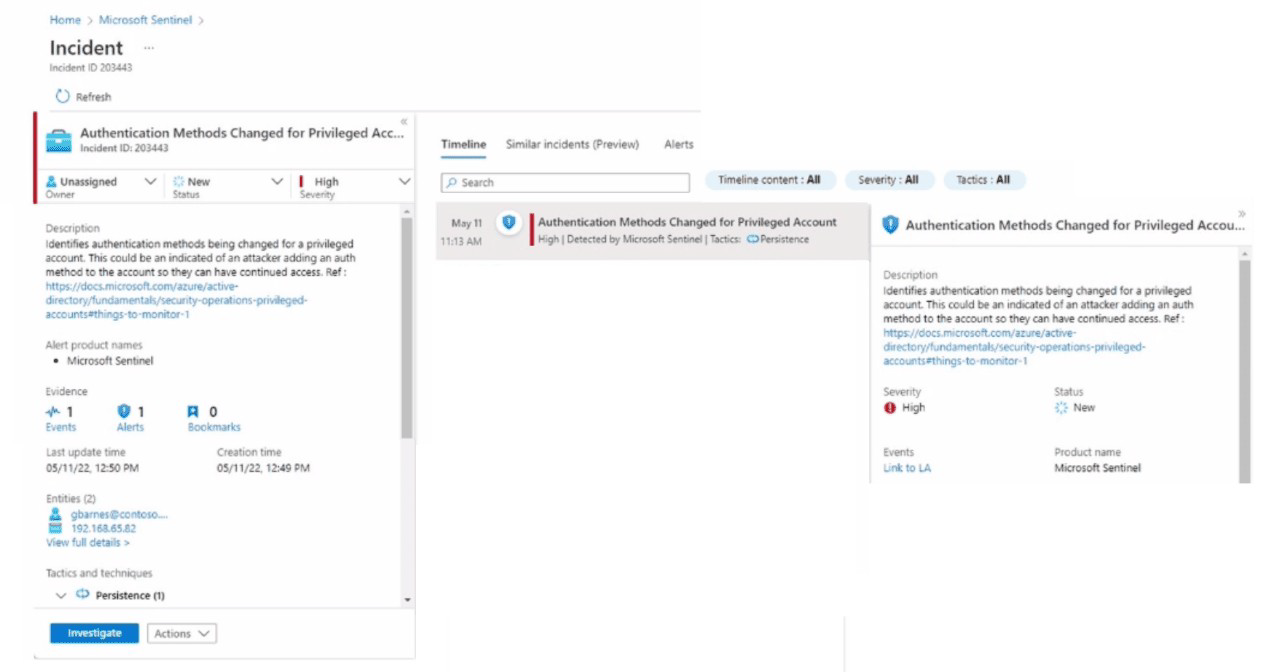
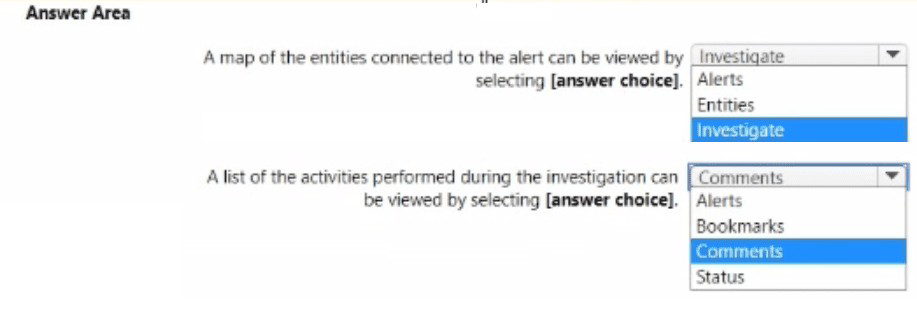
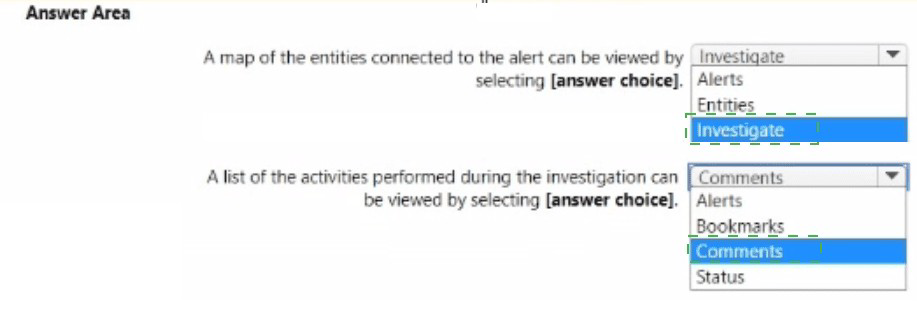
Use the drop-down menus to select the answer choice that completes each statement
based on the information presented in the graphic.
NOTE: Each correct selection is worth one point.
Technical Analysis:
To determine these values, we look at the Incident Overview and Evidence sections displayed in the sidebar:
Alerts (4): In the incident summary header or the "Evidence" tab, the count for Alerts is explicitly listed as 4. This indicates that the incident aggregation logic (or manual grouping) has combined four distinct security alerts into this single investigative case.
Entities (3):Directly below the alert count in the summary, the Entities count is listed as 3. This refers to the unique mapped objects associated with the alerts, such as the account (User), the host (Virtual Machine), and the IP address involved in the suspicious activity.
Key Concepts
Alert Grouping: Microsoft Sentinel uses analytics rules to group alerts into incidents based on specific entities (like a shared account or host) or timeframes. This helps reduce "alert fatigue" by allowing an analyst to investigate one correlated incident instead of four separate alerts.
Entities:These are the essential building blocks of an investigation. They provide the context of "Who" (Account), "Where" (Host/IP), and "What" (Process/File) was involved in the security event.
References
Microsoft Learn:
Investigate incidents with Microsoft Sentinel
You have an Azure subscription that contains a user named User1 and a Microsoft Sentinel
workspace named WS1. WS1 uses Microsoft Defender for Cloud.
You have the Microsoft security analytics rules shown in the following table.
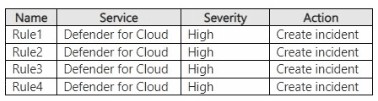
User1 performs an action that matches Rule1, Rule2, Rule3, and Rule4. How many
incidents will be created in WS1?
A. 1
B. 2
C. 3
D. 4
Explanation:
✅ Why A is correct
Microsoft Sentinel has a built-in alert grouping mechanism that automatically correlates multiple alerts from different analytics rules into a single incident when they share the same entities and occur within a short time window.
Since User1 performed an action that matches Rule1, Rule2, Rule3, and Rule4 concurrently, and all rules are triggered by the same user (User1) and likely involve similar or overlapping entity sets (e.g., User1 as the Account entity), Sentinel automatically groups these four alerts into one incident.
The official documentation states: "Sentinel correlates alerts into incidents based on the entities that they share. If you have several alerts that share the same entities, they will be grouped into one incident." In this scenario, all four rules create alerts tied to the same user account (User1), which is the shared entity. Therefore, only one incident is created.
❌ Why other options are incorrect
B. 2Incorrect because there is no basis for splitting into two incidents when all alerts are linked to the same user.
C. 3Incorrect; no configuration would produce three incidents from four alerts all triggered simultaneously by the same user.
D. 4 This would happen only if rule grouping were disabled or if each rule created an incident independently without entity correlation. However, Microsoft Sentinel's default behavior is to group related alerts into a single incident.
📌 References
Microsoft Learn: "Microsoft Sentinel correlates alerts into incidents based on the entities they share"
Microsoft Learn: "If several alerts share the same entities, they will be grouped into one incident"
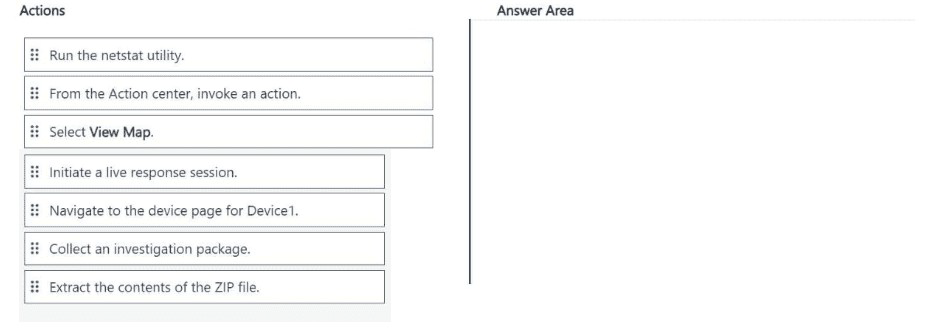
You have an on-premises Windows 11 Pro device named Device1 that is onboarded to
Microsoft Defender for Endpoint
You have a Microsoft 365 subscription.
You need to identify the processes running on Device1 and which network connections the
processes have open. The solution must minimize administrative effort.
Which four actions should you perform in the Microsoft Defender portal in sequence? To
answer, move the appropriate actions from the list of actions to the answer area and
arrange them in the correct order.
Explanation:
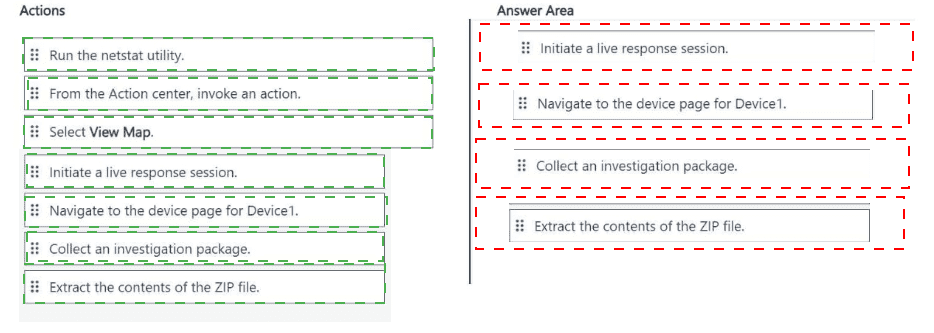
Step 1 & 2:Live Response is the most direct way to get a "snapshot" of current activity without waiting for the next telemetry sync or running complex KQL hunting queries. You access this by navigating to the specific device's inventory page and clicking the "Initiate Live Response session" button.
Step 3 (processes):Once the remote shell is active, the processes command lists all active processes, providing details similar to Task Manager (PID, name, path).
Step 4 (connections): The connections command specifically lists active network connections established by those processes, showing local and remote IP addresses and ports.
Why Other Actions Are Not Selected
netstat: While a valid Windows command, Live Response uses its own built-in library of optimized commands (like connections) for better integration and speed within the portal shell.
Running a scan: A Quick or Full scan looks for malicious files on the disk but does not provide a live map of process-to-network activity.
Collecting an investigation package:This downloads a ZIP file containing various logs for offline analysis. While thorough, it requires more administrative effort to download, extract, and parse than simply running two commands in the Live Response shell.
References
Microsoft Learn:
Investigate entities on devices using Live Response
| Page 6 out of 37 Pages |