Topic 3: Misc. Questions
You have four Azure subscriptions. One of the subscriptions contains a Microsoft Sentinel
workspace.
You need to deploy Microsoft Sentinel data connectors to collect data from the
subscriptions by using Azure Policy. The solution must ensure that the policy will apply to
new and existing resources in the subscriptions.
Which type of connectors should you provision, and what should you use to ensure that all
the resources are monitored? To answer, select the appropriate options in the answer
area.
NOTE: Each correct selection is worth one point.
Explanation:
✅ Why Diagnostic settings is correct for the connector type
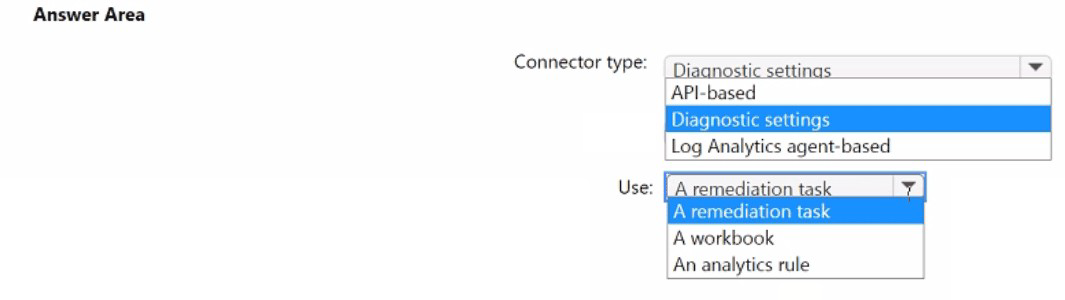
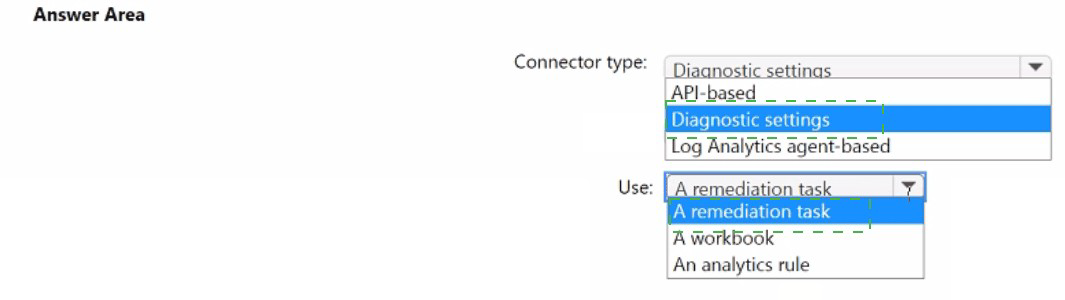
The Diagnostic settings-based connections in Microsoft Sentinel are designed to be configured at scale using Azure Policy. When you need to collect data from multiple Azure subscriptions, this method allows you to apply a single diagnostic settings configuration to a collection of resources of a single type, defined as a scope. This approach is managed by Azure Policy, making it ideal for multi-subscription environments.
Common examples of Diagnostic settings-based connectors include Azure Activity, Azure SQL, Azure Storage, and various other Azure resource types. The question specifically mentions using Azure Policy to collect data, which directly points to Diagnostic settings as the correct connector type.
✅ Why A remediation task is correct to ensure existing resources are monitored
When you deploy a diagnostic settings connector using the Azure Policy Assignment wizard, the policy applies to resources added in the future by default. To ensure that existing resources in the subscriptions are also monitored, you must select the Create a remediation task checkbox in the Remediation tab during policy assignment.
Remediation tasks in Azure Policy are specifically designed to bring existing non-compliant resources into compliance by deploying the required configuration (in this case, diagnostic settings) to those resources. Without a remediation task, only newly created resources would be covered, failing the requirement that the policy applies to existing resources.
❌ Why other options are incorrect
API-based connectors require manual connection per resource instance and do not leverage Azure Policy for scale deployment across multiple subscriptions.
Log Analytics agent-based connections are used for Windows Security Events and on-premises servers, not for collecting Azure subscription telemetry at scale via Azure Policy.
An analytics rule or workbook would not ensure that all resources are monitored—these are for detection and visualization after data is already being collected.
📌 References
Microsoft Learn: Diagnostic settings-based connections use Azure Policy for configuration at scale
Microsoft Learn:Create a remediation task to apply policies to existing resources
You have an Azure DevOps organization that uses Microsoft Defender for DevOps. The
organization contains an Azure DevOps repository named Repo1 and an Azure Pipelines
pipeline named Pipeline1. Pipeline1 is used to build and deploy code stored in Repo1.
You need to ensure that when Pipeline1 runs, Microsoft Defender for Cloud can perform secret scanning of the code in Repo1.
What should you install in the organization, and what should you add to the YAML file of
Pipeline"!? To answer, select the appropriate options in the answer area.
NOTE: Each correct selection is worth one point.
Explanation:
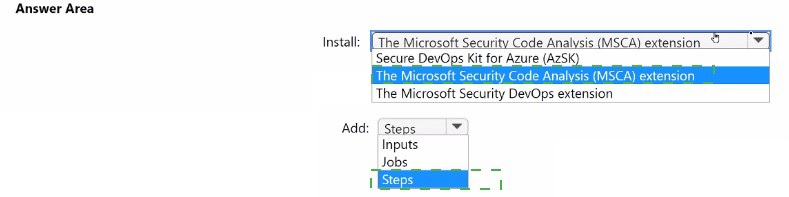
To ensure that Microsoft Defender for Cloud can perform secret scanning on the code in Repo1 when Pipeline1 runs, you need to install the Microsoft Security DevOps extension in your Azure DevOps organization and add steps to the YAML file of Pipeline1.
Here is a concise breakdown of why these are the correct choices:
Install: The Microsoft Security DevOps extension
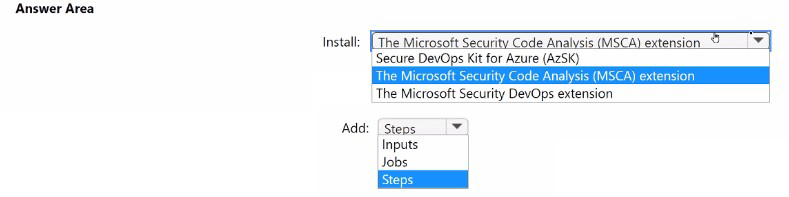
To enable secret scanning and other security checks in Azure Pipelines, you must install the Microsoft Security DevOps (MSDO) extension from the Azure DevOps Marketplace. This extension integrates your pipeline directly with Microsoft Defender for Cloud to perform static code analysis, secret detection, and vulnerability scanning. It is the successor to older tools like the Microsoft Security Code Analysis (MSCA) extension.
Add: Steps
After installing the extension, you must add a steps section (or a new step within an existing steps section) to your pipeline's YAML file. Within this steps block, you define the task to invoke the scanner, using the syntax - task: MicrosoftSecurityDevOps@1. This tells the pipeline to run the security scan, including secret scanning, every time the pipeline executes.
Why other options are incorrect
The other options do not fulfill the requirement to enable secret scanning in the pipeline:
The Microsoft Security Code Analysis (MSCA) extension: This is an older, deprecated extension that has been superseded by the Microsoft Security DevOps extension and should not be used for new implementations.
The Secure DevOps Kit for Azure (AzSK): This is a set of tools for securing Azure subscriptions and resources, not a pipeline extension for scanning source code for secrets.
nputs or Jobs: While inputs can be used within the MicrosoftSecurityDevOps@1 task to specify scan categories (like secrets), it is not the top-level section added to the YAML file to host the task. The task itself must be placed under a steps section.
References
Microsoft Learn: Scan for misconfigurations in Infrastructure as Code - Explains setting up the Microsoft Security DevOps extension in Azure Pipelines.
Exam Topics SC-200 Discussion: Community voting and discussion confirm "Microsoft Security DevOps extension" and "steps" as the correct answers.
You have a Microsoft 365 subscription that contains three users named User1. User2 and
User3 and the resources shown in the following table.

You have a Microsoft Defender XDR detection rule named Rule1 that has the following
configurations:
• Scope: DevGroup1
• File hash: File1.exe
• Actions
o Devices: Collect investigation package
o User: Mark as compromised o Files: Block
Each user attempts to run File1.exe on their device.
For each of the following statements, select Yes if the statement is true. Otherwise, select
No.
NOTE: Each correct selection is worth one point.
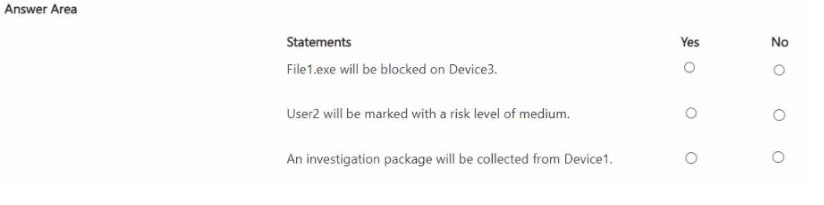
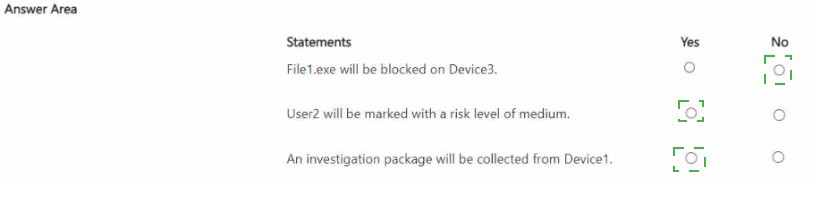
Technical Analysis:
The behavior of a custom detection rule in Microsoft Defender XDR is strictly governed by its Scope. If an event occurs on a device or by a user outside that scope, the actions defined in the rule will not trigger.
User1 is marked as compromised (Yes):
User1 is a member of DevGroup1.
Since User1 is within the rule's scope, when they attempt to run File1.exe on Device1, the rule triggers the "Mark as compromised" action for that user.
V
Investigation package from Device2 (No):
Device2 is used by User2.
User2 is a member of DevGroup2, which is not in the scope of Rule1 (only DevGroup1 is).
Because the user/device is out of scope, the "Collect investigation package" action will not be initiated for Device2.
File1.exe is blocked on Device3 (No):
Device3 is used by User3.
User3 is a member of DevGroup2, which is not in the scope of Rule1.
Similar to Device2, because the activity happens outside the defined scope, the "Block file" action is not applied to Device3.
References
Microsoft Learn: Create and manage custom detections rules - Choose the device scope
Microsoft Learn: Custom detection rule actions
You have a Microsoft 365 E5 subscription that uses Microsoft Defender XDR.
You need to create a hunting query in KQL that meets the following requirements:
• Identifies any devices That received an email containing an attachment named File1 .pdf
during the last 12 hours and opened the attachment.
• Minimizes the resources required to run the query.
How should you complete the query? To answer, select the appropriate options in the
answer area.
NOTE: Each correct selection is worth one point.
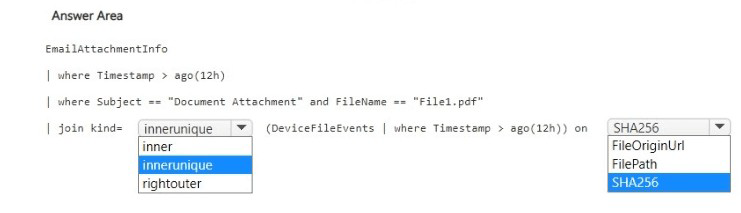
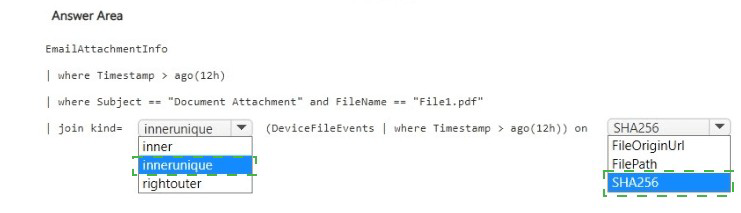
Explanation
Why innerunique is correct for the join kind
The innerunique join flavor removes duplicate keys from the right side (DeviceFileEvents) before joining, reducing the number of rows processed. This directly meets the requirement to minimize the resources required to run the query. Microsoft documentation notes that innerunique is the default join flavor in KQL and is optimized for performance when you only need matching records without duplicates on the right side.
In contrast, inner preserves all duplicate keys from both sides, which increases resource consumption without providing additional value for this correlation scenario.
Why SHA256 is correct for the join condition
The EmailAttachmentInfo table contains a SHA256 column representing the cryptographic hash of the email attachment. The DeviceFileEvents table contains a SHA256 column representing the hash of a file created or modified on the device. Joining on SHA256 ensures that you are correlating the exact file that arrived via email with the exact file that was opened on the device, regardless of filename changes or path differences.
The FileName column alone is insufficient because a malicious file could be renamed. FilePath and FileOriginUrl are not present in both tables as reliable join keys.
Why other options are incorrect
innerPreserves all duplicates on both sides, increasing resource usage without adding value for this correlation.
rightouterZeturns all rows from the right table regardless of match, violating the requirement to minimize resources and potentially returning irrelevant results.
Join ColumnWhy Incorrect
FileNameA file can be renamed; joining on filename would miss cases where the attachment was saved under a different name or miss correlation entirely if names differ.
FileOriginUrlThis column does not exist in DeviceFileEvents and would produce no matches.
FilePathThe file path on the device (e.g., C:\Users\user1\Downloads\File1.pdf) is not stored in EmailAttachmentInfo, which only contains email metadata.
References
Microsoft Learn: join operator documentation – Explains innerunique as the default join flavor optimized for performance
Microsoft Learn: EmailAttachmentInfo table schema– Lists SHA256 as the attachment hash column
Microsoft Learn: DeviceFileEvents table schema – Lists SHA256 as the file hash column
Microsoft Tech Community: Hunting queries often join on SHA256 to correlate email attachments with file activity on endpoints
You have the resources shown in the following table.
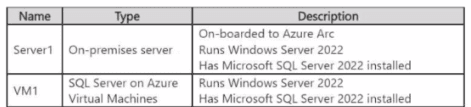
You have an Azure subscription that uses Mictosoft Defender for Cloud.
You need to use Defender for Cloud to protect VM1 and Server1. The solution must meet
the following requirements:
• Support Advanced Threat Protection and vulnerability assessment
• Register each SQL Server 2022 instance as a SQL virtual machine.
• Minimize implementation and administrative effort
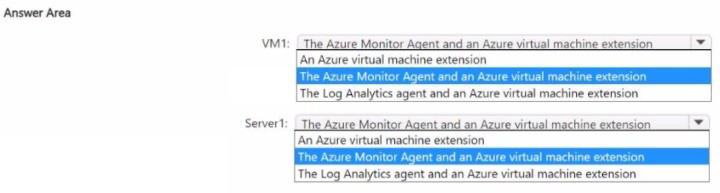
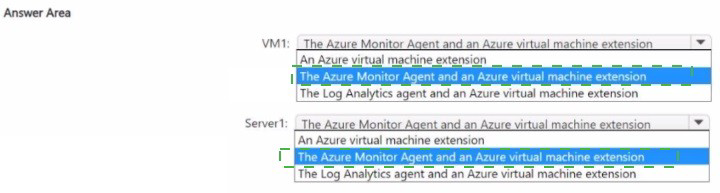
What should you deploy to each server? To answer, select the appropriate options in the
answer area.
NOTE: Each correct selection is worth one point
Explanation:
The solution leverages Azure's management plane to extend cloud-native security to both native and hybrid workloads with minimal effort.
VM1 (Azure VM):
Why: Since VM1 is already an Azure resource, you only need to install the SQL IaaS Agent extension. This extension automatically registers the SQL Server instance as a "SQL virtual machine" in Azure.
Security: Once registered, it enables Microsoft Defender for SQL, which provides the required Advanced Threat Protection and vulnerability assessments.
Server1 (On-premises):
Why:Because this is an on-premises server, it must first be "projected" into Azure. Azure Arc is the standard tool for this. Once the server is Arc-enabled, you can deploy the SQL IaaS Agent extension to it.
Requirement Match: This satisfies the requirement to register the instance as a SQL virtual machine and allows Defender for Cloud to manage it as if it were a native Azure resource, satisfying the vulnerability assessment and threat protection needs.
Minimize Effort: Using the SQL IaaS Agent extension (especially in "Lightweight" or "NoAgent" mode for initial registration) is the most automated way to achieve these requirements compared to manual agent configuration or third-party tools.
References
Microsoft Learn: Automate management with the SQL IaaS Agent extension
Microsoft Learn: Connect your SQL Server to Azure Arc
| Page 12 out of 37 Pages |