Topic 3: Misc. Questions
You have an Azure subscription that uses Microsoft Defender for Cloud.
You create a Google Cloud Platform (GCP) organization named GCP1.
You need to onboard GCP1 to Defender for Cloud by using the native cloud connector. The
solution must ensure that all future GCP projects are onboarded automatically.
What should you include in the solution? To answer, select the appropriate options in the
answer area.
NOTE: Each correct selection is worth one point.
Explanation:
✅ Why these are correct
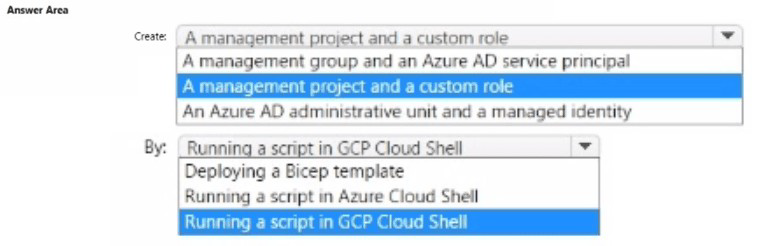
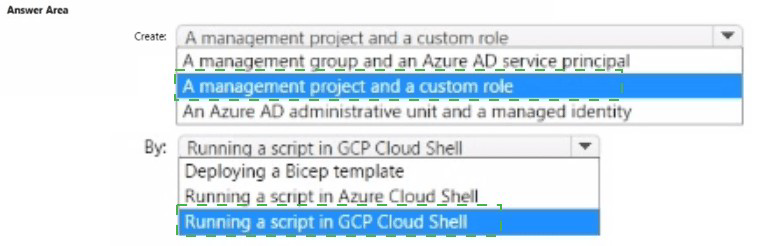
Create: A management project and a custom role– When onboarding a GCPorganization (as opposed to a single project), Microsoft Defender for Cloud requires a management project to centralize all integration-related resources. According to Microsoft's official documentation: "When you onboard an organization, there's a management project details section... you have the choice of assigning a management project to Defender for Cloud to be included in the GCloud script." The onboarding process also creates a custom role on your GCP project to grant Defender for Cloud the necessary permissions to discover and scan resources across the organization .
Additionally, the documentation explicitly states:
"Optionally, if you select Organization, a management project and an organization custom role are created on your GCP project for the onboarding process. Autoprovisioning is enabled for the onboarding of new projects" . This ensures that all future GCP projects are onboarded automatically, which was a key requirement of the question.
By: Running a script in GCP Cloud Shell– During the "Configure access" step of the onboarding wizard, Microsoft Defender for Cloud generates a GCloud script based on the plans you selected. The documentation confirms: "In this step, you can find the GCloud script that needs to be run on the GCP project that is going to onboarded" . You must select GCP Cloud Shell >, and the GCP Cloud Shell will open where you paste the script and run it .
The script creates all required resources in your GCP environment, including:
Workload identity pool and provider (per plan)
Service accounts
Project-level policy bindings
A custom role for organization-level discovery
❌ Why other options are incorrect
A management group and an Azure AD service principal
Management groups are an Azure construct for organizing subscriptions, not relevant to GCP onboarding. Azure AD service principals are used for Azure authentication, not for creating GCP resources.
Running a script in Azure Cloud Shell
Azure Cloud Shell does not have the necessary GCloud CLI tools to execute GCP-specific commands. The script must be run in GCP
Cloud Shell because it uses GCloud commands to create resources in your GCP environment, not Azure resources .
Deploying a Bicep template Bicep templates are used for deploying Azure resources, not for configuring GCP authentication or creating GCP projects and roles.
References
Microsoft Learn: "When you onboard an organization, there's a management project details section"
Microsoft Learn: "Optionally, if you select Organization, a management project and an organization custom role are created"
You have a Microsoft 365 E5 subscription that uses Microsoft 365 Defender for Endpoint.
You need to ensure that you can initiate remote shell connections to Windows servers by
using the Microsoft 365 Defender portal.
What should you configure? To answer, select the appropriate options in the answer area.
NOTE: Each correct selection is worth one point.
 Explanation:
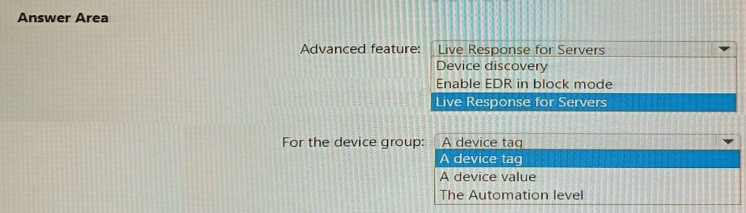
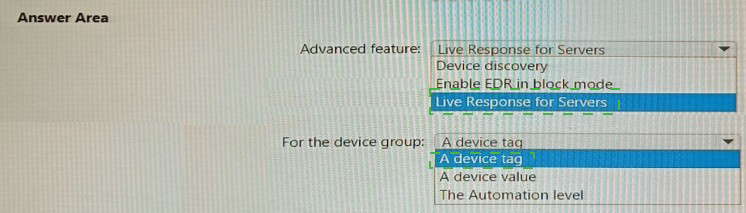
The Live Response capability allows security operations teams to gain instantaneous access to a remote entity to perform forensic collection, run scripts, or remediate threats.
Advanced features (Setting):
In the Microsoft Defender portal, the controls for specialized capabilities like automated investigation, endpoint detection and response (EDR) in block mode, and Live Response are centralized under Settings > Endpoints > Advanced features.
Live Response for Servers (Option):
By default, Live Response might only be enabled for client workstations (Windows 10/11). Because servers often contain highly sensitive data or critical infrastructure, Microsoft requires a distinct toggle to be enabled to extend these remote shell capabilities to Windows Server operating systems.
Note: To run scripts or specialized commands (beyond basic file/process inspection), you must also typically enable the "Live Response unsigned script execution" toggle within the same menu.
References
Microsoft Learn:
Investigate entities on devices using Live Response
You have a Microsoft 365 subscription that uses Microsoft Defender for Endpoint Plan 2
and contains a Windows device named Device1.
Twenty files on Device1 are quarantined by custom indicators as part of an investigation.
You need to release the 20 files from quarantine.
How should you complete the command? To answer, select the appropriate options in the
answer area.
NOTE: Each correct selection is worth one point.


Explanation:
While the Microsoft Defender portal allows for manual releases through the Action Center, using the command-line interface is the most efficient way to handle a batch of 20 files.
Undo-MpQuarantine (Action):
This is the specific PowerShell cmdlet used to restore files that have been moved to the quarantine folder by Microsoft Defender Antivirus. Since the files were quarantined due to custom indicators, this command reverses that local protection action.
-All (Parameter):
To meet the requirement of releasing all 20 files in a single efficient operation, the -All parameter is used. Without this parameter, you would typically need to specify a QuarantineItemId for each individual file, which increases administrative effort.
Why Other Options Are Incorrect
Set-MpPreference:This cmdlet is used to configure general scan settings and exclusions, not to perform actions on specific quarantined files.
Remove-MpThreat: This command is used to remove a threat from the history or the quarantine entirely (deleting it), which is the opposite of releasing it.
-Path: Specifying a path is useful for singular file actions, but for a batch of 20 dispersed files, -All is the correct bulk operation.
References
Microsoft Learn: Undo-MpQuarantine (Defender)
Microsoft Learn: Manage quarantined files in Microsoft Defender for Endpoint
You have a Microsoft 365 E5 subscription that uses Microsoft Defender XDR.
You have a Microsoft Sentinel workspace.
Microsoft Sentinel connectors are configured as shown in the following table.
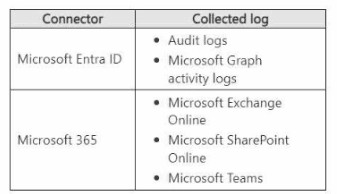
You use Microsoft Sentinel to investigate suspicious Microsoft Graph API activity related to
Conditional Access policies. You need to search for the following activities:
• Downloads of the Conditional Access policies by using PowerShell
• Updates to the Conditional Access policies by using the Microsoft Entra admin center
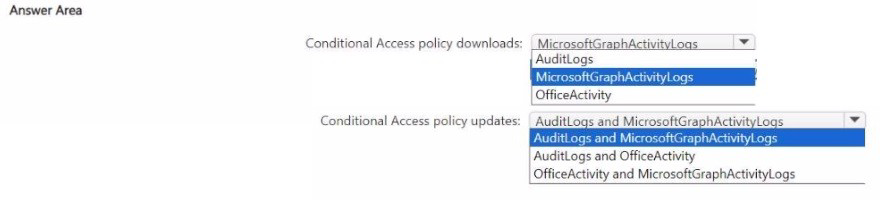
Which tables should you query for each activity? lo answer, select the appropriate options
in the answer area.
NOTE: Each correct selection is worth one point.
Explanation:
✅ Why these are correct
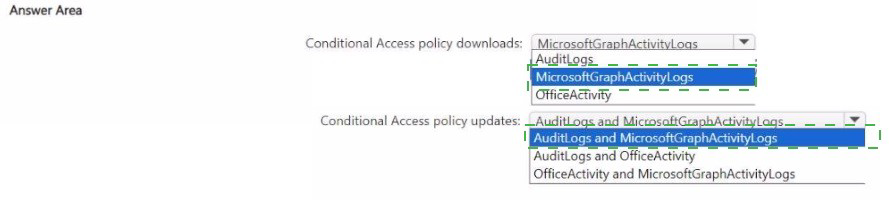
Conditional Access policy downloads – The scenario involves downloading Conditional Access policies using PowerShell. PowerShell cmdlets for Conditional Access (e.g., Get-ConditionalAccessPolicy) operate through Microsoft Graph API. Therefore, these actions are logged in the Microsoft Graph activity logs table (MicrosoftGraphActivityLogs). The AuditLogs table from the Microsoft Entra ID connector does not capture Graph API activity—it captures admin actions performed directly in the Entra admin center, not PowerShell-based downloads.
Conditional Access policy updates – The scenario involves updating Conditional Access policies using the Microsoft Entra admin center (formerly Azure AD portal). These modifications are captured in Microsoft Entra audit logs (AuditLogs). However, the question requires searching for "suspicious Microsoft Graph API activity" related to these updates. Since the Entra admin center also makes calls to the Microsoft Graph API backend when you update a policy, both tables should be queried to fully capture the activity: AuditLogs for the admin portal event and MicrosoftGraphActivityLogs for the underlying API calls.
❌ Why other options are incorrect
Downloads AuditLogsAudit logs capture actions performed in the Entra admin center. PowerShell downloads via Graph API are not recorded in AuditLogs.
Downloads OfficeActivitOfficeActivity logs Exchange, SharePoint, and Teams activity. It does not capture Conditional Access policy actions.
UpdatesAuditLogs only (without Graph logs)Incomplete—would miss the underlying Microsoft Graph API calls triggered by the admin center.
📌 References
Microsoft Learn: Microsoft Graph activity logs overview – Confirms that PowerShell cmdlets and API calls are logged here
Microsoft Learn: Microsoft Entra audit logs schema – Lists Conditional Access policy activities with categories "Policy" and "ConditionalAccess"
You have a Microsoft 365 E5 subscription that uses Microsoft Defender for Office 365.
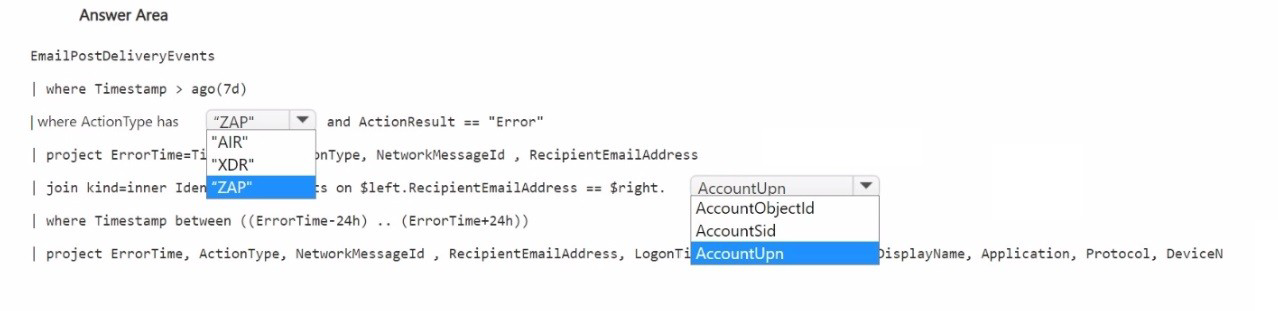
You need to build a hunting query that will list events involving potentially malicious emails
that were detected but NOT removed successfully from mailboxes after delivery. The solution must ensure that the events are correlated with the sign-in events of the email
recipients.
How should you complete the query? To answer, select the appropriate options in the
answer area.
NOTE: Each correct selection is worth one point.
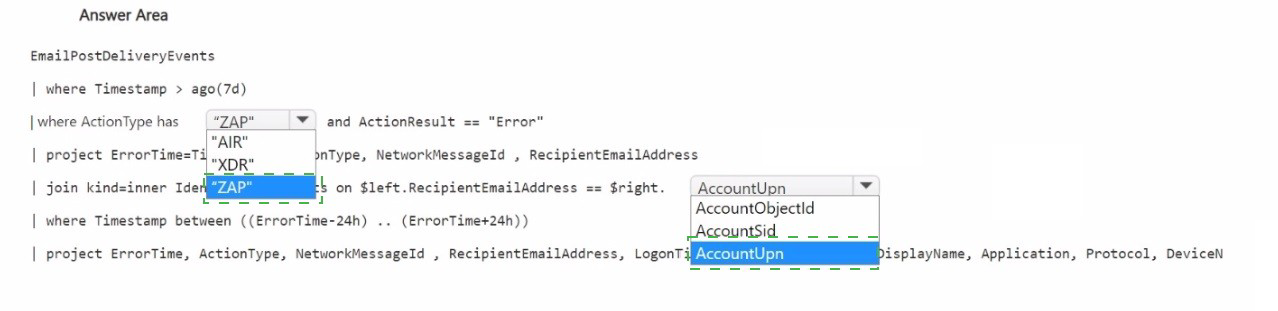
Exploanation:
✅ Why "ZAP" is correct for the ActionType filter
The query needs to identify malicious emails that were detected but not removed successfully. The Zero-Hour Auto Purge (ZAP) feature is responsible for removing malicious emails after delivery . By filtering for ActionType has "ZAP" and ActionResult == "Error", you list only those malicious emails that were identified but failed to be removed from the mailbox . This directly satisfies the requirement to find "emails that were detected but NOT removed successfully."
✅ Why "AccountUpn" is correct for the join field
To correlate the email events with sign-in events of the recipients, the query joins EmailPostDeliveryEvents with IdentityLogonEvents. The correct matching field is AccountUpn (User Principal Name) because it represents the recipient's identity in both tables. The official documentation shows: join kind=inner IdentityLogonEvents on $left.RecipientEmailAddress == $right.AccountUpn . This ensures that for each failed ZAP email, you retrieve the recipient's sign-in activity within 24 hours of the email timestamp.
❌ Why other options are incorrect
"AIR"Automated Investigation and Response (AIR) is a different feature for incident remediation, not relevant for filtering malicious email detection events.
"XDR"Microsoft Defender XDR is the broader platform, not a specific email action type for filtering ZAP results.
AccountObjectIdWhile this represents a user identity, it is not the field used in the join within the official Microsoft example. The standard field for email recipient matching is AccountUpn.
AccountSidThe Security Identifier is not the standard join field for correlating email recipients with sign-in events; AccountUpn is the documented property.
📌 References
Microsoft Learn:Example query using where ActionType has "ZAP" and ActionResult == "Error"
Microsoft Learn: Join on AccountUpn to correlate email and sign-in events
You have an Azure subscription.
You need to delegate permissions to meet the following requirements:
• Enable and disable advanced features of Microsoft Defender for Cloud.
• Apply security recommendations to a resource.
The solution must use the principle of least privilege.
Which Microsoft Defender for Cloud role should you use for each requirement? To answer,
drag the appropriate roles to the correct requirements. Each role may be used once, mote
than once, or not at all. You may need to drag the split bar between panes or scroll to view
content.
NOTE: Each correct selection is worth one point.


Explanation:
✅ Why these are correct
Security Admin for enabling/disabling advanced features
The Security Admin role is specifically designed for security-related configurations. According to Microsoft's official documentation, Security Admin can "update the security policy" and "dismiss alerts and recommendations" . Enabling or disabling advanced Defender for Cloud plans (such as Defender for Servers, Defender for Storage, etc.) is considered a security policy update. This role provides the necessary permissions without granting full subscription management rights, adhering to least privilege.
Subscription Contributor for applying security recommendations
Applying security recommendations to a resource (e.g., remediating a vulnerability by modifying a resource configuration) requires write permissions at the resource level. The Subscription Contributor role grants the ability to manage all Azure resources in the subscription, which includes the permission to implement remediation actions suggested by Defender for Cloud recommendations . While Security Admin can view and dismiss recommendations, the actual remediation action (like adding a network security group rule or modifying resource settings) requires Contributor-level access to the specific resource.
❌ Why other roles are not appropriate
RoleWhy Not Suitable for These Tasks
Resource Group OwnerWhile this role grants full control over resources in a resource group, it is more permissive than needed for enabling advanced Defender features (which are subscription-level). For applying recommendations, Subscription Contributor is the standard least-privilege role.
Subscription OwnerThis role has full access to all resources and can assign roles to others. It violates the principle of least privilege for both tasks, as the Security Admin role is sufficient for enabling advanced features.
References
Microsoft Learn: "Security Admin can update the security policy, dismiss alerts and recommendations"
Microsoft Learn: "To apply recommendations, you must have permissions to the affected resource" (Contributor or Owner)
| Page 8 out of 37 Pages |