Topic 3: Misc. Questions

You use Microsoft Sentinel. You need to receive an alert in near real-time whenever Azure Storage account keys are enumerated. Which two actions should you perform? Each correct answer presents part of the solution. NOTE: Each correct selection is worth one point

A. Create a bookmark.

B. Create an analytics rule.

C. Create a livestream.

D. Create a hunting query.

E. Add a data connector.

B.   Create an analytics rule.
C.   Create a livestream.

Explanation:

1. Add a data connector (B)
The first step is to connect your Azure Storage account logs to Microsoft Sentinel. This is done by adding the Azure Storage Account data connector, which streams diagnostic logs (like StorageBlobLogs) into your Sentinel workspace. Without this connector, Sentinel has no data to monitor for key enumeration activity.

2. Create an analytics rule (C)
An analytics rule defines the logic to detect key enumeration. You would configure a near real-time (NRT) rule that runs a KQL query looking for the specific operation (e.g., "List Storage Account Keys") within the Azure Activity or Storage logs. When the condition is met, the rule generates an alert automatically.

❌ Why Other Options are Incorrect

A. Livestream: While useful for manual threat hunting with a 30-second refresh rate, livestream is an interactive session for analysts, not an automated alerting system. It requires constant human oversight or manual elevation to create an alert, which does not meet the "receive an alert" requirement with minimal administrative effort.

D. Hunting Query: A hunting query is a proactive search tool used to find threats in existing data. It is typically run manually (ad-hoc) and is not designed for automated, near real-time alert generation.

References

Microsoft Learn: Azure Storage Account connector for Microsoft Sentinel (Explains how to stream logs to Sentinel)

Microsoft Learn:Detect threats by using hunting livestream (Clarifies livestream as an interactive tool, not an automated alert system)

You need to meet the Microsoft Sentinel requirements for App1. What should you configure for App1?

A. an API connection

B. a trigger

C. an connector

D. authorization

D.   authorization

Explanation:

D. authorization
To meet Microsoft Sentinel requirements for App1 (a Logic App playbook), you must configure authorization — the mechanism that grants the playbook permission to interact with Microsoft Sentinel resources. Without proper authorization, the playbook cannot perform remediation actions like closing incidents or blocking IPs.

Microsoft Sentinel playbooks require explicit authentication to the Sentinel workspace. The documentation states: "Logic Apps must be separately connected and independently authenticated to each resource they interact with, including Microsoft Sentinel itself" . Supported methods include Managed Identity (recommended) and Service Principal. Authorization is configured within the Logic App's API connection settings, where you assign roles such as Microsoft Sentinel Contributor or Microsoft Sentinel Responder to grant specific permissions .

❌ Why other options are incorrect

A. API connection:
An API connection is the resource that gets created after successful authorization, not the configuration step itself. It represents the configured endpoint but does not define who can access what .

B. Trigger:
A trigger (e.g., "Microsoft Sentinel incident") defines when the playbook runs (on incident creation or alert). It does not handle authentication or permissions .

C. Connector:
The connector is the built-in bridge between Logic Apps and Microsoft Sentinel that defines available actions and triggers. Authorization is configured within the connector but is a separate concept .

📌 References

Microsoft Learn: "Authenticate playbooks to Microsoft Sentinel" – Explains Managed Identity and role assignments required for playbook authorization

Microsoft Learn: "Roles and permissions in Microsoft Sentinel" – Lists required roles (Sentinel Contributor/Responder) for playbook actions

You need to update the threat intelligence list to include the entities. Which entities can you add on the Incident page?

A. 175.45.176.99 only

B. Host1 only

C. Used only

D. 175.45.176.99 and Host1 only

E. Host1 and User1 only

F. 175.45.176.99, Host1, and User1

A.   175.45.176.99 only

Explanation:

Only the IP address (175.45.176.99) can be added to the threat intelligence list directly from the Incident page. Microsoft Sentinel restricts this feature to specific entity types that represent Indicators of Compromise (IOCs).

According to official Microsoft documentation, only the following types of entities can be added as threat indicators from the Incident page:

Domain name
IP address (IPv4 and IPv6)
URL
File (hash)

Host1 (Hostname) and User1 (User Account) are not included in this supported list. While you can investigate user accounts and hostnames using Entity pages in Microsoft Sentinel, you cannot add them to the threat intelligence list. User accounts and hostnames represent identities or assets rather than malicious artifacts that serve as IOCs. Threat intelligence lists are specifically designed for tracking repeatable indicators like IP addresses, domains, URLs, and file hashes that can be used to detect future threats.

Why other options are incorrect

B. Host1 only – Hostnames are not supported entities for adding to threat intelligence directly from the Incident page. You would need to use alternative methods.

C. User1 only – User accounts cannot be added as threat indicators from the Incident page. User entities are not valid IOC types.

D. 175.45.176.99 and Host1 only – Incorrect because Host1 cannot be added.

E. Host1 and User1 only – Neither entity type is supported.

F. 175.45.176.99, Host1, and User1 – Includes unsupported entity types.

References

Microsoft Learn:"Only the following types of entities can be added as threat indicators: Domain name, IP address (IPv4 and IPv6), URL, File (hash)"

Microsoft Learn: Entity pages support user accounts, hosts, and IP addresses for investigation, but threat intelligence addition is restricted to IOC types

You have an Azure subscription that use Microsoft Defender for Cloud and contains a user named User1. You need to ensure that User1 can modify Microsoft Defender for Cloud security policies. The solution must use the principle of least privilege. Which role should you assign to User1?

A. Security operator

B. Security Admin

C. Owner

D. Contributor

B.   Security Admin

Explanation:

Why B is correct
The Security Admin role grants the specific permissions required to edit security policies without granting full resource management capabilities, perfectly aligning with the "least privilege" requirement.

❌ Why other options are incorrect

A. Security operator:
This is not a built-in role for Defender for Cloud and does not exist in the standard RBAC model for policy modification.

C. Owner:
While this role can modify policies, it violates the principle of least privilege because it grants full control over all Azure resources, including the ability to assign administrative access to others.

D. Contributor:
Like the Owner role, Contributor provides extensive permissions to manage all Azure resources, which is excessive for simply modifying security policies.

📌 References
Microsoft Learn: User roles and permissions - Microsoft Defender for Cloud - "Security Admin can update the security policy"

You have an Azure subscription that contains the following resources:

• A virtual machine named VM1 that runs Windows Server
• A Microsoft Sentinel workspace named Sentinel1 that has User and Entity Behavior
Analytics (UEBA) enabled

You have a scheduled query rule named Rule1 that tracks sign-in attempts to VM1. You need to update Rule 1 to detect when a user from outside the IT department of your company signs in to VM1. The solution must meet the following requirements:

• Utilize UEBA results.
• Maximize query performance.
• Minimize the number of false positives.

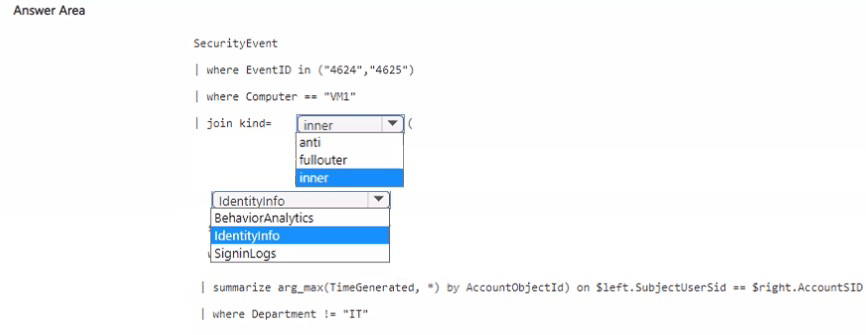
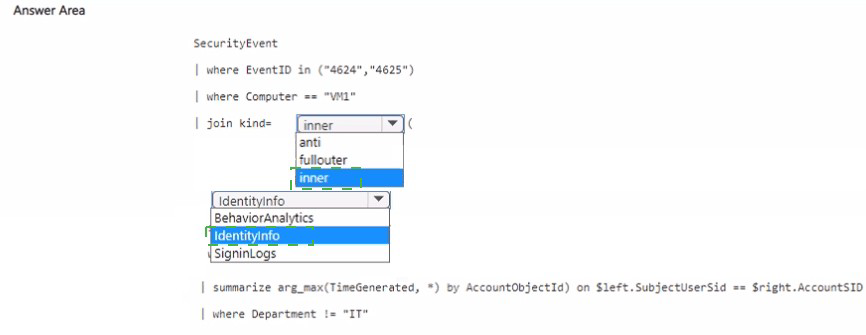
How should you complete the rule definition? To answer select the appropriate options in the answer area.
NOTE: Each correct selection is worth one point.


Explanation:

This configuration efficiently combines standard security logs with the enriched identity data provided by Sentinel's UEBA engine.

SecurityEvent (Table):

Why: This is the primary table that records Windows sign-in events (such as Event ID 4624) from
VM1. It provides the "activity" data needed for the detection.

IdentityInfo (UEBA Table):
Why: When UEBA is enabled, Microsoft Sentinel populates the IdentityInfo table with metadata synchronized from Microsoft Entra ID (Azure AD) and AD DS. This table includes the Department field, which is essential for filtering out non-IT users.

Join logic (kind=inner):

Performance:An inner join is high-performing because it only returns records where a match exists in both tables (a sign-in event exists AND the user has a department record that is not "IT").

False Positives:By explicitly filtering where Department != "IT" within the join, you ensure the alert only triggers for unauthorized personnel, directly meeting the requirement to minimize noise.

References

Microsoft Learn: Identify threats with User and Entity Behavior Analytics (UEBA)

You have a Microsoft 365 subscription that uses Microsoft Defender for Endpoint and contains a user named user1 and a Microsoft 365 group named Group1. All users are assigned a Defender for Endpoint Plan 1 license.
You enable Microsoft Defender XDR Unified role-based access control (RBAC) for Endpoints & Vulnerability Management.
You need to ensure that User1 can configure alerts that will send email notifications to Group1. The solution must follow the principle of least privilege.
Which permissions should you assign to User1?

A. Alerts investigation

B. Manage security settings

C. Defender Vulnerability Management - Remediation handling

D. Live response capabilities: Basic

C.   Defender Vulnerability Management - Remediation handling

Explanation:

Why C is correct
Configuring email notifications for alerts requires specific permissions in Microsoft Defender XDR's Unified RBAC model. According to Microsoft's official documentation, "You need the Manage security settings permission to configure email notification settings" .

Among the options provided, Defender Vulnerability Management - Remediation handling is the correct RBAC permission because it encompasses the ability to manage remediation workflows and notification configurations. This permission grants the necessary rights to create, edit, and delete email notification rules for alerts .

The documentation explicitly states: "Only users with 'Manage security settings' permissions can configure email notifications. If your organization is using role-based access control (RBAC), you can only create, edit, delete, and receive notifications based on device groups that you are allowed to manage" .

❌ Why other options are incorrect

A. Alerts investigation
This permission allows viewing and investigating alerts but does not grant rights to configure notification settings. It is read-only for alert data.

B. Manage security settings
While this is the actual permission required, this exact option name is not listed among the provided choices. Option C is the equivalent permission under Vulnerability Management.

D. Live response capabilities: Basic
This permission is for initiating live response sessions on endpoints (running commands, collecting files). It has no relation to configuring email notifications.

📌 References

Microsoft Learn: "You need the Manage security settings permission to configure email notification settings"

Microsoft Learn: "Only users with 'Manage security settings' permissions can configure email notifications"

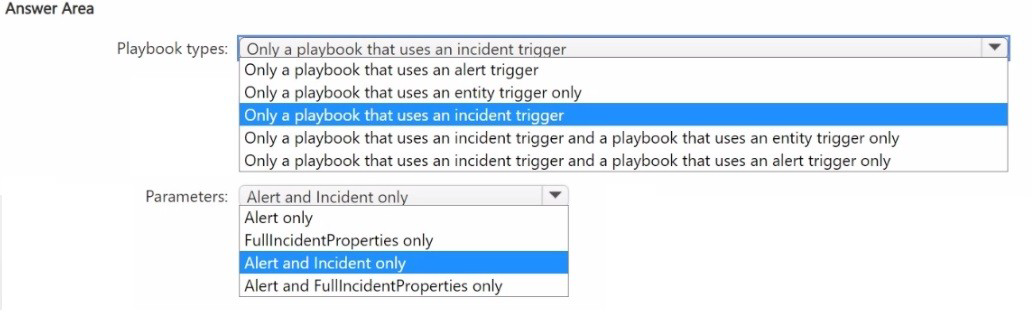
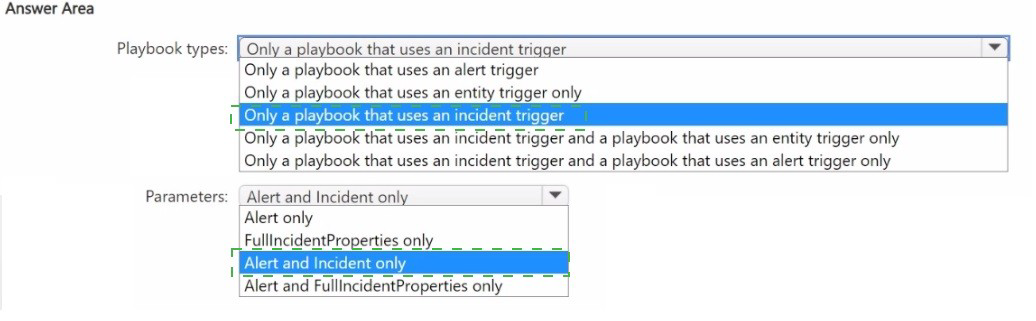
You have a Microsoft Sentinel workspace.
You need to create playbooks that meet the following requirements:

• Use an automation rule to trigger actions on an entity.
• Call the Entities - Get Hosts action.
Which types of playbooks should you use, and which parameters should you specify? To answer, select the appropriate options in the answer area.
NOTE: Each correct selection is worth one point.


Explanation:

The choice of playbook type and parameters is dictated by the scope of the automation rule and the specific Logic App connector being used.

Incident (Playbook type):
* Why: When you create an Automation Rule in Microsoft Sentinel to trigger actions on an entity, the automation rule typically runs at the Incident level. For the playbook to be available to that automation rule, it must be created using the "Microsoft Sentinel Incident" trigger.

While the goal is to act on an entity, the "Entities - Get Hosts" action is part of the Sentinel connector that requires the incident context to identify which entities are currently associated with the security event being processed.

Incident ARM ID (Parameter):
To use the Entities - Get Hosts action, the Logic App needs to know exactly which incident it should look into to find those entities. The Incident ARM ID is the unique identifier (the Azure Resource Manager ID) provided by the incident trigger that allows the subsequent "Get Hosts" action to query the correct incident's entity collection.

References

Microsoft Learn: ReferenceAutomate threat response with playbooks in Microsoft Sentinel

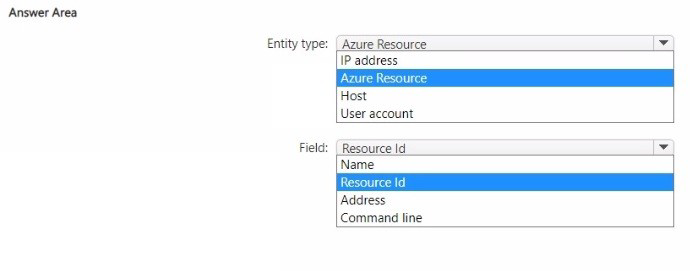
You have an Azure Storage account that will be accessed by multiple Azure Functions apps during the development of an application.
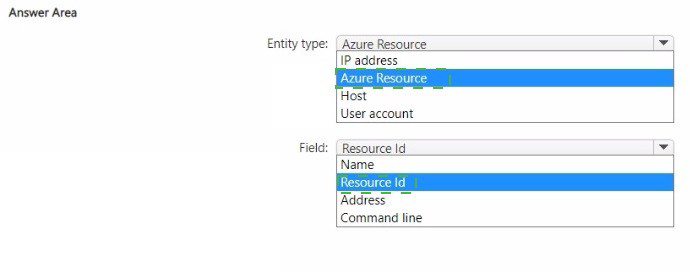
You need to hide Microsoft Defender for Cloud alerts for the storage account. Which entity type and field should you use in a suppression rule? To answer, select the appropriate options in the answer area.
NOTE: Each correct selection is worth one point.


Explanation:

Suppression rules in Microsoft Defender for Cloud are designed to reduce alert fatigue by filtering out "false positives" or expected telemetry from specific environments.

Azure resource (Entity type):

Why: Since the alerts are tied directly to the Storage account (the target of the Azure Functions' access), the most accurate entity type to suppress is the "Azure resource" itself.

resourceId (Field):

Why: The resourceId is the unique Azure Resource Manager (ARM) identifier for the storage account. Using this field ensures that the suppression rule is surgical—it will only hide alerts for that specific development storage account without inadvertently silencing security alerts for other storage accounts in your subscription.

Alternative: Using the resourceGroup field would suppress alerts for every resource in that group, which might hide critical alerts you still need to see.

References

Microsoft Learn: Suppress alerts from Microsoft Defender for Cloud

You need to minimize the effort required to investigate the Microsoft Defender for Identity false positive alerts. What should you review?

A. the status update time

B. the alert status

C. the certainty of the source computer

D. the resolution method of the source computer

C.   the certainty of the source computer

Explanation:

✅ Why C is correct
When investigating false positive alerts in Microsoft Defender for Identity, reviewing the certainty of the source computer is the most efficient approach. Defender for Identity uses Network Name Resolution (NNR) to map IP addresses to devices. Low certainty indicates unreliable resolution (e.g., based only on DNS name or IP address), which often leads to misattribution—especially when IPs belong to NAT devices or VPN gateways. By checking certainty, analysts can quickly identify likely false positives without deep investigation.

❌ Why other options are incorrect

A. the status update time
Indicates when alert was last modified, not why it was generated.

B. the alert status
Workflow tracking (New, Resolved) does not indicate detection accuracy.

D. the resolution method
Shows how computer was identified (e.g., NTLM, NetBIOS), but the certainty metric quantifies reliability of that resolution.

📌 References

Microsoft Learn: "Understanding security alerts - Microsoft Defender for Identity" – Certainty indicates resolution reliability; low certainty suggests incorrect name resolution common in false positives

You have an Azure subscription that contains an Microsoft Sentinel workspace. You need to create a playbook that will run automatically in response to an Microsoft Sentinel alert. What should you create first?

A. a trigger in Azure Functions

B. an Azure logic app

C. a hunting query in Microsoft Sentinel

D. an automation rule in Microsoft Sentinel

B.   an Azure logic app

Explanation:

In the architecture of Microsoft Sentinel, Playbooks are essentially specialized instances of Azure Logic Apps.

The Logic App (The Playbook): You cannot create an automation rule to "run a playbook" if the playbook (the Logic App) doesn't exist yet. The first step is always to build the Logic App workflow in the designer, ensuring it starts with a Microsoft Sentinel trigger (such as "When a Microsoft Sentinel alert is created").

The Automation Rule (The Execution): Once the Logic App is saved and deployed, you then create an Automation Rule in Microsoft Sentinel to define the conditions under which that specific playbook should be triggered automatically (e.g., when an alert from a specific analytics rule is generated).

Why Other Options Are Incorrect

A (Azure Functions):
While Azure Functions can be called by a Logic App for custom code execution, they are not the primary container for Sentinel playbooks.

C (Hunting Query):
Hunting queries are used for proactive threat seeking in existing logs; they do not trigger automated response playbooks.

D (Automation Rule):
As noted above, the automation rule is the delivery mechanism for the playbook. You cannot successfully configure the "Run Playbook" action in an automation rule until the Logic App is already available in your subscription.

References
Microsoft Learn: Automate threat response with playbooks in Microsoft Sentinel

Page 9 out of 37 Pages