Free Microsoft MD-102 Practice Test Questions MCQs
Stop wondering if you're ready. Our Microsoft MD-102 practice test is designed to identify your exact knowledge gaps. Validate your skills with Endpoint Administrator questions that mirror the real exam's format and difficulty. Build a personalized study plan based on your free MD-102 exam questions mcqs performance, focusing your effort where it matters most.
Targeted practice like this helps candidates feel significantly more prepared for Endpoint Administrator exam day.
23440+ already prepared
Updated On : 12-Oct-2026344 Questions
Endpoint Administrator
4.9/5.0
Topic 1: Case Study Contoso, Ltd.Overview
Contoso, Ltd. is a consulting company that has a main office in Montreal and branch offices in Seattle and New York.
Contoso has a Microsoft 365 E5 subscription.
Network Environment
The network contains an on-premises Active domain named Contoso.com. The domain contains the servers shown in the following table.

You have a Microsoft 365 subscription.
You plan to enroll devices in Microsoft Endpoint Manager that have the platforms and
versions shown in the following table.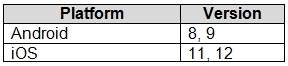
You need to configure device enrollment to meet the following requirements:
Ensure that only devices that have approved platforms and versions can enroll in Endpoint
Manager.
Ensure that devices are added to Microsoft Azure Active Directory (Azure AD) groups based on a selection made by users during the enrollment.
Which device enrollment setting should you configure for each requirement? To answer, select the appropriate options in the answer area.
NOTE: Each correct selection is worth one point.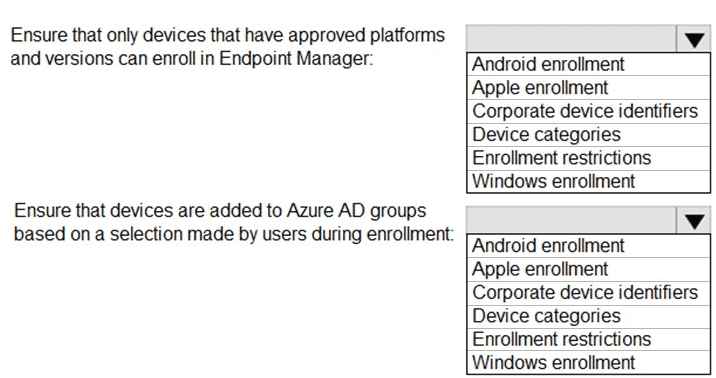
Explanation:
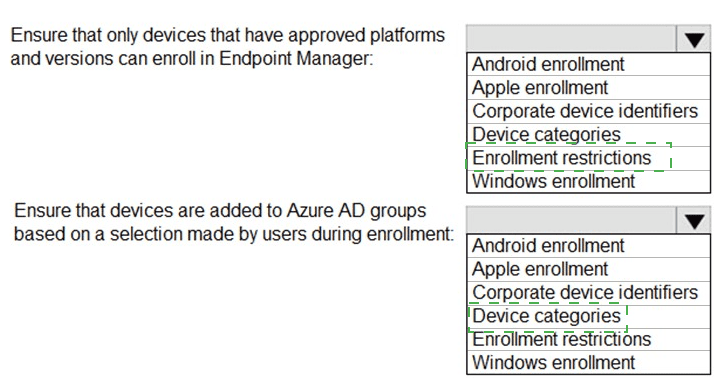
The first requirement is to filter enrollment by platform and OS version—this is done via Enrollment restrictions, which block unapproved devices. The second requirement needs user-driven group mapping during enrollment, which is the purpose of Device categories (users pick a category that auto-adds the device to a corresponding Azure AD group).
Correct Option:
For “Ensure that only devices that have approved platforms and versions can enroll” → Enrollment restrictions
Enrollment restrictions allow you to set platform configuration, including blocking personally owned devices or specifying allowed OS versions (e.g., Android 8,9 and iOS 11,12). This is the standard control for device admission based on platform/version criteria.
For “Ensure devices are added to Azure AD groups based on a selection made by users during enrollment” → Device categories
Device categories let you define categories (e.g., “Sales,” “Engineering”) that users pick during enrollment. The device is then automatically added to the corresponding Azure AD group, enabling targeted policy and app deployment.
Incorrect Option:
Android enrollment / Apple enrollment / Windows enrollment – These are just enrollment workflow entry points, not settings that enforce version approval or dynamic user-driven group mapping. They cannot fulfill either requirement alone without restrictions or categories.
Corporate device identifiers – Used to pre-identify corporate-owned devices by serial number/IMEI to mark them as corporate, not to block OS versions or prompt users for group selection during enrollment.
Device categories – Incorrect for the first requirement because categories do not filter or block devices based on OS/platform version; they only assign groups post-enrollment based on user choice.
Enrollment restrictions – Incorrect for the second requirement because restrictions block or allow enrollment based on platform, ownership type, or version—they do not involve user selection for Azure AD group membership.
Reference:
Microsoft Learn: MD-102 – Manage device enrollment in Microsoft Intune. Topics include "Create enrollment restrictions" and "Create device categories and group mapping." No external links provided per your request.
You have a Microsoft 365 subscription that includes Microsoft Intune.
You need to implement a Microsoft Defender for Endpoint solution that meets the following
requirements:
• Enforces compliance for Defender for Endpoint by using Conditional Access
• Prevents suspicious scripts from running on devices
What should you configure? To answer, drag the appropriate features to the correct requirements. Each feature may be used once, more than once, or not at all. You may need to drag the split bar between panes or scroll to view content.
NOTE: Each correct selection is worth one point.

Explanation:
Conditional Access enforces compliance by evaluating device risk signals from Defender for Endpoint. This requires an Intune connection (formerly Microsoft Defender for Endpoint integration) in Intune. Preventing suspicious scripts is achieved via Attack Surface Reduction (ASR) rules, specifically the "Block JavaScript or VBScript from launching downloaded executable content" rule.
Correct Option:
Enforces compliance: Intune connection
The Intune connection (Defender for Endpoint integration) must be enabled in Intune to allow Conditional Access policies to evaluate device risk levels (low/medium/high). Without this connection, Defender signals cannot be used for compliance enforcement. This is configured in Endpoint Manager under Endpoint security > Microsoft Defender for Endpoint.
Prevents suspicious scripts: An attack surface reduction (ASR) rule
ASR rules include specific rules designed to block malicious or suspicious scripts (e.g., JavaScript, VBScript, PowerShell obfuscated scripts) from executing. The rule "Block JavaScript or VBScript from launching downloaded executable content" directly addresses script-based attacks. ASR rules are configured in Intune as part of endpoint security policies.
Incorrect Option:
A device restriction policy – Device restriction policies control device features (camera, Bluetooth, app store) but do not enforce Defender compliance via Conditional Access nor block suspicious scripts. They focus on general device behavior, not script execution or risk-based compliance.
A security baseline – Security baselines apply recommended configuration settings for Windows or Defender, but they do not directly enforce Conditional Access compliance. While baselines include some ASR rules, the question asks for the specific feature to prevent scripts (ASR rule is the direct answer), and baselines are not required for the compliance requirement.
Reference:
Microsoft Learn: MD-102 – Configure Microsoft Defender for Endpoint integration with Intune for Conditional Access. ASR rules documentation for script blocking. No external links provided.
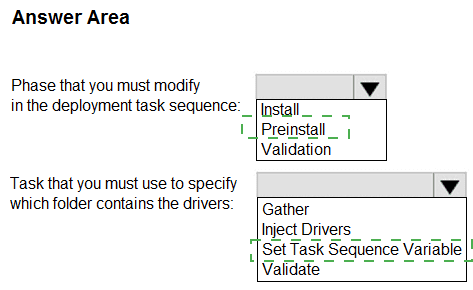
You manage a Microsoft Deployment Toolkit (MDT) deployment share named DS1. DS1 contains an Out-of-Box Drivers folder named Windows 11 x64 that has subfolders in the format of {make name}\{model name}.
You need to modify a deployment task sequence to ensure that all the drivers in the folder that match the make and model of the computers are installed without using PnP detection or selection profiles.
What should you do? To answer, select the appropriate options in the answer area.
NOTE: Each correct selection is worth one point.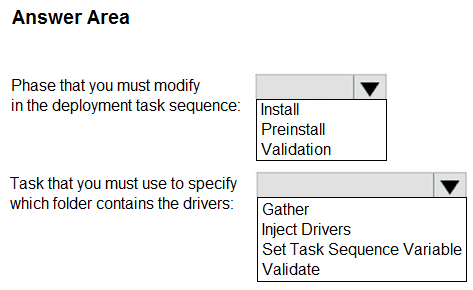
Explanation:
To inject drivers by make/model without PnP detection or selection profiles, you must modify the Preinstall phase (specifically the "Inject Drivers" task) and configure it to use a folder path based on task sequence variables. The Set Task Sequence Variable task is required to define the folder location containing the drivers before the injection occurs.
Correct Option:
Phase that you must modify in the deployment task sequence: Preinstall
The Preinstall phase contains the "Inject Drivers" task. This phase runs after partitioning but before OS installation. Modifying driver injection here ensures that matching drivers are available during Windows Setup's driver scan phase, avoiding reliance on PnP detection or selection profiles.
Task that you must use to specify which folder contains the drivers: Set Task Sequence Variable
You must set the variable DriverGroup001 to a value like Windows 11 x64\%Make%\%Model% before the "Inject Drivers" task. This tells MDT exactly which folder path to use for driver injection, bypassing PnP detection and selection profiles entirely.
Incorrect Option:
Phase: Install – The Install phase occurs after Windows is installed. Injecting drivers here would be too late for hardware detection during OS setup and would not match the requirement for pre-installation driver availability.
Phase: Validation – The Validation phase runs before the task sequence starts (checking network, disk space, etc.). It does not contain driver injection tasks and is not used for modifying deployment behavior during OS deployment.
Task: Gather – The Gather task collects variables but does not specify folder paths for drivers. It cannot define where the driver injection task should look for make/model-specific drivers.
Task: Inject Drivers – This task performs the actual driver injection but does NOT specify which folder contains the drivers. It relies on variables (e.g., DriverGroup001) set by a previous task. Using this alone without variable configuration will default to PnP detection or selection profiles.
Task: Validate – The Validate task checks requirements (e.g., BIOS mode, disk size) and has no role in specifying driver folder paths or controlling driver injection behavior.
Reference:
Microsoft Documentation: MDT – "Configure Driver Injection Without Selection Profiles Using DriverGroup001." Also covered in MD-102 study guide under "Deploying Windows using MDT." No external links provided.
You have computer that run Windows 10 and connect to an Azure Log Analytics workspace. The workspace is configured to collect all available events from Windows event logs.
The computers have the logged events shown in the following table.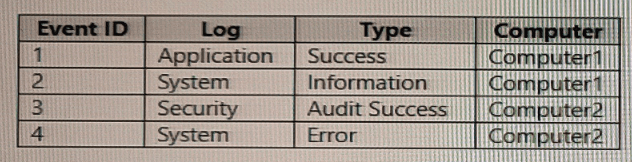
Which events are collected in the Log Analytics workspace?
A. 1 only
B. 2 and 3 only
C. 1 and 3 only
D. 1, 2, and 4 on
E. 1, 2, 3, and 4
Explanation:
Log Analytics workspaces using the Windows Event Log data source collect events based on log type (Application, System, Security) and event types (Error, Warning, Information, Audit Success, etc.). Since the workspace is configured to collect all available events from Windows event logs with no filtering, every event listed—regardless of computer or event ID—will be collected.
Correct Option:
E. 1, 2, 3, and 4
Event 1 (Application, Success) is collected because Application log is enabled and "Success" is included when no filters are applied. Event 2 (System, Information) is collected from the System log. Event 3 (Security, Audit Success) is collected from the Security log. Event 4 (System, Error) is also collected from the System log. The configuration collects all events across all logs from all connected computers.
Incorrect Option:
A. 1 only –
Incorrect because events 2, 3, and 4 are also collected. The workspace does not filter by computer name, event ID, or type when configured to collect "all available events."
B. 2 and 3 only –
Incorrect because it omits event 1 (Application log) and event 4 (System Error). Both logs are enabled for collection without restriction.
C. 1 and 3 only –
Incorrect because it excludes events from the System log (2 and 4). System logs are explicitly included in the "all available events" configuration.
D. 1, 2, and 4 only –
Incorrect because it excludes event 3 from the Security log. Security logs are collected by default when "all available events" is selected, including Audit Success events.
Reference:
Microsoft Learn: Log Analytics agent – Windows event log data sources. "Collect all events" includes Application, System, and Security logs with all event types (Error, Warning, Information, Audit Success, etc.) from all connected computers. No external links provided.
Your network contains an Active Directory domain. The domain contains 1.000 computers that run Windows 11.
You need to configure the Remote Desktop settings of all the computers. The solution must meet the following requirements:
• Prevent the sharing of clipboard contents.
• Ensure that users authenticate by using Network Level Authentication (NLA).
Which two nodes of the Group Policy Management Editor should you use? To answer, select the appropriate nodes in the answer area. NOTE: Each correct selection is worth one point.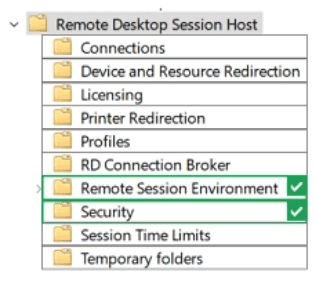
Explanation:
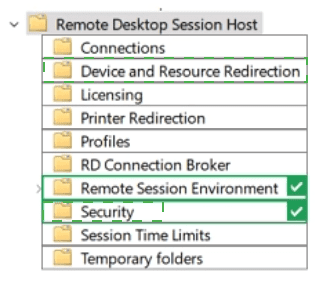
Preventing clipboard sharing is a device/resource redirection setting, found under Device and Resource Redirection. Enforcing Network Level Authentication (NLA) is a security setting, found under Security. Both nodes are located within Remote Desktop Session Host. No other nodes contain these specific policies.
Correct Option:
Node 1: Device and Resource Redirection
This node contains the policy "Do not allow clipboard redirection." Enabling this policy prevents users from sharing clipboard contents between the local computer and the remote desktop session, meeting the first requirement.
Node 2: Security
This node contains the policy "Require user authentication for remote connections by using Network Level Authentication." Enabling this policy ensures that users must authenticate via NLA before establishing a full Remote Desktop session, meeting the second requirement.
Incorrect Option (other nodes shown in the image):
Connections – Controls RDP connection limits and keep-alive settings, not clipboard redirection or NLA.
Licensing – Manages Remote Desktop licensing (per-user/per-device) and license server configuration, unrelated to clipboard or authentication.
Printer Redirection – Controls printer redirection in RDP sessions, not clipboard sharing or NLA.
Profiles – Manages Remote Desktop user profile paths and settings, not relevant to the requirements.
RD Connection Broker – Configures load balancing and redirection in a Remote Desktop farm, not applicable for standard Windows 11 computers.
Remote Session Environment – Controls visual experience (wallpaper, font smoothing) and session behavior, not clipboard or NLA.
Session Time Limits – Configures idle session timeouts and disconnection settings, unrelated to clipboard or NLA.
Temporary folders – Controls temporary folder usage per session, not relevant to the requirements.
Reference:
Microsoft Learn: Group Policy for Remote Desktop Services – "Do not allow clipboard redirection" under Device and Resource Redirection. "Require user authentication for remote connections by using NLA" under Security. MD-102: Configure Remote Desktop settings via Group Policy. No external links provided.
Your company uses Microsoft Defender for Endpoint Microsoft Defender for Endpoint
includes the device groups shown in the following table.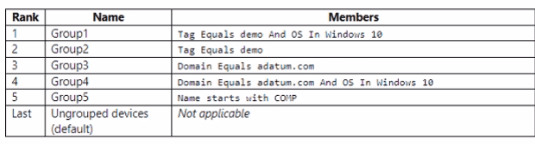
You onboard a computer to Microsoft Defender for Endpoint as shown in the following
exhibit.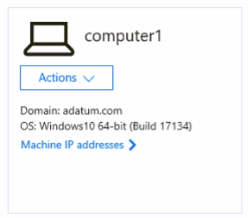
What is the effect of the Microsoft Defender for Endpoint configuration? To answer, select the appropriate options in the answer area.
NOTE: Each correct selection is worth one point.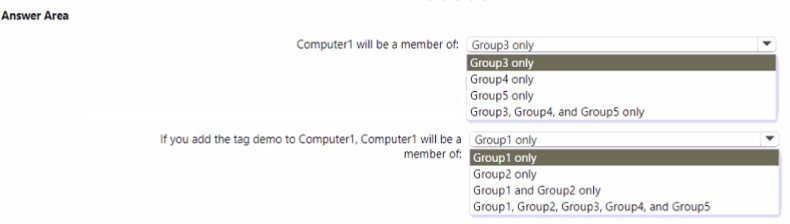
Explanation:
Device groups in Defender for Endpoint are evaluated in rank order (lowest number = highest priority). Computer1 has domain adatum.com and OS Windows 10. Without a tag, it matches Group3 (domain equals adatum.com) and Group4 (domain adatum.com + OS Windows 10). Group4 has a more specific rule but lower rank, so Group3 applies. Adding tag "demo" makes it match Group1 and Group2, but Group1 has higher rank.
Correct Option:
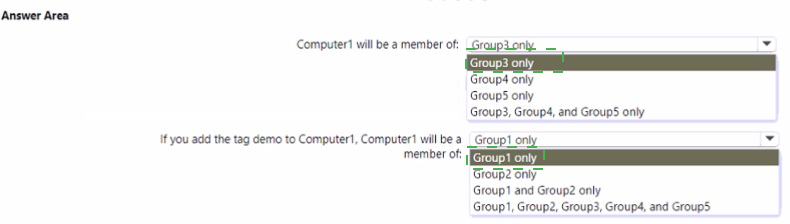
Computer1 will be a member of: Group3 only
Computer1 matches Group3 (domain adatum.com) and Group4 (domain adatum.com AND OS Windows 10). However, Group3 has rank 3 and Group4 has rank 4. Since rank order determines membership (lower rank wins), Computer1 becomes a member of Group3 only. Group5 requires name starting with "COVP" – not satisfied.
If you add the tag demo to Computer1, Computer1 will be a member of: Group1 and Group2 only
With tag "demo," Computer1 matches Group1 (tag=demo AND OS=Windows 10) and Group2 (tag=demo). Group1 has rank 1, Group2 has rank 2. Both are higher priority than Group3 (rank 3). The device becomes a member of both Group1 and Group2 because Group1's rule is satisfied (OS matches) and Group2 is also satisfied. Group3 and Group4 are overridden due to lower rank.
Incorrect Option (for first question):
Group4 only – Incorrect because Group3 has a higher rank (3 vs 4), so Group3 takes precedence despite Group4 having a more specific rule.
Group5 only – Incorrect because Computer1's name does not start with "COVP."
Group3, Group4, and Group5 only – Incorrect because only Group3 applies; Group4 is overridden by rank, and Group5 does not match.
Incorrect Option (for second question – with tag demo):
Group1 only – Incorrect because Group2 (tag=demo) is also satisfied and has rank 2, so the device belongs to both Group1 and Group2, not just Group1.
Group2 only – Incorrect because Group1 is also satisfied and has a higher rank (1), so both apply.
Group1, Group2, Group3, Group4, and Group5 – Incorrect because Group3 and Group4 are overridden by higher rank groups (1 and 2), and Group5 still does not match the name condition.
Reference:
Microsoft Learn: Microsoft Defender for Endpoint – Device groups and rank order evaluation. Rules are processed from lowest rank number to highest; first matching group determines membership, but devices can belong to multiple groups if higher-rank groups also match. No external links provided.
| Page 1 out of 35 Pages |
Endpoint Administrator Practice Exam Questions
These MD-102 practice questions with explanations help candidates learn how to manage endpoints using Microsoft Intune and related tools. Topics include device configuration, application deployment, security policies, and compliance. Each question includes a detailed explanation that helps learners understand endpoint management concepts more clearly. This approach promotes deeper understanding and practical application. By practicing regularly, candidates can strengthen their skills, identify weak areas, and gain confidence in managing modern devices and preparing for the certification exam.MD-102 - Endpoint Administrator Official Exam Blueprint and Weight:
1. Prepare Infrastructure for Devices
Official Exam Weight: 25-30%
Subtopics: Choose appropriate device join type, join
devices to Microsoft Entra ID, register devices to Microsoft Entra ID,
plan and implement groups for devices in Microsoft Entra ID, configure
enrollment settings, configure automatic enrollment for Windows and bulk
enrollment for iOS/iPadOS and Android, configure enrollment profiles
for Android devices including fully managed dedicated corporate owned
and work profile, manage roles in Intune, implement compliance policies
for all supported device platforms using Intune, implement Microsoft
Entra Conditional Access policies that require compliance status,
configure Windows Hello for Business, implement and manage Windows Local
Administrator Password Solution (Windows LAPS), manage membership of
local groups on Windows devices using Intune.
2. Manage and Maintain Devices
Official Exam Weight: 30-35%
Subtopics: Choose between Windows Autopilot and
provisioning packages, choose Windows Autopilot deployment mode, apply
device name template, implement Windows client deployment using Windows
Autopilot, create Enrollment Status Page (ESP), plan and implement
provisioning packages, plan and implement device upgrades for Windows
11, implement Windows 365 Cloud PC deployment, create device
configuration profiles for Windows devices including importing ADMX
files, create device configuration profiles for Android devices, create
device configuration profiles for iOS/iPadOS devices, create device
configuration profiles for macOS devices, create device configuration
profiles for Windows 11 Enterprise multi-session devices, target profile
using filters, configure Endpoint Privilege Management, manage
applications using Enterprise App Catalog, implement Microsoft Intune
Advanced Analytics, configure Microsoft Intune Remote Help, identify use
cases for Microsoft Cloud PKI, implement Microsoft Tunnel for Mobile
Application Management, sync restart retire or wipe devices, perform
bulk remote actions, update Microsoft Defender Antivirus security
intelligence, rotate BitLocker recovery keys, run device query using
KQL.
3. Manage Applications
Official Exam Weight: 15-20%
Subtopics: Prepare applications for deployment using
Intune, deploy apps using Intune, deploy Microsoft 365 Apps using
Intune, configure policies for Office apps, deploy Microsoft 365 Apps as
part of Windows Autopilot deployment using Office Deployment Tool (ODT)
or Office Customization Tool (OCT), manage Microsoft 365 Apps using
Microsoft 365 Apps admin center, deploy apps from platform-specific app
stores using Intune, plan and implement app protection policies,
implement Microsoft Entra Conditional Access policies for app protection
policies, plan and implement app configuration policies for managed
apps and managed devices.
4. Protect Devices
Official Exam Weight: 15-20%
Subtopics: Create antivirus policies, create disk
encryption policies, create firewall policies, configure Attack surface
reduction policies, plan and implement security baselines, integrate
Intune with Microsoft Defender for Endpoint, onboard devices into
Microsoft Defender for Endpoint, plan for device updates, create and
manage update rings using Intune, create and manage update policies
using Intune including iOS/iPadOS and macOS, manage Android updates
using configuration profiles or firmware-over-the-air (FOTA)
deployments, configure Windows client Delivery Optimization using
Intune, monitor updates.
| Domain | Title | Exam Weight |
|---|---|---|
| 1 | Prepare Infrastructure for Devices | 25-30% |
| 2 | Manage and Maintain Devices | 30-35% |
| 3 | Manage Applications | 15-20% |
| 4 | Protect Devices | 15-20% |
Real Stories From Real Customers
Endpoint management preparation felt organized with MSmcqs practice material for Microsoft Certified: Endpoint Administrator Associate (MD-102). The exam simulations covered device deployment, policies, and security controls effectively.
Grace Lim | Singapore