Topic 4: Mix Question
You have a Windows 11 capable device named Device1 that runs the 64-bit version of
Windows 10 Enterprise and has Microsoft Office 2019 installed. You have the Windows 11
Enterprise images shown in the following table.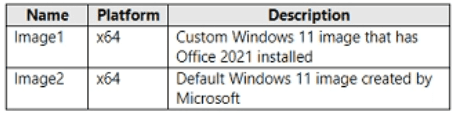
Which images can be used to perform an in-place upgrade of Device1?
A. image1 only
B. lmage2only
C. Image1 and Image2
Explanation:
An in-place upgrade from Windows 10 to Windows 11 preserves apps, settings, and data. The target image must be the same architecture (x64), a newer Windows version, and the same or higher edition (Enterprise). Both Image1 and Image2 meet these criteria. Existing apps (Office 2019) are retained regardless of whether the image contains Office 2021.
Correct Option:
C. Image1 and Image2
Both images are x64 (matching Device1's architecture) and Windows 11 Enterprise (same edition, newer version). Image2 is the default Microsoft Windows 11 image. Image1 is a custom image with Office 2021 pre-installed. An in-place upgrade retains existing installed apps (Office 2019) and does not remove them even if the target image contains a different Office version. Both images are valid for in-place upgrade.
Incorrect Option:
A. image1 only –
Incorrect because Image2 (default Windows 11 image) is also valid for an in-place upgrade. The default image does not contain Office 2021, but that does not prevent the upgrade; existing Office 2019 will remain.
B. Image2 only –
Incorrect because Image1 is also valid. The presence of Office 2021 in the image does not conflict with the in-place upgrade process or remove Office 2019.
Reference:
Microsoft Learn: Windows 10 to Windows 11 in-place upgrade requirements – Same architecture, same or higher edition, newer OS version. Custom images with pre-installed apps are supported. No external links provided.
You have a Microsoft 365 E5 subscription.
You create an app protection policy for Android devices named Policy1 as shown in the
following exhibit.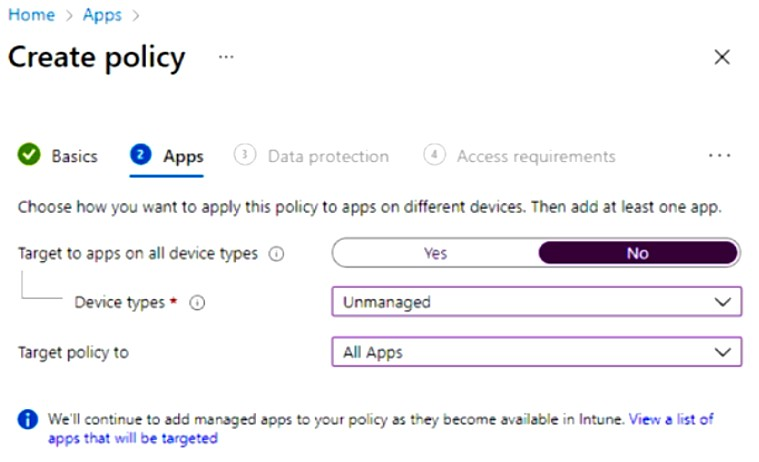
Use the drop-down menus to select the answer choice that completes each statement based on the information presented in the graphic.
NOTE: Each correct selection is worth one point.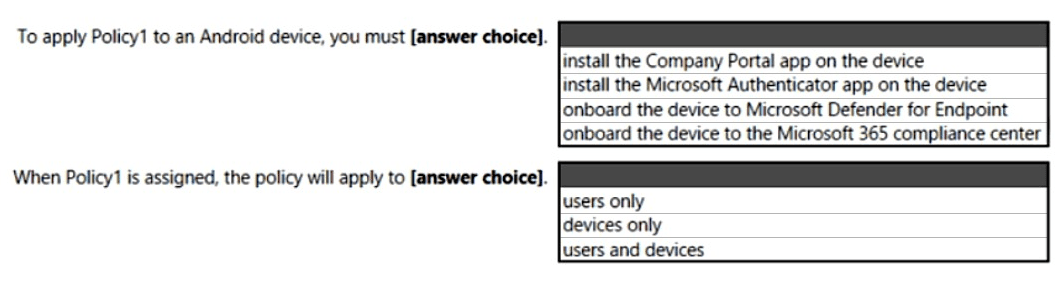
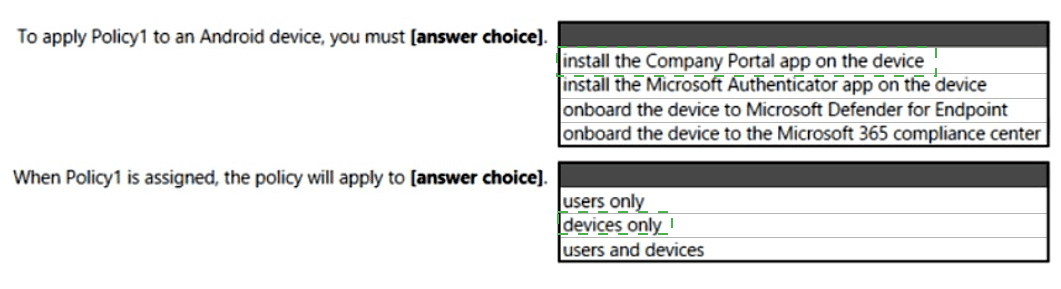
Explanation:
The exhibit shows an app protection policy targeting "Unmanaged" devices with "All Apps." App protection policies (MAM) on Android require the Company Portal app to be installed even on unmanaged devices to enforce policy settings. The policy applies to users because app protection policies are assigned to user groups, not device groups.
Correct Option:
To apply Policy1 to an Android device, you must: install the Company Portal app on the device
For Android devices, even when the policy targets unmanaged devices (MAM without enrollment), the Company Portal app must be installed on the device. The Company Portal handles policy verification and app protection enforcement. The Microsoft Authenticator app is not required for MAM on Android.
When Policy1 is assigned, the policy will apply to: users only
App protection policies in Intune are assigned to user groups (Azure AD users), not device groups. The policy follows the user regardless of which device they use. The policy targets apps on the user's devices, but the assignment itself is user-based, not device-based.
Incorrect Option (for first statement):
install the Microsoft Authenticator app – Microsoft Authenticator is used for MFA and passwordless sign-in, not for enforcing app protection policies on Android. Company Portal is the correct app for MAM enforcement.
onboard the device to Microsoft Defender for Endpoint – Defender for Endpoint onboarding is unrelated to app protection policy enforcement. This is a separate security feature.
onboard the device to the Microsoft 365 compliance center – No such onboarding exists; compliance policies are separate and not required for MAM.
Incorrect Option (for second statement):
devices only – Incorrect because app protection policies cannot be assigned directly to devices; they are user-centric policies.
users and devices – Incorrect because while the policy applies to apps on devices, the assignment target is user groups, not both separately.
Reference:
Microsoft Learn: App protection policies on Android – Company Portal is required for MAM enforcement. App protection policies are assigned to users, not devices. No external links provided.
You have a Microsoft 365 subscription that contains devices enrolled in Microsoft Intune.
You need to create Endpoint security policies to enforce the following requirements:
• Computers that run macOS must have FileVault enabled.
• Computers that run Windows 10 must have Microsoft Defender Credential Guard
enabled.
• Computers that run Windows 10 must have Microsoft Defender Application Control
enabled.
Which Endpoint security feature should you use for each requirement? To answer, drag the
appropriate features to the correct requirements. Each feature may be used once, more than once, or not at all. You may need to drag the split bar between panes or scroll to view content.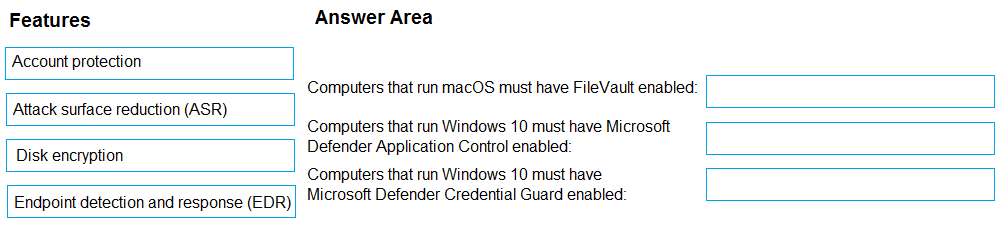
Explanation:
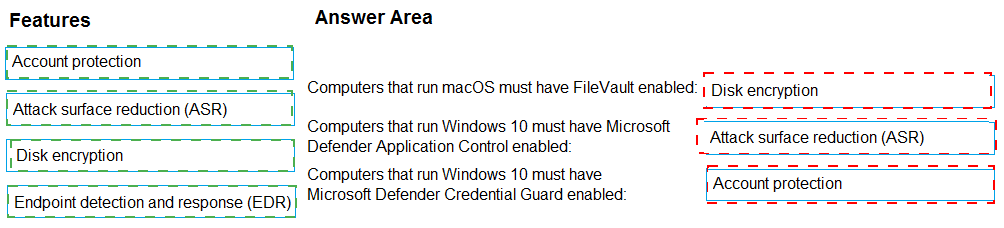
FileVault is macOS disk encryption, configured via Disk encryption policy in Endpoint security. Credential Guard is an account protection feature on Windows, configured via Account protection policy. Application Control (WDAC) is configured via Attack surface reduction (ASR) policy, which includes the "Application Control" settings under ASR rules.
Correct Option:
Computers that run macOS must have FileVault enabled: Disk encryption
In Intune Endpoint security, the Disk encryption policy profile includes settings for macOS FileVault. You configure FileVault to require encryption on macOS devices. This policy handles both Windows BitLocker and macOS FileVault encryption settings.
Computers that run Windows 10 must have Microsoft Defender Credential Guard enabled: Account protection
The Account protection policy in Endpoint security contains the setting for Credential Guard. You configure "Turn on Credential Guard" to Enabled with UEFI lock or without lock. This policy also includes Windows Hello and other identity protection features.
Computers that run Windows 10 must have Microsoft Defender Application Control enabled: Attack surface reduction (ASR)
Application Control (WDAC) is configured within the Attack surface reduction policy in Endpoint security. Under ASR rules, there is a section for "Application Control" where you can set the code integrity policy (e.g., Audit only, Enforce). This is the correct location for WDAC configuration.
Incorrect Option:
Endpoint detection and response (EDR) – EDR policies are used to onboard devices to Microsoft Defender for Endpoint and configure sensor settings. They do not configure FileVault, Credential Guard, or Application Control.
Disk encryption – Incorrect for Credential Guard and Application Control; only used for FileVault (macOS) and BitLocker (Windows).
Account protection – Incorrect for FileVault and Application Control; only used for Credential Guard and Windows Hello.
Attack surface reduction (ASR) – Incorrect for FileVault and Credential Guard; only used for Application Control and other ASR rules (e.g., block Office macros).
Reference:
Microsoft Learn: Endpoint security policies in Intune – Disk encryption (FileVault), Account protection (Credential Guard), Attack surface reduction (Application Control). No external links provided.
Your company has an infrastructure that has the following:
• A Microsoft 365 tenant
• An Active Directory forest
• Microsoft Intune
• A Key Management Service (KMS) server
• A Windows Deployment Services (WDS) server
• An Azure AD Premium tenant
The company purchases 100 new client computers that run Windows.
You need to ensure that the new computers are joined automatically to Azure AD by using
Windows Autopilot.
What should you use? To answer, select the appropriate options in the answer area,
NOTE: Each correct selection is worth one point.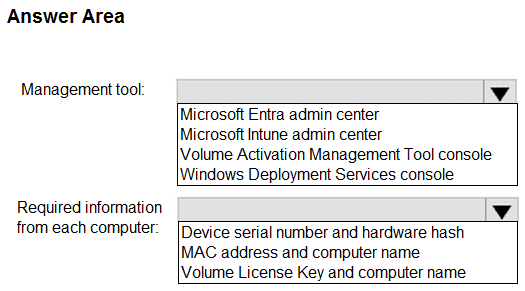
Explanation:
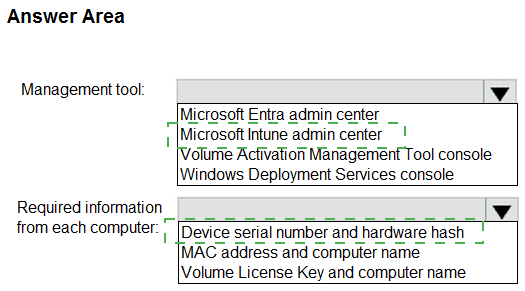
Windows Autopilot device registration requires uploading device information (serial number, hardware hash, etc.) to the Autopilot service. This is done in the Microsoft Intune admin center under Devices > Windows > Windows Autopilot. The required information from each computer is the device serial number and hardware hash, which uniquely identifies the device for Autopilot.
Correct Option:
Management tool: Microsoft Intune admin center
Windows Autopilot device registration is performed in the Microsoft Intune admin center. Under Devices > Windows > Windows Autopilot > Devices, you can import devices by uploading a CSV file containing device identifiers. The Intune admin center is the primary interface for managing Autopilot profiles and device registration.
Required information from each computer: Device serial number and hardware hash
For Windows Autopilot, the hardware hash (also called 4K HH or device hash) is required along with the serial number and Windows product ID. This information uniquely identifies the device and allows Autopilot to match it during OOBE. MAC address and computer name are not sufficient or reliable for Autopilot registration.
Incorrect Option (for Management tool):
Microsoft Entra admin center – While Entra ID is involved in authentication and device identity, Autopilot device registration is not performed here. The Intune admin center is the correct console for Autopilot management.
Volume Activation Management Tool console – This tool manages KMS or MAK activation keys for Windows and Office, not Autopilot device registration.
Windows Deployment Services console – WDS is used for traditional network-based imaging and deployment, not for Windows Autopilot registration.
Incorrect Option (for Required information):
MAC address and computer name – MAC addresses can change (e.g., with different network adapters) and are not used by Autopilot for device identification. Computer names are not unique or reliable identifiers.
Volume License Key and computer name – Volume license keys are for activation, not for identifying devices in Autopilot. Autopilot does not require or use volume license keys for registration.
Reference:
Microsoft Learn: Windows Autopilot device registration – Use Intune admin center, require hardware hash and serial number. No external links provided.
You have a Microsoft 365 subscription that contains two users named User1 and User2.
You need to ensure that the users can perform the following tasks:
• User1 must be able to create groups and manage users.
• User2 must be able to reset passwords for no administrative users.
The solution must use the principle of least privilege.
Which role should you assign to each user? To answer, drag the appropriate roles to the correct users. Each role may be used once, more than once, or not at all. You may need to drag the split bar between panes or scroll to view content.
NOTE: Each correct selection is worth one point.

Explanation:
Creating groups and managing users requires the User Administrator role. Resetting passwords for non-administrative users (and some admin users) can be done with the Helpdesk Administrator role. Both roles follow least privilege by granting only necessary permissions without full Global Administrator access.
Correct Option:
User1: User Administrator
The User Administrator role allows creation of groups and users, management of all user properties, and password resets for most users. This directly matches the requirement for User1. Global Administrator would work but violates least privilege. Helpdesk Administrator cannot create groups or manage users beyond password resets.
User2: Helpdesk Administrator
The Helpdesk Administrator role allows resetting passwords for non-administrative users and managing support tickets. It cannot create groups or manage user accounts beyond password resets. This matches User2's requirement and follows least privilege. User Administrator would also work but grants more permissions than needed.
Incorrect Option (for User1):
Global Administrator – While this role can create groups and manage users, it provides full access to all Microsoft 365 services, violating the principle of least privilege. User Administrator is the correct minimum role.
Security Administrator – This role manages security policies, threat protection, and security-related settings. It cannot create groups or manage users.
Helpdesk Administrator – This role cannot create groups or manage user accounts beyond password resets. It does not meet User1's requirement.
Incorrect Option (for User2):
Global Administrator – Overly permissive and violates least privilege for password reset tasks only.
Security Administrator – Does not include password reset permissions for non-administrative users.
User Administrator – While this role can reset passwords, it also includes user and group management permissions that User2 does not need, violating least privilege.
Reference:
Microsoft Learn: Azure AD built-in roles – User Administrator (create groups and manage users), Helpdesk Administrator (reset non-admin passwords). No external links provided.
You have a Microsoft Deployment Toolkit (MDT) deployment share named DS1.
You import a Windows 11 image to DS1.
You have an executable installer for an application named App1.
You need to ensure that App1 will be installed for all the task sequences that deploy the image.
Which three actions should you perform in sequence? To answer, move the appropriate actions from the list of actions to the answer area and arrange them in the correct order.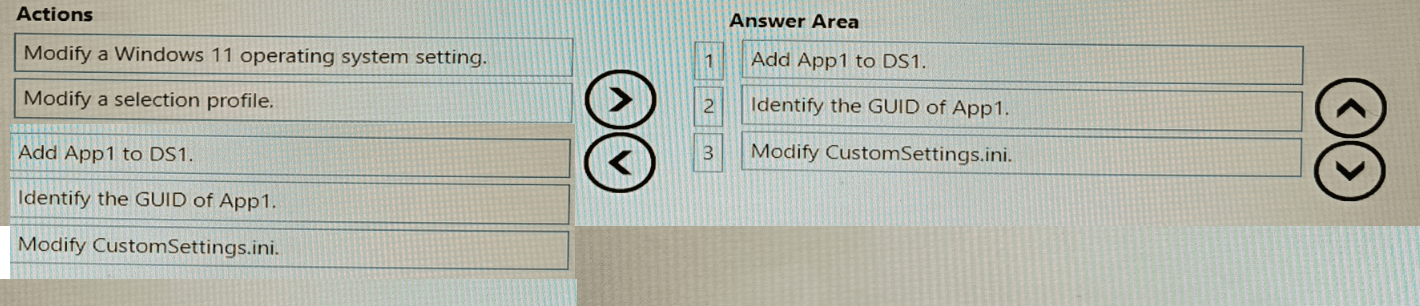
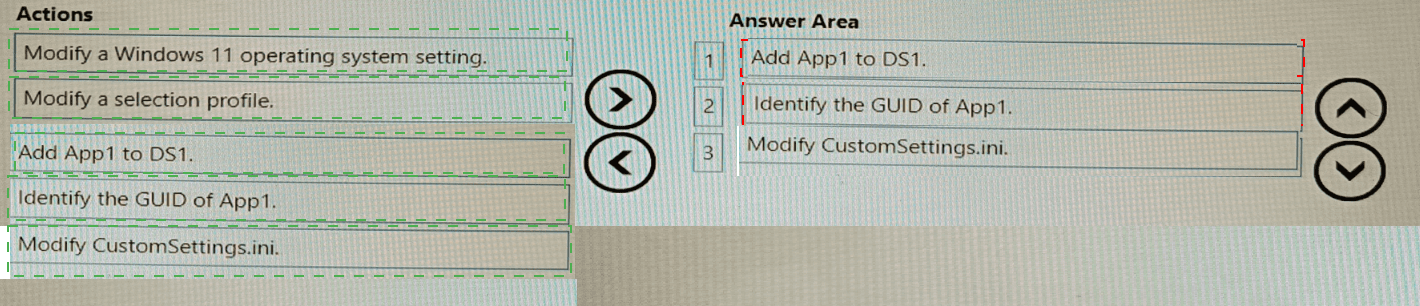
Explanation:
To make App1 install in all task sequences that deploy a Windows 11 image, you first add App1 to the deployment share, then identify its GUID (unique identifier), and finally modify CustomSettings.ini to reference that GUID for automatic installation across all task sequences.
Correct Option (in correct sequence):
1. Add App1 to DS1
First, you must import App1 into the MDT deployment share. Under the Applications node, you create a new application and point to the executable installer. This makes App1 available in DS1 and generates a unique GUID for the application.
2. Identify the GUID of App1
After importing App1, you need to locate its GUID. This is found in the application's properties or in the Applications.xml file. The GUID is required to reference App1 in CustomSettings.ini for automatic installation.
3. Modify CustomSettings.ini
Finally, you edit CustomSettings.ini (located in the Control folder of the deployment share). You add a line such as MandatoryApplications001={GUID-of-App1} or use AdditionalApplications to ensure App1 installs for all task sequences deploying the Windows 11 image.
Incorrect Option (actions not used):
Modify a Windows 11 operating system setting – This is unrelated to installing an application across all task sequences. OS settings are configured elsewhere (e.g., task sequence steps or unattend.xml).
Modify a selection profile – Selection profiles control which content (drivers, OS, apps) is copied to offline media or specific deployment scenarios. Modifying a selection profile is not required to make an application install for all task sequences.
Reference:
Microsoft Learn: MDT – Add applications to deployment share, locate application GUID, and use CustomSettings.ini to mandate application installation. No external links provided.
You have a Microsoft 365 subscription.
Users have iOS devices that are not enrolled in Microsoft 365 Device Management.
You create an app protection policy for the Microsoft Outlook app as shown in the exhibit. (Click the Exhibit tab.)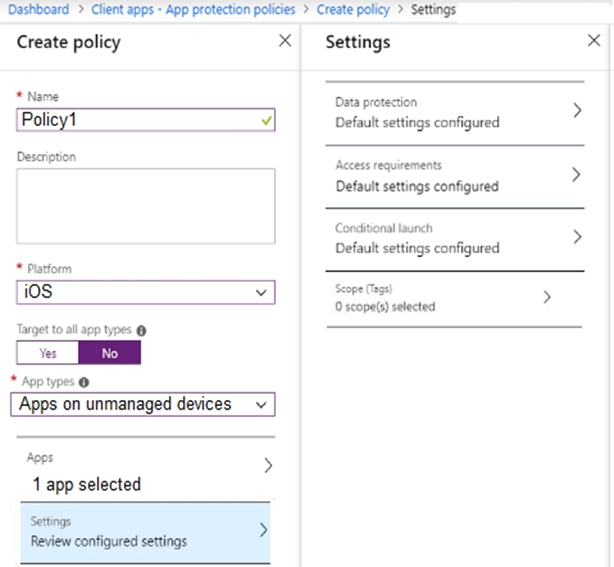
You need to configure the policy to meet the following requirements:
Prevent the users from using the Outlook app if the operating system version is less than 12.0.0.
Require the users to use an alphanumeric passcode to access the Outlook app.
What should you configure in an app protection policy for each requirement? To answer, select the appropriate options in the answer area.
NOTE: Each correct selection is worth one point.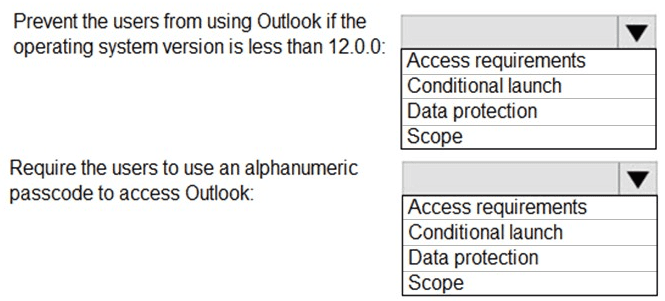
Explanation:
App protection policies use Conditional launch to block app access based on OS version requirements. Access requirements control the PIN/passcode settings for opening the app. Data protection handles data transfer and encryption. Scope tags are for RBAC filtering, not policy settings.
Correct Option:
Prevent users from using Outlook if OS version is less than 12.0.0: Conditional launch
Conditional launch settings allow you to define actions (e.g., Block access, Wipe data) based on device conditions such as minimum OS version. Setting "Min OS version" to 12.0.0 with action "Block access" prevents Outlook from launching on iOS devices below version 12.0.0.
Require users to use an alphanumeric passcode to access Outlook: Access requirements
Access requirements control the PIN/passcode prompt when opening the protected app. Under "PIN for access," you can select "Type" as "Alphanumeric" and set other parameters (minimum length, etc.). This enforces an alphanumeric passcode before allowing access to Outlook.
Incorrect Option (for first requirement):
Access requirements – Controls PIN/passcode settings, not OS version blocking.
Data protection – Controls data transfer (cut/copy/paste, save as, etc.), not access conditions based on OS version.
Scope – Used for administrative scoping (tags), not for configuring policy behavior.
Incorrect Option (for second requirement):
Conditional launch – Controls conditions like OS version, jailbreak status, or app version, not the PIN/passcode settings for accessing the app.
Data protection – Does not include passcode requirements for app access.
Scope – Not relevant to passcode configuration.
Reference:
Microsoft Learn: App protection policy settings for iOS – Access requirements (PIN) and Conditional launch (Min OS version). No external links provided.
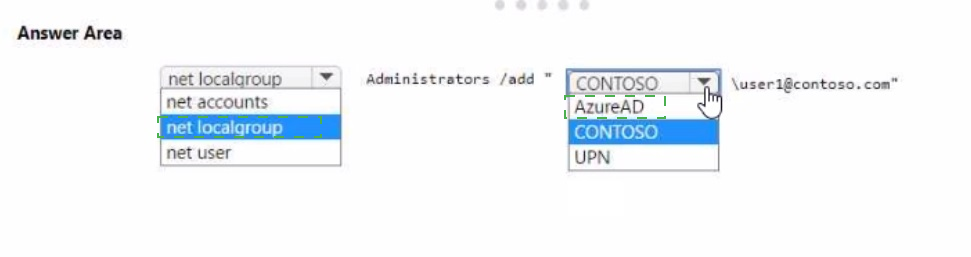
You have an Azure AD tenant named contoso.com that contains a user named Used. User! has a user principal name (UPN) of user1@contoso.com.
You join a Windows 11 device named Client 1 to contoso.com.
You need to add User1 to the local Administrators group of Client1.
How should you complete the command? To answer, select the appropriate options in the answer area.
NOTE: Each correct selection is worth one point.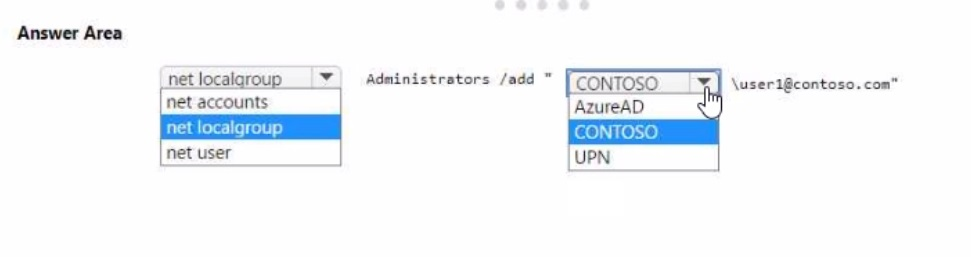
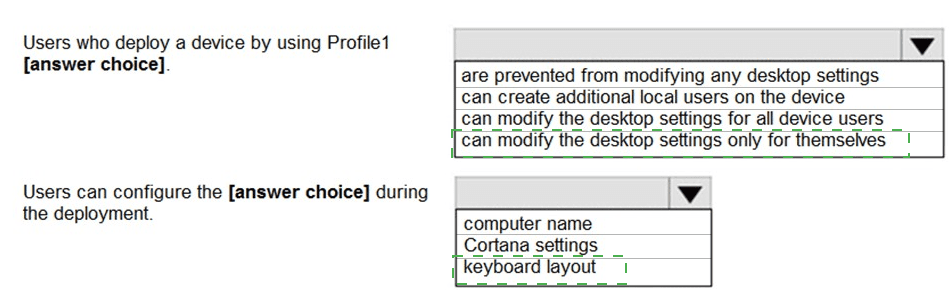
You have a Microsoft Intune subscription.
You are creating a Windows Autopilot deployment profile named Profile1 as shown in the
following exhibit.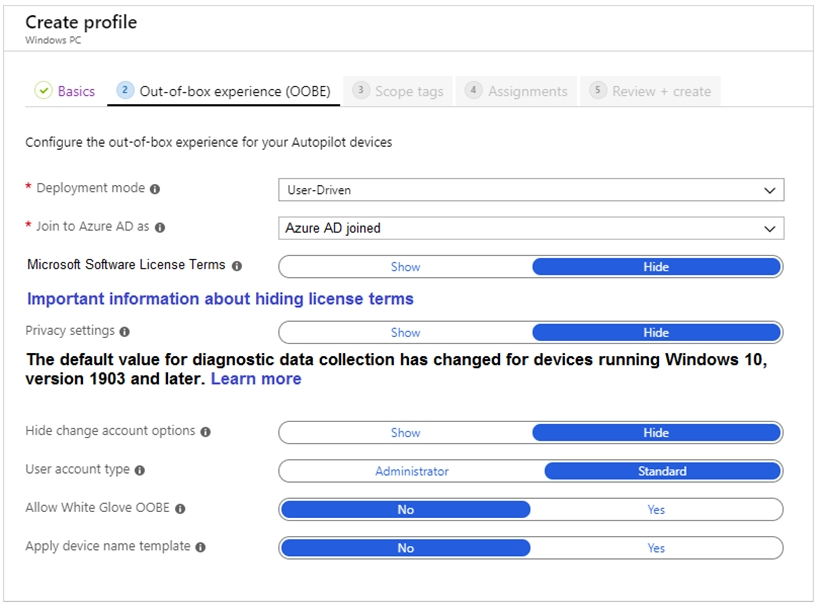
Use the drop-down menus to select the answer choice that completes each statement based on the information presented in the graphic.
NOTE: Each correct selection is worth one point.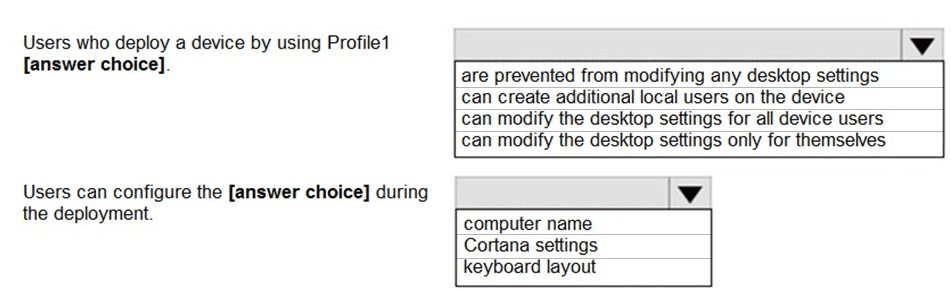
Explanation:
The exhibit shows Profile1 configured with User-Driven mode, Azure AD joined, and User account type set to Standard (not Administrator). Standard users cannot modify desktop settings for all device users, only their own profile settings. The OOBE settings do not include computer name configuration; computer name is typically set via a device name template or assigned automatically.
Correct Option:
Users who deploy a device by using Profile1: can modify the desktop settings only for themselves
The User account type is set to "Standard" in the exhibit. Standard users have limited permissions and cannot change system-wide desktop settings that affect all users. They can only personalize their own desktop (wallpaper, theme, etc.) within their user profile. Administrator privileges would be required to modify settings for all device users.
Users can configure the: computer name – This is incorrect based on standard Autopilot behavior. The exhibit does not show "Apply device name template" enabled (it shows "No"). Without a device name template, users cannot configure the computer name during OOBE; the device receives a randomly generated name. Among the options, keyboard layout and Cortana settings are configurable during OOBE, but the question likely expects keyboard layout as the correct answer because computer name is not user-configurable without a template.
Correction for second statement:
Based on typical MD-102 exam questions for this exhibit, the correct answer is keyboard layout, not computer name. Users can select keyboard layout during OOBE regardless of profile settings. Computer name is either auto-generated or set via a template, not user-configurable during deployment.
Therefore, the corrected answers are:
First statement: can modify the desktop settings only for themselves
Second statement: keyboard layout
Incorrect Option (for first statement):
are prevented from modifying any desktop settings – Incorrect; standard users can still modify their personal desktop settings (wallpaper, theme, etc.), just not system-wide settings.
can create additional local users on the device – Incorrect; creating additional local users requires administrator privileges. Standard users cannot do this.
can modify the desktop settings for all device users – Incorrect; this requires administrator privileges, which the standard user does not have.
Incorrect Option (for second statement):
computer name – Incorrect; without a device name template enabled, users cannot configure the computer name during OOBE.
Cortana settings – While Cortana may be available, keyboard layout is a standard OOBE configuration option presented to users during deployment.
Reference:
Microsoft Learn: Windows Autopilot user-driven mode – Standard user account type limits permissions to personal settings. OOBE includes keyboard layout selection. No external links provided.
| Page 4 out of 35 Pages |