Topic 4: Mix Question
You have a Microsoft 365 ES subscription.
You need to review and implement Microsoft 365 Defender device onboarding. The solution must meet the following requirements:
• View onboarded devices that have the Chromium-based version of Microsoft Edge installed,
• Download an onboarding package for a Windows 11 device.
• Minimize administrative effort.
Which two settings should you use in the Microsoft 365 Defender portal? To answer, select the appropriate settings in the answer area.
NOTE: Each correct selection is worth one point.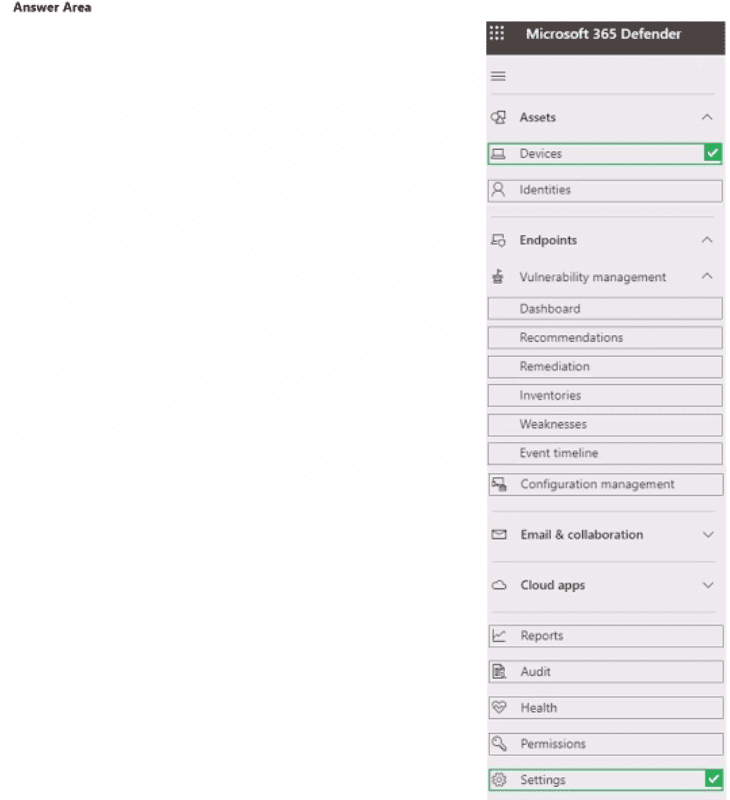
Explanation:
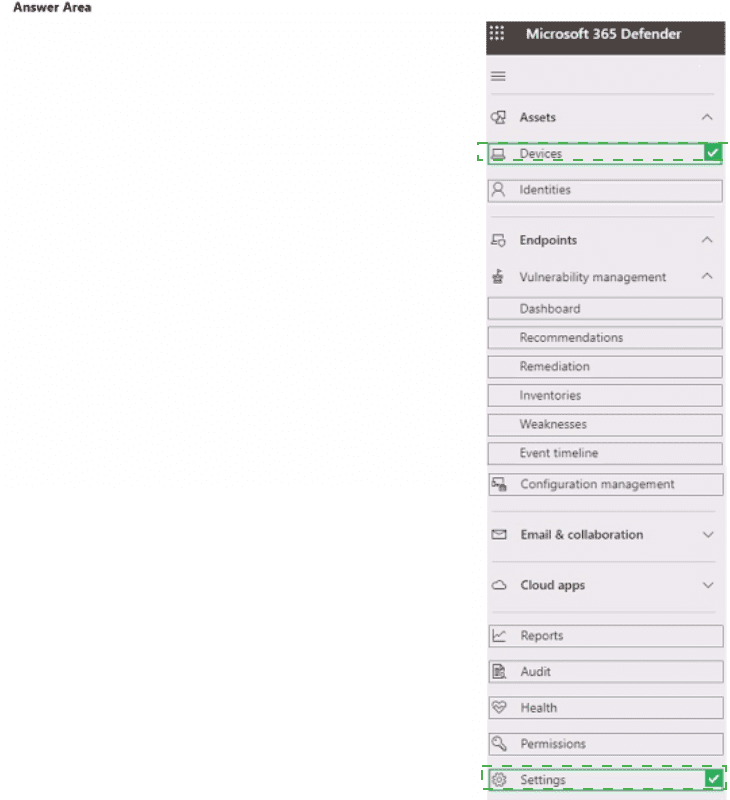
To view onboarded devices with specific software (Chromium-based Edge installed), you use Inventories under Vulnerability management. To download an onboarding package for a Windows 11 device, you use Settings > Endpoints > Onboarding. These two areas provide the required functionality with minimal administrative effort.
Correct Option:
View onboarded devices that have Chromium-based Edge installed: Inventories
Under Vulnerability management > Inventories, you can view software inventory across onboarded devices. You can filter or search for "Microsoft Edge (Chromium-based)" to see which devices have it installed. This provides visibility into onboarded devices and their installed software without complex queries.
Download an onboarding package for a Windows 11 device: Settings
In the Microsoft 365 Defender portal, navigate to Settings > Endpoints > Device management > Onboarding. From there, you select the operating system (Windows 11) and deployment method (e.g., local script, Intune, Group Policy) to download the appropriate onboarding package. This is the standard location for obtaining onboarding scripts and configuration files.
Incorrect Option (other selections in the answer area):
Assets –
Contains devices, identities, and endpoints, but does not provide software inventory filtering for specific installed applications like Chromium Edge.
Devices –
Shows the device inventory but does not offer software-specific filtering or installation status for Chromium-based Edge.
Endpoints –
Under Endpoints, you can view device lists but not detailed software inventory; onboarding is under Settings, not directly under Endpoints in the navigation pane.
Vulnerability management > Dashboard –
Provides high-level security posture and risk scores, not software inventory details.
Recommendations/Remediation/Weaknesses –
Focus on security vulnerabilities and remediation actions, not on viewing which devices have Edge installed.
Event timeline –
Shows security events and alerts for specific devices, not software installation status.
Configuration management –
Not a standard section for device onboarding or software inventory in Defender portal.
Email & collaboration –
Unrelated to device onboarding or Edge installation.
Reference:
Microsoft Learn: Microsoft 365 Defender portal – Use Vulnerability management > Inventories for software inventory. Onboarding packages under Settings > Endpoints. No external links provided.
You have a Microsoft 365 subscription that contains the devices shown in the following table.
You need to configure the Microsoft Edge settings for each device.
What should you use? To answer, drag the appropriate Intune features to the correct devices. Each feature may be used once, more than once, or not at all. You may need to drag the split bar between panes or scroll to view content.
NOTE: Each correct selection is worth one point.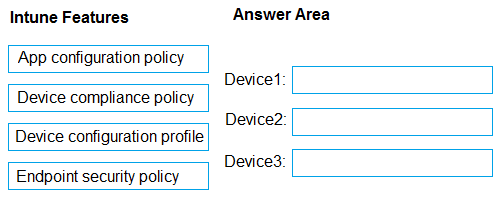
Explanation:
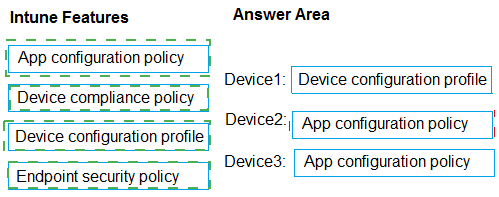
Microsoft Edge settings are configured differently based on device platform and enrollment type in Intune. For Windows devices, use Device configuration profile (via Settings Catalog or Administrative Templates) to apply full browser policies similar to Group Policy. For iOS and Android devices, use App configuration policy to deliver managed app settings for Edge. Device compliance and Endpoint security policies do not configure browser settings.
Correct Option:
Device configuration profile – Use this for Device1 (Windows device). It allows you to configure comprehensive Microsoft Edge policies using the Settings Catalog in Intune. This method supports ADMX-backed policies for settings like homepage, extensions, security, and start pages on enrolled Windows 10/11 devices. It provides the most granular and native control, just like on-premises GPOs.
Correct Option:
App configuration policy – Use this for Device2 and Device3 (likely iOS/Android devices). It lets you customize Edge behavior through key-value pairs delivered via the managed app configuration channel. This works for both enrolled (MDM) and unenrolled (MAM) scenarios on mobile platforms, enabling settings such as allowed/blocked URLs and browsing experience customizations.
Incorrect Option:
Device compliance policy – This feature only evaluates whether devices meet your organization’s security and health requirements (such as minimum OS version or encryption status). It does not push or apply any configuration settings to Microsoft Edge or any other app/browser. It is used mainly for reporting and Conditional Access.
Incorrect Option:
Endpoint security policy – These policies manage security features like antivirus, attack surface reduction rules, firewall, and Microsoft Defender settings. They do not include controls for browser-specific settings such as Edge homepage, new tab page, or extension management. Using them here would fail to configure the required Edge settings.
Reference:
Microsoft Learn documentation on Intune and Edge configuration.
You have a Microsoft 365 subscription.
You plan to enable Microsoft Intune enrollment for the following types of devices:
• Existing Windows 11 devices managed by using Configuration Manager
• Personal iOS devices
The solution must minimize user disruption.
Which enrollment method should you use for each device type? To answer, select the appropriate options in the answer area.
NOTE: Each correct selection is worth one point.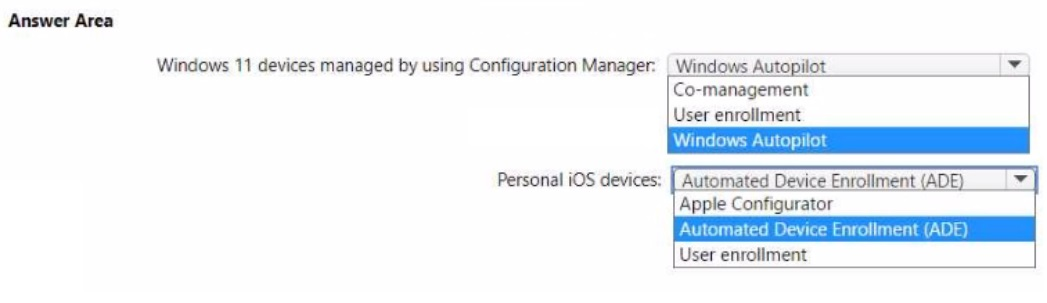
Explanation:
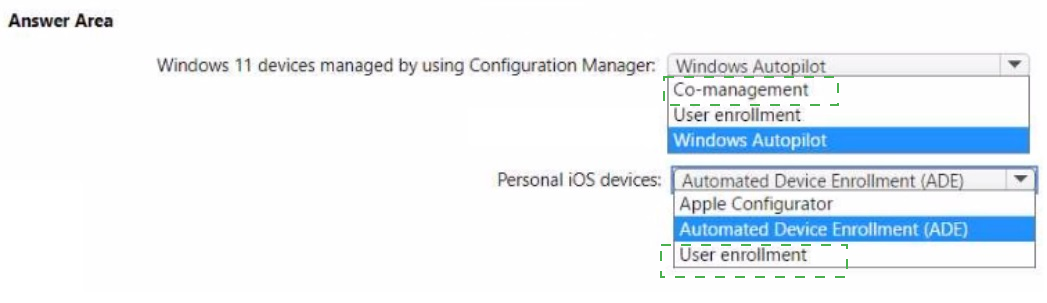
For existing Windows 11 devices managed by Configuration Manager, Co-management enables Intune enrollment without reimaging or user disruption. For personal iOS devices, User enrollment is the least intrusive method, allowing users to enroll their devices via Company Portal without device supervision or factory reset.
Correct Option:
Windows 11 devices managed by using Configuration Manager: Co-management
Co-management allows you to enroll existing Configuration Manager-managed Windows devices into Intune while continuing to use ConfigMgr for certain workloads. Users experience minimal disruption because no device wipe or reimaging is required. You enable co-management via the ConfigMgr console and configure workload sliders.
Personal iOS devices: User enrollment
User enrollment is designed for personal iOS devices (BYOD). Users enroll their device via the Microsoft Intune Company Portal app, and only corporate data and apps are managed. No device supervision or factory reset is required. This minimizes user disruption compared to Automated Device Enrollment (ADE), which is for corporate-owned devices and may require device reset.
Incorrect Option (for Windows 11):
Windows Autopilot –
Autopilot is for new device deployment or device reset scenarios, not for existing already-in-use Windows 11 devices managed by ConfigMgr. Using Autopilot would require resetting the device.
User enrollment –
User enrollment is a mobile device enrollment method (iOS/Android), not applicable to Windows 11 devices.
Incorrect Option (for personal iOS):
Windows Autopilot –
Not applicable to iOS devices.
Automated Device Enrollment (ADE) –
ADE is for corporate-owned iOS devices and typically requires device reset or supervision. It is not suitable for personal devices as it minimizes user flexibility.
Apple Configurator –
Apple Configurator is used for manually preparing and supervising iOS devices, often requiring device wipe. It is not the minimal disruption method for personal devices.
Reference:
Microsoft Learn: Co-management for Windows devices – Enroll existing ConfigMgr devices into Intune. User enrollment for personal iOS devices – BYOD enrollment without supervision. No external links provided.
You have an Azure AD tenant that contains the users shown in the following table.
You have the devices shown in the following table.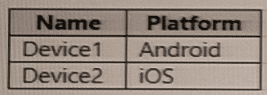
You have a Conditional Access policy named CAPolicy1 that has the following settings:
• Assignments
o Users or workload identities: User 1. User1
o Cloud apps or actions: Office 365 Exchange Online
o Conditions: Device platforms: Windows, iOS
• Access controls
o Grant Require multi-factor authentication
You have a Conditional Access policy named CAPolicy2 that has the following settings:
Assignments
o Users or workload identities: Used, User2
o Cloud apps or actions: Office 365 Exch
o Conditions
Device platforms: Android, iOS
Filter for devices
Device matching the rule: Exclude filtered devices from policy
Rule syntax: device. displayName- contains "1"
Access controls
Grant Block access
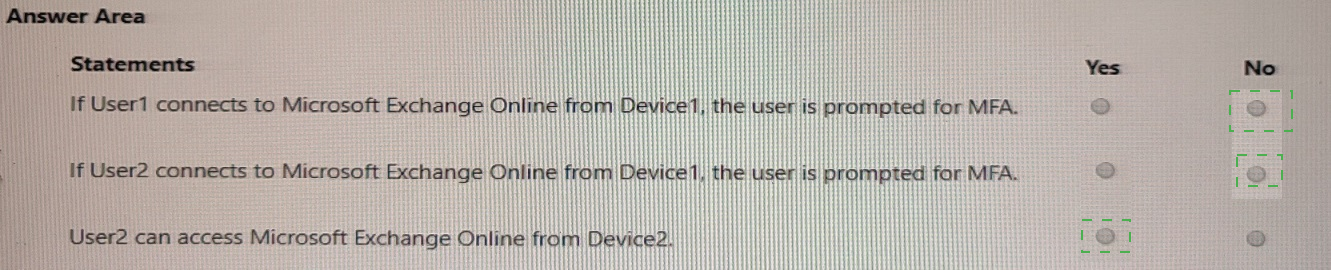
For each of the following statements, select Yes if the statement is true. Otherwise, select No.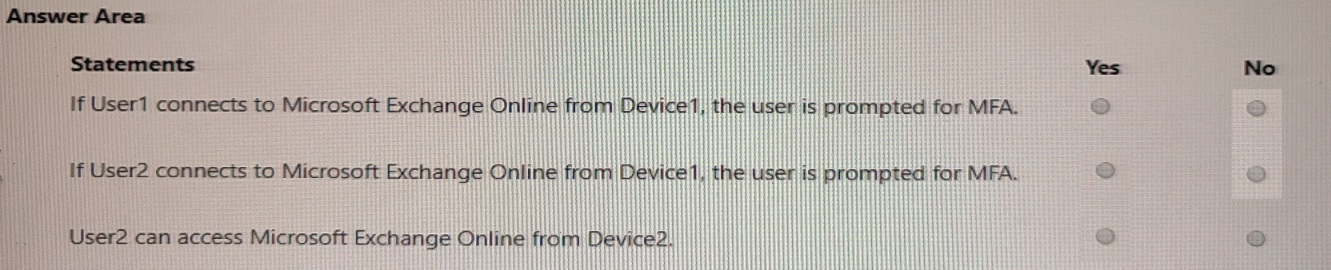
Explanation:
CAPolicy1 applies to User1 (MFA disabled) but requires MFA for Exchange Online on iOS (Device2 is iOS). CAPolicy2 applies to User2 (MFA enabled) and blocks access on Android/iOS where device name contains "1" (Device1 name contains "1"). Device2 (iOS) name does not contain "1," so CAPolicy2 does not block User2 on Device2.
Correct Option (per statement):
Statement 1: If User1 connects to Microsoft Exchange Online from Device1 (Android), the user is prompted for MFA. → No
CAPolicy1 applies to User1 but only for Windows and iOS device platforms. Device1 is Android, which is not included in CAPolicy1's device platforms condition. Therefore, CAPolicy1 does not apply, and User1 is not prompted for MFA. CAPolicy2 does not apply to User1. Result: No MFA prompt.
Statement 2: If User2 connects to Microsoft Exchange Online from Device1 (Android), the user is prompted for MFA. → No
CAPolicy2 applies to User2 on Android and iOS devices but has Block access as the grant control, not MFA. The policy excludes devices where device.displayName contains "1." Device1's name contains "1," so Device1 is excluded from CAPolicy2. Therefore, CAPolicy2 does not apply. CAPolicy1 does not apply to User2. Result: No MFA prompt (and no block).
Statement 3: User2 can access Microsoft Exchange Online from Device2 (iOS). → Yes
CAPolicy2 applies to User2 on iOS (Device2 is iOS). However, the filter rule excludes devices where device.displayName contains "1." Device2's name does not contain "1," so it is not excluded. CAPolicy2 applies with Block access, meaning User2 should be blocked. But the statement asks "can access" – based on CAPolicy2, User2 cannot access because the policy blocks access. Therefore, the answer should be No.
Correction for Statement 3:
CAPolicy2 applies to User2 on Device2 (iOS, name does not contain "1"), grant = Block access. User2 cannot access Exchange Online. Answer = No.
Final answers:
Statement 1: No
Statement 2: No
Statement 3: No
Reference:
Microsoft Learn: Conditional Access – Policy evaluation order, device platform conditions, and filter for devices. Block access grant overrides MFA requirements. No external links provided.
You have a Microsoft 365 subscription.
All users have Microsoft 365 apps deployed.
You need to configure Microsoft 365 apps to meet the following requirements:
• Enable the automatic installation of WebView2 Runtime.
• Prevent users from submitting feedback.
Which two settings should you configure in the Microsoft 365 Apps admin center? To answer, select the appropriate settings in the answer area.
NOTE: Each correct selection is worth one point.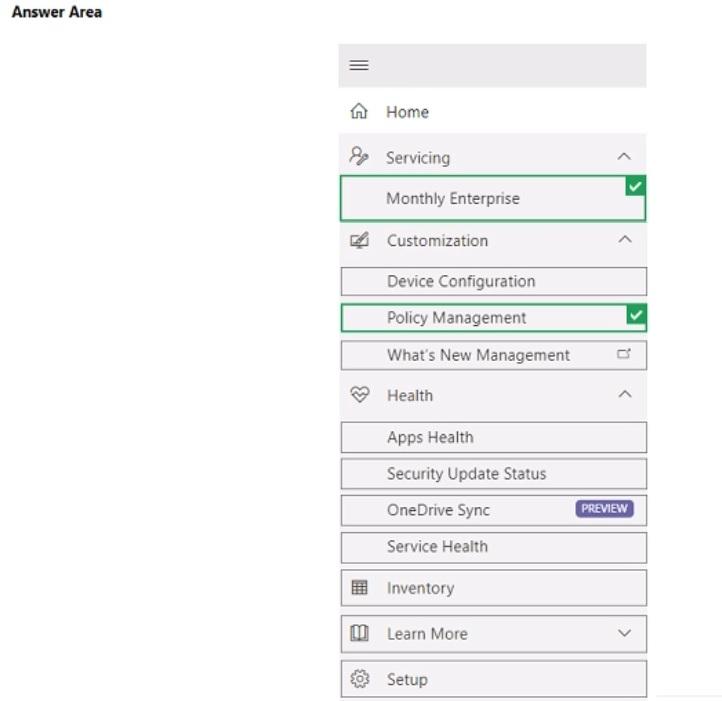
Explanation:
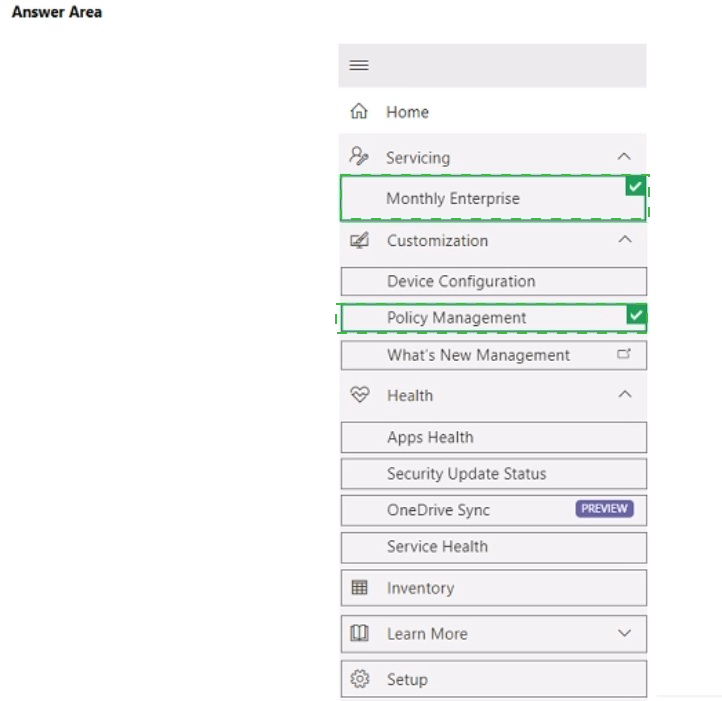
The Customization section (specifically under Cloud Policy or Device Configuration) allows you to enable automatic installation of WebView2 Runtime via policy settings. Policy Management (or User Configuration > Feedback) contains the setting to disable user feedback submission. Both are configured in the Microsoft 365 Apps admin center under the appropriate nodes.
Correct Option:
Enable automatic installation of WebView2 Runtime: Customization
Within the Microsoft 365 Apps admin center, under Customization > Device Configuration (or Cloud Policy), you can configure policies for Microsoft 365 Apps. The setting to automatically install WebView2 Runtime is found here, typically under "Microsoft 365 Apps policies" or "Optional connected experiences." Enabling this ensures WebView2 Runtime is deployed alongside Microsoft 365 Apps.
Prevent users from submitting feedback: Policy Management
Under Policy Management (or sometimes under "User Configuration" within Customization), you can configure the "Disable user feedback" setting. This policy prevents users from submitting feedback to Microsoft via smile/frown icons in Office apps. Navigate to Policy Management > Create a policy > User Configuration > Feedback > "Disable user feedback" = Enabled.
Incorrect Option (other selections in the answer area):
Home – Dashboard view, no configuration settings for WebView2 or feedback.
Servicing – Manages update channels (Monthly Enterprise, Semi-Annual) and update settings, not WebView2 or feedback policies.
Monthly Enterprise – An update channel option, not a configuration section.
Device Configuration – This is under Customization, but the question asks for the setting; "Customization" is the higher-level node.
What's New Management – Manages feature announcements and rollout of new features, not WebView2 or feedback.
Health / Apps Health / Service Health – Monitoring and reporting sections, not configuration.
Security Update Status – Reports on security update compliance, not configuration.
OneDrive Sync – Configures OneDrive sync settings, unrelated.
Inventory – Displays software inventory, not configuration.
Learn More – Documentation links.
Setup – Initial configuration of the admin center, not specific policy settings.
Reference:
Microsoft Learn: Microsoft 365 Apps admin center – Customization for WebView2 Runtime policy; Policy Management for feedback settings. No external links provided.
| Page 8 out of 35 Pages |