Topic 2: Litware inc


You need to meet the technical requirements for Windows AutoPilot.
Which two settings should you configure from the Azure Active Directory blade? To answer, select the appropriate settings in the answer area.
NOTE: Each correct selection is worth one point.
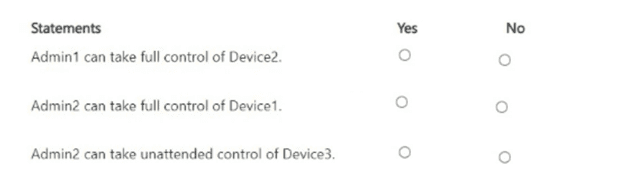
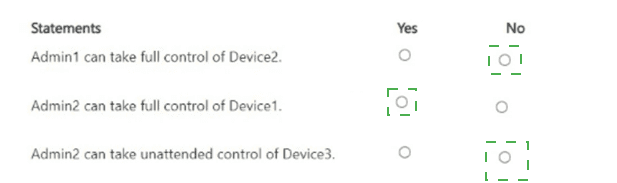

Explanation:
This question comes from the MD-102: Endpoint Administrator exam topic focusing on Windows Autopilot integration with Azure Active Directory (Entra ID). You are asked which two settings in the Azure AD blade must be configured to meet the technical requirements for Windows Autopilot deployment.

1️⃣ Configure – “Devices” (Required for Autopilot device management)
Under the Devices section of the Azure Active Directory blade, you configure settings that determine how devices join Azure AD and who can perform device joins. This is critical for Windows Autopilot because every Autopilot deployment ends with a device registration or join process — either Azure AD Join or Hybrid Azure AD Join.

Key configuration items under Devices:
Users may join devices to Azure AD → must be set to All or Selected users who will enroll Autopilot devices.
Additional local administrators on Azure AD joined devices → you can specify IT admin groups.
Require Multi-Factor Authentication to join devices → optional, depending on security policy.
Device settings for Windows Autopilot registration (e.g., device owner and MDM enrollment settings).

These configurations ensure that:
Autopilot devices can automatically join Azure AD.
The user signing in during OOBE (Out-Of-Box Experience) can complete enrollment.
Intune automatically manages the device post-deployment.
Hence, “Devices” must be configured to meet Autopilot technical requirements.

Reference:
Azure AD device settings
Set up automatic enrollment in Intune

2️⃣ Configure – “Users” (Required for user assignment and Autopilot profile association)
The Users section allows administrators to manage and configure user identities that will participate in the Autopilot deployment.

In Windows Autopilot:
Each device is assigned to a specific user or group in Intune.
The user account must exist in Azure Active Directory.
Licensing (Microsoft Intune and Azure AD Premium) must be assigned to the user.
From the Users blade, administrators ensure:
The user account has the correct licenses (Microsoft Intune, Azure AD Premium, and Windows 10/11 Enterprise).
The user belongs to the proper group for dynamic Autopilot deployment profiles.
The user has permissions to join devices to Azure AD (as defined in Devices settings).
Thus, configuring Users ensures that the correct end users are linked to Autopilot devices and can complete setup successfully.

Reference:
Assign licenses to users in Microsoft 365
Windows Autopilot user assignments

You need to meet the device management requirements for the developers. What should you implement?

A. folder redirection

B. Enterprise State Roaming

C. home folders

D. known folder redirection in Microsoft OneDrive

B.   Enterprise State Roaming

Explanation:

To meet the device management requirement of ensuring developers can access Microsoft Edge Favorites and other Windows settings across multiple devices, the correct solution is Enterprise State Roaming. This feature synchronizes user settings and app data across Azure AD-joined devices, making it ideal for roaming profiles in cloud-first environments.

📘 Why Enterprise State Roaming is correct
Enterprise State Roaming enables synchronization of:
Microsoft Edge favorites, reading lists, and settings
Windows personalization settings (e.g., themes, language preferences)
App settings and Universal Windows Platform (UWP) data
It works with Azure Active Directory (Azure AD) and is designed for cloud-based environments, especially where users sign in to multiple devices.
This directly satisfies the requirement that developers should have consistent access to their browser settings across devices.

🔗 Reference:
Enterprise State Roaming overview Windows settings synced by Enterprise State Roaming

❌ Why the other options are incorrect

A. Folder redirection
This is a legacy Group Policy feature used in on-premises Active Directory environments to redirect user folders (e.g., Documents, Desktop) to a network share.
It does not sync browser settings or app data across devices.

C. Home folders
These are also on-premises features that assign a personal network share to each user.
They are not cloud-compatible and do not support roaming browser settings.

D. Known folder redirection in Microsoft OneDrive
This redirects folders like Desktop, Documents, and Pictures to OneDrive.
It helps with file backup and sync, but does not sync Edge favorites or Windows settings.

Summary:
To meet the requirement of syncing Microsoft Edge favorites and Windows settings across multiple devices for developers, Enterprise State Roaming is the only option that provides cloud-based roaming of these settings. The other options are either legacy, file-focused, or not designed for syncing browser or app data.

You need to capture the required information for the sales department computers to meet the technical requirements. Which Windows PowerShell command should you run first?

A. Install-Module WindowsAutoPilotIntune

B. Install-Script Get-WindowsAutoPilotInfo

C. Import-AutoPilotCSV

D. Get-WindowsAutoPilotInfo

B.   Install-Script Get-WindowsAutoPilotInfo

Explanation:
The requirement is to capture the required information (the hardware hash) from existing sales department computers so they can be registered with the Windows Autopilot service. The technical requirement is to obtain this data for offline registration.

The standard and recommended method for gathering a device's hardware hash for Autopilot is to use the Get-WindowsAutoPilotInfo.ps1 PowerShell script.

Here is the correct sequence of actions:
Step 1 (First Command):
The Get-WindowsAutoPilotInfo script is not a native Windows PowerShell cmdlet; it is a community script from the PowerShell Gallery. Therefore, the first command you must run is Install-Script to download and install it onto your technician computer.
powershell
Install-Script -Name Get-WindowsAutoPilotInfo
Step 2 (Subsequent Command): After the script is installed, you can then run it on the sales department computers to capture their hardware hash and output it to a CSV file.
Get-WindowsAutoPilotInfo.ps1 -Output File AutopilotDevices.csv

Why the Other Options are Incorrect

A. Install-Module Windows AutoPilotIntune:
This command installs a module that contains cmdlets for managing devices in the Autopilot service via the Intune Graph API (e.g., Get-AutoPilotDevice, Add-AutoPilotDevice). It is used for administrative tasks after you have the hardware hash, not for initially gathering the hash from a physical device. It is the wrong tool for the data capture step.

C. Import-AutoPilotCSV:
This is not a valid, standard PowerShell command. It is a distractor. The correct cmdlet from the WindowsAutoPilotIntune module for importing a CSV is Import-AutoPilotCSV, but again, this is used after you have the CSV file, not for creating it.

D. Get-WindowsAutoPilotInfo:
This is the core command that performs the data capture, but it cannot be the first command run because the script must be installed from the PowerShell Gallery first. If you run this command without first installing the script, it will fail with a "command not found" error.

Summary of the Correct Process
Install the Script: Install-Script -Name Get-WindowsAutoPilotInfo (This is the first command).
Run the Script on each computer: Get-WindowsAutoPilotInfo.ps1 -OutputFile AutopilotDevices.csv
Register the devices: Use the generated CSV file to import the devices into Autopilot via the Intune admin center or using the WindowsAutoPilotIntune PowerShell module.

Reference:
Microsoft Learn - Extract device hardware hash for Autopilot:
"You can use the Get-WindowsAutoPilotInfo PowerShell script to get a device's hardware hash and serial number... First, install the script from the PowerShell Gallery: Install-Script -Name Get-WindowsAutoPilotInfo"

What should you upgrade before you can configure the environment to support comanagement?

A. the domain functional level

B. Configuration Manager

C. the domain controllers

D. Windows Server Update Services (WSUS)

B.   Configuration Manager

Explanation:
To configure an environment to support co-management, the key requirement is a supported version of Microsoft Configuration Manager (SCCM) that can integrate with Microsoft Intune and Azure Active Directory (Azure AD). Therefore, before enabling co-management, you must upgrade Configuration Manager to the Current Branch version 1710 or later.

Why Option B — Configuration Manager — Is Correct
Co-management allows Windows 10 or Windows 11 devices to be simultaneously managed by both Configuration Manager (on-premises) and Intune (cloud-based).
This setup is only supported when your Configuration Manager is up-to-date, as older versions do not include the necessary integration features with Microsoft Intune or Azure AD.

Minimum Required Version
Configuration Manager Current Branch version 1710 or later is required.
Earlier versions, such as SCCM 2012 R2 or SCCM 1606, do not support co-management.

Key Features Introduced in Version 1710:
Native Intune integration through the Co-management wizard.
Azure AD integration via Azure Services.
The ability to move specific workloads (like compliance policies, device configuration, Windows updates, endpoint protection) between SCCM and Intune.
Without upgrading, the environment cannot establish the hybrid connection between on-premises SCCM and Microsoft Intune, which is essential for co-management.

Why Upgrading Configuration Manager Is Critical

1.Azure AD & Intune Connectivity:
Co-management requires integration with Azure AD and Intune, which is only possible in newer SCCM builds.

2.Workload Transition Control:
Co-management allows you to decide whether each workload (e.g., compliance, endpoint protection) is managed by SCCM, Intune, or both — this feature was added starting in version 1710.

3.Modern Management Support:
Windows 10 and 11 devices managed in a hybrid environment (on-premises and cloud) need modern features such as: Azure AD registration
Cloud Management Gateway (CMG)
Intune MDM enrollment
These capabilities depend on an upgraded SCCM platform.

4.Integration with the Microsoft 365 ecosystem:
Newer Configuration Manager versions integrate seamlessly with Microsoft 365, Endpoint Analytics, and Windows Autopilot, enabling a unified endpoint management experience.

References:
Microsoft Learn — Enable co-management for Windows devices
Microsoft Learn — Co-management prerequisites and supported versions
Microsoft Learn — What’s new in Configuration Manager

Why the Other Options Are Incorrect

A. The domain functional level — ❌ Incorrect
Upgrading the domain functional level (for example, from Windows Server 2008 R2 to 2016) does not affect co-management.
Co-management depends on Azure AD and Intune, not the Active Directory domain functional level.
Even if the domain is running an older functional level, as long as Azure AD Connect is configured properly for hybrid identity, co-management can still function.

C. The domain controllers — ❌ Incorrect
Upgrading domain controllers is unnecessary for enabling co-management. The only requirement is that devices can join Azure AD or be Hybrid Azure AD joined through Azure AD Connect.
You can use existing domain controllers (such as Windows Server 2012 R2 or 2016) without upgrading them.
Co-management setup does not rely on DC versions — it relies on SCCM and Intune connectivity.

D. Windows Server Update Services (WSUS) — ❌ Incorrect
While WSUS is commonly used with Configuration Manager for patch management, WSUS version does not affect co-management capability.
Co-management focuses on device management integration between SCCM and Intune — not software update synchronization.
Even with an older WSUS version, co-management can still be configured, as update workload can be transferred to Windows Update for Business (WUfB) via Intune.

You need to recommend a solution to meet the device management requirements.
What should you include in the recommendation? To answer, select the appropriate options in the answer area.
NOTE: Each correct selection is worth one point.
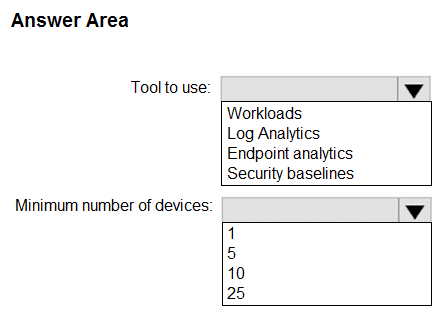
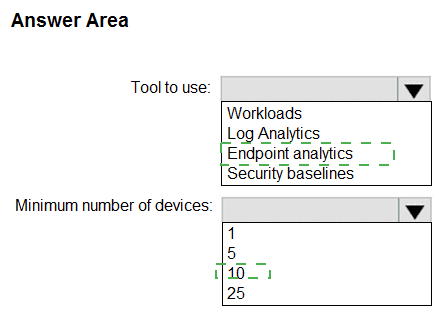

Explanation:
The core requirement for both departments is to manage corporate data on personal devices without needing to manage the devices themselves. This is the exact purpose of App Protection Policies (APP), formerly known as MAM (Mobile Application Management).

App Protection Policies (APP) work by wrapping corporate data within managed applications (like Outlook, Word, Excel, etc.). This allows IT to enforce security policies—such as requiring a PIN to open the app, preventing data copy/paste to unmanaged apps, and encrypting corporate data—without enrolling the user's personal device into Intune. The management follows the identity and the data, not the device.

This solution meets the requirement perfectly because:
It protects corporate data accessed from the Research and Sales departments.
It does not require device enrollment, respecting the privacy of the employees' personal devices.

Why the Other Options are Incorrect for Both Departments

An app configuration policy:
This is used to pre-configure settings for an app when it is launched (e.g., pre-populating a username or configuring a specific server URL). It does not, by itself, provide the data security and access controls required to "manage corporate data."

Azure Information Protection (AIP):
While AIP is a powerful data protection service for classification and encryption, it is being superseded by the unified labeling client integrated into Microsoft Purview. More importantly, AIP is a data-level protection technology, not a primary device management solution. App Protection Policies can leverage the underlying protection services, but APP is the correct overarching management framework for this scenario.

iOS app provisioning profiles:
These are used to deploy and trust line-of-business (LOB) apps on corporate-owned, Intune-enrolled iOS devices. They are irrelevant for personal devices that are not enrolled, which is the stated scenario for both departments.

Reference:
Microsoft Learn - App protection policies overview:

"App protection policies (APP) are rules that ensure an organization's data remains safe or contained in a managed app... A policy can be a rule that is enforced when the user attempts to access or move 'corporate' data, or a set of actions that are prohibited or monitored when the user is inside the app."

Microsoft Learn - How to deploy app protection policies with Intune:
"Use app protection policies to help protect your organization's data on devices that are not enrolled with Intune."

You need to meet the OOBE requirements for Windows AutoPilot.
Which two settings should you configure from the Azure Active Directory blade? To answer, select the appropriate settings in the answer area.
NOTE: Each correct selection is worth one point.


Explanation:
When configuring Windows Autopilot, particularly its Out-of-Box Experience (OOBE) phase, administrators must ensure that users experience a streamlined sign-in and enrollment process. Two key Azure Active Directory (Azure AD) settings must be configured to achieve this:
Company branding — to customize the user sign-in and OOBE screens.
Mobility (MDM and MAM) — to automatically enroll devices into Microsoft Intune (Mobile Device Management).
These configurations are made directly from the Azure Active Directory blade in the Azure portal.

✅ 1. Company Branding

Purpose:
Company branding in Azure AD customizes the sign-in, enrollment, and OOBE screens with your organization’s logo, background image, and color scheme.

During Windows Autopilot OOBE, users see a personalized sign-in page with the company logo and name instead of the generic Microsoft login. This reassures users they’re connecting to their corporate environment and helps with a smooth onboarding experience.

Configuration Path:
Azure AD → Company branding → Configure sign-in page → Upload logo, background image, and define accent color.

Why It’s Required for OOBE:
Displays your organization’s logo and name during device setup.
Reduces confusion by ensuring users know they’re signing into the correct tenant.
Provides a consistent corporate look and feel across devices.
Without this configuration, the OOBE will show Microsoft’s default branding, which may cause user uncertainty, especially in multi-tenant or multi-domain environments.

Reference:
Microsoft Learn — Configure company branding in Azure Active Directory
Microsoft Learn — Overview of Windows Autopilot

✅ 2. Mobility (MDM and MAM)
Purpose:
The Mobility (MDM and MAM) settings in Azure AD define how devices are managed once they join the directory.
This setting allows automatic MDM enrollment into Microsoft Intune as part of the OOBE process.
In other words, when a user signs into their new device during Autopilot setup, the device is automatically enrolled in Intune without requiring manual steps.

onfiguration Path:
Azure AD → Mobility (MDM and MAM) → Select Microsoft Intune → Configure the following:
MDM user scope → Select Some or All.
MAM user scope → Select if using application-level management (optional).
URL for MDM terms (optional).

Why It’s Required for OOBE:
Enables automatic device enrollment in Intune during the OOBE.
Ensures devices receive configuration policies, compliance rules, and applications immediately after setup.
Integrates Azure AD Join and Intune MDM registration for hybrid and cloud-native management.
Without this configuration, users would need to manually enroll their device in Intune after setup, defeating the purpose of Autopilot’s zero-touch provisioning model.

Reference:

Microsoft Learn — Configure auto-enrollment for Intune
Microsoft Learn — Set up MDM authority

❌ Why the Other Options Are Not Correct
Users / Groups
These sections are used for managing accounts and access but do not affect OOBE behavior. They define who exists in Azure AD, not how Autopilot enrolls or displays the sign-in experience.

Enterprise Applications
Used for managing app access and SSO settings. OOBE customization and enrollment automation are unrelated to application registration.

App registrations / Application proxy
These are for integrating applications and publishing internal apps to external users. They don’t impact OOBE or the device provisioning process.

Roles and administrators
Controls access permissions in Azure AD (e.g., Global Administrator, Intune Administrator). While administrative roles are necessary for configuration, they don’t themselves affect the OOBE experience.

Devices
This node displays registered and joined devices, but it doesn’t allow configuring Autopilot OOBE settings. Devices appear here after OOBE completes.

Azure AD Connect
Used for synchronizing on-premises AD accounts with Azure AD. Although required for hybrid environments, it’s not directly part of OOBE branding or MDM auto-enrollment configuration.

Licenses
Licenses must be assigned (e.g., Intune and Azure AD Premium), but this setting is not used to configure the OOBE process itself.

Password reset / User settings
Control self-service password reset and Azure AD sign-in options — not related to Autopilot’s OOBE automation.
Company branding and Mobility (MDM and MAM) are the only settings that directly influence:
The appearance of the OOBE.
The automatic enrollment into Intune during setup.

You need to resolve the performance issues in the Los Angeles office.
How should you configure the update settings? To answer, select the appropriate options in the answer area.
NOTE: Each correct selection is worth one point.
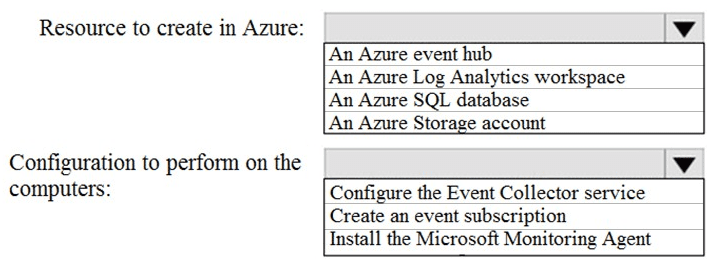
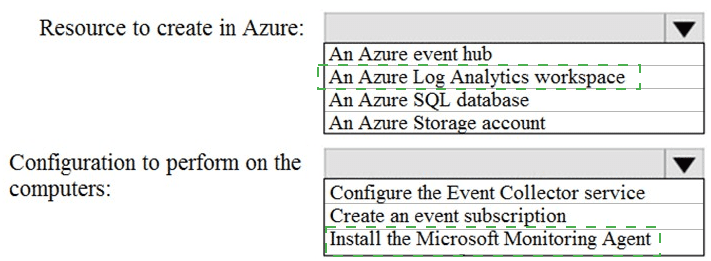

Explanation:
To resolve performance issues in the Los Angeles office, you must optimize Windows Update delivery and prevent disruptions during working hours. The correct configuration achieves both goals:


HTTP blended with peering behind same NAT This mode allows devices on the same network (behind the same NAT) to share update content peer-to-peer while still downloading from Microsoft CDN. It reduces WAN bandwidth usage and improves update performance in branch offices.
Devices download updates from Microsoft and also from peers within the same subnet.
Ideal for offices with limited bandwidth or many devices downloading the same updates.

🔗 Reference:
Delivery Optimization overview

2. Active Hours Start:
10 AM, Active Hours End: 10 PM Active Hours define when devices are in use and should avoid automatic restarts. Setting them from 10 AM to 10 PM ensures updates and reboots do not interrupt users during business hours.
Prevents forced reboots during peak productivity.
Covers standard and extended work hours, especially in developer or support-heavy environments.

🔗 Reference:
Configure Active Hours

❌ Why Other Options Are Incorrect
Delivery Optimization Modes:
Bypass mode:
Disables Delivery Optimization entirely.
Forces all devices to download updates directly from Microsoft, increasing WAN usage.
Not suitable for branch offices with bandwidth constraints.
HTTP blended with internet peering:
Allows peering across the internet, which introduces latency and security concerns.
Less efficient than local NAT-based peering for office environments.
Simple download mode with no peering:
Disables peer-to-peer sharing.
All devices download updates individually, increasing bandwidth consumption.

Active Hours Start/End Options:
Start: 11 AM or 10 PM:
11 AM delays protection from restarts, risking disruption during early work hours.
10 PM is too late to start active hours.
End: 11 AM or 11 PM:
11 AM ends protection too early, allowing reboots during the afternoon.
11 PM may be excessive unless users work late; 10 PM is a safer default.

Summary

To resolve performance issues in a branch office like Los Angeles:
Use HTTP blended with peering behind same NAT to reduce WAN load and enable efficient update distribution.
Set Active Hours from 10 AM to 10 PM to prevent disruptive restarts during working hours.

What should you configure to meet the technical requirements for the Azure AD-joined computers?

A. Windows Hello for Business from the Microsoft Intune blade in the Azure portal.

B. The Accounts options in an endpoint protection profile.

C. The Password Policy settings in a Group Policy object (GPO).

D. A password policy from the Microsoft Office 365 portal.

A.   Windows Hello for Business from the Microsoft Intune blade in the Azure portal.

Explanation:
The requirement is to configure a security policy for Azure AD-joined computers. These devices are cloud-managed and not controlled by on-premises Active Directory Group Policy. Therefore, the configuration must be delivered via a cloud-based management service, which is Microsoft Intune.

Windows Hello for Business (WHfB) is Microsoft's passwordless authentication solution. It replaces passwords with strong two-factor authentication (2FA) on devices, using a biometric or PIN gesture that is tied to the specific device.

To configure and deploy WHfB settings to Azure AD-joined devices, you must use an Identity Protection profile in Microsoft Intune. This profile type contains the specific settings for enabling and configuring Windows Hello for Business, such as:

Enabling/disabling WHfB
Configuring PIN length and complexity
Enabling biometrics
Setting the certificate trust model

This profile is created and assigned from the Microsoft Intune admin center (referred to in the option as "the Microsoft Intune blade in the Azure portal").

Why the Other Options are Incorrect

B. The Accounts options in an endpoint protection profile:
An Endpoint Protection profile in Intune is used for configuring security features like Windows Defender Antivirus, Firewall, and Defender Application Guard. It does not contain settings for identity and authentication like Windows Hello for Business. Identity settings are managed in a separate Identity Protection profile.

C. The Password Policy settings in a Group Policy object (GPO):
A GPO is an on-premises Active Directory management tool. It is processed by domain-joined computers when they can contact a domain controller. Azure AD-joined computers do not process GPOs because they are not members of the on-premises domain. They are managed exclusively through cloud MDM policies like Intune.

D. A password policy from the Microsoft Office 365 portal:
The Office 365 admin center (now part of the Microsoft 365 admin center) is for managing user identities, licenses, and productivity services. While you can set basic password expiration and complexity policies for user accounts in Azure AD, this is a cloud-wide identity setting, not a device-level configuration. It does not provide the granular control to enable or configure Windows Hello for Business on specific Azure AD-joined devices.

Summary:
For Azure AD-joined devices, all device configuration, including security and identity policies, must be deployed via the MDM authority, which is Microsoft Intune. The specific tool within Intune for configuring passwordless authentication is the Identity Protection profile for Windows Hello for Business.

Reference
Microsoft Learn - Configure Windows Hello for Business in Intune:
"Use the settings in the Identity Protection profile to configure Windows Hello for Business... These settings are used to create a Identity Protection policy you can deploy to Windows 10/11 devices."

What should you use to meet the technical requirements for Azure DevOps?

A. An app protection policy

B. Windows Information Protection (WIP)

C. Conditional access

D. A device configuration profile

C.   Conditional access

Explanation:
This question focuses on meeting technical requirements for securing access to Azure DevOps. Typically, in Microsoft 365 and Intune environments, Azure DevOps requires secure access control based on device compliance, user identity, and network location. To achieve this, you use Conditional Access (CA) — a feature in Azure Active Directory (Azure AD) (now Entra ID).

✅ Why Option C — Conditional Access — Is Correct
Conditional Access policies are the core mechanism for protecting access to Azure DevOps and other Microsoft cloud resources.
They apply real-time access decisions based on user, device, location, and risk conditions.
For Azure DevOps, you can configure a Conditional Access policy that requires:
Devices to be compliant (enrolled in Intune).
Users to use MFA (Multi-Factor Authentication).
Access only from trusted networks or approved apps.
This ensures that only authorized and secure users or devices can connect to Azure DevOps repositories and services.

Common Azure DevOps Conditional Access Scenarios

1.Require compliant devices for access to Azure DevOps
→ Ensures that only Intune-managed devices meeting compliance policies (e.g., encryption, antivirus, OS version) can access the environment.

2.Require Multi-Factor Authentication (MFA)
→ Protects Azure DevOps from credential theft and unauthorized access.

3.Block legacy authentication protocols
→ Prevents use of insecure clients that bypass modern security enforcement.

4.Restrict access by network location
→ Limit access to Azure DevOps from known IP ranges (e.g., corporate network or VPN).

Configuration Path (in Azure AD / Entra admin center)
Go to Azure AD → Security → Conditional Access → New policy
Assign policy to Users or groups (e.g., DevOps engineers)
Under Cloud apps or actions, select Azure DevOps

Under Conditions, configure:
Device platform (Windows, macOS, etc.)
Locations (trusted vs. untrusted)
Client apps (browser, app)
Under Access controls → Grant, choose:
Require Multi-Factor Authentication
Require device to be marked as compliant
This configuration enforces security requirements before allowing access to Azure DevOps resources.

References:

Microsoft Learn — Conditional Access in Azure AD
Microsoft Learn — Configure Conditional Access for Azure DevOps
Microsoft Learn — Secure Azure DevOps with Conditional Access policies

❌ Why the Other Options Are Incorrect

A. An app protection policy
App protection policies (APP) in Intune control how data is used inside mobile apps (e.g., Outlook, Teams, Edge).
They can prevent data leakage by restricting copy/paste or file sharing, but they don’t control sign-in or access to Azure DevOps services.
APPs are used for data protection within apps, not authentication or access enforcement for services like Azure DevOps.

Example:
Prevents corporate data from being copied from Outlook to a personal app — but does not secure access to DevOps repositories.

B. Windows Information Protection (WIP)
WIP helps protect corporate data on Windows 10/11 devices by separating work and personal data.
It’s used to prevent data leakage and control file access, not to enforce access to Azure services.
WIP operates at the file and application level — it does not control login or conditional access behavior for Azure DevOps.

Example: WIP ensures company data isn’t copied to personal storage, but it doesn’t verify whether a user’s device is compliant before accessing Azure DevOps.

D. A device configuration profile
Device configuration profiles (in Intune) apply settings and policies (like Wi-Fi, VPN, BitLocker, or password requirements) to managed devices.
While these settings can help devices become compliant, they don’t enforce access restrictions to Azure services.
Conditional Access, not configuration profiles, performs the real-time enforcement at sign-in.

Example:
A configuration profile might enforce BitLocker encryption, but Conditional Access enforces “only encrypted devices can access Azure DevOps.”

You need to meet the technical requirements for the iOS devices.
Which object should you create in Intune?

A. A compliance policy

B. An app protection policy

C. A Deployment profile

D. A device configuration profile

D.   A device configuration profile

Explanation:
The question asks for a solution to meet technical requirements for iOS devices. In the context of Microsoft Intune, "technical requirements" for devices almost always refer to device-level settings and restrictions, such as:

Configuring Wi-Fi, VPN, or email settings
Enforcing password policies (length, complexity, history)
Restricting device functionalities (camera, Safari, iCloud backup)
Enabling kiosk mode (single-app or multi-app)

A Device Configuration Profile in Intune is the primary tool used to deploy and enforce these exact types of settings on devices. You can create a dedicated profile for iOS/iPadOS and configure hundreds of specific settings to meet your organization's security and operational requirements.

Why the Other Options are Incorrect

A. A compliance policy:
A compliance policy defines the rules and conditions a device must meet to be considered "compliant" (e.g., a minimum OS version, whether the device is jailbroken, a required password type). It evaluates the device's state but does not configure the device settings itself. You use a compliance policy to set the bar for access, not to push technical configurations like Wi-Fi or password length.

B. An app protection policy (APP):
An APP is used to manage and protect data within applications (like Outlook, Teams, Word) on both enrolled and unenrolled devices. It controls actions like preventing data copy/paste to personal apps or requiring a PIN to open a work app. It is a data-centric policy, not a device-centric one, and does not configure device-level technical settings.

C. A Deployment profile:
This term is specific to Windows Autopilot. An Autopilot deployment profile configures the out-of-box experience (OOBE) for Windows devices. It is not applicable to iOS devices. iOS devices are enrolled through other methods like Apple Business Manager and are configured using device configuration profiles, not "deployment profiles."

Summary:

To implement technical settings and restrictions on iOS devices (such as configuring passwords, restricting features, or setting up network connections), you must create and assign a Device Configuration Profile in Intune.

Reference:

Microsoft Learn - Device configuration profiles for iOS/iPadOS in Intune:

"Use device configuration profiles in Intune to configure settings and features on devices... you can create a profile that blocks the device camera, or requires a complex password."

Page 2 out of 32 Pages
MD-102 Practice Test

Are You Truly Prepared?

Don't risk your exam fee on uncertainty. Take this definitive practice test to validate your readiness for the Microsoft MD-102 exam.