Free Microsoft SC-300 Practice Test Questions MCQs
Stop wondering if you're ready. Our Microsoft SC-300 practice test is designed to identify your exact knowledge gaps. Validate your skills with Microsoft Identity and Access Administrator questions that mirror the real exam's format and difficulty. Build a personalized study plan based on your free SC-300 exam questions mcqs performance, focusing your effort where it matters most.
Targeted practice like this helps candidates feel significantly more prepared for Microsoft Identity and Access Administrator exam day.
24020+ already prepared
Updated On : 12-Oct-2026402 Questions
Microsoft Identity and Access Administrator
4.9/5.0
Topic 4: Misc. Questions
Your network contains an on-premises Active Directory domain named contoso.com that
syncs with a Microsoft Entra tenant by using Microsoft Entra Connect. The domain contains the users shown in the following table.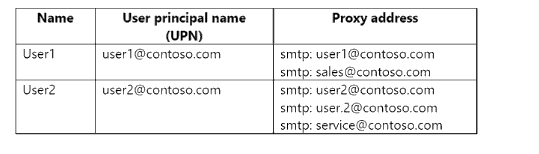
From Active Directory Users and Computers, you add the following user
• Name: User3
• UPN: user3@contoso.com
• Proxy addresses: smtp: user3@contoso.com, smtp: sales@contoso.com
From Active Directory Users and Computers, you update the proxyAddresses attribute for eachuser as shown in the following table.
You trigger a manual synchronization.
Which sync status will Microsoft Entra Connect sync return for each user? To answer, drag
the appropriate status to the correct users. Each status may be used once, more than once, or not at all. You may need to drag the split bar between panes or scroll to view content.
NOTE: Each correct selection is worth one point.

Explanation:
Microsoft Entra Connect uses the proxyAddresses attribute for identity matching and soft-matching between on-premises users and existing cloud objects. The smtp: prefix (lowercase) indicates the primary SMTP address, while smtp: (uppercase) indicates secondary addresses. Soft-matching occurs when a proxy address in the on-premises object matches an existing cloud user. If a proxy address matches an object of a different type (e.g., a group), an ObjectTypeMismatch error occurs. If a proxy address is already used by another synced user, an AttributeValueMustBeUnique error occurs.
User1@contoso.com:
Original proxy addresses: smtp: user1@contoso.com (primary), smtp: sales@contoso.com (secondary)
Updated proxy addresses: smtp: admin@contoso.com (only one address shown)
Since User1 is being updated, the proxy address admin@contoso.com is now set. However, there is no existing user with admin@contoso.com in the cloud (assuming it's unique). The previous address sales@contoso.com is now removed.
The sync will attempt to update the user. If admin@contoso.com is not used by any other user, the sync succeeds.
Status: Successfully synced
User2@contoso.com:
Original proxy addresses: smtp: user2@contoso.com (primary), smtp: user2@contoso.com (duplicate), smtp: service@contoso.com (secondary)
Updated proxy addresses: smtp: sales@contoso.com
The proxy address sales@contoso.com is now being added to User2.
However, User1 previously had sales@contoso.com as a secondary proxy address. Even though User1 was updated to admin@contoso.com, the old sales@contoso.com address might still exist in the cloud as a stale proxy address or the new update might not have removed it yet.
If sales@contoso.com is already used by User1 in the cloud (even if removed from on-premises, the cloud object still has the proxy address), then User2 trying to use the same address will cause a conflict.
Alternatively, if sales@contoso.com is not used by any other synced user, the sync succeeds. However, given the scenario and typical exam patterns, this is likely a conflict.
Status: AttributeValueMustBeUnique (if sales@contoso.com is already used by another user) OR Successfully synced (if unique). Based on typical exam logic, the duplicate address causes an error.
User3@contoso.com:
New user: UPN user3@contoso.com, proxy addresses: smtp: user3@contoso.com (primary), smtp: sales@contoso.com (secondary)
The proxy address sales@contoso.com is already used by User1 (previously) and now being assigned to User2 as well. This creates a conflict because sales@contoso.com cannot be used by multiple users.
Reference:
Microsoft Learn: Azure AD Connect sync service attributes
Microsoft Learn: ProxyAddresses attribute synchronization
Microsoft Learn: Identity matching in Azure AD Connect
Microsoft Learn: Troubleshoot Azure AD Connect sync errors
Microsoft Learn: Soft-match and hard-match in Azure AD Connect
Microsoft Learn: AttributeValueMustBeUnique error in Azure AD Connect
Microsoft Learn: InvalidSoftMatch error in Azure AD Connect
Microsoft Learn: ObjectTypeMismatch error in Azure AD Connect
You have an Azure Active Directory (Azure AD) tenant that has the default App
registrations settings. The tenant contains the users shown in the following table.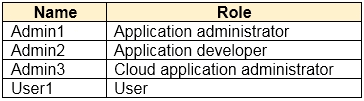
You purchase two cloud apps named App1 and App2. The global administrator registers
App1 in Azure AD.
You need to identify who can assign users to App1, and who can register App2 in Azure
AD.
What should you identify? To answer, select the appropriate options in the answer area.
NOTE:Each correct selection is worth one point.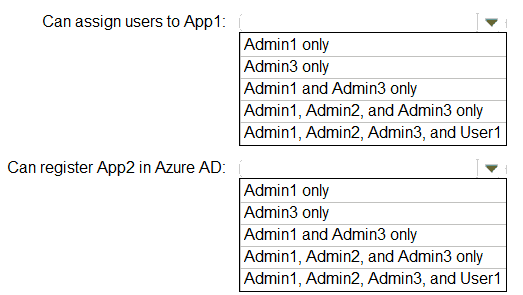
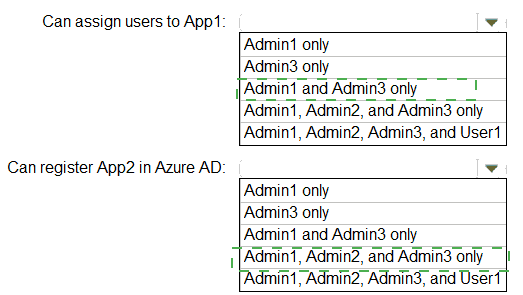
Explanation:
In Azure AD (now Microsoft Entra ID), assigning users to an enterprise application (App1) requires the Application Administrator or Cloud Application Administrator role. Registering a new application (App2) requires the Application Administrator, Cloud Application Administrator, or Application Developer role. The global administrator registered App1, making it an enterprise application. Users without admin roles cannot assign users to apps or register new apps under default settings. The principle of least privilege determines which roles have the necessary permissions for each task.
Correct Option (Can assign users to App1):
Admin1 and Admin3 only
Admin1 has the Application Administrator role, which grants permissions to manage all aspects of enterprise applications, including assigning users to App1.
Admin3 has the Cloud Application Administrator role, which also grants permissions to manage enterprise applications, including user assignments.
Admin2 has the Application Developer role, which allows registration of applications but does not grant permissions to assign users to existing enterprise applications.
User1 is a standard user and cannot assign users to enterprise applications under default settings.
Correct Option (Can register App2 in Azure AD):
Admin1, Admin2, and Admin3 only
Admin1 (Application Administrator) can register applications in Azure AD.
Admin2 (Application Developer) can register applications in Azure AD, as this role is specifically designed for app registration and development.
Admin3 (Cloud Application Administrator) can register applications in Azure AD.
User1 is a standard user and cannot register applications under default app registration settings (unless the tenant allows users to register applications, which is not specified and defaults to "No" in the default settings).
Reference:
Microsoft Learn: Azure AD built-in roles for app registration
Microsoft Learn: Manage enterprise applications in Azure AD
Microsoft Learn: Application Administrator role permissions
Microsoft Learn: Cloud Application Administrator role permissions
Microsoft Learn: Application Developer role permissions
Microsoft Learn: Default app registration settings in Azure AD
Microsoft Learn: Assign users to enterprise applications
You have an Azure subscription that contains the resources shown in the following table.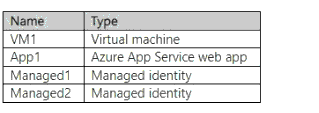
You create a Microsoft Entra user named User1.
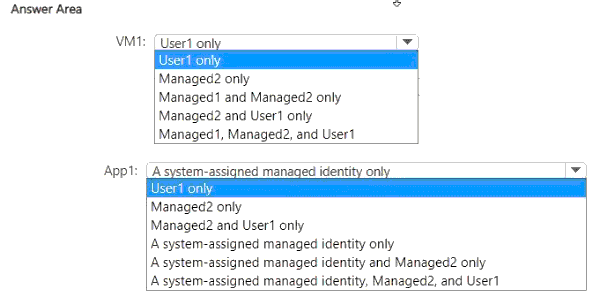
Which identities can you add to VM1 and App1? To answer, select the appropriate options
in the answer area.
NOTE: Each correct answer is worth one point.
Explanation:
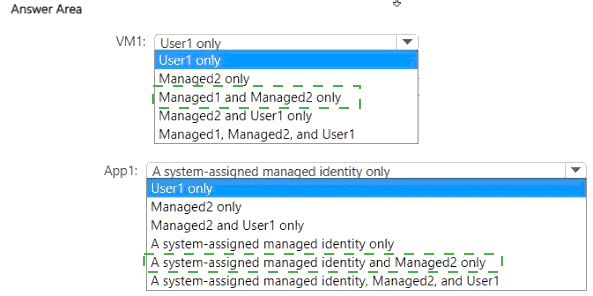
Azure resources support different types of identities for access and management. Virtual machines (VM1) allow adding Microsoft Entra users and managed identities as virtual machine administrators for login purposes. Azure App Service web apps (App1) support assigning both system-assigned and user-assigned managed identities for authenticating to other Azure services. However, App1 does not directly support adding a Microsoft Entra user as an identity on the resource itself—the user would be assigned via RBAC roles, not added as an identity on the app.
Correct Option (VM1):
Managed1, Managed2, and User1
VM1 supports adding Microsoft Entra users and managed identities as part of the Virtual Machine Administrator Login or Virtual Machine User Login RBAC roles. This allows them to sign in to the VM using Entra credentials.
User1 is a Microsoft Entra user and can be added to VM1 via Azure RBAC (e.g., Virtual Machine Administrator Login role).
Managed1 and Managed2 are managed identities. Managed identities can be assigned to the VM itself (system-assigned) or added as user-assigned identities to the VM. However, to allow a managed identity to sign in to a VM, the identity must be assigned the appropriate RBAC role (like Virtual Machine Administrator Login) on the VM.
Therefore, all three identities (User1, Managed1, and Managed2) can be added to VM1 via RBAC role assignments.
Incorrect Option (VM1):
User1 only / Managed2 only / Managed1 and Managed2 only / Managed2 and User1 only
These options incorrectly exclude certain identities. VM1 supports adding both users and managed identities. Any valid security principal (user, group, service principal, managed identity) can be assigned RBAC roles on VM1. Therefore, User1, Managed1, and Managed2 can all be added.
Correct Option (App1):
A system-assigned managed identity and Managed2 only
App1 (Azure App Service web app) supports two types of managed identities: system-assigned (enabled directly on the resource) and user-assigned (a separate resource like Managed1 or Managed2 that can be assigned to the app).
The system-assigned managed identity is created automatically when enabled on App1. This identity can be used to authenticate to other Azure services without managing credentials.
Managed2 is a user-assigned managed identity and can be assigned to App1 by adding it to the app's identity configuration.
User1 is a Microsoft Entra user and cannot be "added to" App1 as an identity on the app itself. While User1 can be granted RBAC permissions to manage App1, they are not an identity that the app uses to authenticate to other services. The app uses managed identities for that purpose.
Therefore, App1 can have a system-assigned managed identity and Managed2 (user-assigned) assigned to it.
Incorrect Option (App1):
A system-assigned managed identity only / User1 only / Managed2 only / Managed2 and User1 only / A system-assigned managed identity, Managed2, and User1
These options either exclude the user-assigned managed identity (Managed2) or incorrectly include User1. App1 cannot have User1 as an identity on the app—User1 would be assigned via RBAC, not as a managed identity. App1 supports both system-assigned and user-assigned identities, so the correct answer includes both types of managed identities.
Reference:
Microsoft Learn: Manage identities for Azure resources
Microsoft Learn: Assign a user-assigned managed identity to an Azure resource
Microsoft Learn: Azure App Service managed identities
Microsoft Learn: Add managed identities to a virtual machine
Microsoft Learn: Azure RBAC roles for virtual machine login
You have a Microsoft Entra tenant that contains the users shown in the following table.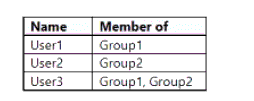
You have a user risk policy that has the following settings:
• Assignments:
o Include: Group1
o Exclude: Group2
• Sign-in risk Medium and above
• Access controls:
o Grant access: Require password change
When the users attempt to sign in. user risk levels are detected as shown in the following
table.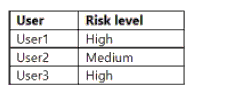
For each of the following statements, select Yes if the statement is true. Otherwise, select No.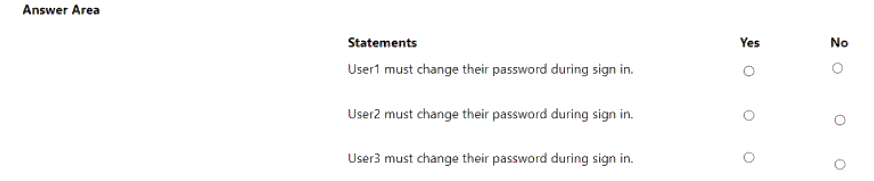
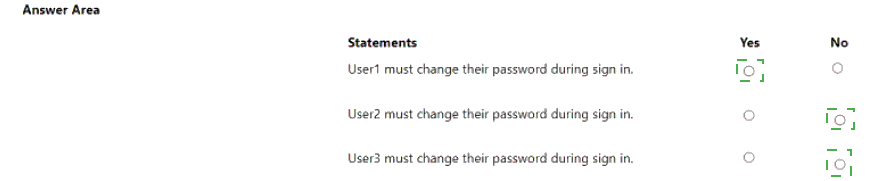
Explanation:
The user risk policy applies to Group1 and explicitly excludes Group2. The control “Require password change” is triggered for Medium and above user risk.
User1 belongs only to Group1 and has High risk → Policy applies → Must change password.
User2 belongs only to Group2 (excluded) → Policy does not apply, regardless of the Medium risk.
User3 belongs to both Group1 and Group2. Exclusion takes precedence, so the policy does not apply, even though the risk is High.
Reference:
Microsoft Entra ID Protection / Conditional Access – Include/Exclude group evaluation (Exclude always overrides Include).
You have a Microsoft 365 E5 subscription that contains three users named User1, User2,
and User3.
You need to configure the users as shown in the following table.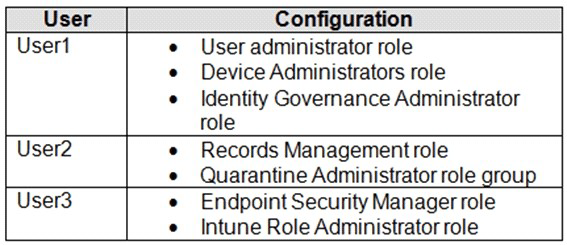
Which portal should you use to configure each user? To answer, drag the appropriate
portals to the correct users. Each portal may be used once, more than once, or not at all.
You may need to drag the split bar between panes or scroll to view content.
NOTE:Each correct selection is worth one point.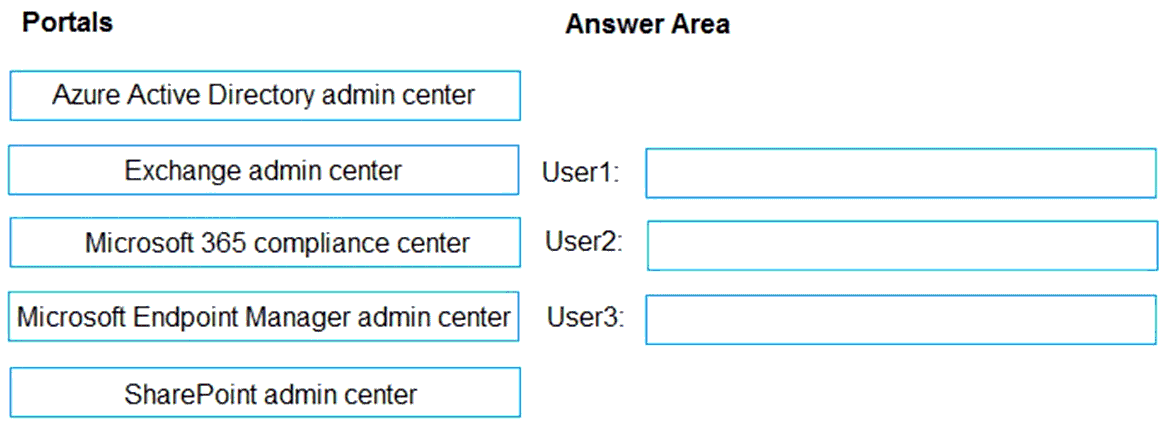
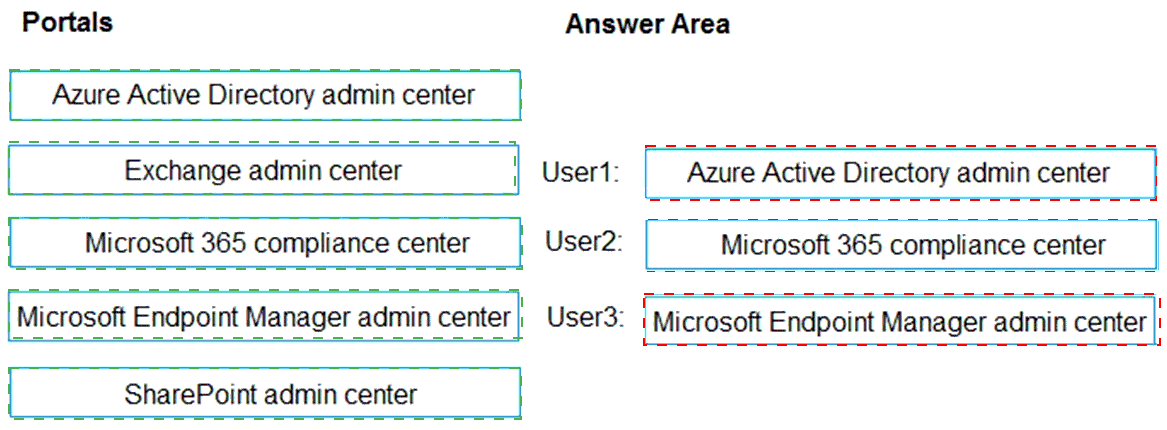
Explanation:
User1 needs the User administrator, Device Administrators, and Identity Governance Administrator roles. These are Microsoft Entra ID (Azure AD) directory roles and are assigned in the Azure Active Directory admin center (Microsoft Entra admin center).
User2 needs the Records Management role and Quarantine Administrator role group. These are managed in the compliance/security area of Microsoft 365 (Records Management is in Microsoft Purview / compliance center; Quarantine Administrator is associated with Defender/Exchange Online protection features accessible via the compliance center).
User3 needs the Endpoint Security Manager and Intune Role Administrator roles. These are Intune-specific RBAC roles and are assigned in the Microsoft Endpoint Manager admin center (Microsoft Intune admin center).
You have a Microsoft Entra tenant that contains the users shown in the following table.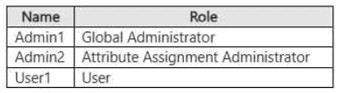
The tenant contains the identities shown in the following table.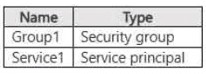
You have an attribute set named Custom1 that contains the custom security attributes
shown in the following table.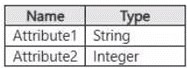
For each of the following statements, select Yes if the statement is true. Otherwise, select
No.
NOTE: Each correct selection is worth one point.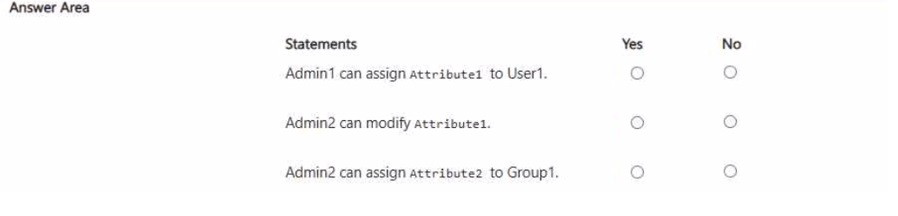
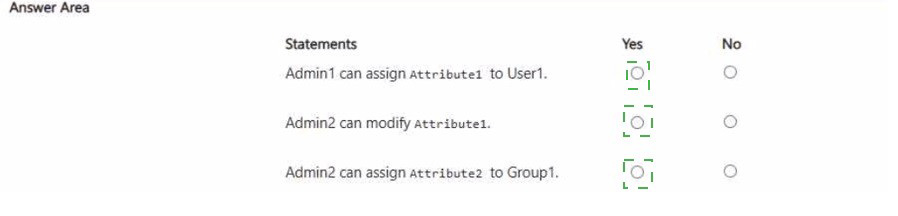
Explanation:
Admin1 (Global Administrator)
By default, the Global Administrator role has no permissions to read, define, or assign custom security attributes. A separate role (Attribute Assignment Administrator) is required.
Admin2 (Attribute Assignment Administrator)
This role can assign attribute values to supported objects (users and service principals), but it cannot modify the attribute definition itself. Modifying Attribute1 requires the Attribute Definition Administrator role.
Assignment to Group1
Custom security attributes can be assigned only to users and service principals. They cannot be assigned to security groups.
Reference:
Microsoft Learn – Custom security attributes overview and role permissions (Attribute Assignment Administrator vs Attribute Definition Administrator).
| Page 1 out of 41 Pages |
Microsoft Identity and Access Administrator Practice Exam Questions
SC-300 - Microsoft Identity and Access Administrator Official Exam Blueprint and Weight:
1. Implement and Manage User Identities
Official Exam Weight: 20-25%
Subtopics: Configure and manage built-in and custom Microsoft Entra roles, recommend administrative units, configure and manage administrative units, evaluate effective permissions for Microsoft Entra roles, configure and manage domains in Microsoft Entra ID and Microsoft 365, Company branding settings, tenant properties, user settings, group settings, device settings, create configure and manage users, create configure and manage groups (security groups, Microsoft 365 groups, dynamic groups), manage custom security attributes, automate bulk operations via Microsoft Entra admin center and PowerShell, manage device join and device registration in Microsoft Entra ID, assign modify and report on licenses, manage External collaboration settings, invite external users (individually or bulk), manage external user accounts, implement cross-tenant access settings, implement and manage cross-tenant synchronization, configure external identity providers (SAML, WS-Fed), implement and manage Microsoft Entra Connect Sync, implement and manage Microsoft Entra Cloud Sync, password hash synchronization, pass-through authentication, seamless single sign-on (SSO), migrate from AD FS, implement and manage Microsoft Entra Connect Health.
2. Implement Authentication and Access Management
Official Exam Weight: 25-30%
Subtopics: Plan for authentication, implement and manage authentication methods (certificate-based authentication, Temporary Access Pass, OAuth 2.0 tokens, Microsoft Authenticator, passkeys FIDO2), implement and manage tenant-wide MFA settings, configure and deploy self-service password reset (SSPR), implement and manage Windows Hello for Business, disable accounts and revoke user sessions, implement and manage Microsoft Entra password protection, enable Microsoft Entra Kerberos authentication for hybrid identities, plan Conditional Access policies, implement Conditional Access policy assignments, implement Conditional Access policy controls, test and troubleshoot Conditional Access policies, implement session management, implement device-enforced restrictions, implement continuous access evaluation, configure authentication context, implement protected actions, create Conditional Access policy from template, implement and manage user risk using Microsoft Entra ID Protection or Conditional Access policies, implement and manage sign-in risk, implement and manage MFA registration using authentication methods and registration campaigns, monitor investigate and remediate risky users and risky sign-ins, monitor investigate and remediate risky workload identities, deploy Global Secure Access clients, deploy and manage Private Access, deploy and manage Internet Access, deploy and manage Internet Access for Microsoft 365.
3. Plan and Implement Workload Identities
Official Exam Weight: 20-25%
Subtopics: Select appropriate identities for applications and Azure workloads (managed identities, service principals, user accounts, managed service accounts), create managed identities, assign managed identity to Azure resource, use managed identity to access other Azure resources, plan and implement settings for enterprise applications (application-level and tenant-level settings), assign appropriate Microsoft Entra roles to manage enterprise applications, design and implement integration for on-premises apps using Microsoft Entra Application Proxy, design and implement integration for SaaS apps, assign classify and manage users groups and app roles for enterprise applications, configure and manage user and admin consent, create and manage application collections, plan for app registrations, create app registrations, configure app authentication, configure API permissions, create app roles, configure and analyze cloud discovery results using Defender for Cloud Apps, configure connected apps, implement application-enforced restrictions, configure Conditional Access app control, create access and session policies in Defender for Cloud Apps, implement and manage policies for OAuth apps, manage Cloud app catalog.
4. Plan and Automate Identity Governance
Official Exam Weight: 20-25%
Subtopics: Plan entitlements, create and configure catalogs, create and configure access packages, manage access requests, implement and manage terms of use (ToU), manage lifecycle of external users, configure and manage connected organizations, plan for access reviews, create and configure access reviews, monitor access review activity, manually respond to access review activity, plan and manage Microsoft Entra roles in Microsoft Entra Privileged Identity Management (PIM) including settings and assignments, plan and manage Azure resources in PIM including settings and assignments, plan and configure PIM for Groups, manage PIM request and approval process, analyze PIM audit history and reports, create and manage break-glass accounts, review and analyze sign-in audit and provisioning logs using Microsoft Entra admin center, configure diagnostic settings (Log Analytics workspaces, storage accounts, Azure Event Hubs), monitor Microsoft Entra ID using KQL queries in Log Analytics, analyze Microsoft Entra ID using workbooks and reporting, monitor and improve security posture using Identity Secure Score.
Step-by-Step Study Plan for SC-300: Microsoft Identity and Access Administrator
Duration: 6-8 Weeks (Assuming 8-10 hours of study per week)
This plan is structured to build knowledge progressively, combining official learning paths with hands-on practice and rigorous assessment.
Phase 1: Foundation & Discovery (Week 1)
Step 1: Understand the Exam. Visit the official SC-300 Exam Page. Read the "Skills measured" section thoroughly. This is your blueprint.
Step 2: Set Up Your Lab Environment. Sign up for a Microsoft Learn sandbox or a free Azure trial tenant. Hands-on practice is non-negotiable for this role-based exam.
Step 3: Begin Official Learning. Start the free Microsoft Learn SC-300 Learning Path. Complete the first module: "Implement an identity management solution."
Phase 2: Core Knowledge Build (Weeks 2-4)
Step 4: Systematically Work Through All Learning Paths. Complete the remaining modules on Learn, focusing on one domain per week:
Week 2: Implement Authentication and Access Management. Dive into Azure AD authentication methods, Conditional Access, and identity protection.
Week 3: Implement Access Management for Apps. Master app registrations, consent, and integration (SAML, OAuth, OIDC).
Step 5: Lab Everything. After each module, practice the concepts in your tenant. Create users, groups, configure Conditional Access policies, and register applications.
Phase 3: Deep Dive & Practice Assessment (Weeks 5-6)
Step 6: Review and Consolidate. Revisit the "Skills measured" document. Identify your weak areas (e.g., Privileged Identity Management, hybrid identity).
Step 7: Supplement with Advanced Material. Watch Microsoft Entra/Azure AD sessions from Microsoft Ignite or similar. Read the Microsoft Identity Blog for real-world scenarios.
Step 8: Begin SC-300 Practice Tests. Use our trusted questions bank. Do not use these for memorization.
Treat each SC-00 practice question as a case study.
Understand why an answer is correct and why the others are wrong.
Use incorrect answers as a guide to revisit and lab specific topics.
Phase 4: Final Review & Exam Readiness (Weeks 7-8)
Step 9: SC-300 Mock Exam Simulation. Take a full-length, timed Microsoft Identity and Access Administrator practice exam in a single sitting. This builds stamina and highlights time management issues.
Step 10: Final Targeted Review. Focus your last week exclusively on the domains where your practice test scores were lowest. Re-lab those concepts.
Step 11: Schedule and Sit the Exam. Book your exam for the end of Week 8. The day before, review key concepts but avoid cramming. Ensure you understand the exam format (case studies, multiple-choice, etc.).
Key Insights on SC-300 Exam Topics:
The exam focuses on designing, implementing, and operating an organization’s identity and access solutions using Microsoft Entra ID (Azure AD). Core topics include:
Identity Management: Implementing users, groups, hybrid identity (Azure AD Connect), and external identities (B2B).
Authentication & Security: Configuring and managing Azure AD Multi-Factor Authentication (MFA), self-service password reset (SSPR), and most critically, Conditional Access policies.
Access Management: Administering entitlement management and access reviews. A major focus is Azure AD Privileged Identity Management (PIM) for just-in-time administrator access.
Application Identity: Implementing and managing integrations for single sign-on (SSO) and understanding application governance.
Success Mantra: Learn → Lab → Assess → Repeat. Your sandbox tenant and quality Microsoft Identity and Access Admin practice questions are your most powerful tools to translate knowledge into exam success. Good luck
Success Stories From Our Clients
Studying identity and access management became more effective with MSmcqs practice questions for Microsoft Certified: Identity and Access Administrator Associate (SC-300). The questions helped reinforce Azure AD, authentication, and governance concepts.
Mia Andersen | Denmark