Topic 4: Misc. Questions
Note: This question is part of a series of questions that present the same scenario. Each question in the series contains a unique solution that might meet the stated goals. Some question sets might have more than one correct solution, while others might not have a correct solution.
After you answer a question in this section, you will NOT be able to return to it. As a result, these questions will not appear in the review screen.
You have a Microsoft 365 tenant.
You have 100 IT administrators who are organized into 10 departments.
You create the access review shown in the exhibit. (Click theExhibittab.)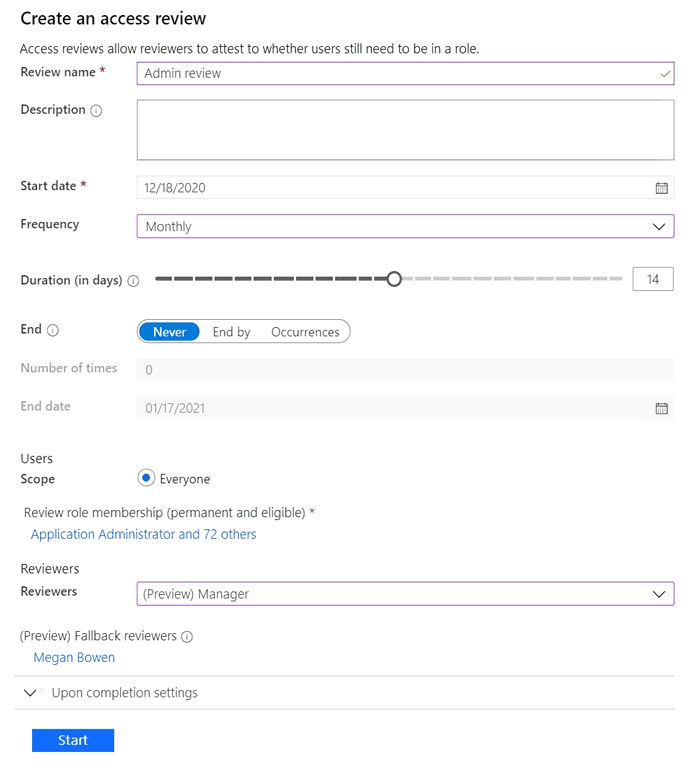
You discover that all access review requests are received by Megan Bowen.
You need to ensure that the manager of each department receives the access reviews of their respective department.
Solution: You set Reviewers toMember (self).
Does this meet the goal?
A. Yes
B. No
Explanation:
The requirement is to ensure that the manager of each department receives and reviews the access of their respective department members. Currently, all review requests are going to Megan Bowen because the fallback reviewer is being used (likely because the managers are not set or the manager attribute is missing). Setting the reviewers to "Member (self)" would cause each IT administrator to review their own access, which does not involve department managers at all. This solution does not meet the goal.
Correct Option:
B. No
Setting reviewers to Member (self) would require each IT administrator to review their own role membership, not their manager. This does not address the requirement that department managers receive the reviews.
The goal requires department managers to review their direct reports. The "Manager" reviewer setting is the correct approach, but it is failing because the manager attribute is likely not populated or the fallback reviewer (Megan Bowen) is receiving all requests.
To resolve the issue, the managers' attributes must be correctly set in Microsoft Entra ID so that each department manager receives the reviews for their respective team members.
Reference:
Microsoft Learn: Create an access review of groups or applications
Microsoft Learn: Reviewers in access reviews
Microsoft Learn: Self-review of access in access reviews
Microsoft Learn: Manage access reviews in Microsoft Entra ID
You have a Microsoft 365 tenant.
The Azure Active Directory (Azure AD) tenant syncs to an on-premises Active Directorydomain. The domain contains the servers shown in the following table.
The domain controllers are prevented from communicating to the internet.
You implement Azure AD Password Protection on Server1 and Server2.
You deploy a new server named Server4 that runs Windows Server 2019.
You need to ensure that Azure AD Password Protection will continue to work if a single server fails.
What should you implement on Server4?
A. Azure AD Connect
B. Azure AD Application Proxy
C. Password Change Notification Service (PCNS)
D. the Azure AD Password Protection proxy service
Explanation:
Azure AD Password Protection requires both the DC agent (installed on domain controllers) and the proxy service to function. The proxy service is responsible for communicating with Azure AD to download password policies and provide the global banned password list. To ensure high availability if a single server fails, you need to deploy the proxy service on a separate server (Server4) that has internet access, as domain controllers are prevented from communicating directly to the internet.
Correct Option:
D. the Azure AD Password Protection proxy service
The Azure AD Password Protection proxy service acts as the intermediary between on-premises domain controllers and Azure AD. It is responsible for downloading the global banned password list and communicating password validation requests to Azure AD.
Since the domain controllers (Server1 and Server2) are prevented from communicating directly to the internet, the proxy service must be installed on a server that has outbound internet access (Server4).
To ensure high availability and resilience against a single server failure, you should install the proxy service on Server4. This creates redundancy in the proxy service, ensuring that if one proxy server fails, the other can continue to handle requests.
Incorrect Option:
A. Azure AD Connect
Azure AD Connect is used for synchronizing identities from on-premises AD DS to Azure AD. While it may be installed on Server3, it is not responsible for password protection policy enforcement or proxy functionality.
Installing Azure AD Connect on Server4 would not help with Azure AD Password Protection high availability. It serves a different purpose.
Incorrect Option:
B. Azure AD Application Proxy
Azure AD Application Proxy provides secure remote access to on-premises web applications. It is not related to Azure AD Password Protection or password policy enforcement.
This service would not help ensure password protection continues to work if a server fails.
Incorrect Option:
C. Password Change Notification Service (PCNS)
PCNS is used to notify Azure AD about password changes for Active Directory Federation Services (AD FS) or Pass-through Authentication, allowing password writeback. It is not related to Azure AD Password Protection.
PCNS does not provide the proxy functionality required to download the banned password list or enforce password policies.
Reference:
Microsoft Learn: Azure AD Password Protection for on-premises
Microsoft Learn: Deploy Azure AD Password Protection
Microsoft Learn: Azure AD Password Protection proxy service
Microsoft Learn: High availability for Azure AD Password Protection
You have an Azure subscription that contains the resources shown in the following table.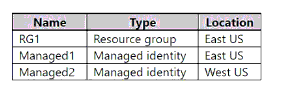
The subscription contains the virtual machines shown in the following table.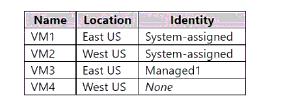
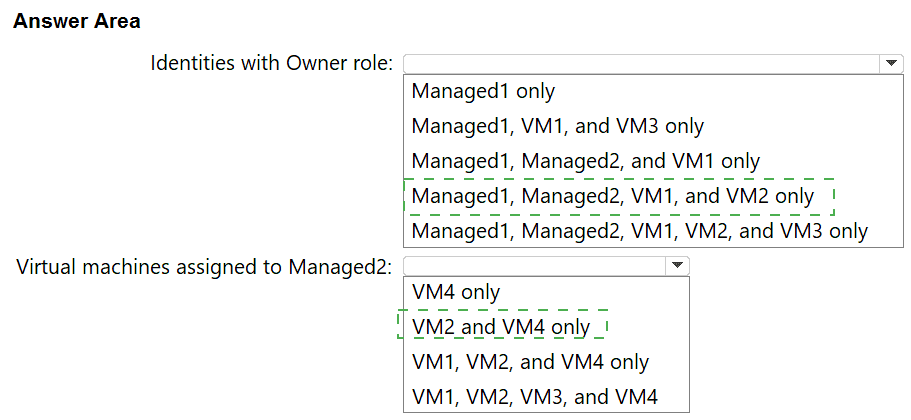
Which identities can be assigned the Owner role for RG1, and to which virtual machines can you assign Managed2? To answer, select the appropriate options in the answer area NOTE: Each correct selection is worth one point.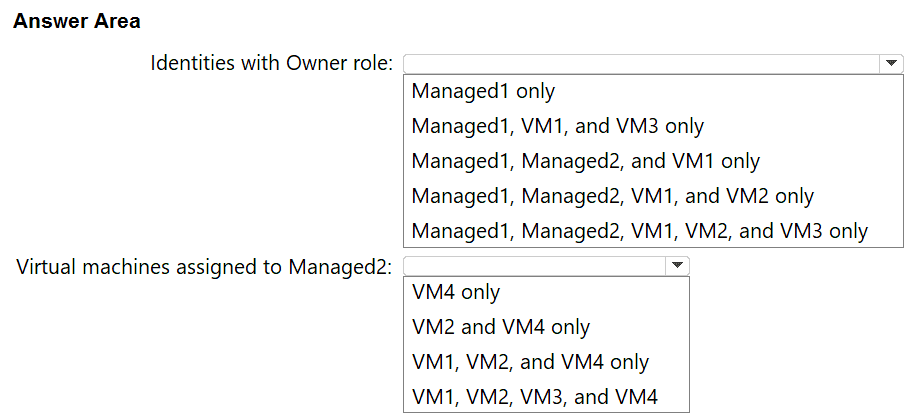
Explanation:
Azure RBAC roles (like Owner) can be assigned to any security principal, including managed identities, user accounts, groups, and service principals. In this scenario, both Managed1 and Managed2 are managed identities that can be assigned the Owner role at the RG1 resource group scope. Additionally, a system-assigned managed identity created on a virtual machine can also be assigned Azure RBAC roles, as it exists as a service principal in the tenant. For assigning Managed2 to virtual machines, a user-assigned managed identity can be assigned to any Azure VM regardless of its location or existing identity configuration, provided the VM supports managed identities.
Correct Option (Identities with Owner role):
Managed1, Managed2, VM1, and VM2 only
Managed1 is a user-assigned managed identity resource. It can be assigned the Owner role for RG1 because it is a security principal.
Managed2 is also a user-assigned managed identity and can be assigned the Owner role for RG1.
VM1 has a system-assigned managed identity enabled. This system-assigned identity exists as a service principal in the tenant and can be assigned Azure RBAC roles directly.
VM2 also has a system-assigned managed identity enabled, so its identity can be assigned the Owner role.
VM3 is assigned Managed1 (a user-assigned managed identity). However, the question asks which identities can be assigned the Owner role, not which VMs. The identity assigned to VM3 is Managed1, which is already included. The VM3 itself (as a resource) does not have a separate identity beyond Managed1. Therefore, VM3 is not listed as an assignable identity because it uses Managed1, not its own separate system-assigned identity.
The Owner role is assigned to the identity (service principal), not to the virtual machine resource itself.
Correct Option (Virtual machines assigned to Managed2):
VM4 only
Managed2 is a user-assigned managed identity. To assign Managed2 to a virtual machine, the VM must support managed identities. Any Azure VM can be assigned a user-assigned managed identity, but it must be configured to do so.
VM4 currently has "None" for its identity, meaning it is not assigned any managed identity. You can assign Managed2 to VM4 because it has no identity yet.
VM1 has a system-assigned managed identity. While you could technically add a user-assigned identity alongside a system-assigned identity on the same VM, the question likely expects that the VM must have the capability to accept the assignment. However, VMs can have both system-assigned and user-assigned identities simultaneously. But based on the provided data, VM4 is the only one that currently has no identity, making it the only one you can assign Managed2 to without modifying existing configurations. If the question implies "assign Managed2 to" as in "the VM is currently assigned Managed2" or "can be assigned Managed2," then VM4 is the only logical choice because:
VM1 has system-assigned only.
VM2 has system-assigned only.
VM3 already has Managed1 assigned.
VM4 has none, so Managed2 can be assigned to it.
Reference:
Microsoft Learn: Managed identities for Azure resources overview
Microsoft Learn: Assign a managed identity access to a resource
Microsoft Learn: Manage user-assigned managed identities
Microsoft Learn: Azure built-in roles - Owner
You have an Azure Active Directory (Azure AD) tenant that contains the users shown in the
following table.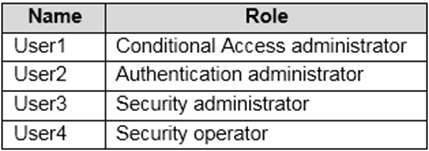
You plan to implement Azure AD Identity Protection.
Which users can configure the user risk policy, and which users can view the risky users
report? To answer, select the appropriate options in the answer area.
NOTE: Each correct selection is worth one point.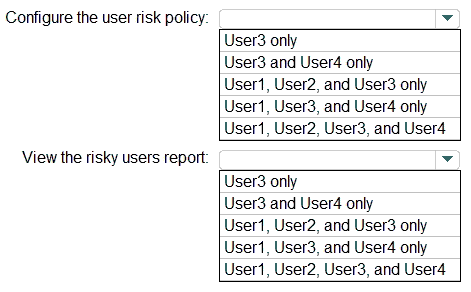
Explanation:
Azure AD Identity Protection requires specific administrative roles to manage risk policies and view risk reports. Configuring user risk policies requires elevated permissions typically held by Global Administrators, Security Administrators, and Conditional Access Administrators. Viewing the risky users report requires less privilege and is available to Security Administrators, Security Operators, and Global Administrators, among others.
Correct Option (Configure the user risk policy):
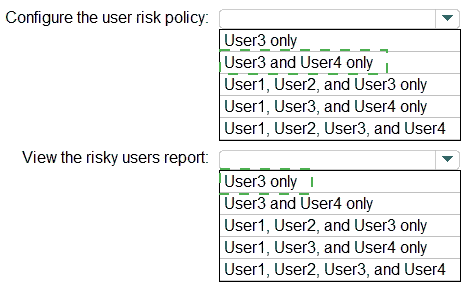
User1, User2, and User3 only
User1 has the Conditional Access Administrator role. This role can create and manage Conditional Access policies, including those that use Identity Protection signals (like user risk). Therefore, User1 can configure the user risk policy.
User2 has the Authentication Administrator role. This role has permissions to manage authentication methods and can also configure Identity Protection policies that are associated with authentication methods, including user risk policies.
User3 has the Security Administrator role. This role has full permissions to manage all security-related settings, including Identity Protection policies (both user risk and sign-in risk policies).
User4 has the Security Operator role. This role can view security reports and alerts but cannot configure policies. Therefore, User4 cannot configure the user risk policy.
Incorrect Option (View the risky users report):
User3 and User4 only
User3 (Security Administrator) can view the risky users report, as this role has read access to security reports.
User4 (Security Operator) can also view the risky users report, as this role is specifically designed for monitoring security, including viewing risk reports.
User1 (Conditional Access Administrator) can also view the risky users report because this role has read access to Identity Protection data. The report is available to Conditional Access Administrators as well.
User2 (Authentication Administrator) can also view the risky users report, as this role includes read access to Identity Protection reports.
Therefore, the correct set of users who can view the risky users report is User1, User2, User3, and User4 (all four users), not just User3 and User4.
Reference:
Microsoft Learn: What is Identity Protection?
Microsoft Learn: User risk policy in Identity Protection
Microsoft Learn: Sign-in risk policy in Identity Protection
Microsoft Learn: Administrator roles for Identity Protection
Microsoft Learn: Azure AD built-in roles - Conditional Access Administrator
Microsoft Learn: Azure AD built-in roles - Authentication Administrator
Microsoft Learn: Azure AD built-in roles - Security Administrator
Microsoft Learn: Azure AD built-in roles - Security Operator
You have a Microsoft Entra tenant named contoso.com that contains a group named Groupl. Groupl contains 50 users in your company's IT department and 50 users in your company's accounts department
You have a partner company that has a Microsoft Entra tenant named fabrikam.com.
You configure cross-tenant synchronization between contoso.com and fabrikam.com.
You need to sync the members of Group1 to fabrikam.com. The solution must meet the following requirements:
• Ensure that only the IT department users sync with fabrikam.com
• Minimize administrative effort.
What should you do in the Cross-tenant synchronization settings? To answer, select the
appropriate options in the answer area.
NOTE: Each correct selection is worth one point.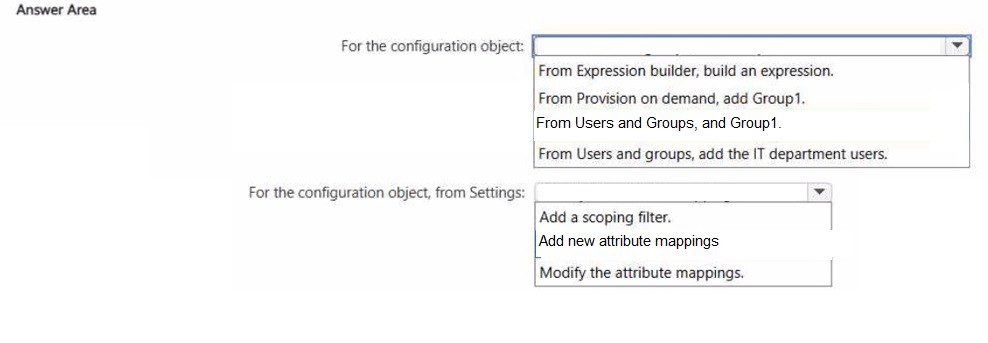
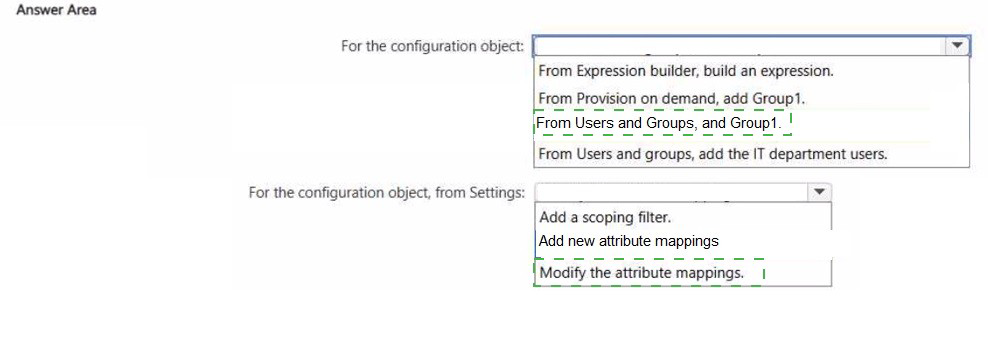
Explanation:
Cross-tenant synchronization allows you to automate provisioning of users from one Microsoft Entra tenant to another. To sync only specific members of Group1 (IT department users) while excluding others (accounts department), you need to apply a scoping filter. This filter evaluates user attributes (such as department) to determine which users are included in the synchronization scope. This approach minimizes administrative effort by automatically filtering users without needing to create separate groups.
Correct Option (For the configuration object):
Add a scoping filter.
A scoping filter is used to define which users from the source group (Group1) should be provisioned to the target tenant. By adding a scoping filter, you can specify that only users with a certain attribute value (e.g., department equals "IT") are synchronized.
This meets the requirement to sync only IT department users while excluding accounts department users.
Scoping filters are configured in the Cross-tenant synchronization settings under the attribute mapping section. This is the correct action to achieve the requirement with minimal administrative effort.
Incorrect Option:
From Expression builder, build an expression.
While expression builder is used to create custom expressions for attribute mapping, it is not the primary method for filtering users based on department. Scoping filters are specifically designed for this purpose.
Building an expression might be used to transform attribute values, but filtering users is better achieved through scoping filters.
Incorrect Option:
From Provision on demand, add Group1.
Provision on demand is used to test or manually trigger provisioning for specific users, but it does not configure the filtering logic. Adding Group1 to provision on demand would not apply a department-based filter.
This option does not meet the requirement for automatic filtering.
Incorrect Option:
From Users and Groups, and Group1.
While you specify the source group (Group1) in the configuration, this alone does not filter users by department. The "Users and Groups" selection simply defines the scope object. Without a scoping filter, all members of Group1 would be synced, including accounts department users.
Incorrect Option:
Add new attribute mappings.
Adding new attribute mappings defines how attributes are mapped from source to target, but does not filter which users are synchronized. This is used for transforming attribute values, not for scoping. Filtering requires a scoping filter, not a mapping.
Incorrect Option:
Modify the attribute mappings.
Modifying attribute mappings changes how specific attributes (like displayName or mail) are synchronized. This does not filter users by department. The requirement is to exclude a subset of users, which requires a scoping filter, not attribute mapping changes.
Reference:
Microsoft Learn: Configure cross-tenant synchronization
Microsoft Learn: Scoping filters for cross-tenant synchronization
Microsoft Learn: Attribute mapping for cross-tenant synchronization
Microsoft Learn: What is cross-tenant synchronization in Microsoft Entra ID?
You have a Microsoft Entra tenant that contains the users shown in the following table.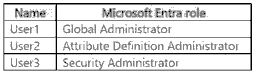
The tenant contains the identities shown in the following table.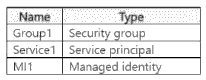
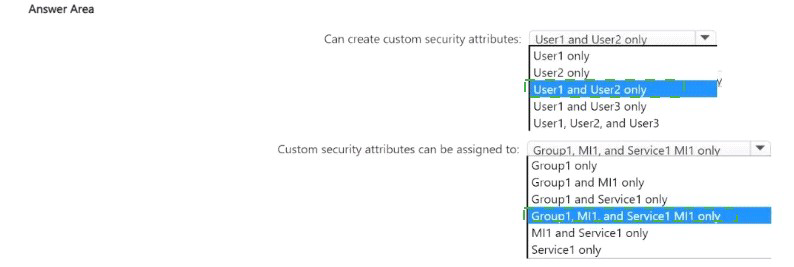
Which users can create custom security attributes, and to which identities can the attributes
be assigned? To answer, select the appropriate options in the answer area.
NOTE: Each correct selection is worth one point.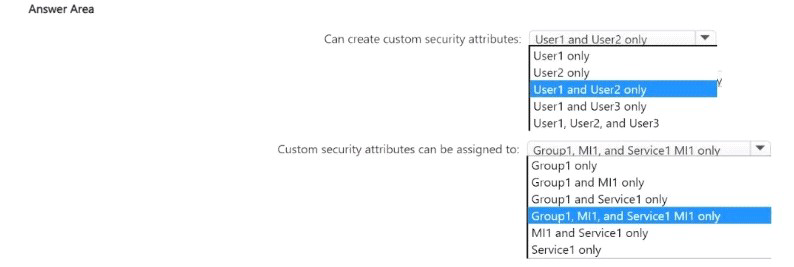
Explanation:
Custom security attributes in Microsoft Entra ID are key-value pairs that can be used to store additional information about objects. To create these attributes, a user must have the appropriate role. The Attribute Definition Administrator role is specifically designed for this purpose, and Global Administrator also has full permissions. These attributes can be assigned to supported objects: users, service principals, managed identities, and security groups (as well as applications).
Correct Option (Can create custom security attributes):
User1 and User2 only
User1 has the Global Administrator role. Global Administrators have full permissions across the tenant, including the ability to create, edit, and delete custom security attributes.
User2 has the Attribute Definition Administrator role. This role is specifically designed to manage the definition of custom security attributes (create, update, delete).
User3 has the Security Administrator role. This role manages security-related configurations (such as Conditional Access, identity protection, and security policies) but does not have permissions to create custom security attributes.
Therefore, only User1 and User2 can create custom security attributes.
Correct Option (Custom security attributes can be assigned to):
Group1, Service1, and MI1
Group1 is a Security group. Custom security attributes can be assigned to security groups.
Service1 is a Service principal. Custom security attributes can be assigned to service principals.
MI1 is a Managed identity. Custom security attributes can be assigned to managed identities.
All three identity types support custom security attributes assignment, so the attributes can be assigned to Group1, Service1, and MI1.
Reference:
Microsoft Learn: Manage custom security attributes in Microsoft Entra ID
Microsoft Learn: Assign custom security attributes to objects
Microsoft Learn: Azure AD built-in roles - Attribute Definition Administrator
Microsoft Learn: Azure AD built-in roles - Global Administrator
| Page 3 out of 41 Pages |