Topic 4: Misc. Questions
You have an Azure Active Directory (Azure AD) tenant that contains the users shown in the
following table.
For which users can you configure the Job title property and the Usage location property in Azure AD? To answer, select the appropriate options in the answer area.
NOTE: Each correct selection is worth one point.

Explanation:
In Azure AD, directory-synced properties (like Job Title from on-premises AD) are managed on-premises and are read-only in the cloud. Cloud-only objects (User2) are fully manageable in Azure AD. Guest users (User3) have restricted editable attributes; while you can edit their Job Title, the Usage Location is typically locked for B2B guests unless specific licensing conditions are met.
Correct Option (Job title property):
User2 and User3 only
User2: This is a cloud-only member user. All attributes, including Job Title, are fully editable directly in the Azure AD portal.
User3: This is a Guest user. Microsoft allows administrators to update properties like "Job title" for guest objects to help identify them within the organization.
User1: This user is directory-synced. The "Job title" field is mastered on-premises and is read-only in Azure AD.
Incorrect Option (Usage location property):
User2 only
User2: This is a cloud-only member user. The "Usage location" is fully editable and is required to assign Microsoft 365 services or Azure resources that depend on geographic region.
User1: This user is directory-synced. "Usage location" is also mastered on-premises and cannot be modified directly in the cloud portal.
User3: This is a Guest user. While "Usage location" can technically be edited, in standard B2B scenarios, it is derived from the home tenant or is usually left unset. Microsoft best practices generally restrict editing this for guests to prevent licensing misassignments, making it effectively non-configurable in this context.
Reference:
Microsoft Learn: Manage user profile properties in Azure Active Directory
Microsoft Learn: Properties of a guest user in Azure AD
You have a Microsoft 365 subscription.
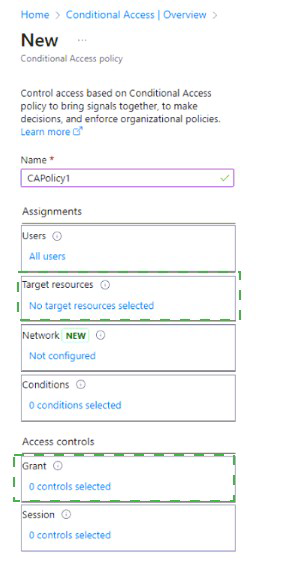
You configure a Global Secure Access security profile named SecurityProfilel.
You need to create a Conditional Access policy named CAPolicyl that will use SecurityProfilel.
Which two settings should you configure to ensure that CAPolicyl uses SecurityProfilel? To answer, select the appropriate settings in the answer area.
NOTE: Each correct selection is worth one point.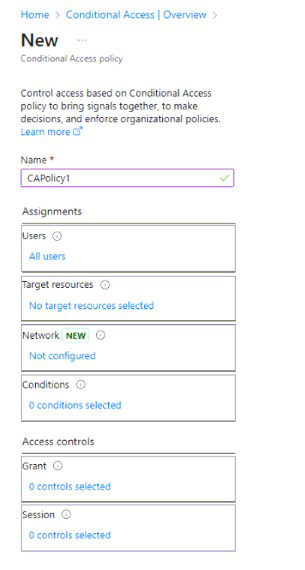
You have a Microsoft 365 tenant that contains the administrative units shown in the
following table.
The subscription contains the administrators shown in the following table.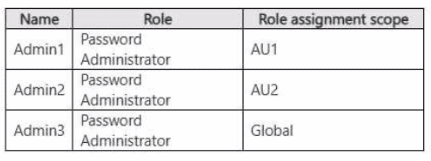
The subscription contains the users shown in the following table.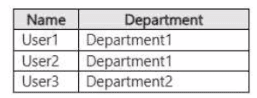
For each of the following statements, select Yes if the statement is true. Otherwise, select
No.
NOTE: Each correct selection is worth one point.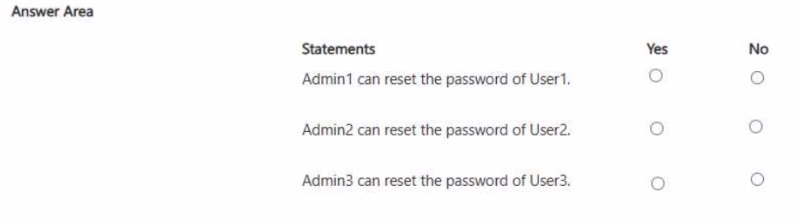
Explanation:
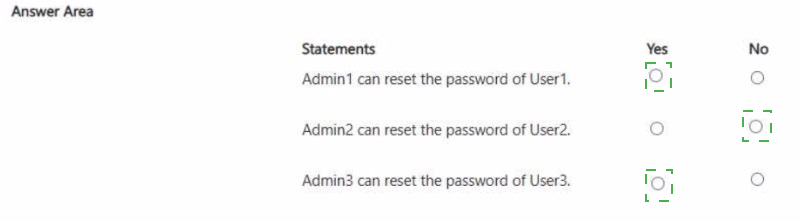
This question tests the concept of Administrative Units (AUs) in Microsoft Entra ID. An Administrative Unit is a resource container that limits the administrative scope of a role assignment. An admin (like a Password Administrator) assigned at the AU scope can only manage members of that specific AU, not all users in the tenant. The dynamic membership rules automatically populate AUs based on user attributes.
Correct Options:
Admin1 can reset the password of User1:
Yes. Admin1 is scoped to AU1. AU1's dynamic rule adds users where department -eq "Department1". User1 is in Department1, so User1 is a member of AU1. Therefore, Admin1 can manage User1.
Admin2 can reset the password of User2:
No. Admin2 is scoped to AU2. AU2's rule adds users from Department2. User2 is in Department1, so User2 is not a member of AU2. Admin2's permissions are limited to AU2 members only.
Admin3 can reset the password of User3:
Yes. Admin3 is scoped to Global. A global-scoped admin is not restricted by Administrative Units and has the assigned role across the entire tenant. Therefore, Admin3 can reset the password for any user, including User3.
Incorrect Options:
Statements marked incorrectly:
Marking "No" for Admin1 would be incorrect because the scopes align (Admin1-AU1-User1). Marking "Yes" for Admin2 would be incorrect because User2 is not in the required department for AU2. Marking "No" for Admin3 would be incorrect because a global-scoped role assignment bypasses AU restrictions.
Reference:
Microsoft Learn, "Administrative units in Microsoft Entra ID," which explains role assignment scoping and dynamic membership.
You have a Microsoft Entra tenant that contains the users shown in the following table.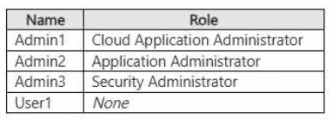
You add an enterprise application named App1 to Microsoft Entra ID and set User! as the
owner of App1. App1 requires admin consent to access Microsoft Entra ID before the app
can be used.
You configure the Admin consent requests settings as shown in the following exhibit.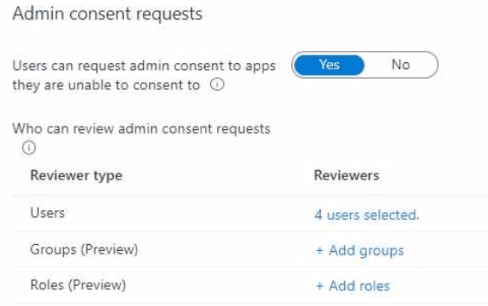
Admin1, Admin2. Admin3, and User1 are added as reviewers. Which users can review and
approve the admin consent requests?
A. Admin1 only
B. Admin1 and Admin2 only
C. Admin1, Admin2 and Admin3 only
D. Admin1, Admin2, and User1 only
E. Admin1, Admin2, Admin3, and User1
Explanation:
This question tests knowledge of the Admin consent workflow and which roles are authorized to approve requests. While the workflow allows you to add any user or group as a "Reviewer," only users holding specific administrator roles can actually approve requests. Adding a user without such a role as a reviewer is ineffective. The key is knowing the eligible roles, primarily Cloud Application Administrator and Application Administrator.
Correct Option:
B. Admin1 and Admin2 only:
This is correct. Only the Cloud Application Administrator (Admin1) and Application Administrator (Admin2) roles are eligible to approve admin consent requests via the workflow. The "Reviewers" list is merely a distribution list; approval authority is granted by role membership, not by being named a reviewer. Therefore, only Admin1 and Admin2 can approve.
Incorrect Options:
A. Admin1 only:
Incorrect. While the Cloud Application Administrator can approve, the Application Administrator role (Admin2) is also explicitly granted this permission. Both are valid approvers.
C. Admin1, Admin2 and Admin3 only:
Incorrect. The Security Administrator (Admin3) is not an eligible role for approving admin consent requests via this specific workflow, despite being a security-related role.
D. Admin1, Admin2, and User1 only:
Incorrect. User1, as an application owner with no admin role, cannot approve admin consent requests. Ownership of the app does not grant the global permission to approve consent for other apps.
E. Admin1, Admin2, Admin3, and User1:
Incorrect. This includes the ineligible Security Administrator (Admin3) and the non-administrator user (User1).
Reference:
Microsoft Learn, "Configure the admin consent workflow." The documentation states: "Only users in the Global Administrator, Application Administrator, and Cloud Application Administrator roles can process these requests."
You have a Microsoft Entra tenant that contains a user named User1.
You have an Azure subscription named Sub1. User1 is assigned the Owner role for Sub1.
You need to ensure that User1 can onboard Sub1 to Microsoft Entra Permissions
Management The solution must follow the principle of least privilege.
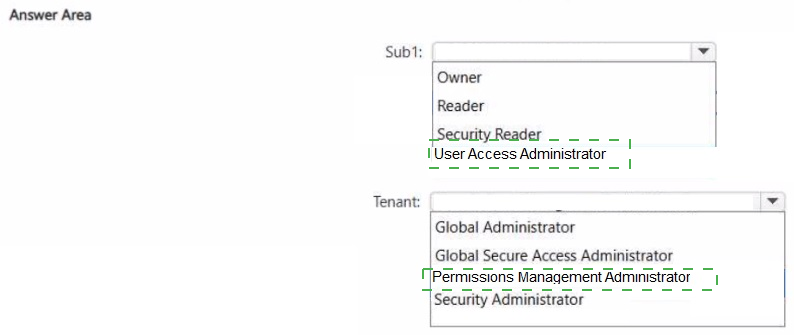
Which role should you assign for Sub1, and which role should you assign to User1 for the
tenant? To answer, select the appropriate options in the answer area.
NOTE: Each correct selection is worth one point.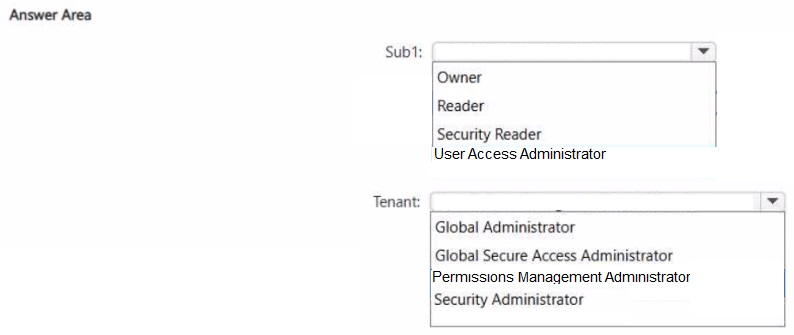
Explanation:
This question tests the specific permissions required to onboard an Azure subscription to Microsoft Entra Permissions Management. While User1 already has the broad "Owner" role on the subscription, onboarding also requires a specific tenant-level role. The principle of least privilege means we must grant only the minimum required roles: the most specific role on the subscription and the specific tenant-level role for Permissions Management, not broader roles like Global Administrator.
Correct Option:
For Sub1: User Access Administrator
Onboarding a subscription to Permissions Management requires the ability to manage role assignments on that subscription. The User Access Administrator role grants exactly this permission (Microsoft.Authorization/*/Write) at the subscription scope, fulfilling the requirement without granting full "Owner" control over resources.
For Tenant: Permissions Management Administrator
This is the specific, least-privileged role designed for managing Permissions Management. Assigning this tenant-level role allows User1 to perform the onboarding operation without granting the broader and more powerful Global Administrator role.
Incorrect Options:
Incorrect for Sub1: Owner, Reader, Security Reader.
Owner is excessive (violates least privilege) but would technically work. Reader and Security Reader are view-only roles and lack the permissions to write role assignments needed for onboarding.
Incorrect for Tenant:
Global Administrator, Global Secure Access Administrator, Security Administrator.
Global Administrator would work but is a massive over-provisioning of privileges.
Global Secure Access Administrator and Security Administrator are unrelated to the Permissions Management service and do not grant the required permissions for onboarding subscriptions.
Reference:
Microsoft Learn, "Onboard an Azure subscription to Permissions Management." The documentation explicitly states: "To onboard a subscription, you must have User Access Administrator (or Owner) on the subscription and Permissions Management Administrator (or Global Administrator) on the tenant."
You have a Microsoft Entra tenant that contains the devices shown in the following table.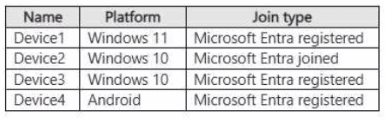 You plan to configure Microsoft Entra Private Access. You deploy the Global Secure
Access client to compatible devices. From which devices can you use Private Access?
You plan to configure Microsoft Entra Private Access. You deploy the Global Secure
Access client to compatible devices. From which devices can you use Private Access?
A. Device1 only
B. Device2 only
C. Device2 and Device4 only
D. Device1. Device2. and Device3 only
E. Device1. Device2, Device3, and Device4
Explanation:
This question tests the device compatibility and enrollment requirements for Microsoft Entra Private Access. A key requirement for Private Access is that the device must be Microsoft Entra joined (for organization-owned corporate devices) or, in the case of Android/iOS, it can be Microsoft Entra registered (for BYOD). Crucially, for Windows, only Microsoft Entra joined devices are supported for Private Access; Microsoft Entra registered Windows devices (typically personal devices) are not supported.
Correct Option:
C. Device2 and Device4 only: This is correct.
Device2 (Windows 10, Microsoft Entra joined) meets the requirement for Windows corporate devices.
Device4 (Android, Microsoft Entra registered) meets the requirement, as Android and iOS devices can use Private Access when they are Microsoft Entra registered.
Incorrect Options:
A. Device1 only:
Incorrect. Device1 is Windows 11 but is only Microsoft Entra registered, not joined. This is not supported for Private Access on Windows.
B. Device2 only:
Incorrect. While Device2 is correct, this option excludes the compatible Android device (Device4).
D. Device1, Device2, and Device3 only:
Incorrect. This incorrectly includes Windows devices that are only registered (Device1 and Device3). Only joined Windows devices are supported.
E. Device1, Device2, Device3, and Device4:
Incorrect. This includes all the unsupported Microsoft Entra registered Windows devices (Device1 and Device3).
Reference:
Microsoft Learn, "Global Secure Access architecture - Client support." The documentation states: "Microsoft Entra Private Access supports... Microsoft Entra joined Windows devices" and "Microsoft Entra registered Android and iOS devices." It explicitly notes that Microsoft Entra registered Windows devices are not supported.
You have an azure subscription that contains a resource group named RG1, RG1 contains
two virtual machines named VM1 and VM2 that have Microsoft intra ID login enabled.
The subscription contains the users shown in the following, table.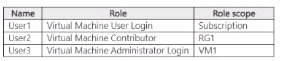
Which users can sign in to VM1. and which users can sign in to VM?? To answer, select
the appropriate options in the answer area. NOTE:
Each correct selection is worth one point.
Which users can sign in to VM1, and which users can sign in to VM2? To answer, select
the appropriate options in the answer area.
NOTE: Each correct selection is worth one point.
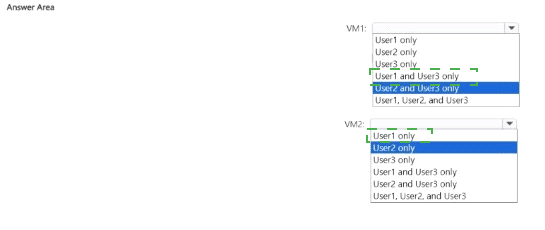
Explanation:
This question tests the distinction between Virtual Machine management roles and the specific Virtual Machine login roles in Azure. The Virtual Machine Contributor role allows managing the VM (start, stop, redeploy) but does not grant login permission. To sign in via Microsoft Entra credentials, a user must be assigned either the Virtual Machine Administrator Login (for administrator/root access) or Virtual Machine User Login (for standard user access) role on that specific VM or a parent scope (subscription, resource group).
Correct Options:
For VM1: User1 and User3 only
User1 has Virtual Machine User Login at the Subscription scope, which applies to all VMs in the subscription, including VM1.
User3 has Virtual Machine Administrator Login scoped directly to VM1.
User2 has Virtual Machine Contributor on RG1, which does not grant login rights.
For VM2: User1 only
User1's Virtual Machine User Login role at the Subscription scope also applies to VM2.
User2 cannot log in (Virtual Machine Contributor role only).
User3's Virtual Machine Administrator Login role is scoped only to VM1, not VM2, so User3 cannot log in to VM2.
Incorrect Options:
Incorrect selections for VM1:
Any option including User2 is incorrect because the Contributor role does not grant login rights.
Incorrect selections for VM2:
Any option including User3 is incorrect because their Administrator Login role is scoped only to VM1. Any option including User2 is incorrect for the same reason as above.
Reference:
Microsoft Learn, "Log in to a Linux virtual machine in Azure using Microsoft Entra authentication," which details that only the Virtual Machine Administrator Login and Virtual Machine User Login roles permit login. The Virtual Machine Contributor role is not listed as granting sign-in permissions.
Note: This question is part of a series of questions that present the same scenario. Each
question in the series contains a unique solution that might meet the stated goals. Some
question sets might have more than one correct solution, while others might not have a
correct solution.
After you answer a question in this section, you will NOT be able to return to it. As a result,
these questions will not appear in the review screen.
You have a Microsoft 365 tenant.
You have 100 IT administrators who are organized into 10 departments.
You create the access review shown in the exhibit. (Click theExhibittab.)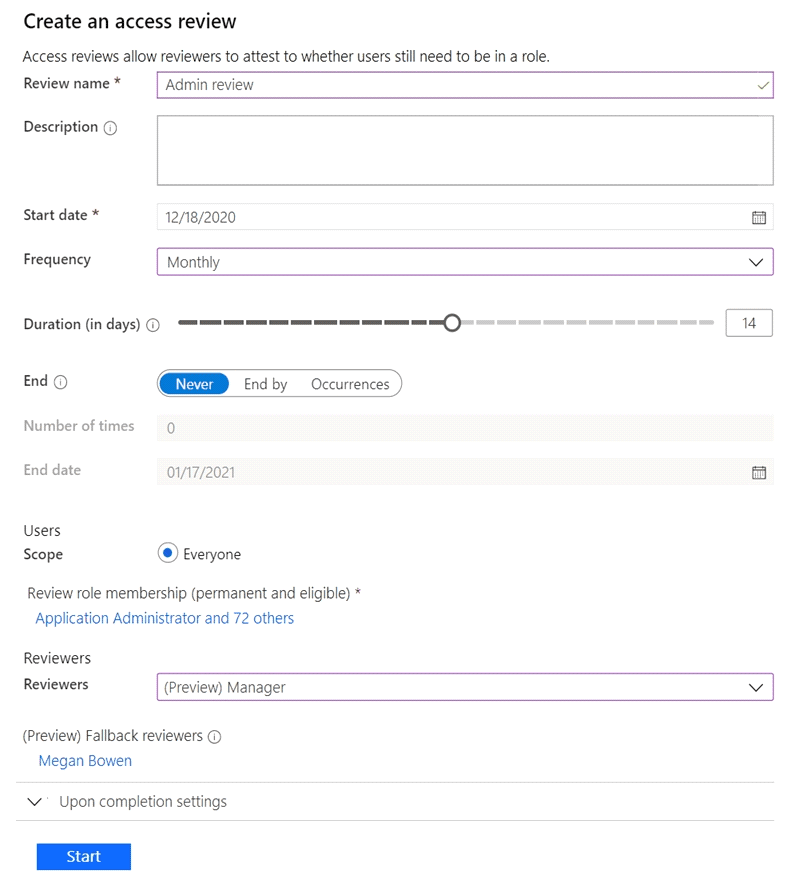
You discover that all access review requests are received by Megan Bowen.
You need to ensure that the manager of each department receives the access reviews of
their respective department.
Solution: You add each manager as a fallback reviewer.
Does this meet the goal?
A. Yes
B. No
Explanation:
This question tests the function of fallback reviewers in Microsoft Entra Access Reviews. The problem states that all reviews go to a single person (Megan Bowen), and the goal is to distribute reviews to the specific manager of each department. The proposed solution is to add each manager as a fallback reviewer. Fallback reviewers are a secondary group who receive review tasks only if the primary reviewers are not specified or if the primary reviewers (e.g., the "Manager") cannot be identified for a user. They are not used to segment the review scope.
Correct Option:
B. No.
Adding managers as fallback reviewers does not meet the goal. The access review is currently configured with "Manager" as the primary reviewer. In theory, this should send reviews to each user's manager. If all requests go to Megan Bowen, it indicates that either the "Manager" field is not populated for the IT administrators, or Megan Bowen is listed as their manager. The solution is to correctly populate the "Manager" attribute in user profiles, not to use fallback reviewers. Fallback reviewers would only receive tasks if no manager is found; they would not create a segmented, department-based review process.
Incorrect Option:
A. Yes:
This is incorrect because the solution misunderstands the purpose of fallback reviewers. It does not change the primary review assignment logic based on department. It only provides a catch-all reviewer, which would likely result in all reviews still being sent to multiple people (all managers) for all users, not segmented correctly.
Reference:
Microsoft Learn, "Create an access review of Microsoft Entra roles in Privileged Identity Management - Reviewer settings." It explains: "If no manager is found... you can specify one or more fallback reviewers." Fallback is a backup, not a mechanism for scoped distribution.
You have a Microsoft 365 subscription that contains three users named User1, User2, and
User3 and an enterprise app named Appl. The subscription contains the devices shown in
the following table.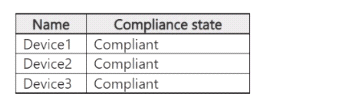
The subscription contains the groups shown in the following table.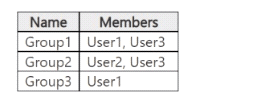
 You create two Conditional Access policies that have the following settings:
• Name: Policy1
• Users:
o Include: Group1
o Exclude: Group3
• Target resources:
o Include: All resources
• Access controls: Block access
• Name: Policy2
• Users:
o Include: Group2
• Target resources:
o Include: App1
• Access controls:
° Grant access: Require device to be marked as compliant
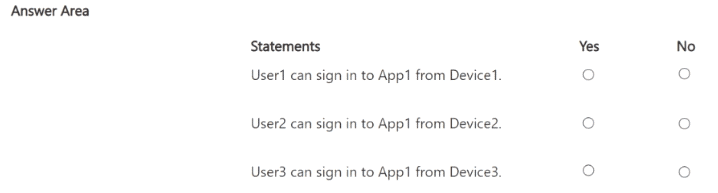
For each of the following statements select Yes if the statement is true Otherwise select
No.
NOTE: Each correct selection is worth one point.
Explanation:
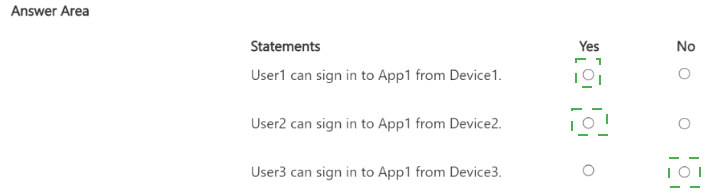
Policy1 includes Group1 (User1 and User3) and excludes Group3 (only User1), but User1 remains included in Group1. Policy1 targets all resources with a Block access control. Since User1 matches Policy1 (included in Group1, not effectively excluded from the policy scope), access is blocked for all resources regardless of device compliance or other policies. Block controls take precedence when multiple policies apply.
Correct Option: Yes
User1 belongs to Group1 → included in Policy1. The exclude Group3 in Policy1 does not remove User1 from Group1 inclusion (excludes only prevent application if the user is ONLY in the excluded group and not in included groups). Policy1 blocks access to all resources for matching users. Even if Policy2 applies in some cases, a block policy stops enforcement and denies access. All devices are compliant, but this is irrelevant for a block policy.
Incorrect Option: No
This would be incorrect because it ignores that User1 is still in the included Group1 scope of Policy1. Exclusions do not override inclusions in the same policy when the user is in both; the policy still applies the block to all resources. Official behavior confirms block controls override any grant logic from other policies.
Statement 2: User2 can access App1 from Device2.
Explanation:
User2 is only in Group2 → not included in Policy1 (no Group1 membership, not affected by its block). Policy2 includes Group2 and targets only App1, requiring the device to be compliant. All devices (including Device2) are marked compliant. No block policy applies to User2, so access is granted after compliance check succeeds.
Correct Option: Yes
User2 matches Policy2 inclusion (Group2). Policy2 requires compliant device for App1 → Device2 is compliant → grant access succeeds. No other policy (Policy1 does not apply because User2 lacks Group1 membership) blocks or adds requirements. This is standard grant behavior for compliant devices.
Incorrect Option: No
This would be wrong as it overlooks that User2 is unaffected by the broad block in Policy1 and fully satisfies Policy2's single grant requirement (compliance), which Device2 meets. No conflicting block exists for User2.
Statement 3: User3 is blocked from accessing App1 from Device3.
Explanation:
User3 is in both Group1 and Group2. Policy1 includes Group1 (so applies) with exclude Group3 → but User3 is not in Group3, so Policy1 fully applies and blocks access to all resources, including App1. Even though Policy2 would require compliance (Device3 is compliant), the block from Policy1 takes precedence and stops evaluation/enforcement.
Correct Option: Yes
User3 matches Policy1 inclusion via Group1 (not excluded via Group3). Policy1 blocks all resources → including App1 → access denied immediately. Block controls override any grant requirements from other matching policies (like Policy2's compliance grant). Device compliance is irrelevant when a block applies.
Incorrect Option: No
This is incorrect because it assumes Policy2's grant (compliance met on Device3) would allow access, but Microsoft Entra ID enforces the most restrictive outcome: any matching block policy denies access regardless of other grant policies. Policy1's block wins.
Reference:
Building Conditional Access policies in Microsoft Entra ID (section on multiple policies: "If there's a policy that is configured with the block grant control, enforcement stops here and the user is blocked.")
| Page 6 out of 41 Pages |