Topic 4: Misc. Questions
You have an Azure subscription that contains a storage account named storage1.
You plan to deploy an app named App1 that will be hosted on multiple virtual machines.
The virtual machines will authenticate to a Third-party API by using secrets
You need to recommend an authentication solution for the virtual machines The solution
must meet the following requirements
• Securely store secrets.
• Ensure that credentials do NOT need to be stored in the App1 code.
• Ensure that the virtual machines can access Azure resources by using Microsoft Entra
authentication.
• Minimize administrative effort.
What should you include in the recommendation?
A. user accounts and Storage Service Encryption
B. user accounts and Azure Key Vault
C. user-assigned managed identities and Azure Key Vault
D. system-assigned managed identities and Storage Service Encryption
Explanation:
The requirements are: 1) Securely store API secrets, 2) Avoid credentials in code, 3) Enable VMs to access Azure resources via Microsoft Entra authentication, and 4) Minimize effort. Azure Key Vault is the service for securely storing secrets (like API keys). Managed identities provide an automatically managed identity in Microsoft Entra ID for Azure resources (like VMs) to authenticate without any credentials in code. Using a user-assigned managed identity (over system-assigned) is optimal for multiple VMs running the same app, as the same identity can be assigned to all, simplifying management.
Correct Option:
C. user-assigned managed identities and Azure Key Vault.
This meets all requirements. Store the third-party API secrets in Azure Key Vault. Create a user-assigned managed identity and assign it to all App1 VMs. The app code uses the managed identity to authenticate to Microsoft Entra ID, obtain a token, and silently access secrets from Key Vault. This eliminates secrets from code and minimizes effort by using a single reusable identity.
Incorrect Options:
A. user accounts and Storage Service Encryption:
User accounts (service principals) require credential management (secrets/certificates) that must be stored and rotated, increasing effort and risk. Storage Service Encryption encrypts data at rest in storage accounts but does not help with authentication or secret storage for APIs.
B. user accounts and Azure Key Vault:
While Key Vault stores secrets, using user accounts (service principals) still requires storing and managing the client secret or certificate somewhere (e.g., on the VM), which violates the "no credentials in code" requirement and increases administrative overhead.
D. system-assigned managed identities and Storage Service Encryption:
System-assigned identities are unique to each VM, creating multiple identities to manage for the same app. Storage Service Encryption is irrelevant for API secret storage and authentication.
Reference:
Microsoft Learn, "Managed identities for Azure resources" and "Azure Key Vault basic concepts." Managed identities allow Azure resources to authenticate to any service supporting Microsoft Entra auth without credentials. Key Vault securely stores and manages secrets. The combination is the standard pattern for secure access from compute resources.
Your company purchases a Microsoft 565 ES subscription.
A user named User1 is assigned the Security Administrator role.
You need to ensure that User1 can create Microsoft Defender for Cloud Apps session
policies.
What should you do first?
A. Create a Conditional Access policy and select Use Conditional Access App Control.
B. Assign the Cloud Application Administrator role to Used.
C. Create a Conditional Access policy and select Require app protection policy.
D. Assign the Cloud App Security Administrator role to User1.
Explanation:
This question focuses on the prerequisites for creating session policies in Microsoft Defender for Cloud Apps. Session policies are part of Conditional Access App Control, which allows for real-time monitoring and control of user sessions within cloud apps. Before a Security Administrator can create these policies in Defender for Cloud Apps, the app must be connected and integrated with Conditional Access. The foundational step is to create a Conditional Access policy that routes traffic to Defender for Cloud Apps by enabling the "Use Conditional Access App Control" session control.
Correct Option:
A. Create a Conditional Access policy and select Use Conditional Access App Control.
This is the correct first step. This action enables the integration between Microsoft Entra Conditional Access and Defender for Cloud Apps. It creates the necessary framework that allows session policies, defined in Defender for Cloud Apps, to be enforced. Without this Conditional Access policy, the session policy feature in Defender for Cloud Apps cannot be applied to user sessions.
Incorrect Options:
B. Assign the Cloud Application Administrator role to User1.
While this role might provide broader permissions, it is not the first or necessary step. The Security Administrator role already has sufficient permissions to manage Defender for Cloud Apps. The missing element is the Conditional Access App Control configuration, not a role assignment.
C. Create a Conditional Access policy and select Require app protection policy.
This setting is for Microsoft Intune App Protection Policies (which protect data on mobile devices), not for Defender for Cloud Apps session policies. It is unrelated to enabling session monitoring and control in Defender for Cloud Apps.
D. Assign the Cloud App Security Administrator role to User1.
The Security Administrator role already includes the permissions of the Cloud App Security Administrator role. This assignment is redundant and does not address the prerequisite of configuring Conditional Access App Control.
Reference:
Microsoft Learn, "Deploy Conditional Access App Control." The documentation states that to use session controls, you must first "Integrate with Microsoft Entra Conditional Access" by creating a CA policy with the "Use Conditional Access App Control" session control. This is a prerequisite for session policies to take effect.
Your on-premises network contains an Active Directory domain that uses Microsoft Entra
Connect to sync with a Microsoft Entra tenant.
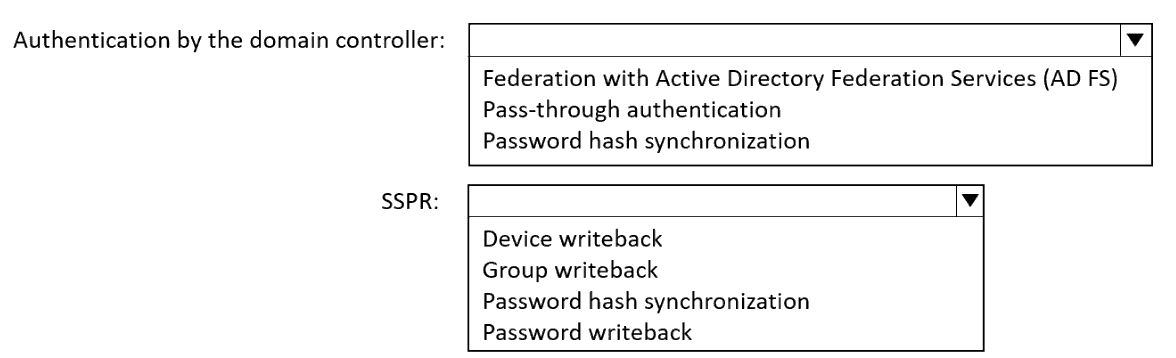
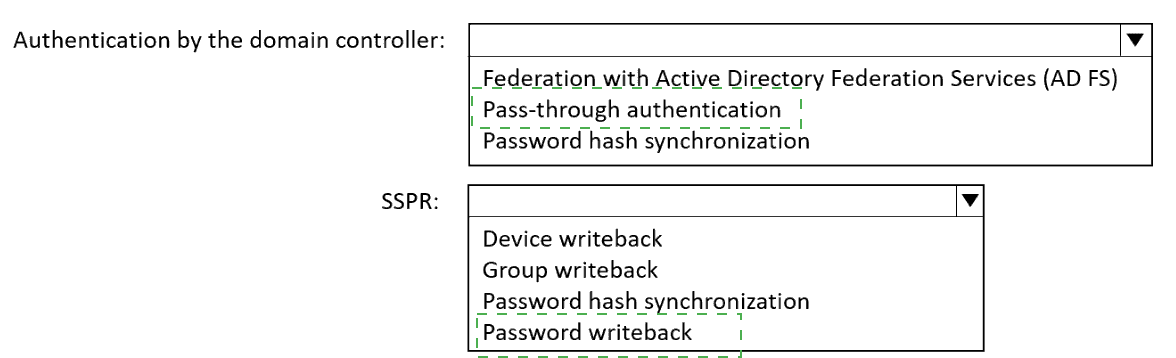
You need to configure Microsoft Entra Connect to meet the following requirements:
Microsoft Entra sign-ins must be authenticated by an Active Directory domain controller.
Active Directory domain users must be able to use Microsoft Entra self-service password
reset (SSPR).
Minimize administrative effort.
What should you use for each requirement? To answer, select the appropriate options in
the answer area.
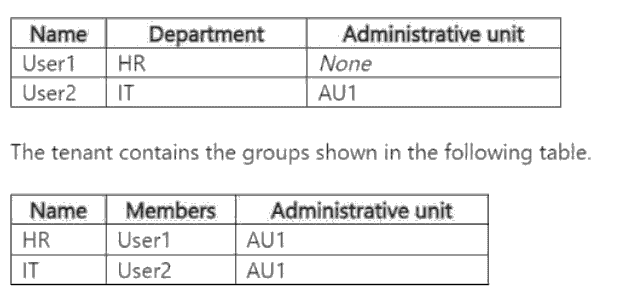
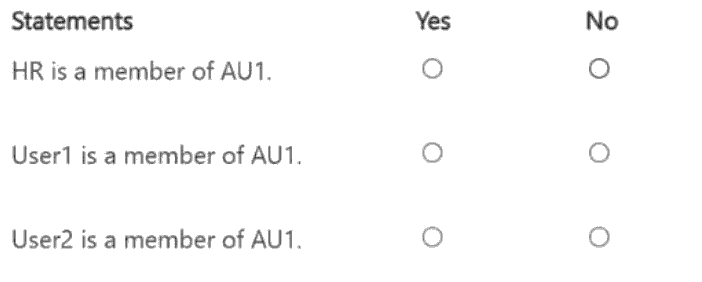
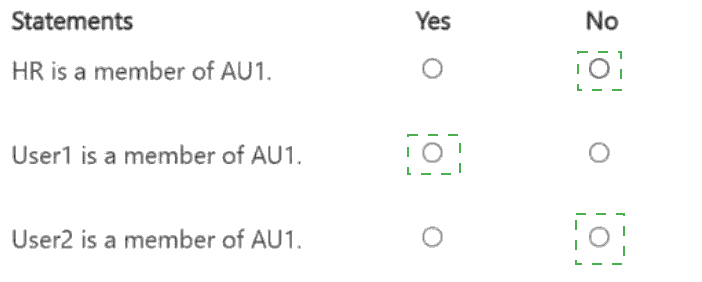
You have a Microsoft Entra tenant that contains an administrative unit named AU1. AU1 is
configured for assigned membership.
The tenant contains the users shown in the following table.
For AU1, you update the following configurations:
. Membership type: Dynamic User
· Dynamic membership rule: (user.department -eq "hr")
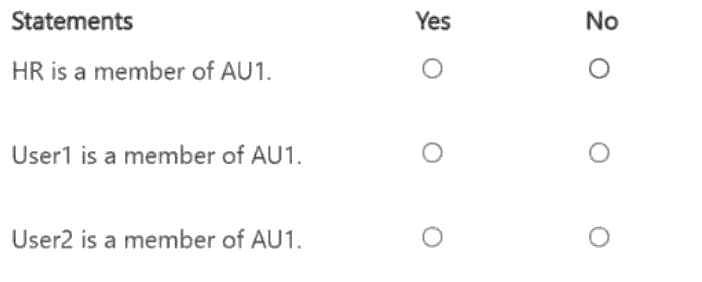
For each of the following statements, select Yes if the statement is true. Otherwise, select
No.
You have a Microsoft 365 E5 subscription.
You plan to deploy a third-party software as a service (SaaS) app named App1.
You need to onboard App1 to Microsoft Defender for Cloud Apps. The solution must
ensure that you can implement session control policies.
What should you do first?
A. From the Microsoft Defender portal, configure Cloud discovery.
B. From the Microsoft Entra admin center, configure a traffic forwarding profile.
C. From the Microsoft Entra admin center, configure single sign-on (SSO) for App1.
D. From the Microsoft Defender portal, create an OAuth app policy.
You have a Microsoft Entra tenant.
You have the end-user desktop environments shown in the following table.
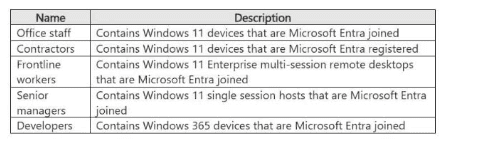
You need to deploy Global Secure Access.
In which environments can you install the Global Secure Access client?
A. Developers, Office staff, and Senior managers only
B. Contractors, Developers, Frontline workers. Office staff, and Senior managers
C. Frontline workers and Senior managers only
D. Contractors and Office staff only
You have on-premises Linux devices.
You have a Microsoft 365 E5 subscription.
You plan to configure Global Secure Access Internet Access.
You need to ensure that the devices can connect to Global Secure Access.
What should you do?
A. Deploy a private network connector.
B. Configure the Adaptive Access settings.
C. Install the Azure Connected Machine agent on the devices.
D. Create a remote network.
You have a Microsoft 365 E5 subscription.
You have an Azure subscription that is linked to a Microsoft Entra tenant. The tenant
contains a user named User1.
You plan to deploy Microsoft Entra Permissions Management.
You need to ensure that User1 can onboard the Azure subscription to Permissions
Management. The solution must follow the principle of least privilege.
Which Microsoft Entra role should you assign to User1?
A. Security Administrator
B. Application Administrator
C. Permissions Management Administrator
D. Global Administrator
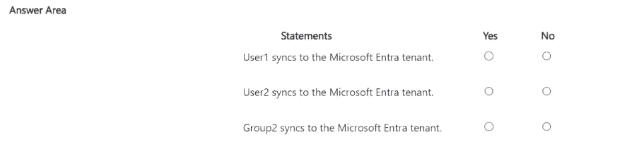
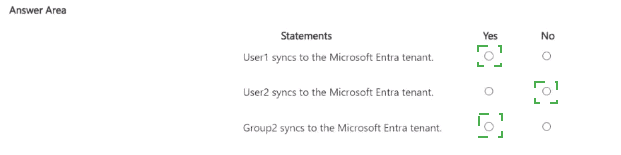
Your network contains an on premises Active Directory domain named conIoso.com. The
domain contains the objects shown in the following table.
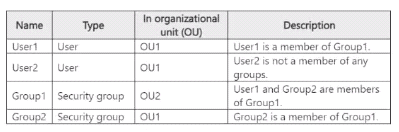
You install Microsoft Entra Connect. You configure the Domain and OU filtering settings as
shown in the Domain and OU filtering exhibit. (Click the domain and OU Filtering tab.)
You configure the Filter user and devices settings as shown in the Filter Users and Devices
exhibit. (Click the filter Users and Devices tab).
For each of the following statements, select Yes if the statement is true. Otherwise, select
No.
You have a Microsoft Entra tenant that contains the users shown in the following table:
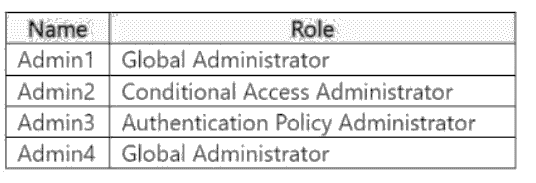
Admin4 creates a Conditional Access policy named Policy1 by using the "Require
multifactor authentication for Azure management" template.
Which users will be required to use multi-factor authentication (MFA) the next time they
sign in?
A. Admin2 and Admin3 only
B. Admin1 and Admin4 only
C. Admin1, Admin2, and Admin3 only
D. Admin1, Admin2, Admin3, and Admin4
| Page 9 out of 41 Pages |