Free Microsoft AI-102 Practice Test Questions MCQs
Stop wondering if you're ready. Our Microsoft AI-102 practice test is designed to identify your exact knowledge gaps. Validate your skills with Designing and Implementing a Microsoft Azure AI Solution questions that mirror the real exam's format and difficulty. Build a personalized study plan based on your free AI-102 exam questions mcqs performance, focusing your effort where it matters most.
Targeted practice like this helps candidates feel significantly more prepared for Designing and Implementing a Microsoft Azure AI Solution exam day.
23970+ already prepared
Updated On : 12-Oct-2026397 Questions
Designing and Implementing a Microsoft Azure AI Solution
4.9/5.0
Topic 1: Wide World Importers
Case study
This is a case study. Case studies are not timed separately. You can use as much exam
time as you would like to complete each case. However, there may be additional case
studies and sections on this exam. You must manage your time to ensure that you are able
to complete all questions included on this exam in the time provided.
To answer the questions included in a case study, you will need to reference information
that is provided in the case study. Case studies might contain exhibits and other resources
that provide more information about the scenario that is described in the case study. Each
question is independent of the other questions in this case study.
At the end of this case study, a review screen will appear. This screen allows you to review
your answers and to make changes before you move to the next section of the exam. After
you begin a new section, you cannot return to this section.
To start the case study
To display the first question in this case study, click the Next button. Use the buttons in the
left pane to explore the content of the case study before you answer the questions. Clicking
these buttons displays information such as business requirements, existing environment,
and problem statements. If the case study has an All Information tab, note that the
information displayed is identical to the information displayed on the subsequent tabs.
When you are ready to answer a question, click the Question button to return to the
question.
Overview
Existing Environment
A company named Wide World Importers is developing an e-commerce platform.
You are working with a solutions architect to design and implement the features of the ecommerce platform. The platform will use microservices and a serverless environment built
on Azure.
Wide World Importers has a customer base that includes English, Spanish, and
Portuguese speakers.
Applications
Wide World Importers has an App Service plan that contains the web apps shown in the
following table.

You plan to provision Azure AI service resources by using the following method.

Explanation:
The method provisions an Azure AI service resource by kind, tier, location. FormRecognizer (Document Intelligence) is a valid kind. Standard tier is S0. eastus is a valid Azure region; useast is misspelled/invalid. The order in the dropdown is tier, location.
Correct Option Details:
FormRecognizer –
The kind specifies the service type. Form Recognizer (now Document Intelligence) extracts data from forms and invoices.
"S0", "eastus" –
S0 is the standard tier (paid). eastus is a valid Azure geography. The method expects tier then location.
Incorrect Options (why they don’t fit):
ComputerVision –
Does not specialize in document structure extraction; not optimal for most form scenarios.
CustomVision.Prediction / CustomVision.Training –
Used for custom image classification/object detection, not document analysis.
"useast", "S1" –
useast is not a valid Azure region (should be eastus, westus, etc.). S1 is not a standard tier for many services.
"S0", "useast" –
Same invalid region useast.
Reference:
Azure Cognitive Services – Resource kinds – Lists FormRecognizer as a valid kind.
Document Intelligence pricing tiers – S0 is standard tier.
Azure regions – eastus is valid; useast is not.
You are building a message handling system that will use the Azure Translator in Foundry Tools service.
You need to ensure that incoming messages are translated to English.
How should you complete the code? To answer, select the appropriate options in the answer area.
NOTE: Each correct selection is worth one point.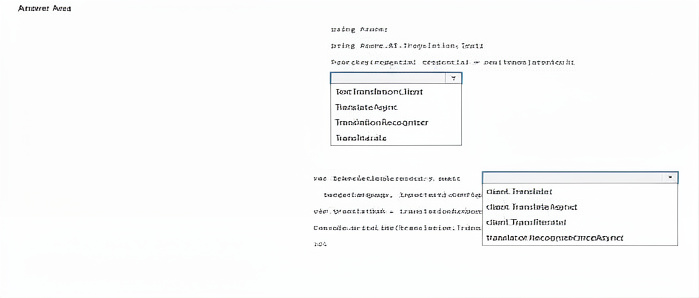
Explanation:
Azure Translator requires an AzureKeyCredential for authentication. The TranslationClient is the main SDK client for text translation. To translate incoming messages to English, you call the TranslateAsync method, specifying the target language (e.g., "en").
Correct Option Details:
AzureKeyCredential –
Used with TranslationClient to authenticate using the subscription key. (Other options like TranslatableObject are not real credential types.)
TranslationClient –
The correct client class for text translation in Azure Translator SDK. TranslateAgent and Translational are not valid.
client.TranslateAsync –
Asynchronous method that performs translation. client.TranslateAgent and client.Translational are not valid methods; TranslateAsync is the standard name.
Incorrect Options (why they don’t fit):
TranslatableObject / TranslateAgoric / TranstionReconqinter / Translatabale –
Typos or non‑existent classes in the Azure Translator SDK.
Client.TranslateAgent / Client.Translational / translatate.ReconqinetanceAsync –
Invalid method names. The correct method is TranslateAsync.
Reference:
Azure Translator – Text Translation client library for .NET – Shows AzureKeyCredential, TranslationClient, and TranslateAsync method.
Quickstart: Translate text with Translator – Confirms the authentication and translation call pattern.
You are building a call handling system that will perform the following actions:
Accept incoming voicemails in French.
Convert voicemails from French to English.
Which Azure Speech in Foundry Tools SDK class should you use for each action? To answer, select the appropriate options in the answer area.
NOTE: Each correct selection is worth one point.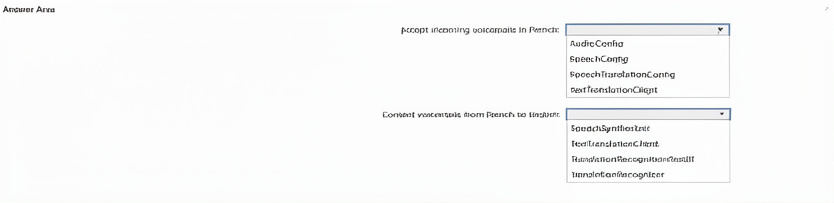
Explanation for "Accept incoming voicemails in French":
SpeechConfig is used to configure the speech service, including the recognition language (French). It is required to set up the recognizer. However, to accept (recognize) the voicemail, you would use SpeechRecognizer with a SpeechConfig. Since SpeechRecognizer is not listed, the prerequisite SpeechConfig is the correct choice from the given options because AudioConfig handles audio input but not language settings.
Explanation for "Convert voicemails from French to English":
TranslationRecognizer is specifically designed for real-time speech translation from one language (French) to another (English). It outputs translated text and optionally synthesized speech in the target language.
Incorrect Options (why they don’t fit):
AudioConfig –
Manages audio input/output settings (e.g., microphone, file). Does not set language or perform translation.
SpeechTranslationConfig –
Used to configure translation settings (source/target languages), but the SDK class that performs the actual translation recognition is TranslationRecognizer.
SpeechSynthesizer –
Converts text to speech, not speech-to-text or translation.
TextTranslationClient –
For translating text, not speech. Requires prior speech‑to‑text conversion.
TranslationRecognitionResult –
Holds the result of translation recognition, not the class that performs the translation.
Reference:
Azure Speech SDK – TranslationRecognizer class – Real-time speech translation.
SpeechConfig for recognition language – Sets source language for recognition.
You have an Azure subscription that contains an Azure Al Search resource named AS1.
You implement a custom skill in AS1 that performs language and sentiment analysis of documents.
You ate evaluating the use of AS1 as part of an enrichment pipeline.
In which order will AS1 index the documents? To answer, move all indexing stages from the list of stages to the answer area and arrange them in the correct order.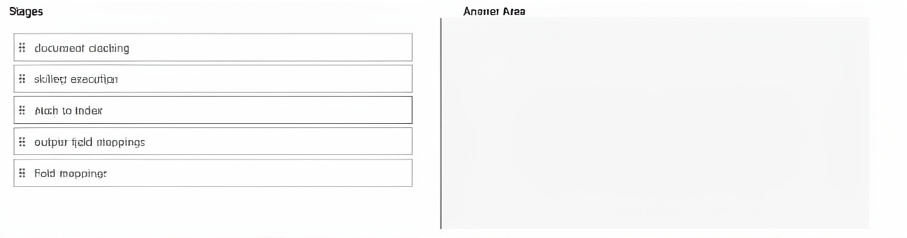
Explanation:
Azure AI Search indexing follows a specific pipeline order. First, document cracking extracts content from the source (e.g., PDF, blob). Then field mappings map source fields to index fields. Skillset execution runs custom skills (e.g., language & sentiment analysis). Output field mappings map skill outputs to index fields. Finally, the enriched document is pushed to the search index.
Why this order:
document cracking –
Opens and extracts text and metadata from source documents (PDFs, blobs, etc.).
field mappings –
Maps source fields (from data source) directly to index fields before any skills run.
skillset execution –
Runs the custom skill (language and sentiment analysis) on the cracked content, producing new enriched fields.
output field mappings –
Maps the skill’s output fields to the target index fields.
push to index –
Writes the final enriched document (original + skill outputs) into the search index.
Reference:
Azure AI Search enrichment pipeline order – Lists the sequence: document cracking → field mappings → skillset → output field mappings → indexing.
Custom skill integration – Skills run after field mappings but before output field mappings.
| Page 1 out of 40 Pages |
Designing and Implementing a Microsoft Azure AI Solution Practice Exam Questions
These AI-102 exam questions with explanations help candidates learn how to design and implement AI solutions on Azure. Topics include natural language processing, computer vision, conversational AI, and cognitive services. Each question includes a detailed explanation that helps learners understand AI concepts and real-world use cases. This approach enhances both theoretical knowledge and practical skills. By practicing consistently, candidates can improve their understanding of Azure AI services and confidently prepare for the certification exam.Conquer the AI-102 Exam: Your Blueprint to Azure AI Certification
What is on the Exam?
AI-102 Designing and Implementing a Microsoft Azure AI Solution Official Exam Blueprint and Weight
1. Plan and Manage an Azure AI Solution
Official Exam Weight: 15-20%
Subtopics: Azure AI services overview, Azure AI services portfolio, selecting appropriate Azure AI services for a given scenario, provisioning Azure AI services resources, single service vs multi-service resource, Azure AI services pricing tiers, managing Azure AI services keys and endpoints, regenerating keys, key vault integration for AI service keys, securing Azure AI services with network restrictions, virtual network integration, private endpoints for AI services, configuring diagnostic logging for AI services, monitoring AI service metrics, Azure Monitor integration, creating alerts for AI services, cost management for AI services, responsible AI principles overview, fairness, reliability, privacy, inclusiveness, transparency, accountability, Microsoft Responsible AI Standard, Azure AI Content Safety overview, content filtering policies, implementing content moderation, Azure AI services containers overview, deploying AI services in containers, container configuration and security, managing container deployments.
2. Implement Decision Support Solutions
Official Exam Weight: 5-10%
Subtopics: Azure AI Content Safety overview, text moderation, image moderation, custom categories, content safety severity levels, configuring blocklists, Azure AI Content Safety Studio, implementing content safety in applications, Anomaly Detector overview, univariate anomaly detection, multivariate anomaly detection, anomaly detection modes, batch detection, streaming detection, interpreting anomaly detection results, integrating Anomaly Detector into applications, Azure AI Personalizer overview, reinforcement learning concepts, Personalizer loop configuration, reward scores, exploration vs exploitation, Personalizer use cases, evaluating Personalizer performance, Azure AI Metrics Advisor overview, onboarding time series data, anomaly configuration, smart detection, incident analysis, alert hooks configuration.
3. Implement Computer Vision Solutions
Official Exam Weight: 15-20%
Subtopics: Azure AI Vision overview, Image Analysis API, analyzing images for categories tags captions objects and brands, optical character recognition with Read API, OCR for printed and handwritten text, extracting text from images and documents, spatial analysis overview, people detection and tracking, Azure AI Vision Studio, training custom image classification models, single label vs multi-label classification, training custom object detection models, model evaluation metrics, precision recall and mean average precision, Azure AI Custom Vision overview, Custom Vision portal, creating and managing Custom Vision projects, uploading and tagging training images, training and publishing Custom Vision models, Custom Vision prediction API, exporting Custom Vision models for edge deployment, CoreML ONNX TensorFlow export formats, Azure AI Face overview, face detection, face analysis, face attributes, face recognition overview, face verification, face identification, face grouping, liveness detection, responsible use of facial recognition, Azure AI Video Indexer overview, video indexing features, extracting insights from video, transcript generation, speaker identification, keyframe extraction, brand and label detection in video, video indexer widgets and API integration.
4. Implement Natural Language Processing Solutions
Official Exam Weight: 25-30%
Subtopics: Azure AI Language overview, Azure AI Language Studio, text analytics features, language detection, sentiment analysis, opinion mining, key phrase extraction, named entity recognition, entity linking, personally identifiable information detection, PII redaction, custom named entity recognition, creating and training custom NER models, labeling entities, model evaluation and deployment, custom text classification, single label classification, multi-label classification, training and deploying custom text classification models, Azure AI Language question answering overview, creating a knowledge base, adding question and answer pairs, importing from URLs and documents, multi-turn conversations, chit-chat integration, publishing and querying knowledge base, active learning for knowledge base improvement, conversational language understanding overview, intents and entities, utterances, machine learned entities, list entities, regex entities, prebuilt entities, training and publishing CLU models, orchestration workflow overview, connecting multiple language projects, Azure AI Translator overview, text translation, document translation, custom translator, training custom translation models, transliteration, language detection with Translator, Azure AI Speech overview, speech to text overview, real-time transcription, batch transcription, custom speech models, acoustic models, language models, pronunciation assessment, text to speech overview, neural text to speech voices, custom neural voice, speech synthesis markup language SSML, speaker recognition overview, speaker verification, speaker identification, speech translation overview, real-time speech translation, keyword recognition.
5. Implement Knowledge Mining and Document Intelligence Solutions
Official Exam Weight: 15-20%
Subtopics: Azure AI Search overview, search service tiers and capacity, creating an Azure AI Search index, index schema definition, fields and attributes, searchable filterable sortable retrievable facetable, indexers overview, data source connectors, blob storage indexer, SQL database indexer, Cosmos DB indexer, indexer schedules and change detection, skillsets overview, built-in cognitive skills, OCR skill, key phrase extraction skill, entity recognition skill, sentiment skill, image analysis skill, language detection skill, custom skills, Azure Functions as custom skills, Web API custom skill interface, knowledge store overview, projections, table projections, object projections, file projections, semantic search overview, semantic ranker, semantic captions and answers, vector search overview, embeddings, vector fields, hybrid search, full text search query types, simple query syntax, full Lucene query syntax, filters and facets, scoring profiles, relevance tuning, Azure AI Document Intelligence overview, prebuilt models, invoice model, receipt model, business card model, ID document model, tax document models, layout model, general document model, custom models, custom template models, custom neural models, composed models, training custom Document Intelligence models, labeling documents in Document Intelligence Studio, analyzing documents with Document Intelligence API, extracting structured data from forms and documents.
6. Implement Generative AI Solutions
Official Exam Weight: 15-20%
Subtopics: Azure OpenAI Service overview, Azure OpenAI vs OpenAI API, available models in Azure OpenAI, GPT-4 overview, GPT-4o overview, GPT-35-turbo overview, Embeddings models overview, DALL-E overview, Whisper overview, Azure OpenAI Studio overview, deploying Azure OpenAI models, model deployment types, standard vs provisioned deployments, Azure OpenAI completions API, chat completions API, prompt engineering fundamentals, zero-shot prompting, few-shot prompting, chain of thought prompting, system messages and personas, temperature and top-p parameters, max tokens and stop sequences, Azure OpenAI embeddings overview, generating embeddings, vector similarity search, Retrieval Augmented Generation overview, RAG architecture and components, grounding responses with your own data, Azure OpenAI on your data feature, connecting data sources to Azure OpenAI, Azure AI Search integration with Azure OpenAI, fine-tuning Azure OpenAI models, preparing training data for fine-tuning, fine-tuning use cases and limitations, DALL-E image generation overview, image generation prompts, image editing and variations, responsible generative AI overview, identifying potential harms, measuring and mitigating harms, content filtering in Azure OpenAI, content filter categories, configuring content filter severity levels, Azure AI Studio overview, creating and managing AI projects, model catalog in Azure AI Studio, prompt flow overview, creating flows in prompt flow, LLM nodes, Python nodes, prompt nodes, evaluating prompt flow outputs.
| Domain | Title | Exam Weight |
|---|---|---|
| 1 | Plan and Manage an Azure AI Solution | 15-20% |
| 2 | Implement Decision Support Solutions | 5-10% |
| 3 | Implement Computer Vision Solutions | 15-20% |
| 4 | Implement Natural Language Processing Solutions | 25-30% |
| 5 | Implement Knowledge Mining and Document Intelligence Solutions | 15-20% |
| 6 | Implement Generative AI Solutions | 15-20% |
How to Crack the Code
Think like a solutions architect. The exam presents detailed scenarios, so your job is to choose the optimal Azure service mix. Focus on understanding the "why" behind each service—knowing when to use Computer Vision vs. Custom Vision is more valuable than just memorizing feature lists.
Avoid These Costly Mistakes
Dont get tripped up on operational excellence! Many candidates forget to plan for monitoring, management, and governance. Also, prioritize solutions that are not only accurate but also scalable, secure, and compliant from the start.
Build a Winning Study Plan
Merge theory with practice. Complete the official Microsoft Learn modules, then immediately apply that knowledge by building small projects in your own Azure subscription. This hands-on experience is irreplaceable.
Test Your Readiness Under Real Conditions
There is no substitute for a real exam simulation. A full-length, timed practice test reveals your true strengths and weaknesses. For the most realistic preparation, the comprehensive AI-102 practice tests on our website mirror the exams format and difficulty, giving you the confidence to pass.
Learn From Those Who Succeeded
Our certified professionals share a common thread in their success. "The key was moving beyond theory," says Priya M., a recent AI-102 certified architect. "Building real prototypes and then challenging my knowledge with tough practice questions made all the difference." Many highlight that using resources like the realistic, scenario-based practice tests on msmcqs.com was the final step that gave them the confidence and instinct to pass. Their advice? Practice until architecting the right Azure AI solution feels like second nature.
What Our Clients Say
Confidence grew quickly while preparing for Microsoft Certified: Azure AI Engineer Associate using MSmcqs.com. The AI-102 mock exams covered cognitive services, AI solutions, and machine learning workloads thoroughly. Practicing regularly made complex AI topics easier to grasp.
Arjun Reddy | India