Free Microsoft MB-800 Practice Test Questions MCQs
Stop wondering if you're ready. Our Microsoft MB-800 practice test is designed to identify your exact knowledge gaps. Validate your skills with Microsoft Dynamics 365 Business Central Functional Consultant questions that mirror the real exam's format and difficulty. Build a personalized study plan based on your free MB-800 exam questions mcqs performance, focusing your effort where it matters most.
Targeted practice like this helps candidates feel significantly more prepared for Microsoft Dynamics 365 Business Central Functional Consultant exam day.
22340+ already prepared
Updated On : 12-Oct-2026234 Questions
Microsoft Dynamics 365 Business Central Functional Consultant
4.9/5.0
Topic 5: Misc. Questions
You are implementing Business Central for a company.
The finance manager of the company must configure the system to post payments and expenses. The configuration must include the following capabilities:
• Get suggested payments to the external parties based on due dates and available funds.
• Apply customer payments to multiple invoices.
• Submit electronic payments to the bank.
• Reimburse an employee to a dedicated bank account.
You need to recommend the page the company should use for each requirement.
Which page should you recommend posting to for each requirement? To answer, move the appropriate pages to the correct requirements. You may use each page once, more than once, or not at all. You may need to move the split bar between panes or scroll to view content
NOTE: Each correct selection is worth one point.

Requirement 1: Suggested payments to external parties based on due dates and available funds
Correct Page: Payment Journal
Explanation:
The Payment Journal includes a Suggest Vendor Payments function that calculates payment suggestions based on due dates, available funds, and vendor payment terms. It proposes which vendor invoices to pay and creates journal lines automatically. This is the standard tool for vendor payment proposals.
Incorrect Pages:
Sales Journal: Used for sales transactions (invoices/credit memos), not payments to vendors.
Purchase Journal: Used for purchase invoices/credit memos, not payment proposals.
Cash Receipt Journal: Used for customer payments, not vendor payments.
Reference: Microsoft Learn – "Suggest Vendor Payments" in Payment Journal
Requirement 2: Customer payments for multiple invoices
Correct Page: Cash Receipt Journal
Explanation:
The Cash Receipt Journal is designed to record incoming customer payments. It allows applying a single payment to multiple customer invoices (e.g., a customer pays several invoices with one check). You can manually apply payments to open entries or use the Apply Entries function.
Incorrect Pages:
Payment Journal: Used for outgoing vendor payments, not customer receipts.
Purchase Journal: For vendor invoices, not customer payments.
Sales Journal: For sales documents, not cash receipts.
Reference: Microsoft Learn – "Cash Receipt Journal" – Applying customer payments to multiple invoices
Requirement 3: Electronic payments to bank
Correct Page: Payment Journal
Explanation:
The Payment Journal supports electronic payment formats (e.g., SEPA, NACHA, BACS). After creating payment lines, you can export them to a bank file using the Export Payments to File function. This sends electronic instructions to the bank for processing vendor payments.
Incorrect Pages:
Cash Receipt Journal: Handles incoming payments, not outgoing electronic payments.
Purchase Journal: Not for payment initiation.
Sales Journal: Not for payments.
Reference: Microsoft Learn – "Electronic Payments" – Exporting payment journal lines to bank file
Requirement 4: Dedicated bank account for employee reimbursement
Correct Page: Payment Journal
Explanation:
The Payment Journal allows you to select any bank account (including a dedicated reimbursement bank account) as the balancing account. For employee reimbursements, you create a payment line to the employee vendor (if set up as a vendor) or directly to the employee, using the dedicated bank account in the Bal. Account No. field.
Incorrect Pages:
Cash Receipt Journal: For incoming receipts, not outgoing reimbursements.
Purchase Journal: For vendor invoices, not direct employee payments.
Sales Journal: Not applicable.
Reference: Microsoft Learn – "Process Employee Reimbursements" – Using Payment Journal with dedicated bank account
A company uses Business Central to manage retail product pricing and discounts. The new sales pricing experience has not been enabled.
The company plans to track discounts applied to sales transactions. The company has a specific price list for each customer.
You need to set up item discounts separately to meet business needs.
Which three actions should you perform in sequence? To answer, move the appropriate actions from the list of actions to the answer area and arrange them in the correct order.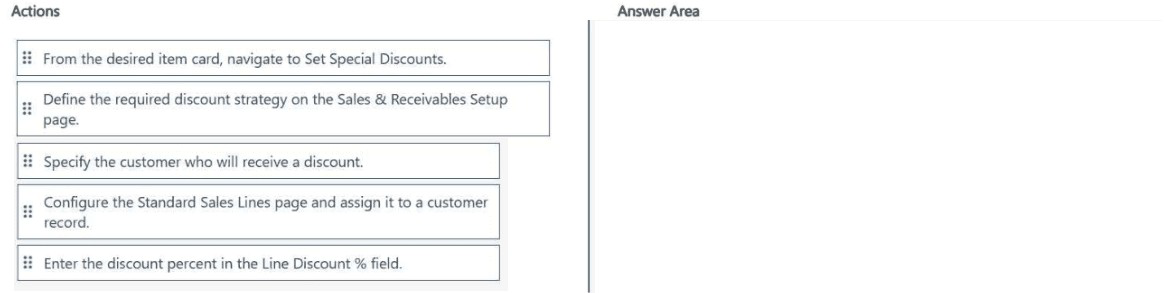
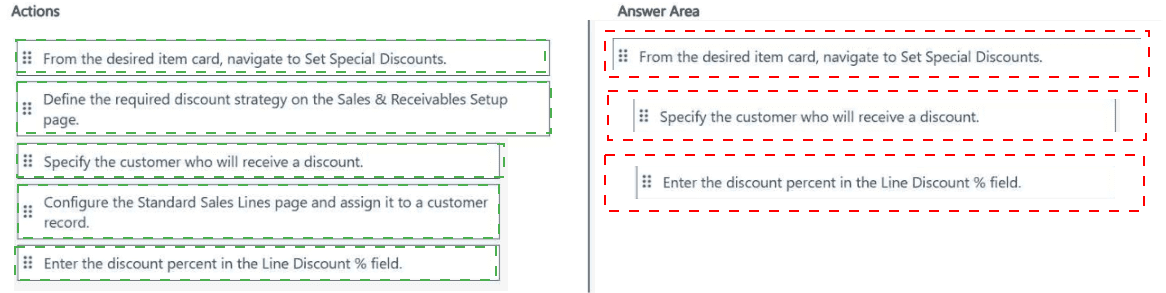
Explanation of the Sequence:
Step 1 – From the desired item card, navigate to Set Special Discounts:
Open the Item Card for the item to which you want to apply a customer-specific discount. From the item card, select Related > Pricing > Set Special Discounts (or Item > Customer in older versions). This opens the Customer Discount Groups or Special Discounts page.
Step 2 – Specify the customer who will receive a discount:
On the special discounts page, add a new line. In the Customer No. field, select the specific customer (or customer discount group) that will receive the discount. This ties the discount to a particular customer.
Step 3 – Enter the discount percent in the Line Discount % field:
In the same line, enter the discount percentage in the Line Discount % field (e.g., 10% for 10% discount). Optionally, you can specify minimum quantities or date ranges. Save the record. This discount will automatically apply to that customer when the item is added to a sales document.
Why Other Actions Are Incorrect or Out of Sequence:
Define the required discount strategy on the Sales & Receivables Setup page: This is a global setup for discount calculation methods (e.g., best price, mandatory discount) and is not part of the step-by-step process for setting up a specific item discount for a specific customer.
Configure the Standard Sales Lines page and assign it to a customer record: Standard Sales Lines are for recurring invoice lines, not for setting up per-customer item discounts.
Reference:
Microsoft Learn – "Set Up Line Discounts for Customers" – Using Set Special Discounts from the Item Card to assign customer-specific discounts.
A manufacturing company uses Dynamics 365 Business Central. The company implemented fixed assets by using a straight line depreciation method for its financial.
The company plans to use a different method to track tax depreciation in Business Central.
The company already created and configured the tax depreciation book with the code Tax You need to configure existing fixed assets to use multiple depreciation books.
Which four actions should you perform in sequence? To answer, move the appropriate actions from the list of actions to the answer area and arrange them in the correct order.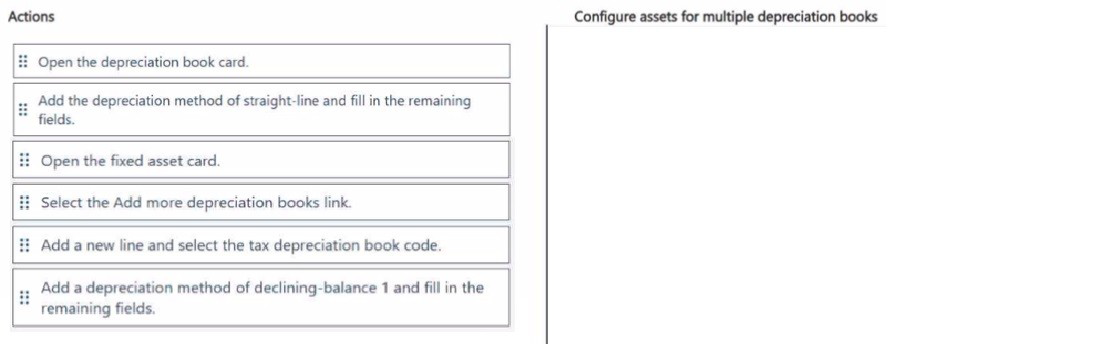
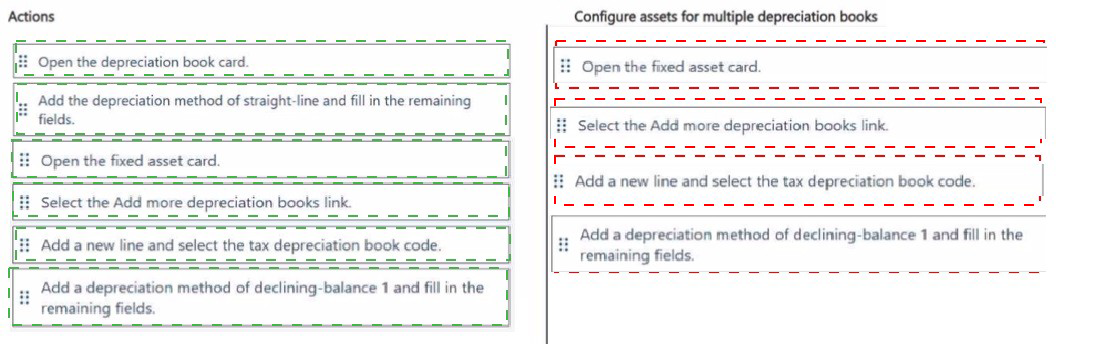
Explanation of the Sequence:
Step 1 – Open the fixed asset card:
Navigate to the Fixed Asset Card for the existing asset that already has the financial depreciation book (straight-line) assigned. This card contains the asset's master data.
Step 2 – Select the Add more depreciation books link:
On the fixed asset card, locate and select the Add more depreciation books link (or go to the Depreciation Books FastTab and select Add Depreciation Book). This opens the list of depreciation books that can be assigned to this asset.
Step 3 – Add a new line and select the tax depreciation book code:
In the depreciation book assignment list, add a new line. In the Depreciation Book Code field, select the pre-configured Tax depreciation book. This links the tax depreciation book to the fixed asset.
Step 4 – Add a depreciation method of declining-balance 1 and fill in the remaining fields:
On the new line (or by opening the Tax depreciation book setup for this asset), set the Depreciation Method to Declining-Balance 1 (or the appropriate tax method). Fill in required fields such as Depreciable Basis, Depreciation Periods, and Starting Date to complete the tax depreciation configuration.
Why Other Actions Are Incorrect or Out of Sequence:
Open the depreciation book card: This is used to create a new depreciation book, but the Tax book already exists. The task is to assign it to existing assets, not to create the book.
Add a depreciation method of straight-line and fill in the remaining fields: Straight-line is already configured for financial depreciation. This action would be redundant and does not address the tax depreciation requirement.
Select Add more depreciation books link before opening the fixed asset card: The fixed asset card must be open first to access the link for that specific asset.
Reference:
Microsoft Learn – "Set Up Fixed Asset Depreciation Books" – Assigning multiple depreciation books to a single fixed asset.
A company uses Dynamics 365 Business Central.
The company wants to automate sales credit memo processing.
You need to configure the system to meet the requirements.
What should you do? To answer, select the appropriate options in the answer area.
NOTE: Each correct selection is worth one point.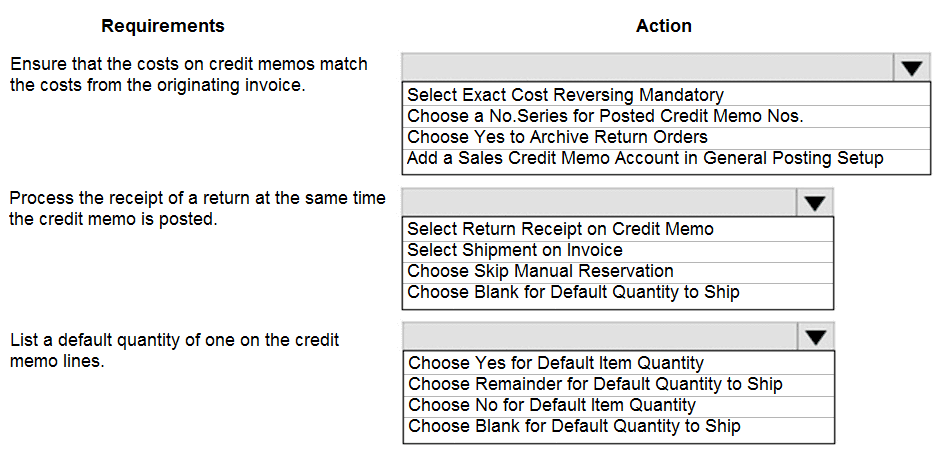
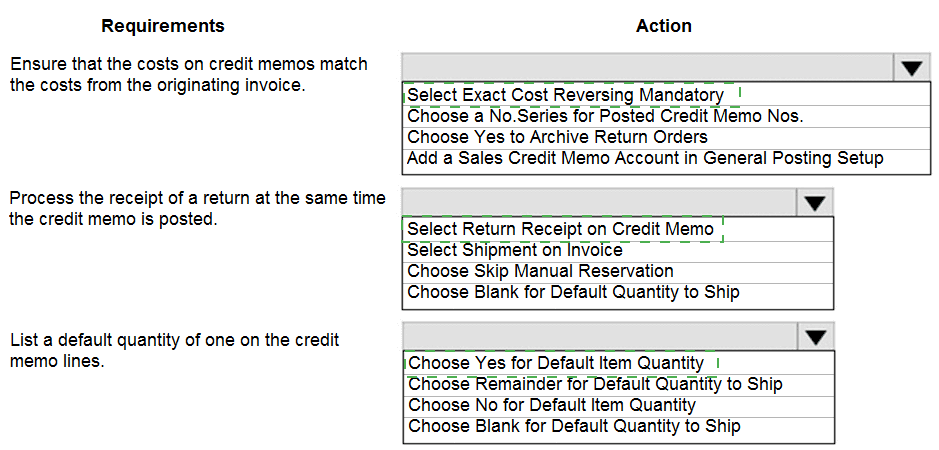
Requirement 1: Ensure costs on credit memos match costs from originating invoice
Correct Option: Select Exact Cost Reversing Mandatory
Explanation:
When this setting is enabled, Business Central reverts the exact original cost from the sales invoice (not the current average cost) to the credit memo. This ensures cost matching for accounting accuracy, especially when inventory costs change over time. This is critical for margin reporting and inventory valuation.
Incorrect Options for this requirement:
Choose a No. Series for Posted Credit Memo Nos.: Affects document numbering, not cost matching.
Choose Yes to Archive Return Orders: Affects archiving, not cost reverting.
Add a Sales Credit Memo Account in General Posting Setup: Defines posting accounts, not cost matching.
Reference: Microsoft Learn – "Exact Cost Reversing Mandatory" in Sales & Receivables Setup
Requirement 2: Process the receipt of a return at the same time the credit memo is posted
Correct Option: Select Return Receipt on Credit Memo
Explanation:
This setting automatically posts the return receipt (warehouse receipt of returned goods) when the credit memo is posted. Instead of processing return receipt and credit memo as separate steps, they happen together, streamlining the return process and ensuring inventory and financial documents are synchronized.
Incorrect Options for this requirement:
Select Shipment on Invoice: Controls shipment posting for sales invoices, not returns.
Choose Skip Manual Reservation: Unrelated to return receipt processing.
Reference: Microsoft Learn – "Return Receipt on Credit Memo" in Sales & Receivables Setup
Requirement 3: List a default quantity of one on the credit memo lines
Correct Option: Choose Yes for Default Item Quantity
Explanation:
When this option is enabled, new credit memo lines for items default to a quantity of 1. This saves data entry time for returns where only one unit is typically being returned. The setting is often labeled "Default Item Quantity" or similar in Sales & Receivables Setup.
Incorrect Options for this requirement:
Choose Remainder for Default Quantity to Ship: Defaults to remaining open quantity, not 1.
Choose Blank for Default Quantity to Ship: Leaves quantity blank, requiring manual entry.
Choose No for Default Item Quantity: Disables default quantity (or defaults to 0).
Reference: Microsoft Learn – "Sales & Receivables Setup – Default Item Quantity"
| Page 1 out of 24 Pages |
Microsoft Dynamics 365 Business Central Functional Consultant Practice Exam Questions
These MB-800 practice questions with explanations help candidates learn how to implement and manage Business Central solutions. Topics include financial management, sales, purchasing, and operations. Each question includes a detailed explanation that helps learners understand business processes and system functionality. This approach promotes deeper understanding and better retention of concepts. By practicing consistently, candidates can improve their problem-solving skills, identify weak areas, and confidently prepare for the certification exam.MB-800 - Microsoft Dynamics 365 Business Central Functional Consultant Official Exam Blueprint and Weight:
1. Set Up Business Central
Official Exam Weight: 15-20%
Subtopics: Configure company information and basic setup, manage users roles and permissions, configure dimensions and posting groups, set up number series and document management, configure workflow approvals, manage currencies and exchange rates, configure financial periods and accounting settings, set up business units and locations, configure notifications and personalization settings, manage environment configuration and administration, implement security and compliance settings, configure integrations with Microsoft 365 and Power Platform.
2. Configure Financials
Official Exam Weight: 25-30%
Subtopics: Configure general ledger setup, manage chart of accounts, create and manage journals, configure accounts payable and accounts receivable, process vendor and customer transactions, manage cash flow and bank accounts, perform bank reconciliations, configure fixed assets and depreciation, manage budgets and financial reporting, process intercompany transactions, configure tax and VAT settings, manage period-end and year-end closing processes, analyze financial performance and reporting.
3. Configure Sales and Purchasing
Official Exam Weight: 20-25%
Subtopics: Set up customers and vendors, manage sales orders and invoices, process purchase orders and vendor invoices, configure pricing and discounts, manage returns and credit memos, implement approval workflows, manage customer and vendor relationships, configure item charges and costs, process drop shipments and special orders, analyze sales and purchasing performance, manage document posting and settlements, troubleshoot sales and purchasing transactions.
4. Configure Operations and Supply Chain Management
Official Exam Weight: 20-25%
Subtopics: Configure inventory management, manage item tracking and serial numbers, configure warehouses and locations, manage inventory costing methods, process inventory adjustments and transfers, configure replenishment and planning worksheets, manage assembly and production orders, configure demand forecasting, manage shipping and receiving processes, implement supply chain workflows, analyze inventory and operational performance, optimize warehouse and inventory operations.
5. Configure Business Central Reporting and Integrations
Official Exam Weight: 10-15%
Subtopics: Create and customize reports, configure account schedules and financial statements, implement Power BI integration, manage data exports and imports, configure Excel integration, implement reporting and analytics solutions, manage APIs and web services, integrate Business Central with Microsoft Power Platform, configure document layouts and templates, manage data migration processes, troubleshoot reporting and integration issues, optimize reporting performance and usability.
| Domain | Title | Exam Weight |
|---|---|---|
| 1 | Set Up Business Central | 15-20% |
| 2 | Configure Financials | 25-30% |
| 3 | Configure Sales and Purchasing | 20-25% |
| 4 | Configure Operations and Supply Chain Management | 20-25% |
| 5 | Configure Business Central Reporting and Integrations | 10-15% |
Words From Our Customers
Business Central is powerful for small and medium businesses. The MB-800 exam covers financials, inventory, and operations. MSmcqs provided practice test that mirrored the real exam scenarios perfectly. I felt completely prepared and passed on my first attempt. Great investment!
Stephanie Parker, Business Central Consultant | Nashville, TN