Free Microsoft MS-700 Practice Test Questions MCQs
Stop wondering if you're ready. Our Microsoft MS-700 practice test is designed to identify your exact knowledge gaps. Validate your skills with Managing Microsoft Teams questions that mirror the real exam's format and difficulty. Build a personalized study plan based on your free MS-700 exam questions mcqs performance, focusing your effort where it matters most.
Targeted practice like this helps candidates feel significantly more prepared for Managing Microsoft Teams exam day.
23340+ already prepared
Updated On : 12-Oct-2026334 Questions
Managing Microsoft Teams
4.9/5.0
Topic 5: Misc, Questions
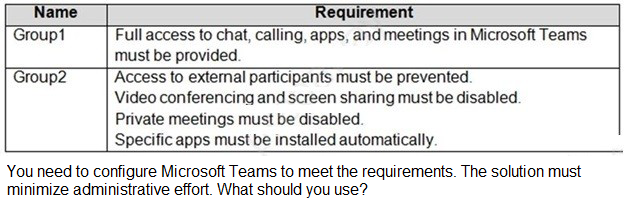
You have a Microsoft 365 subscription that uses Microsoft Teams. The subscription contains 1,000 users in the groups shown in the following table.
A. policy packages
B. app setup policies
C. Microsoft Teams policies
D. Meetings policies
Explanation:
The question requires applying two distinct sets of configurations to two different groups. Group1 needs full access to all features, while Group2 needs a restricted environment with specific apps installed. To minimize administrative effort, a solution that bundles multiple policy types into a single entity for easy assignment is ideal. Policy packages are designed for this exact scenario, allowing admins to apply a curated collection of settings to specific users or groups efficiently.
Correct Option:
A. Policy packages
Policy packages are a collection of pre-defined or custom policies and settings that can be assigned to users who have similar roles. In this scenario, creating one package for Group1 with policies that grant full access and another package for Group2 with restricted meeting policies, external access settings, and an app setup policy would meet all requirements. This approach bundles multiple policy types together, significantly reducing the administrative overhead of managing each policy type individually for each group.
Incorrect Option:
B. App setup policies
App setup policies are used to control which apps are pinned and automatically installed for users. While this would address the requirement for Group2 to have specific apps installed automatically, it would not fulfill the other requirements for Group2, such as disabling video conferencing, screen sharing, and private meetings. It would also not address any of the requirements for Group1. Therefore, using only app setup policies is an incomplete solution.
Incorrect Option:
C. Microsoft Teams policies
"Microsoft Teams policies" is a broad category encompassing various policy types like messaging, meeting, and calling policies. Using this as an answer is too vague and implies managing each policy type separately. While you could technically configure each required policy individually and assign them to the groups, this would involve creating and assigning multiple discrete policies. This process would require significantly more administrative effort compared to bundling them into a policy package.
Incorrect Option:
D. Meetings policies
Meeting policies control features available when users schedule or join meetings, such as screen sharing and private meetings. This would successfully address the parts of the requirement for Group2 related to disabling video conferencing, screen sharing, and private meetings. However, it would not address the need to automatically install specific apps for Group2, nor would it manage the full-access requirements for Group1. It is a single policy type and cannot cover all the needs outlined for both groups.
Reference:
Manage Teams with policy packages - Microsoft Teams | Microsoft Learn
Manage app setup policies in Microsoft Teams - Microsoft Teams | Microsoft Learn
Manage meeting policies in Microsoft Teams - Microsoft Teams | Microsoft Learn
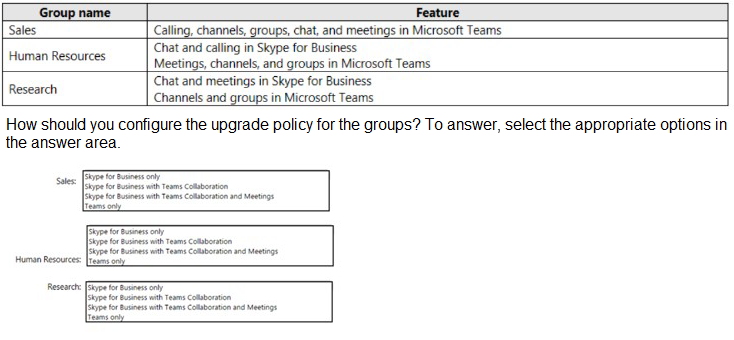
You have a Microsoft 365 tenant that uses Microsoft Skype for Business on-premises. You plan to upgrade to Microsoft Teams in stages based on groups. The features required by each group are shown in the following table.
Explanation:
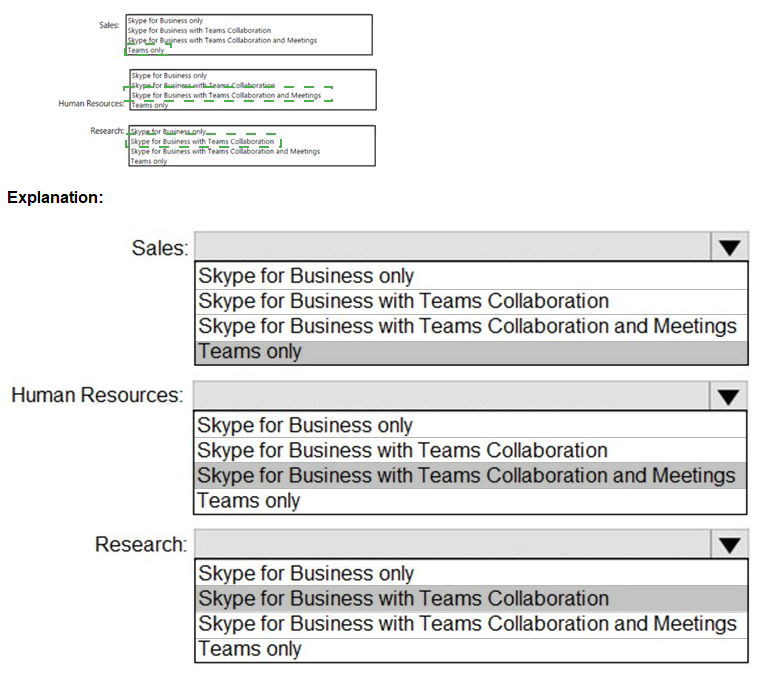
This question addresses configuring upgrade policies during a migration from Skype for Business on-premises to Microsoft Teams. Teams upgrade modes control which client users launch for different workloads. The "Islands" mode (Skype for Business with Teams Collaboration) allows both clients to run simultaneously, while "Teams only" mode forces all functionality into Teams. The selection must be based on which features each group needs from each platform.
Correct Option for Sales:
Teams only
Sales requires calling, channels, groups, chat, and meetings in Microsoft Teams. Since all required features are available in Teams and none are specified for Skype for Business, the appropriate mode is Teams only. This mode provides users with the full Teams experience and ensures all functionality is accessed through the Teams client. Users will not launch Skype for Business as all workloads are handled exclusively in Teams.
Correct Option for Human Resources:
Skype for Business with Teams Collaboration and Meetings
Human Resources requires chat and calling in Skype for Business, but meetings, channels, and groups in Teams. This mixed workload requirement means users need Skype for Business for chat and calling, while Teams handles meetings and collaboration features. This configuration is achieved through the "Skype for Business with Teams Collaboration and Meetings" mode, which routes chat and calling capabilities to Skype for Business while enabling Teams for meetings and collaboration.
Correct Option for Research:
Skype for Business with Teams Collaboration
Research requires chat and meetings in Skype for Business, but channels and groups in Teams. This mode allows both clients to operate side by side, with users able to choose which application to use for each workload. The "Skype for Business with Teams Collaboration" mode (Islands mode) keeps chat and meetings in Skype for Business while enabling Teams for collaboration features like channels and groups.
Incorrect Options:
Skype for Business only would not work for any group because all groups require some Teams functionality. Sales needs all features in Teams, Human Resources needs meetings and collaboration in Teams, and Research needs channels and groups in Teams. This mode would disable Teams entirely and not meet the requirements.
Reference:
Microsoft Teams upgrade modes and coexistence
Choose your upgrade journey from Skype for Business to Microsoft Teams
Migration and interoperability guidance for organizations moving from Skype for Business to Microsoft Teams
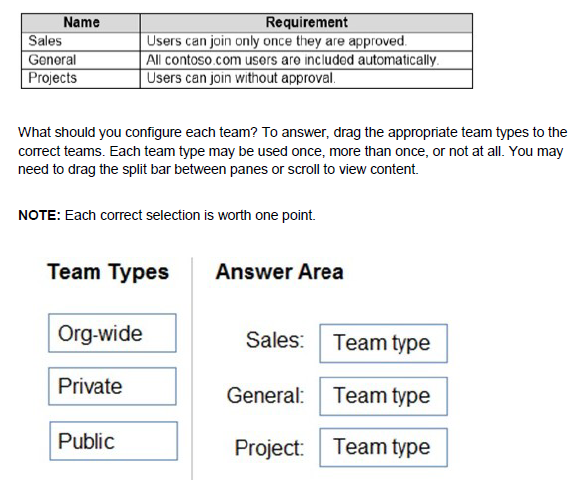
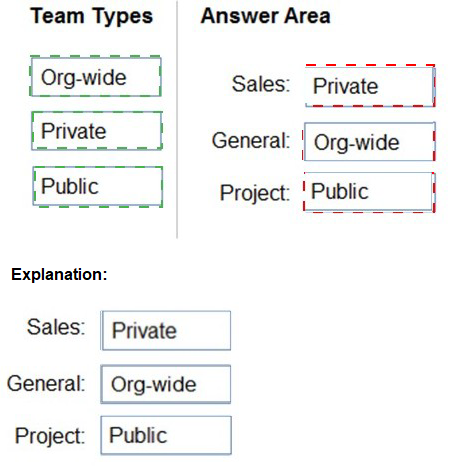
You have a Microsoft Office 365 subscription named contoso.com. You need to create the Microsoft Teams teams shown in the following table.
Explanation:
This question focuses on understanding Microsoft Teams team types and their membership behaviors. Teams can be configured as org-wide, private, or public. Org-wide teams automatically include all users in the organization. Public teams allow any user in the organization to join without approval. Private teams require users to be added by owners and require approval for join requests. The requirements for each team dictate which type must be selected.
Correct Option for Sales:
Private
The Sales team requires that users can join only once they are approved. Private teams have controlled membership where users cannot join automatically. When users request to join a private team, the request goes to team owners for approval. This ensures that only approved users gain access to the Sales team, meeting the requirement precisely.
Correct Option for General:
Org-wide
The General team requires that all contoso.com users are included automatically. An org-wide team automatically includes every user in the organization and keeps membership synchronized as users join and leave. This is the only team type that provides automatic inclusion of all users without manual intervention. Org-wide teams are limited to organizations with up to 10,000 users.
Correct Option for Projects:
Public
The Projects team requires that users can join without approval. Public teams allow any user in the organization to discover and join the team directly without needing owner approval. This self-service model enables users to join the Projects team freely whenever they need access to project-related collaboration.
Incorrect Options:
Org-wide would not work for Sales because it would automatically include all users, violating the approval requirement. For Projects, org-wide would include all users unnecessarily rather than allowing optional self-service join. Org-wide is only appropriate for General where automatic inclusion of all users is required.
Private would not work for General or Projects. General requires automatic inclusion of all users, which private teams cannot provide. Projects requires users to join without approval, but private teams require owner approval for all join requests.
Public would not work for Sales because public teams allow anyone to join without approval, violating the approval requirement. Public would also not work for General because it does not automatically include all users; users must proactively join.
Reference:
Create an org-wide team in Microsoft Teams
Manage public and private teams in Microsoft Teams
Team types and membership in Microsoft Teams
You have a Microsoft 365 subscription that uses Teams.
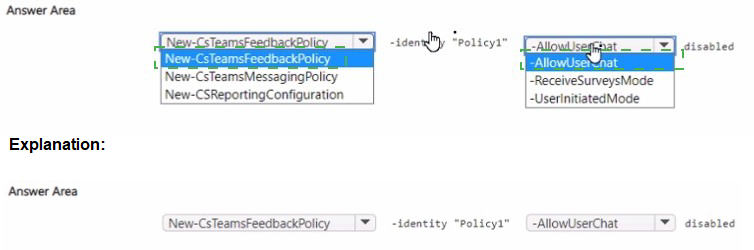
You need to create a custom policy named Policy1 that will disable the ability to send
feedback and suggestions about Teams to Microsoft.
How should you complete the PowerShell command? To answer, select the appropriate
options in the answer area.
NOTE: Each correct selection is worth one point.
Explanation:
This question tests knowledge of PowerShell commands for managing Teams feedback policies. The New-CsTeamsFeedbackPolicy cmdlet is used to create custom feedback policies that control whether users can send feedback, suggestions, and survey responses to Microsoft. The parameters must be set correctly to disable all feedback capabilities as required.
Correct Option for Identity:
-Identity "Policy1"
The Identity parameter specifies the name of the new feedback policy being created. In this case, the policy must be named "Policy1" as stated in the requirement. This parameter is mandatory when creating a new policy and defines how the policy will be referenced when assigning it to users.
Correct Option for UserInitiatedMode:
-UserInitiatedMode disabled
The UserInitiatedMode parameter controls whether users can voluntarily submit feedback and suggestions to Microsoft. Setting this to "disabled" ensures users cannot initiate feedback submissions through the Teams client. This is a key requirement for preventing users from sending suggestions and feedback about Teams.
Correct Option for ReceiveSurveysMode:
-ReceiveSurveysMode disabled
The ReceiveSurveysMode parameter controls whether users receive survey invitations from Microsoft about their Teams experience. Setting this to "disabled" ensures users will not receive any survey requests. This complements the UserInitiatedMode setting to completely eliminate all feedback channels.
Incorrect Options:
-AllowUserThat This is not a valid parameter for the New-CsTeamsFeedbackPolicy cmdlet.
The correct parameters for controlling feedback capabilities are UserInitiatedMode and ReceiveSurveysMode. This option appears to be a distractor in the answer area.
AllowUser that disabled This is not a valid parameter syntax.
The cmdlet uses specific parameter names like UserInitiatedMode and ReceiveSurveysMode with values like "enabled" or "disabled". This option does not represent a valid PowerShell parameter.
Reference:
New-CsTeamsFeedbackPolicy PowerShell cmdlet
Manage feedback policies in Microsoft Teams
Set up Teams feedback policies for your organization
| Page 1 out of 34 Pages |
Managing Microsoft Teams Practice Exam Questions
These MS-700 practice questions with explanations help candidates learn how to manage and configure Microsoft Teams effectively. The questions focus on governance, security, collaboration settings, and Teams lifecycle management. Each explanation provides clear reasoning behind the correct answer, helping learners understand both technical and administrative concepts. This approach supports deeper learning and real-world application. By practicing regularly, candidates can improve their understanding of Teams management, strengthen their skills, and gain confidence for the certification exam.MS-700 - Managing Microsoft Teams Official Exam Blueprint and Weight:
1. Plan and Configure a Microsoft Teams Environment
Official Exam Weight: 25-30%
Subtopics: Plan Microsoft Teams architecture, manage Microsoft 365 tenant settings for Teams, configure Teams settings and policies, manage Teams licenses and subscriptions, configure network requirements for Teams, implement governance and lifecycle management, manage Teams templates, configure organization-wide settings, plan Teams deployment and adoption strategies, manage Teams clients and updates, configure guest and external access settings, implement compliance and security requirements.
2. Manage Chat Teams Channels and Apps
Official Exam Weight: 20-25%
Subtopics: Create and manage teams and channels, configure channel types including standard private and shared channels, manage team membership and ownership, configure chat settings and messaging policies, manage Teams applications and app permissions, configure app setup policies, deploy and manage custom apps, manage tags and mentions, configure file collaboration and SharePoint integration, monitor team usage and activity, troubleshoot collaboration and communication issues.
3. Manage Meetings Webinars and Town Halls
Official Exam Weight: 15-20%
Subtopics: Configure meeting policies and settings, manage meeting templates, configure audio conferencing and dial-in options, manage webinars and registration settings, configure town halls and large events, manage meeting recordings and transcripts, configure meeting security and compliance settings, manage meeting room devices and resources, troubleshoot meeting quality and connectivity issues, monitor meeting analytics and reports.
4. Manage Calling and Phone Systems
Official Exam Weight: 15-20%
Subtopics: Configure Microsoft Teams Phone, manage phone numbers and calling plans, configure Direct Routing and Operator Connect, manage auto attendants and call queues, configure emergency calling policies, manage voice routing policies, configure voicemail and call settings, manage common area phones and devices, troubleshoot calling and telephony issues, monitor call quality and performance metrics, manage PSTN connectivity solutions.
5. Monitor Secure and Troubleshoot Microsoft Teams
Official Exam Weight: 20-25%
Subtopics: Monitor Teams service health and usage reports, manage Teams administration and analytics, configure Microsoft Purview compliance features, implement retention and data loss prevention (DLP) policies, manage information barriers and eDiscovery, configure security and conditional access policies, manage Microsoft Defender for Office 365 integration, troubleshoot Teams client and service issues, monitor network performance and call quality, manage audit logs and compliance reporting, implement best practices for Teams operations and governance.
| Domain | Title | Exam Weight |
|---|---|---|
| 1 | Plan and Configure a Microsoft Teams Environment | 25-30% |
| 2 | Manage Chat Teams Channels and Apps | 20-25% |
| 3 | Manage Meetings Webinars and Town Halls | 15-20% |
| 4 | Manage Calling and Phone Systems | 15-20% |
| 5 | Monitor Secure and Troubleshoot Microsoft Teams | 20-25% |
Trusted by Our Customers
Teams administration has become critical for modern collaboration. The MS-700 exam covers governance, security, and meeting policies. MSmcqs.com provided practice test that mirrored the real exam scenarios perfectly. I felt completely prepared and passed on my first attempt. Highly recommended!
Patricia Morgan, Teams Administrator | New York, NY