Topic 5: Misc, Questions
Task 2
You need to ensure that only users from litwareinc.com can be added to Teams as guest users.
Explanation:
This question addresses restricting guest user invitations to only users from a specific domain, litwareinc.com. By default, Azure AD allows guest invitations to any email address. To meet this requirement, you need to configure domain restrictions in the external collaboration settings to allowlist only litwareinc.com, ensuring guest invitations cannot be sent to users from other domains.
Correct Option:
Configure External collaboration settings with domain allowlisting
To restrict guest users to only litwareinc.com, navigate to Azure AD > External Identities > External collaboration settings. Under Collaboration restrictions, select "Allow invitations only to the specified domains" and add litwareinc.com to the allowed domains list. This configuration ensures that when users attempt to invite guests to Teams, only email addresses from litwareinc.com will be accepted. Invitations to any other domain will be blocked.
Incorrect Option:
Configure External access settings in Teams admin center
External access settings in Teams control federation for chat and calling with users from other domains who have organizational accounts. This is different from guest access and does not control who can be added as guest users to Teams. External access enables communication with users in other domains but does not add them as guests to your tenant.
Incorrect Option:
Configure Cross-tenant access settings for B2B collaboration
Cross-tenant access settings control collaboration with specific Azure AD tenants. While this can be used to allow or block guest invitations from specific organizations, it requires the external organization to also be using Azure AD. For a domain like litwareinc.com that may not be managed in Azure AD, external collaboration settings with domain allowlisting is the appropriate solution.
Incorrect Option:
Modify guest access settings in Microsoft Teams
Guest access settings in Teams control what guest users can do within Teams, such as calling, meetings, and channel participation. These settings do not control which external users can be invited as guests. Guest invitation restrictions are managed at the Azure AD level, not within Teams admin center.
Reference:
Allow or block invitations to B2B users from specific organizations
Configure external collaboration settings in Azure AD
Guest access in Microsoft Teams
Task 10
You need to set Microsoft SharePoint as the only cloud storage option for all teams.
Answer: See the solution in the explanation below:
Explanation:
This question addresses configuring cloud storage options in Microsoft Teams to restrict file storage to SharePoint only. By default, Teams allows adding cloud storage services like Dropbox, Box, Google Drive, and SharePoint. The requirement is to ensure SharePoint is the only available cloud storage option across all teams, removing or disabling third-party storage providers.
Correct Option:
Configure app permission policies to block third-party cloud storage apps
To set SharePoint as the only cloud storage option, you need to create and assign app permission policies that block third-party cloud storage apps. Navigate to Teams admin center > Teams apps > Permission policies. Create a new policy or modify the global policy to block apps from categories including "Storage providers" for third-party services like Dropbox, Box, and Google Drive. Allow only Microsoft apps including SharePoint. Assign this policy to all users to ensure consistency across all teams. This prevents users from adding non-Microsoft cloud storage options while allowing SharePoint integration.
Incorrect Option:
Disable third-party apps at the organization level
While disabling third-party apps globally would block many external services, this approach is too broad and may block legitimate non-storage apps that the organization needs. Additionally, organization-level app settings do not specifically target storage providers. App permission policies provide more granular control by allowing you to block specific app categories while leaving other third-party apps available.
Incorrect Option:
Modify team settings to remove cloud storage tabs
Removing cloud storage tabs from existing teams only addresses current configurations but does not prevent users from adding third-party cloud storage in the future. Team-level settings cannot enforce organization-wide restrictions on which cloud storage options can be added. This reactive approach does not meet the proactive requirement to set SharePoint as the only option.
Incorrect Option:
Configure SharePoint Online settings to restrict external storage
SharePoint Online settings control SharePoint itself, not which cloud storage options are available within Teams. Configuring SharePoint settings would not prevent users from adding Dropbox or Google Drive tabs to Teams channels. SharePoint settings and Teams storage options are managed separately.
Reference:
Manage app permission policies in Microsoft Teams
Manage cloud storage for Microsoft Teams
Block third-party apps in Microsoft Teams
Task 3
You need to ensure that a team named US Sales automatically contains all the users that have the department attribute set to Sales. No other users must be members of the team.
Answer: See the solution in the explanation below:
Explanation:
This question addresses automating team membership based on Azure Active Directory attributes. The requirement specifies that the US Sales team must automatically include all users with the department attribute set to "Sales" and exclude all others. This requires dynamic group membership rather than manual assignment. Microsoft Teams supports dynamic membership through Azure AD groups.
Correct Option:
Create a dynamic Azure AD group with membership rule for department equals Sales and create a team from that group
To meet this requirement, first create a dynamic user group in Azure AD with the membership rule: (user.department -eq "Sales"). This rule automatically adds all users whose department attribute is set to Sales and removes users whose department changes away from Sales. Then create the US Sales team based on this dynamic group. When creating the team from an existing dynamic group, membership will automatically synchronize with the group rule, ensuring only Sales department users are team members.
Incorrect Option:
Create a standard Azure AD group and manually add Sales users
Manual group creation would require ongoing administrative effort to add new Sales users and remove users who change departments. This does not meet the "automatically" requirement and would quickly become outdated as the organization changes. Manual management is error-prone and inefficient for dynamic membership scenarios.
Incorrect Option:
Use a PowerShell script to regularly update membership
While a scheduled script could theoretically keep membership synchronized, this is not the recommended or most efficient solution. Script-based management introduces complexity, potential security vulnerabilities, and requires maintenance. Azure AD dynamic groups provide native, real-time automatic membership management without custom scripting.
Incorrect Option:
Create a team and instruct managers to add Sales users
This approach relies on manual action by managers and would not ensure automatic or consistent membership. Users might be missed, and there is no enforcement that only Sales users are added. This does not meet the requirement for automatic membership based on department attribute.
Reference:
Create a dynamic group in Azure AD
Create a team from an existing group in Microsoft Teams
Manage Teams connected to Azure AD groups
Task 2
You need to configure only the Teams meeting invites of Allan DeYoung to first show a
dial-in bridge number in Toronto, and then show then a dial-in bridge number in Pans in the body of his invites.
Explanation:
This question focuses on configuring meeting invite settings for a specific user to customize the order of dial-in bridge numbers. Audio Conferencing bridge numbers can be organized by location, and the order they appear in meeting invites can be set at the user level. The requirement specifies that Allan DeYoung's meeting invites should prioritize Toronto numbers followed by Paris numbers.
Correct Option:
Configure the default meeting bridge and bridge number order for Allan DeYoung
To meet this requirement, you need to customize the Audio Conferencing bridge settings specifically for Allan DeYoung. Navigate to Teams admin center > Users > Allan DeYoung > Audio Conferencing. Under "Bridge settings," you can set the default toll number and arrange the order of bridge numbers displayed in meeting invites. Set a Toronto number as the primary/default number, and ensure Paris numbers appear after Toronto in the ordered list. This user-level configuration only affects Allan's invites without impacting other users.
Incorrect Option:
Modify the organization-wide Audio Conferencing bridge settings
Changing the organization-wide bridge number order would affect all users' meeting invites, not just Allan DeYoung's. While this could reorder numbers to prioritize Toronto followed by Paris, it would apply to everyone in the organization, violating the requirement that only Allan's invites should be configured this way.
Incorrect Option:
Assign a different Audio Conferencing bridge to Allan DeYoung
Organizations have a single Audio Conferencing bridge with multiple numbers. You cannot assign different bridges to different users. The bridge is shared across the organization, but the order of numbers displayed in invites can be customized per user. This option misunderstands how Audio Conferencing bridges work.
Incorrect Option:
Configure a meeting policy for Allan DeYoung
Meeting policies control meeting features like who can present, recording options, and lobby settings, but they do not control the order or selection of dial-in bridge numbers displayed in meeting invites. Dial-in number display is managed through Audio Conferencing user settings, not meeting policies.
Reference:
Set the Audio Conferencing bridge for a user in Microsoft Teams
Manage Audio Conferencing settings for users
Set the order of Audio Conferencing numbers in Microsoft Teams
Your company has a Microsoft Office 365 subscription.
The company has offices in France, United States, and Belgium.
You plan to implement Phone System to meet the following requirements:
The office in Belgium must use SIP trunks from the current telecommunication
provider.
The office in France must integrate the phone number range and an on-premises
IP-PBX.
The office in the United States must minimize the infrastructure required to deploy
the planned Phone System.
You need to recommend which PSTN connectivity meets the requirements.
Which PSTN connectivity should you recommend for each office? To answer, select the
appropriate options in the answer area.
NOTE: Each correct selection is worth one point.
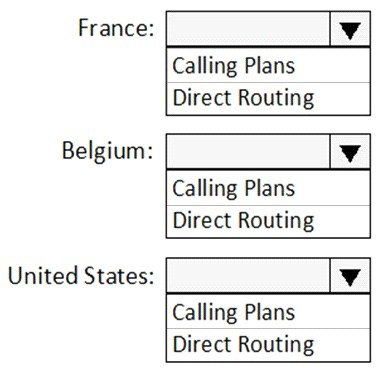
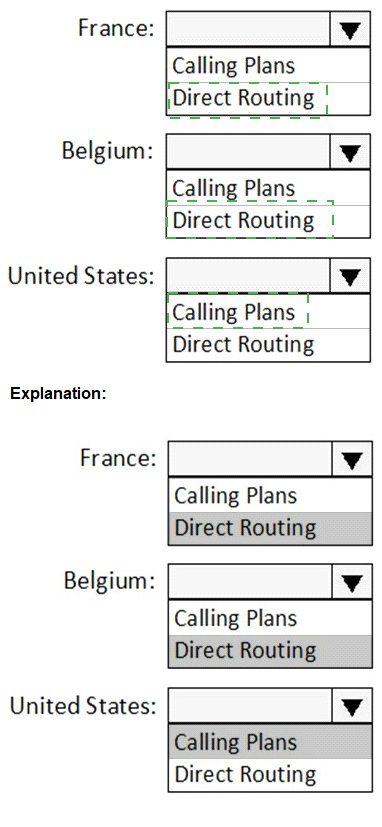
Explanation:
This question tests knowledge of PSTN connectivity options in Microsoft Teams Phone System. Three primary options exist: Calling Plans (Microsoft-managed), Direct Routing (bring your own SIP trunk), and Operator Connect. The requirements specify different needs for each office: Belgium must use existing SIP trunks, France needs integration with existing IP-PBX and phone numbers, and the United States must minimize infrastructure. Each requires matching the appropriate connectivity method.
Correct Option for Belgium:
Direct Routing
Belgium must use SIP trunks from the current telecommunication provider. Direct Routing is the only PSTN connectivity option that allows organizations to bring their own SIP trunks from third-party carriers. This enables the company to maintain their existing contract and telecommunication provider while integrating with Teams Phone System. Direct Routing requires on-premises Session Border Controllers (SBCs) to connect the SIP trunks to Microsoft Phone System.
Correct Option for France:
Direct Routing
France requires integration of the phone number range and an on-premises IP-PBX. Direct Routing supports hybrid scenarios where existing phone numbers must be preserved and integration with on-premises telephony infrastructure is needed. Direct Routing allows the company to connect their existing IP-PBX to Teams through an SBC, preserving their current phone numbers while enabling Teams calling capabilities.
Correct Option for United States:
Calling Plans
The United States office must minimize infrastructure required for deployment. Microsoft Calling Plans provide a fully cloud-based solution with no on-premises infrastructure needed. Microsoft acts as the carrier, providing phone numbers and PSTN services directly. This eliminates the need for SBCs, SIP trunks, or integration with existing telephony equipment, making it the simplest deployment option with minimal infrastructure requirements.
Incorrect Option for all offices:
Calling Plans for Belgium Calling Plans would not meet Belgium's requirement because Calling Plans use Microsoft as the carrier, not the existing SIP trunk provider. This would force the company to abandon their current telecommunication contract and provider relationships, violating the requirement to use existing SIP trunks.
Incorrect Option for all offices:
Direct Routing for United States Direct Routing requires on-premises infrastructure including Session Border Controllers (SBCs) and configuration with third-party carriers. This adds significant infrastructure compared to Calling Plans, violating the requirement to minimize infrastructure deployment for the United States office.
Incorrect Option for all offices:
Calling Plans for France Calling Plans would not allow integration with an existing on-premises IP-PBX or preservation of the current phone number range. Calling Plans provide new numbers from Microsoft and do not support hybrid scenarios with existing on-premises telephony equipment, making this option unsuitable for France's requirements.
Reference:
PSTN connectivity options for Microsoft Teams
Plan Direct Routing in Microsoft Teams
Microsoft Calling Plans for Teams
Task 4 You need to add the following disclaimer as pan of all Teams meeting invites: “Disc aimer: This meeting may be recorded for quality and training purposes.”
Explanation:
This question addresses adding a custom disclaimer to all Teams meeting invites. Meeting invites can be customized with additional information that appears in the meeting body sent to participants. The requirement specifies adding a specific disclaimer about meeting recordings for quality and training purposes to every meeting invite across the organization.
Correct Option:
Configure Meeting settings with a custom disclaimer
To add a disclaimer to all Teams meeting invites, navigate to Teams admin center > Meetings > Meeting settings. Under the "Email invitation" section, you can add custom text that will appear in meeting invites. Enter the disclaimer text: "Disclaimer: This meeting may be recorded for quality and training purposes." This setting applies to all meeting invites sent from your organization, ensuring every invite includes the required disclaimer without needing individual user configuration.
Incorrect Option:
Configure a Meeting policy with a disclaimer
Meeting policies control meeting behaviors and features like recording, screen sharing, and participant permissions. They do not have settings for customizing the text content of meeting invitations. Meeting policies govern what happens during meetings, not what appears in invitation emails sent to participants.
Incorrect Option:
Add the disclaimer to each meeting manually
Manually adding the disclaimer to each meeting invite would be extremely time-consuming and error-prone, especially in large organizations with frequent meetings. This approach does not scale and would inevitably result in missed or inconsistent disclaimers. The requirement calls for a systematic solution that ensures compliance across all invites.
Incorrect Option:
Configure an email signature in Exchange Online
Exchange Online email signatures apply to regular email messages sent by users, not to Teams meeting invites. Teams meeting invites are generated through the Teams calendar system, not through standard email composition. Exchange signatures would not be applied to these automated meeting invitations.
Reference:
Customize meeting invitations in Microsoft Teams
Manage meeting settings in Microsoft Teams
Meeting settings and policies in Microsoft Teams
You have a Microsoft 36S subscription that uses Teams.
You have two teams named Department! and Department.
You need to implement a security and compliance solution that meets the following
requirements:
• Prevents the members of Department! and Department from communicating with each
other in Teams
• Provides an alert if offensive language is used during a Teams chat
Which Microsoft Purview feature should you use for each requirement? To answer, select
the appropriate options in the answer area.
NOTE: Each correct selection is worth one point.
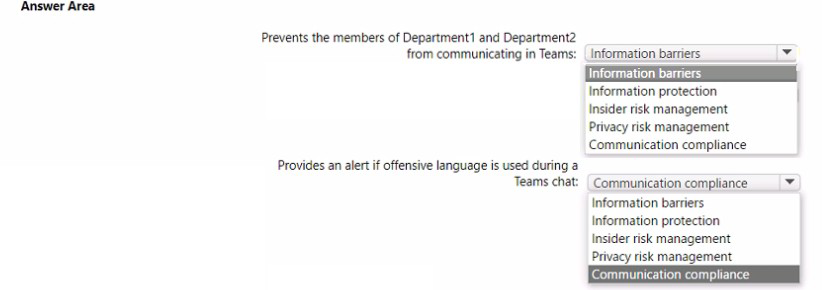
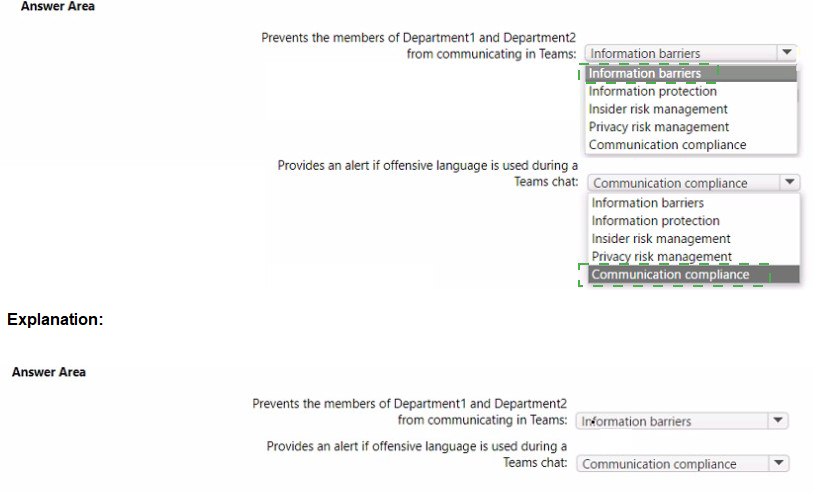
Explanation:
This question tests knowledge of Microsoft Purview compliance features and their specific capabilities. Two distinct requirements must be addressed: preventing communication between specific departments (segmentation) and detecting offensive language in chats (content monitoring). Different Purview features serve these different purposes, requiring correct matching of features to requirements.
Correct Option for "Prevents the members of Department1 and Department2 from communicating in Teams":
Information barriers
Information barriers are specifically designed to prevent communication between certain groups or segments within an organization. They are commonly used for compliance scenarios where departments must not interact due to regulatory requirements or organizational policies. Information barriers can restrict chat, calling, and file sharing between defined segments, ensuring Department1 and Department2 members cannot communicate with each other in Teams.
Correct Option for "Provides an alert if offensive language is used during a Teams chat":
Communication compliance
Communication compliance policies monitor communications for inappropriate content, including offensive language, harassment, and sensitive information. When configured with appropriate conditions and classifiers, communication compliance can detect offensive language in Teams chats and generate alerts for review. This feature helps organizations maintain a safe communication environment by identifying policy violations.
Incorrect Options:
Information protection Microsoft Information Protection (MIP) focuses on classifying, labeling, and protecting sensitive data through encryption and access controls. While it protects documents and emails, it does not prevent communication between specific user groups nor detect offensive language in chats.
Insider risk management Insider risk management identifies potentially malicious or unintentional insider threats based on user activities and behaviors. It detects patterns like data theft or policy violations but does not specifically prevent department-to-department communication or scan chats for offensive language.
Privacy risk management Privacy risk management helps identify and manage privacy risks related to personal data in the organization. It focuses on data privacy compliance rather than communication restrictions or offensive content monitoring.
Note: The answer area shows "Communication compliance" appears twice in the options list, which appears to be a duplication in the image. The correct selection for offensive language alerts is communication compliance.
Reference:
Information barriers in Microsoft Teams
Communication compliance in Microsoft Purview
Microsoft Purview compliance solutions
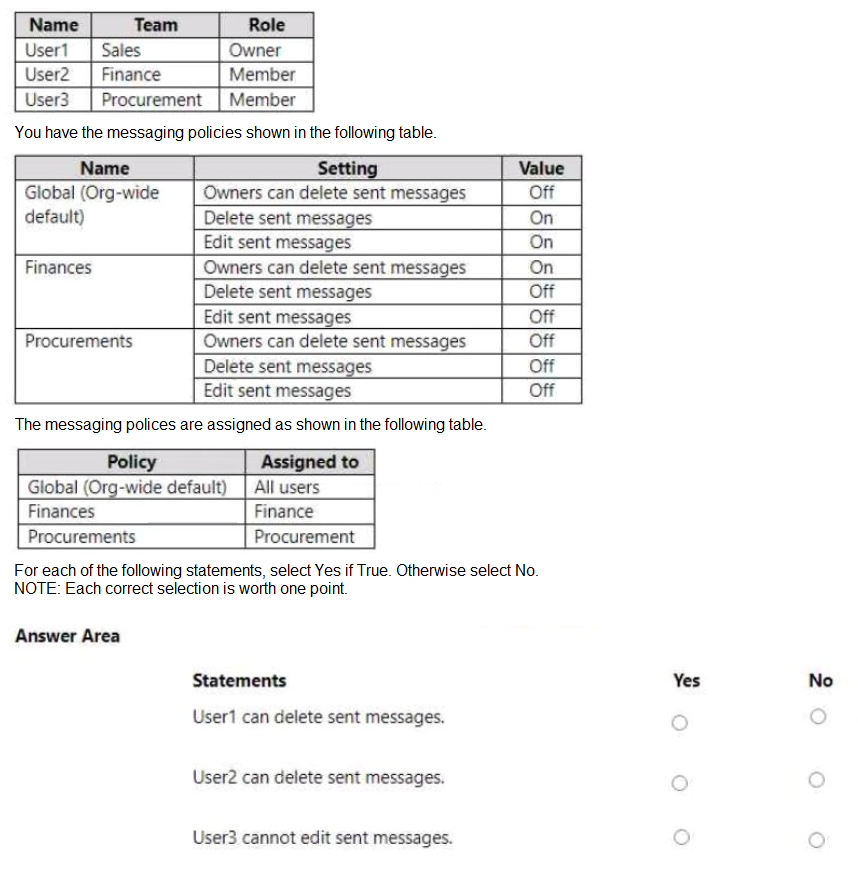
You have a Microsoft 365 subscription that uses Teams and contains the users shown in the following table.
Explanation:
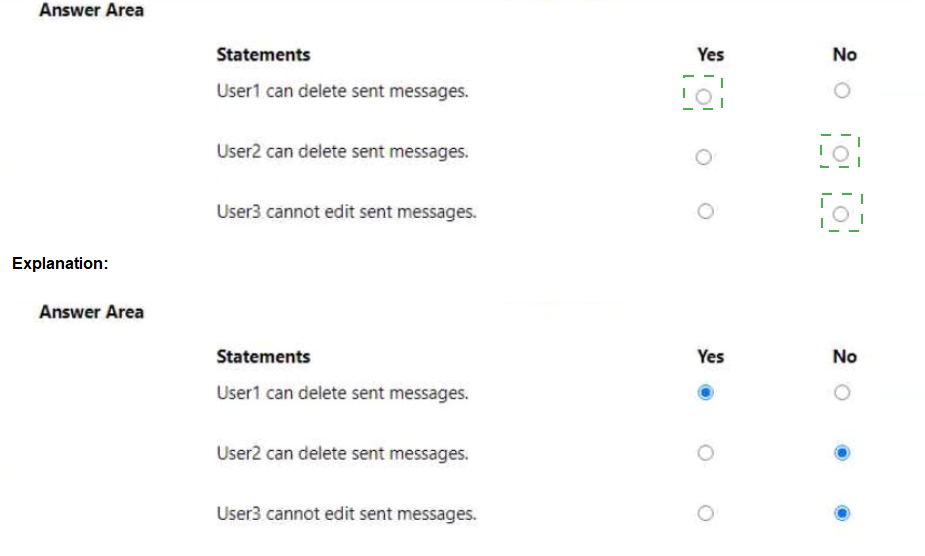
This question tests understanding of messaging policy precedence and how different settings apply based on user assignments. Messaging policies control message management capabilities including deletion and editing. The Global policy applies to all users by default, but custom policies assigned to specific users override the Global policy for those users. The question requires analyzing the policy assignments and settings for each user to determine their capabilities.
Correct Option for "User1 can delete sent messages":
Yes
User1 is a member of the Sales team but no custom policy is assigned to Sales users. Therefore, User1 inherits the Global (Org-wide default) policy. The Global policy has "Delete sent messages" set to On. This setting allows users to delete messages they have sent. Additionally, User1 is a Team Owner, but the Global policy has "Owners can delete sent messages" set to Off, which restricts owner-specific deletion capabilities. However, the standard user permission "Delete sent messages" being On is sufficient for User1 to delete their own sent messages.
Correct Option for "User2 can delete sent messages":
No
User2 is a member of the Finance team and has the custom Finances policy assigned. The Finances policy has "Delete sent messages" set to Off. This setting explicitly prevents users from deleting messages they have sent. Even though the Global policy would allow deletion, the custom Finances policy overrides the Global policy for User2. Therefore, User2 cannot delete sent messages regardless of being a Member.
Correct Option for "User3 cannot edit sent messages":
Yes
User3 is a member of the Procurement team and has the custom Procurements policy assigned. The Procurements policy has "Edit sent messages" set to Off. This setting explicitly prevents users from editing messages they have sent. Even though the Global policy would allow editing (Edit sent messages set to On), the custom Procurements policy overrides the Global policy for User3. Therefore, User3 cannot edit sent messages, making the statement true.
Reference:
Manage messaging policies in Microsoft Teams
Messaging policy settings and precedence
Assign policies to users in Microsoft Teams
Note: This question is part of a series of questions that present the same scenario.
Each question in the series contains a unique solution that might meet the stated
goals. Some question sets might have more than one correct solution, while others
might not have a correct solution.
After you answer a question in this section, you will NOT be able to return to it. As a
result, these questions will not appear in the review screen.
Your company has a Microsoft 365 subscription.
You plan to configure the environment to allow external users to collaborate in Microsoft
Teams by using guest access.
The company implements a new security policy that has the following requirements:
Only guest users from specific domains must be allowed to connect to collaborate
by using Microsoft Teams.
Guest users must be prevented from inviting other guests.
You need to recommend a solution to meet the security policy requirements.
Solution: From PowerShell, you run the New-CSExternalAccessPolicy and Set-
CSExternalAccessPolicy cmdlets.
Does this meet the goal?
A. Yes
B. No
Explanation:
This question tests knowledge of which PowerShell cmdlets manage guest access restrictions versus external access (federation) settings. The requirements specifically address guest access: restricting guest users to specific domains and preventing guests from inviting other guests. External access policies managed by CsExternalAccessPolicy cmdlets control federation for chat and calling with external organizations, not guest access capabilities.
Correct Option:
B. No
The New-CsExternalAccessPolicy and Set-CsExternalAccessPolicy cmdlets manage external access (federation) policies, which control communication with users from other domains who have organizational accounts. These cmdlets do not control guest access settings. Guest access restrictions, including domain allowlisting for guests and preventing guests from inviting other guests, are managed through Azure AD external collaboration settings and Teams guest access configurations, not through CsExternalAccessPolicy cmdlets.
Incorrect Option:
A. Yes
This option is incorrect because it confuses external access (federation) with guest access. External access policies control federated communication with other organizations, allowing users to find, call, and chat with users in other domains. The requirements specifically mention guest access, which involves inviting external users as guests to your tenant with Azure AD accounts. These are different collaboration mechanisms with separate configuration methods.
Reference:
Manage external access (federation) in Microsoft Teams
Manage guest access in Microsoft Teams
Configure external collaboration settings in Azure AD
Your company has a Microsoft 365 subscription. The subscription contains 200 Microsoft
Teams users and a team named IT Support that has 50 members.
You need to ensure that the caller ID for outbound PSTN calls from IT Support is the phone
number of the company's IT helpdesk. The solution must minimize administrative effort.
Which two tools should you include in the solution? Each correct answer presents part of
the solution.
NOTE: Each correct selection is worth one point.
A. the Microsoft Teams PowerShell module
B. the Azure Active Directory (Azure AD) PowerShell for Graph module
C. the Call Quality Dashboard (CQD)
D. the Windows PowerShell module for Microsoft Skype for Business Online
E. the Skype for Business admin center
Explanation:
This question addresses configuring caller ID for outbound PSTN calls for a specific group of users (IT Support team) to display the company IT helpdesk number. Caller ID policies in Teams allow organizations to override the displayed phone number for outbound calls. The solution requires identifying tools that can create and assign these policies efficiently to 50 users with minimal administrative effort.
Correct Option:
A. the Microsoft Teams PowerShell module
The Microsoft Teams PowerShell module provides cmdlets for managing Teams policies including caller ID policies. You can use New-CsCallingLineIdentity to create a custom caller ID policy that sets the IT helpdesk phone number as the caller ID for outbound PSTN calls. PowerShell enables scripting and bulk operations, allowing efficient creation and management of policies without manual clicks through admin center interfaces.
Correct Option:
E. the Skype for Business admin center
The Skype for Business admin center (legacy) can still be used to manage some Teams voice settings, including caller ID policies. While Microsoft is transitioning voice management to Teams admin center, the Skype for Business admin center provides access to voice features and user management. Combined with PowerShell for policy creation, the admin center can be used for policy assignment to individual users or groups.
Incorrect Option:
B. the Azure Active Directory (Azure AD) PowerShell for Graph module
Azure AD PowerShell manages directory objects, user attributes, and group membership, not Teams-specific voice policies. While you might use this to identify IT Support team members, it cannot create or assign caller ID policies in Teams. This tool does not interact with Teams voice configuration.
Incorrect Option:
C. the Call Quality Dashboard (CQD)
Call Quality Dashboard is a monitoring and troubleshooting tool for analyzing call quality metrics. It does not provide configuration capabilities for caller ID policies. CQD is used after deployment to monitor performance, not to implement new voice features.
Incorrect Option:
D. the Windows PowerShell module for Microsoft Skype for Business Online
The Skype for Business Online PowerShell module is deprecated and replaced by the Microsoft Teams PowerShell module. While some legacy cmdlets might still function, Microsoft recommends using the Teams PowerShell module for all Teams management, including voice features. This is not the current recommended tool.
Reference:
Manage caller ID policies in Microsoft Teams
Microsoft Teams PowerShell module
Skype for Business admin center for Teams voice management
| Page 3 out of 34 Pages |