Topic 5: Misc, Questions

You have a Microsoft 365 subscription that contains a user named User1.
You have a custom policy named AppPolicy that has the following configurations:
Allow all apps published by Microsoft.
Allow only specified third-party apps.
Block all custom apps.
You need to assign AppPolicy to User1.
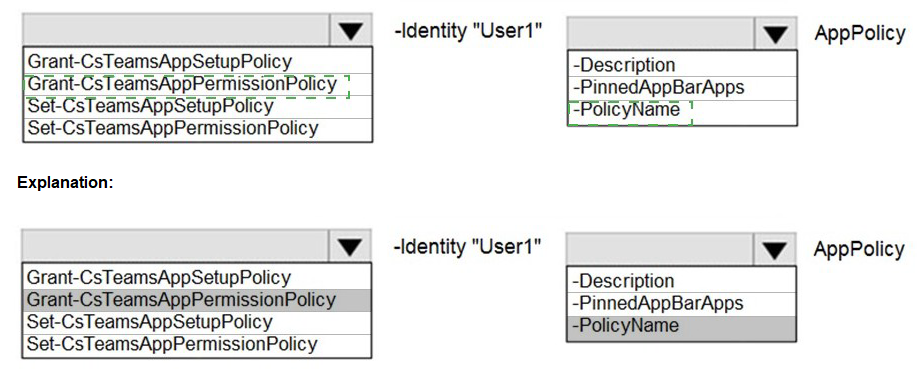
How should you complete the PowerShell command? To answer, select the appropriate options in the answer area.
NOTE: Each correct selection is worth one point.



Explanation:
This question tests knowledge of PowerShell cmdlets for managing Teams app policies. AppPermissionPolicy controls which apps users are allowed to use, including Microsoft, third-party, and custom apps. The configuration described (allow Microsoft apps, allow specific third-party apps, block custom apps) is an app permission policy. To assign this policy to User1, you need the appropriate Grant cmdlet with correct parameters.

Correct Option for Cmdlet:

Grant-CsTeamsAppPermissionPolicy
The Grant-CsTeamsAppPermissionPolicy cmdlet is used to assign an app permission policy to a user. The described configuration controls which apps users can access, which is exactly what app permission policies manage. App setup policies (controlled by Grant-CsTeamsAppSetupPolicy) handle app pinning and installation, not permission settings. Therefore, this is the correct cmdlet for assigning AppPolicy to User1.

Correct Option for Parameter:

-PolicyName
The -PolicyName parameter specifies which policy to assign to the user. When granting a policy, you need to identify both the recipient (with -Identity) and the policy to assign (with -PolicyName). In this case, -PolicyName "AppPolicy" would assign the custom policy named AppPolicy to User1. The -Identity parameter would already identify User1 as the recipient.

Incorrect Option:

Grant-CsTeamsAppSetupPolicy
This cmdlet is incorrect because it assigns app setup policies, which control which apps are pinned to the Teams app bar and automatically installed for users. The configuration described (allowing Microsoft apps, specified third-party apps, and blocking custom apps) relates to app permissions, not app setup. Using this cmdlet would not apply the required permission settings to User1.

Incorrect Option:

Set-CsTeamsAppPermissionPolicy
This cmdlet is used to modify an existing app permission policy's configuration, not to assign it to users. While you might use Set-CsTeamsAppPermissionPolicy to create or change AppPolicy itself, you cannot use it to assign the policy to User1. Assignment requires a Grant cmdlet, not a Set cmdlet.
Incorrect Option:

Set-CsTeamsAppSetupPolicy
This cmdlet modifies app setup policy configurations. It is incorrect for two reasons: first, it modifies rather than assigns policies; second, it handles app setup rather than app permissions. This would neither assign a policy nor address the permission-based configuration described.

Incorrect Option:

-Description
The -Description parameter is used when creating or modifying a policy to add a descriptive text, not when assigning a policy to a user. Policy assignment requires -Identity (for the user) and -PolicyName (for the policy). -Description has no role in granting policies to users.

Incorrect Option:

-PinnedAppBarApps
This parameter belongs to app setup policies, not app permission policies. It specifies which apps should be pinned to the Teams app bar. Since AppPolicy is an app permission policy, this parameter is irrelevant and would not work with the Grant-CsTeamsAppPermissionPolicy cmdlet.

Reference:

Grant-CsTeamsAppPermissionPolicy PowerShell cmdlet

Manage app permission policies in Microsoft Teams

Assign policies to users in Microsoft Teams

Task 7

You need to acquire a dedicated Microsoft dial-in bridge number from either 431 or 343 area codes in Canada.


Explanation:
This question addresses acquiring dial-in phone numbers for Audio Conferencing in Microsoft Teams. Dial-in bridge numbers allow participants to join meetings via telephone. Organizations often need numbers in specific area codes to provide local access for participants in different regions. The requirement specifies acquiring a dedicated dial-in bridge number from either the 431 or 343 area codes in Canada.

Correct Option:

Provision a new Toll Service Number through the Microsoft Teams admin center
To acquire a dedicated dial-in bridge number with specific Canadian area codes, you need to navigate to the Microsoft Teams admin center, go to Voice > Phone numbers, and add a new toll service number. During the provisioning process, you can search for available numbers in Canada with the 431 or 343 area codes. Once acquired, this number must be assigned to the Audio Conferencing bridge as a dedicated dial-in number. Microsoft provides toll service numbers for Audio Conferencing in various countries including Canada.

Incorrect Option:
Purchase a Toll Free number for the Audio Conferencing bridge
Toll free numbers typically begin with prefixes like 800, 888, 877, etc., not with area codes 431 or 343. Toll free numbers are used when callers should not incur charges, while toll numbers (standard geographic numbers) are used for local dial-in access. The requirement specifically asks for numbers from Canadian area codes, which are toll numbers, not toll free numbers.

Incorrect Option:

Acquire a Communication Credits license for the tenant
Communication Credits are used to pay for Audio Conferencing toll-free numbers and international dial-out minutes, not to acquire new dial-in numbers. While Communication Credits may be needed for certain Audio Conferencing features, they do not provide or assign phone numbers. You must separately acquire and assign the actual phone number through the phone number management portal.

Incorrect Option:

Configure an existing user number as a dial-in bridge number
User numbers (subscriber numbers) assigned to individual users cannot be repurposed as Audio Conferencing bridge numbers. Bridge numbers must be service numbers specifically provisioned for Audio Conferencing. Attempting to use an existing user number would fail because service numbers and user numbers have different provisioning requirements and capabilities.

Reference:

Get service phone numbers for Audio Conferencing

Manage phone numbers for Audio Conferencing

Audio Conferencing supported countries and regions

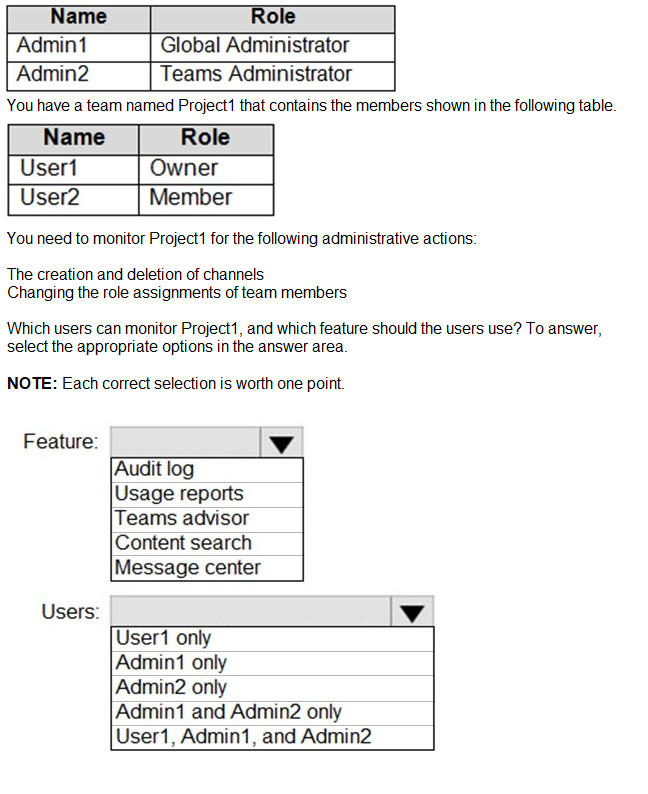
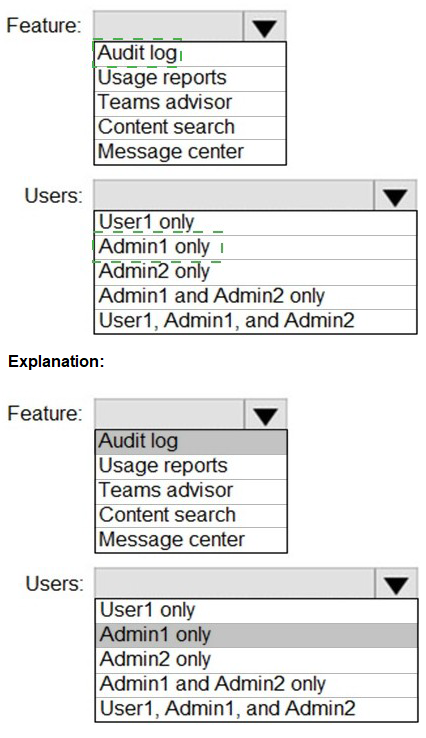
You have a Microsoft 365 subscription that uses Microsoft Teams and contains the users shown in the following table.


Explanation:
This question tests knowledge of monitoring administrative actions in Microsoft Teams, specifically channel creation/deletion and role assignment changes. These actions are tracked in the Microsoft 365 audit log. Access to audit logs requires specific permissions, and the question asks which users can monitor these activities and which feature they should use. Understanding audit log permissions and Team member capabilities is essential for this scenario.

Correct Option for Users:

Admin1 and Admin2 only
Global Administrators and Teams Administrators have access to the Microsoft 365 audit log. Admin1 (Global Administrator) has full access to all compliance and audit features. Admin2 (Teams Administrator) has access to Teams-related audit events through their administrative role. User1 is a Team Owner but does not have access to the organization-wide audit log. Team Owners can view some activity within their team but cannot access the comprehensive audit log required to monitor all administrative actions across the organization.

Correct Option for Feature:

Audit log
The audit log in Microsoft 365 Purview compliance portal tracks all administrative activities including channel creation, channel deletion, and team member role assignment changes. These events are recorded as Exchange, Teams, or Azure AD audit events. To monitor these specific administrative actions, users must search the audit log using appropriate filters for Teams activities. This is the only feature that captures both channel management and role assignment changes.

Incorrect Option for Users:

User1 only User1 is a Team Owner with permissions to manage the specific team, including adding members and creating channels. However, Team Owners do not have access to the organization-wide audit log. While they can see some activity within their team through team analytics, they cannot perform comprehensive monitoring of administrative actions across all teams or access the detailed audit log required.

Admin2 only While Admin2 (Teams Administrator) does have access to the audit log, this option is incomplete because Admin1 (Global Administrator) also has access. The question asks which users can monitor these actions, and both administrators have the necessary permissions, making this selection too restrictive.

Admin1, Admin2, and User1 User1 does not have access to the audit log, making this option incorrect. Team Owners have limited monitoring capabilities within their specific team but cannot access the comprehensive audit log required to track all administrative actions as described in the question.

Incorrect Option for Feature:
Usage reports Usage reports provide analytics on team activity, active users, and engagement metrics. While useful for understanding how Teams is being used, they do not track specific administrative actions like channel deletions or role assignment changes. Usage reports focus on user activity patterns, not administrative audit events.

Teams advisor Teams Advisor is a planning and assessment tool that helps organizations plan their Teams deployment. It provides recommendations and best practices but does not monitor or record administrative actions after deployment. This feature is not designed for ongoing monitoring of administrative changes.

Content search Content search is an eDiscovery tool used to find content across Exchange mailboxes, SharePoint sites, and Teams. It searches for specific content like messages and files, not for tracking administrative actions or changes to team structure. This would not capture channel creation or role assignment changes.

Message center Message center in the Microsoft 365 admin center provides announcements about service updates, new features, and planned changes from Microsoft. It does not track internal administrative actions within your organization's Teams environment. This is for Microsoft communications, not internal monitoring.

Reference:

Search the audit log in Microsoft 365

Manage audit log access in Microsoft 365

Teams activities in the audit log

Note: This question is part of a series of questions that present the same scenario. Each question in the series contains a unique solution that might meet the stated goals. Some question sets might have more than one correct solution, while others might not have a correct solution.
After you answer a question in this section, you will NOT be able to return to it. As a result, these questions will not appear in the review screen.
Your company has a Microsoft 365 subscription that uses an Azure Active Directory (Azure AD) tenant named contoso.com.
You need to prevent guest users in the tenant from using cameras during Microsoft Teams meetings.
Solution: From Microsoft Teams admin center, you modify the Guest access settings.
Does this meet the goal?

A. Yes

B. No

A.   Yes

Explanation:
This question examines whether modifying Guest access settings in the Teams admin center can prevent guest users from using cameras during Teams meetings. Guest access settings control what capabilities guest users have when participating in Teams, including meeting experiences. Understanding where camera controls for guests are configured is essential for answering correctly.

Correct Option:

A. Yes
Modifying Guest access settings in the Teams admin center does meet the goal. Within the Teams admin center, under Users > Guest access, there are meeting settings that specifically control guest capabilities. You can configure the "Allow camera" setting to be disabled for guest users. This setting prevents guests from using their cameras during Teams meetings while allowing organizational users to retain their camera permissions based on their assigned meeting policies.

Incorrect Option:

B. No
This option is incorrect because Guest access settings in the Teams admin center do include meeting permissions for guests. Some might mistakenly believe that camera controls are only available in meeting policies, but guest access has its own dedicated settings that control guest experiences across Teams. The "Allow camera" toggle in guest access settings directly addresses the requirement to prevent guests from using cameras during meetings.

Reference:

Configure Guest access in Microsoft Teams

Manage meeting settings for guest users in Teams

Teams Guest access meeting capabilities

Task 9
You need to prevent unauthenticated users from joining Teams meetings.


Explanation:
This question addresses controlling meeting access in Microsoft Teams, specifically focusing on unauthenticated users. Unauthenticated users include anonymous users who join meetings without signing in with a Microsoft or organizational account. By default, anonymous join may be enabled, allowing external participants to join meetings via links without authentication. The requirement is to disable this capability entirely.

Correct Option:

Disable Anonymous join in Meeting settings
To prevent unauthenticated users from joining Teams meetings, you need to disable anonymous join at the organization level. Navigate to Teams admin center > Meetings > Meeting settings. Under Participants, toggle off "Anonymous users can join a meeting." This setting controls whether users who don't authenticate can join meetings across the entire organization. When disabled, all meeting join attempts will require participants to sign in with valid credentials.

Incorrect Option:

Modify Meeting policies for specific users
Meeting policies control meeting features for specific users or groups but do not override the organization-wide anonymous join setting. Even if meeting policies are configured appropriately, the organization-level anonymous join setting must be disabled to prevent unauthenticated access. Meeting policies alone cannot block anonymous users if the global setting allows them.

Incorrect Option:

Configure External access settings
External access (federation) controls communication with users from other domains who have valid accounts in their organizations. This applies to authenticated external users, not unauthenticated anonymous users. External access settings do not affect anonymous participants who join without any authentication, making this option ineffective for the requirement.

Incorrect Option:

Disable Guest access
Guest access controls the experience and capabilities of guest users who are invited and added to your tenant. Guest users are authenticated with accounts in your directory, unlike unauthenticated anonymous users. Disabling guest access would affect invited external collaborators but would not prevent anonymous users from joining meetings without authentication.

Reference:

Configure meeting settings in Microsoft Teams

Manage anonymous participant access to Teams meetings

Meeting settings and policies in Microsoft Teams

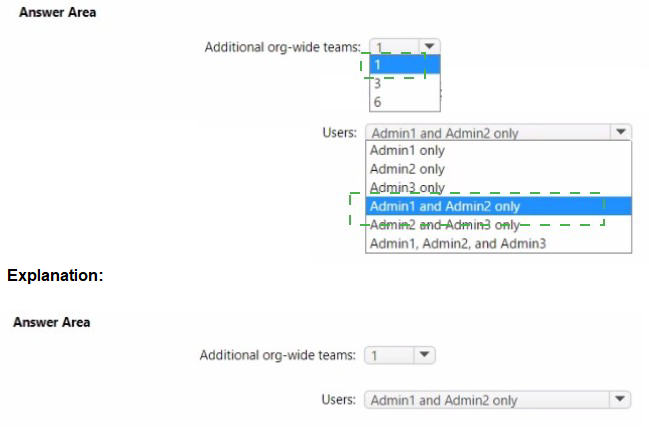
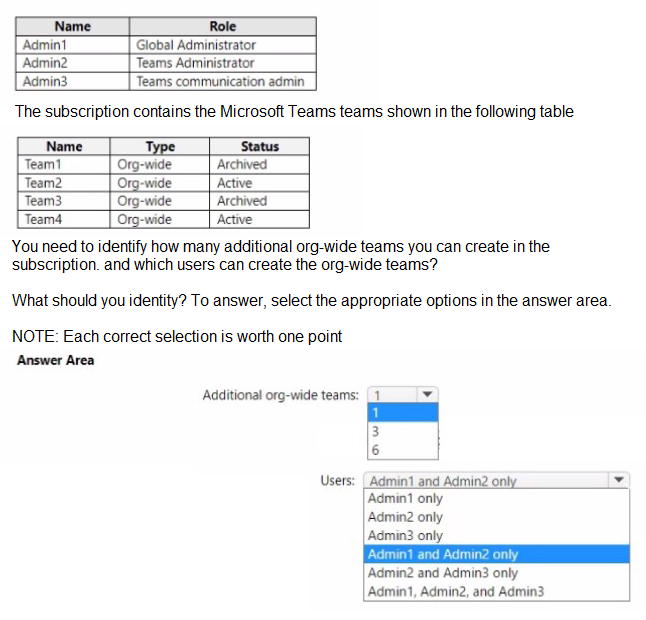
You have a Microsoft 365 subscription that contains the users shown in the following table.


Explanation:
This question tests knowledge of org-wide team limitations and creation permissions in Microsoft Teams. Organizations can have a maximum of five org-wide teams simultaneously. Archived teams do not count against this limit since they are inactive. The question requires calculating available org-wide team slots based on existing active org-wide teams and identifying which administrator roles can create org-wide teams.

Correct Option for Additional org-wide teams:

3
Organizations are limited to five active org-wide teams at any time. In this scenario, there are two active org-wide teams: Team2 and Team4 are both active. Team1 and Team3 are archived, so they do not count toward the five-team limit. Therefore, with two active org-wide teams already present, the organization can create three additional org-wide teams (5 maximum - 2 existing = 3 available).

Correct Option for Users:

Admin1 only
Only Global Administrators can create org-wide teams in Microsoft Teams. Teams Administrators and Teams Communications Administrators do not have the necessary permissions to create org-wide teams, even though they can manage other aspects of Teams. The org-wide team creation requires elevated privileges because it automatically adds all organization users and affects everyone in the tenant. Therefore, only Admin1 (Global Administrator) can create additional org-wide teams.

Incorrect Option for Additional org-wide teams:
1 This would be incorrect because it underestimates the available slots. With two active org-wide teams (Team2 and Team4), there are three remaining slots, not one. This answer might come from miscounting the active teams or misunderstanding that archived teams do not count against the limit.

6 This is incorrect because it exceeds the maximum limit. Organizations cannot have more than five active org-wide teams total. Even if all teams were archived, the maximum additional teams possible would be five, not six. This answer might result from not knowing the five-team limit or miscalculating the total.

Incorrect Option for Users:

Admin1 and Admin2 only This is incorrect because Teams Administrators (Admin2) cannot create org-wide teams. While Teams Administrators have broad permissions for managing Teams, org-wide team creation is restricted to Global Administrators only due to the organization-wide impact.

Admin2 only This is incorrect because Teams Administrators lack the permission to create org-wide teams. Admin2 can manage existing teams and policies but cannot create a team that automatically includes all organization users.

Admin3 only This is incorrect because Teams Communications Administrators manage calling and meetings features but do not have team creation permissions, especially not for org-wide teams.

Admin2 and Admin3 only This is incorrect because neither Teams Administrators nor Teams Communications Administrators have org-wide team creation permissions.

Admin1, Admin2, and Admin3 This is incorrect because only Admin1 (Global Administrator) has the required permissions. Admin2 and Admin3 cannot create org-wide teams regardless of their other administrative capabilities.

Reference:

Limits and specifications for Microsoft Teams

Create an org-wide team in Microsoft Teams

Administrator roles and permissions in Microsoft Teams

Task 4

You need to ensure that the Approvals app is pinned to the top of the app bar of the Teams client for all members of the Retail team. The solution must NOT affect other users.


Explanation:
This question focuses on customizing the Teams app bar for specific users by pinning the Approvals app to the top. App setup policies control which apps are pinned and in what order they appear. The requirement specifies targeting only Retail team members without affecting other users, which requires creating a custom policy and assigning it to those specific users rather than modifying the global policy.

Correct Option:

Create a custom app setup policy with Approvals pinned and assign it to Retail team members
To meet this requirement, you need to create a new custom app setup policy in the Teams admin center. Configure this policy to pin the Approvals app to the top of the app bar. Then assign this policy specifically to all members of the Retail team. This targeted approach ensures only Retail team members see the pinned Approvals app, while other users retain their existing app setup policies and are unaffected by this change.

Incorrect Option:

Modify the Global app setup policy to pin Approvals
Modifying the Global (Org-wide default) policy would pin the Approvals app for all users in the organization. This violates the requirement that the solution must NOT affect other users. Changes to the Global policy apply to all users who do not have a custom policy assigned, making this approach unsuitable for targeting only Retail team members.

Incorrect Option:

Pin the Approvals app through Teams client settings
Individual users can pin apps themselves through their Teams client settings, but this does not meet the requirement for a controlled, administrative deployment. Relying on users to manually pin the app would be inconsistent and would not guarantee all Retail team members have the app pinned. Additionally, this provides no administrative control or enforcement.

Incorrect Option:

Use a Teams policy package for Retail
While policy packages can combine multiple policy types including app setup policies, simply using a policy package does not automatically assign it to users. You would still need to create the appropriate app setup policy within the package and then assign it to Retail team members. This option is incomplete without the assignment step.

Reference:

Manage app setup policies in Microsoft Teams

Pin apps to the Teams app bar

Assign policies to users in Microsoft Teams

Your company has a Microsoft 365 subscription that uses Microsoft Teams.
The company has a team named Customer Support.
Guest users from outside the company regularly access the Customer Support team.
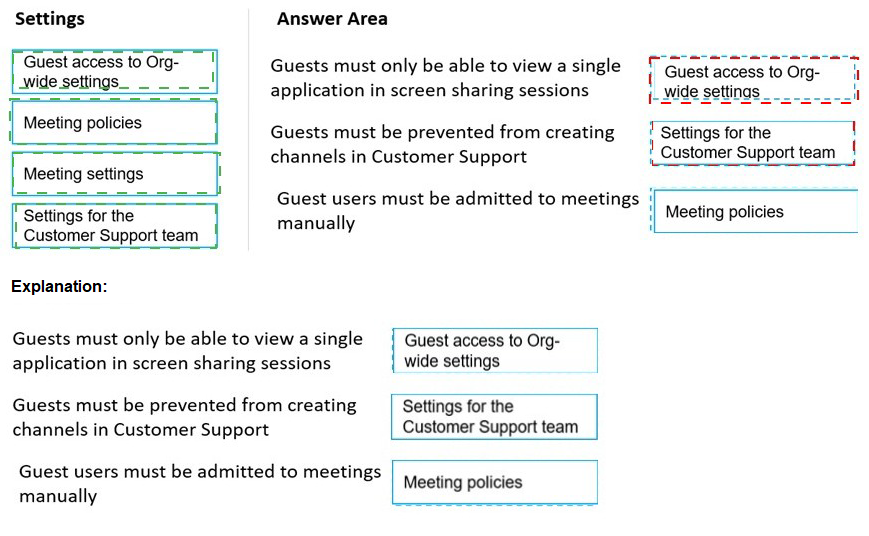
You need to configure the Guest access settings to meet the following requirements:
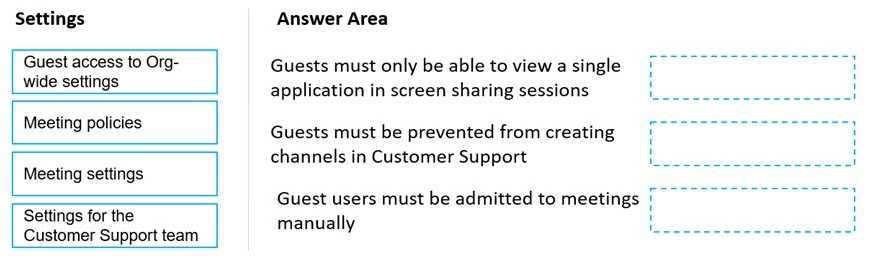
Guest users must be able to view only a single application during screen sharing sessions.
Guest users must be prevented from creating channels in Customer Support.
Guest users must be admitted to meetings manually.
Which settings should you configure for each requirement? To answer, drag the appropriate settings to the correct requirements. Each setting may be used once, more than once, or not at all. You may need to drag the split bar between panes or scroll to view content.


Explanation:
This question tests knowledge of configuring guest user capabilities in Microsoft Teams across different policy and setting locations. Guest access settings in the Teams admin center control global guest capabilities, while meeting policies and team-specific settings control more granular permissions. Understanding where each requirement is configured is essential for correctly matching settings to requirements.

Correct Option for "Guests must be able to view only a single application in screen sharing sessions":

Meeting policies
Screen sharing permissions, including whether guests can share their screen and what they can share (entire desktop or single application), are controlled through meeting policies. You need to create or modify a meeting policy assigned to guest users that restricts screen sharing to a single application. This setting is found in meeting policies under Content sharing settings, where you can configure "Screen sharing mode" to "Single application" for guest users.

Correct Option for "Guests must be prevented from creating channels in Customer Support":

Settings for the Customer Support team
Channel creation permissions for guests within a specific team are controlled at the team level through team settings. Team owners can configure whether members (including guests) can create, update, and delete channels. For the Customer Support team, owners should navigate to Manage team > Settings > Member permissions and disable "Create channels" to prevent guests from creating channels in that specific team only.

Correct Option for "Guest users must be admitted to meetings manually":

Meeting settings
The global Meeting settings in the Teams admin center control the default admission behavior for participants, including guests. Under Meetings > Meeting settings > Participants, you can configure "Anonymous users can join a meeting" and "Let anonymous people start a meeting." For guest admission specifically, you would configure the "Automatically admit people" setting to "Only users in my organization" which forces guests to wait in the lobby until manually admitted by meeting organizers.

Incorrect Option:
Guest access to Org-wide settings Guest access settings in the Teams admin center control global guest capabilities such as calling, meeting participation, and messaging. While these settings affect all guests across the tenant, they do not contain granular controls for screen sharing applications or team-specific channel creation. Guest access settings include toggles for allowing guests to create channels globally, but for team-specific control, team-level settings are required.

Reference:

Manage meeting policies for content sharing

Manage team settings for channel creation

Configure meeting settings for participant admission

Guest access in Microsoft Teams

Task 5
You need to ensure that content on Microsoft SharePoint Online sites can be shared only with new and existing guest users.


Explanation:
This question addresses controlling external sharing settings in SharePoint Online to restrict sharing to only guest users (authenticated external users) rather than allowing anonymous access. SharePoint Online provides multiple external sharing options ranging from allowing anonymous links to requiring authentication. The requirement specifies limiting sharing to new and existing guest users only, which means external users must authenticate with a Microsoft account or work/school account.

Correct Option:

Configure SharePoint Online external sharing to allow authenticated guest users only
To meet this requirement, you need to configure SharePoint Online sharing settings to "New and existing guests" option. This setting allows sharing with external users who authenticate, either by adding them as guests in Azure AD or allowing them to authenticate with a Microsoft account. Users can share content with external users, but anonymous access links are disabled. This ensures all external access requires authentication and guest accounts.

Incorrect Option:

Configure SharePoint Online external sharing to Anyone
The "Anyone" option allows users to share files and folders using anonymous links that anyone can use without authentication. This would violate the requirement because it allows sharing with unauthenticated users, not just guest users. Anonymous links provide access without requiring the recipient to have a guest account or authenticate.

Incorrect Option:
Configure SharePoint Online external sharing to Existing guests only The "Existing guests only" option restricts sharing to only guest users who already exist in your Azure AD directory. This would prevent sharing with new external users who need to be added as guests. The requirement specifies both new and existing guest users, so this option is too restrictive and would not allow adding new guest collaborators.

Incorrect Option:

Configure SharePoint Online external sharing to Only people in your organization
This option completely disables external sharing, preventing any sharing with users outside the organization. This would not meet the requirement because it blocks all external sharing entirely, including with both new and existing guest users. The requirement specifically requires enabling sharing with guest users.

Reference:

Manage external sharing for SharePoint Online

Configure SharePoint Online external sharing settings

Guest sharing in SharePoint Online and OneDrive

You have a Microsoft 365 subscription that uses Microsoft Teams.
Users report poor call quality.
You need to identify whether Teams calls use TCP or UDP.
What should you review in the Microsoft Call Quality Dashboard?

A. Quality of Experience Reports

B. Quality Drill Down Reports

C. Endpoint Reports

D. Reliability Reports

C.   Endpoint Reports

Explanation:
This question tests knowledge of the Microsoft Call Quality Dashboard (CQD) and which reports contain specific technical details about call sessions. Identifying whether calls use TCP or UDP requires accessing detailed metrics about the network transport protocol used during media streams. Different reports in CQD serve different purposes, and only certain reports provide this level of technical detail.

Correct Option:

C. Endpoint Reports
Endpoint Reports in the Call Quality Dashboard provide detailed information about the devices and endpoints used in calls, including network connection details. Within these reports, you can find metrics about the transport protocol (TCP vs UDP) used for media streams. UDP is preferred for real-time communications like Teams calls due to lower latency, while TCP may indicate network issues or firewall restrictions. Endpoint Reports allow administrators to analyze which protocol was used for specific call sessions.

Incorrect Option:

A. Quality of Experience Reports
Quality of Experience (QoE) Reports focus on user-perceived quality metrics such as jitter, packet loss, and mean opinion scores (MOS). While these reports provide valuable information about call quality, they do not specifically identify whether TCP or UDP was used as the transport protocol for media streams. QoE Reports analyze quality indicators, not transport methods.

Incorrect Option:

B. Quality Drill Down Reports
Quality Drill Down Reports allow administrators to investigate specific call quality issues by drilling into various dimensions like locations, networks, and devices. While useful for troubleshooting, these reports do not explicitly display transport protocol information. They focus more on quality degradation factors rather than the underlying transport mechanism.

Incorrect Option:

D. Reliability Reports
Reliability Reports in CQD focus on call success rates, drop rates, and connection failures. These reports help identify systemic reliability issues but do not provide detailed protocol-level information. They indicate whether calls connected successfully or failed, not which transport protocol was used during successful connections.

Reference:

Use Endpoint Reports in Call Quality Dashboard

Transport protocols in Microsoft Teams calls

Microsoft Call Quality Dashboard documentation

Page 2 out of 34 Pages