Topic 5: Misc, Questions
Task 3
Adele Vance Is a member of your company s technology adoption team.
You need to provide only Adele with the ability to turn on and off Teams preview features.
Answer: See the solution in the explanation below:
Explanation:
To provide only Adele Vance with the ability to turn on and off Teams preview features, you need to create and assign a custom update policy for her. Here are the steps to do so:
Sign in to the Microsoft Teams admin center with your Microsoft 365 username
and password1.
In the left navigation, go to Teams > Teams Update policies.
Select Add to create a new policy or select an existing policy to open Update policy.
Name the update policy, add a description, and select Enabled from the drop- down menu for Allow public preview. This option enables Teams Public Preview regardless of whether a user is enrolled in Office Current Channel (Preview). The end user must also opt in to Teams public preview in their Teams app2.
Click Save and then Close.
In the left navigation, go to Users and then search for Adele Vance from the list of users.
In the user details page, go to Policies and then click Edit next to Assigned policies.
In the Assigned policies pane, under Update policy, select the policy that you created or modified in step 4 from the drop-down menu.
Click Apply and then Close.
Now, Adele Vance can turn on and off Teams preview features by following these steps in her Teams app3:
Select the three dots to the left of your profile to display the Teams menu. Select About > Public preview.
Select Switch to Public preview or Switch back to standard version.
You have a Microsoft 365 subscription that uses Microsoft Teams and contains a user
named User1.
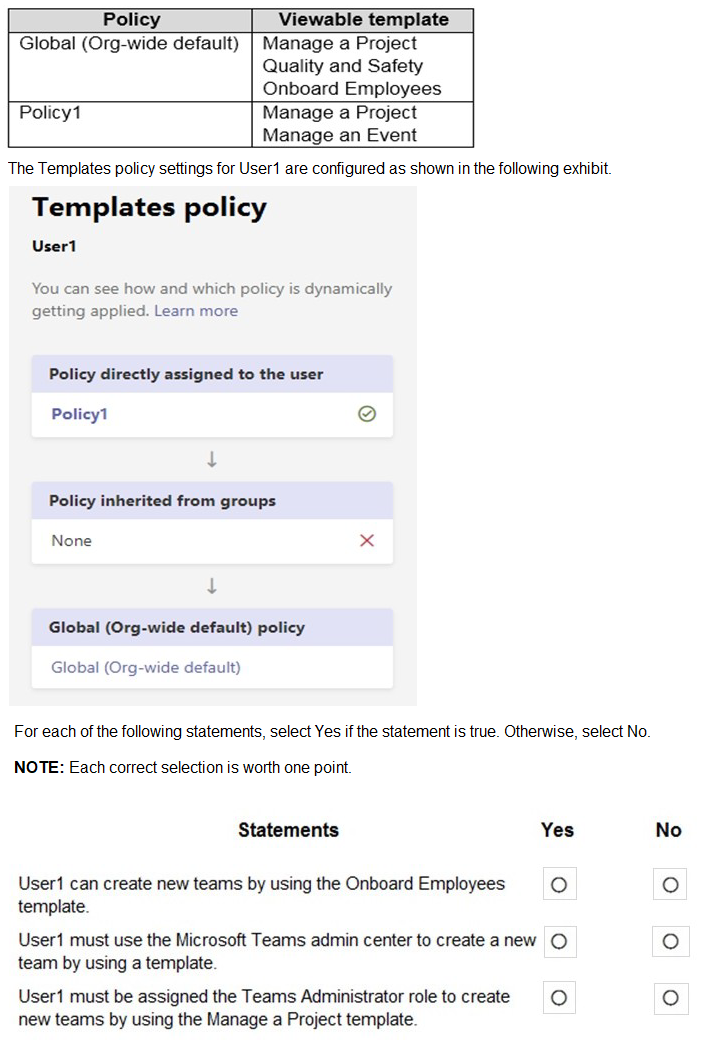
You have the following Microsoft Team templates:
Manage an Event
Manage a Project
Quality and Safety
Onboard Employees
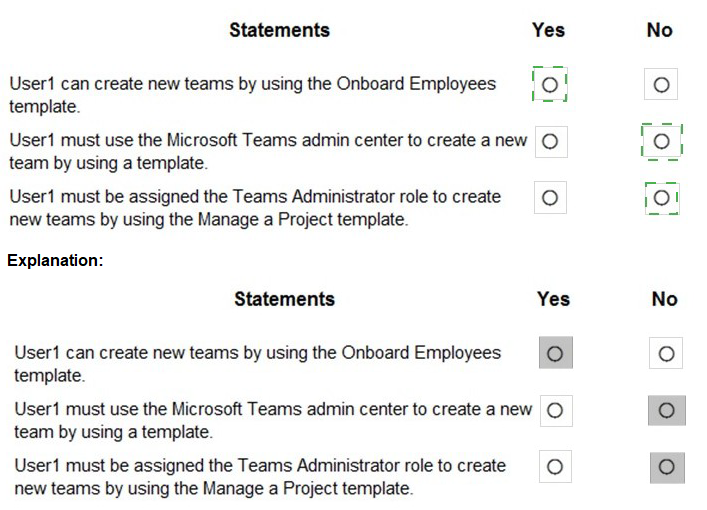
You have the Microsoft Teams template policies shown in the following table.
Task 7
You need to prevent users from deleting messages posted in private chats and channels.
Answer: See the solution in the explanation below:
Explanation:
To prevent users from deleting messages posted in private chats and channels, you need to manage the messaging policies in Teams. Here are the steps to follow:
Sign in to the Teams admin center with your admin credentials.
Go to Teams apps > Messaging policies.
Select the policy that you want to modify, such as the global (Org-wide default) policy or a custom policy.
Turn off the following settings: Owners can delete sent messages, Users can delete sent messages, and Users can edit sent messages.
Click Save to apply the changes.
Note: This question is part of a series of questions that present the same scenario.
Each question in the series contains a unique solution that might meet the stated goals. Some question sets might have more than one correct solution, while others
might not have a correct solution.
After you answer a question in this section, you will NOT be able to return to it. As a
result, these questions will not appear in the review screen.
Your company has a Microsoft 365 subscription that uses an Azure Active Directory (Azure
AD) tenant named contoso.com.
You need to prevent guest users in the tenant from using cameras during Microsoft Teams
meetings.
Solution: From the Azure Active Directory admin center, you modify the External
collaboration settings.
Does this meet the goal?
A. Yes
B. No
Task 9
You need to deploy the Microsoft Viva Connections app to Teams and install the app as the first item on the app bar of the Teams client for all users.
Answer: See the solution in the explanation below:
Explanation:
To deploy the Microsoft Viva Connections app to Teams and install the app as the first item on the app bar of the Teams client for all users, you need to use the Teams admin center and PowerShell. Here are the steps to follow:
Sign in to the Teams admin center with your Microsoft 365 username and
password1.
In the left navigation, go to Teams apps > Manage apps.
Click Upload and then select the Viva Connections app package that you created using PowerShell2. If you have not created the app package yet, you can follow the instructions in this article to do so.
After uploading the app package, click on the app name and then click Publish. In the left navigation, go to Teams apps > Setup policies.
Select an existing policy or create a new one by clicking Add.
In the Setup policy pane, under Installed apps, click Add apps and then select the Viva Connections app from the list.
Drag and drop the Viva Connections app to reorder it as the first item on the app bar.
Click Save and then Close.
To assign the setup policy to all users, you can use PowerShell to run the following cmdlet:
Get-CsOnlineUser | Grant-CsTeamsAppSetupPolicy -PolicyName "YourPolicyName"
Replace “YourPolicyName” with the name of the policy that you created or modified in step 6.
Note: It may take up to 24 hours for the changes to take effect.
Now, you have deployed and installed the Microsoft Viva Connections app to Teams as the first item on the app bar for all users.
Note: This question is part of a series of questions that present the same scenario.
Each question in the series contains a unique solution that might meet the stated
goals. Some question sets might have more than one correct solution, while others
might not have a correct solution.
After you answer a question in this section, you will NOT be able to return to it. As a
result, these questions will not appear in the review screen.
Your company has a Microsoft 365 subscription.
You plan to configure the environment to allow external users to collaborate in Microsoft
Teams by using guest access.
The company implements a new security policy that has the following requirements:
Only guest users from specific domains must be allowed to connect to collaborate
by using Microsoft Teams.
Guest users must be prevented from inviting other guests.
You need to recommend a solution to meet the security policy requirements.
Solution: From the Azure Active Directory, you modify the External collaboration settings.
Does this meet the goal?
A. Yes
B. No
Your company has a Microsoft Office 365 subscription.
All users use an email domain named @adatum.com.
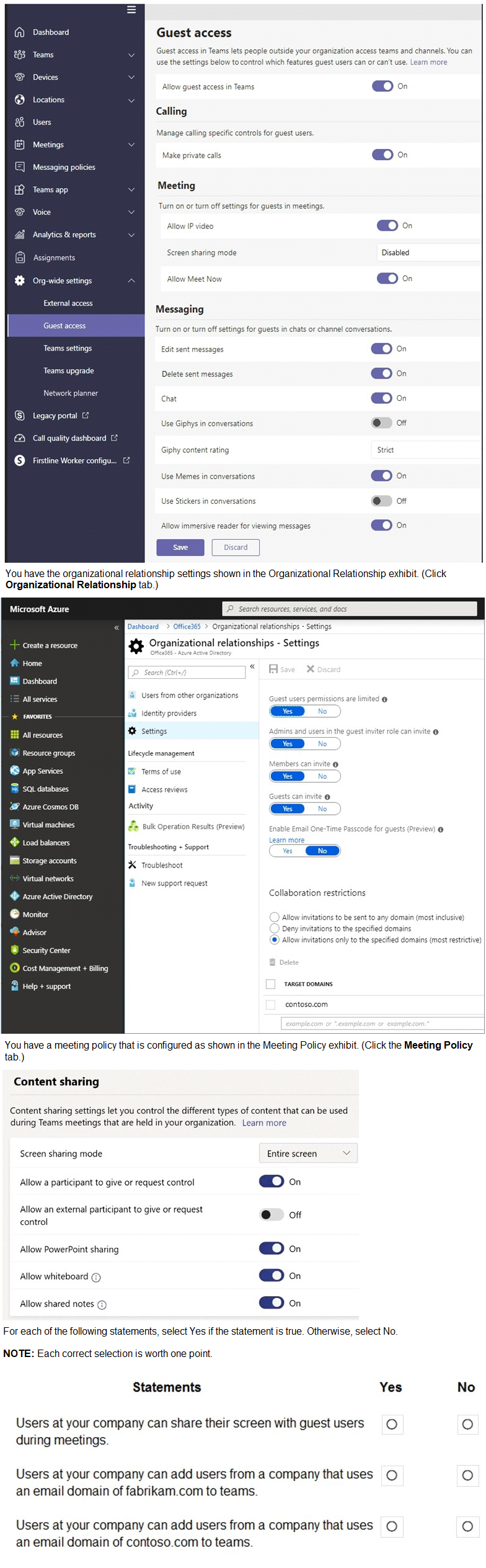
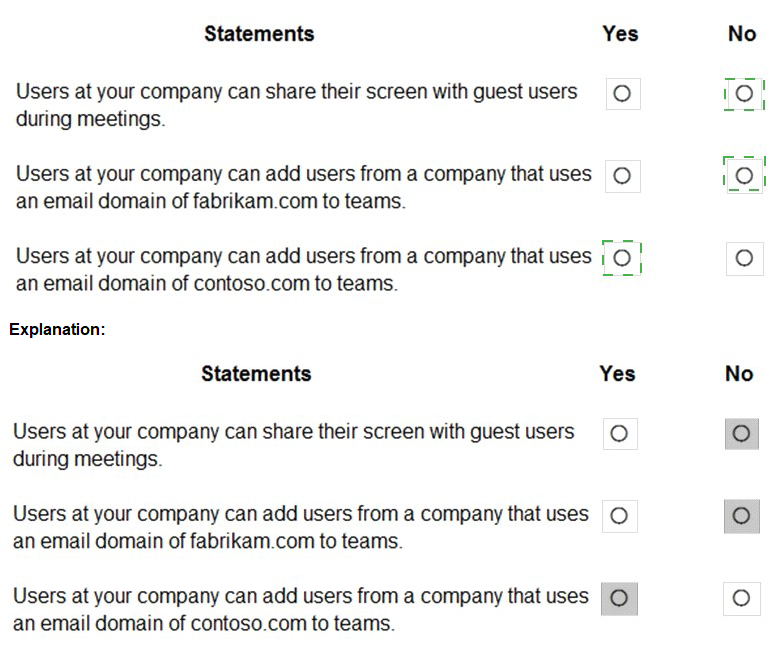
You have the guest access settings shown in the Guest Access exhibit. (Click the Guest Access tab.)
Task 8
You need to prevent guest users from calling your company's Teams users.
Answer: See the solution in the explanation below:
Explanation:
To prevent guest users from calling your company’s Teams users, you need to turn off the calling capability for guests in the Teams admin center. Here are the steps to follow:
Sign in to the Teams admin center with your admin credentials.
Go to Users > Guest access.
Turn off the Make private calls setting.
This will disable the peer-to-peer calling feature for guests.
Click Save to apply the changes
Your company uses the Microsoft teams.
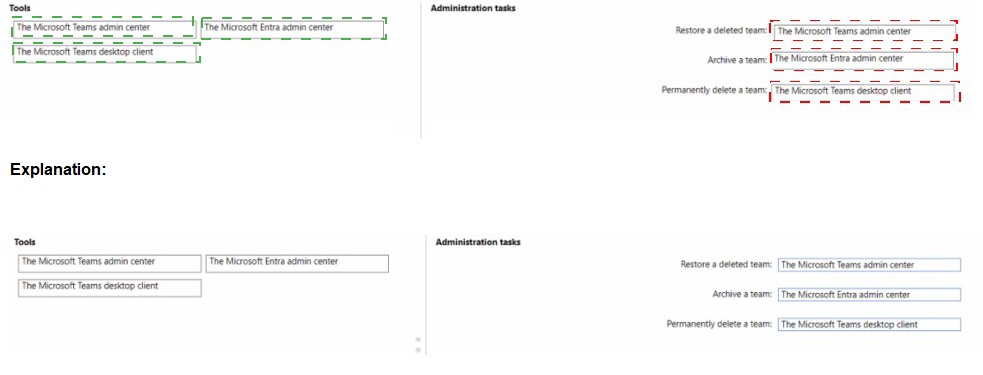
You are planning the governance strategy for Microsoft teams. All task must be performed
by a user who will be assigned the Global Administrator role and will not be a team owner.
Archive a tea
Restore a delete team
Permanently delete a team
Which tool should you identify for each task? To answer, drag the appropriate tools to the
correct tasks. Each tool may be used once. More than once, or not at all. You may need to
drag the split bar between panes or scroll to view content.
NOTE: Each correct selection is worth one point.

You have a Microsoft Office 365 subscription that contains a user named User1.
You need to ensure that User1 can view Usage reports in the Microsoft Teams admin
center; The solution must use the principle of least privilege.
Which role should you assign to User'?
A. Teams Communication support specialist
B. Global administrator
C. Global reader
D. Teams Administrator
| Page 5 out of 34 Pages |