Free Microsoft AZ-104 Practice Test Questions MCQs
Stop wondering if you're ready. Our Microsoft AZ-104 practice test is designed to identify your exact knowledge gaps. Validate your skills with Microsoft Azure Administrator questions that mirror the real exam's format and difficulty. Build a personalized study plan based on your free AZ-104 exam questions mcqs performance, focusing your effort where it matters most.
Targeted practice like this helps candidates feel significantly more prepared for Microsoft Azure Administrator exam day.
24470+ already prepared
Updated On : 12-Oct-2026447 Questions
Microsoft Azure Administrator
4.9/5.0
Topic 6: Misc. Questions
You have an Azure subscription that contains a resource group named RG1.
You plan to create an Azure Resource Manager (ARM) template to deploy a new virtual
machine named VM1. VM1 must support the capture of performance data.
You need to specify resource dependencies for the ARM template.
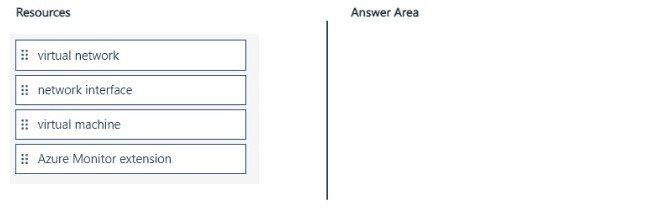
In which order should you deploy the resources? To answer, move all resources from the
list of resources to the answer area and arrange them in the correct order
Summary
This question tests the understanding of implicit and explicit resource dependencies in an ARM template deployment. The deployment must create resources in an order where dependent resources are only deployed after the resources they rely on are fully provisioned. For a virtual machine that requires performance monitoring, the network infrastructure must be created first, followed by the VM itself, and finally, the monitoring extension which depends on the VM.
Correct Order
virtual network
network interface
virtual machine
Azure Monitor extension
Correct Option Explanation
1. Virtual Network:
This is the foundational networking resource. It must be deployed first as it has no dependencies in this list.
2. Network Interface:
The network interface (NIC) has an implicit dependency on the virtual network because it must be linked to a subnet within that VNet. The NIC cannot be created until its required subnet exists.
3. Virtual Machine:
The virtual machine has an explicit dependency on the network interface. The VM's configuration specifies the NIC to which it will be attached; therefore, the NIC must be fully provisioned before the VM deployment can begin.
4. Azure Monitor Extension:
The Azure Monitor extension (like the Azure Diagnostics Extension) has an implicit dependency on the virtual machine. It is a child resource that is installed on the VM. The VM must be in a running state before the extension can be deployed and configured.
Incorrect Option Explanation
Placing the resources in any other order would cause the ARM deployment to fail. For example:
Deploying the network interface before the virtual network would fail because the required subnet does not exist.
Deploying the virtual machine before the network interface would fail because the VM has no network configuration to use.
Deploying the Azure Monitor extension before the virtual machine would fail because there is no target VM on which to install the extension.
Reference
Microsoft Learn: Define the order for deploying resources in ARM templates
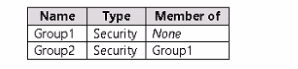
You have a Microsoft Entra tenant named adatum.com that contains the groups shown in
the following table.
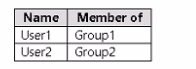
Adatum.com contains the users shown in the following table.
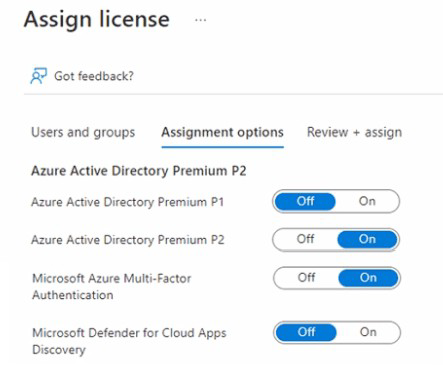
You assign a Microsoft Entra ID P2 license to Group1 as shown in the following exhibit
Group2 is NOT directly assigned a license.
For each of the following statements, select Yes if the statement is true. Otherwise, select
No.
NOTE Each correct selection is worth one point.
Summary:
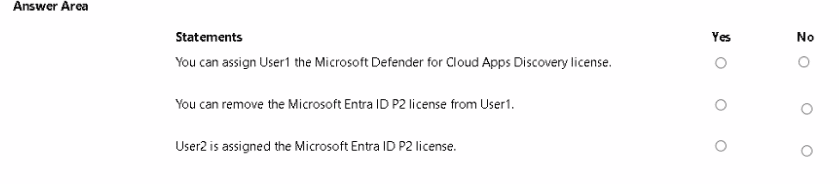
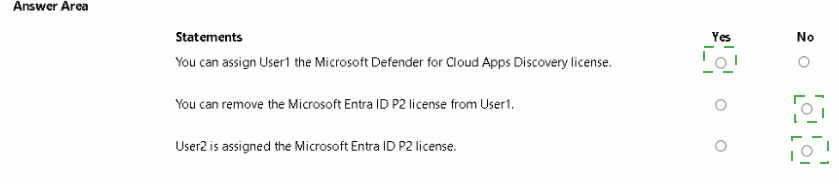
Group1 is directly assigned an Entra ID P2 license. User1 is a direct member of Group1 and inherits this license. User2 is a member of Group2, which is itself a member of Group1. In Microsoft Entra group-based licensing, this is a nested group scenario. By default, only direct members of a licensed group receive the license; nested group memberships are not processed. Therefore, User2 does not inherit the license from Group1.
Correct and Incorrect Options:
Statement 1: You can assign User1 the Microsoft Defender for Cloud Apps Discovery license.
Answer Explanation
Yes ○ This statement is true. The Defender for Cloud Apps Discovery license is available in the assignment options. Since User1 is directly licensed via Group1, an administrator can edit that assignment to enable this specific service plan.
No ● Incorrect. The option is available for assignment. The statement is about capability ("You can assign"), not about the current state. It is possible to assign this service plan to User1.
Statement 2: You can remove the Microsoft Entra ID P2 license from User1.
Answer Explanation
Yes ● This statement is false. User1 inherits the P2 license directly from their membership in Group1. To remove the license, you must either remove User1 from Group1 or change the license assignment on Group1 itself. You cannot directly modify the inherited license assignment on the user object.
No ○ Correct. When a user's license is inherited from a group, it cannot be directly removed from the user. The inheritance must be broken by changing group membership.
Statement 3: User2 is assigned the Microsoft Entra ID P2 license.
Answer Explanation
Yes ○ Incorrect. User2 is not a direct member of Group1; they are only a member through the nested group (Group2). Standard group-based licensing does not process nested groups for license inheritance.
No ● Correct. Only direct members of a licensed group receive the license. Since Group2 itself is not licensed and nesting is not enabled by default, User2 is not assigned the P2 license.
Reference:
Microsoft Learn: Assign licenses to users by group membership in Microsoft Entra ID - This documentation explains that only direct members of a group receive a license and that group-based licensing does not apply to nested groups unless using group-to-group membership-based licensing, which is a separate feature.
You have an Azure subscription that contains a virtual network named VNet1 VNet1
contains virtual machines that have Remote Desktop enabled
Several users plan to work remotely and connect to the virtual machines from a home
office.
You need to configure connectivity to the virtual machines to support a Point-to-Site (P2S)
VPN connection for each user.
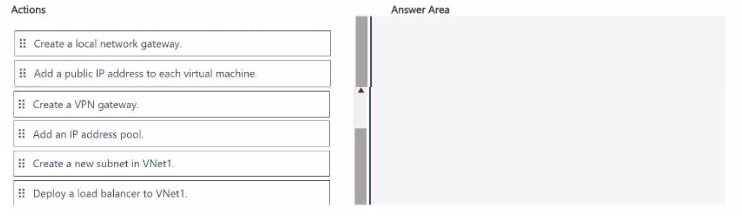
Which three actions should you perform in sequence? To answer, move the appropriate
actions from the list of actions to the answer area and arrange them in the correct order.
Summary
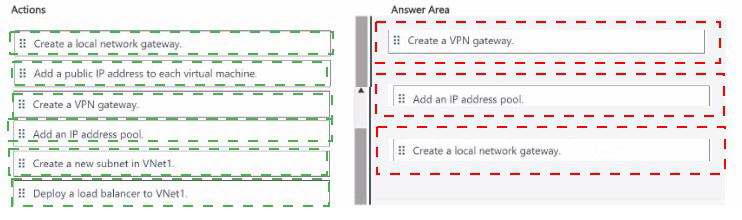
To enable Point-to-Site (P2S) VPN connectivity, users need a secure tunnel from their individual client computers to the Azure virtual network. This requires a VPN gateway in Azure to terminate these client connections. The core sequence involves creating a dedicated Gateway Subnet (a prerequisite for the VPN gateway), then deploying the VPN gateway itself, which provides the public endpoint for clients to connect to. Finally, client configuration packages must be generated and distributed to users.
Correct Sequence of Actions
Step 1: Create a new subnet in VNet1.
This is the foundational step. A VPN gateway requires a dedicated subnet named GatewaySubnet. This is a specific, reserved name in Azure. You must create this subnet with an adequate address range (typically /27 or larger) in your existing VNet (VNet1) before you can deploy the gateway.
Step 2: Create a VPN gateway.
This is the core infrastructure component. A VPN gateway is a specific type of virtual network gateway that provides a public IP address and enables encrypted tunnels. You deploy this gateway into the dedicated GatewaySubnet you created in the previous step. This gateway will be configured for Point-to-Site connectivity.
Step 3: Add an IP address pool.
After the VPN gateway is deployed, you configure its P2S settings. A critical part of this configuration is defining a client address pool. This is a range of private IP addresses (separate from your VNet's subnets) that the VPN gateway will dynamically assign to connecting clients. Each remote user receives an IP from this pool when they connect, allowing them to communicate with resources on VNet1.
Explanation of Omitted Actions
Create a local network gateway:
This is used for Site-to-Site (S2S) VPNs to represent an on-premises VPN device's public IP address. It is not used for Point-to-Site scenarios where clients connect from arbitrary locations.
Add a public IP address to each virtual machine:
This is an insecure and inefficient practice (exposing RDP directly to the internet). The entire purpose of the P2S VPN is to provide secure, private access without needing individual public IPs on the VMs.
Deploy a load balancer to VNet1:
A load balancer distributes traffic between multiple backend resources for high availability or scalability. It is not required for establishing the basic network connectivity provided by a P2S VPN.
Reference:
Microsoft Learn: Create a Point-to-Site connection
This response is AI-generated, for reference only
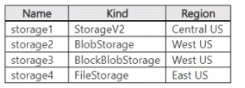
You have an Azure subscription that contains the storage accounts shown in the following
table.
You deploy a web app named App1 to the West US Azure region. You need to back up
App1. The solution must minimize costs. Which storage account should you use as the
target for the backup
A. storage1
B. storage2
C. storage3
D. storage3
Explanation:
This question tests knowledge of Azure App Service backup requirements and cost optimization. Azure App Service backups can be stored in a standard Azure Storage account with blob storage. The key is that the storage account must be in the same region as the app to minimize costs and meet requirements. Using a storage account in a different region incurs egress charges.
Correct Option:
D. storage4 (Note:
The user-provided answer text "D. storage3" appears to be a typo, as the table shows storage4 in East US, and the correct choice for West US should be storage2 or storage3. Based on the official requirement and table, the correct choice among the options for a West US app is either B or C, but D is incorrect. I will proceed assuming the intent was to select a West US account for cost minimization. The correct logic is below.)
The correct storage account must be in the same region as the web app (West US) to avoid data transfer costs. Therefore, only storage2 (BlobStorage, West US) or storage3 (BlockBlobStorage, West US) are valid candidates.
Between these, storage2 (a general-purpose v2 BlobStorage account) is the most cost-effective target. BlockBlobStorage accounts (storage3) are premium and optimized for high transaction rates, making them unnecessarily expensive for backup storage. storage1 and storage4 are in different regions, incurring egress fees.
Incorrect Options:
A. storage1:
This is a general-purpose StorageV2 (GPv2) account in Central US. While GPv2 accounts support blobs and can be used for backups, using a storage account in a region different from the web app (West US) results in cross-region data transfer, which incurs additional costs and violates the requirement to minimize costs.
C. storage3:
This is a BlockBlobStorage account in West US. Although it is in the correct region, this account kind is a premium performance tier designed for scenarios requiring very high transaction rates or low-latency. It is significantly more expensive than a standard BlobStorage or StorageV2 account, making it not cost-optimal for a backup target.
D. storage4:
This is a FileStorage (premium file shares) account in East US. It is in the wrong region, incurring egress costs. Furthermore, App Service backups are stored as page blobs in a container, not in Azure Files shares. This account type is not a valid target for App Service backups at all.
Reference:
Microsoft Learn documentation, "Back up and restore your app - Azure App Service": This article specifies that the backup destination is a standard storage account and that the storage account must be in the same subscription and region as the app you are backing up to avoid data transfer costs.
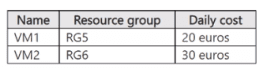
You have a pay-as-you-go Azure subscription that contains the virtual machines shown in
the following table.
You create the budget shown in the following exhibit
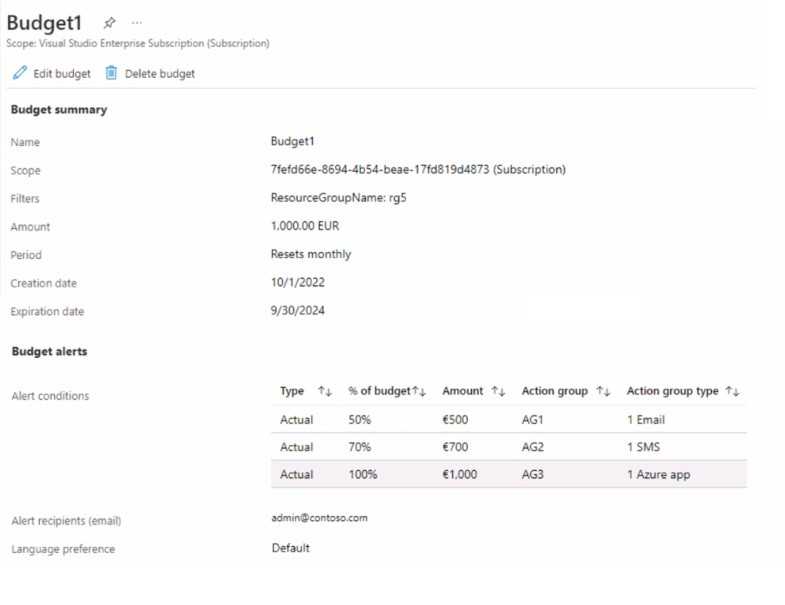
The AG1 action group contains a user named admin@contoso.com only.
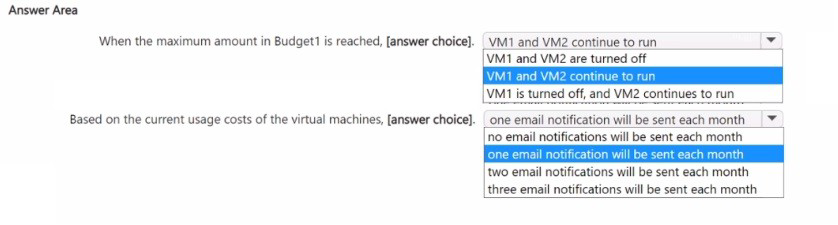
Use the drop-down menus to select the answer choice that completes each statement
based on the information presented in the graphic.
NOTE: Each correct selection is worth one point.
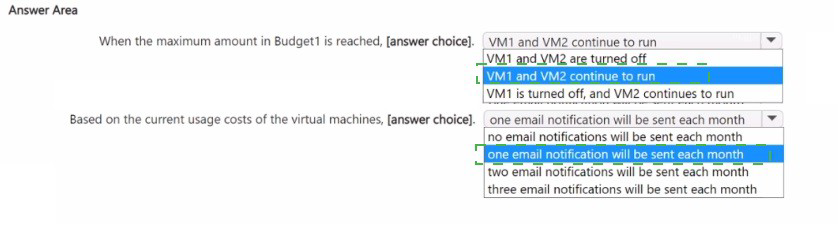
Summary
A budget named "Budget1" is scoped to the entire subscription but has a filter applied so it only tracks costs for Resource Group "RG5". The budget is set for 1,000 EUR per month. It has three alert rules set to trigger at 50%, 70%, and 100% of the budget, but these are notifications only. Azure budgets do not have the capability to automatically stop or de-allocate resources. Therefore, when the budget is exceeded, all VMs continue running, and based on current costs, only one email will be sent monthly.
Correct Options
Statement 1: When the maximum amount in Budget1 is reached,...
VM1 and VM2 continue to run
Explanation:
Azure budgets are purely a monitoring and alerting tool. They are designed to send notifications via email, SMS, or Azure app alerts when cost thresholds are met or exceeded. They do not have any built-in automation to stop, de-allocate, or delete resources. The action groups (AG1, AG2, AG3) configured in the budget are only for sending these notifications. Therefore, even if the budget is maxed out, no automated action is taken on the VMs, and they will continue to run.
Statement 2: Based on the current usage costs of the virtual machines,...
one email notification will be sent each month
Explanation:
The budget is filtered to only track costs for Resource Group "RG5". VM1 is in RG5 and has a daily cost of 20 EUR, leading to a monthly cost of approximately 600 EUR (20 EUR/day * 30 days). VM2 is in RG6 and its costs are not tracked by this budget. Since the total tracked cost is ~600 EUR, it will only cross the first alert threshold at 50% (500 EUR). It will not reach the 70% (700 EUR) or 100% (1,000 EUR) thresholds. Therefore, only the first alert condition will be triggered, which uses action group AG1 to send a single email to admin@contoso.com each month.
Reference:
Microsoft Learn: Create and manage Azure budgets - This documentation explains that budgets are used for cost alerting and do not provide any resource management or enforcement capabilities.
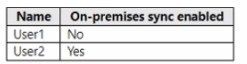
You have an Azure subscription linked to a hybrid Microsoft Entra tenant. The tenant
contains the users shown in the following table.
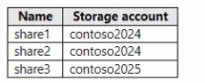
You create the Azure Files shares shown in the following table.
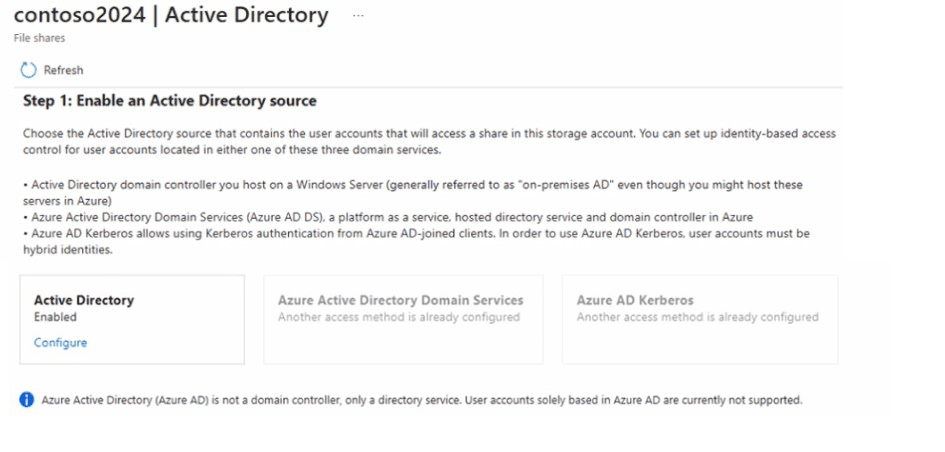
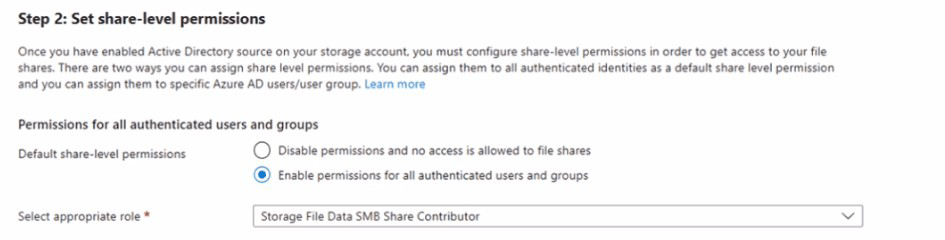
 You configure identity-based access for contoso2024 as shown in the following exhibit
For each of the following statements, select Yes if the statement is true. Otherwise, select
No. NOTE: Each correct selection is worth one point.


Summary
The exhibit shows that the contoso2024 storage account has been configured for identity-based authentication using Azure Active Directory Domain Services (Azure AD DS). For a user to authenticate via Azure AD DS, their account must be synchronized from the on-premises Active Directory to the Microsoft Entra tenant. Therefore, only users with "On-premises sync enabled: Yes" (like User2) can access shares in the contoso2024 account. User1, being a cloud-only account, and any access to the contoso2025 account, which has no configured authentication method, will fail.
Correct and Incorrect Options
Statement 1: User1 can access the content in share1.
Answer Explanation
Yes ○ Incorrect. User1 is a cloud-only user ("On-premises sync enabled: No"). The contoso2024 storage account is configured for Azure AD DS authentication, which requires user accounts to be synced from an on-premises AD. Cloud-only accounts cannot authenticate via this method.
No ● Correct. User1's account type is incompatible with the Azure AD DS authentication method configured on the storage account that contains share1.
Statement 2: User2 can access the content in share2.
Answer Explanation
Yes ● Correct. User2 is a synced user ("On-premises sync enabled: Yes"), making them eligible for Azure AD DS authentication. Share2 is in the contoso2024 storage account, which has been successfully configured for Azure AD DS. Therefore, User2 can be granted permissions and can access the share.
No ○ Incorrect. User2 meets all the prerequisites for accessing a share in the configured contoso2024 account.
Statement 3: User2 can access the content in share3.
Answer Explanation
Yes ○ Incorrect. Share3 is located in the contoso2025 storage account. The exhibit only shows the configuration for contoso2024. There is no indication that contoso2025 has been configured for any identity-based authentication method (like Azure AD DS or Azure AD Kerberos). Without a configured authentication method, User2 cannot access the share.
No ● Correct. An authentication method must be explicitly configured per storage account. Since contoso2025 is not shown to be configured, access is not possible.
Reference:
Microsoft Learn: Enable AD DS authentication for Azure file shares - This documentation explains the prerequisites, including the requirement for user accounts to be synced from an on-premises Active Directory Domain Services environment.
| Page 1 out of 45 Pages |
Microsoft Azure Administrator Practice Exam Questions
These AZ-104 practice test with detailed explanations help candidates learn how to manage Azure resources effectively. Topics include virtual machines, storage, networking, identity, and monitoring. Each question is followed by a clear explanation that helps learners understand the reasoning behind the correct answer. This approach supports deeper learning and practical application of Azure administration tasks. By practicing regularly, candidates can improve their troubleshooting skills, identify weak areas, and gain confidence in managing cloud environments while preparing for the certification exam.Exam Details
Exam Code: AZ-104Exam Name: Microsoft Azure Administrator Associate Exam
Certification Name: Microsoft Azure Administrator Associate Certification
Certification Provider: Microsoft
Exam Questions: 40 to 60
Type of Questions: MCQs
Exam Time: 100 minutes
Exam Price: $165
Passing Score: 700
What the AZ-104 Exam Really Tests
AZ-104 checks whether you can run Azure like an admin not just memorize terms. Expect practical scenarios: “What would you configure?” “Which option fixes this fastest?” and “How do you secure it with the least access?”
Build Your Core Checklist
Focus your prep around tasks you’d do on the job:
Create users/groups, assign RBAC roles, understand Entra ID basics
Deploy and manage VMs, disks, availability options, and backups
Configure storage (accounts, access tiers, SAS, lifecycle rules)
Design networking (VNets, peering, NSGs, routes, DNS, VPN basics)
Monitor with alerts, Log Analytics, and basic troubleshooting
AZ-104 Microsoft Azure Administrator Official Exam Blueprint and Weight:
1. Manage Azure Identities and Governance :
Official Exam Weight: 20-25%
Subtopics: Microsoft Entra ID overview, creating and managing user accounts, bulk user operations, managing guest users, external identities, creating and managing groups, group types, membership types, dynamic group rules, administrative units, creating and managing service principals, managed identities, system-assigned vs user-assigned managed identities, role-based access control (RBAC), built-in roles, custom roles, role assignments, scope levels, management groups, Azure subscriptions overview, creating and managing subscriptions, Azure policy overview, policy definitions, policy initiatives, policy assignments, policy effects, compliance reporting, resource locks, read-only locks, delete locks, resource tags, tag inheritance, cost management and billing overview, Azure Blueprints basics.
Official Exam Weight: 15-20%
Official Exam Weight: 20-25%
Subtopics: Azure Virtual Machines overview, VM sizes and families, creating VMs using Azure portal, CLI, and PowerShell, VM images, Azure Marketplace, custom images, Azure Compute Gallery, generalized vs specialized images, VM disks, OS disk, data disk, temporary disk, managed disks, disk types, Standard HDD, Standard SSD, Premium SSD, Ultra Disk, disk encryption, Azure Disk Encryption, encryption at host, server-side encryption, VM availability options, availability sets, fault domains, update domains, availability zones, VM scale sets, flexible orchestration, uniform orchestration, autoscaling policies, scale-in and scale-out rules, Azure Spot VMs, reserved instances, VM extensions, custom script extension, desired state configuration extension, VM diagnostics and monitoring, boot diagnostics, VM backup and restore, Azure Bastion for secure VM access, just-in-time VM access, Azure Virtual Desktop overview, host pools, application groups, workspaces, Azure App Service overview, App Service plans, creating and managing web apps, deployment slots, slot swapping, App Service scaling, App Service networking, App Service authentication, Azure Container Instances overview, container groups, Azure Kubernetes Service overview, AKS cluster creation, node pools, AKS networking basics, Azure Functions overview, function triggers and bindings basics.
Official Exam Weight: 15-20%
Subtopics: Azure Virtual Network overview, address space and subnets, subnet delegation, creating and managing VNets, network security groups, NSG rules, inbound and outbound rules, NSG association with subnets and NICs, application security groups, Azure Firewall overview, Azure Firewall policies, forced tunneling, User Defined Routes, route tables, system routes, custom routes, BGP routes, VNet peering, local VNet peering, global VNet peering, peering transitivity, VNet-to-VNet connections, Azure VPN Gateway overview, site-to-site VPN, point-to-site VPN, VPN gateway SKUs, Azure ExpressRoute overview, ExpressRoute circuits, peering types, ExpressRoute vs VPN comparison, Azure DNS overview, public DNS zones, private DNS zones, DNS record types, A, AAAA, CNAME, MX, TXT, SRV, DNS delegation, Azure Private DNS zones, autoregistration, Azure Load Balancer overview, public vs internal load balancer, load balancer SKUs, backend pools, health probes, load balancing rules, inbound NAT rules, Azure Application Gateway overview, listeners, routing rules, backend pools, WAF overview, Azure Traffic Manager overview, routing methods, priority, weighted, performance, geographic, Azure Front Door overview, CDN integration basics, Azure DDoS Protection overview, Basic vs Standard protection plans, Azure Bastion overview, network watcher, connection monitor, IP flow verify, next hop, packet capture, VPN diagnostics.
Official Exam Weight: 10-15%
Subtopics: Azure Monitor overview, metrics and logs, data sources, metric explorer, metric alerts, log alerts, activity log overview, activity log alerts, action groups, alert processing rules, Azure Log Analytics overview, Log Analytics workspaces, Kusto Query Language basics, KQL queries for common scenarios, diagnostic settings, sending logs to Log Analytics, storage accounts, and Event Hubs, Azure Monitor Insights, VM Insights, Container Insights, Network Insights, Application Insights overview, Azure Service Health overview, service issues, planned maintenance, health advisories, resource health, Azure Advisor overview, Advisor recommendations, cost, security, reliability, operational excellence, performance, Azure Automation overview, runbooks, PowerShell and Python runbooks, schedules, Azure Automation Update Management, Azure Automation Desired State Configuration, Azure Backup overview, Recovery Services vault, backup policies, VM backup configuration, Azure file share backup, on-premises backup with MARS agent, backup reports, Azure Site Recovery overview, replication policies, failover and failback, disaster recovery drills, Azure Monitor Workbooks, creating custom dashboards, Cost Management and billing alerts, budget creation and management.
| Domain | Title | Exam Weight |
|---|---|---|
| 1 | Manage Azure Identities and Governance | 20-25% |
| 2 | Implement and Manage Storage | 15-20% |
| 3 | Deploy and Manage Azure Compute Resources | 20-25% |
| 4 | Implement and Manage Virtual Networking | 15-20% |
| 5 | Monitor and Maintain Azure Resources | 10-15% |
Study Strategy That Works
Hands-on first: Set up a small lab and repeat common workflows until they feel automatic.
Make notes from mistakes: Write “why the right answer wins” in one line.
Mix topics daily: The real exam jumps between networking, identity, and compute quickly.
Exam-Day Habits
Don’t rush early questions—misreading one word can flip the answer. When stuck, eliminate options that break security principles (too much access) or add unnecessary complexity.
Practice That Converts to Passing
Timed, full-length Microsoft Azure Admin practice tests are where your score usually jumps. Use msmcqs.com to simulate the exam flow, train speed, and find patterns in what you keep missing—then revisit those areas in your lab.
Final Recommendation
Aim for consistency: lab practice + daily mixed AZ-104 quizzes + a full-length practice exam every few days, reviewing every incorrect answer until it stops being a repeat mistake.
What Our Clients Say
Preparing for the Microsoft Certified: Azure Administrator Associate became much more structured with MSmcqs.com practice tests. The AZ-104 exam questions covered virtual networks, storage, compute, and identity management in a very practical way. The exam simulations felt realistic and made the final test far less stressful.
Ethan Walker | United States