Free Microsoft AB-730 Practice Test Questions MCQs

Stop wondering if you're ready. Our Microsoft AB-730 practice test is designed to identify your exact knowledge gaps. Validate your skills with AI Business Professional questions that mirror the real exam's format and difficulty. Build a personalized study plan based on your free AB-730 exam questions mcqs performance, focusing your effort where it matters most.

Targeted practice like this helps candidates feel significantly more prepared for AI Business Professional exam day.

2870+ already prepared
Updated On : 12-Oct-2026
87 Questions
AI Business Professional
4.9/5.0

Page 1 out of 9 Pages

What is the purpose of adding custom instructions in Microsoft 365 Copilot?

A. to provide additional context to Copilot, such as your name, title, and company, so that Copilot can complete tasks more efficiently

B. to set preferences that are applied to all Copilot interactions, such as the tone and style of responses

C. to apply security rules that must be followed by Copilot, such as which information is shared

D. to enable Copilot to take actions on your behalf, such as sending emails

B.   to set preferences that are applied to all Copilot interactions, such as the tone and style of responses

Explanation:

Custom instructions are used to personalize how Microsoft 365 Copilot responds to a user.
They allow users to provide preferences about response style, tone, formatting, and other recurring requirements.
Copilot applies these preferences to future conversations, reducing the need to repeat the same guidance.
They do not establish Microsoft 365 security permissions or compliance controls.
They also do not grant Copilot new capabilities or permissions to perform actions.
Therefore, option B correctly describes the purpose of custom instructions.

🟒 Correct Option: B. to set preferences that are applied to all Copilot interactions, such as the tone and style of responses
Custom instructions allow users to personalize how Copilot responds across future interactions. Microsoft states that users can add details about themselves and specify how they want Copilot to format its responses. These preferences are remembered and used in future Copilot conversations to tailor responses. This makes option B the most accurate because it focuses on persistent response preferences rather than security controls, permissions, or additional action capabilities.

πŸ”΄ Incorrect Option: A. to provide additional context to Copilot, such as your name, title, and company, so that Copilot can complete tasks more efficiently
Custom instructions can include information about the user, but option A incorrectly presents additional context as their primary purpose. Microsoft specifically describes custom instructions as a way to tell Copilot important information and specify how responses should be formatted. The broader purpose is personalization of Copilot's responses and behavior across future interactions.

πŸ”΄ Incorrect Option: C. to apply security rules that must be followed by Copilot, such as which information is shared
Custom instructions are not a replacement for Microsoft 365 security, compliance, or access controls. They guide Copilot's responses and behavior based on user preferences. Microsoft 365 Copilot continues to operate within existing security and permission boundaries. Therefore, custom instructions cannot be used to establish mandatory organizational security rules or determine access to protected information.

πŸ”΄ Incorrect Option: D. to enable Copilot to take actions on your behalf, such as sending emails
Custom instructions do not grant Copilot additional capabilities or permissions. Actions are a separate capability used by agents to interact with external systems and automate processes. Microsoft distinguishes custom instructions, which shape responses, from custom actions, which enable integrations and operations. Therefore, adding instructions alone does not enable Copilot to send emails or perform other actions.

Reference:
β‡’ Customize how Microsoft Copilot responds to you β€” Microsoft confirms that custom instructions let users provide information and specify how Copilot should format and tailor responses.

β‡’ Compare declarative and custom engine agents β€” Microsoft distinguishes custom instructions from custom actions and explains their different roles in Copilot.

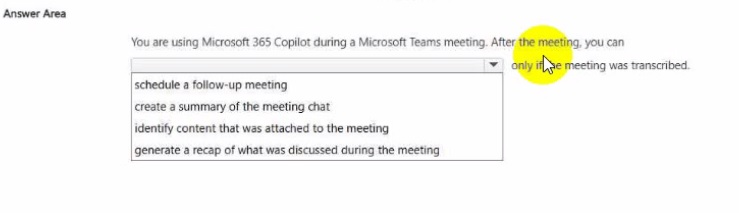
Select the answer that correctly completes the sentence.

Explanation:

This question tests your knowledge of Microsoft 365 Copilot capabilities in Microsoft Teams after a meeting ends. When a Teams meeting is transcribed, Copilot can process the transcript to produce a recap of the discussion, including key points, decisions, and action items. The sentence completion requires selecting the post-meeting action that Copilot performs based on the transcript. Among the choices, only generating a recap of the discussion depends on the meeting being transcribed, making it the correct completion.

βœ”οΈ Correct Option:

βœ”οΈ generate a recap of what was discussed during the meeting
Copilot in Teams uses the meeting transcript to generate a recap of what was discussed, including key points, decisions, and follow-up items. Because the sentence specifies that the action occurs "only if the meeting was transcribed," this option fits perfectly. The transcript is the data source Copilot relies on to produce an accurate post-meeting recap, which is the core post-meeting capability being tested.

❌ Incorrect options:

❌ schedule a follow-up meeting
Scheduling a follow-up meeting is a calendar action available in Outlook or Teams, but it does not depend on the meeting being transcribed. Copilot does not require a transcript to help schedule a follow-up, so this option does not satisfy the condition stated in the sentence.

❌ create a summary of the meeting chat
Summarizing the meeting chat relies on the written chat messages, not on the meeting transcript. Chat summaries can be generated regardless of whether transcription was enabled, so this option does not match the "only if the meeting was transcribed" requirement.

❌ identify content that was attached to the meeting
Identifying attached content depends on the files, links, or materials shared in the meeting, not on the transcript. This action does not require transcription to be enabled, so it fails to satisfy the condition in the sentence.

πŸ”§ Reference:
β†’ Learn Microsoft | Use Copilot to review past meetings β€” Confirms Copilot generates a recap of what was discussed after a meeting when a transcript is available.

β†’ Learn Microsoft | Exercise – use Copilot to summarize meetings β€” Demonstrates using Copilot to recap meeting discussions from the transcript in Teams.

You missed a Microsoft Teams meeting that was recorded and transcribed You need to review the discussion and assigned fallow up work without watching the full recording

What should you use?

A. only the meeting chat messages

B. Copilot on the Recap tab

C. Copilot in Outlook

D. Teams live captions

B.   Copilot on the Recap tab

Explanation:

This question tests knowledge of post-meeting review features in Microsoft Teams when a meeting has been recorded and transcribed. It focuses on using AI-powered tools to efficiently catch up on discussion points and assigned follow-up tasks without replaying the entire recording. The correct approach leverages transcript-based AI insights available after the meeting ends.

βœ… Correct Option:

B. Copilot on the Recap tab
After a recorded and transcribed Teams meeting, open the meeting chat and select the Recap tab. From there, open Copilot to generate summaries of key discussions, identify action items and follow-up work, and answer specific questions about the meeting content. This uses the transcript and chat data to provide structured insights, allowing review without watching the full recording.

❌ Incorrect options:

A. only the meeting chat messages
Chat messages capture only typed comments and shared files. They omit the majority of spoken discussion and decisions from the transcript, so they cannot fully review the conversation or assigned follow-up work.

C. Copilot in Outlook
Copilot in Outlook assists with email drafting, summarization, and calendar insights. It does not provide direct access to a Teams meeting’s transcript, AI summary, or action items from the Recap experience.

D. Teams live captions
Live captions display real-time text during an ongoing meeting for accessibility. They are not available afterward and do not generate summaries, action items, or a post-meeting review of discussion and follow-up work.

πŸ”§ Reference:
β†’ Recap a Teams meeting (Microsoft Support) β€” Confirms selecting the Recap tab and then Copilot to recap the meeting, including what was missed and action items.

β†’ Catch up on meetings with Microsoft Copilot in Teams (Microsoft Support) β€” Confirms access to Copilot from the Recap tab after a transcribed meeting for summaries and insights without rewatching the recording.

A company is using the default settings in their Microsoft 365 services.

What is the maximum period that Microsoft 365 Copilot conversations can be retained?

A. 30 days

B. indefinitely

C. one year

D. 90 days

B.   indefinitely

Explanation:

This question tests the default retention behavior for Microsoft 365 Copilot conversation history in a company environment. With default Microsoft 365 settings and no custom retention policy applied, Copilot prompts and responses are stored in the user’s mailbox in the same way as other Microsoft 365 content. Content remains available until an administrator configures a retention policy to delete it or a user manually deletes it.

βœ… Correct Option:

B. indefinitely
Under default Microsoft 365 settings, no retention policy is applied to Copilot interactions. The conversations are therefore retained indefinitely in the user’s mailbox (similar to the default behavior for Teams chats). Administrators can later create a Microsoft Purview retention policy to enforce a specific retention or deletion period if needed.

❌ Incorrect options:

A. 30 days
Thirty days is not the default retention period. It can be set by an administrator through a custom retention policy, but it is not the out of the box behavior.

C. one year
One year is not the default period. A retention policy would need to be created and applied to enforce a one year limit.

D. 90 days
Ninety days is not the default. Like the other fixed periods, it requires an explicit retention policy configuration by an administrator.

πŸ”§ Reference:
β†’ Microsoft Learn: Learn about retention for Copilot & AI apps – Explains that retention of Copilot interactions is controlled by Purview policies and that without a policy the content follows the default indefinite retention behavior of Microsoft 365 mailbox content.

You create a prompt and add several files from your Microsoft OneDrive. You share the prompt to a user by using email. What occurs when the user uses the prompt?

A. The files are removed from the shared prompt, and the user must add the files manually before they can run the prompt.

B. The user is granted access to the files automatically and can run the prompt.

C. The user can run the prompt successfully only if they have access to the files in your OneDrive.

D. The user is prompted to request access to the files when they attempt to run the prompt.

C.   The user can run the prompt successfully only if they have access to the files in your OneDrive.

Explanation:

Sharing a Microsoft 365 Copilot prompt shares the prompt itself, not automatic permission to the OneDrive files referenced in it. Copilot follows the existing Microsoft 365 security model and respects OneDrive and SharePoint permissions. Therefore, the recipient can use the shared prompt with its attached cloud files only when they already have permission to access those files.

βœ”οΈ Correct Option:

βœ”οΈ C. The user can run the prompt successfully only if they have access to the files in your OneDrive.
Microsoft 365 Copilot uses the signed in user’s existing permissions when accessing OneDrive and SharePoint content. Sharing a prompt by email does not grant the recipient access to files that were added from the sender’s OneDrive. The recipient can run the shared prompt successfully only if the required files have already been shared with them or they otherwise have valid access. Copilot honors file permissions, sensitivity labels, and organizational security controls rather than bypassing them.

❌ Incorrect Options:

❌ A. The files are removed from the shared prompt, and the user must add the files manually before they can run the prompt.
The files are not automatically removed simply because the prompt is shared. The shared prompt can retain references to the selected cloud files. However, the recipient must have permission to access those files for Copilot to use them successfully. The user does not necessarily need to manually add the files again if access has already been granted.

❌ B. The user is granted access to the files automatically and can run the prompt.
Sharing a prompt does not automatically modify OneDrive file permissions. Microsoft 365 Copilot respects the existing permissions of the recipient and does not grant access to private or restricted files merely because those files are referenced in a shared prompt. The file owner must separately share the files or folders with the recipient when access is required.

❌ D. The user is prompted to request access to the files when they attempt to run the prompt.
The key behavior is that Copilot respects existing file permissions. A user without access cannot successfully use restricted OneDrive files as prompt context. Although OneDrive or SharePoint may offer a separate request access experience in some sharing configurations, receiving a prompt to request access is not the guaranteed Copilot behavior described by this scenario.

πŸ”§ Reference:
β†’ Microsoft Learn: Configure a secure and governed foundation for Microsoft Copilot
β€” Confirms that Copilot accesses OneDrive files only within a user’s existing permissions and honors Microsoft 365 security and compliance controls.

β†’ Microsoft Support: Share your best prompts with others
β€” Confirms that Microsoft 365 Copilot prompts can be shared by copying a link after the prompt runs successfully.

You plan to create an agent in the Microsoft 365 Copilot app to help meeting organizers create and run effective meetings The agent will be used to prepare invite emails, assign meeting roles, and take meeting notes.

You need to create the agent as soon as passible, and then perform a basic test of the agent. The solution must minimize effort.

What is the best approach to achieve the goal? More than one answer choice may achieve the goal Select the BEST answer.

A. From the Describe tab, input a basic description of the agent.

B. From the Describe tab. select a template.

C. From the Configure tab, provide a detailed configuration of the agent.

D. From the Configure tab. input a bask configuration of the agent

A.   From the Describe tab, input a basic description of the agent.

Explanation

This question tests the fastest way, with the least effort, to create and test an agent in Agent Builder in Microsoft 365 Copilot. The requirement is speed and minimal effort, not detailed customization. The right choice is the method that generates the agent setup automatically from a simple prompt.

βœ… A. From the Describe tab, input a basic description of the agent.
The Describe tab lets the organizer type a simple description in natural language, such as helping meeting organizers prepare invite emails, assign roles, and take notes. Agent Builder then autogenerates the agent's name, description, instructions, and starter prompts. The agent can be tested immediately in the test pane before selecting Create. This needs the least manual setup and meets the speed requirement.

❌ B. From the Describe tab, select a template.
Templates give a starting point for specific use cases, but they are chosen under Start with a template on the New agent page, not on the Describe tab. A template also needs further customization to fit meeting invites, role assignment, and taking notes, and may not match this scenario. A simple description is faster.

❌ C. From the Configure tab, provide a detailed configuration of the agent.
The Configure tab is meant for manual setup with full control over the name, description, instructions, knowledge, and starter prompts. Writing a detailed configuration takes significant time and effort. That conflicts with the requirement to create the agent quickly with minimal effort, since the Describe tab can generate these fields automatically from a short prompt.

❌ D. From the Configure tab, input a basic configuration of the agent.
A basic configuration on the Configure tab still requires the maker to fill in each field manually, including name, description, and instructions. It is less effort than a detailed setup, but more than describing the agent in plain language. Describe tab generation is quicker, so this option does not minimize effort.

πŸ”§ Reference
πŸ”— Build agents in Agent Builder, Microsoft Learn β†’ Confirms that the name, description, instructions, knowledge, and suggested prompts are autogenerated when you use the Describe tab, while the Configure tab is for manual setup.

πŸ”— Build your own agent with Microsoft Copilot, Microsoft Support β†’ Confirms that you can build an agent by describing what you want it to do and following the prompts, with no coding skills needed.

You have a Microsoft 365 Copilot license.

You are preparing a business presentation by using Copilot in PowerPoint

Which two tasks can you achieve by using Cop lot n PowerPoint? Each correct answer presents a complete the solution NOTE Each correct selection is worth one point.

A. Insert a custom animation for a specific object on a slide

B. Create a slide layout based on the content of your presentation.

C. Produce a summary slide based on the key points m your presentation

D. Customize the design theme of your presentation to use your company's logo

B.   Create a slide layout based on the content of your presentation.
C.   Produce a summary slide based on the key points m your presentation

Explanation:

This question tests your understanding of the native capabilities of Microsoft 365 Copilot in PowerPoint. Copilot acts as an AI assistant that can generate, reformat, and summarize content within a presentation based on natural language commands. It can evaluate existing text to propose clean visual arrangements and slide layouts, as well as analyze key points across the deck to generate a concise summary slide. However, fine-grained object animations and deep structural design theme updates must still be performed manually using core PowerPoint formatting tools.

βœ… Correct Option:

Option B:
Copilot analyzes slide text and context to automatically reformat slides and suggest structural slide layouts that effectively match your presentation content.

Option C:
Copilot can synthesize the main takeaways from your entire deck or selected slides to automatically draft a comprehensive summary slide.

❌ Incorrect options:

Option A:
Copilot cannot directly create or apply custom object animations. Setting entry, exit, or emphasis animations for specific objects must be done manually using the Animations tab in PowerPoint.

Option D:
Copilot cannot directly re-engineer or update your presentation's design theme XML files to incorporate company logos. Modifying theme files and logos requires manual editing in the Slide Master view.

πŸ”§ Reference:
β†’ Microsoft: Edit with Copilot in PowerPoint confirms that Copilot supports generating summary slides and recommending content layouts.

Which statement accurately describes Microsoft 365 Copilot data security when using a regular chat?

A. After a session ends. Copilot prompts and responses are stored by Microsoft and used to improve the service

B. After a session ends, Copilot prompts and responses can be stored by Microsoft for auditing and eDiscovery but they are NOT used to tram the underlying foundation models.

C. After a session ends. Copilot prompts and responses are permanently deleted from both Microsoft systems and the Microsoft 365 Copilot app.

B.   After a session ends, Copilot prompts and responses can be stored by Microsoft for auditing and eDiscovery but they are NOT used to tram the underlying foundation models.

Explanation

Microsoft 365 Copilot can retain prompts and responses to support compliance and organizational oversight.
This information can be available for auditing, retention, and eDiscovery purposes.
Microsoft states that Copilot prompts and responses are not used to train the underlying foundation models.
Ending a chat session therefore does not mean that all interaction data is immediately and permanently deleted.
Option B correctly describes the applicable data security and compliance behavior.

Correct Option

🟒 B. After a session ends, Copilot prompts and responses can be stored by Microsoft for auditing and eDiscovery but they are NOT used to train the underlying foundation models.
This option accurately describes Microsoft 365 Copilot data handling. Prompts and responses can be retained so organizations can use compliance capabilities such as auditing and eDiscovery. At the same time, Microsoft does not use Microsoft 365 Copilot prompts and responses to train its underlying foundation models. Therefore, B best satisfies the security requirements described in the question.

Incorrect Options

πŸ”΄ A. After a session ends, Copilot prompts and responses are stored by Microsoft and used to improve the service.
This is incorrect because Microsoft 365 Copilot prompts and responses are not used to train the underlying foundation models. Interaction data can be retained for compliance purposes, but this does not mean Microsoft uses the content to train or improve those models.

πŸ”΄ C. After a session ends, Copilot prompts and responses are permanently deleted from both Microsoft systems and the Microsoft 365 Copilot app.
This is incorrect because Copilot interactions can be retained for compliance, auditing, and eDiscovery. Retention depends on applicable Microsoft 365 policies and controls, so ending a session does not automatically result in permanent deletion from Microsoft's systems.

Reference
β‡’ Privacy and protections confirms how Copilot prompts and responses are handled and explains that they are not used to train the underlying foundation models.

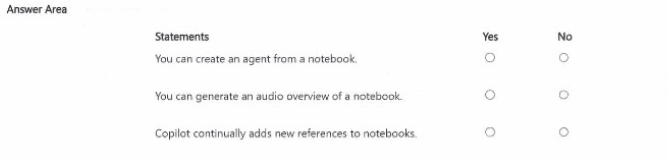
You are evaluating the features of Microsoft 365 Copilot notebooks.

for each of the following statements, select Yes if the statement is true. Otherwise, select No.

NOTE: Each correct selection is worth one point.

Explanation:

This question tests your knowledge of the capabilities and limitations of Microsoft 365 Copilot Notebooks. Notebooks serve as persistent, AI-powered workspaces where you gather references, ask questions, and generate outputs like summaries or audio overviews. They are not designed for building agents, and their content does not update automatically. Understanding these boundaries is essential for using notebooks effectively.

βœ”οΈ Correct Option:

Statement 1: No β€” You can create an agent from a notebook.
Creating an agent is not a function of Copilot Notebooks. Agents are built using Agent Builder or Copilot Studio within the Copilot app. Notebooks are personal workspaces for organizing and analyzing content, not platforms for publishing or configuring agents. The notebook interface provides no option to convert its contents into an agent, making this statement false .

Statement 2: Yes β€” You can generate an audio overview of a notebook.
Copilot Notebooks supports an β€œaudio overview” feature that transforms your notebook’s content into a spoken summary. You can customize the tone, length, and focus using natural language before generating the audio. This feature supports content from Word, PowerPoint, OneNote, and PDFs, and the resulting audio can be played back, regenerated, or saved to OneDrive .

Statement 3: No β€” Copilot continually adds new references to notebooks.
References in Copilot Notebooks are added manually by the user. Copilot does not automatically discover, inject, or update references over time. The user must explicitly add files, links, chats, or other sources through the References tab. Notebooks are static containers that reflect only what the user has chosen to include .

❌ Incorrect options:

Statement 1: Yes β€” This is incorrect because Copilot Notebooks are not an agent-building surface. While you can use content from a notebook as knowledge for an agent, the notebook itself cannot generate an agent. Agent creation requires a separate workflow in the Copilot app or Copilot Studio .

Statement 2: No β€” This is incorrect because audio overviews are a documented, supported feature of Copilot Notebooks. Microsoft Learn training modules explicitly describe how to generate and manage audio overviews from notebook content .

Statement 3: Yes β€” This is incorrect because Copilot does not autonomously manage references. The user controls what content grounds the notebook. Auto-updating references would require Copilot to discover and ingest new sources without user action, which is not how the feature works .

πŸ”§ Reference:
β†’ Interact with your Notebook – Microsoft Learn
Confirms that audio overviews can be generated from notebooks, while references are managed manually by the user.

You plan to create an agent in the Microsoft 365 Copilot app to help meeting organizers create and run effective meetings The agent will be used to prepare invite emails, assign meeting roles, and take meeting notes You need to create the agent as soon as passible, and then perform a basic test of the agent. The solution must minimize effort What is the best approach to achieve the goal? More than one answer choice may achieve the goal Select the BEST answer

A. From the Describe tab, input a basic description of the agent.

B. From the Describe tab. select a template.

C. From the Configure tab. provide a detailed configuration of the agent.

D. From the Configure tab. input a bask configuration of the agent

B.   From the Describe tab. select a template.

Explanation:

This question tests the fastest, lowest-effort way to create a declarative agent in Microsoft 365 Copilot Agent Builder for a common meeting-related scenario. The goal requires creating the agent quickly and performing a basic test while minimizing manual work. Microsoft provides ready-made templates that pre-populate name, description, instructions, and starter prompts for specific use cases. Selecting the matching template (Meeting Coach) creates a fully usable starting agent immediately, after which basic testing can occur on the Try it tab.

βœ… Correct Option:

B. From the Describe tab, select a template.
Selecting the Meeting Coach template under β€œStart with a template” on the New agent page instantly creates an agent preconfigured for preparing invite emails, assigning meeting roles, and taking meeting notes. No manual writing of instructions is needed. The agent is ready for immediate basic testing on the Try it tab, fully meeting the requirements of speed and minimal effort.

❌ Incorrect options:

A. From the Describe tab, input a basic description of the agent.
Writing a description from scratch requires the user to craft intent, instructions, and prompts manually. While possible, this takes more time and effort than selecting a pre-built template that already matches the exact scenario.

C. From the Configure tab, provide a detailed configuration of the agent.
Detailed manual configuration on the Configure tab involves filling name, description, instructions, knowledge sources, and prompts field by field. This is the highest-effort approach and contradicts the need to create the agent as soon as possible with minimal work.

D. From the Configure tab, input a basic configuration of the agent.
Even a basic manual configuration still requires the user to enter core details themselves. It is slower and more effortful than choosing the ready-made Meeting Coach template, which already supplies those details.

πŸ”§ Reference:
β†’ Microsoft Learn: Use the Meeting Coach template to build an agent – Confirms the template is designed exactly for preparing invite emails, assigning roles, and taking meeting notes.

β†’ Microsoft Learn: Build agents in Agent Builder – Confirms that selecting a template under β€œStart with a template” creates the agent automatically with preconfigured settings for fastest creation and testing.

Page 1 out of 9 Pages
123

AI Business Professional Practice Exam Questions