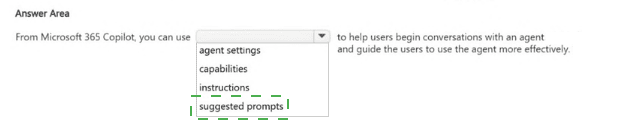
You have an open Microsoft 365 Copilot conversation. You need to chat with an agent named Agent1 during the conversation. What should you enter to call Agent1?
A. [Agent1]
B. #Agent1
C. /Agent1
D. @Agent1
Explanation:
This question tests your knowledge of prompt interaction syntax when calling specialized agents, custom copilots, or extension plugins within Microsoft 365 Copilot chat. Similar to mentioning colleagues in Microsoft Teams or Outlook, Microsoft 365 Copilot uses the "@" (at) symbol to explicitly invoke and delegate tasks to specific agents during an active chat session. Typing "@" triggers an inline autocomplete menu listing available agents, allowing you to invoke Agent1 seamlessly without leaving or resetting the current conversation thread.
✅ Correct Option:
D. @Agent1:
The "@" symbol serves as the explicit mention handle across Microsoft 365 Copilot interfaces. When entered in the prompt box, it allows users to search, select, and route queries directly to custom or declarative agents like Agent1. This directs Copilot to execute that portion of the query using Agent1's specific instructions, permissions, and knowledge scope.
❌ Incorrect options:
A. [Agent1]:
Square brackets are commonly used in prompt engineering documentation to represent generic text placeholders or user input variables. They do not trigger active agent routing or mention menus in Microsoft 365 Copilot chat.
B. #Agent1:
The hashtag symbol (#) in Microsoft 365 Copilot is reserved exclusively for referencing content context, such as referencing specific files, emails, meetings, contacts, or SharePoint pages rather than invoking agents.
C. /Agent1:
The forward slash (/) character in Copilot interfaces is used to invoke slash commands, prompt templates, or pre-configured workflow actions, rather than referencing and calling individual agents.
🔧 Reference:
→ Microsoft 365 Copilot Extensibility Documentation confirms that the @ mention handle is used to invoke and direct prompts to specific agents in chat.
You create a Microsoft 365 Copilot notebook and add a file named Process.docx from a local folder. Yesterday, you updated Process.docx in the local folder. What will occur when you chat in the notebook?
A. The chat will reference both versions of Process.docx.
B. The chat will reference the most recent version of Process.docx.
C. The chat will reference only the original version of Process.docx.
Explanation
When a local file is added to a Copilot Notebook, Copilot works with the version that was uploaded as a reference.
Updating the original file in the local folder does not automatically update the notebook's uploaded copy.
The notebook therefore continues using the original version that was added.
This is different from references linked to cloud locations that can stay synchronized with updates.
Therefore, the chat will reference only the original version of Process.docx.
🟢 Correct Option
🟢 C. the chat will reference only the original version of Process.docx. — When a local file is uploaded to a Copilot Notebook, a copy of that file is added as the notebook reference. Changes made later to the original file in the local folder do not automatically modify the uploaded reference. Consequently, Copilot continues grounding its responses on the original version stored in the notebook rather than the subsequently updated local version.
🔴 Incorrect Options
🔴 A. the chat will reference both versions of Process.docx. — Copilot does not automatically retain the updated local file as a second reference. The notebook contains the uploaded copy that was originally added. Unless the updated file is separately added or replaced as a reference, Copilot does not use both versions.
🔴 B. the chat will reference the most recent version of Process.docx. — This would apply to a reference that remains connected to an updated cloud source, but not to a local file uploaded as a copy. Updating the local file afterward does not automatically synchronize the notebook reference with that newer version.
Reference
⇒ Microsoft Support — Add references to your Microsoft Copilot Notebook — Confirms that local files are uploaded as notebook references, while linked cloud content can remain current as the source changes.
⇒ Microsoft Support — How Microsoft Copilot Notebooks works — Confirms how Copilot Notebooks uses the references added to the notebook for grounding responses.
Select the answer that correctly completes the sentence.


Explanation:
This question tests your knowledge of the output and editing capabilities within the Microsoft 365 Copilot Researcher agent. You need to identify which format allows you to save the generated report and continue editing it. The Researcher agent produces comprehensive reports that can be exported to a structured, editable format for further refinement.
✅ Correct Option:
a page
The Researcher agent in Microsoft 365 Copilot generates detailed reports that can be saved as a page. This page format allows you to edit the content, add or modify sections, and collaborate on the report. It provides a structured document experience within the Copilot ecosystem, enabling you to refine the research output before sharing or publishing.
❌ Incorrect options:
an agent
An agent is a configured assistant with specific knowledge and capabilities. You cannot save a research report as an agent. Agents are created and configured separately, not as a storage format for report responses.
a conversation
A conversation refers to the chat thread between you and Copilot. While the report exists within the conversation, saving as a conversation does not provide an editable document format. Conversations are for interaction history, not structured report editing.
a notebook
A notebook typically refers to a OneNote notebook or a code notebook like Jupyter. While notebooks can store content, the Researcher agent specifically saves reports as pages for editing and collaboration within the Microsoft 365 Copilot experience.
🔧 Reference:
Get started with Researcher agent in Microsoft Copilot — Confirms that Researcher generates reports that can be saved and edited as pages within the Copilot interface.
You are creating a custom analytics agent in the Microsoft 365 Copilot app. The agent will use Microsoft Excel files that contain sales data as knowledge. You need to ensure that the agent can create visualizations, perform mathematical operations, create aggregations, and analyze the data in the files. What should you add to the agent?
A. code interpreter
B. image generator
C. a suggested prompt
D. a template
Explanation:
This question tests understanding of the capabilities available when building a custom agent in Microsoft 365 Copilot (or Copilot Studio / Agent Builder) that must perform advanced analytics on Excel files. The required behaviors—creating visualizations, executing mathematical operations, generating aggregations, and analyzing structured data—are provided by a specific built-in capability that lets the agent write and run Python code in a secure sandbox. Other options do not enable these data-analysis features.
✅ Correct Option:
✅ A. code interpreter
Adding the code interpreter capability equips the agent to generate and execute Python code against uploaded or knowledge-source Excel files. It supports data analysis, statistical calculations, aggregations, table operations, and the creation of charts/graphs and other visualizations. Official documentation explicitly lists these exact functions for Excel and other structured files.
❌ Incorrect options:
❌ B. image generator
The image generator (or Create images capability) produces generative images from text descriptions. It does not analyze Excel data, perform calculations, create aggregations, or generate data-driven visualizations from sales files.
❌ C. a suggested prompt
A suggested prompt is only a pre-written example or starter text that appears in the chat interface. It does not add any analytical, mathematical, or visualization capabilities to the agent.
❌ D. a template
Templates provide pre-configured agent structures or starting points. They do not enable code execution, mathematical operations, aggregations, or chart generation on Excel data.
🔧 Reference:
→ Add the code interpreter capability to your agent – Confirms that code interpreter enables analysis of Excel data, mathematical operations, aggregations, and generation of visualizations (charts/graphs).
In Microsoft 365 Copilot, you save a prompt.
Which two actions can you perform for the saved prompt? Each correct answer presents a
complete solution.
NOTE: Each correct selection is worth one point.
A. Update the title of the saved prompt.
B. Share the saved prompt to a Microsoft Teams team.
C. Modify the saved prompt text.
D. Schedule the saved prompt to run daily.
E. Remove the saved prompt from the Copilot Prompt Gallery.
Explanation
This question tests what you can do with a prompt after saving it to the Copilot Prompt Gallery. Saved prompts sit in the Your prompts tab, where you can use, share, and remove them. Editing prompt text and scheduling are handled differently.
✅ B. Share the saved prompt to a Microsoft Teams team.
Copilot Prompt Gallery lets you share a saved prompt with a Microsoft Teams team. From the Your prompts tab, you hover over the prompt, select Share prompt, choose Share to team, and pick the team. Members then find it in the team prompts tab and can reuse it. This helps colleagues apply the same proven prompt without rewriting it.
✅ E. Remove the saved prompt from the Copilot Prompt Gallery.
You can remove a saved prompt from the Copilot Prompt Gallery when it is outdated or no longer needed. Microsoft documentation states that prompts in the gallery can be used, shared, and removed. Removing deletes the entry from your Your prompts list, and if the prompt must change, you can create and save a new version in its place.
❌ A. Update the title of the saved prompt.
A title can be adjusted at the moment you save the prompt, but that belongs to the save step rather than to managing the saved prompt. Microsoft's gallery guidance lists using, sharing, and removing as the actions available for saved prompts, so a title update is not the expected answer here.
❌ C. Modify the saved prompt text.
Microsoft documentation states that prompts in the gallery can be used, shared, and removed, but not edited. If the text needs to change, you remove the saved prompt and then create, save, and share a new version. Modifying the saved prompt text directly is therefore not an available action.
❌ D. Schedule the saved prompt to run daily.
Scheduling is a separate Copilot feature from saving. You schedule a prompt from Copilot Chat after it runs, using the Schedule this prompt option, which creates a recurring task. A saved prompt in the gallery runs only when you choose it, so scheduling is not an action performed on the saved prompt.
🔧 Reference
🔗 Share your best prompts with others – Microsoft Support → confirms that you can use, share, and remove prompts in Copilot Prompt Gallery but not edit them.
You have a Microsoft 365 subscription.
You do NOT have a Microsoft 365 Copilot license.
When you send a prompt in Microsoft 365 Copilot Chat, which three sources does Copilot
Chat use to respond? Each correct answer presents part of the solution.
NOTE: Each correct selection is worth one point.
A. chat data in Microsoft Teams
B. your organization's databases
C. the prompt context
D. organizational data in Microsoft 365
E. internet search data
F. the conversation history
E. internet search data
F. the conversation history
Explanation:
This question tests your knowledge of how Microsoft 365 Copilot Chat generates responses when operating without a paid Microsoft 365 Copilot add-on license. Standard Copilot Chat operates using web-grounded search capabilities. In this un-licensed mode, the model builds answers using the user's explicit prompt context (and attached files), public internet search data powered by Bing, and active conversation history. It does not have access to internal enterprise data via Microsoft Graph.
✅ Correct Option:
C. the prompt context:
Copilot Chat evaluates the immediate instructions, questions, and attached material provided directly within the prompt box to craft tailored responses.
E. internet search data:
Without a full Microsoft 365 Copilot license, Copilot Chat relies on web grounding via Bing search to supplement answers with current public web data.
F. the conversation history:
Copilot Chat references the ongoing thread's past messages to maintain continuity and context throughout the active session.
❌ Incorrect options:
A. chat data in Microsoft Teams:
Accessing internal Microsoft Teams chat logs requires full Microsoft Graph grounding, which is only available with a paid Microsoft 365 Copilot license.
B. your organization's databases:
Querying organization databases requires enterprise Graph connectors or dedicated Copilot integrations, which are unavailable in standard, web-grounded Copilot Chat.
D. organizational data in Microsoft 365:
Accessing tenant organizational data like emails, SharePoint files, and OneDrive documents requires Microsoft Graph permissions via a paid Microsoft 365 Copilot license.
🔧 Reference:
→ Microsoft 365 Copilot Documentation confirms that Copilot Chat without a license relies on web grounding, prompt inputs, and session history rather than Microsoft Graph tenant data.
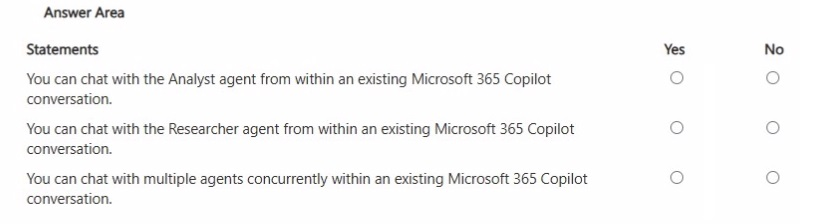
For each of the following statements, select Yes if the statement is true. Otherwise, select
No. NOTE: Each correct selection is worth one point.
Explanation:
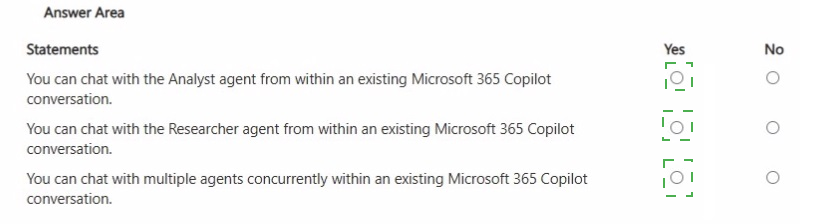
This question tests your understanding of how to access and use specialized agents within the Microsoft 365 Copilot chat experience. It focuses on the availability and interaction model for built-in agents like Analyst and Researcher, and whether the platform supports multi-agent workflows within a single conversation context.
✅ Correct Option:
Statement 1: Yes
Users can access the Analyst agent directly from the agent picker within Copilot Chat. When you are in an existing conversation, you can select or @mention the Analyst agent to invoke its capabilities without leaving the chat interface. This allows you to seamlessly transition to data analysis tasks within your current workflow .
✅ Correct Option:
Statement 2: Yes
The Researcher agent is also available within the Copilot Chat interface. You can select it from the agent list or use @Researcher to bring it into an existing conversation. This enables you to leverage its deep research capabilities to gather insights from multiple sources directly within the same thread .
✅ Correct Option:
Statement 3: Yes
Microsoft 365 Copilot supports working with multiple agents in a single conversation. You can @mention or add different agents within the same chat session to handle different parts of a task. For instance, you might use Researcher to gather information and then switch to Analyst to interpret the data, all without starting separate chats .
🔧 Reference:
Use agents in Microsoft 365 Copilot Chat — Confirms that agents like Researcher and Analyst can be accessed and used within Copilot Chat.
Explore prebuilt Microsoft Copilot agents — Provides details on how Analyst and Researcher agents function and are available for tasks.
You run a saved prompt and receive the following response: "You asked for a summary of File.docx. However, the file appears to be either empty, corrupted, or in a format that I cannot process." What is a possible cause of the response?
A. You did NOT schedule the prompt to run.
B. You ran the prompt from a web app instead of a desktop app.
C. You used the wrong agent to run the prompt.
D. You do NOT have access to the file.
Explanation:
This question examines how Microsoft 365 Copilot handles file grounding and access permissions when running a saved prompt that references a specific document. Copilot can only process content the signed-in user is authorized to view. When it cannot retrieve or open the referenced file’s contents, it returns a generic processing-failure message rather than a clear “access denied” notice. The scenario tests recognition that permission issues surface as “empty, corrupted, or unprocessable” rather than as scheduling, client-type, or agent-selection problems.
✅ Correct Option:
✅ D. You do NOT have access to the file.
Copilot respects the user’s existing Microsoft 365 permissions. If the saved prompt references File.docx and the user lacks read access (or the file is inaccessible for any permission-related reason), Copilot cannot retrieve its contents. The system then reports that the file appears empty, corrupted, or in an unsupported format. Restoring proper access allows the same prompt to succeed.
❌ Incorrect options:
❌ A. You did NOT schedule the prompt to run.
Scheduling controls when a prompt executes automatically. The error occurs while actively running the saved prompt, so the presence or absence of a schedule has no bearing on whether the referenced file can be opened or processed.
❌ B. You ran the prompt from a web app instead of a desktop app.
Both the web and desktop experiences can process supported files when the user has access. Differences between clients may affect features, but they do not produce this specific “empty, corrupted, or unprocessable” response as a systemic cause.
❌ C. You used the wrong agent to run the prompt.
Selecting a different agent may change available capabilities or grounding behavior, yet the error message specifically indicates a problem retrieving or reading the named file. An incorrect agent would typically produce a different type of failure, not this file-processing message.
🔧 Reference:
→ How data is protected and audited in Microsoft 365 and Microsoft Copilot – Confirms Copilot can only summarize or reference content that the user is authorized to access.
→ Explore data protection in Microsoft 365 Copilot – States that Copilot cannot bypass existing file permissions; if a user cannot open a document, Copilot cannot interact with it.
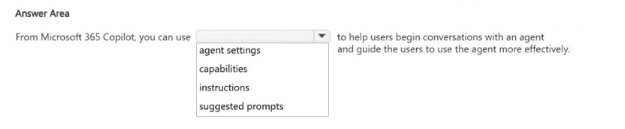
Select the answer that correctly completes the sentence.

Explanation
This question tests which agent configuration element helps users begin a conversation and learn how to use an agent well. Instructions and capabilities shape how the agent behaves, but they are not shown to users. Suggested prompts (also called starter prompts) are the visible sample requests on the agent's welcome page.
✅ Suggested prompts
Suggested prompts appear on the agent's welcome page before a chat begins. Each one shows a sample request that users can select to start the conversation right away. They help users see which scenarios the agent supports and how to phrase effective requests. This gives new users a guided starting point and improves adoption of the agent.
❌ Agent settings
Agent settings cover configuration such as the name, description, and sharing options. They control how the agent is set up and managed, not how users begin chatting with it. They do not show sample requests, so they do not guide users in using the agent more effectively.
❌ Capabilities
Capabilities define what the agent can use, such as web search, code interpreter, or image generation. They determine what the agent is able to do, but users do not see them as conversation openers. They offer no sample prompts, so they do not help users begin a conversation.
❌ Instructions
Instructions are directions to the model that define the agent's role, tone, and behavior. They work behind the scenes to shape responses and are not shown as starting points for users. Instructions guide how the agent answers, not how users start the chat, so they do not meet the requirement.
🔧 Reference
🔗 Build agents in Agent Builder – Microsoft Learn → confirms that starter prompts help users understand the scenarios an agent supports, and appear as clickable options that start the conversation.
🔗 Configure suggested prompts for Teams and Microsoft 365 – Microsoft Learn → confirms that suggested prompts appear on the agent's welcome page in Copilot Chat and let users choose a prompt to start a conversation.
You create a prompt in Microsoft 365 Copilot to help you create a draft project report. You need the prompt to be available in the Copilot Prompt Gallery. What should you do first?
A. Create a notebook.
B. Add an agent.
C. Create a page.
D. Run the prompt
Explanation:
This question tests your understanding of the user workflow for managing, saving, and publishing custom prompts in Microsoft 365 Copilot and Copilot Lab (Prompt Gallery). To make a prompt reusable and shareable within the Copilot Prompt Gallery, Microsoft 365 Copilot requires the prompt to be active in the session history. Executing the prompt validates its formatting and context against the Large Language Model (LLM). Once a prompt has been executed successfully, the Copilot interface generates additional action controls—such as the option to save, edit, bookmark, or copy a direct share link to publish the prompt into the Prompt Gallery.
✅ Correct Option:
D. Run the prompt:
Executing the prompt is the mandatory first step in Microsoft 365 Copilot. Once the prompt produces a response, hovering over the prompt box displays management options, including saving it to your personal prompt library or sharing it directly to the Copilot Prompt Gallery.
❌ Incorrect options:
A. Create a notebook:
Creating a notebook is relevant for organizing structured text in Microsoft OneNote or executing multi-step data pipelines in Microsoft Fabric. It does not interface with the prompt library or enable publishing custom prompts to the Copilot Prompt Gallery.
B. Add an agent:
Adding an agent involves extending Copilot’s functionality using custom knowledge sources and workflows built in Copilot Studio. While agents utilize system prompts, creating or adding an agent is not required to save standard user prompts in the Prompt Gallery.
C. Create a page:
Pages in Microsoft Loop or SharePoint are intended for real-time document collaboration and content synthesis. Creating a page is completely independent of managing, saving, or sharing prompt templates within the Copilot Prompt Gallery.
🔧 Reference:
→ Save and share prompts in Copilot Lab — Confirms that executing a prompt is the initial required step before saving or sharing prompt links to the gallery.
→ Get started with Copilot Lab Prompt Gallery — Details the structural workflow for finding, saving, and managing custom prompt templates across Microsoft 365 apps.
| Page 2 out of 9 Pages |