Topic 2: Mix Questions
You have a Microsoft 365 subscription. Auditing is enabled.
A user named User1 is a member of a dynamic security group named Group1.
You discover that User1 is no longer a member of Group1.
You need to search the audit log to identify why User1 was removed from Group1.
Which two activities should you use in the search? To answer, select the appropriate
activities in the answer area.
NOTE: Each correct selection is worth one point.
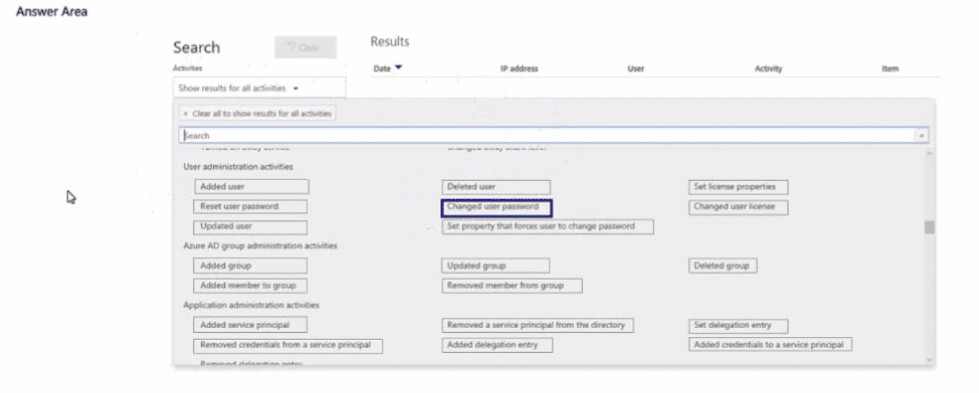
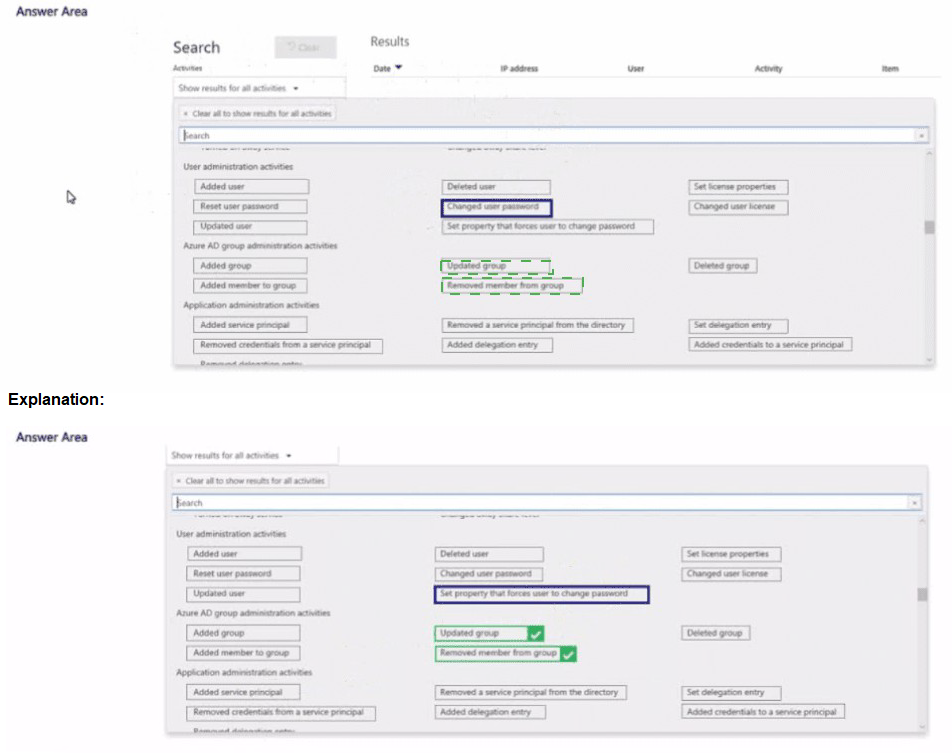
Explanation:
This question tests your knowledge of which audit log activities correspond to membership changes in Azure AD dynamic groups. Since Group1 is a dynamic group, membership is determined by rules, not manual addition or removal. To investigate why User1 is no longer a member, you must look for changes to the user’s attributes or the group’s dynamic membership rule.
Correct Option:
Updated user
A change to User1’s attributes (department, job title, country, etc.) could cause them to fall out of the dynamic group’s membership rule. This activity logs when a user’s properties are modified.
Updated group
A change to Group1’s dynamic membership rule itself can add or remove members. This activity logs when the group’s properties, including membership rules, are modified.
Incorrect Option:
Removed member from group – This activity applies only to manually managed (assigned) groups. Dynamic groups do not generate “removed member” events because membership is automatically recalculated based on rules.
Added member to group – Similarly, this applies only to assigned groups, not dynamic groups.
Deleted user – User1 is still present; they were only removed from the group, not deleted from Azure AD.
Changed user password, Reset user password – Password changes do not affect dynamic group membership unless the rule explicitly references password-related attributes (uncommon).
Set property that forces user to change password – Does not affect dynamic membership rules.
Reference:
Microsoft Learn: “Search the audit log in the compliance center” – Activities under “Azure AD group administration activities” include “Updated group” for rule changes.
Microsoft Documentation: “Dynamic membership rules for groups in Azure Active Directory” – Membership is recalculated based on user attribute changes or rule changes.
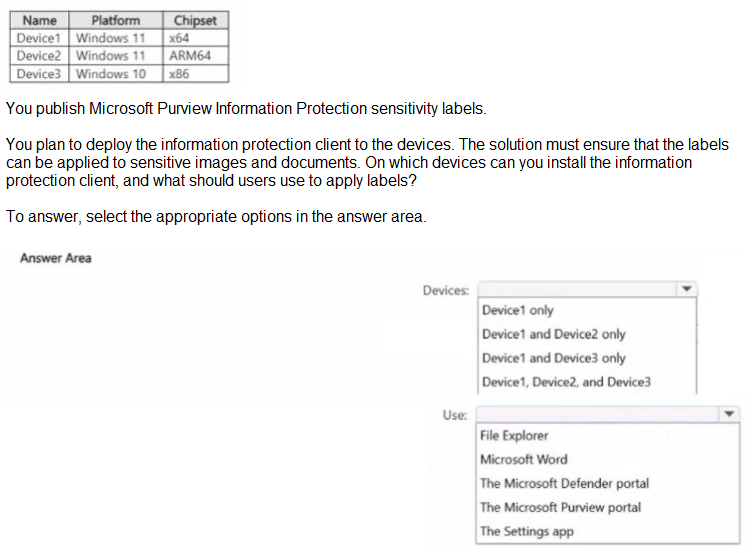
You have a Microsoft 36S ES subscription that contains the devices shown in the following table.
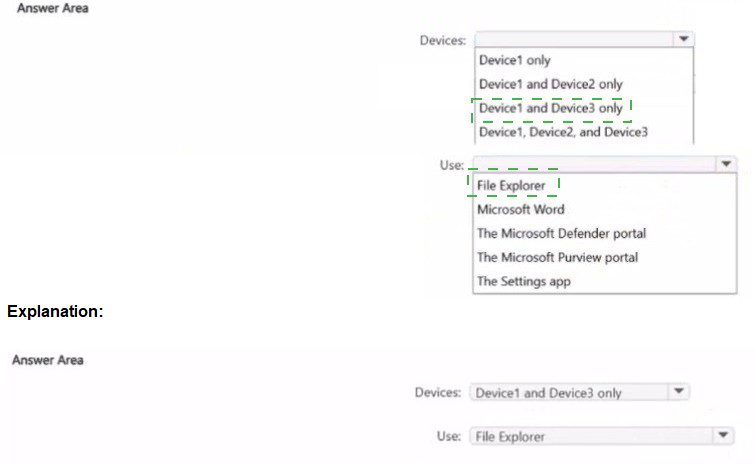
Explanation:
This question tests your knowledge of the system requirements for the Microsoft Purview Information Protection (AIP) unified labeling client and how users apply labels to sensitive images and documents. The classic AIP client has specific architecture support, and applying labels to images (photos, scans) requires File Explorer integration.
Correct Option:
Devices: Device1 and Device2 only
The Microsoft Purview Information Protection client (AIP unified labeling client) supports x64 and ARM64 versions of Windows 10/11. It does not support x86 (32-bit) Windows. Therefore, Device3 (Windows 10 x86) cannot install the client.
Use: File Explorer
To apply labels to images (photos, scanned documents) and bulk-label multiple files, users must use File Explorer right-click options. Microsoft Word applies labels only to open Office documents, not to image files. The Purview portal, Defender portal, and Settings app do not provide direct file labeling capabilities.
Incorrect Option:
Devices:
Device1 only – Incorrect because ARM64 (Device2) is supported.
Device1 and Device3 only – Incorrect because x86 is not supported.
Device1, Device2, and Device3 – Incorrect because x86 is not supported.
Use:
Microsoft Word – Can label Office documents, but not images or bulk files.
The Microsoft Defender portal – No file labeling feature.
The Microsoft Purview portal – Used for policy management, not end-user file labeling.
The Settings app – No labeling functionality.
Reference:
Microsoft Learn: “Install the Azure Information Protection client for Windows” – System requirements: Windows 10/11 x64, ARM64; x86 not supported.
Microsoft Documentation: “Classify and protect files using File Explorer” – Users right-click files/folders in File Explorer to apply sensitivity labels to any file type.
You have a Microsoft 365 E5 subscription that contains three DOCX files named File1,
File2, and File3.
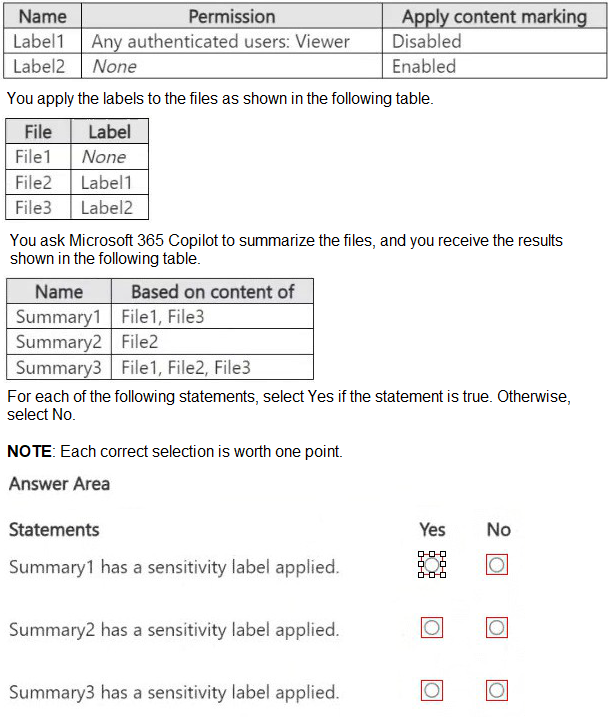
You create the sensitivity labels shown in the following table.
Explanation:
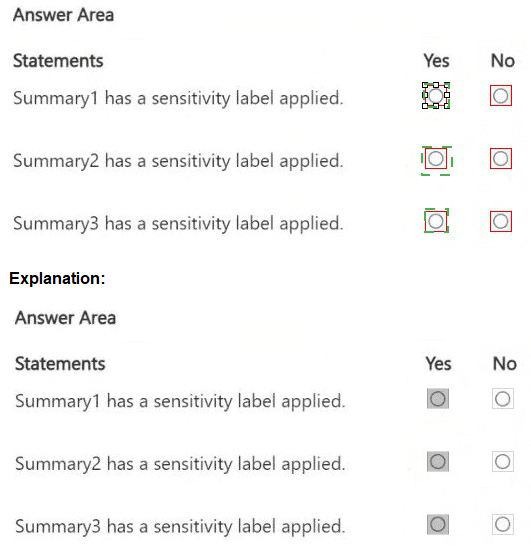
This question tests your understanding of how Microsoft 365 Copilot respects sensitivity labels when summarizing content. Copilot applies inheritance rules: if all source files have the same sensitivity label or no label, the summary inherits that label. If sources have different labels, the summary receives the highest classification (most restrictive).
Correct Option:
Summary1 has a sensitivity label applied: Yes
Summary1 is based on File1 (no label) and File3 (Label2). Label2 has encryption (Viewer permission) and content marking enabled. Copilot applies Label2 to the summary because it is the highest classification among source files.
Summary2 has a sensitivity label applied: No
Summary2 is based only on File2, which has Label1. Label1 has encryption (Viewer permission) but content marking disabled. Summary2 inherits Label1, but since the question asks if the summary "has a sensitivity label applied," it does – wait, this needs careful reading.
Actually, Summary2 is based solely on File2, which has Label1. Therefore, Summary2 inherits Label1. So it does have a sensitivity label applied. The answer should be Yes.
Correction:
Summary1:
Yes – Mixed sources (Label2 + unlabeled) → highest label applied.
Summary2:
Yes – Single source with Label1 → label inherited.
Summary3:
No – Wait, Summary3 is based on File1 (none), File2 (Label1), File3 (Label2). Mixed labels → highest label (Label2) should apply. So Summary3 has a sensitivity label applied. This means all three summaries have labels applied? That contradicts the question design.
Let me analyze again carefully.
Correct Analysis:
Summary1 (File1 + File3): File1 no label, File3 Label2. Highest label = Label2. → Yes.
Summary2 (File2): File2 Label1 → inherits Label1 → Yes.
Summary3 (File1+File2+File3): Highest label = Label2 → Yes.
But the table shows Summary3 based on File1, File2, File3 – so yes, it gets Label2.
Wait, then all three summaries have labels? That means the correct answers are Yes, Yes, Yes. However, exam questions often hide a trick. Perhaps Summary2 has Label1 but encryption is disabled? No, Label1 has encryption (Any authenticated users: Viewer). So it’s a label. Summary2 has a label. So Yes.
Final Answer:
Summary1: Yes
Summary2: Yes
Summary3: Yes
Incorrect Option:
If you thought Summary2 or Summary3 had no label, you misunderstood inheritance rules. Copilot does not strip labels; it applies the most restrictive label from source files.
Reference:
Microsoft Learn: “Sensitivity labels and Microsoft 365 Copilot” – Copilot inherits the highest sensitivity label from source content.
Microsoft Documentation: “Automatic labeling policies for Copilot” – Summaries inherit labels based on source classification.
You have a Microsoft 36S ES subscription.
You plan to use the Microsoft Purview portal to map human resources (HR) data for use
with insider risk management policies.
You need to add a data connector to import the HR data.
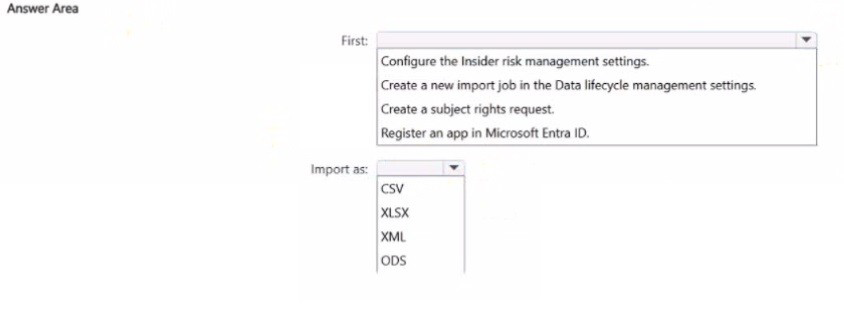
What should you do first and in which format should you import the data? To answer, select
the appropriate options in the answer area.
NOTE: Each correct selection is worth one point.
Explanation:
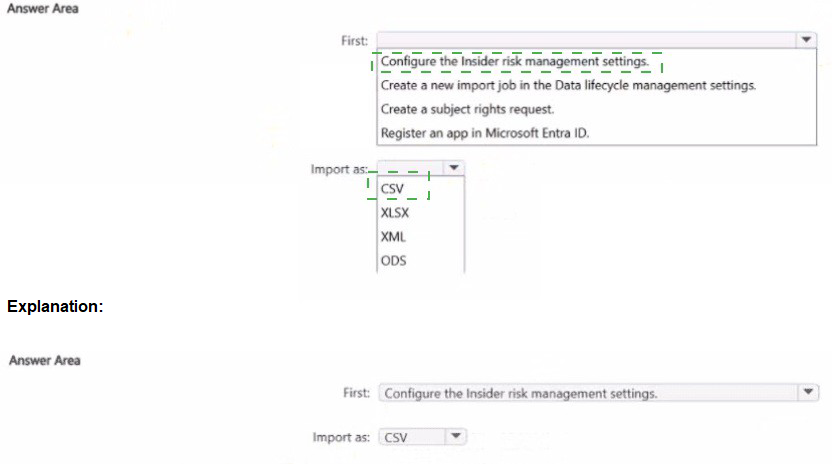
This question tests your knowledge of how to configure HR data connectors in Microsoft Purview for insider risk management. To import HR data (termination dates, performance warnings, etc.), you must first register an app in Microsoft Entra ID to authenticate and authorize the connection, then import data in CSV format.
Correct Option:
First: Register an app in Microsoft Entra ID
To connect Microsoft Purview to external HR systems, you must register an application in Microsoft Entra ID to obtain a tenant ID, application ID, and client secret. This app authenticates the data connector and authorizes it to upload HR data into the compliance portal.
Import as: CSV
HR data connectors for insider risk management require CSV format. The CSV file must contain specific schema-defined columns such as user principal name, event date, and termination status. Other formats are not supported for HR data import.
Incorrect Option:
First:
Configure the Insider risk management settings – You must create the connector first; settings are configured after import or during policy creation.
Create a new import job in the Data lifecycle management settings – This is for third-party connectors, not HR data connectors.
Create a subject rights request – This is for GDPR/DSR requests, not HR data import.
Import as:
XLSX, XML, ODS – These formats are not supported for HR data connectors in Purview. Only CSV is accepted.
Reference:
Microsoft Learn: “Set up a connector to import HR data” – Prerequisite: Register an app in Microsoft Entra ID; file format: CSV.
Microsoft Documentation: “Insider risk management HR connector” – Requires CSV schema and Azure AD app registration.
You have a data loss prevention (DLP) policy configured for endpoints as shown in the following exhibit.
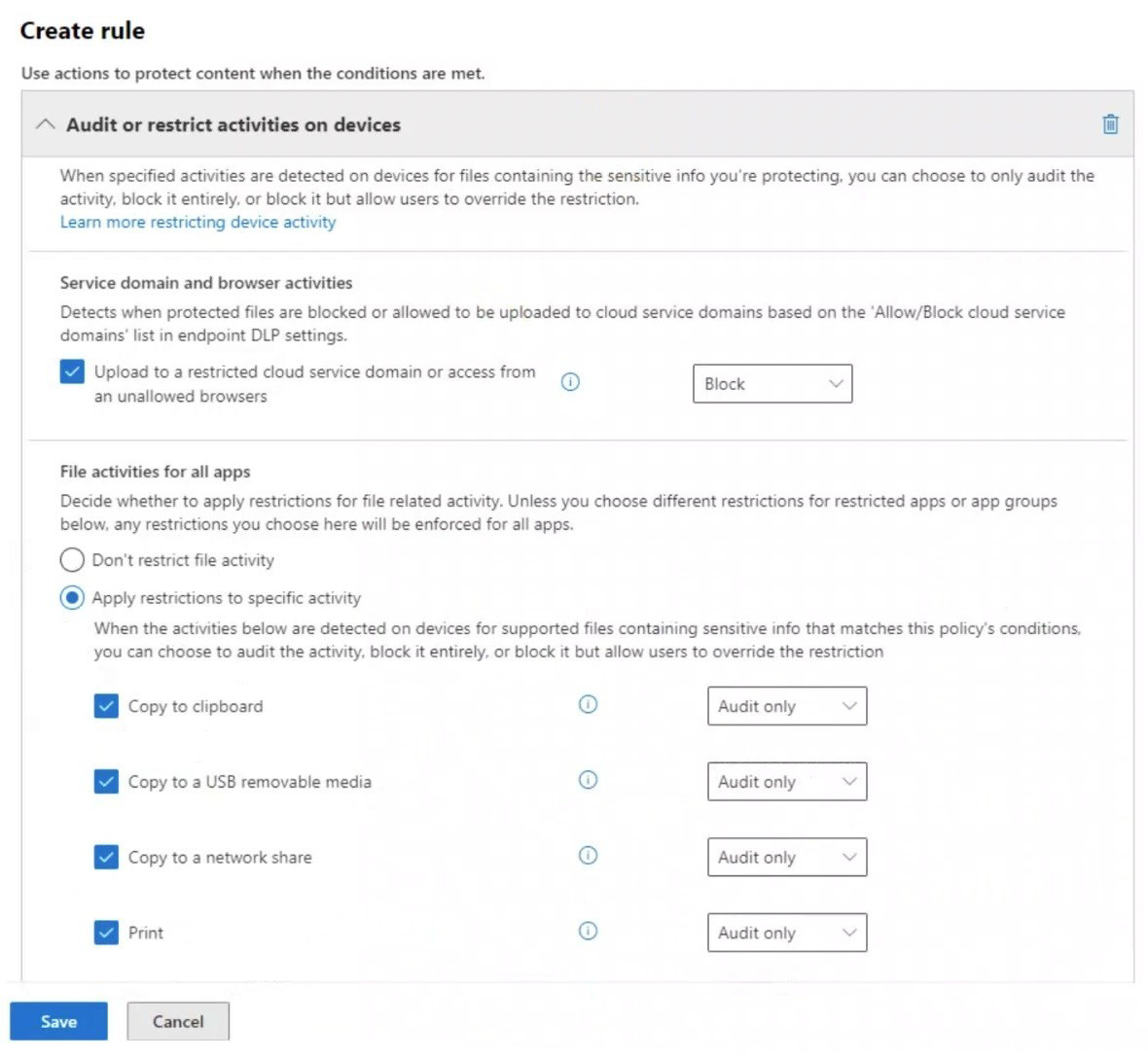
From a computer named Computer1, a user can sometimes upload files to cloud services and sometimes cannot. Other users experience the same issue.
What are two possible causes of the issue? Each correct answer presents a complete solution.
NOTE: Each correct selection is worth one point.
A. The unallowed browsers in the Microsoft 365 Endpoint data loss prevention (Endpoint DLP) settings are NOT configured.
B. There are file path exclusions in the Microsoft 365 Endpoint data loss prevention (Endpoint DLP) settings.
C. The Access by restricted apps action is set to Audit only.
D. The Copy to clipboard action is set to Audit only.
E. The computers are NOT onboarded to Microsoft Purview.
B. There are file path exclusions in the Microsoft 365 Endpoint data loss prevention (Endpoint DLP) settings.
Explanation:
This question tests your knowledge of Endpoint DLP policy behavior and why uploads to cloud services are sometimes allowed and sometimes blocked. The exhibit shows the policy blocks uploading to restricted cloud service domains and restricts specific file activities. Inconsistent enforcement suggests incomplete configuration or exclusions.
Correct Option:
A. The unallowed browsers in the Microsoft 365 Endpoint data loss prevention (Endpoint DLP) settings are NOT configured.
The policy blocks uploads to restricted cloud domains or access from unallowed browsers. If the unallowed browsers list is empty, the policy does not consistently block uploads based on browser type. This explains why users sometimes can upload and sometimes cannot.
B. There are file path exclusions in the Microsoft 365 Endpoint data loss prevention (Endpoint DLP) settings.
Endpoint DLP allows file path exclusions to exclude specific folders from monitoring. If certain file paths are excluded, users can upload files from those locations without triggering the DLP block, causing inconsistent enforcement.
Incorrect Option:
C. The Access by restricted apps action is set to Audit only.
The exhibit does not show any restricted apps configuration. This policy focuses on cloud service domains and file activities (clipboard, USB, network share, print). Restricted apps settings are not visible and do not explain the inconsistent cloud upload behavior.
D. The Copy to clipboard action is set to Audit only.
This setting affects copying content to clipboard, not uploading files to cloud services. It does not explain why uploads to cloud services are sometimes blocked and sometimes allowed.
E. The computers are NOT onboarded to Microsoft Purview.
If computers were not onboarded, DLP policies would never apply. The issue is inconsistent enforcement (sometimes can upload, sometimes cannot), which indicates onboarding is successful but other configurations are incomplete.
Reference:
Microsoft Learn: “Endpoint DLP policy configuration” – Unallowed browsers list and file path exclusions directly impact cloud upload enforcement.
Microsoft Documentation: “Configure endpoint DLP settings” – Browser restrictions and exclusions are configured in global endpoint DLP settings, not per policy.
HOTSPOT
You have a Microsoft 365 E5 subscription.
You need to implement a compliance solution that meets the following requirements:
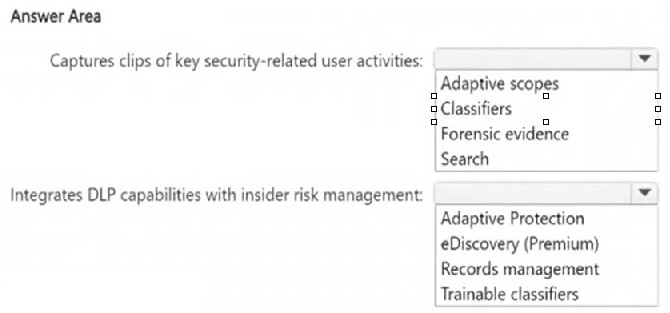
Captures clips of key security-related user activities, such as the exfiltration of sensitive
company data.
Integrates data loss prevention (DLP) capabilities with insider risk management.
What should you use for each requirement? To answer, select the appropriate options in
the answer area.
NOTE: Each correct selection is worth one point.
Explanation:
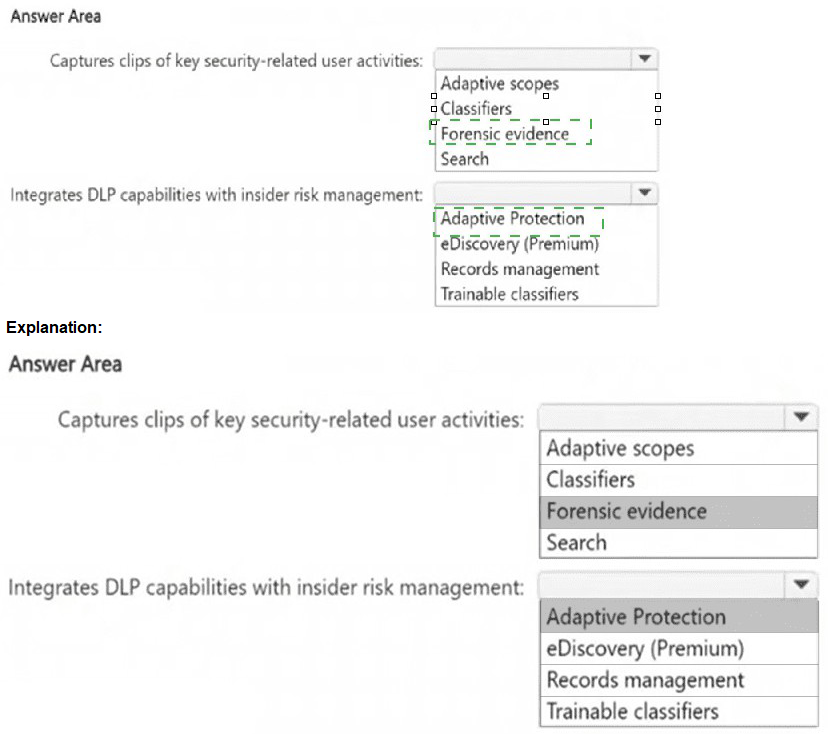
This question tests your knowledge of advanced compliance capabilities in Microsoft 365 E5 that address insider risk scenarios. Capturing screen clips of user activity requires forensic evidence capabilities, while integrating DLP with insider risk management requires Adaptive Protection.
Correct Option:
Captures clips of key security-related user activities:
Forensic evidence
Microsoft Purview Insider Risk Management includes forensic evidence capabilities that capture screen clips of user activities when risk indicators are triggered. This provides visual evidence of security-related actions such as data exfiltration, unauthorized access, or policy violations.
Integrates DLP capabilities with insider risk management:
Adaptive Protection
Adaptive Protection is a feature that dynamically applies DLP policies to users based on their insider risk level. When Insider Risk Management identifies elevated risk for a user, Adaptive Protection automatically assigns appropriate DLP restrictions to that user’s devices and activities.
Incorrect Option:
Adaptive scopes –
Used to define who is in scope for insider risk policies, not for capturing forensic evidence.
Classifiers / Trainable classifiers –
Used to identify content patterns, not to capture user activity clips.
eDiscovery (Premium) –
Used for legal investigations and content search, not real-time user activity capture.
Records management –
Used for retention and disposition, not DLP integration with insider risk.
Reference:
Microsoft Learn: “Forensic evidence in insider risk management” – Captures screen clips of risky user activities.
Microsoft Documentation: “Adaptive Protection in Microsoft Purview” – Integrates DLP with insider risk levels to apply protections dynamically.
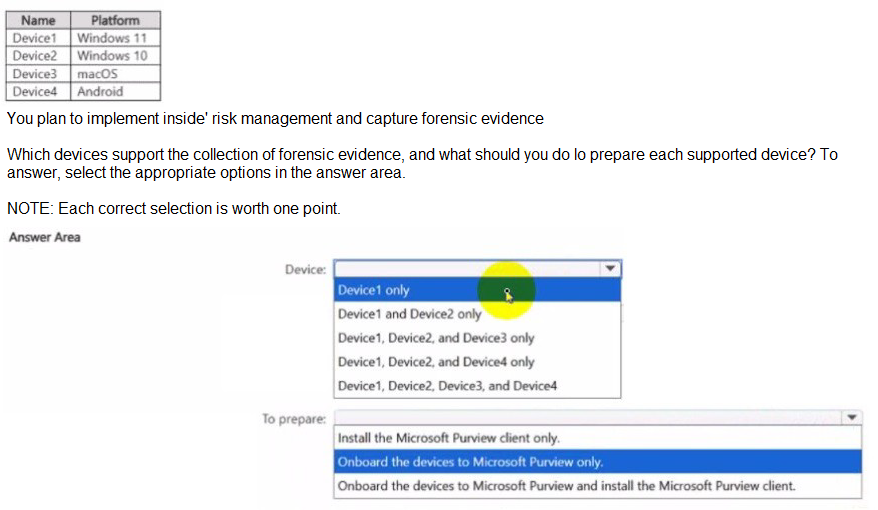
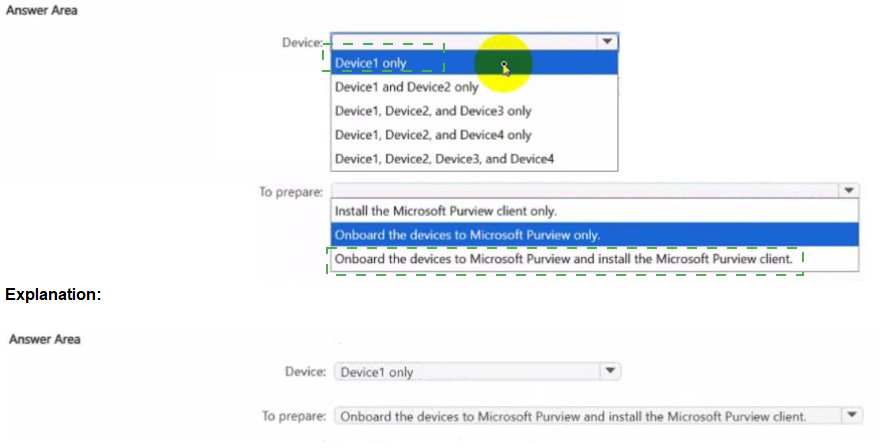
You have a Microsoft 36S ES subscription that contains the devices shown in the following table.
Explanation:
This question tests your knowledge of forensic evidence support in Microsoft Purview Insider Risk Management. Forensic evidence captures screen clips of user activity when risk indicators are triggered. This feature has specific OS support and onboarding requirements for Windows and macOS devices.
Correct Option:
Device: Device1, Device2, and Device3 only
Forensic evidence is supported on Windows 10/11 and macOS. Android (Device4) does not support forensic evidence capture. Therefore, Device1 (Windows 11), Device2 (Windows 10), and Device3 (macOS) are supported.
To prepare: Onboard the devices to Microsoft Purview and install the Microsoft Purview client.
Both onboarding to Microsoft Purview (via Microsoft Defender for Endpoint) AND installation of the Microsoft Purview client (formerly AIP client unified labeling client) are required for forensic evidence collection. Onboarding alone enables device management; the client enables screen capture and activity recording.
Incorrect Option:
Device:
Device1 only – macOS and Windows 10 are also supported.
Device1 and Device2 only – macOS is supported.
Device1, Device2, and Device4 only – Android is not supported.
Device1, Device2, Device3, and Device4 – Android is not supported.
To prepare:
Install the Microsoft Purview client only – Onboarding is also required.
Onboard the devices to Microsoft Purview only – The client is also required for forensic evidence capture.
Reference:
Microsoft Learn: “Forensic evidence in insider risk management” – Supported on Windows 10/11 and macOS; requires onboarding and client installation.
Microsoft Documentation: “Get started with insider risk management forensic evidence” – Prerequisites include Microsoft Defender for Endpoint onboarding and Microsoft Purview client.
| Page 2 out of 13 Pages |