Topic 3: Misc. Questions
You have a Microsoft 365 subscription that uses Microsoft Defender for Endpoint Plan 2
and contains a Windows device named Device 1. You initiate a live response session on
Device1 and launch an executable file named File1.exe in the background. You need to
perform the following actions:
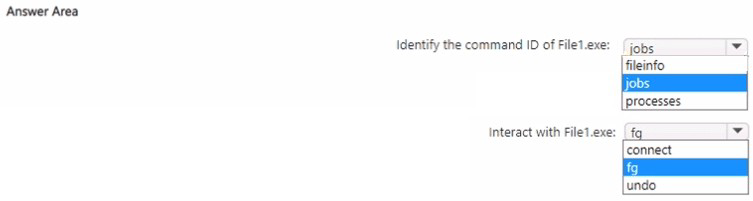
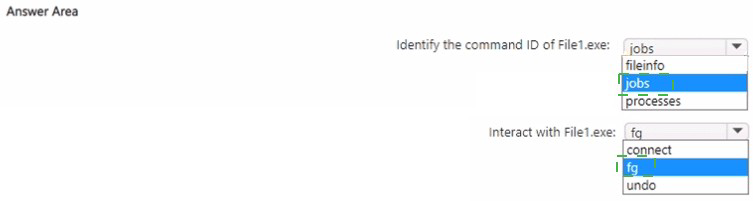
• Identify the command ID of File1 exe.
• lnteractwithFile1.exe.
Which live response command should you run for each action? To answer, select the
appropriate options in the answer area.
NOTE Each correct selection is worth one point
Explanation:
Why jobs is correct for identifying the command ID
When you launch an executable in the background using the & symbol (e.g., File1.exe &), the live response session assigns a unique command ID to that running process. The jobs command lists all background processes currently running in the session along with their assigned command IDs. This allows you to identify the specific ID associated with File1.exe before interacting with it.
Example workflow:
text
# Launch in background
File1.exe &
# View background jobs with their IDs
jobs
The fg (foreground) command brings a background process to the foreground, allowing you to interact with it directly. Once you have identified the command ID using jobs, you can use fg
Example:
text
fg 1 (where 1 is the command ID of File1.exe)
Why other options are incorrect
fileinfo
This command retrieves metadata about a file (e.g., size, hash, signing information). It does not display running background processes or their command IDs.
processes
This command lists all running processes on the device with their PIDs, but does not show the live response session's background command IDs. It is for device-level process enumeration, not session job tracking.
connect
This command is not a valid live response command. The correct command to initiate a live response session is connect only at the start of the session.
undo
This command reverts changes made during the live response session (e.g., registry modifications). It has no role in interacting with a background process.
References
Microsoft Learn: "Live response command examples" – Confirms jobs lists background processes and fg brings a background job to the foreground
Microsoft Tech Community: "Live Response commands" – Demonstrates using & to run executables in background, jobs to find IDs, and fg to foreground them
You have a Microsoft 365 E5 subscription. You need to search the Microsoft Purview audit log by using PowerShell on a Windows device. What should you do first?
A. Modify the TrustedHosts list
B. Install the Microsoft Exchange Online PowerShell module.
C. Install the Microsoft Graph PowerShell module.
D. Enable PowerShell remoting.
Explanation:
✅ Why B is correct
To search the Microsoft Purview audit log using PowerShell, you must first install the Exchange Online PowerShell module (ExchangeOnlineManagement). This module contains the Search-UnifiedAuditLog cmdlet, which is the specific command used to programmatically retrieve audit records from the unified audit log .
Microsoft's official documentation explicitly states: "When you need to manually retrieve auditing data for a specific investigation... using the Search-UnifiedAuditLog cmdlet might be the best option" . The step-by-step process requires installing the module first, then connecting to Exchange Online using Connect-ExchangeOnline before running audit log searches .
❌ Why other options are incorrect
A. Modify the TrustedHosts list
TrustedHosts configuration is used for PowerShell remoting between computers (e.g., WinRM connections). It is not required for connecting to Microsoft 365 services via the Exchange Online PowerShell module.
C. Install the Microsoft Graph PowerShell module
The Microsoft Graph module (Microsoft.Graph) is used for managing Microsoft Entra ID and other Graph API resources. It does not contain the Search-UnifiedAuditLog cmdlet, which is specific to Exchange Online. Audit log searches require the Exchange Online module .
D. Enable PowerShell remoting
PowerShell remoting (Enable-PSRemoting) is for managing remote Windows computers. Connecting to Microsoft 365 services uses modern authentication APIs, not traditional PowerShell remoting.
📌 References
Microsoft Learn: "Use a PowerShell script to search the audit log" – Confirms prerequisite: "First, connect to Exchange Online PowerShell" using the Exchange Online module
Microsoft Learn: "Investigate shared mailbox activities using audit logs" – Shows Connect-ExchangeOnline before using Search-UnifiedAuditLog
You have a Microsoft Sentinel workspace named sws1.
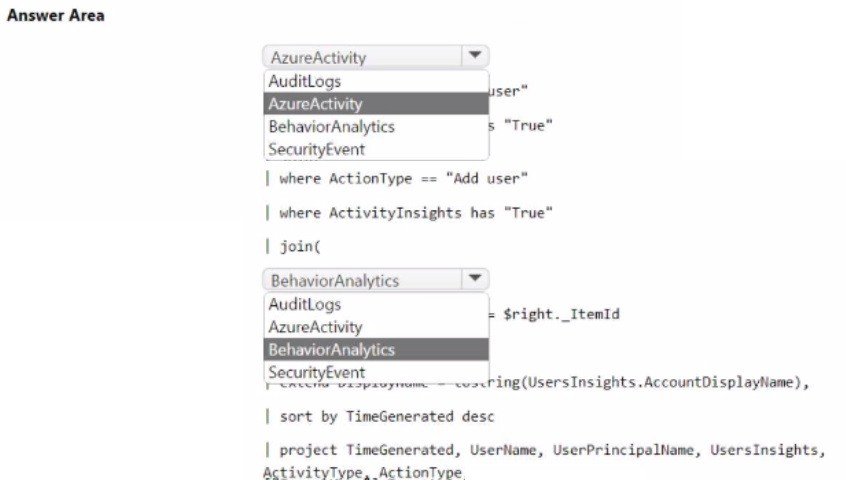
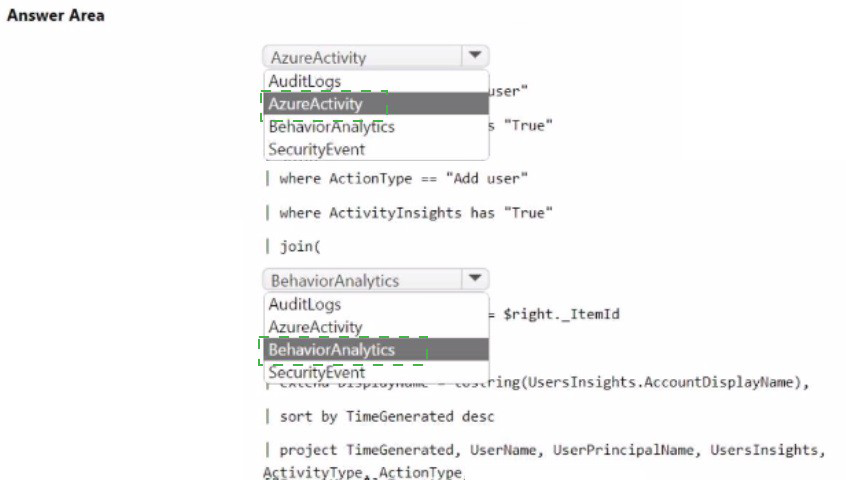
You need to create a query that will detect when a user creates an unusually large
numbers of Azure AD user accounts.
How should you complete the query? To answer, select the appropriate options in the
answer area.
NOTE: Each correct selection is worth one point.
Technical Analysis:
This query follows the standard pattern for User and Entity Behavior Analytics (UEBA) or custom anomaly detection in KQL:
Filtering by Operation: To detect user creation, you must filter the AuditLogs for the specific OperationName of "Add user". This narrows the dataset to the relevant administrative actions.
Creating a Time Series: The make-series operator is essential for anomaly detection. It takes the count of events and plots them over a period (e.g., 14 days) categorized by the actor (InitiatedBy). This creates a "baseline" of what "normal" activity looks like for each administrator.
Decomposing Anomalies: The series_decompose_anomalies function is the "brain" of the query. It analyzes the series created in the previous step and identifies spikes that deviate significantly from the established seasonal or trend patterns. It returns a score where a positive value indicates a positive anomaly (a "burst" of account creations).
References:
Microsoft Learn:
KQL make-series operator
You have a Microsoft 365 subscription that uses Microsoft Defender XDR. All endpoint
devices are onboarded to Microsoft Defender for Endpoint.
You have an Azure subscription that contains a Microsoft Sentinel workspace named
Workspace 1. All Microsoft Defender XDR events are ingested into Workspace1.
You have a Microsoft Entra tenant.
You create a KQL query named query1 that searches device logs for a known vulnerability.
You need to ensure that query1 runs every hour. The solution must minimize administrative
effort.
What should you configure?
A. an automation rule
B. automated investigation and response (AIR)
C. a watchlist
D. a custom detection rule
Explanation:
✅ Why D is correct
To run a KQL query every hour, you need to create a scheduled analytics rule (a type of custom detection rule) in Microsoft Sentinel. Scheduled query rules are specifically designed to run KQL queries at defined intervals and generate alerts based on the results.
Key configuration settings for scheduled rules:
Run query every: Set to 1 hour (can be as frequent as every 5 minutes or as infrequent as once every 14 days)
Lookup data from the last: Determines the time period of data covered by the query (maximum 14 days)
Alert threshold: Defines sensitivity (e.g., generate alert when query returns more than X results)
The rule wizard in Microsoft Sentinel's Analytics blade allows you to write the KQL query, configure scheduling, map entities for enrichment, and set automated responses. This approach minimizes administrative effort because once configured, the rule runs automatically without manual intervention.
❌ Why other options are incorrect
A. an automation rule
Automation rules are for responding to incidents or alerts (e.g., assigning a playbook or changing severity). They do not run queries or detect threats—they trigger after an alert has already been generated.
B. automated investigation and response (AIR)
AIR is used for remediation actions after an alert, such as isolating a device or blocking a file. It does not execute scheduled KQL queries.
C. a watchlist
Watchlists store reference data (e.g., IP allowlists, terminated employee lists) for lookups and joins within queries. They cannot be scheduled to run independently—they are used within a query but do not execute it.
📌 References
Microsoft Learn:"Create custom analytics rules to detect threats" – Describes scheduled query rules with configurable intervals
Microsoft Sentinel Rule Types: Scheduled rules run KQL queries at defined intervals (e.g., hourly)
You have an Azure subscription that uses Microsoft Defender for Servers Plan 1 and contains a server named Server1. You enable agentless scanning. You need to prevent Server1 from being scanned. The solution must minimize administrative effort. What should you do?
A. Create an exclusion tag.
B. Upgrade the subscription to Defender for Servers Plan 2.
C. Create a governance rule.
D. Create an exclusion group.
Explanation:
✅ Why A is correct
Microsoft Defender for Cloud uses Azure resource tags as the native mechanism to exclude specific machines from agentless scanning . Once you assign a tag (e.g., Scan=Exclude) to a virtual machine, you configure the agentless scanning settings at the subscription level to recognize that tag and skip the associated machine during continuous discovery .
The configuration process is straightforward:
Navigate to Environment settings in Defender for Cloud
Select the subscription containing Server1
Open Settings under Defender for Servers Plan 2
Select Edit configuration in the Agentless scanning row
Enter the tag name and value (e.g., ExcludeFromScanning = True)
Save the configuration
This approach minimizes administrative effort because you only configure the exclusion once at the subscription level, and any machine bearing the specified tag is automatically excluded from all future scans.
❌ Why other options are incorrect
B. Upgrade the subscription to Defender for Servers Plan 2
Agentless scanning is already enabled on Plan 2, and upgrading does nothing to exclude Server1. The question states agentless scanning is already enabled, so this action is irrelevant to the exclusion requirement.
C. Create a governance rule
Governance rules are used for policy enforcement and compliance tracking, not for excluding specific resources from scanning features. They cannot prevent agentless scanning from targeting a particular VM.
D. Create an exclusion group
No such feature exists in Defender for Cloud for agentless scanning exclusions. Tagging is the documented method for resource-level exclusions.
📌 References
Microsoft Learn: Exclude machines from agentless scanning – "You can exclude machines using preexisting environment tags"
Microsoft Q&A: Confirms assigning a tag and configuring it in agentless scanning settings excludes the VM
You have an on-premises network. You have a Microsoft 365 E5 subscription that uses Microsoft Defender for Identity. From the Microsoft Defender portal, you investigate an incident on a device named Device1 of a user named User1. The incident contains the following Defender for Identity alert. Suspected identity theft (pass-the-ticket) (external ID 2018) You need to contain the incident without affecting users and devices. The solution must minimize administrative effort. What should you do?
A. Disable User 1 only.
B. Quarantine Device1 only.
C. Reset the password for all the accounts that previously signed in to Device1.
D. DisableUser1 and quarantine Device1.
E. Disable User1, quarantine Device1, and reset the password for all the accounts that previously signed in to Device1.
Explanation:
The "Suspected identity theft (pass-the-ticket)" alert indicates that a Kerberos ticket belonging to User1 may have been stolen and reused from Device1. Since the attacker has compromised User1's credentials, disabling the user account immediately cuts off the attacker's ability to use that stolen ticket for lateral movement or access resources. This is a targeted, surgical action that stops the identity-based attack without affecting other users or devices.
✅ Why A is correct and meets all requirements
Disables the compromised identity: The attacker is using User1's Kerberos ticket to move laterally. Disabling the account invalidates the ticket and blocks further malicious activity.
Minimizes impact on operations: Only User1 is affected. Other users and devices continue to operate normally.
Minimizes administrative effort: This is a single action performed directly in the Microsoft Defender portal without requiring additional tools or complex configuration.
❌ Why other options are incorrect
B. Quarantine Device1 only.
Quarantining Device1 does not stop the attacker from using User1's stolen ticket on other devices. The attacker can continue lateral movement from a different machine.
C. Reset the password for all the accounts that previously signed in to Device1.
This action is excessive, affects many users unnecessarily, and requires significant administrative effort. The alert specifically targets User1's identity, not all accounts that used Device1.
D. Disable User1 and quarantine Device1.
While this combination would be effective, it fails to minimize administrative effort (two actions instead of one). Disabling User1 alone is sufficient because the stolen ticket is tied to the identity, not the device.
E. Disable User1, quarantine Device1, and reset passwords for all accounts that used Device1.
This is overkill and violates both the "minimize administrative effort" and "without affecting users and devices" requirements. Resetting passwords for all accounts is excessive and affects many users.
📌 References
Microsoft Learn: Suspicion d'usurpation d'identité (pass-the-ticket) – External ID 2018, Medium/High severity, Lateral movement tactic
Microsoft Learn: Microsoft Defender for Identity overview – Respond to identity-based attacks by disabling compromised accounts
Net at Work: Pass-the-Ticket Incidents – Security Vorfall eindämmen – Recommended containment measures include disabling the user account
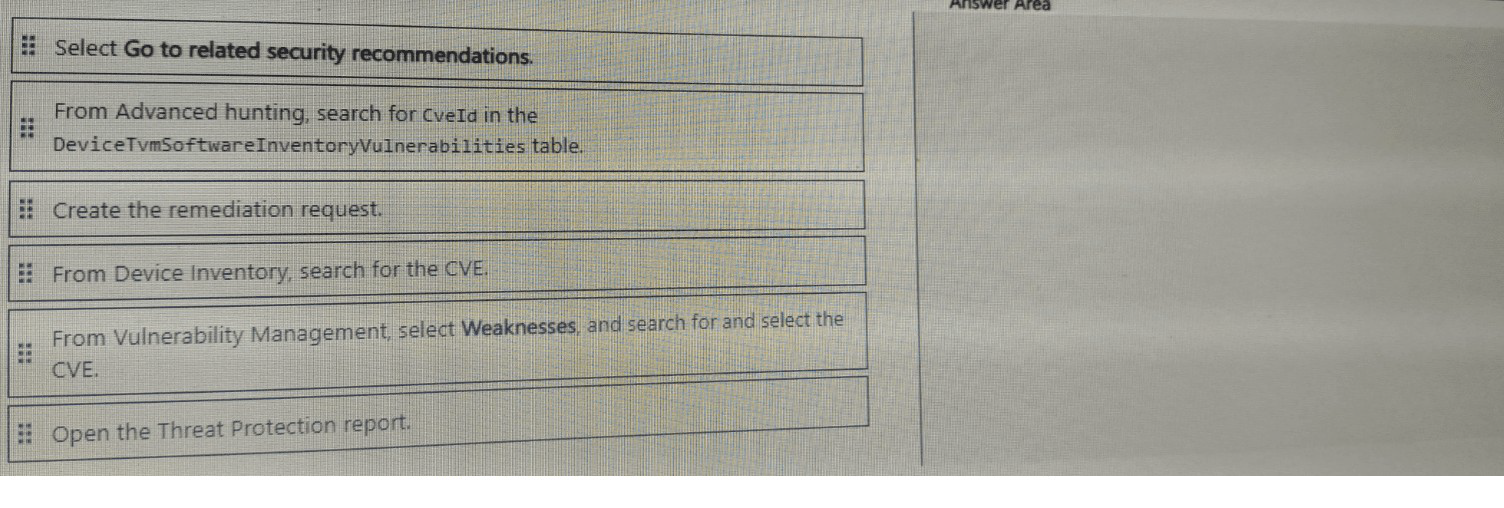
You are informed of a new common vulnerabilities and exposures (CVE) vulnerability that
affects your environment.
You need to use the Microsoft Defender portal to request remediation from the team
responsible for the affected systems if there is
a documented active exploit available.
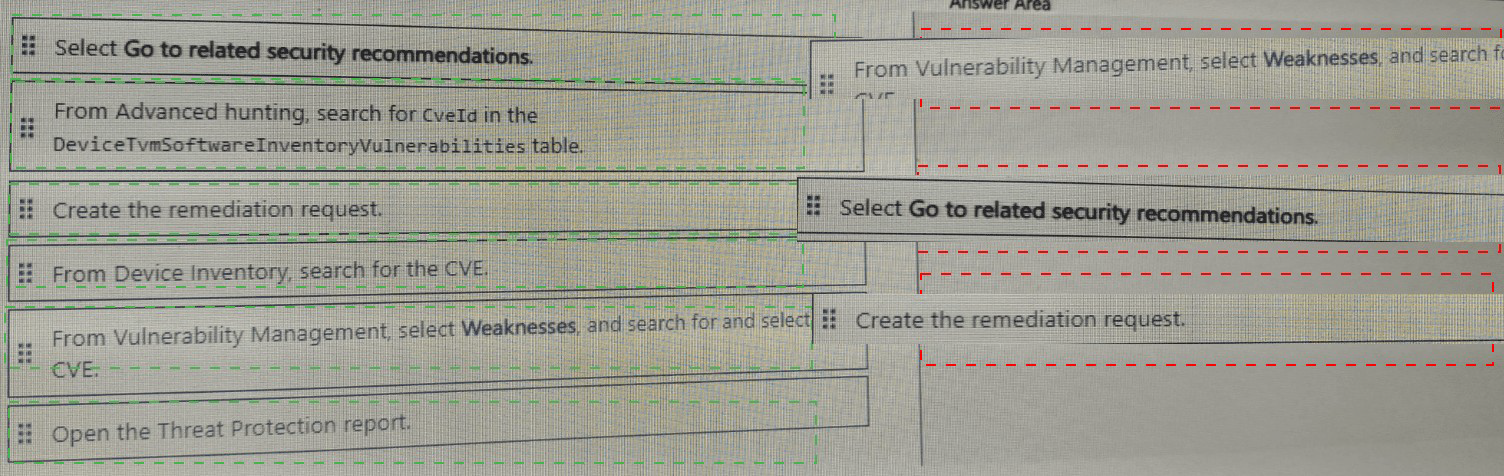
Which three actions should you perform in sequence? To answer, move the appropriate
actions from the list of actions to the answer area and arrange them in the correct order.
Explanation:
This workflow leverages the Defender Vulnerability Management dashboard to transition from identifying a threat to initiating a cross-team response (typically via Microsoft Intune).
Step 1: Navigate to Weaknesses: The "Weaknesses" page is the central repository for all identified CVEs affecting your environment. Unlike the "Recommendations" page, which focuses on configuration fixes, the Weaknesses page allows you to search for specific vulnerability identifiers.
Step 2: Filter and Verify Exploit:
By filtering for the specific CVE ID, you can drill down into the vulnerability's details. The requirement specifies checking for an active exploit; in the Defender portal, this is indicated by a "red bug" icon or an associated "Active Alert" badge within the CVE details. This verification ensures you are prioritizing the most critical risks.
Step 3: Request Remediation:
Once the CVE is selected, clicking Request remediation opens a flyout pane. This allows you to set a priority level, specify a due date, and sync the request as a security task to Microsoft Intune (Endpoint Manager), where the IT team responsible for patching can manage and resolve the ticket.
References:
Microsoft Learn:
Vulnerabilities in my organization (Weaknesses)
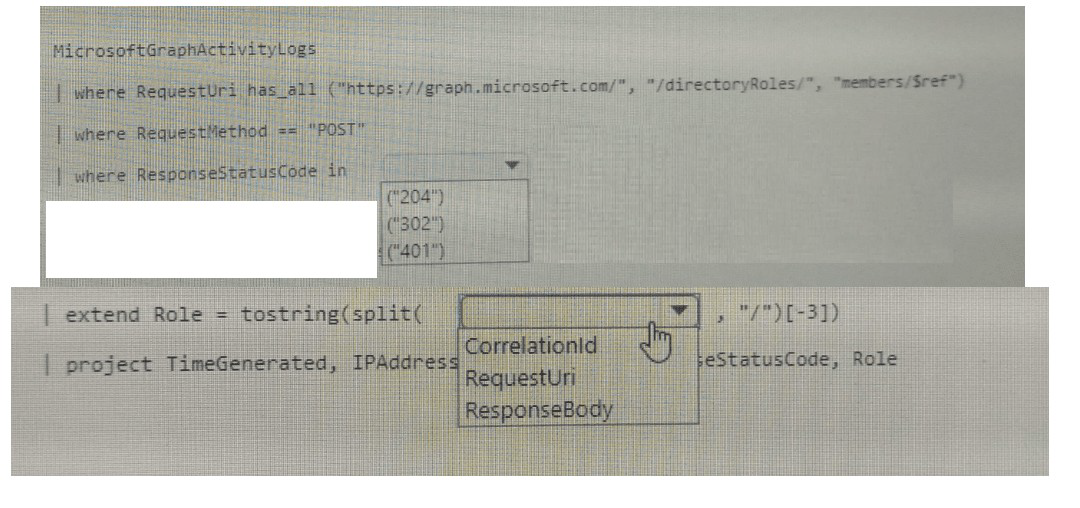
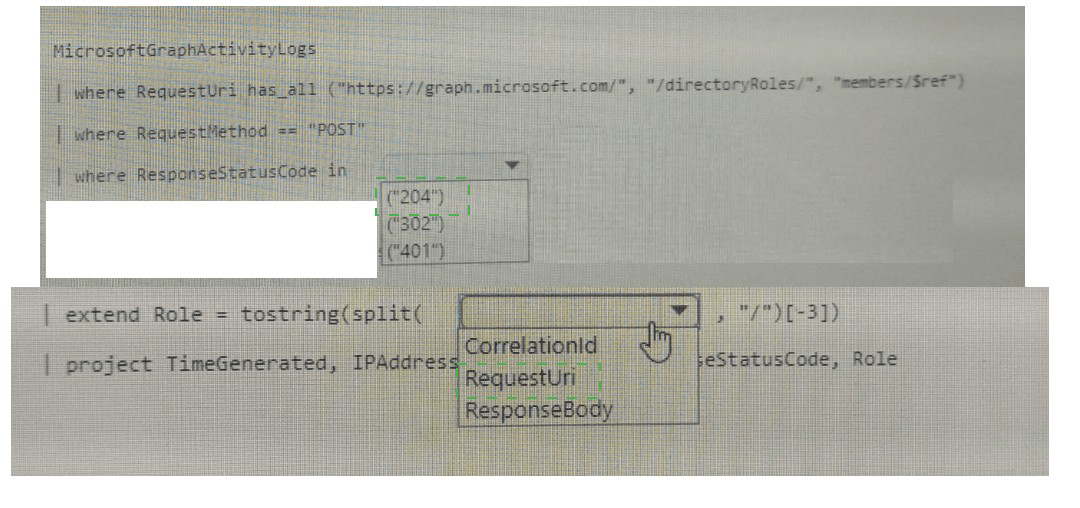
You need to query Microsoft Graph activity logs to identify changes to the roles in
contoso.com.
How should you complete the KQL query? To answer, select the appropriate options in the
answer area.
NOTE: Each correct selection is worth one point.
Explanation
This query structure targets the specific logs generated when applications or administrators interact with the Microsoft Graph API to modify directory roles.
MicrosoftGraphActivityLogs (Table):
Why: This is the dedicated table in Log Analytics that captures telemetry for every HTTP request made to the Microsoft Graph API. Since modern role management in contoso.com (Microsoft Entra) is handled via Graph, this is the correct source for auditing these specific API calls.
Filtering by RequestUri:
Why: The Microsoft Graph API uses predictable URL paths to manage resources. Directory role changes are performed via the roleManagement endpoint, and the specific actions (adding or removing a user from a role) are performed against the roleAssignments resource.
Logic: By filtering for has "roleAssignments", the query will surface activities such as POST (assigning a role) or DELETE (removing a role) actions within the tenant.
References
Microsoft Learn:
List roleAssignments - Microsoft Graph v1.0
Microsoft Learn:
Analyze Microsoft Graph activity logs
You have an Azure subscription named Sub1 that uses Microsoft Defender for Cloud. You need to assign the PCI DSS 4.0 initiative to Sub1 and have the initiative displayed in the Defender for Cloud Regulatory compliance dashboard. From Security policies in the Environment settings, you discover that the option to add more industry and regulatory standards is unavailable. What should you do first?
A. Enable the Cloud Security Posture Management (CSPM) plan for the subscription.
B. Disable the Microsoft Cloud Security Benchmark (MCSB) assignment.
C. Configure the Continuous export settings for Azure Event Hubs.
D. Configure the Continuous export settings for Log Analytics.
Explanation:
✅ Why A is correct
To add industry and regulatory standards like PCI DSS 4.0 to the Defender for Cloud Regulatory compliance dashboard, you must have at least one of the enhanced Defender for Cloud plans enabled at the subscription level.
The official Microsoft documentation explicitly states the prerequisites for adding compliance standards:
"To add compliance standards, you must have at least one of the following plans enabled: Defender for Cloud CSPM, Defender for Servers Plan 2, Defender for Containers, or Defender for App Service".
Since the option to add more standards is unavailable, the first action is to enable the CSPM plan (formerly known as Defender for Cloud Security Posture Management). Once enabled, the "Add more standards" option becomes available, allowing you to assign the PCI DSS 4.0 initiative to the subscription.
❌ Why other options are incorrect
B. Disable the Microsoft Cloud Security Benchmark (MCSB) assignment
MCSB is automatically assigned by default to every subscription when Defender for Cloud is enabled. Disabling it does not unlock the ability to add other standards. Additionally, MCSB is foundational and should remain enabled for security posture management.
C. Configure Continuous export settings for Azure Event Hubs
Continuous export is for sending security data and recommendations to external systems for archiving or SIEM integration. It has no impact on regulatory compliance dashboard functionality or the ability to assign compliance standards.
D. Configure Continuous export settings for Log Analytics
Similar to Event Hubs, continuous export to Log Analytics is for data export and analysis purposes. It does not enable or unlock regulatory compliance standard assignments.
displays standards for which relevant resources exist and assessments can be performed.
📌 References
Microsoft Learn: Assign regulatory compliance standards in Microsoft Defender for Cloud – Confirms prerequisite of having Defender for Cloud plans enabled
Microsoft Q&A: PCI DSS 4.0 availability and prerequisites – Confirms PCI DSS v4 is available and steps to add
You have an Azure subscription that uses resource type for Cloud. You need to filter the
security alerts view to show the following alerts:
• Unusual user accessed a key vault
• Log on from an unusual location
• Impossible travel activity
Which severity should you use?
A. Informational
B. Low
C. Medium
D. High
Explanation:
✅ Why C is correct
All three alerts listed—"Unusual user accessed a key vault," "Log on from an unusual location," and "Impossible travel activity"—are classified by Microsoft Defender for Cloud with a Medium severity level.
Microsoft's official documentation categorizes Medium severity alerts as representing suspicious activity that may indicate a resource is compromised, but where the confidence in malicious intent is moderate . These are typically machine learning or anomaly-based detections that identify behavioral deviations, such as access from unusual locations .
Specifically, Microsoft Defender for Cloud assigns a Medium severity to the "Unusual user accessed a key vault" alert (alert ID: KV_UserAnomaly) . Similarly, "Log on from an unusual location" and "Impossible travel activity" are anomaly-based detections that fall under the Medium severity classification.
❌ Why other options are incorrect
A. Informational
Informational alerts are typically low-value events that are only meaningful when combined with other alerts. These three alerts are significant enough to require investigation .
B. Low
Low severity indicates a likely benign positive or a blocked attack. Defender for Cloud has low confidence in malicious intent for Low severity alerts . These alerts represent actual anomalous behavior requiring review.
D. High
High severity indicates a confirmed threat or active exploitation with high confidence . Anomaly-based detections like unusual location access do not meet this threshold—they require investigation but are not confirmed compromises.
📌 References
Microsoft Learn: "Alerts for Azure Key Vault" – Confirms "Unusual user accessed a key vault" (KV_UserAnomaly) has Medium severity
Microsoft Learn: "Security alerts and incidents" – Explains severity classification: Medium = suspicious activity, High = confirmed compromise
| Page 13 out of 37 Pages |