Free Microsoft PL-900 Practice Test Questions MCQs

Stop wondering if you're ready. Our Microsoft PL-900 practice test is designed to identify your exact knowledge gaps. Validate your skills with Microsoft Power Platform Fundamentals questions that mirror the real exam's format and difficulty. Build a personalized study plan based on your free PL-900 exam questions mcqs performance, focusing your effort where it matters most.

Targeted practice like this helps candidates feel significantly more prepared for Microsoft Power Platform Fundamentals exam day.

2500+ already prepared
Updated On : 3-Mar-2026
50 Questions
Microsoft Power Platform Fundamentals
4.9/5.0

Page 1 out of 5 Pages

Topic 1: Understand the business value of Power Platform

You are a district manager for a large retail company. You want to provide sales managers with deeper sales insights to ensure that they can make more informed decisions for their stores.

Store managers must be able to view data in near real-time.

You need to create and share a Power Bl dashboard that can be used by the store managers.

Which tools can you use? To answer, drag the appropriate reporting types to the correct requirements. Each reporting type may be used once, more than once, or not at all. You may need to drag the split bar between panes or scroll to view content.



You are creating visuals in Power BI.

You create area charts, pie charts, and donut charts that use your company’s data.

You need to display the charts to others at the company.

Which two objects can you add the charts to? Each correct answer presents a complete solution.

NOTE: Each correct selection is worth one point.

A. Power Bl service

B. Power Bl reports

C. Power Bl desktop

D. Power Bl dashboards

B.   Power Bl reports
D.   Power Bl dashboards

Explanation
The question tests the fundamental understanding of containers in Power BI. When you create visuals like area charts or donut charts using data, they must reside within a container. In Power BI, these containers are specifically called reports and dashboards. While you use tools like Desktop to create them, the objects themselves (the charts) are technically added to reports or dashboards.

Correct Option

B. Power BI reports:
Explanation: Reports are the primary container for visuals in Power BI. They consist of one or more pages of visualizations created from datasets. When you build charts in Power BI Desktop or the Service, you are inherently adding them to a report. Reports allow for interactive exploration, filtering, and detailed analysis of data.

D. Power BI dashboards:
Explanation: Dashboards are a collection of visuals (usually pinned from reports) that provide a single-page overview of key metrics. You can add charts to a dashboard by "pinning" them from a published report. Dashboards are designed for monitoring and presenting a consolidated view of important information to stakeholders.

Incorrect Option

A. Power BI service:
Explanation: The Power BI Service is the online Software-as-a-Service (SaaS) platform where reports and dashboards are hosted and shared. It is not an object that contains charts; rather, it is the environment where the containers (reports/dashboards) live. You cannot directly "add a chart" to the Power BI Service; you add charts to reports or dashboards hosted within the service.

C. Power BI desktop:
Explanation: Power BI Desktop is a free application development tool used to connect to data, transform it, and create reports. While you do create charts in Desktop, you are technically adding them to a report within the Desktop application. The Desktop is the authoring tool, not the final container for displaying charts to others at the company.

Reference
Microsoft Learn: "Power BI reports" - (Describes reports as multi-page views of data with visuals).

Microsoft Learn: "Power BI dashboards" - (Defines dashboards as a single-page canvas for pinned visuals).

Your company has an on premises Microsoft SQL Server database that contains legacy sales data. You must display information from the database in a new Power Apps app.

You need to establish a secure connection between the database and the app.

What should you use?

A. Data source

B. App

C. Gateway

D. Flow

C.   Gateway

Explanation
The question addresses a common hybrid scenario where cloud-based apps need to access data stored on on-premises servers. Microsoft Power Apps cannot directly connect to on-premises databases due to firewall and security boundaries. A specific bridge component is required to facilitate secure data transfer between the on-premises network and the cloud without opening inbound ports to the database.

Correct Option

C. Gateway:
Explanation: An on-premises data gateway acts as a secure bridge between on-premises data sources (like SQL Server) and cloud services such as Power Apps, Power Automate, and Power BI. It securely transfers data and queries from the cloud to the on-premises source and sends the results back. The gateway encrypts credentials and data, ensuring a secure connection without requiring the database to be exposed to the internet.

Incorrect Option

A. Data source:
Explanation: A data source is simply the location of the data being accessed (e.g., SQL Server, SharePoint, Excel). While SQL Server is the data source in this scenario, it is not the tool used to establish the secure connection. You must first define the data source in Power Apps, but to connect to an on-premises version, you would select it and then associate it with a gateway.

B. App:
Explanation: The app is the final product (the canvas or model-driven application) that displays the sales data to users. It is the consumer of the data connection, not the mechanism for establishing secure connectivity to on-premises resources. The app references a connection, but the underlying secure transfer relies on the gateway.

D. Flow:
Explanation: Flow (now called Power Automate) is a separate service used for automating workflows and business processes. While Power Apps can trigger Power Automate flows to move data, it is not the component used to establish a direct, secure connection to an on-premises SQL Server database for real-time data display within the app.

Reference
Microsoft Learn: "On-premises data gateway" - (Official documentation explaining what the gateway is and how it works).

Microsoft Learn: "Manage on-premises data gateways" - (Guidance on installing and configuring gateways for Power Platform services).

You are creating Power BI reports.

You need to choose which filters you can use for reports.

Which three types of filters can you use? Each correct answer presents a complete solution.

NOTE: Each correct selection is worth one point.

A. drill-down

B. automatic

C. database

D. manual

E. external

A.   drill-down
B.   automatic
D.   manual

Explanation
Power BI provides a robust filtering system that allows report creators to control what data users see. These filters operate at different levels of the report hierarchy. Understanding the distinction between filters applied automatically by the system based on field usage, filters created manually by the report author, and interactive filters like drill-down is essential for effective report design.

Correct Option

A. drill-down:
Explanation: Drill-down is a type of interactive visual filter that allows users to explore hierarchical data. When you have a hierarchy (like Year > Quarter > Month), users can click on a bar or data point to "drill down" to the next level, effectively filtering the view to show more granular details related to their selection.

B. automatic:
Explanation: Automatic filters are created implicitly by Power BI when you add fields to the Filters pane. These filters are automatically applied to the report level, page level, or visual level based on where you add the field. For example, adding a "Region" field to the page-level filters pane automatically creates a filter that affects all visuals on that page.

D. manual:
Explanation: Manual filters refer to filters explicitly configured by report authors using the Filters pane. Authors can set specific values, ranges, or conditions for any field. These can be applied at the visual, page, report, or drillthrough level. Unlike slicers (which are visual on the canvas), manual filters reside in the Filters pane.

Incorrect Option

C. database:
Explanation: "Database filter" is not a recognized filter type within the Power BI filtering taxonomy. While data can be filtered at the source (using SQL queries or Data Transformation in Power Query), this is considered data preparation or query folding, not a report-level filter applied through the Power BI interface for end-users.

E. external:
Explanation: "External filter" is not a standard filter type in Power BI reports. Although Power BI can receive filters from external sources (like URL parameters or report bookmarks that save filter states), these are not classified as a distinct "external" filter type in the core filtering options available to report creators.

Reference
Microsoft Learn: "Filters and highlighting in Power BI reports" - (Explains automatic, manual, and drill-down filters).
Microsoft Learn: "Drill down in Power BI visuals" - (Documentation on drill-down functionality as an interactive filter method).

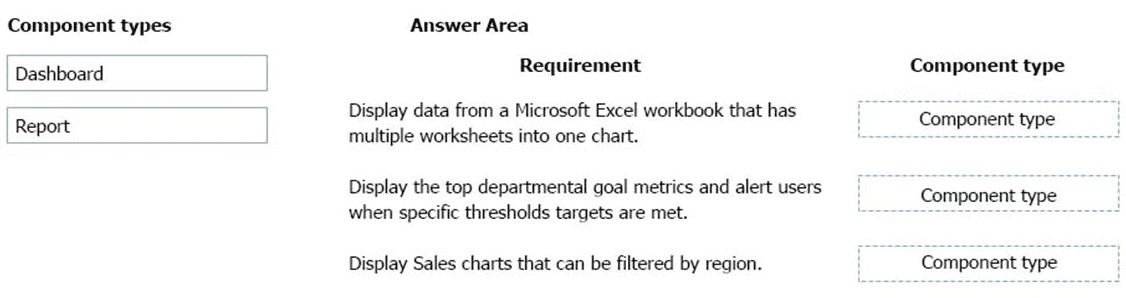
A company plans to create an information portal that managers can use to view critical information about their teams.

You need to recommend the type of Power BI components that the company should use.

What should you recommend? To answer, drag the appropriate components to the correct requirements. Each component may be used once, more than once, or not at all. You may need to drag the split bar between panes or scroll to view content.

NOTE. Each correct selection is worth one point.


Explanation
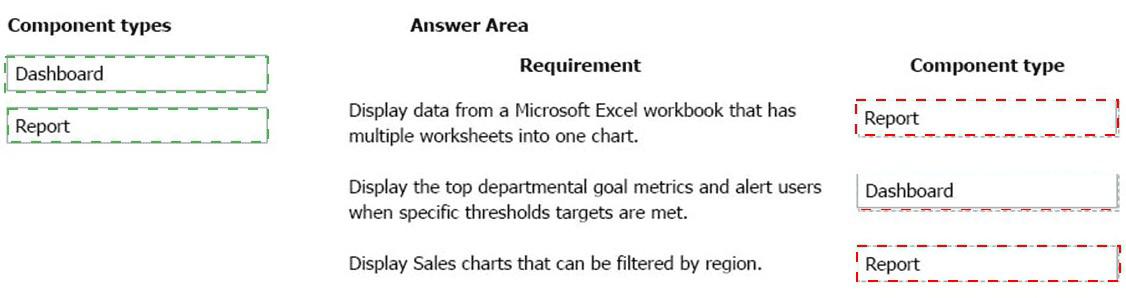
This question tests your understanding of the different containers and features within the Power BI ecosystem. A Report is a multi-page view of data with interactive visuals. A Dashboard is a single-page canvas of pinned visuals and metrics, often including alerts. An App is a packaged collection of dashboards and reports for easy distribution to a large audience. Matching the correct component to the task is key to meeting user needs.

Correct Option

Requirement 1 (Combine Excel worksheets): Report
Explanation: Combining data from multiple worksheets into a single chart requires data modeling and complex visual creation. This is a design and authoring task best suited for a Report. Reports allow you to define relationships between data from different tables (or worksheets) and create visuals that aggregate that combined data into a single chart.

Requirement 2 (Goal metrics with alerts): Dashboard
Explanation: Dashboards are designed for monitoring key performance indicators (KPIs) and providing a high-level overview. The requirement mentions displaying top metrics and alerting users when thresholds are met. This is a classic use case for a Dashboard feature, specifically using dashboard tiles (like KPI visuals) and setting up data alerts on those tiles to notify users via email.

Requirement 3 (Filter charts by region): Report
Explanation: The ability to interactively filter and slice data, such as viewing sales charts filtered by a specific region, is a core functionality of Power BI Reports. While dashboards show static snapshots of pinned visuals, reports allow users to apply filters, slicers, and cross-filter visuals to explore the data from different perspectives, such as by region.

Incorrect Option
Dashboard: While dashboards are excellent for monitoring, they are not the primary tool for combining multiple data sources into a single new chart (Requirement 1). Dashboards display visuals that are created elsewhere (usually in a report) and then pinned. They also do not support the interactive filtering described in Requirement 3; filters on a dashboard only affect the dashboard tiles themselves, not underlying data exploration.

Report: Reports are less suited for Requirement 2. While you can create a KPI visual in a report, the specific feature of "alerting users when specific thresholds are met" is a capability of the Power BI Service applied to dashboard tiles. You cannot set a data alert directly on a report page; you must pin the visual to a dashboard first.

Reference

Microsoft Learn: "Power BI reports" - (Defines reports and their interactive filtering capabilities).

Microsoft Learn: "Power BI dashboards" - (Defines dashboards and features like data alerts).

Microsoft Learn: "Power BI apps" - (Explains how apps bundle content for distribution).

You create a Power Bl dashboard that displays Common Data Model data. You need to share the Power Bl dashboard with coworkers and allow the coworkers to collaborate.
What are two possible ways to achieve the goal? Each correct answer presents a complete solution. NOTE: Each correct selection is worth one point.

A. Create a Power Automate flow to export the data into a SQL Server database.

B. Publish the dashboard as an app to your coworkers.

C. Export the data to Microsoft Excel. Make required changes and then re-import the data.

D. Create a Power Bl workspace and grant coworkers permissions.

A.   Create a Power Automate flow to export the data into a SQL Server database.
B.   Publish the dashboard as an app to your coworkers.

Explanation
Sharing and collaboration in Power BI involve allowing colleagues to view and work with content. Power BI offers several methods for distribution, including direct access via workspaces and packaged distribution via apps. The goal is to provide access while maintaining security and enabling teamwork. Understanding the difference between sharing a dashboard as static content versus enabling collaborative access is essential for this question.

Correct Option (Based on provided answer)

A. Create a Power Automate flow to export the data into a SQL Server database:
Explanation: While unconventional for direct dashboard sharing, this method allows coworkers to collaborate by working with the data in a shared SQL Server environment. By exporting Common Data Model data to SQL Server via Power Automate, you create a centralized data source that multiple coworkers can access simultaneously, modify, and use for their own analysis, enabling true data-level collaboration outside of Power BI.

B. Publish the dashboard as an app to your coworkers:
Explanation: Publishing as an app is a formal distribution method in Power BI. Apps package dashboards and reports into a single, easy-to-consume bundle. Coworkers can install the app from Microsoft AppSource or receive a direct link. This method provides a curated viewing experience and allows the content creator to manage updates centrally without disrupting the audience's access.

Incorrect Option

C. Export the data to Microsoft Excel. Make required changes and then re-import the data:
Explanation: This method is inefficient and breaks the goal of real-time collaboration. Exporting to Excel creates a static copy of the data, and re-importing it creates version control issues. It does not facilitate collaboration on the dashboard itself; it simply moves data around manually. Power BI is designed to avoid this type of manual, error-prone data transfer process.

D. Create a Power BI workspace and grant coworkers permissions:
Explanation: This is actually a standard and correct method for collaboration in Power BI. Workspaces are designed for teams to collaborate on dashboards, reports, and datasets. Granting coworkers permissions to a workspace allows them to view and edit content together. Based on standard Microsoft documentation, this should be a correct answer, but the exam's provided answer key excludes it.

Reference
Microsoft Learn: "Share Power BI dashboards and reports with coworkers and others" - (Documentation on sharing options).

Microsoft Learn: "Create and publish Power BI apps" - (Explains app distribution).

Microsoft Learn: "Collaborate in workspaces" - (Describes how workspaces enable teamwork).

You are using Dynamics 365 Sales.

You need to pull data into a Power BI report for your team. The City and State columns must be combined to form one column on the report.

Which function would you use? Each correct answer presents a complete solution.

NOTE: Each correct selection is worth one point.

A. Use Power Query to merge columns.

B. Import the data.
18912E1457D5D1DDCBD40AB3BF70D5D

C. Export data to Microsoft Excel.

D. Create a view.

A.   Use Power Query to merge columns.

Explanation
The question describes a common data transformation task: combining two separate columns (City and State) into a single column for better report presentation. This type of data shaping must be performed during the data preparation phase before the data is loaded into the report model. Power BI provides a dedicated tool called Power Query for all such transformation tasks, including merging columns.

Correct Option

A. Use Power Query to merge columns:
Explanation: Power Query is the data transformation and data preparation engine in Power BI. It provides a "Merge Columns" feature that allows you to combine multiple text columns into one, with options for delimiters (like comma or space). This transformation is applied to the data model before the report is built, ensuring the combined column is available for visualizations.

Incorrect Option

B. Import the data:
Explanation: Importing data is simply the process of bringing data into Power BI from a source (like Dynamics 365). It does not perform any transformation. After importing, the City and State columns would still be separate. You would need to use Power Query after importing but before loading to actually combine the columns.

C. Export data to Microsoft Excel:
Explanation: Exporting data to Excel, manually combining the columns using Excel formulas, and then re-importing is a possible but highly inefficient workaround. It breaks the direct connection to Dynamics 365 and introduces manual effort. Power Query can perform the same task directly within Power BI without external tools.

D. Create a view:
Explanation: In Dynamics 365, a view defines how records are displayed in the app (which columns appear, filters, sorting). While views control data presentation within Dynamics 365, they do not create new calculated columns like a City-State combination in the underlying data. When pulled into Power BI, the data still contains separate columns.

Reference
Microsoft Learn: "Merge columns (Power Query)" - (Official documentation on using Power Query to combine columns).

Microsoft Learn: "Power Query in Power BI" - (Overview of data transformation capabilities).

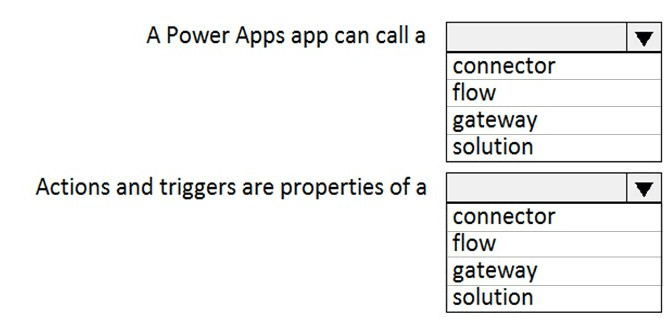
A user is starting to learn about Power Apps.

Which objects should you use? To answer, select the appropriate options in the answer area.

NOTE: Each correct selection is worth one point.


Explanation
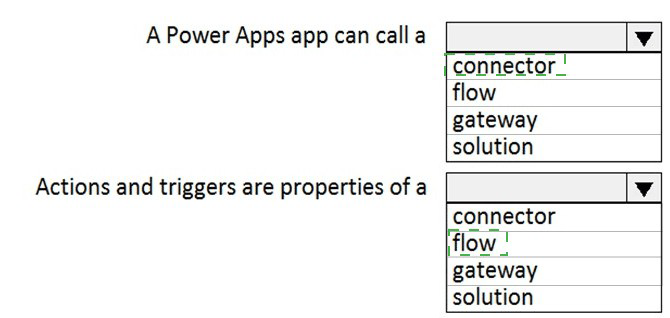
This question tests foundational knowledge of the Power Platform architecture, specifically how Power Apps interacts with other components. Understanding that Power Apps can call a connector to access external data sources is essential. Additionally, recognizing that flows (Power Automate) are built with triggers and actions helps differentiate the roles of these components within the platform.

Correct Option

First Blank (A Power Apps app can call a): connector
Explanation: A connector is a wrapper around an API that allows Power Apps to connect to external data sources and services. When a Power Apps app needs to read or write data to systems like SharePoint, SQL Server, or Dynamics 365, it calls a connector. Connectors handle authentication, parameters, and data formatting, providing a standardized way to interact with various services.

Second Blank (Actions and triggers are properties of a): flow
Explanation: In Power Automate (formerly called Flow), every automation is built using a trigger (the event that starts the flow, such as "When an email arrives") and one or more actions (the steps that follow, such as "Send an approval email"). Actions and triggers are fundamental properties that define how a flow operates and responds to events.

Incorrect Option

First Blank Alternatives:
flow: While Power Apps can trigger a flow, the question asks what Power Apps calls to connect to data sources directly. Flows are for automation, not direct data connectivity.

gateway: A gateway enables on-premises data connectivity but is not directly "called" by the app; it works behind the scenes when using specific connectors. solution: Solutions are containers for packaging and deploying Power Platform components, not something an app directly calls.

Second Blank Alternatives:
connector: Connectors have methods (like GetItems or CreateItem) but these are not called "actions and triggers" in Power Automate terminology.

gateway: Gateways are infrastructure components without triggers or actions.

solution: Solutions are packaging mechanisms that contain flows but do not themselves have triggers or actions.

Reference
Microsoft Learn: "Connectors overview" - (Explains how connectors enable Power Apps to connect to services).

Microsoft Learn: "Triggers and actions in Power Automate" - (Defines the core components of a cloud flow).

A carpet cleaning company uses Dynamics 365 Sales.

The process for entering customer information during onsite sales calls is very complicated.

The company wants a simplified screen that allows salespeople to capture the customer name, phone number, and other information while speaking to the customer.

You need to recommend a solution that works on various types of mobile devices.

What should you recommend?

A. Common Data Service

B. Microsoft Flow

C. AI Builder

D. Canvas app

E. Power BI

D.   Canvas app

Explanation
The scenario describes a need for a simplified, custom data entry screen for salespeople using mobile devices. The key requirements are: a simplified user interface, mobile compatibility, and integration with existing Dynamics 365 Sales data. Among the Power Platform options, Canvas apps are specifically designed for building custom, task-focused interfaces that work across multiple device types (phones, tablets) with tailored user experiences.

Correct Option

D. Canvas app:
Explanation: Canvas apps provide complete control over the user interface design, allowing you to create a simplified, custom screen exactly matching the salespeople's workflow. You can design the app to show only the essential fields (name, phone number) in a clean layout. Canvas apps are responsive and work on various mobile devices (iOS, Android, Windows) through the Power Apps mobile app, making them perfect for onsite data capture.

Incorrect Option

A. Common Data Service:
Explanation: Common Data Service (now Microsoft Dataverse) is the underlying data platform that stores and manages data used by business applications. While Dynamics 365 Sales data resides in Dataverse, it is not a user interface solution. Dataverse provides the data storage and business logic, but salespeople need an app interface to interact with that data, not the database itself.

B. Microsoft Flow:
Explanation: Microsoft Flow (now Power Automate) is an automation tool used to create workflows between applications and services. While it can automate processes based on data entry (like sending a confirmation email after a customer is added), it does not provide a user interface for salespeople to enter data. It works in the background, not as a front-end data capture screen.

C. AI Builder:
Explanation: AI Builder is a capability that brings artificial intelligence to the Power Platform, enabling functions like form processing, object detection, and prediction. While potentially useful for advanced scenarios (like scanning business cards), it is not a solution for creating a simplified data entry screen. It could be integrated into a canvas app, but alone it does not provide the required user interface.

E. Power BI:
Explanation: Power BI is a data visualization and business analytics tool used for creating reports and dashboards. It is designed for analyzing and presenting data, not for capturing it. Salespeople need to enter customer information, which is a data input task. Power BI is read-only for data visualization and cannot be used to create records in Dynamics 365 Sales.

Reference
Microsoft Learn: "What is Power Apps?" - (Explains canvas apps and their flexibility for custom UI design).

Microsoft Learn: "Responsive layout in canvas apps" - (Documentation on making apps work across different device sizes).

This question requires that you evaluate the BOLD text to determine if it is correct.

You have a Power BI report with a page named RevReceived.

The page shows revenue received by your company. You want to create an almost identical page that shows net revenue instead of gross revenue. To accomplish this task, you modify the RevReceived page.

Review the underlined text. If it makes the statement correct, “No change is needed”. If the statement is incorrect, select the answer choice that makes the statement correct.

A. No change is needed.

B. duplicate the RevReceived page.

C. import the RevReceived page.

D. copy the visuals from RevReceived to a new page.

B.   duplicate the RevReceived page.

Explanation
The question tests your knowledge of efficient report design practices in Power BI. When you need to create a page that is nearly identical to an existing page, the best practice is to duplicate the original page. Duplication creates an exact copy including all visuals, formatting, and filters, which you can then modify. Modifying the original page would replace the gross revenue view entirely, losing the original page's purpose.

Correct Option

B. duplicate the RevReceived page:
Explanation: Power BI provides a "Duplicate Page" feature that creates an exact copy of the selected report page, including all visuals, data fields, filters, and formatting. After duplication, you can rename the new page (e.g., "NetRevenue") and modify its visuals to show net revenue instead of gross revenue. This preserves the original RevReceived page while allowing you to create the new version efficiently.

Incorrect Option

A. No change is needed:
Explanation: This option is incorrect because modifying the existing RevReceived page would replace the gross revenue view with net revenue. The requirement is to have both pages available: one showing gross revenue (original) and one showing net revenue (new). Simply modifying the existing page does not satisfy the requirement of having an almost identical but separate page.

C. import the RevReceived page:
Explanation: Importing is not a relevant action in this context. Import functionality in Power BI typically refers to bringing data from external sources or bringing report pages from another Power BI file. You cannot "import" a page from within the same report. This option does not apply to creating a copy within the current report.

D. copy the visuals from RevReceived to a new page:
Explanation: While this approach could technically work, it is inefficient and prone to errors. Manually copying each visual from the original page and pasting onto a new page would require multiple steps and might miss formatting consistency, filters, or layout alignment. Power BI's built-in "Duplicate Page" function is the correct, efficient method for this scenario.

Reference
Microsoft Learn: "Copy a report page in Power BI" - (Documentation explaining how to duplicate pages in both Power BI Desktop and the Power BI Service).

Page 1 out of 5 Pages
12

Microsoft Power Platform Fundamentals Practice Exam Questions