Topic 5, Mix Questions
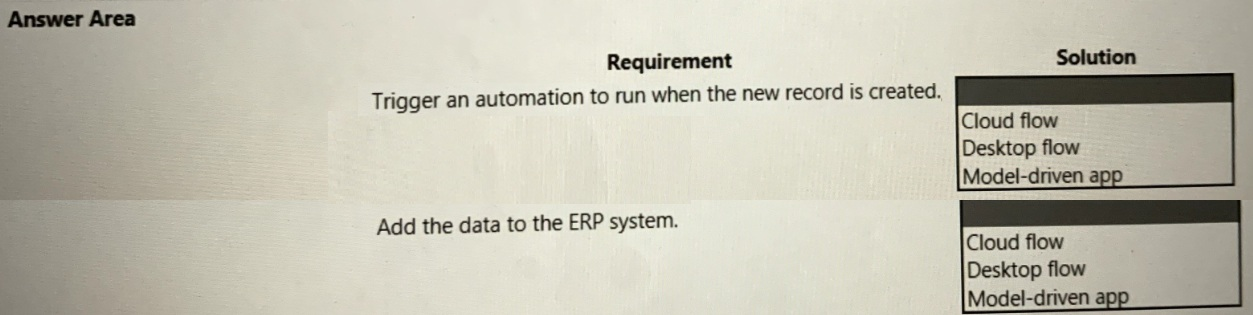
You are creating an automation for a company. When a new record is created in a
Microsoft Dataverse table, the automation must add the same data to an enterprise
resource planning (ERP) system. The ERP system does not have an API.
You need to create the automation solution.
What should you use? To answer, select the appropriate options in the answer area.
NOTE: Each correct selection is worth one point.
Explanation:
This question tests the ability to design a hybrid automation solution using Power Automate when one system supports API-based triggers and another does not. The key challenge is that the ERP system lacks an API, which rules out standard connector-based integration and requires a UI-based automation approach instead.
✅ Correct Options:
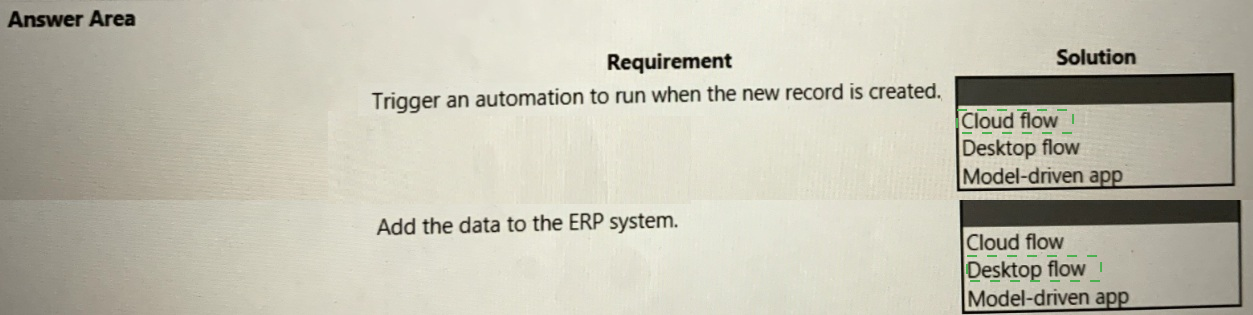
Trigger an automation when the new record is created → Cloud flow
Cloud flow supports event-based triggers natively within Microsoft Dataverse. When a new record is created in a Dataverse table, a cloud flow can be triggered automatically using the "When a row is added" trigger. It operates in the background without user interaction and serves as the orchestrator that detects the event and initiates the full automation sequence.
Add the data to the ERP system → Desktop flow
Since the ERP system has no API, it cannot be reached through standard connectors or HTTP requests. Desktop flow uses Power Automate Desktop to automate UI interactions — mimicking keyboard and mouse actions to input data directly into the ERP application's interface. The cloud flow calls the desktop flow as a child flow, passing the Dataverse record data for entry into the ERP system.
❌ Incorrect Options:
Model-driven app (for triggering automation)
Model-driven apps are canvas-based applications built on Dataverse for user interaction and data display. They do not function as automation triggers. Triggering background automation when a record is created requires a flow-based solution, not an app interface component.
Model-driven app (for adding data to ERP)
A model-driven app cannot write data to an external ERP system, especially one without an API. It is designed for user-facing data management within the Power Platform ecosystem and has no capability to perform UI-based or programmatic data entry into third-party systems.
Cloud flow (for adding data to ERP)
Cloud flow relies on API connectors or HTTP endpoints to interact with external systems. Since the ERP system has no API, a cloud flow alone cannot push data into it. Without an available connector or REST endpoint, UI automation via desktop flow is the only viable path.
Desktop flow (for triggering automation)
Desktop flow cannot listen for Dataverse record creation events. It is designed for robotic process automation on a local machine and must be invoked by another process. It has no native event-trigger capability and therefore cannot serve as the entry point for this automation.
🔧 Reference:
→ Introduction to Desktop Flows | Microsoft Learn – Power Automate
— Confirms that desktop flows automate UI-based tasks on systems without APIs and can be called from cloud flows.
→ Trigger Flows from Dataverse | Microsoft Learn – Power Automate
— Confirms that cloud flows support the "When a row is added" trigger for Dataverse tables to initiate automated processes.
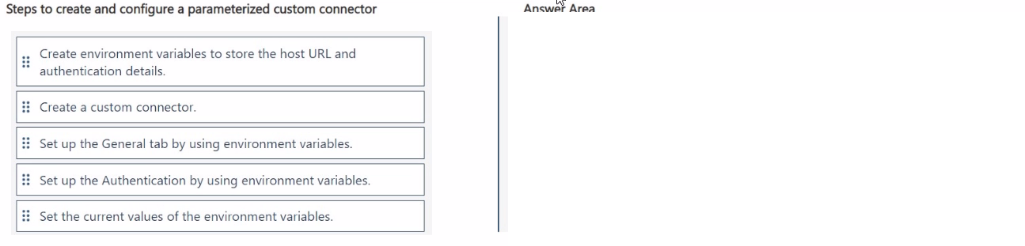
You create a solution that uses a custom connector to call an external API. The API has a
test and production instance.
The connector must use the API instance related to the environment where it is deployed.
You need to configure the custom connector.
In which order should you perform the actions? To answer, move all actions from the list of
actions to the answer area and arrange them in the correct order.
NOTE: More than one order of answer choices is correct. You will receive credit for any of
the correct orders you select.
Explanation:
This question tests the correct sequence for creating a parameterized custom connector in a solution. The goal is to use environment variables so the connector dynamically uses the right API instance (test or production) based on the deployed environment.
✅ Correct Option:
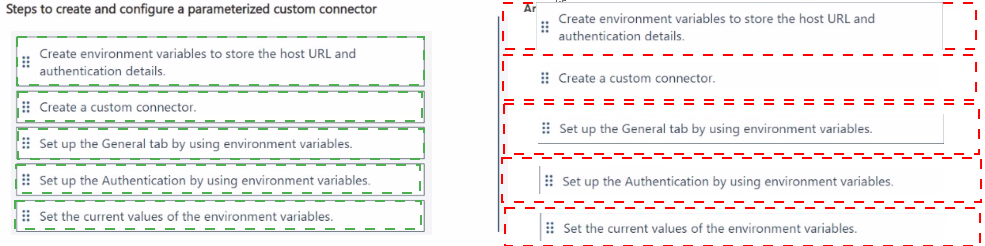
Create environment variables to store the host URL and authentication details.
Environment variables must be created first so they can be referenced in the connector for host, base URL, and security settings. This enables environment-specific configuration.
✅ Correct Option:
Create a custom connector.
Once the variables exist, create the custom connector in the solution so you can configure its properties using the variables.
✅ Correct Option:
Set up the General tab by using environment variables.
In the General tab, reference the environment variables (using @environmentVariables("name") syntax) for the Host and Base URL fields.
✅ Correct Option:
Set up the Authentication by using environment variables.
On the Security/Authentication tab, use the environment variables for credentials such as Client ID, Client Secret, or API Key.
✅ Correct Option:
Set the current values of the environment variables.
After configuration, set or update the current values so the connector uses the correct API instance for the specific environment.
❌ Incorrect options:
There are no additional incorrect options listed beyond the provided steps. Any other sequence (e.g., configuring tabs before creating variables or the connector) will fail because references won't resolve.
🔧 Reference:
→ Microsoft Learn: Use environment variables in solution custom connectors
Explains creating variables first, then referencing them in General and Security tabs of the custom connector.
A company stores confidential documents in a SharePoint document library.
A developer must create an automation solution in a default environment that processes
documents from the SharePoint library and uploads approved documents to Azure File
Storage for archiving purposes. The automation must meet the following requirements:
• Prevent modification or deletion of approved documents from Azure File Storage.
• Prevent sharing of documents from SharePoint or Azure File Storage.
You need to configure a data loss prevention (DLP) policy.
Which five actions should you perform in sequence? To answer, move the appropriate
actions from the list of actions to the answer area and arrange them in the correct order.
Explanation:
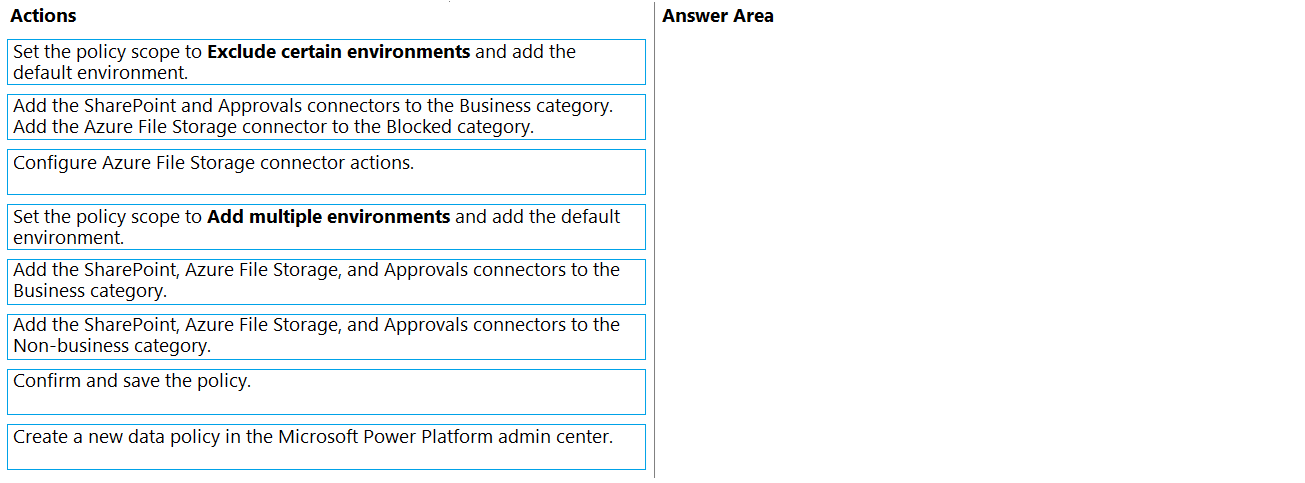
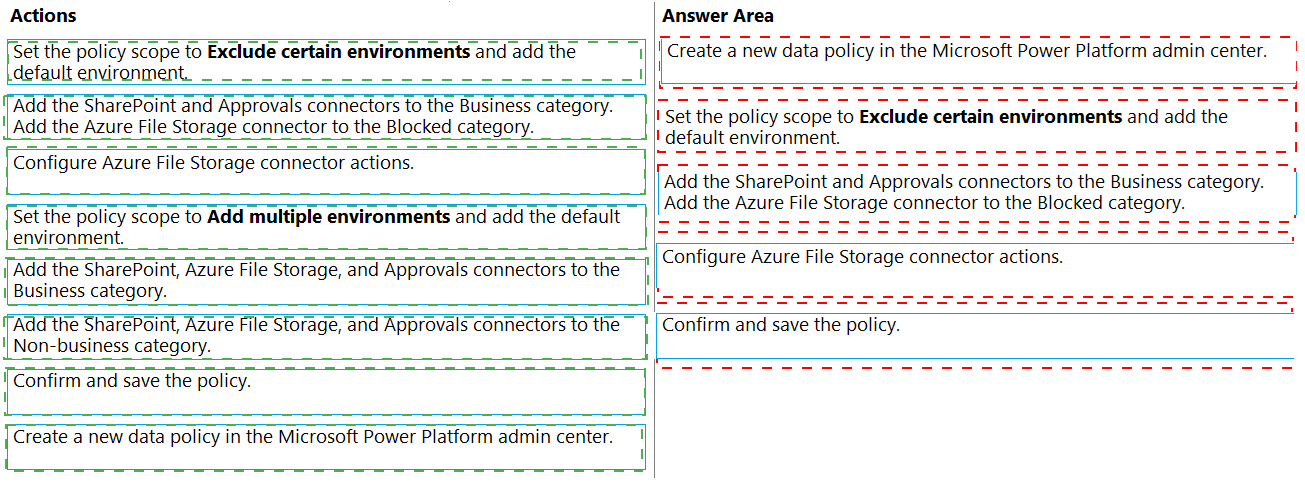
This question tests your understanding of creating a Data Loss Prevention (DLP) policy in the Power Platform admin center to meet specific security requirements. The automation must interact with SharePoint, Azure File Storage, and Approvals, while preventing data sharing and unauthorized modifications. The correct sequence follows the standard DLP policy creation workflow: create policy, define scope, classify connectors, configure specific actions, and save.
✔️ Correct Options:
Create a new data policy in the Microsoft Power Platform admin center:
DLP policies are created and managed in the Power Platform admin center under the Data policies section . This is the logical first step to begin configuring a new policy for the environment.
Set the policy scope to Add multiple environments and add the default environment:
The automation runs in the default environment, and the policy must apply to it. Selecting "Add multiple environments" lets you target specific environments rather than applying the policy tenant-wide, which would be too broad . This approach minimizes the risk of accidentally enforcing the DLP policy on unintended environments .
Add the SharePoint, Azure File Storage, and Approvals connectors to the Business category:
All connectors that the automation uses must be in the same data group to communicate with each other. Placing SharePoint, Azure File Storage, and Approvals in the Business category allows the flow to access all three while keeping them governed and secure .
Configure Azure File Storage connector actions:
The requirement to prevent modification or deletion of approved documents can be met by configuring specific connector actions within the DLP policy. You can uncheck actions like "Update" and "Delete" for the Azure File Storage connector to enforce this restriction .
Confirm and save the policy:
After completing all configurations, saving the policy is necessary to activate it and enforce the rules in the target environment .
❌ Incorrect options:
Set the policy scope to Exclude certain environments and add the default environment:
This would apply the policy to all environments except the default one, which is the opposite of what is needed. The policy must be applied to the default environment.
Add the SharePoint and Approvals connectors to the Business category / Add the Azure File Storage connector to the Blocked category:
Blocking the Azure File Storage connector would prevent any interaction with it, including uploading documents for archiving, which contradicts the automation requirement .
Add the SharePoint, Azure File Storage, and Approvals connectors to the Non-business category:
This classification would not provide the necessary governance controls required for handling confidential documents and would not meet the security requirements .
Configure Azure File Storage connector actions (at an incorrect point in the sequence):
While configuring actions is necessary, placing it before defining the scope or classifying connectors would be out of sequence. The policy structure must be defined before specific actions can be configured .
🔧 Reference:
→ Microsoft Learn: View policies and scope: Explains the "Add multiple environments" scope option for targeting
You are automating a form on a website. The website uses the following HI ML markup to
define each field on the form:

The label for each field is unique in the form.
You need to write data to the form.
For each of the following statements, select Yes if the statement is true. Otherwise, select
No.
NOTE: Each correct selection is worth one point.
.png)
Explanation:
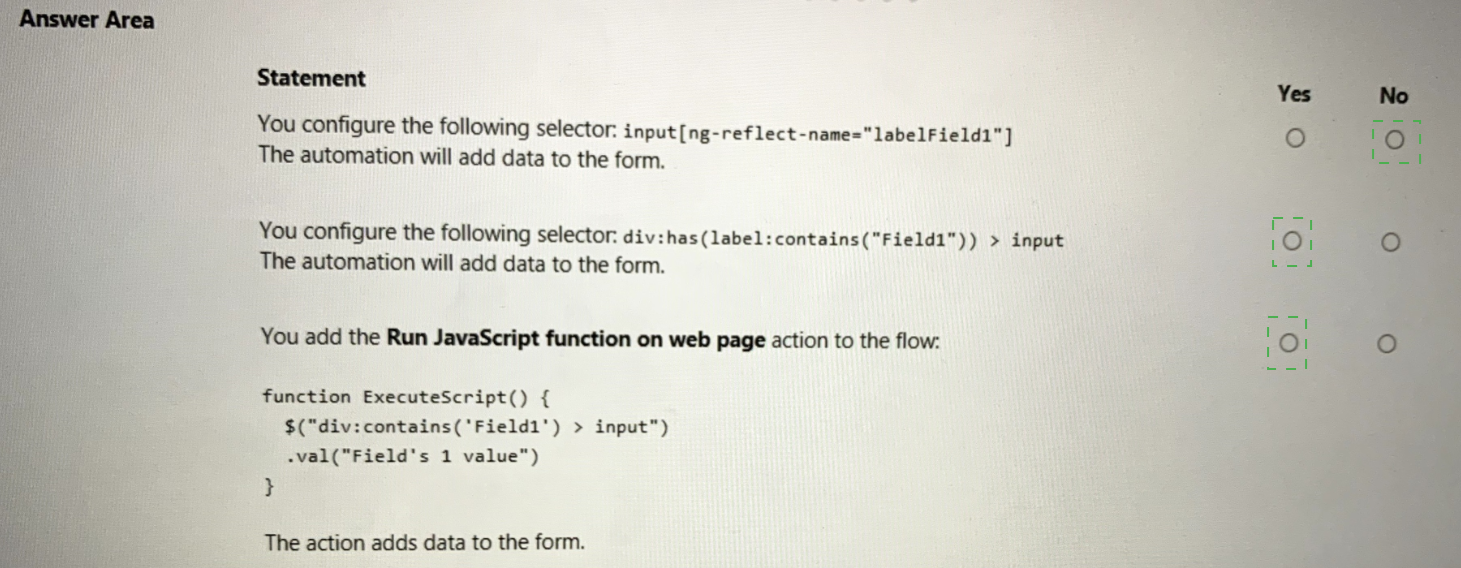
This question tests your ability to evaluate CSS selectors and jQuery syntax within Power Automate for desktop web automations. It requires analyzing HTML snippets containing dynamic Angular lifecycle attributes (ng-reflect-*) to determine stable element identification methods.
✅ Correct Option:
Statement 1 is No:
Attributes starting with ng-reflect- are debug-only properties generated by Angular. Power Automate web automation extensions cannot reliably target these non-standard properties at runtime since they do not consistently exist in a production DOM.
Statement 2 is Yes:
This pseudo-class selector successfully identifies a div element that explicitly encloses a label element containing the static text string "Field1", and accurately targets its immediate child input field.
Statement 3 is Yes:
The provided custom JavaScript utilizes a standard jQuery text locator selector. The script accurately targets the nested input element via parental inheritance hierarchy and updates its value parameter natively using the .val() function.
❌ Incorrect options:
Evaluating Statement 1 as Yes:
Marking this statement as true ignores web automation best practices, which dictate avoiding unstable, dynamic framework-specific compilation variables like reflection attributes for element targeting selectors.
Evaluating Statement 2 as No:
Failing to recognize this means overlooking valid CSS level 4 hierarchical selectors (:has and :contains) that reliably locate inputs based on stable, adjacent user-facing text labels.
🔧 Reference:
→ Microsoft Learn: Automate using web selectors in Power Automate for desktop confirms that using text-based relative selectors ensures automation stability over relying on dynamic, framework-generated element attributes.
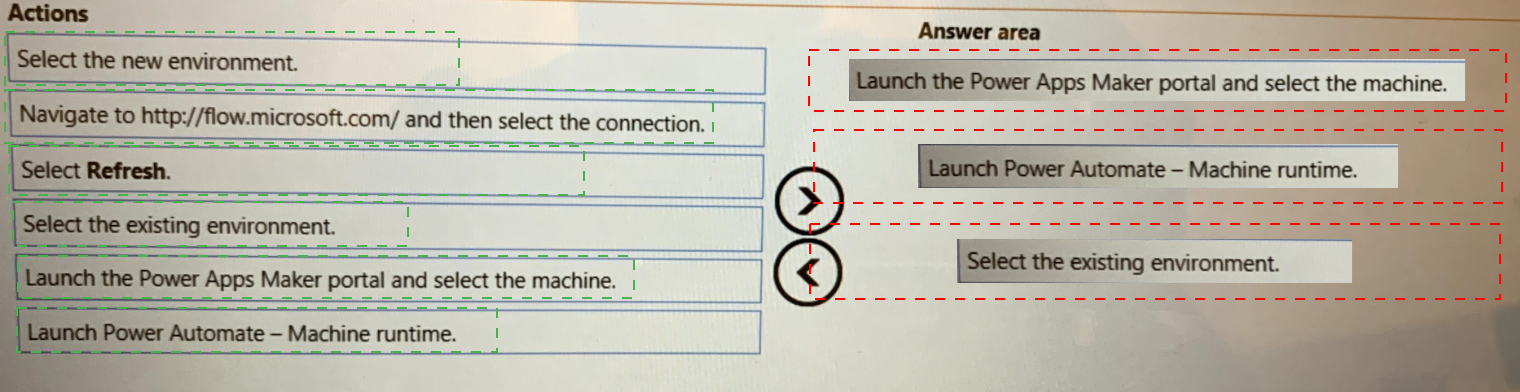
You have a machine that runs an automation solution.
You need to move the machine to a different environment.
Which three actions should you perform in sequence? To answer, move the appropriate
actions from the list of actions to the answer area and arrange them in the coned order.
Explanation:
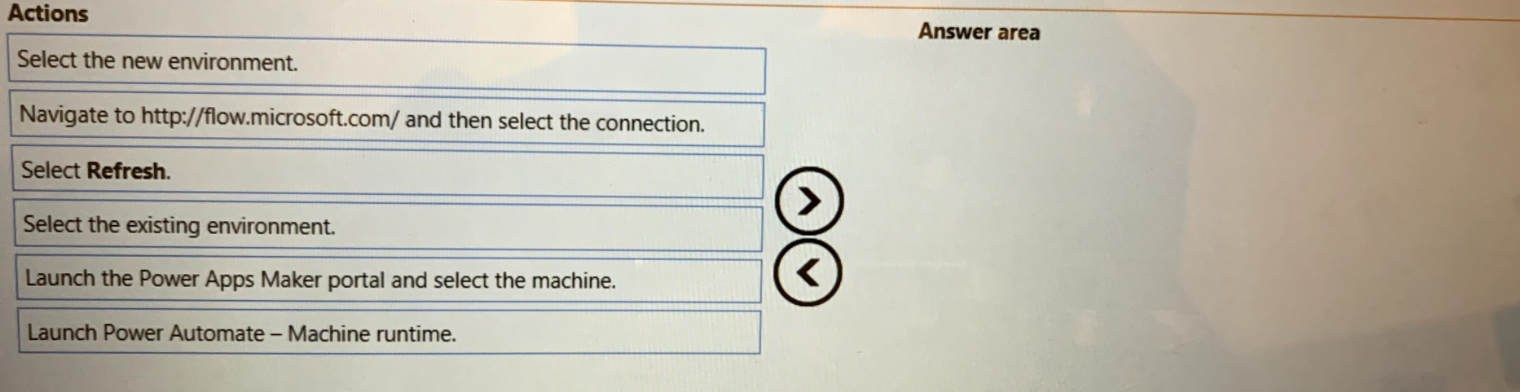
This question tests knowledge of how to move a registered machine from one Power Platform environment to another. The process involves accessing the machine settings through the correct portal, launching the machine runtime application, and then switching the environment assignment from within the runtime interface — in that specific sequence.
✔️ Correct Options:
Step 1 → Launch the Power Apps Maker portal and select the machine.
The Power Apps Maker portal (make.powerapps.com) is the correct entry point for managing machines registered in Power Platform. From here, the administrator can locate and select the specific machine that needs to be reassigned. This is the required first step before any environment change can be initiated on that machine.
Step 2 → Launch Power Automate – Machine runtime.
After identifying the machine in the Maker portal, the Power Automate Machine Runtime application must be launched on the machine itself. This lightweight app manages the machine's environment registration and connection settings locally. It is the only interface through which the environment assignment of a machine can be actively changed.
Step 3 → Select the existing environment.
Within the Machine Runtime app, the current environment is displayed. To move the machine, the administrator selects the existing environment field and changes it to the target environment. This finalizes the machine's reassignment, making it available to run automations in the new environment going forward.
❌ Incorrect Options:
Select the new environment.
While selecting a new environment sounds logical, the correct action within Machine Runtime is to interact with the existing environment field first to trigger the change. Selecting the new environment is part of the reassignment step but is not listed as a standalone correct action in this sequence.
Navigate to http://flow.microsoft.com/ and then select the connection.
This action relates to managing connections in Power Automate cloud, not to moving a machine between environments. Machine environment reassignment is handled through the Maker portal and Machine Runtime app, not through flow connection settings.
Select Refresh.
Refreshing is a supplementary UI action and not a required step in the machine migration process. It does not contribute to moving the machine to a different environment and is not part of the correct sequence for this task.
🔧 Reference:
→ Manage Machines | Microsoft Learn – Power Automate — Confirms the process of registering, managing, and moving machines across environments using the Maker portal and Machine Runtime app.
You create the following flow.
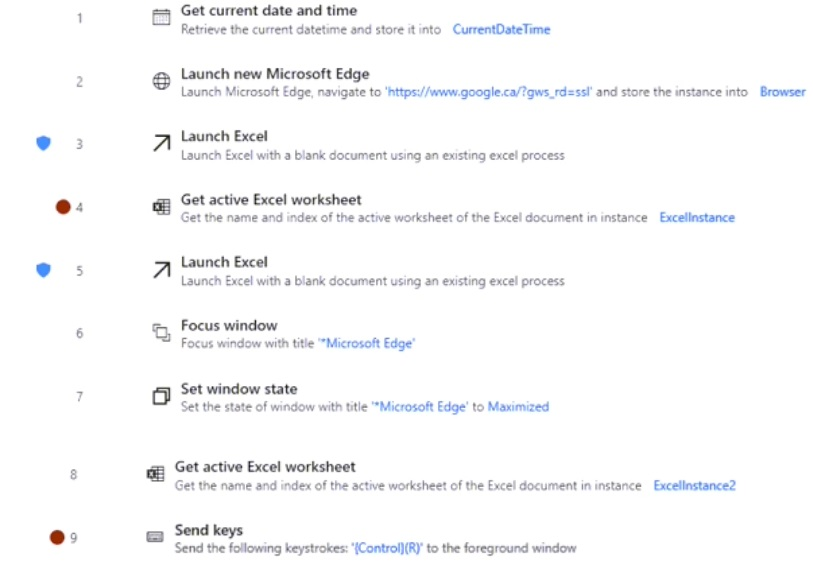
Use the drop-down menus to select the answer choice that answers each question based
on the information presented in the graphic. NOTE: Each correct selection is worth one
point.
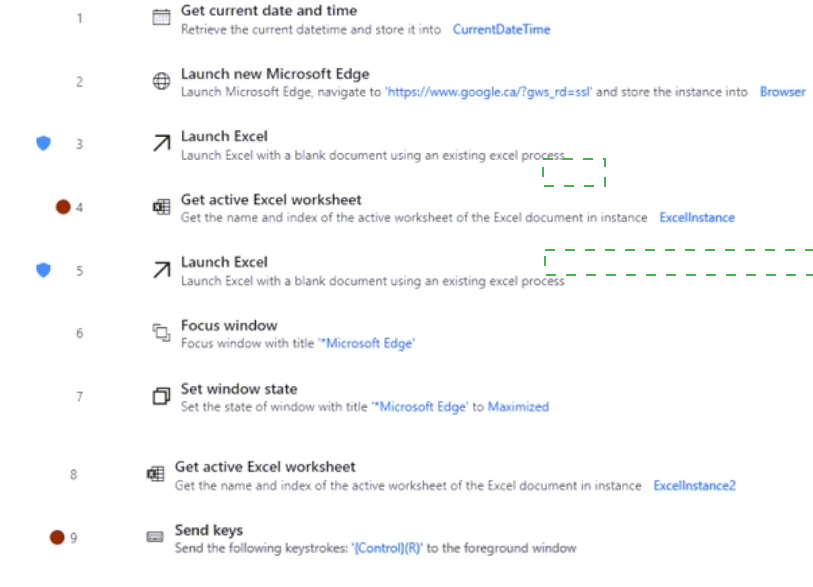
Explanation:
This question is a hotspot / drop-down type that tests your understanding of flow execution, variables, and window targeting in Power Automate Desktop. The flow launches applications, works with Excel instances, and sends keystrokes to the active window.
✅ Correct Option:
Line 4 (Get active Excel worksheet)
This action (marked with a red dot) is the first point after the initial Launch Excel where the flow would pause if a breakpoint is set, or it highlights potential execution flow for error/debug analysis.
✅ Correct Option:
The Microsoft Edge window launched in step 2
The Send keys action (line 9) targets the foreground window. Since the Edge browser was launched earlier and the flow includes Focus window + Maximize on Edge, the keystrokes (Ctrl+R) are sent to the Edge instance.
❌ Incorrect options:
Other line numbers (e.g., line 9 or line 3)
Breakpoints or execution points depend on the specific question, but line 4 is the key highlighted point after the first Excel launch.
Actions targeting wrong window (e.g., Excel instead of Edge)
The flow explicitly focuses and maximizes the Edge window before the Send keys action, so it does not target Excel.
🔧 Reference:
→ Microsoft Learn: Debug desktop flows
Explains breakpoints, flow execution order, and window focus for actions like Send keys.
You create the following flow:
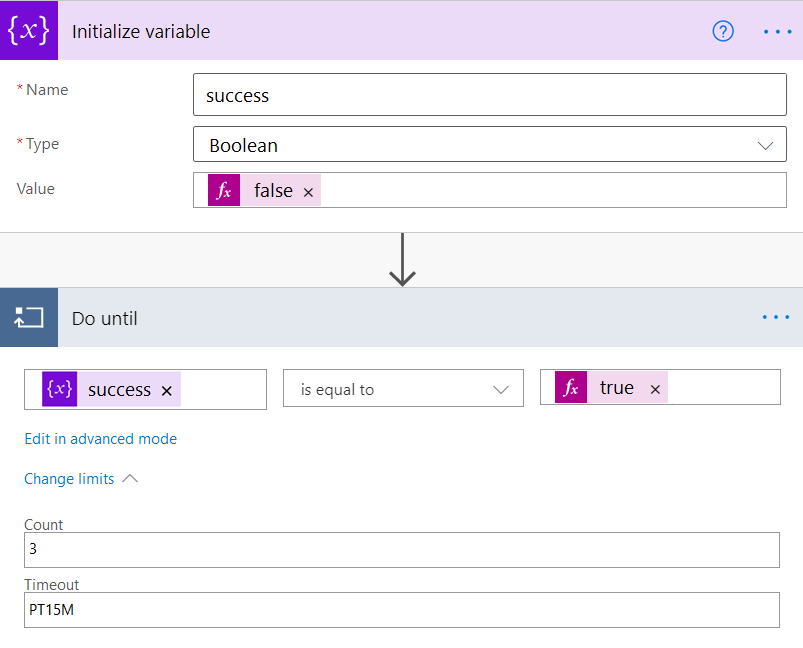
For each of the following statements, select Yes if the statement is true. Otherwise, select
No.
NOTE: Each correct selection is worth one point.
.png)
Explanation:
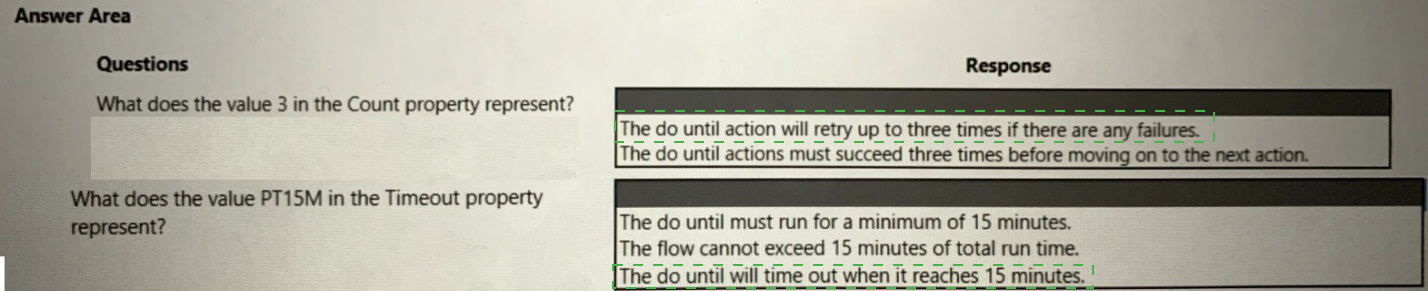
This question tests your understanding of the "Do until" loop configuration settings in Power Automate. The Count property defines the maximum number of iterations the loop can execute, while the Timeout property defines the maximum duration the loop can run before timing out. Both properties act as limits to prevent infinite loops and control execution behavior.
✔️ Correct Options:
What does the value 3 in the Count property represent? → The do until action will retry up to three times if there are any failures:
The Count property in a "Do until" action specifies the maximum number of iterations the loop can execute. This acts as a safety limit, so if the loop condition (success equals true) is never met, the loop will automatically exit after three attempts. This prevents infinite looping in case the condition is never fulfilled.
What does the value PT15M in the Timeout property represent? → The do until will time out when it reaches 15 minutes:
The Timeout property (specified in ISO 8601 duration format "PT15M" meaning 15 minutes) sets the maximum duration the loop is allowed to run. If the loop runs for 15 minutes without meeting the exit condition (success equals true), it will time out and the flow will stop or proceed based on error handling settings. This prevents the loop from running indefinitely.
❌ Incorrect options:
The do until actions must succeed three times before moving on to the next action:
This is incorrect because the Count of 3 does not represent a requirement for three successful executions. The loop simply checks the condition each iteration; the Count defines how many iterations are allowed, not how many successes are required.
The do until must run for a minimum of 15 minutes:
The Timeout property sets a maximum allowed duration, not a minimum. The loop could potentially complete in seconds or take less than 15 minutes depending on when the success condition becomes true and the loop exits.
The flow cannot exceed 15 minutes of total run time:
This is incorrect because the 15-minute Timeout applies specifically to the "Do until" loop only, not to the entire flow. The overall flow may have a different total runtime limit depending on the license and other configuration settings.
🔧 Reference:
→ Microsoft Learn: Using loops in Power Automate - Do Until: Confirms that Count specifies the maximum number of iterations and Timeout defines the maximum duration the loop can run.
You are designing automation processes for a company.
You need to select the appropriate action for each automation scenario.
Which actions should you perform? To answer, select the appropriate options in the
answer area.
NOTE: Each correct selection is worth one point.
Explanation:
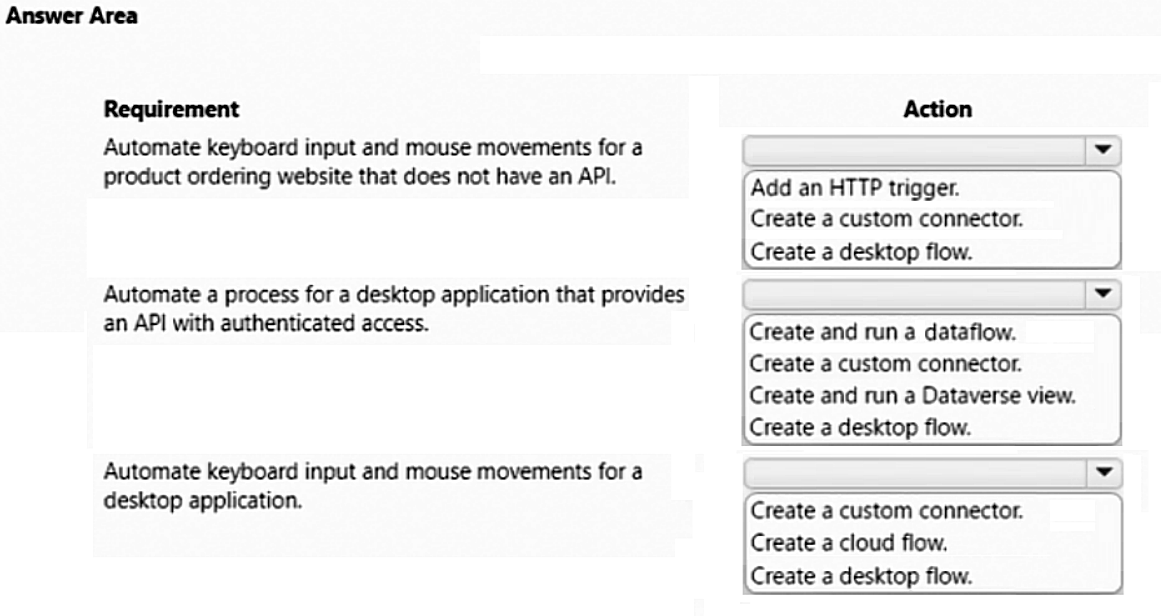
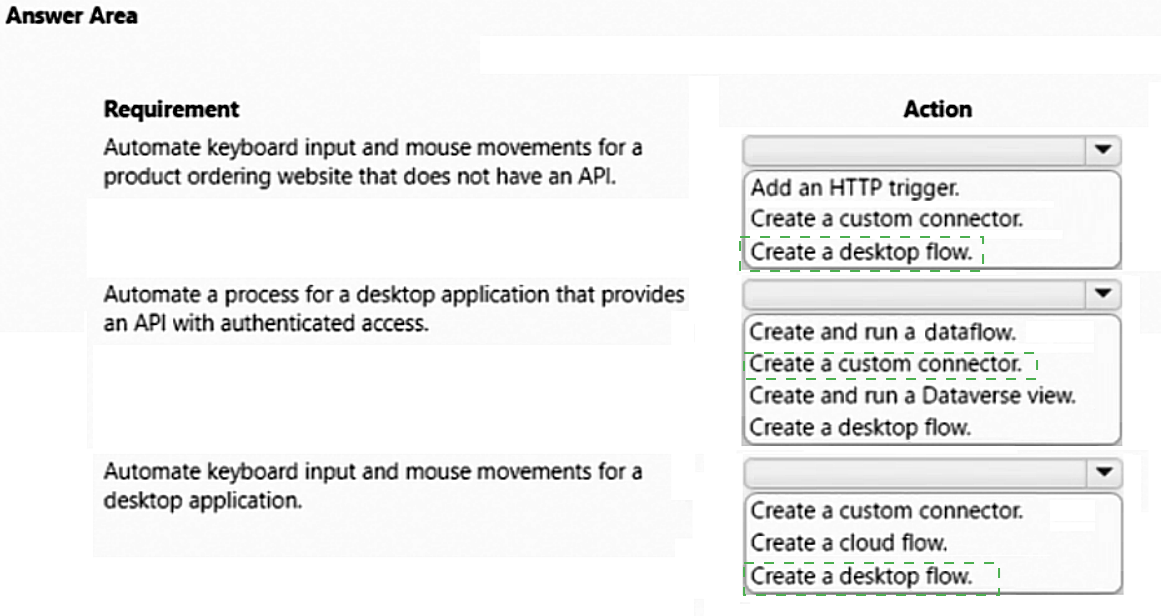
This question tests your ability to select the appropriate automation tool based on the availability of APIs versus the need for user interface (UI) interaction. It evaluates when to leverage programmatic integration via connectors versus employing robotic process automation (RPA) to mimic human actions.
✅ Correct Options:
Create a desktop flow:
Desktop flows are the primary solution for automating legacy systems, websites, or desktop applications that lack accessible APIs. By recording actual keyboard and mouse inputs, these flows effectively mimic human interaction to perform repetitive tasks reliably. This is the optimal approach for web or desktop applications requiring direct UI manipulation where programmatic endpoints are currently non-existent or inaccessible.
Create a custom connector:
When a desktop application or service exposes an API with authentication, a custom connector is the preferred choice for integration. Connectors enable seamless communication between Power Automate and the external system by wrapping the API calls securely. This method provides a robust, scalable, and highly performant alternative to fragile UI-based automation, ensuring data integrity and reliable process execution throughout.
❌ Incorrect options:
Add an HTTP trigger:
An HTTP trigger is designed to initiate a flow when a specific URL receives an incoming request. It does not provide any native capability to manipulate the keyboard or mouse on a target interface, making it completely irrelevant for UI automation tasks where physical input simulation is the primary requirement for successful task completion.
Create and run a dataflow:
Dataflows are specialized tools designed exclusively for data ingestion, transformation, and loading (ETL) processes from various sources into the Dataverse environment. They operate entirely on back-end data sets rather than interacting with desktop application user interfaces, executing specific workflows, or performing any active keyboard and mouse input simulation required for application task automation.
Create and run a Dataverse view:
Dataverse views serve as filtered queries or displays of structured entity data within the Power Platform environment. They contain absolutely no functionality for executing business logic, controlling external software interfaces, or simulating user inputs. Consequently, they are entirely ineffective for any of the described automation scenarios where active interaction with an application is necessary.
Create a cloud flow:
While cloud flows are excellent for orchestrating automation logic via connectors, they cannot natively record or execute local keyboard and mouse movements. Cloud flows operate within the cloud environment and would require a connection to a desktop flow integration to interact with local desktop application interfaces, rather than acting as a standalone solution for UI inputs.
🔧 Reference:
→ Microsoft Learn – Introduction to desktop flows confirms that desktop flows are used to automate legacy applications and websites that do not have APIs.
→ Microsoft Learn – Custom connectors overview confirms that custom connectors are the standard method for connecting Power Automate to APIs with authenticated access.
| Page 4 out of 17 Pages |