Topic 4, First Up Consultants
First Up Consultants is a professional services organization headquartered in Europe, with offices in North America. The company supports small- to medium-sized and enterprise organizations with a range of information technology, project management change management, and finance management consultancy needs. The organization employs 500 full-time consultants and engages with over 1,000 external contractors to support the delivery of its various projects.
The company has been using Microsoft Power Platform for several years and currently has the following implemented:
• A model-driven app named Project Planning Application that is used by the project management office (PMO) team within the company to plan, schedule and collate information for each client project. The application supports the following functionality areas:
o Storage for project-level information, such as start date, end date and client data.
o A series of inputs to capture detailed information for statements of work as part of a standard document format. This information is manually entered by the PMO team.
o Information regarding internal and external consultants is stored within a custom table called Resources
o Information within the Resources table regarding full-time consultants is typically populated manually by the PMO team. For external consultants, the company regularly attends industry events and collates business cards for potential new employees or external contractors. Information regarding these individuals is then manually entered into the application. The PMO team then asks suitable candidates to complete an application form in Microsoft Word standard format and upload it via a secure URL. Again, the PMO team then manually enters the data into Project Planning Application.
• A canvas app named Time Entry Application is used by the employees and external contractors to capture the time worked on projects. The application has been configured with the following defined controls:
o dpStartDate: A date picker control to indicate the start date of the lime entry.
° dpEndOate: A date picker control to indicate the end date of the time entry.
o inptDescription: A control used to indicate the type of activity and project worked on.
• A mobile app stories the current use’s email address as part of a variable called varUserName The company uses Microsoft SharePoint on premises to store all sensitive documents. Company policy mandates that all client-related documents are stored within this environment only.
The company uses SAP as its back-end accounting system. The company maintains separate SAP systems in each legal jurisdiction where it is based. The system is relied upon for the following critical business processes:
• External contractors working on a project send their invoices to a dedicated mailbox that is monitored by the company's accounting team. The accounting team must then manually process these invoices into SAP at the end of each month. Due to the number of external contractors, hundreds of invoices must be processed monthly.
• Basic API access for the SAP system is provided via a mixture of native application APIs and a middleware Simple Object Access Protocol (SOAP) API hosted on premises. The middleware API supports the ability to post time entries against the relevant projects in any SAP system by specifying the system and client ID as a query parameter in the URL. The middleware API was developed several years ago. and the source code is no longer available. Data is returned in XML format, which can then be analyzed further.
• When a project enters the closure phase, members of the PMO team need to navigate to SAP. enter some details, and then capture information from a PDF that is generated and opened on the screen, such as the final settlement amount. This information is then manually entered into Project Planning Application.
The company maintains a separate system containing detailed profile information regarding internal employees. The PMO team currently manually enters information from this system into the Resources table.
Developers in the company have created a modem REST API for this system, which is actively maintained.
The system contains highly sensitive personal information (PI) regarding each employee.
The company has several on-premises Windows environments that it has identified as suitable for usage because they exist within the same physical network as SAP and the middleware API. These environments must be patched regularly, and all activities targeting these environments must be automated.
• Rather than manually populating the statement of work information, users should plate it in a SharePoint folder for this information to be extracted and mapped to the correct inputs.
• A new automation is required to integrate with the profile information system. Because the company plans to consume this data in several ways, a streamlined mechanism for working with the API is required to improve reusability.
• An automation is required to handle the project closure steps in SAP and to store the relevant information from SAP into the app.
• Once a new candidate uploads a completed application form, information from the form should be copied automatically into Project Planning Application.
• Time Entry Application needs to be extended to integrate alongside SAP. ensuring postings for time entries are processed successfully. When a time entry is submitted, the entry should be posted automatically to SAP.
• Time entries must always be submitted with relevant text that indicates the type of activity and project worked on.
• The automation should be able to detect and handle any errors that occur when posting individual time entries.
• Invokes sent to the account's mailbox must be processed automatically and created as invoices within SAP.
• Invokes sent to the account's mailbox must be processed automatically and created as invoices within SAP.
• All automation activities should run without disruption during an outage or a patching cycle.
• Use of username and password credentials should be avoided.
• Automations should not rely on human intervention to execute.
• Use of public cloud file services should be restricted.
• Where possible. ISON should be the preferred format when transferring data.
• Users within the PMO team report that it takes many hours to put the data from each business card into the system.
• You create the automation to process the time entries, called Submit Time Entry, and add it to the application. Users report issues with the formula used to connect to the automation.
• During a monthly patch cycle. IT support team members cannot identify the correct steps to patch the machine without disrupting any automation.
• While performing an audit of the new solution during the test phase, the company's information security team identifies that users can freely save client confidential documents to OneDrive for Business.
• When creating the automation for the project closure process, you discover that some of the required information needs to be exported via the SAP GUI and extracted from a comma-separated value (CSV) file.
• When building the automation for the profile information system, you identify that all requests into the API will fail unless the following HTTP header value is specified;
o Accept: application/son
You develop a desktop flow for a company.
You need to ensure that another user can modify the flow.
Which three actions should you perform in sequence? To answer, move the appropriate
actions from the order.
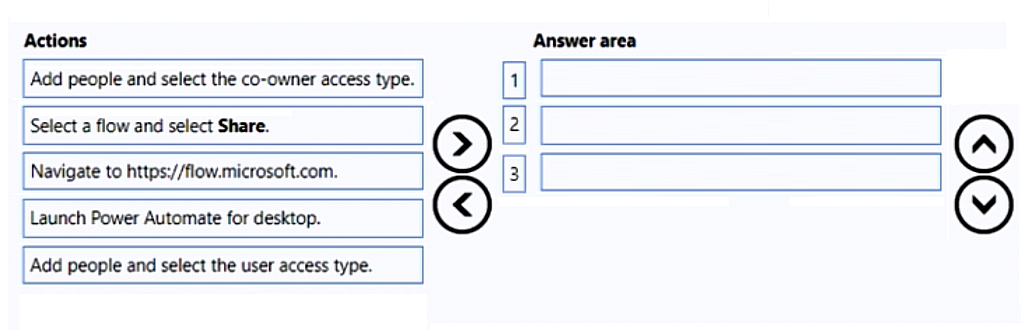
Explanation:
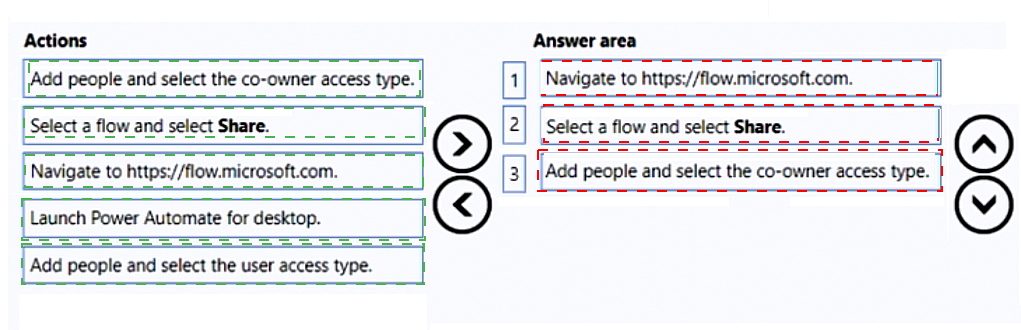
This question tests your understanding of sharing permissions for desktop flows in Power Automate. To allow another user to modify a flow, you must grant them Co-owner permissions. The correct sequence follows the sharing workflow: accessing the Power Automate portal, selecting the specific flow, and assigning the appropriate access level.
✔️ Correct Options (in sequence):
Navigate to https://flow.microsoft.com.
You must first access the Power Automate portal where all flows are managed. This is the starting point for locating and sharing any flow.
Select a flow and select Share.
Once in the portal, locate the specific desktop flow you want to share and click the Share button from the flow's menu or details page.
Add people and select the co-owner access type.
In the sharing panel, add the user's email address and choose Co-owner as the access type. Co-owner permissions allow the user to view, edit, and modify the flow, which fulfills the requirement.
❌ Incorrect options (and why they are not part of the correct sequence):
Launch Power Automate for desktop.
This action opens the desktop application for building and testing flows, but sharing is managed through the web portal, not the desktop app. This step is not required for sharing.
Add people and select the user access type.
The "User" access type provides run-only permissions, allowing the user to trigger and execute the flow but not modify it. This does not meet the requirement for modification.
🔧 Reference:
→ Share desktop flows - Power Automate | Microsoft Learn: Confirms that to allow a user to modify a desktop flow, you must select Co-owner when sharing the flow.
You are developing automation solutions for a company. You need to use an environment
variable in a cloud flow.
Which three actions should you perform in sequence? To answer, move the appropriate
actions from the list of actions to the order.
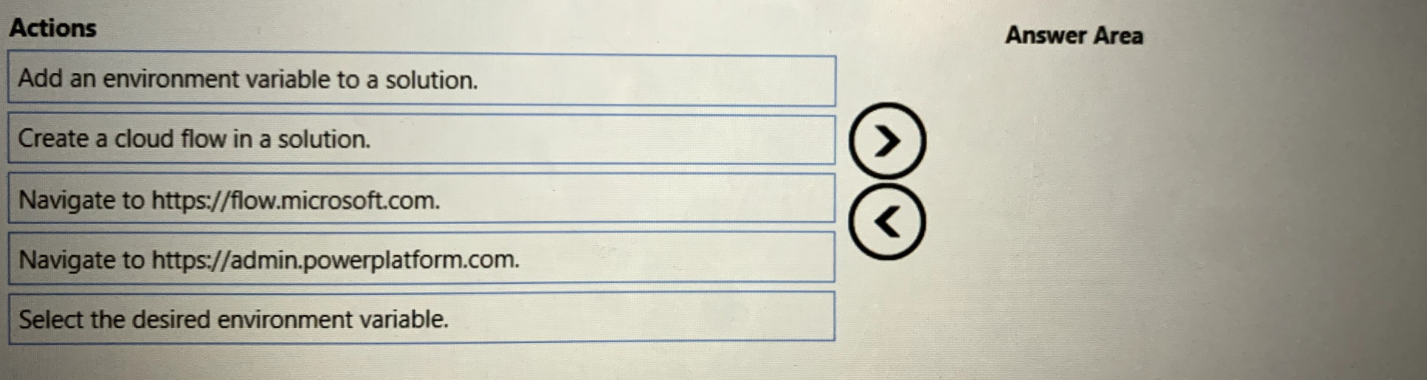
Explanation:
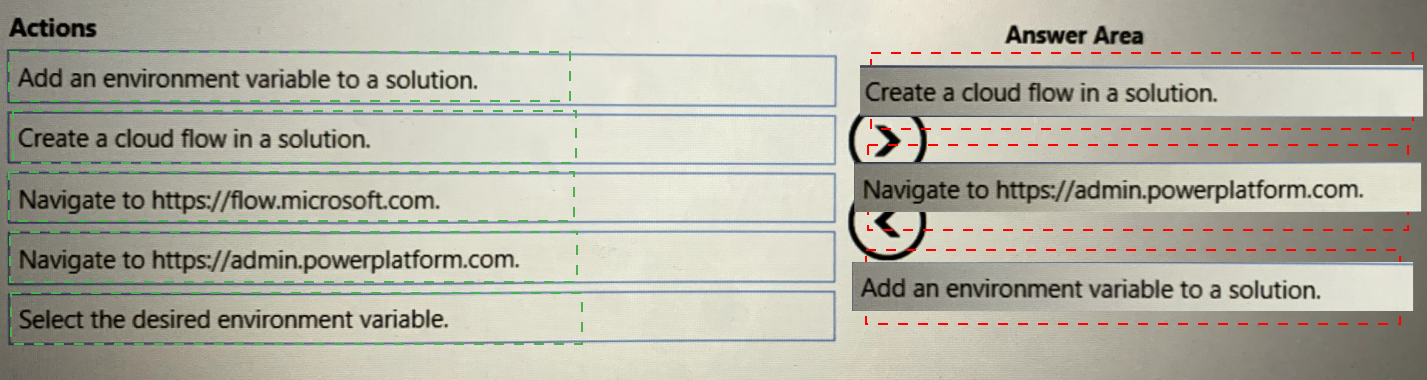
This question tests your understanding of using environment variables within automated processes in Power Automate. Specifically, it assesses the sequential configuration lifecycle required to introduce, store, and reference environmental parameters inside an enterprise-grade cloud flow solution.
✅ Correct Option:
Navigate to https://flow.microsoft.com.
To build solution-aware automations, you must start by accessing the core Power Automate maker portal. This is where components like flows and solutions are engineered.
Add an environment variable to a solution.
Environment variables must exist within a solution container before a flow can fetch them. Defining the schema first ensures availability inside the flow workspace.
Create a cloud flow in a solution.
Once the variable resides in the solution, creating or editing a cloud flow inside that same container exposes the variable within the dynamic content picker.
❌ Incorrect options:
Navigate to https://admin.powerplatform.com.
The Power Platform Admin Center manages environments, DLP policies, and data storage capacities. It is not used for creating individual solution components or cloud flows.
Select the desired environment variable.
Selecting the variable is a sub-step performed inside the flow designer panel itself, rather than an independent, top-level sequence action listed for solution building here.
🔧 Reference:
→ Microsoft Learn: Use environment variables in Power Automate cloud flows
confirms that you must edit or create a cloud flow within a solution container to correctly read and access environment variables from the dynamic content selector.
You are setting up a data loss prevention (DLP) policy for an environment. The default
policy group is set to Non-business.
You must configure the following apps in the policy:
• AppA will be used for tracking business-sensitive data.
• AppB will be deployed in six months and must be automatically added to the published
policy.
• AppC uses a custom connector. The connector uses personal data for testing. When
testing is complete, the connector will connect to business-sensitive data.
You need to select the appropriate policy for each app.
Which policy should you use for each app? To answer, drag the appropriate policies to the
correct apps. Each app may be used once, more than once, or not at all. You may need to
drag the split bar between panes or scroll to view content.
NOTE: Each correct selection is worth one point.


Explanation:
This question tests understanding of Power Platform DLP policy groups and how connectors are classified based on their data sensitivity and deployment status. The default group is set to Non-business, meaning any unclassified connector lands there automatically. Each app has a distinct requirement that maps to a specific DLP policy behavior.
✅ Correct Options:
AppA → Move to business
AppA handles business-sensitive data, so its connector must be explicitly moved to the Business data group. The "Move to business" policy action reassigns the connector from its current group into the Business tier, ensuring it can only interact with other business-classified connectors and preventing cross-group data leakage with non-business apps.
AppB → Default group
AppB is not yet deployed and will be available in six months. Since the default group is set to Non-business, any new connector published to the environment is automatically placed there without manual intervention. Assigning AppB to the Default group ensures it is automatically included in the policy once it becomes available, requiring no additional configuration at that time.
AppC → Blocked
AppC currently uses personal data via a custom connector for testing, but will later connect to business-sensitive data. During the testing phase, the connector must not interact with either business or non-business data flows. The Blocked policy prevents the connector from being used in any flow entirely, protecting sensitive data until the transition to production is complete.
❌ Incorrect Options:
Business data (for AppB)
Manually assigning AppB to the Business data group now would be premature since it is not yet deployed. The requirement specifically states it must be automatically added upon publishing, which is the behavior of the Default group — not a manual Business data assignment.
Business data (for AppC)
AppC is in a testing phase using personal data, not business data. Placing it in the Business data group would incorrectly expose it to business connectors before testing is complete, creating a data risk. It must remain inaccessible until the connector is ready for production use.
Move to business (for AppB)
"Move to business" is an action applied to existing connectors already present in the environment. Since AppB has not been deployed yet, this policy cannot apply. The correct approach is to rely on the Default group so it is captured automatically once published.
Move to business (for AppC)
AppC should not be moved to business because it currently processes personal/test data. Elevating it to the business tier before testing is complete contradicts the requirement and could expose business-sensitive pipelines to an untested connector.
Blocked (for AppA)
Blocking AppA would prevent it from functioning in any Power Platform flow, directly contradicting the requirement to use it for tracking business-sensitive data. AppA needs active access to business data connectors, which only the Business data group assignment enables.
Blocked (for AppB)
Blocking AppB would prevent automatic policy inclusion when it is published. The requirement is for AppB to be seamlessly added to the policy upon deployment, which requires Default group placement — not a blocked state that would restrict its use entirely.
🔧 Reference:
→ Data Loss | Microsoft Learn – Microsoft Power Platform — Confirms how Business, Non-business, and Blocked groups work, and how the default group governs automatic connector classification.
→ Connector Classification | Microsoft Learn – Microsoft Power Platform
— Explains the Move to business action, Blocked behavior, and Default group assignment rules for connectors in published policies.
You are designing a desktop automation solution.
You must ensure that the automation includes error handling. The solution requires the
following logic:
If an action fail in the automation, the flow must be redirected to a different flow.
If a group of action often fail, a specific procedure must occur.
You need to select the error handling method to use for each requirement.
Which error handling method or configuration should use select? To answer, the
appropriate error handling method or configuration to the requirement. Each error handling
method or configuration may be used once, or not at all. You may need to drag the split bar
between panes or scroll to view content.
Note: Each correct selection in worth one point.


Explanation:
This question tests error handling techniques in Power Automate Desktop. It requires matching the appropriate error handling method to two specific scenarios: redirecting on single action failure and managing repeated failures in a group of actions.
✅ Correct Option:
Run a subflow
When a single action fails, running a subflow allows you to redirect the execution to a different flow. This provides a clean way to handle the error by transferring control to another defined automation sequence.
✅ Correct Option:
Implement block-level handling
When a group of actions frequently fails, block-level error handling lets you define a specific procedure (such as logging or recovery steps) that applies to the entire block of actions as one unit.
❌ Incorrect options:
Retry the action
This simply retries the failed action a specified number of times but does not redirect the flow or handle a group of actions with a custom procedure.
Continue the flow run
This ignores the error and continues execution of the remaining actions. It does not redirect to another flow or apply special handling for groups of actions.
🔧 Reference:
→ Microsoft Learn: Error handling in Power Automate Desktop
Explains block-level handling and running subflows for different error scenarios.
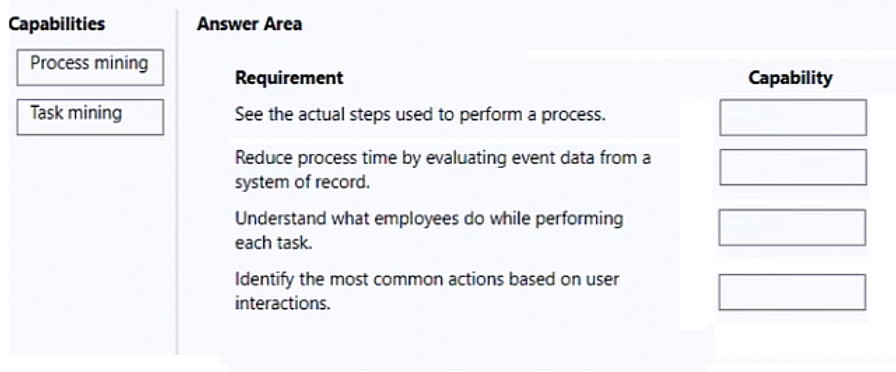
A user is evaluating the capabilities of both process mining and task mining.
You need to determine when you should use process mining or task mining.
Which Process advisor capability should you use? To answer, drag the appropriate
capabilities to the correct requirements. Each capability may be used once, more than
once, or not at all. You may need to drag the split bar between panes or scroll to view
content.
NOTE: Each correct selection is worth one point.
Explanation:
This question tests your ability to distinguish between process mining and task mining capabilities within Power Automate process advisor. It focuses on identifying whether a requirement relies on end-to-end system log telemetry or individual desktop-level user interactions.
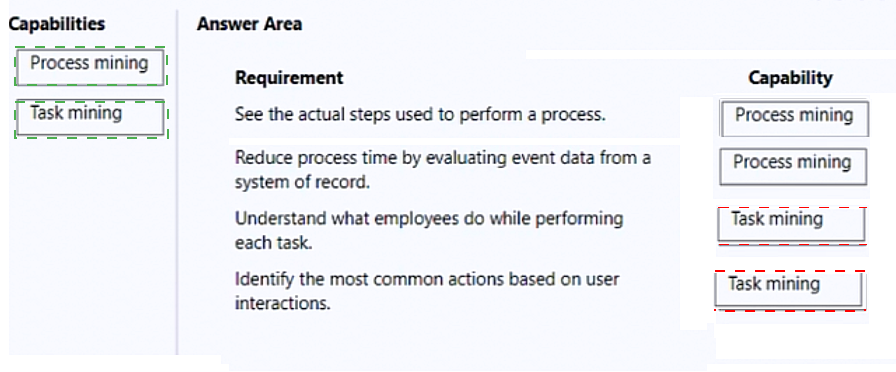
✅ Correct Option:
Process mining (See the actual steps used to perform a process):
Process mining operates at an organizational level by aggregating broad backend tracking data to build a visual map showing how operations flow sequentially.
Process mining (Reduce process time by evaluating event data from a system of record):
This feature consumes system event logs from databases or applications of record, allowing organizations to pinpoint bottlenecks and reduce macro operational overhead.
Task mining (Understand what employees do while performing each task):
Task mining captures localized, micro-level operational steps by tracking specific desktop actions, helping administrators see exactly how a distinct assignment is executed.
Task mining (Identify the most common actions based on user interactions):
By capturing keystrokes and mouse clicks, task mining uncovers repetitive, manual user interactions to reveal immediate opportunities for local robotic process automation.
❌ Incorrect options:
Process mining for user-level interactions:
Process mining is unsuitable for evaluating mouse clicks or distinct user-level window changes because it processes high-level system event log structures instead.
Task mining for system of record log files:
Task mining cannot parse or analyze centralized backend database event logs since it is strictly designed to record direct client-side desktop activity.
🔧 Reference:
→ Microsoft Learn: Process mining and task mining overview
in PM confirms that process mining tracks event logs from systems of record while task mining captures user interactions on a desktop level.
| Page 3 out of 17 Pages |