Topic 2, City Power and Light
Background
City Power and Light is one of the biggest energy companies in North America. They extract, produce and transport oil. The company has more than 50 offices and 100 oil extraction facilities throughout the United States, Canada, and Mexico. They use railways, trucks, and pipelines to move oil and gas from their facilities.
The company provides the following services:
• Produce oil from oil sands safely, responsibly, and reliably
• Refine crude oil into high-quality products
• Develop and manage wind power facilities.
• Transport oil to different countries/regions.
City Power and Light uses various Microsoft software products to manage its daily activities and run its machine-critical applications.
Requirements
ManagePipelineMaintenanceTasks
A user named Admin1 creates a cloud flow named ManagePipelineMaintenanceTasks. Admin1 applies a data loss prevention (DLP) policy to the flow. Adminlshares the flow with a user named PipelineManager1 as coowner. You must determine the actions that PipelineManager can perform.
MaintenanceScheduler
You create a cloud flow that uses a desktop flow. The desktop flow connects to third-party services to fetch information. You must not permit the desktop flow to run for more than 20 minutes.
You must configure sharing for MatinenanceScheduler to meet the following requirements:
• User1 must be able to work with you to modify the desktop flow.
• User2 must be able to access and review the run history for the flow.
• You must grant User3 permissions to run but not modify the desktop flow.
ERPDataOperations flow
City Power and light uses an enterprise resource planning (ERP) system. The ERP system does not have an API.
Each day the company receives an email that contains an attachment. The attachment lists orders from the company's rail transportation partners. You must create an automation solution that reads the contents of the email and writes records to the ERP system. The solution must pass credentials from a cloud flow to a desktop flow.
RailStatusUpdater
City Power and Light actively monitors all products in transit. You must create a flow named RailStatusUpdater that manages communications with railways that transport the company's products.
RailStatusUpdater includes five desktop flow actions.
You must run the desktop flows in attended mode during testing. You must run the desktop flows in unattended mode after you deploy the solution. You must minimize administrative efforts.
Packaging
You must package the automations in a solution. All required components must be included in the solution.
Issues
ProductionMonitor flow
You create a cloud flow named ProductionMonitor which uses the Manually trigger a flow trigger. You plan to trigger ProductionMonitor from a cloud flow named ProdManager.
You add a Run a Child flow action in ProdManager to trigger ProductionMonitor. When you attempt to save ProdManager the following error messaqe displays:
CapacityPlanning flow
Developers within the company use cloud flows to access data from an on-premises capacity planning system. You observe significant increases to the volume of traffic that the on-premises data gateway processes each day. You must minimize gateway failures.
DataCollector flow
You have a desktop flow that interacts with a web form. The flow must write data to several fields on the form.
You are testing the flow. The flow fails when attempting to write data to any field on the web form.
RailStatusUpdater flow
The RailStatusUpdater flow occasionally fails due to machine connection errors. You can usually get the desktop flow to complete by resubmitting the cloud flow run. You must automate the retry process to ensure that you do not need to manually resubmit the cloud flow when machine connection errors occur.
A company is using SAP in a data center. The SAP environment uses the default
configuration.
The company plans to automate the creation of vendors in SAP after data is approved in a
SharePoint list
You need to recommend a solution for the automation.
Which four actions should you perform in sequence? To answer move the appropriate
actions from the fist of actions to the answer area and arrange them in the correct order.
NOTE: More than one order of answer choices is correct. You will receive credit for any of
the correct orders you select.
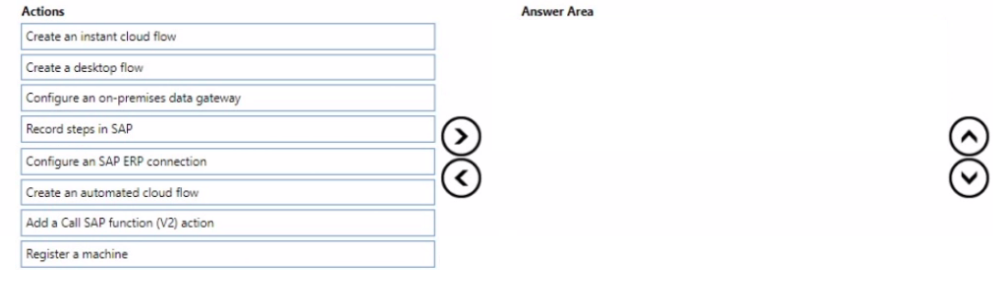
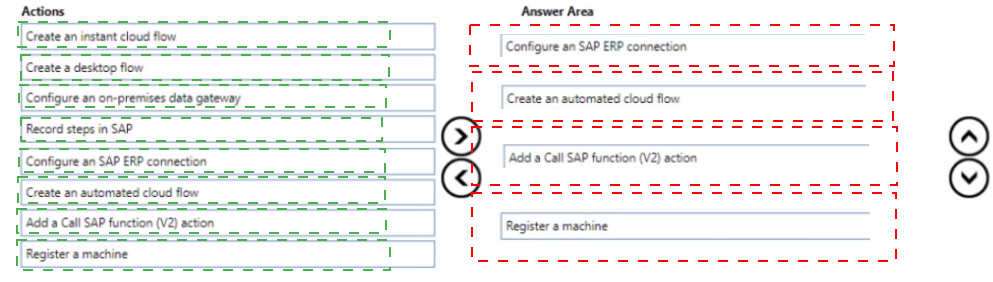
Explanation:
This question tests knowledge of end-to-end automation architecture when integrating SharePoint approvals with SAP ERP using Power Automate. The scenario requires triggering vendor creation in SAP after SharePoint list data is approved. The solution must establish connectivity, build the flow logic, invoke the SAP function, and register the machine for on-premises execution.
✅ Step 1 — Configure an SAP ERP connection — Correct Option:
Before any automation can interact with SAP, a valid SAP ERP connector connection must be established in Power Automate. This step authenticates and links the Power Automate environment to the on-premises SAP system. Without this connection, no SAP-related actions can be executed within the cloud flow, making it the mandatory first step in the sequence.
✅ Step 2 — Create an automated cloud flow — Correct Option:
Once the SAP connection is ready, an automated cloud flow is created with a SharePoint trigger — firing when list data is approved. This flow serves as the orchestration layer that monitors the SharePoint list and initiates the SAP vendor creation process automatically, connecting the approval event to the downstream SAP actions that follow.
✅ Step 3 — Add a Call SAP function (V2) action — Correct Option:
Inside the automated cloud flow, the Call SAP function (V2) action is added to invoke the appropriate SAP BAPI or RFC function responsible for creating vendors. This action uses the SAP ERP connection configured earlier and passes the approved SharePoint data as input parameters to complete the vendor creation directly within the SAP system.
✅ Step 4 — Register a machine — Correct Option:
Since SAP is hosted on-premises in a data center, Power Automate requires an on-premises data gateway and a registered machine to bridge cloud flows with the local SAP environment. Registering the machine ensures the cloud flow can securely communicate with the on-premises SAP system and execute the SAP function call through the established connection.
❌ Create an instant cloud flow — Not Selected:
An instant cloud flow is triggered manually, not by an event. Since the requirement is to automate vendor creation after SharePoint approval automatically, an automated cloud flow with a SharePoint trigger is the correct choice — not a manually triggered instant flow.
❌ Create a desktop flow — Not Selected:
Desktop flows are used for UI-based RPA automation. Since the SAP ERP connector supports direct API-level integration via the Call SAP function action, there is no need to automate the SAP GUI through a desktop flow in this scenario.
❌ Configure an on-premises data gateway — Not Selected:
While a gateway is typically part of on-premises connectivity, the SAP ERP connector in Power Automate uses the registered machine and the SAP ERP connection directly. Configuring a separate on-premises data gateway is not a required step in this specific SAP connector workflow.
❌ Record steps in SAP — Not Selected:
Recording steps in SAP is a desktop flow / RPA approach used for UI automation of the SAP GUI. Since this solution uses the SAP ERP connector with API-level function calls, recording UI steps is unnecessary and not part of the recommended architecture.
🔧 Reference:
→ Microsoft Learn: SAP automation actions
Confirms the use of the Call SAP function (V2) action and SAP ERP connection setup for automating SAP processes through Power Automate.
You create a Microsoft Power Platform solution. You create variables to define input values
for the flow. You export the solution as managed and import the solution into a user
acceptance testing (UAT) environment.
The flow in the UAT environment is still using the values from the development (DEV)
environment.
You need to resolve the issue.
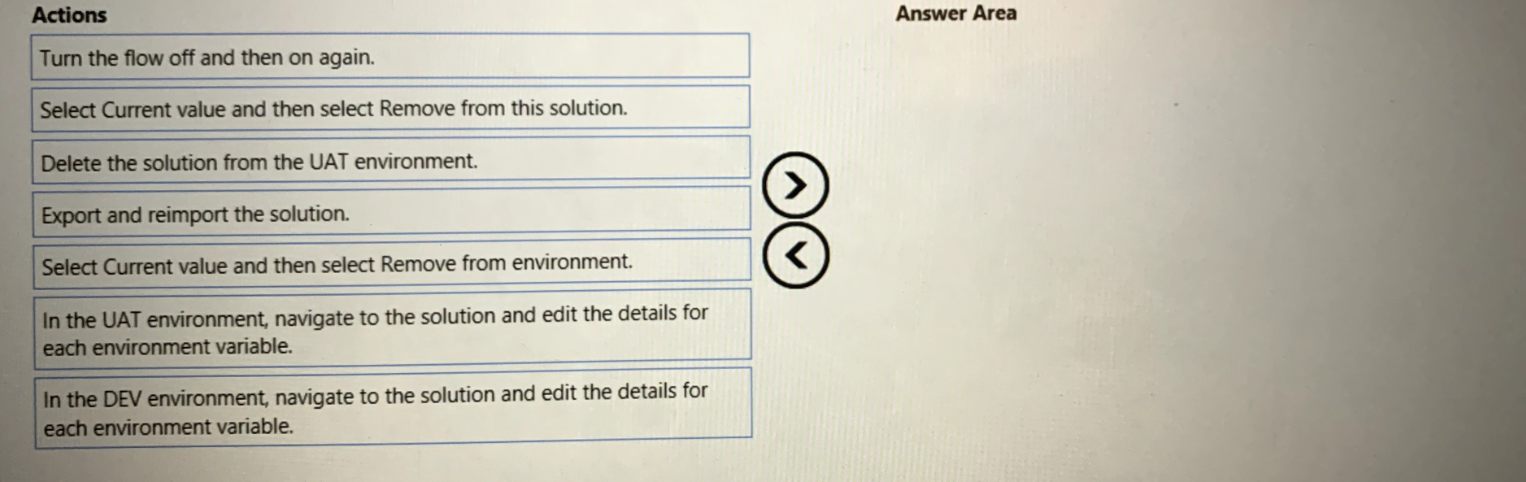
Which four actions should you perform in sequence? To answer, move the appropriate
actions from the list of actions to the answer area and arrange them in the correct order.
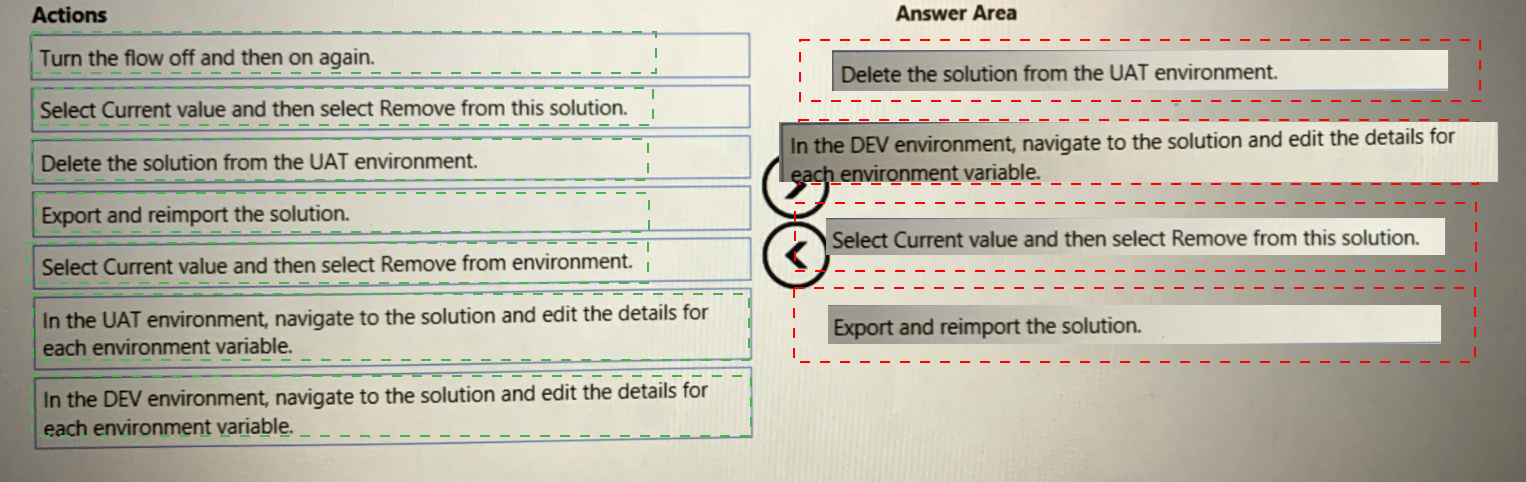
Explanation:
This question tests your understanding of managing environment variables in Power Platform solutions. When a managed solution is imported into UAT, the environment variables retain their current values from DEV unless explicitly cleared or updated. To force the UAT environment to use its own values, you must clear the current values, export/reimport the solution to refresh the variable definitions, and then restart the flow to apply the changes.
✔️ Correct Options (in sequence):
In the UAT environment, navigate to the solution and edit the details for each environment variable.
You must first access the solution in the UAT environment to view and modify the environment variables that hold the configuration values for the flow.
Select Current value and then select Remove from environment.
This action clears the existing values (which are still from DEV). Removing the current value forces the environment variable to use its default value or prompt for a new value upon next use.
Export and reimport the solution.
Re-exporting and reimporting the solution refreshes the environment variable definitions and ensures that the UAT environment correctly recognizes them as configurable, allowing new values to be set.
Turn the flow off and then on again.
This step forces the flow to reinitialize and pick up the updated environment variable values. Turning it off and on effectively resets the flow's context and applies the new configuration.
❌ Incorrect options (and why they are not part of the correct sequence):
Select Current value and then select Remove from this solution.
This option does not exist as a valid action in the solution management interface. "Remove from this solution" would remove the variable entirely, which is not the goal.
Delete the solution from the UAT environment.
Deleting the solution would remove the flow and its components entirely. This is destructive and unnecessary for updating environment variable values.
In the DEV environment, navigate to the solution and edit the details for each environment variable.
The issue is in the UAT environment, not DEV. Editing variables in DEV would not affect the UAT environment and is not the correct approach.
Select Current value and then select Remove from environment (duplicate/incorrect placement).
While this action is valid, placing it earlier or later in the sequence would not achieve the desired result. It must occur after navigating to the UAT solution and before export/reimport.
🔧 Reference:
→ Environment variables - Power Automate | Microsoft Learn: Confirms that environment variables store configurable values per environment and that clearing the current value allows new values to be set after import.
→ Export solutions in Power Apps | Microsoft Learn: Explains that exporting and reimporting solutions can refresh component definitions and ensure proper configuration across environments.
You are designing automation processes.
You need to configure the run mode for each automation scenario.
Which run modes should you use? To answer, drag the appropriate run modes to the
correct scenarios. Each run mode may be used once, more than once, or not at all. You
may need to drag the split bar between panes or scroll to view content.
NOTE: Each correct selection is worth one point.
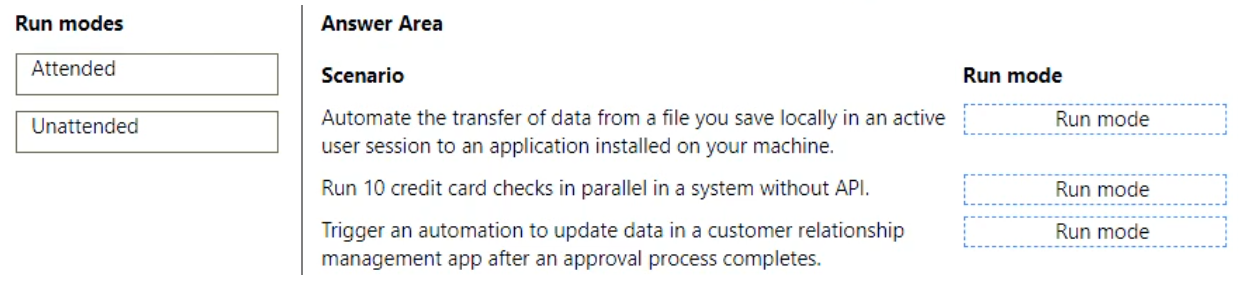
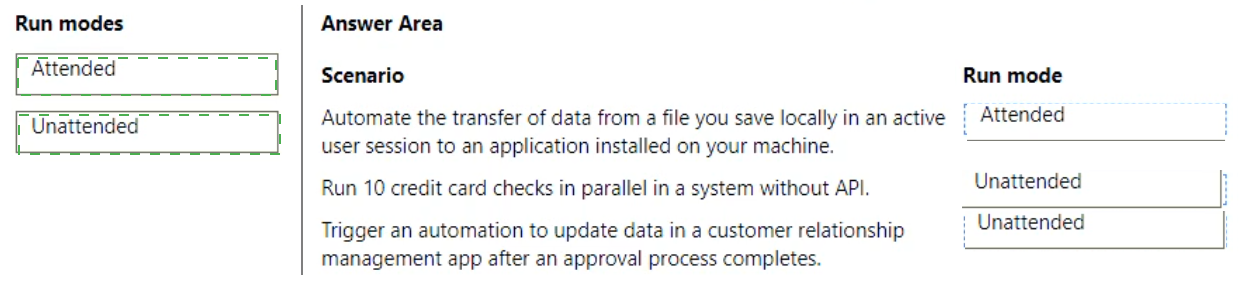
Explanation:
This question tests your ability to evaluate automation requirements and assign the appropriate execution architecture in Power Automate. It assesses your knowledge of when to utilize Attended robotic process automation (RPA) for user-interactive sessions versus Unattended RPA for background, independent operations.
✅ Correct Option:
Scenario 1 (Attended), Scenario 2 (Unattended), & Scenario 3 (Unattended):
Scenario 1 requires an interactive, active user session with local file interaction, making Attended mode the correct fit. Scenario 2 demands parallel processing (10 checks at once) on a legacy interface without human intervention, which requires Unattended scaling. Scenario 3 relies on an automatic system trigger (approval completion) to update data in the background, which is the definition of an Unattended automation workflow.
❌ Incorrect options:
Scenario 1 (Unattended)
This option is incorrect because Unattended bots run in isolated, independent Windows sessions. They cannot attach directly to a human worker's active screen or interact with a file saved locally by a user in real-time during their shift without logging out the user.
Scenario 2 (Attended)
This option is incorrect because Attended desktop flows cannot execute in parallel on a single machine or scale simultaneously across multiple sessions under human supervision. Running 10 concurrent jobs requires unattended virtual machines working independently.
Scenario 3 (Attended)
This option is incorrect because an automated process that triggers right after an approval finishes should run immediately in the background. Forcing it to be Attended would require a human worker to be present to manually initiate or watch the desktop run.
🔧 Reference:
→ Microsoft Learn: Run attended and unattended desktop flows confirms the operational differences between interactive active user sessions and background triggers or parallel scalability.
You are developing a flow that interacts with a Microsoft Dataverse table named Account.
The table includes the following columns:
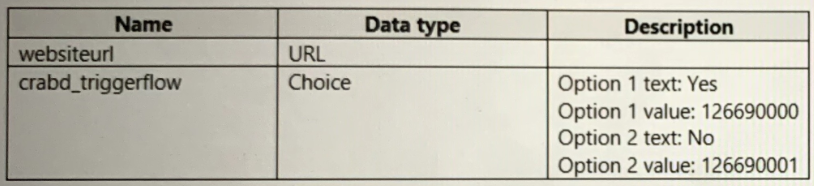
The flow must only trigger when a record is added to the Accounts table and the following
conditions are met:
• the websiteurl field is set to https://microsoft.com
• the crabd.triggerflow field is set to Yes
You need to configure the flow trigger.
Which trigger condition expression should you use?
A. @and(equals(triggerOutputs()?['body/crabd_triggerflow'], '126690000'),
equals(triggerOutputs()?['body/websiteurl'], 'https://microsoft.com') )
B. @and(equals(triggerOutputs()?['body/crabd_triggerflow'], 126690001),
equals(triggerOutputs()?['body/websiteurl'], 'https://microsoft.com') )
C. @or(equals(triggerOutputs()?['body/crabd_triggerflow'], 126690000),
equals(triggerOutputs()?['body/websiteurl'], 'https://microsoft.com') )
D. @or(equals(triggerOutputs()?['body/crabd_triggerflow'], '126690001'),
equals(triggerOutputs()?['body/websiteurl'], 'https://microsoft.com') )
equals(triggerOutputs()?['body/websiteurl'], 'https://microsoft.com') )
Explanation:
This question tests knowledge of trigger condition expressions in Power Automate when filtering Dataverse record creation events. Both conditions must be satisfied simultaneously — the website URL must equal a specific value AND the choice field must equal the "Yes" option value. This requires correct use of logical operators and proper data type handling for Choice field values.
✅ A. @and(..., '126690000', ...'https://microsoft.com') — Correct Option:
The @and operator ensures both conditions must be true for the flow to trigger — matching the requirement exactly. The crabd_triggerflow Choice field value for "Yes" is 126690000 as defined in the table, passed as a string in single quotes. The websiteurl is correctly matched to https://microsoft.com. Both field references and value types are accurate, making this the valid expression.
❌ B. @and(..., 126690001, ...'https://microsoft.com') — Incorrect Option:
This uses @and correctly but references 126690001 — which is the value for "No", not "Yes." Additionally, the Choice value is passed as a numeric integer without quotes, whereas Dataverse trigger expressions require Choice values to be passed as strings. Both the wrong value and incorrect data type make this expression invalid for the requirement.
❌ C. @or(..., 126690000, ...'https://microsoft.com') — Incorrect Option:
This uses the @or operator, meaning the flow triggers if either condition is true — not both. The requirement explicitly states both conditions must be met simultaneously. Additionally, 126690000 is passed without quotes as an integer instead of a string. The wrong logical operator and incorrect value type make this expression unsuitable.
❌ D. @or(..., '126690001', ...'https://microsoft.com') — Incorrect Option:
This uses @or instead of @and, so the flow would trigger when either condition is true rather than both. Furthermore, 126690001 is the value for "No" — not "Yes" as required. Both the incorrect logical operator and wrong Choice field value disqualify this expression from meeting the stated trigger conditions.
🔧 Reference:
→ Microsoft Learn – Use trigger conditions in Power Automate cloud flows
Confirms syntax for @and/@or expressions and correct usage of triggerOutputs() with Dataverse field values in trigger conditions.
A company is evaluating Al capabilities in Microsoft Power Platform. The company requires
fulfillment of the following tasks:
• Scan and extract handwritten receipts from customers into text values.
• Analyze customer feedback for negative sentiments. If negativity reaches a specified
threshold, generate text for an email to send to the customer.
• When analyzing an image, identify the number of times a product contains the company
name.
• Analyze and automatically summarize all customer feedback statements received during
a timeframe.
You need to recommend the capability to use for each requirement.
Which features should you recommend? To answer, move the appropriate Al capabilities to
the correct requirements. You may use each Al capability once, more than once, or not at
all. You may need to move the split bar between panes or scroll to view content.
NOTE: Each correct selection is worth one point.


Explanation:
This question tests your understanding of the AI capabilities available within Microsoft Power Platform (specifically AI Builder). Each capability serves a distinct purpose: Text recognition extracts text from images, Object detection identifies and counts objects in images, Sentiment analysis evaluates emotional tone in text, and Custom prompts allow you to build generative AI actions for tasks like summarization and response generation.
✔️ Correct Options:
Scan handwritten receipts → Text recognition
Text recognition (OCR) is specifically designed to extract printed and handwritten text from images and documents. It can read handwritten content on receipts and convert it into machine-readable text values for further processing.
Generate an automated response from negative feedback → Custom prompts
Custom prompts use generative AI models to create human-like text based on instructions. You can design a prompt that takes negative feedback as input and generates a personalized, empathetic email response automatically.
Count company product references → Object detection
Object detection identifies and counts specific objects within images. You can train a custom model to recognize your company's product packaging or logos in images and count how many times they appear.
Summarize customer feedback → Custom prompts
Custom prompts can perform text summarization by processing multiple feedback statements and generating a concise summary. This leverages generative AI to distill large volumes of text into key insights.
❌ Incorrect options (and why they do not match):
Scan handwritten receipts → Sentiment analysis
Sentiment analysis evaluates the emotional tone (positive, negative, neutral) of text. It cannot extract or read text from images, making it unsuitable for scanning handwritten receipts.
Count company product references → Text recognition
Text recognition extracts text from images but does not identify or count objects. It would read text on packaging but could not determine if it represents a product reference or count multiple instances.
Summarize customer feedback → Sentiment analysis
Sentiment analysis only detects emotional tone, not summarize content. It would tell you if feedback is positive or negative but cannot condense multiple statements into a brief overview.
Generate an automated response from negative feedback → Sentiment analysis
Sentiment analysis detects negativity but cannot generate a response. It would identify negative feedback but provides no mechanism for composing an automated reply or email content.
🔧 Reference:
→ AI Builder in Power Automate | Microsoft Learn: Confirms that Text recognition extracts handwritten text, Object detection identifies and counts objects, Custom prompts generate text-based responses and summaries, and Sentiment analysis detects emotional tone in text.
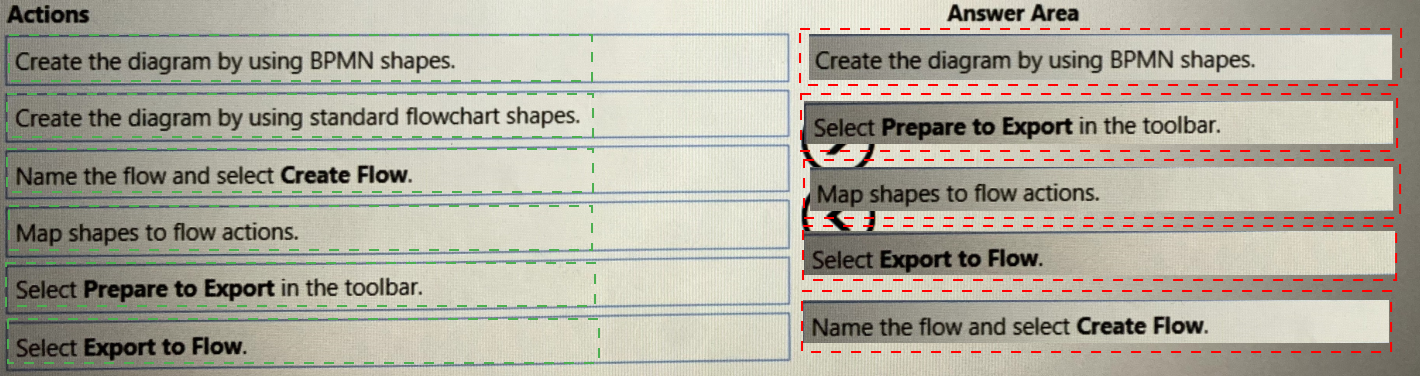
You plan to create a Microsoft Visio process diagram.
You need to create the diagram and then export the diagram as a Power Automate flow.
Which five actions should you perform in sequence? To answer, move the appropriate
actions from the list of actions to the answer area and arrange them in the correct order.
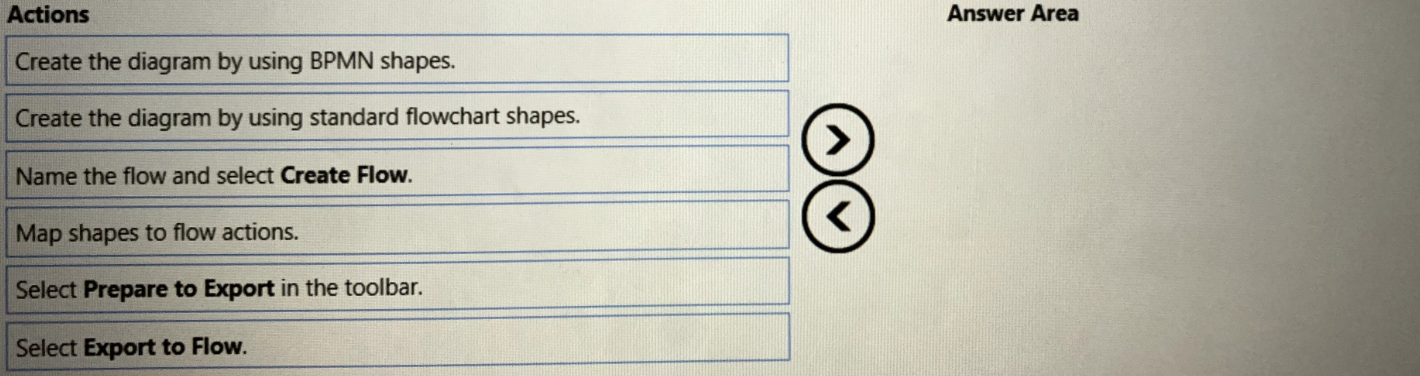
Explanation:
This question tests your knowledge of integrating Microsoft Visio with Power Automate to build automated workflows from business process designs. It specifically evaluates the sequential process needed to structure, map, validate, and export a Business Process Model and Notation (BPMN) diagram into a live cloud flow.
✅ Correct Option:
The designated order accurately reflects the technical design lifecycle. You must use official BPMN shapes because standard flowcharts lack the structural metadata needed for cloud flow transformation. Selecting Prepare to Export initiates the verification panel, which enables you to explicitly Map shapes to flow actions. Once mapping is successful, you choose Export to Flow to pass the configuration package over to the Power Automate environment, where you finally Name the flow and select Create Flow to provision it.
❌ Incorrect options:
Create the diagram by using standard flowchart shapes.
This action is incorrect because standard Visio flowchart shapes do not map cleanly to automated actions, triggers, or logic gates. Power Automate natively requires the Microsoft Visio BPMN Diagram template to establish structured step-by-step metadata mappings for cloud workflows.
🔧 Reference:
→ Microsoft Learn: Design a flow in Microsoft Visio confirms the exact procedural prerequisites, template requirements, and mapping validations needed to successfully export process diagrams directly into cloud workflows.
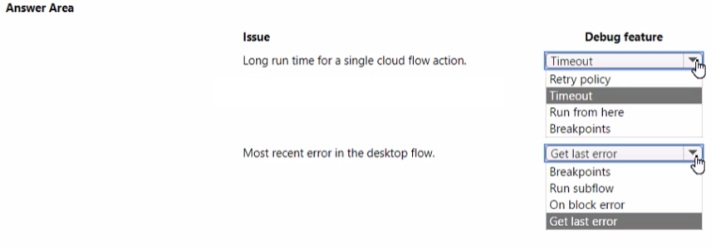
You create a solution that includes a Power Automate cloud flow and desktop flow. You
observe the following issues with the solution:
• A single Power Automate cloud flow action has a long run time.
• The Power Automate desktop flow encounters an error.
You need to debug the solution.
Which debug features should you use? To answer, select the appropriate options in the
answer area.
Explanation:
This question tests knowledge of debugging tools available across Power Automate cloud flows and desktop flows. Each issue requires a different debugging feature suited to its environment. The cloud flow issue involves an action taking too long, while the desktop flow issue involves capturing and inspecting the most recent error encountered during execution.
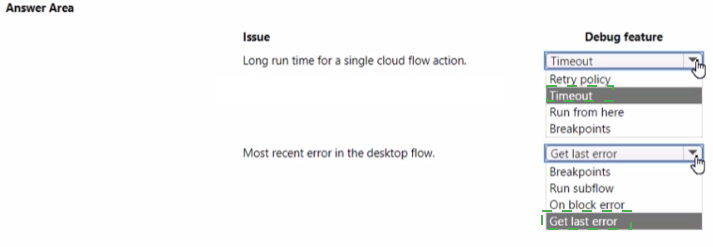
✅ Timeout — Correct Debug Feature for Long Run Time:
The Timeout setting in Power Automate cloud flow actions defines the maximum duration an action is allowed to run before it is forcibly stopped. When a single action has a long run time, configuring the Timeout property helps identify and control how long the action executes. It allows developers to set boundaries and detect when an action exceeds expected performance thresholds during debugging.
✅ Get last error — Correct Debug Feature for Most Recent Desktop Flow Error:
The Get last error action in Power Automate Desktop captures the most recent error that occurred during flow execution. When a desktop flow encounters an error, this feature retrieves detailed error information — including the error message and source — enabling developers to inspect exactly what failed. It is the dedicated debugging tool for error introspection within desktop flow runs.
❌ Retry policy — Incorrect for Long Run Time:
Retry policy controls how many times an action retries after a failure — it does not address or measure long execution times. It is a resilience feature, not a performance debugging tool, and would not help identify why a cloud flow action is taking longer than expected to complete.
❌ Run from here — Incorrect for Long Run Time:
"Run from here" allows execution to start from a specific action mid-flow, useful for skipping earlier steps during testing. It does not provide any insight into or control over the duration of a specific action's execution, making it irrelevant for diagnosing long run time issues.
❌ Breakpoints — Incorrect for Most Recent Desktop Flow Error:
Breakpoints pause desktop flow execution at a specific action for manual inspection during design-time debugging. They are useful for step-through analysis but do not capture or retrieve error details from a completed or failed flow run. They cannot report on the most recent error after execution.
❌ Run subflow — Incorrect for Most Recent Desktop Flow Error:
"Run subflow" is an action that calls a separate subflow within a desktop flow — it is a flow execution feature, not a debugging tool. It provides no mechanism to capture, retrieve, or inspect error information from a failed desktop flow execution.
❌ On block error — Incorrect for Most Recent Desktop Flow Error:
"On block error" is an error handling configuration that defines behavior when errors occur within a block of actions. While it manages error responses proactively, it does not retrieve or surface the most recent error after the fact — that role belongs specifically to the Get last error action.
🔧 Reference:
→ Microsoft Learn – Debug desktop flows in Power Automate Desktop
Confirms available debugging features including Get last error, Breakpoints, and On block error for desktop flow troubleshooting.
→ Microsoft Learn – Timeout
Confirms the Timeout setting as a configurable debug and control feature for individual cloud flow actions with long run times.
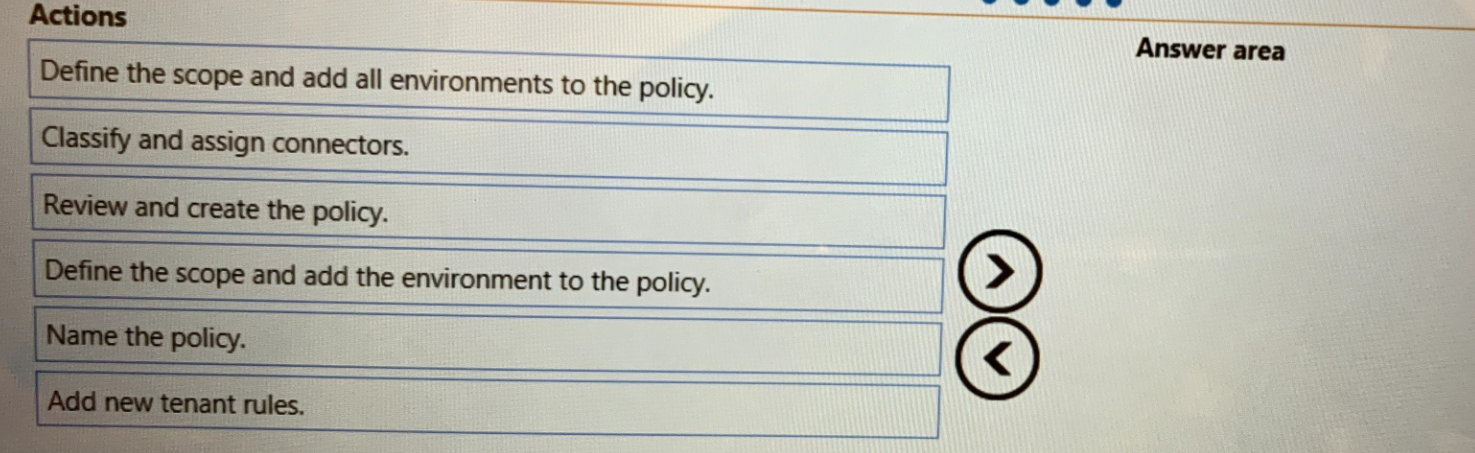
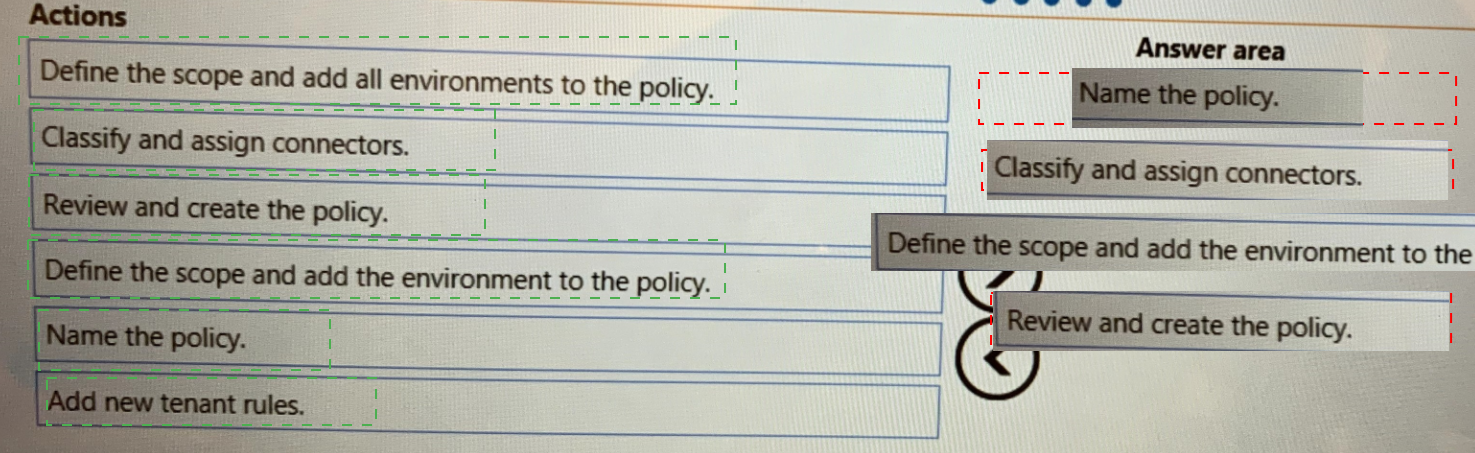
You plan to implement a data loss prevention (DLP) policy for a production environment.
You need to define the policy.
Which four actions should you perform in sequence? To answer, move the appropriate
actions from the list of actions to the answer area and arrange them in the correct order.
Explanation:
This question tests your understanding of creating Data Loss Prevention (DLP) policies in Power Platform. DLP policies control which connectors can share data by classifying them as Business or Non-Business. The correct sequence follows the logical workflow in the Power Platform admin center: naming, scoping, classifying connectors, and finalizing.
✔️ Correct Options (in sequence):
Name the policy.
The first step when creating any policy is to give it a descriptive name. This helps identify the policy's purpose later and is required before proceeding with configuration.
Define the scope and add the environment to the policy.
Next, you define the policy's scope by specifying which environments it applies to. For a production environment, you add only that specific environment rather than all environments.
Classify and assign connectors.
After scoping, you assign each connector in the policy as either Business (permitted) or Non-Business (blocked). This classification defines what data sharing is allowed within the environment.
Review and create the policy.
Finally, you review the configured settings, verify the classification, and create the policy. This step ensures all configurations are correct before the policy becomes active.
❌ Incorrect options (and why they are not part of the correct sequence):
Define the scope and add all environments to the policy.
This is incorrect because the requirement specifies a production environment only. Adding all environments would apply the policy globally, which is not the goal and could disrupt other environments.
Add new tenant rules.
This action is not part of the standard DLP policy creation workflow. Tenant rules are separate settings not required when defining a basic DLP policy for a specific environment.
Classify and assign connectors (incorrect placement).
While this action is valid, it must occur after scoping. Placing it before defining the scope would not align with the policy creation workflow.
Define the scope and add the environment to the policy (duplicate/incorrect placement).
This action must come immediately after naming the policy. Placing it elsewhere in the sequence would break the logical order.
🔧 Reference:
→ Microsoft Learn – Data policies: Confirms the policy creation workflow: name the policy, define its scope, classify connectors, then review and create.
| Page 2 out of 17 Pages |