Topic 4: Mix Question
You have a Microsoft 365 subscription that contains Windows 11 devices enrolled in Microsoft Intune.
You need to use Device query to identify whether a critical security patch was installed on a device.
Which table should you target?
A. Fileinfo
B. OsVersion
C. WindowsQfe
D. Systemlnfo
E. WindowsRegistry
Explanation:
The WindowsQfe table in Intune Device query contains information about installed Windows updates, including security patches, hotfixes, and quality updates. To identify whether a critical security patch (e.g., KB article) is installed, you query this table for the specific KB number or update description.
Correct Option:
C. WindowsQfe
The WindowsQfe table (Windows Quick Fix Engineering) lists all installed updates on a Windows device, including security patches, cumulative updates, and hotfixes. Each entry includes properties such as HotFixID (e.g., KB5021234), InstalledOn date, and Description. You can query this table to check if a critical security patch is present using a filter like WindowsQfe | where HotFixID == "KB5021234".
Incorrect Option:
A. FileInfo –
Contains information about files and folders on the device, not installed Windows updates.
B. OsVersion –
Contains the Windows operating system build number (e.g., 10.0.22621.1) but does not list individual security patches or KB articles.
D. SystemInfo –
Provides general system details (manufacturer, model, BIOS version) but not installed updates.
E. WindowsRegistry –
Contains registry key and value information, not a direct list of installed Windows updates.
Reference:
Microsoft Learn: Intune Device query tables – WindowsQfe table for installed updates. No external links provided.
You have a Microsoft Deployment Toolkit (MDT) deployment share named DS1.
in the Out-of-Box Drivers node, you create folders that contain drivers for different hardware models.
You need to configure the Inject Drivers MDT task to use PnP detection to install the drivers for one of the hardware models.
What should you do first?
A. Import an OS package.
B. Create a selection profile.
C. Add a Gather task to the task sequence.
D. Add a Validate task to the task sequence.
Explanation:
In MDT, a selection profile is used to define which folders or items (e.g., drivers for a specific hardware model) should be included during deployment. When configuring the Inject Drivers task to use PnP detection, you first create a selection profile that includes only the driver folder for that hardware model. Then, you configure the Inject Drivers task to use that selection profile.
Correct Option:
B. Create a selection profile
A selection profile allows you to specify a subset of driver folders (e.g., drivers for a specific hardware model) that MDT will use during deployment. After creating the selection profile, you configure the Inject Drivers task in the task sequence to use that profile instead of scanning all driver folders. This enables PnP detection to install only the matching drivers from the selected folder.
Incorrect Option:
A. Import an OS package –
Importing an OS package adds operating system installation files to MDT. This is unrelated to driver injection or selection profiles.
C. Add a Gather task to the task sequence –
The Gather task collects variables (e.g., computer name, make/model) but does not control which drivers are injected. It is often used before driver injection to identify hardware.
D. Add a Validate task to the task sequence –
The Validate task checks prerequisites (e.g., network connectivity, disk space) before deployment. It does not configure driver injection or selection profiles.
Reference:
Microsoft Learn: MDT selection profiles – Create selection profiles to filter drivers for specific hardware models. No external links provided.
You have a Microsoft 365 E5 subscription that contains devices enrolled in Microsoft Intune.
You plan to use Device query to provide on-demand information about the state of the devices. The solution must minimize costs. What should you do first?
A. Onboard the devices to Endpoint analytics.
B. Purchase the Intune Advanced Analytics add-on.
C. Use the Collect diagnostics remote action.
D. Purchase the Intune Suite add-on.
Explanation:
Device query in Intune requires devices to be onboarded to Endpoint analytics first. Endpoint analytics is included with Microsoft 365 E5 (no additional cost). Device query allows on-demand KQL-based queries to get real-time device state information. The Intune Advanced Analytics add-on is not required for basic Device query functionality.
Correct Option:
A. Onboard the devices to Endpoint analytics
Device query is a feature of Endpoint analytics. To use Device query, you must first onboard devices to Endpoint analytics (under Reports > Endpoint analytics > Settings). This is included with Microsoft 365 E5 at no extra cost. Once onboarded, you can run on-demand KQL queries against device data (e.g., installed updates, registry keys, file presence) without waiting for standard inventory cycles.
Incorrect Option:
B. Purchase the Intune Advanced Analytics add-on –
Intune Advanced Analytics is a paid add-on that provides deeper insights and historical data analysis. It is not required for basic Device query functionality. Device query is available with Endpoint analytics included in E5.
C. Use the Collect diagnostics remote action –
Collect diagnostics gathers logs from a specific device for troubleshooting, but it does not provide on-demand query capabilities across multiple devices. It is a different feature with different purpose.
D. Purchase the Intune Suite add-on –
Intune Suite is a paid add-on that includes advanced features (e.g., Remote Help, Advanced Analytics). Device query is not exclusive to Intune Suite; it is available with Endpoint analytics in E5.
Reference:
Microsoft Learn: Device query in Intune – Prerequisites include onboarding to Endpoint analytics. No external links provided.
You have an Azure AD tenant named contoso.com.
You have a workgroup computer named Computer! that runs Windows 11.
You need to add Computer1 to contoso.com.
What should you use?
A. dsreecmd.exe
B. Computer Management
C. netdom.exe
D. the Settings app
Explanation:
To join a workgroup Windows 11 computer to Azure AD, you use the Settings app (Accounts > Access work or school > Connect). This is the standard and recommended method. The other tools (dsregcmd.exe, netdom.exe) are for other purposes: dsregcmd checks Azure AD join status, netdom is for on-premises AD join.
Correct Option:
D. the Settings app
On Windows 11, navigate to Settings > Accounts > Access work or school > Connect. Enter your Azure AD credentials (user@contoso.com). The device will be joined to contoso.com. This is the supported method for Azure AD join on workgroup computers. No command-line tools are required for standard Azure AD join.
Incorrect Option:
A. dsregcmd.exe –
This command-line tool is used to view Azure AD join status and troubleshoot, not to initiate a new Azure AD join. Running dsregcmd /join requires the device to already be configured for Azure AD join via Settings.
B. Computer Management –
This MMC snap-in manages local users, groups, services, and disk management. It does not have any option to join a device to Azure AD.
C. netdom.exe –
This command-line tool is used to join computers to on-premises Active Directory domains, not Azure AD. It cannot join a device to Azure AD.
Reference:
Microsoft Learn: Join a Windows device to Azure AD – Use Settings app > Accounts > Access work or school. No external links provided.
You have a Microsoft 365 subscription that contains a user named User1.
You use Microsoft in tune to manage devices that run Windows 11.
You need to remove User1 from the local Administrators group on all enrolled devices. The
solution must minimize administrative effort.
What should you configure?
A. a device compliance policy
B. an app configuration policy
C. an account protection policy
Explanation:
Removing a user from the local Administrators group on multiple enrolled devices is configured using an Account protection policy in Intune. Under "Local user group membership," you can specify which users or groups should be members of built-in groups (Administrators, Users, Remote Desktop Users). To remove User1, you configure the Administrators group to exclude User1.
Correct Option:
C. an account protection policy
In the Microsoft Intune admin center, navigate to Endpoint security > Account protection. Create a policy for Windows 10 and later. Under "Local user group membership," you can configure "Add the following users to the Administrators group" and "Remove the following users from the Administrators group." Add User1 to the removal list. Assign the policy to all Windows devices. This removes User1 from the local Administrators group on all targeted devices with minimal administrative effort.
Incorrect Option:
A. a device compliance policy –
Compliance policies evaluate device health (OS version, encryption, etc.) and do not modify local group memberships.
B. an app configuration policy –
App configuration policies supply settings to mobile applications (e.g., Outlook, Edge). They do not manage local user groups on Windows devices.
Reference:
Microsoft Learn: Account protection policy – Local user group membership to add or remove users from built-in groups. No external links provided.
You have a Microsoft 365 subscription.
You need provide a user the ability to disable Security defaults and principle of least
privilege.
Which role should you assign to the user?
A. Global Administrator
B. Conditional Access Administrator
C. Security Administrator
D. Intune Administrator
Explanation:
Security defaults in Microsoft Entra ID are a set of baseline security settings (requiring MFA, blocking legacy authentication, etc.). Disabling security defaults requires the Conditional Access Administrator role or higher (Global Administrator). The principle of least privilege suggests using Conditional Access Administrator, which can manage security defaults without full Global Admin permissions.
Correct Option:
B. Conditional Access Administrator
The Conditional Access Administrator role has permissions to manage security defaults and Conditional Access policies. This includes enabling or disabling security defaults in the Entra admin center. This role follows the principle of least privilege because it does not grant full access to all Microsoft 365 services like Global Administrator does.
Incorrect Option:
A. Global Administrator –
While Global Administrator can disable security defaults, it violates the principle of least privilege because it grants full access to all Microsoft 365 administrative functions, not just security defaults management.
C. Security Administrator –
Security Administrator has permissions to manage security policies and read security reports, but disabling security defaults may require Conditional Access Administrator or Global Administrator permissions.
D. Intune Administrator –
Intune Administrator manages device enrollment, compliance, and configuration profiles. This role does not have permissions to manage Entra ID security defaults.
Reference:
Microsoft Learn: Security defaults in Entra ID – Permissions required to disable: Conditional Access Administrator or Global Administrator. No external links provided.
You have an Azure AD tenant named contoso.com.
You plan to use Windows Autopilot to configure the Windows 10 devices shown in the
following table.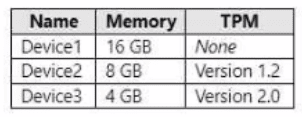
Which devices can be configured by using Windows Autopilot self-deploying mode?
A. Device2 only
B. Device3 only
C. Device2 and Devnce3 only
D. Device 1, Device2, and Device3
Explanation:
Windows Autopilot self-deploying mode requires a device with TPM 2.0 (hardware-based attestation). Device3 has TPM 2.0 and meets the requirement. Device2 has TPM 1.2 (not sufficient). Device1 has no TPM. Self-deploying mode does not require a user to sign in, but TPM 2.0 is mandatory for device authentication and enrollment.
Correct Option:
B. Device3 only
Self-deploying mode requires TPM 2.0 (not 1.2) and a supported version of Windows 10/11. Device3 has 4 GB RAM (meets minimum) and TPM 2.0. Device2 has TPM 1.2, which does not support the required attestation. Device1 has no TPM. Therefore, only Device3 can be configured using Windows Autopilot self-deploying mode.
Incorrect Option:
A. Device2 only –
Incorrect; TPM 1.2 is not supported for self-deploying mode. Self-deploying requires TPM 2.0.
C. Device2 and Device3 only –
Incorrect; Device2 (TPM 1.2) does not meet the TPM 2.0 requirement.
D. Device1, Device2, and Device3 –
Incorrect; Device1 (no TPM) and Device2 (TPM 1.2) do not meet the TPM 2.0 requirement.
Reference:
Microsoft Learn: Windows Autopilot self-deploying mode – Requires TPM 2.0. No external links provided.
You have a Microsoft 365 subscription.
You use Microsoft Intune to manage Windows 11 devices.
You need to implement Windows Local Administrator Password Solution (Windows LAPS).
What should you configure?
A. a device compliance policy
B. an app protection policy
C. an account protection policy
D. a configuration profile
Explanation:
Windows Local Administrator Password Solution (Windows LAPS) is configured using an Account protection policy in Intune. Under Account protection, you configure "Local admin password solution (Windows LAPS)" settings, including enabling automatic account management, password rotation, and backup to Azure AD. This policy manages the local administrator account password lifecycle.
Correct Option:
C. an account protection policy
In the Microsoft Intune admin center, navigate to Endpoint security > Account protection. Create a policy for Windows 10 and later. Under "Local admin password solution (Windows LAPS)," configure settings such as "Back up the local administrator password to Azure AD," "Password age," and "Password complexity." This policy enables Windows LAPS on targeted devices, rotating and securely storing local administrator passwords in Azure AD.
Incorrect Option:
A. a device compliance policy –
Compliance policies evaluate device health against defined rules (OS version, encryption, etc.). They do not configure Windows LAPS.
B. an app protection policy –
App protection policies (MAM) protect corporate data within mobile apps. They are unrelated to Windows LAPS.
D. a configuration profile –
While some configuration profiles can manage local accounts, Windows LAPS is specifically configured under Endpoint security > Account protection, not under standard Device configuration profiles.
Reference:
Microsoft Learn: Configure Windows LAPS in Intune – Use Account protection policy. No external links provided.
You have a Microsoft 365 ES subscription.
You use Microsoft Intune to manage all devices.
You need to prepare a Win32 app named Appl.exe for deployment.
What should you do first?
A. From the Microsoft Intune admin center, create an app configuration policy.
B. Change App1.exe to the INIUNEW1N format.
C. From the Microsoft 365 Apps admin center, create a deployment configuration
D. Upload App1 exe to Azure Blob Storage.
Explanation:
Win32 apps in Intune must be packaged into the .intunewin format using the Microsoft Win32 Content Prep Tool. This tool compresses the application source files (including App1.exe) into a single .intunewin file. After packaging, you upload the .intunewin file to Intune for deployment. This is the mandatory first step for any Win32 app deployment.
Correct Option:
B. Change App1.exe to the .intunewin format
The Microsoft Win32 Content Prep Tool (IntuneWinAppUtil.exe) processes the installer (App1.exe) and any supporting files to produce a .intunewin file. This packaged file contains the installer, metadata, and a catalog. After creation, you upload the .intunewin file to Intune (Apps > Windows > Win32 > Add). Without this packaging step, you cannot deploy App1 as a Win32 app in Intune.
Incorrect Option:
A. From the Microsoft Intune admin center, create an app configuration policy –
App configuration policies supply settings to managed apps (e.g., Outlook). They are not used to prepare or package a Win32 app for deployment.
C. From the Microsoft 365 Apps admin center, create a deployment configuration –
This is for deploying Microsoft 365 Apps (Office), not for packaging custom Win32 applications.
D. Upload App1.exe to Azure Blob Storage –
Intune does not require Azure Blob Storage for Win32 app deployment. The .intunewin file is uploaded directly to the Intune admin center, not to external storage.
Reference:
Microsoft Learn: Prepare Win32 app content for Intune – Use Microsoft Win32 Content Prep Tool to convert to .intunewin format. No external links provided.
You have a Microsoft 365 E5 subscription and use Microsoft Intune Suite.
You plan to use Intune to run remediation script packages.
What should you do first in the Microsoft Intune admin center?
A. Enable Windows diagnostic data in processor configuration.
B. Upload a Windows enterprise certificate.
C. Enable Windows license verification.
D. Configure the Derived Credential settings.
Explanation:
Remediation script packages (Proactive remediations) in Intune require devices to send diagnostic data to Intune. You must enable Windows diagnostic data in device configuration (under System settings) to allow scripts to run and report results. Without this, remediation scripts will not function properly.
Correct Option:
A. Enable Windows diagnostic data in processor configuration
Proactive remediations (scripts that detect and fix issues) require Windows diagnostic data to be set to "Optional diagnostic data" (formerly "Enhanced") or "Required diagnostic data." This is configured in a device configuration profile under "Reporting and Telemetry" settings. This allows Intune to receive script outputs and compliance status. This is a prerequisite before you can create and assign remediation script packages.
Incorrect Option:
B. Upload a Windows enterprise certificate –
Enterprise certificates are used for Wi-Fi, VPN, or S/MIME signing, not for remediation scripts.
C. Enable Windows license verification –
License verification is related to Windows activation and subscription activation, not to remediation scripts.
D. Configure the Derived Credential settings –
Derived credentials are used for smart card authentication or device compliance, not for remediation scripts.
Reference:
Microsoft Learn: Proactive remediations in Intune – Prerequisites include Windows diagnostic data enabled. No external links provided.
| Page 12 out of 35 Pages |