Topic 4: Mix Question
Your company has a Microsoft 365 E5 tenant.
All the devices of the company are enrolled in Microsoft Intune.
You need to create advanced reports by using custom queries and visualizations from raw
Microsoft Intune data.
Which three actions should you perform in sequence? To answer, move the appropriate actions from the list of actions to the answer area and arrange them in the correct order.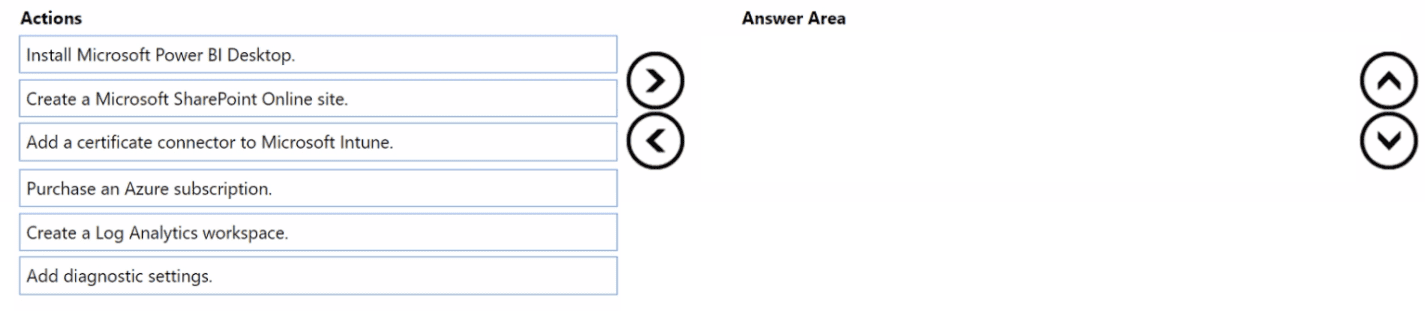
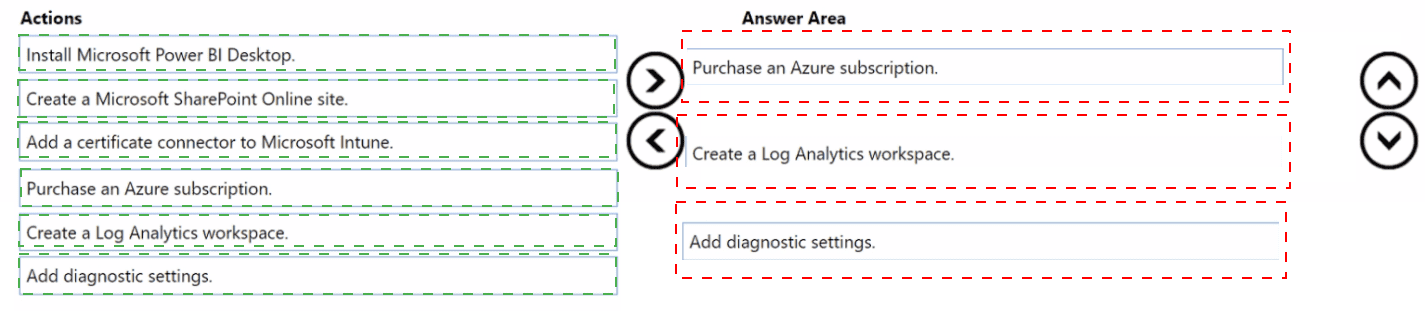 Explanation:
To create advanced reports with custom queries and visualizations from raw Intune data, you need to: (1) purchase an Azure subscription (Intune Data Warehouse requires Azure), (2) create a Log Analytics workspace to store the data, and (3) install Microsoft Power BI Desktop to connect to the workspace and build custom visualizations.
Correct Option (in correct sequence):
1. Purchase an Azure subscription
Intune Data Warehouse data is stored in an Azure Log Analytics workspace, which requires an active Azure subscription. Without an Azure subscription, you cannot access or query the raw Intune data beyond the built-in reports in Intune admin center.
2. Create a Log Analytics workspace
In the Azure portal, create a Log Analytics workspace. Then, in Intune, configure diagnostic settings to export Intune data (compliance, device inventory, app protection) to the Log Analytics workspace. This is where raw Intune data is stored for custom querying.
3. Install Microsoft Power BI Desktop
Power BI Desktop connects to Log Analytics workspace using Azure Data Explorer (ADX) queries or direct integration. With Power BI, you can write custom KQL queries and create advanced visualizations (charts, dashboards) from the raw Intune data stored in Log Analytics.
Incorrect Option (actions not used):
Create a Microsoft SharePoint Online site – SharePoint is for document collaboration, not for advanced reporting or querying raw Intune data.
Add a certificate connector to Microsoft Intune – Certificate connectors are for deploying PKCS or SCEP certificates to devices, unrelated to reporting.
Add diagnostic settings – Diagnostic settings are used after creating a Log Analytics workspace to route Intune data to it. However, this is not one of the three main actions listed; it is a sub-step within creating the workspace configuration.
Reference:
Microsoft Learn: Intune Data Warehouse – Export data to Log Analytics workspace and use Power BI for custom reports. No external links provided.
You have a Microsoft 365 subscription that contains 1,000 iOS devices. The devices are enrolled in Microsoft Intune as follows:
• Two hundred devices are enrolled by using the Intune Company Portal.
• Eight hundred devices are enrolled by using Apple Automated Device Enrollment (ADE).
You create an iOS/iPadOS software updates policy named Policy 1 that is configured to install iOS/iPadOS 15.5.
How many iOS devices will Policy1 update, and what should you configure to ensure that only iOS/iPadOS 15.5 is installed? To answer, select the appropriate options in the answer area.
NOTE: Each correct selection is worth one point.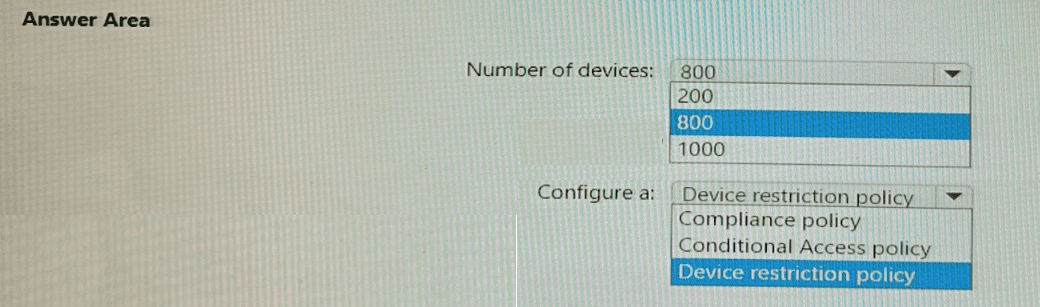
Explanation:
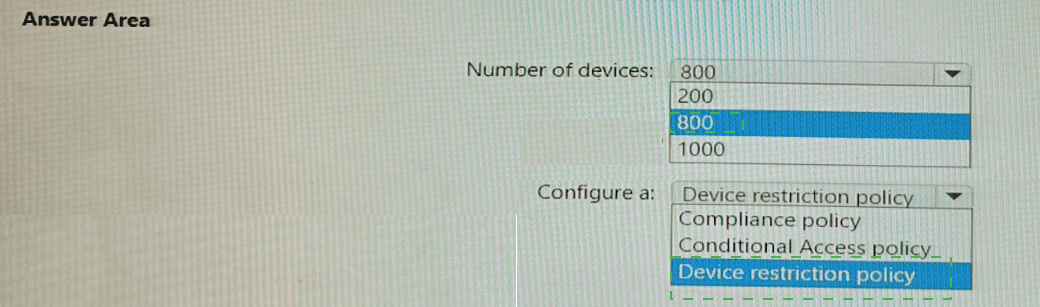
iOS software update policies in Intune apply only to devices enrolled via Apple Automated Device Enrollment (ADE) (supervised mode). The 200 devices enrolled via Company Portal (user enrollment) are not eligible. To ensure only iOS 15.5 is installed, you configure a Device restriction policy to block automatic updates and require specific version compliance.
Correct Option:
Number of devices: 800
iOS/iPadOS software update policies in Intune only apply to supervised iOS devices. Devices enrolled via Apple ADE are automatically supervised. Devices enrolled via Company Portal (user enrollment) are not supervised and cannot be managed by software update policies. Therefore, only the 800 ADE-enrolled devices will receive Policy1 and be updated to iOS 15.5.
Configure a: Device restriction policy
To ensure that only iOS 15.5 is installed (and not newer versions automatically), you configure a Device restriction policy for iOS. Under General settings, set "Automatic software updates" to Block (preventing automatic updates to newer versions). Then, use a compliance policy to require iOS 15.5 and Conditional Access to block noncompliant devices. However, the question asks "what should you configure to ensure that only iOS 15.5 is installed" – the answer is a Device restriction policy to block automatic updates beyond the target version.
Incorrect Option (for number of devices):
200 – Incorrect; user-enrolled (Company Portal) devices are not supervised and do not support software update policies.
1000 – Incorrect; includes 200 non-supervised devices that cannot be updated via this policy.
Incorrect Option (for configuration):
Compliance policy – Compliance policies can require a specific OS version but do not prevent devices from automatically updating beyond that version. They only mark noncompliant.
Conditional Access policy – Conditional Access blocks access based on compliance status but does not control which OS version installs.
Reference:
Microsoft Learn: iOS software update policies in Intune – Require supervised devices (ADE). Device restriction policy blocks automatic updates. No external links provided.
You use Windows Admin Center to remotely administer computers that run Windows 10.
When connecting to Windows Admin Center, you receive the message shown in the following exhibit.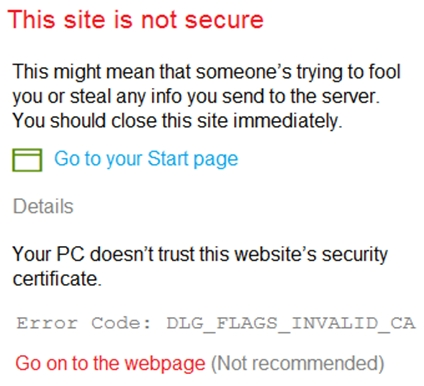
You need to prevent the message from appearing when you connect to Windows Admin Center.
To which certificate store should you import the certificate?
A. Personal
B. Trusted Root Certification Authorities
C. Client Authentication Issuers
Explanation:
The error "Your PC doesn't trust this website's security certificate" and "Error Code: DLG_FLAGS_INVALID_CA" indicates that the certificate authority (CA) that issued the Windows Admin Center certificate is not trusted by your computer. Importing the CA certificate into the Trusted Root Certification Authorities store establishes trust, preventing the warning.
Correct Option:
B. Trusted Root Certification Authorities
The Trusted Root Certification Authorities certificate store contains root certificates of trusted CAs. When Windows Admin Center uses a certificate issued by an internal CA (or self-signed), your computer does not trust that CA unless its root certificate is installed in this store. Importing the CA's root certificate here tells Windows to trust any certificates issued by that CA, resolving the invalid CA error.
Incorrect Option:
A. Personal –
The Personal (My) store is for certificates that have an associated private key, typically for client authentication or encryption. Importing a CA certificate here does not establish trust for website certificates.
C. Client Authentication Issuers –
This store is used for client certificate authentication scenarios, not for trusting server certificates presented by a website like Windows Admin Center.
Reference:
Microsoft Learn: Windows Admin Center certificate errors – Import CA certificate to Trusted Root Certification Authorities store. No external links provided.
Your network contains an on-premises Active Directory Domain Services (AD DS) domain.
You have a Microsoft 365 E5 subscription that includes Microsoft Intune and syncs with the AD DS domain.
Windows Local Administrator Password Solution (Windows LAPS) is enabled in Microsoft Entra ID.
The subscription has the custom roles shown in the following table.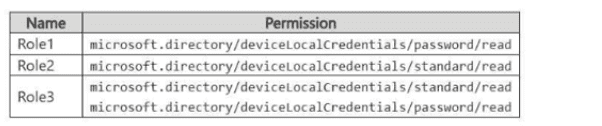
Microsoft Entra contains the users shown in the following table.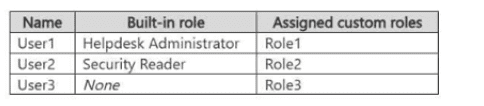
You have the devices shown in the following table.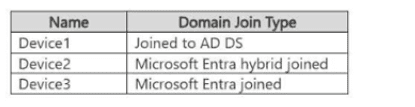
For each of the following statements, select Yes if the statement is true. Otherwise, select
No.
NOTE: Each correct selection is worth one point.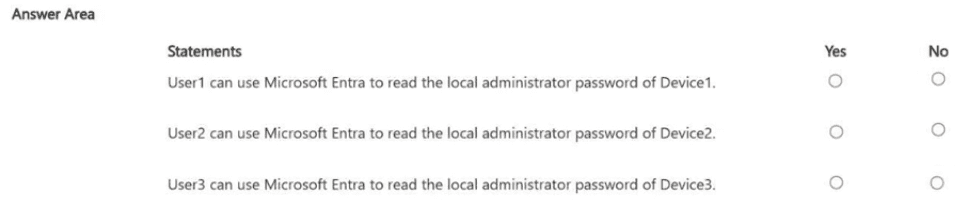
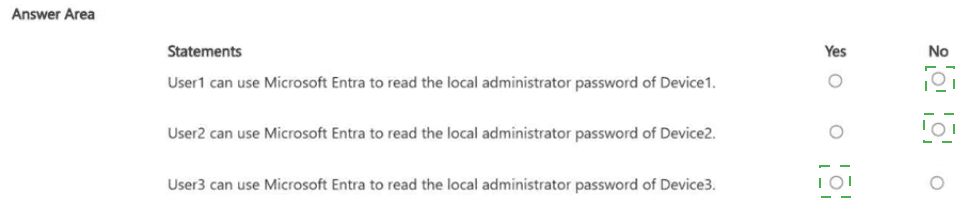
Explanation:
To read local administrator passwords via Microsoft Entra ID for Windows LAPS, a user needs the microsoft.directory/deviceLocalCredentials/password/read permission. Role1 has only password/read. Role2 has only standard/read. Role3 has both. Helpdesk Administrator does not include LAPS password read by default. Device domain join type does not affect LAPS password read permission.
Correct Option (per statement):
Statement 1: User1 can use Microsoft Entra to read the local administrator password of Device1. → No
User1 has Helpdesk Administrator (built-in) plus Role1. Role1 has microsoft.directory/deviceLocalCredentials/password/read, which is the required permission to read the actual password. However, Device1 is joined to AD DS (on-premises only), not Microsoft Entra. Windows LAPS in Entra ID requires the device to be Entra joined or Entra hybrid joined. Therefore, User1 cannot read Device1's password via Entra ID.
Statement 2: User2 can use Microsoft Entra to read the local administrator password of Device2. → No
User2 has Security Reader (built-in) plus Role2. Role2 only has microsoft.directory/deviceLocalCredentials/standard/read, which does not include password read. The password read permission is specifically password/read. Device2 is Entra hybrid joined, which supports LAPS, but User2 lacks the required permission.
Statement 3: User3 can use Microsoft Entra to read the local administrator password of Device3. → Yes
User3 has Role3, which includes both standard/read and password/read. Device3 is Entra joined, which supports Windows LAPS. Therefore, User3 has the required permission and the device is compatible. User3 can read the local administrator password of Device3 via Microsoft Entra ID.
Reference:
Microsoft Learn: Windows LAPS permissions in Entra ID – password/read permission required to read local admin passwords. No external links provided.
You have the MDM Security Baseline profile shown in the MDM exhibit. (Click the MDM tab.)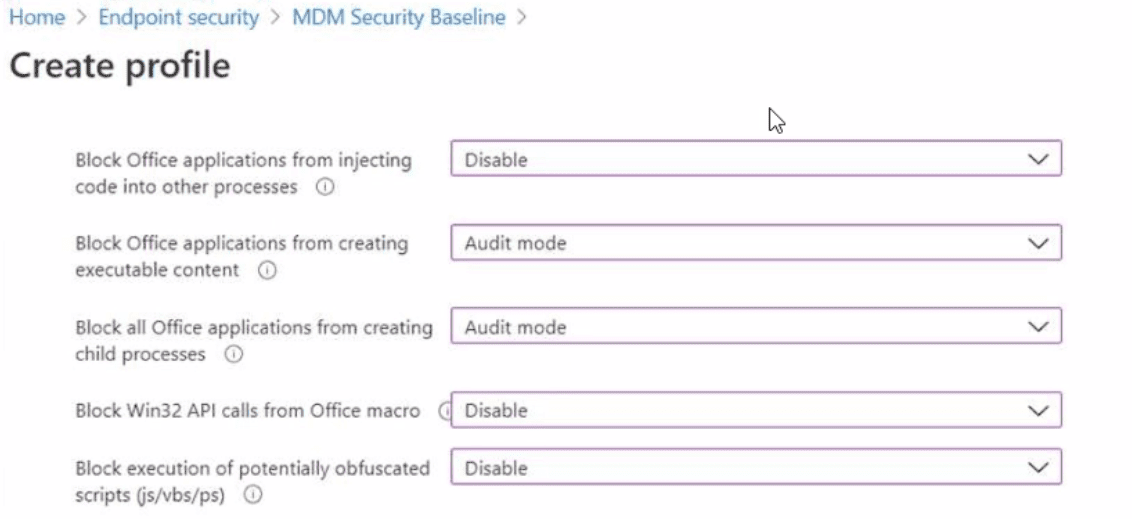
You have the ASR Endpoint Security profile shown in the ASR exhibit. (Click the ASR tab.)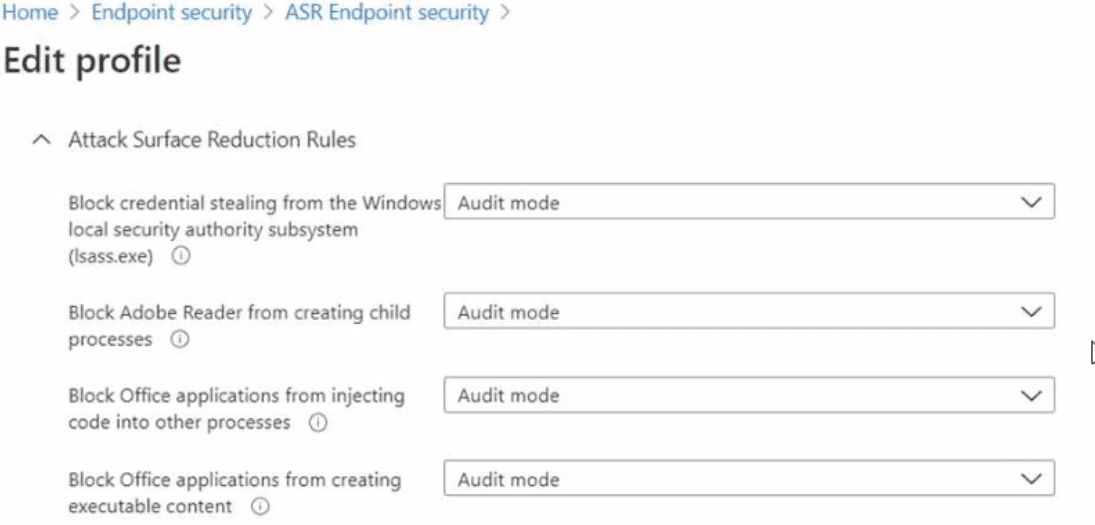
You plan to deploy both profiles to devices enrolled in Microsoft Intune. You need to identify how the following settings will be configured on the devices:
• Block Office applications from creating executable content
• Block Win32 API calls from Office macro
Currently, the settings are disabled locally on each device.
What are the effective settings on the devices? To answer, select the appropriate options in
the answer area.
NOTE: Each correct selection is worth one point.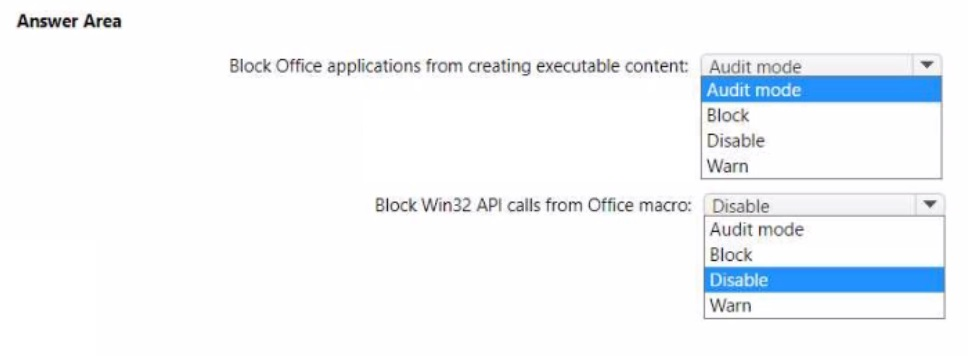
Explanation:
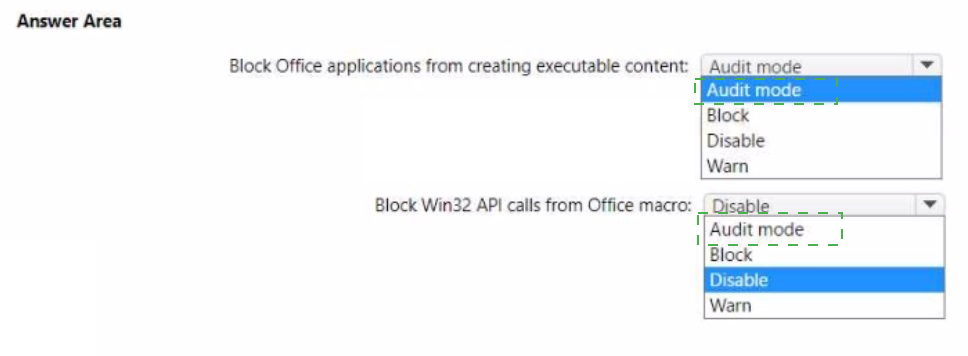
When multiple policies configure the same setting, the most restrictive setting typically applies unless a specific conflict resolution is defined. In the MDM Security Baseline, "Block Office applications from creating executable content" is set to Audit mode, while locally it is Disabled. In the ASR profile, the setting may be configured differently. For "Block Win32 API calls from Office macro," the MDM baseline shows Disable.
Correct Option:
Block Office applications from creating executable content: Audit mode
The MDM Security Baseline profile explicitly sets this setting to Audit mode. The local device setting is Disabled. Since the MDM baseline is deployed and takes precedence over local configuration (and no conflicting policy with Block or Warn is shown in the exhibits), the effective setting on devices will be Audit mode.
Block Win32 API calls from Office macro: Disable
The MDM Security Baseline profile shows this setting as Disable. The local device setting is also Disabled (same). Since no conflicting policy (Block, Audit mode, or Warn) is shown in the exhibits, the effective setting remains Disable.
Incorrect Option (for first setting):
Block – Not configured in the MDM baseline or ASR exhibit; would be more restrictive but is not applied.
Disable – This is the local setting, but the MDM baseline overrides it with Audit mode.
Warn – Not shown in either exhibit for this setting.
Incorrect Option (for second setting):
Audit mode – Not configured for this setting in the exhibits.
Block – Not configured; would be more restrictive but not applied.
Warn – Not shown in either exhibit for this setting.
Reference:
Microsoft Learn: Intune policy precedence – MDM Security Baseline settings override local configuration. No external links provided.
You have a Microsoft 365 subscription. The subscription contains 1,000 computers that run
Windows 11 and are enrolled in Microsoft Intune.
You plan to create a compliance policy that has the following options enabled:
• Require Secure Boot to be enabled on the device.
• Require the device to be at or under the machine risk score.
Which two Compliance settings should you configure? To answer, select the appropriate
settings in the answer area.
NOTE: Each correct selection is worth one point.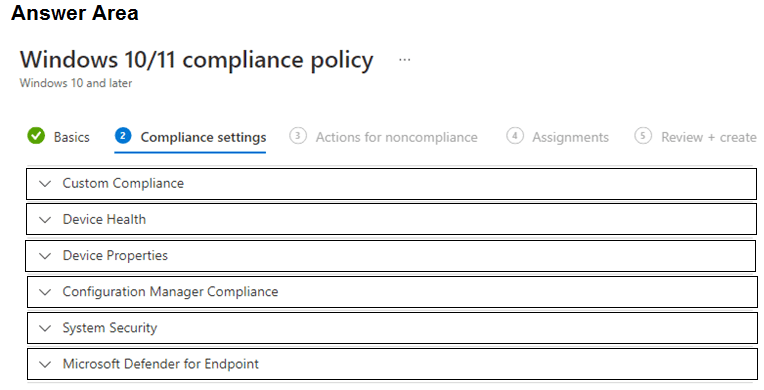
Explanation:
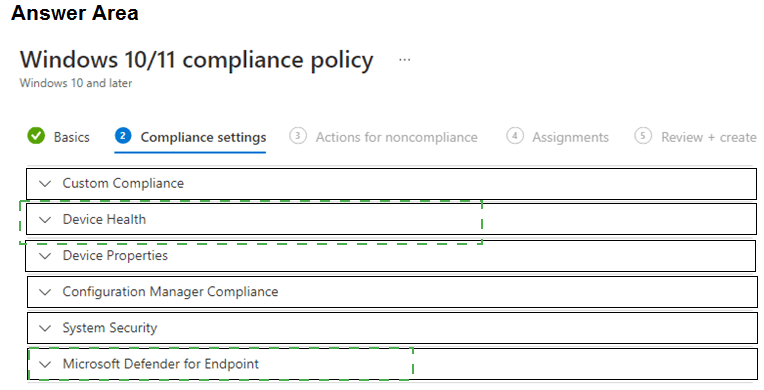
Secure Boot is a device health feature, found under Device Health in the compliance policy settings. The machine risk score is provided by Microsoft Defender for Endpoint, found under Microsoft Defender for Endpoint (which includes settings like "Require the device to be at or under the machine risk score").
Correct Option:
Require Secure Boot to be enabled on the device: Device Health
Under Device Health settings in a Windows 10/11 compliance policy, you can require "Secure Boot" to be enabled. This setting checks whether the device has Secure Boot turned on, ensuring that only trusted firmware and bootloaders are used during startup.
Require the device to be at or under the machine risk score: Microsoft Defender for Endpoint
Under Microsoft Defender for Endpoint settings, you can configure "Require the device to be at or under the machine risk score." This integrates Defender for Endpoint threat levels (Low, Medium, High) with compliance. You can set the maximum allowed risk score (e.g., Low or Medium) to mark devices compliant only if they meet that risk threshold.
Incorrect Option (other settings in the answer area):
Device Properties – Contains settings for OS version, minimum OS build, and device model. Does not include Secure Boot or risk score.
Configuration Manager Compliance – Used for co-management scenarios with Configuration Manager, not for Secure Boot or Defender risk score.
System Security – Includes password requirements, encryption, and firewall settings. Secure Boot is under Device Health, not System Security.
Reference:
Microsoft Learn: Intune compliance policies for Windows – Device Health (Secure Boot) and Microsoft Defender for Endpoint (risk score). No external links provided.
You have a Microsoft 365 subscription that contains 5,000 Windows devices enrolled in Microsoft Intune.
You plan to use the Sync and Collect diagnostics bulk device actions.
What is the maximum number of devices you can include in each action? To answer, select the appropriate options in the answer area.
NOTE: Each correct selection is worth one point.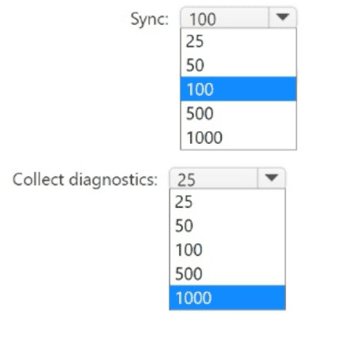
Explanation:
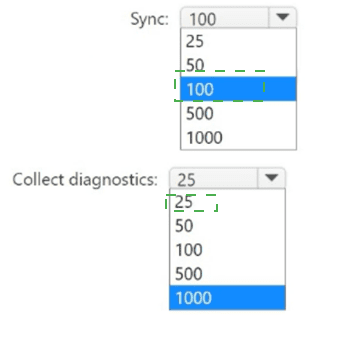
In Microsoft Intune, bulk device actions have specific limits. The Sync bulk action can target up to 100 devices at once. The Collect diagnostics bulk action can target up to 25 devices at once. These limits ensure system performance and stability when performing operations across many devices.
Correct Option:
Sync: 100
When using the bulk device action to sync devices (force devices to check in with Intune), you can select up to 100 devices at a time. This limit applies regardless of the total number of devices in the tenant.
Collect diagnostics: 25
When using the bulk device action to collect diagnostics (logs) from devices, you can select up to 25 devices at a time. Diagnostic collection is more resource-intensive, hence the lower limit compared to sync.
Incorrect Option (for Sync):
25, 50, 500, 1000 – These are not the correct limits for bulk sync. The documented maximum is 100 devices.
Incorrect Option (for Collect diagnostics):
50, 100, 500, 1000 – These exceed the documented limit of 25 devices for bulk diagnostic collection.
Reference:
Microsoft Learn: Bulk device actions in Intune – Maximum devices per action: Sync (100), Collect diagnostics (25). No external links provided.
| Page 11 out of 35 Pages |