Topic 1: Fourth Coffee Case Study
Case study
This is a case study. Case studies are not timed separately. You can use as much exam
time as you would like to complete each case. However, there may be additional case
studies and sections on this exam. You must manage your time to ensure that you are able
to complete all questions included on this exam in the time provided.
To answer the questions included in a case study, you will need to reference information
that is provided in the case study. Case studies might contain exhibits and other resources
that provide more information about the scenario that is described in the case study. Each
question is independent of the other questions in this case study.
At the end of this case study, a review screen will appear. This screen allows you to review
your answers and to make changes before you move to the next section of the exam. After
you begin a new section, you cannot return to this section.
To start the case study
To display the first question in this case study, click the Next button. Use the buttons in the
left pane to explore the content of the case study before you answer the questions. Clicking
these buttons displays information such as business requirements, existing environment,
and problem statements. If the case study has an All Information tab, note that the
information displayed is identical to the information displayed on the subsequent tabs.
When you are ready to answer a question, click the Question button to return to the
question.
Background
Fourth Coffee is a coffee and supplies manufacturer based in Seattle. The company
recently purchased CompanyA, based in the United States, and CompanyB, based in
Canada, in order to increase production of their award-winning espresso machine and
distribution of their dark roast coffee beans, respectively.
Fourth Coffee has set up CompanyA and CompanyB in their Dynamics 365 Finance
environment to gain better visibility into the companies' profitability. CompanyA and
CompanyB will continue to operate as subsidiaries of Fourth Coffee, but all operational
companies will be consolidated under Fourth Coffee Holding Company in US dollars (USD)
for reporting purposes.
The current organizational chart is shown below:

A company uses the basic budgeting functionality in Dynamics 365 Finance. You are
creating the budget in the system for the upcoming fiscal year.
The company uses budget workflow approvals to process budget entries. The company
plans to split a business unit named IT and Infrastructure into two business units: Business
Applications and IT Infrastructure.
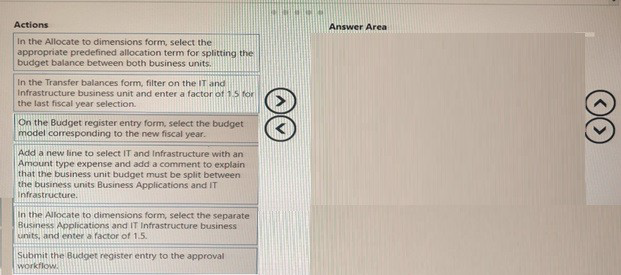
You need to create the budget for the two business units based on 1.5 Which four actions
should you perform in sequence? To answer, move the appropriate actions from the list of
actions to the answer area and arrange them in the correct order.
Correct Sequence
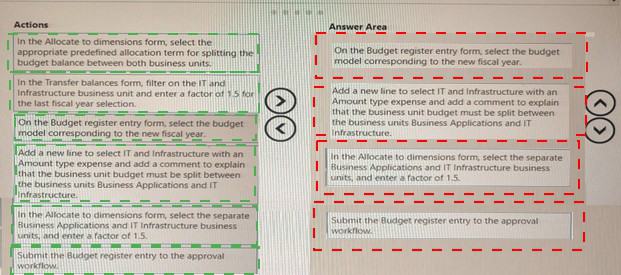
On the Budget register entry form, select the budget model corresponding to the new fiscal year.
Add a new line to select IT and Infrastructure with an Amount type expense and add a comment to explain that the business unit budget must be split between the business units Business Applications and IT Infrastructure.
In the Allocate to dimensions form, select the separate Business Applications and IT Infrastructure business units, and enter a factor of 1.5.
Submit the Budget register entry to the approval workflow.
Explanation
This sequence follows the logical workflow for creating and allocating a budget entry in Dynamics 365 Finance. First, you must create the budget entry by selecting the correct fiscal year model. Then, you enter the original budget line for the existing IT and Infrastructure unit. Next, you use the allocation functionality to distribute that amount to the new dimensions (Business Applications and IT Infrastructure) using the specified factor of 1.5. Finally, you submit the completed entry to the workflow for approval.
Step-by-Step Breakdown
Step 1: On the Budget register entry form, select the budget model corresponding to the new fiscal year.
This is the initial step to create any budget. You must open the Budget register entry form and specify which budget model you are working with. The budget model defines the framework for the budget, including the fiscal year and the accounts included. Without selecting the correct model first, you cannot proceed with entering budget data.
Step 2: Add a new line to select IT and Infrastructure with an Amount type expense and add a comment to explain that the business unit budget must be split between the business units Business Applications and IT Infrastructure.
After setting the budget model, you create the initial budget line for the original business unit. This establishes the base amount that will be allocated. Adding a descriptive comment is a best practice to document the purpose of the entry and the planned allocation, which is helpful for auditing and for approvers in the workflow.
Step 3: In the Allocate to dimensions form, select the separate Business Applications and IT Infrastructure business units, and enter a factor of 1.5.
With the original budget line created, you then use the allocation tool to distribute the amount. The "Allocate to dimensions" form allows you to split the budget balance across multiple financial dimensions. You select the two new target business units and enter the factor of 1.5 as the allocation rule, which will distribute the original budget amount accordingly between them.
Step 4: Submit the Budget register entry to the approval workflow.
The final step is to submit the completed budget register entry, which now contains the allocated amounts, to the approval workflow. This triggers the review process by the appropriate approvers. The workflow ensures that the budget entry is properly authorized before it becomes active in the system.
Reference
Microsoft Learn: Create budget register entries
Microsoft Learn: Set up budget allocation terms
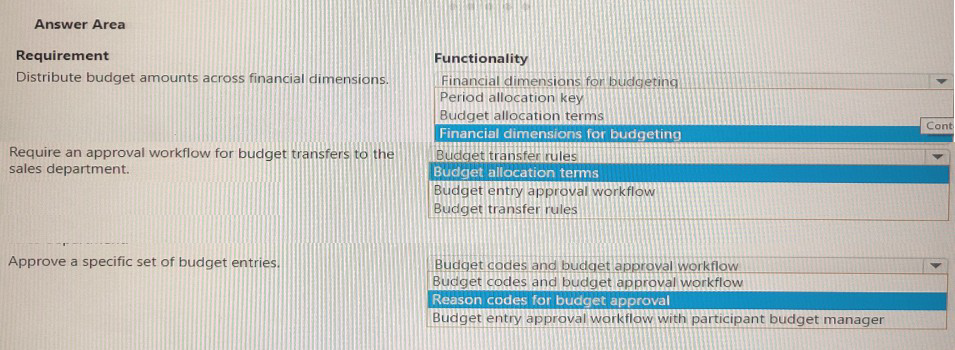
A company implements basic budgeting functionality The company wants to achieve the
following:
• Distribute budget amounts across financial dimensions.
• Require an approval workflow for budget
• Approve a specific set of budget entries.
You need to configure the required basic budgeting functionality.
Which functionalities should you configure?
To answer, select the appropriate options in the answer area
NOTE: Each correct answer is worth one point.
Requirement 1: Distribute budget amounts across financial dimensions.
Correct Functionality:
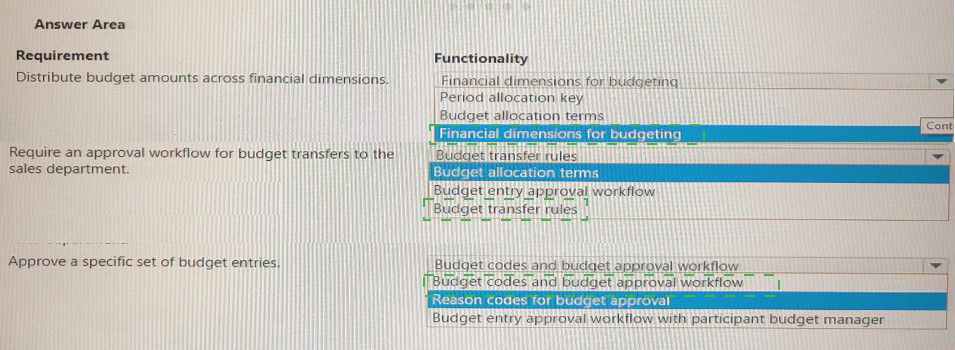
Budget allocation terms
Explanation:
Budget allocation terms in Dynamics 365 Finance are specifically designed to distribute budget amounts across financial dimensions. This functionality allows you to define rules and percentages for splitting budget balances from source dimensions to one or more destination dimensions. Allocation terms can be set up with fixed percentages or variable factors and can be used repeatedly when creating budget register entries, making them ideal for distributing budgets across departments, cost centers, or other dimensions.
Incorrect Options:
Financial dimensions for budgeting: This refers to enabling dimensions for budget control, not the mechanism for distributing amounts.
Period allocation key: This is used in General ledger for allocations, not specifically for basic budgeting distribution.
Budget transfer rules: These govern transfers between budget accounts, not initial distribution.
Requirement 2: Require an approval workflow for budget transfers to the sales department.
Correct Functionality:
Budget transfer rules
Explanation:
Budget transfer rules are used to control how budget amounts can be moved between budget accounts. By configuring budget transfer rules specifically for the sales department, you can enforce that any transfers involving sales accounts must go through an approval workflow. These rules define which accounts can receive transfers from which source accounts and under what conditions, allowing you to require approval workflows for specific departments like sales.
Incorrect Options:
Budget allocation terms: These distribute amounts during initial budget setup, not for transfers.
Budget entry approval workflow: This applies to new budget entries, not transfers between accounts.
Reason codes: These document why a transfer occurred but don't enforce approval requirements.
Requirement 3: Approve a specific set of budget entries.
Correct Functionality:
Budget codes and budget approval workflow
Explanation:
Budget codes categorize budget register entries by type (e.g., original budget, transfer, revision). By combining budget codes with budget approval workflows, you can configure approval requirements for specific types of budget entries. This allows you to route a particular set of budget entries (those with specific budget codes) through an approval process while others may post automatically. For example, you could require approval for all budget revisions above a certain threshold.
Incorrect Options:
Reason codes: These document why an entry was made but don't control approval routing.
Budget entry approval workflow with participant budget manager: While this includes workflow, it specifies a participant rather than addressing how to target a specific set of entries. Budget codes provide the mechanism to identify which entries need approval.
Reference
Microsoft Learn: Set up basic budgeting
Microsoft Learn: Create budget allocation terms
Microsoft Learn: Define budget transfer rules
Microsoft Learn: Set up budget workflows
You need to configure the expense module for reimbursement.
How should you configure the expense module? To answer, select the appropriate options
in the answer area.
NOTE: Each correct selection is worth one point.
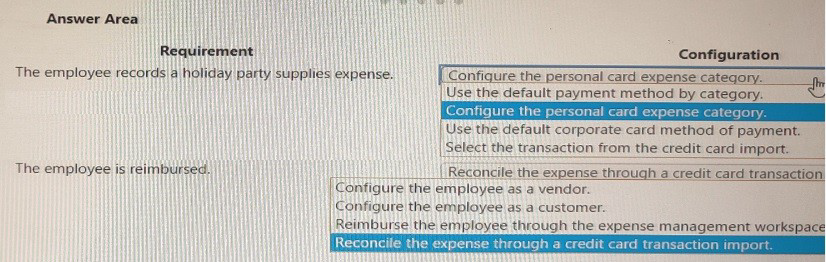
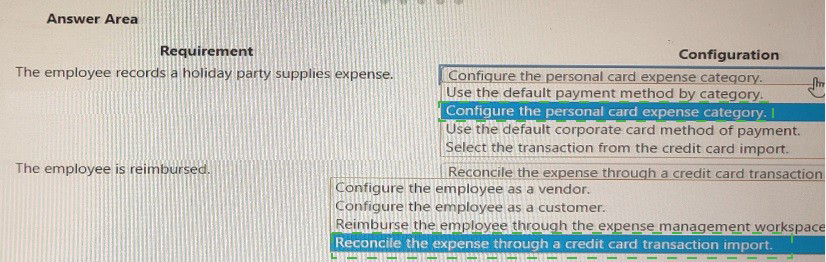
Requirement: The employee records a holiday party supplies expense.
Correct Configuration:
Configure the personal card expense category. Use the default payment method by category.
Explanation:
When an employee incurs an expense using a personal card and needs to be reimbursed, the expense category should be configured with the personal card payment method. By setting "Use the default payment method by category," the system automatically assigns the personal card as the payment method when this expense category is selected. This ensures the expense is correctly categorized as one that requires employee reimbursement rather than direct payment to a vendor.
Incorrect Options:
Configure the personal card expense category. Use the default corporate card method of payment: This would incorrectly designate the expense as paid by corporate card, which would not trigger employee reimbursement.
Select the transaction from the credit card import: This applies to corporate card transactions imported from credit card feeds, not personal card expenses.
Reconcile the expense through a credit card transaction import: This is for reconciling corporate card transactions, not for reimbursing employee-paid expenses.
Requirement: The employee is reimbursed.
Correct Configuration:
Configure the employee as a vendor. Reimburse the employee through the expense management workspace.
Explanation:
For an employee to be reimbursed in Dynamics 365 Finance, they must first be set up as a vendor in the system. This creates a payee record that can receive payments through Accounts payable. Once configured, reimbursement can be processed directly through the Expense management workspace, which creates a vendor invoice and payment to the employee. This integrated approach ensures proper accounting and tracking of employee reimbursements.
Incorrect Options:
Configure the employee as a customer: Employees are paid through Accounts payable, not Accounts receivable. Customer setup is for external parties who pay the company.
Reconcile the expense through a credit card transaction import: Reconciliation is for corporate card transactions, not for processing reimbursements to employees for personal card expenses.
Configure the employee as a vendor only (without the workspace step): While vendor setup is necessary, reimbursement must also be processed through the expense management workspace to create the proper AP invoice and payment.
Reference
Microsoft Learn: Expense management payment methods
Microsoft Learn: Set up employees for reimbursement
Microsoft Learn: Reimburse employees in Expense management
You need to configure recognition.
Which revenue type is associated with the line of business? To answer, drag the
appropriate revenue types to the correct lines of business. Each revenue type may be used
once, more than once, or not at all. You may need to drag the split bar between panes or
scroll to view content.
NOTE: Each correct selection is worth one point.

 /
/
Correct Associations
Line of Business: Web design
Revenue Type: Essential
Explanation:
Web design services typically represent the core revenue-generating activity for a company offering this service. This would be considered "Essential" revenue as it is directly related to the primary business operations and is recognized when the service is performed or completed. Web design is a primary service, not ancillary support.
Line of Business: Video platform
Revenue Type: Post contract support
Explanation:
A video platform often involves ongoing support, maintenance, and hosting after the initial setup or contract. This aligns with "Post contract support" revenue, which is typically recognized over time (ratably) as the support services are provided, rather than at a single point in time. This could also represent a subscription-based model for the platform access.
Revenue Type Not Used
Non-essential
This revenue type would typically apply to incidental or ancillary products/services that are not core to the primary business offerings. Neither web design (a core service) nor video platform (a core platform/support service) fit the "non-essential" category in this context.
Reference
Microsoft Learn: Set up revenue recognition
Microsoft Learn: Revenue recognition in subscriptions and contracts
You need to identify why the sales orders where sent to customers.
Which configuration allowed the sales orders to be sent? To answer, select the appropriate
configuration in the answer area.
NOTE: Each correct select is worth one point.
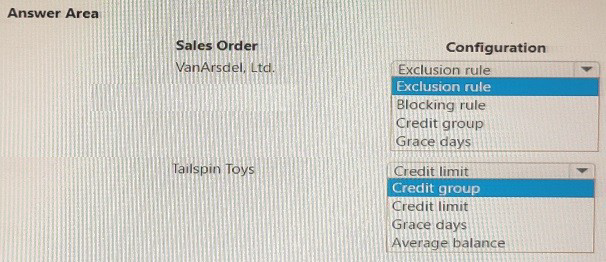
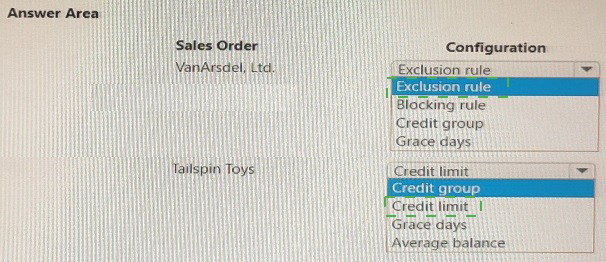
Explanation:
An exclusion rule in credit management allows certain customers or transactions to bypass credit limit checks entirely. If VanArsdel, Ltd. received a sales order despite having credit issues, it's likely an exclusion rule was applied. Exclusion rules can be configured for specific customers, customer groups, or even individual transactions, exempting them from standard credit management processes. This would explain why the order was processed without being blocked by credit limit enforcement.
Incorrect Options:
Blocking rule: This would prevent sales orders from being processed, not allow them.
Credit group: While credit groups aggregate credit exposure across related customers, this wouldn't necessarily allow an order to bypass limits.
Grace days: Grace days provide a temporary extension but still track against credit limits; they don't permanently exempt orders from checks.
Sales Order: Tailspin Toys
Correct Configuration:
Grace days
Explanation:
Grace days allow customers to exceed their credit limit for a specified number of days. If Tailspin Toys received a sales order despite being over their credit limit, grace days may have been configured to provide temporary tolerance. During the grace period, the system allows transactions even when credit limits are exceeded, giving the customer time to make payments or resolve credit issues. This setting provides flexibility while maintaining overall credit management.
Incorrect Options:
Credit limit: This defines the maximum credit amount but doesn't allow orders once the limit is reached.
Credit group: Groups aggregate credit but don't provide temporary tolerance for exceeding limits.
Average balance: This is used for calculating credit exposure based on historical averages, not for allowing orders when limits are exceeded.
Reference
Microsoft Learn: Credit management parameters
Microsoft Learn: Exclusion rules in credit management
Microsoft Learn: Configure grace days
You need to prevent prohibited expenses from posting.
Which configurations should you use? To answer, select the appropriate options in the
answer area.
NOTE: Each correct selection is worth one point.
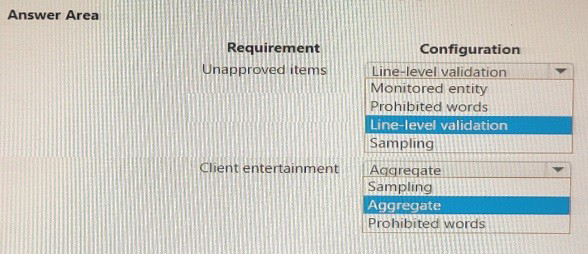
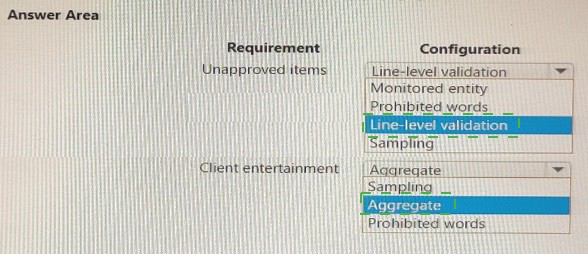
Requirement: Unapproved items
Correct Configuration:
Prohibited words
Explanation:
Prohibited words configuration allows organizations to block expense entries that contain specific keywords in the expense description or other text fields. When an employee enters an expense containing a prohibited word (such as "alcohol," "gifts," or other non-reimbursable items), the system can prevent the expense from being submitted or posted. This is an effective way to enforce expense policies by flagging unapproved items before they enter the approval workflow.
Incorrect Options:
Line-level validation: This is a broader concept that includes various validations but is not specifically for identifying unapproved items by keyword.
Monitored entity: This refers to tracking expenses for specific entities like vendors or customers, not blocking based on description content.
Sampling: This is used for audit purposes to randomly select expenses for review, not to proactively block prohibited items.
Aggregate: This combines multiple expenses for analysis but doesn't prevent individual prohibited items from posting.
Requirement: Prevent prohibited expenses from posting
Correct Configuration:
Line-level validation
Explanation:
Line-level validation in expense management enforces business rules at the individual expense line level before the expense report can be submitted or posted. When combined with prohibited words configuration, line-level validation ensures that each expense line is checked against policy rules. If a violation is detected (such as a prohibited word), the validation prevents the entire expense report from moving forward in the workflow, effectively stopping prohibited expenses from being posted.
Incorrect Options:
Monitored entity: This tracks expenses for specific entities but doesn't prevent posting.
Prohibited words: While this identifies prohibited items, it requires line-level validation to actually block posting.
Sampling: This is for post-submission audit, not prevention.
Aggregate: This analyzes groups of expenses but doesn't enforce line-level compliance.
Reference
Microsoft Learn: Expense management policies
Microsoft Learn: Configure expense policy validations
Microsoft Learn: Set up prohibited words for expense reports
A client has Accounts payable invoices in their legal entity in three different currencies. It is
month-end, and the client needs to run the foreign currency revaluation process to correctly
understand their currency exposure.
You need to set up Dynamics 365 Finance to perform foreign currency revaluation.
In which order should you perform the actions? To answer, move all actions from the list of
actions to the answer area and arrange them in the correct order.
NOTE: More than one order of answer choices is correct. You will receive credit for any of
the correct orders you select.


Explanation
This sequence follows the logical workflow for foreign currency revaluation in Dynamics 365 Finance. First, you must enable the main account for revaluation. Then, you run the revaluation process with appropriate parameters. Finally, you review and post the revaluation results. This ensures that unrealized gains and losses are accurately calculated and recorded for month-end reporting.
Step-by-Step Breakdown
Step 1: On the main account setup form, set foreign currency revaluation to on for the Accounts payable account. Then, specify the exchange rate type.
This is the prerequisite configuration step. Before running revaluation, you must ensure that the Accounts payable main account is enabled for foreign currency revaluation. This setting tells the system to include this account when revaluation is performed. You also specify the exchange rate type (such as "Default" or a specific rate type) that will be used to calculate the revalued amounts. Without this setup, the account would be excluded from the revaluation process.
Step 2: In the Accounts payable module, select the periodic task foreign currency revaluation. Then, specify the parameters for revaluation and perform the revaluation.
After configuration, you run the revaluation process from the Accounts payable module (or Accounts receivable for customer transactions). You specify parameters including the date (typically month-end), the currency to revalue, and whether to preview before posting. This step calculates the unrealized gain or loss based on the current exchange rate compared to the original transaction rate.
Step 3: In the foreign currency revaluation preview form, ensure that the foreign currency proposal is correct. Then post the revaluation.
Before finalizing, you should review the revaluation results in the preview form. This allows you to verify that the calculated amounts are correct and identify any issues before posting. Once confirmed, you post the revaluation, which creates the necessary accounting entries for unrealized gains or losses in the general ledger.
Note on Alternative Correct Orders
The question notes that more than one order may be correct. While the sequence above represents the standard workflow, variations might be acceptable depending on specific business processes. However, Step 1 (main account setup) must always precede the revaluation execution, and Step 2 (running revaluation) must always precede Step 3 (preview and posting).
Reference
Microsoft Learn: Foreign currency revaluation for Accounts payable
Microsoft Learn: Set up main accounts for foreign currency revaluation
| Page 2 out of 23 Pages |