Free Microsoft MB-280 Practice Test Questions MCQs
Stop wondering if you're ready. Our Microsoft MB-280 practice test is designed to identify your exact knowledge gaps. Validate your skills with Microsoft Dynamics 365 Customer Experience Analyst questions that mirror the real exam's format and difficulty. Build a personalized study plan based on your free MB-280 exam questions mcqs performance, focusing your effort where it matters most.
Targeted practice like this helps candidates feel significantly more prepared for Microsoft Dynamics 365 Customer Experience Analyst exam day.
2600+ already prepared
Updated On : 12-Oct-202660 Questions
Microsoft Dynamics 365 Customer Experience Analyst
4.9/5.0
Topic 1: Terra Flora
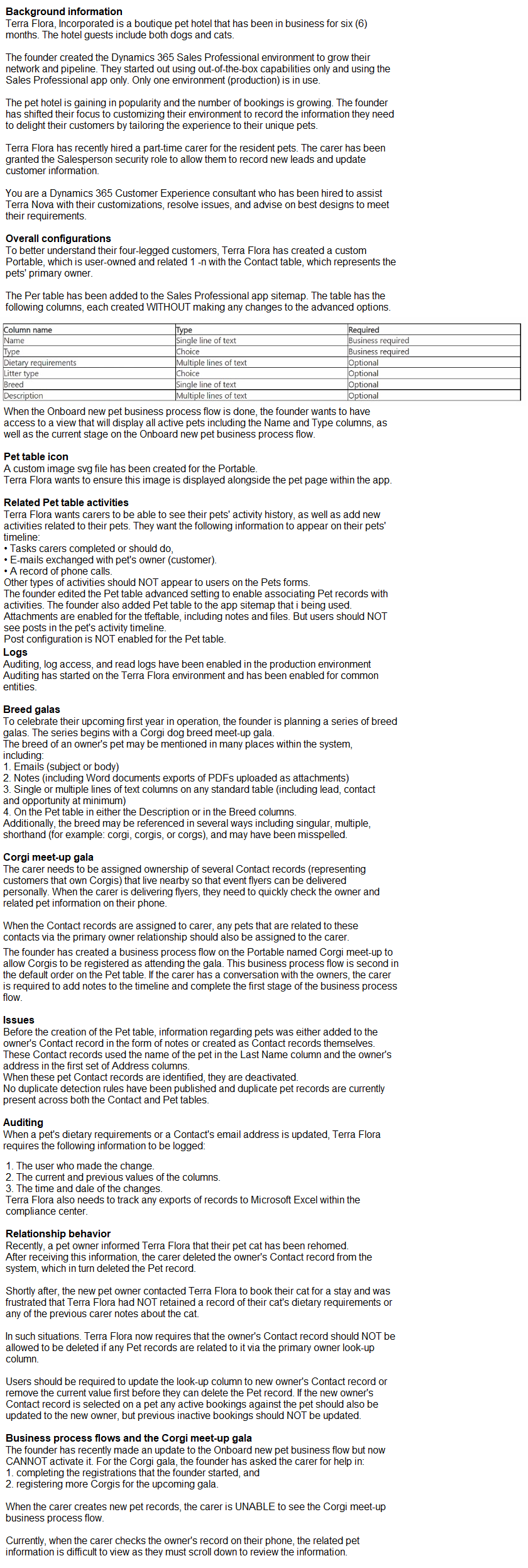
BDM1 logs into the Sales Hub on June 3. 2024. BDM1 opens the assistant from the
navigation bar.
Which two open opportunities will BDM1 see mentioned in the close date coming soon
reminder cards? To answer, select the appropriate options in the answer area.
NOTE: Each correct selection is worth one point.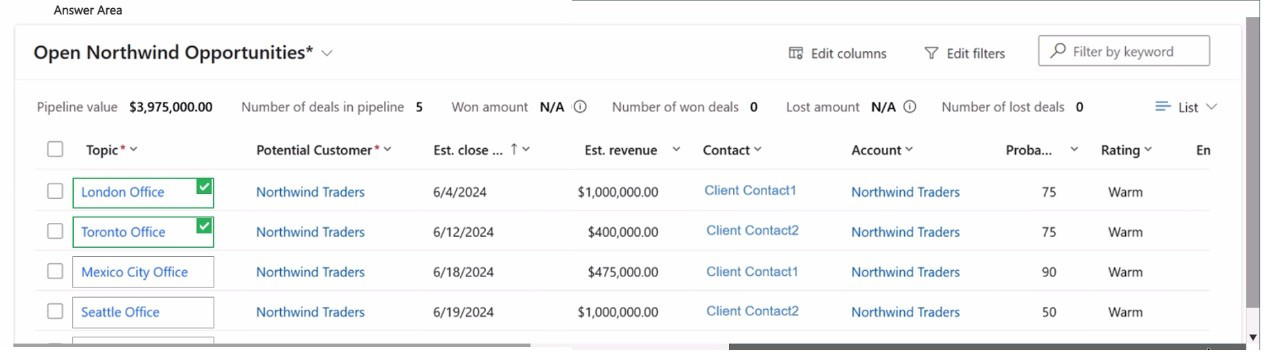
Explanation:
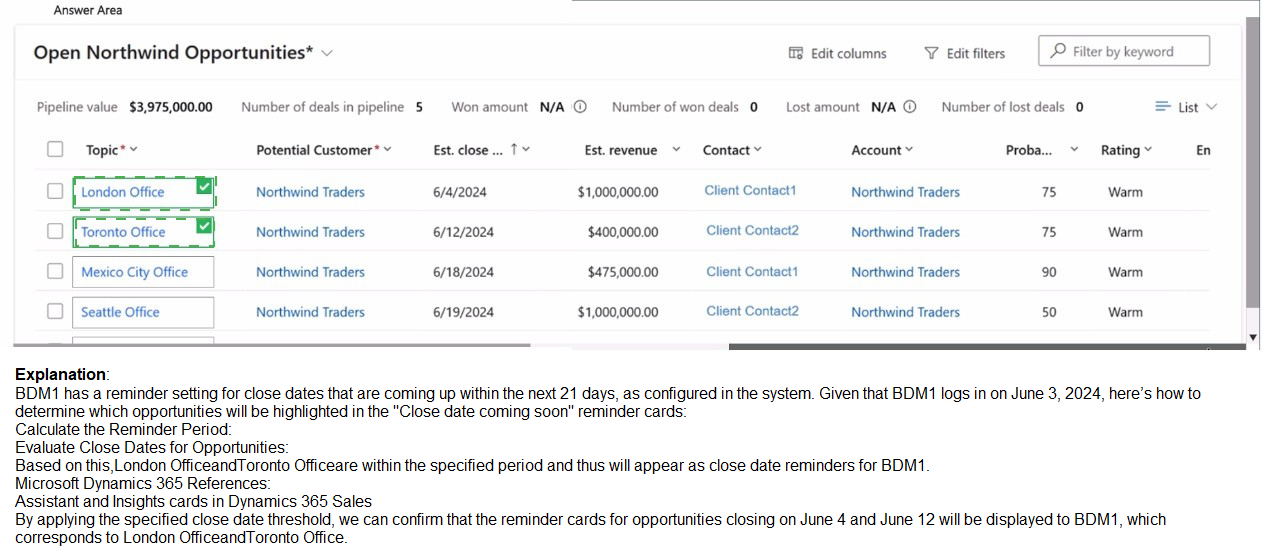
The Assistant in Dynamics 365 Sales Hub provides proactive insights and reminders to sellers, including "close date coming soon" reminders for opportunities approaching their estimated close date. Since BDM1 logs in on June 3, 2024, the Assistant will check for opportunities with close dates in the near future. Based on the opportunities listed, we need to identify which have close dates occurring soon after June 3.
Correct Options:
London Office:
This opportunity has a close date of 6/4/2024, which is just one day after BDM1 logs in (June 3). This would trigger a "close date coming soon" reminder card in the Assistant.
Toronto Office:
This opportunity has a close date of 6/12/2024, which is 9 days from the login date and falls within the typical "coming soon" window (usually 7-14 days), making it likely to appear in reminder cards.
Incorrect Options:
Mexico City Office:
This opportunity has a close date of 6/18/2024, which is 15 days from June 3. While it could be considered "coming soon" depending on organization settings, it's farther out than the Toronto Office and less likely to appear if only two are selected.
Seattle Office:
This opportunity has a close date of 6/19/2024, which is 16 days from June 3. This is the farthest date among the options and least likely to trigger a "close date coming soon" reminder compared to the London and Toronto offices.
Reference:
Microsoft Learn: Use Assistant to guide seller behavior
Microsoft Learn: Configure and manage Assistant
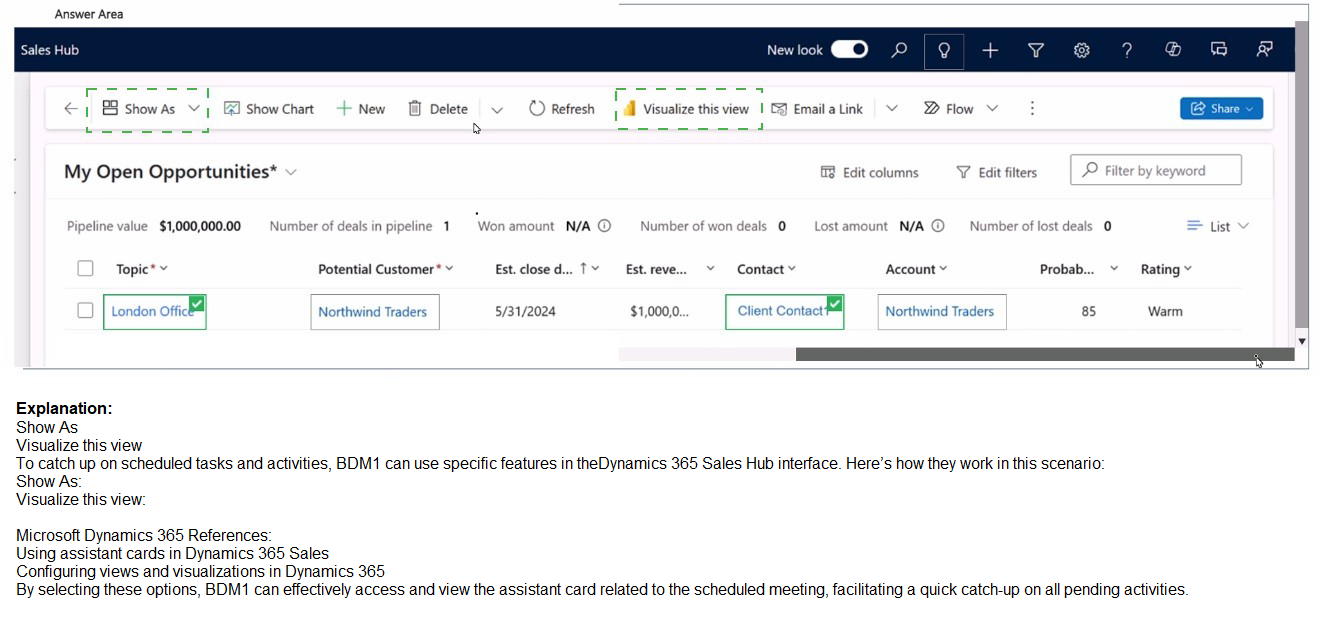
BDM1 has returned from vacation and needs to catch up on their scheduled tasks and
activities.
Which two items can BMD1 select to see a reminder card for the meeting BDM2 scheduled
in the assistant? To answer, select the appropriate options in the answer area.
NOTE: Each correct selection is worth one point.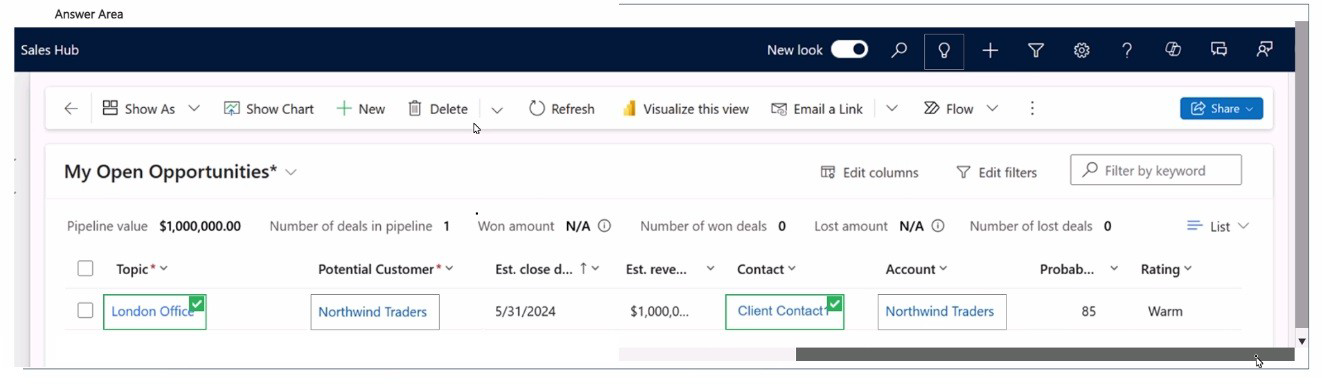
Explanation:
The Assistant in Dynamics 365 Sales Hub displays reminder cards for various activities including meetings, tasks, and emails. When BDM2 schedules a meeting and assigns or invites BDM1, this meeting appears in BDM1's Assistant as a reminder card. To view this meeting reminder, BDM1 needs to navigate to areas where the Assistant is prominently displayed with activity-based reminders.
Correct Options:
Assistant icon in navigation bar: The Assistant icon in the top navigation bar provides quick access to all Assistant cards and reminders. Clicking this icon displays a flyout or pane showing all pending reminders, including meeting invitations and scheduled activities from colleagues.
Up-next widget on home page: The Up-next widget, typically located on the Sales Hub home page, displays upcoming activities and meetings. This widget integrates with the Assistant to show scheduled items, making it easy to see meeting reminders from BDM2.
Incorrect Options:
My Open Opportunities view: This view shows opportunity records and their details like pipeline value and close dates. It displays business transaction data, not activity reminders. Meeting reminders are not shown in opportunity list views.
London Office opportunity record: Opening a specific opportunity record shows details related to that deal, including associated activities, but BDM1 must first know which opportunity the meeting relates to. This is not the primary place to see general meeting reminders.
Potential Customer column: This is a column header in the opportunities grid view, not a clickable navigation element. Column headers are for sorting and filtering data, not for accessing reminders or activities.
Reference:
Microsoft Learn: Use Assistant to guide seller behavior
Microsoft Learn: View and manage activities with Up-next widget
You need to configure a new Customer Insights - Journeys form to satisfy the digital sales
team lead's request.
Which five required actions should you perform in sequence? To answer, move the five
appropriate actions from the list of actions to the answer area. Arrange the five actions in
the correct order.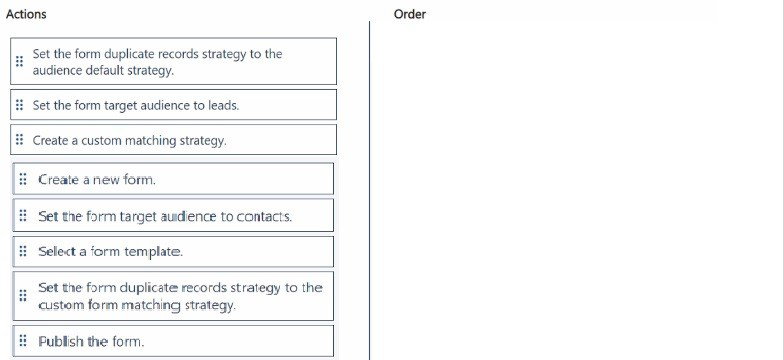
Explanation:
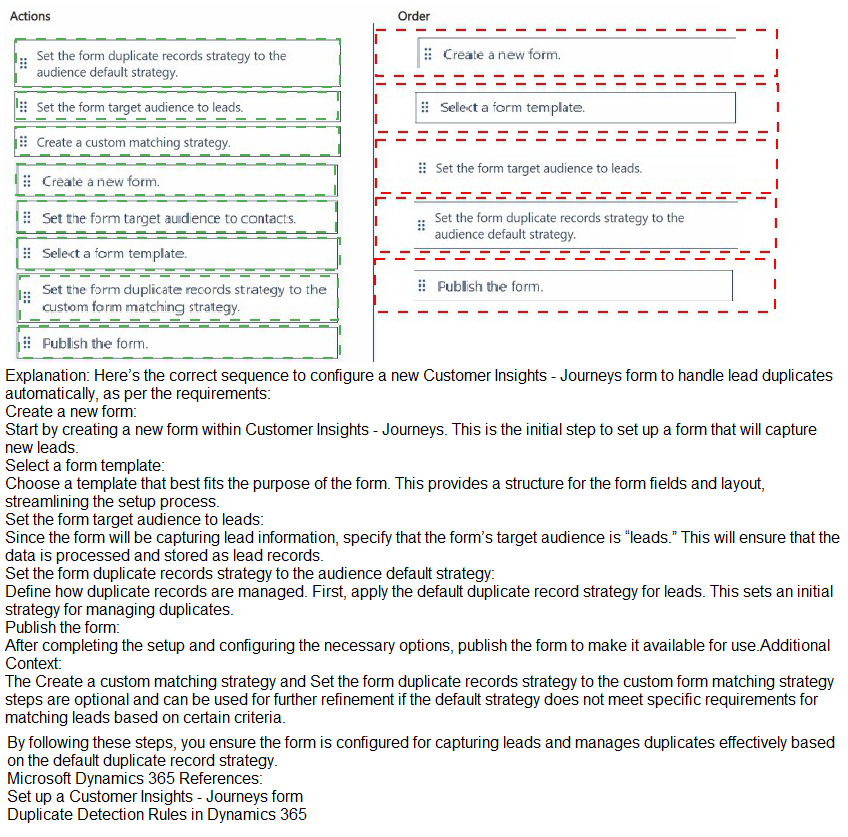
Configuring a new Customer Insights - Journeys form requires a specific sequence of actions to ensure the form is properly created, targeted to the right audience, and published. The digital sales team lead's request would typically involve creating a form for lead capture or contact engagement. The correct sequence follows the logical order of form creation: creating the form first, then configuring its settings, and finally publishing it.
Correct Sequence:
Create a new form: The first step is always to create a new form entity. Without creating the form first, you cannot configure any settings or apply templates.
Select a form template: After creating the form, you select an appropriate template that provides the basic structure and fields needed for the form.
Set the form target audience to leads: Based on the digital sales team lead's request, you would typically target leads. Setting the audience determines which records the form submissions will create or update.
Set the form duplicate records strategy to the custom form matching strategy: Configuring duplicate detection ensures that submissions don't create duplicate records. Using a custom matching strategy provides more control over how duplicates are identified.
Publish the form: The final step is publishing the form to make it available for use on websites, landing pages, or email campaigns.
Explanation of Sequence:
Create a new form must come first as it establishes the foundation.
Select a form template follows because you need a form before applying a template.
Set the form target audience to leads comes after template selection as audience targeting is a configuration setting.
Set the form duplicate records strategy is configured after audience targeting to ensure proper duplicate handling for leads.
Publish the form is always the final step to make the form live.
Incorrect Actions Not Used:
Set the form target audience to contacts: Not selected because the request likely focuses on leads, not existing contacts.
Set the form duplicate records strategy to the audience default strategy: Not selected as the request requires custom matching strategy.
Create a custom matching strategy: While implied, this is a prerequisite step that would happen before form configuration, not part of the sequential form setup actions.
Reference:
Microsoft Learn: Create and manage marketing forms
Microsoft Learn: Configure form settings in Customer Insights - Journeys
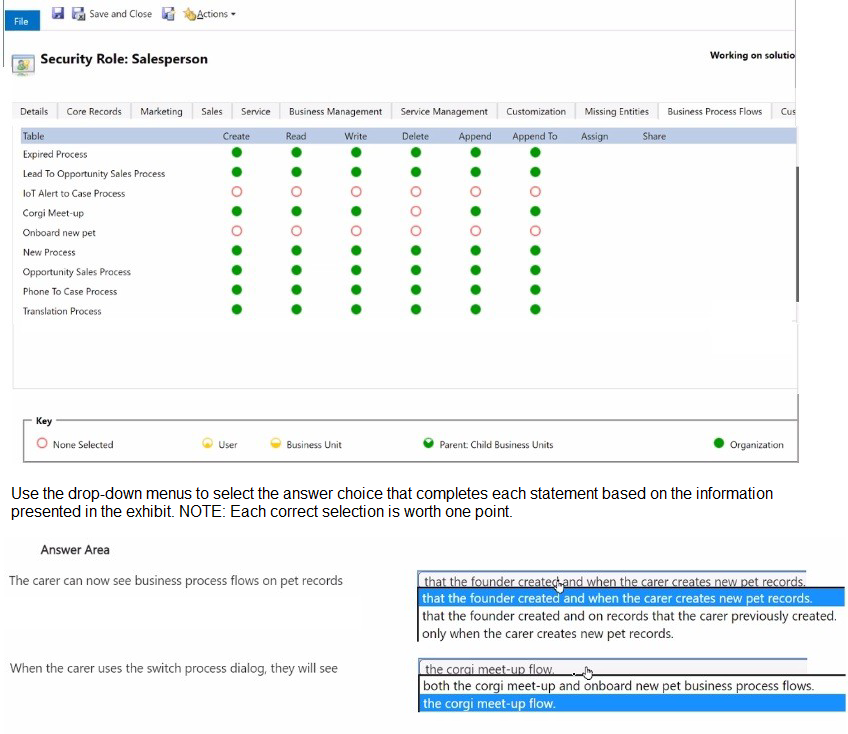
The founder has edited the Salesperson security role to allow the career to use the Corgi meet-up business process flow, as shown in the following
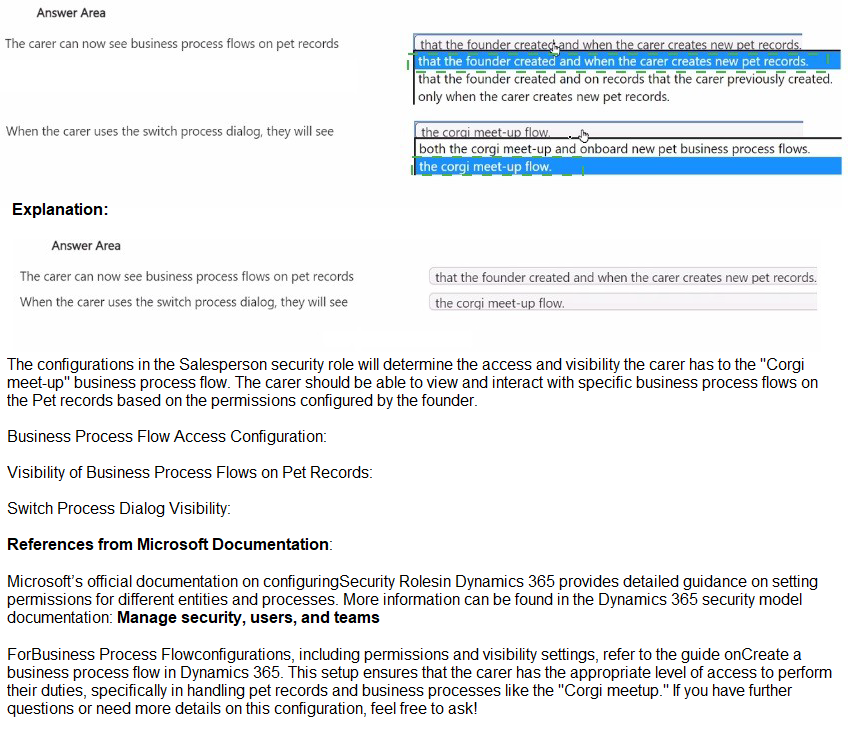
Explanation:
The exhibit shows the Salesperson security role permissions for business process flows. The Corgi Meet-up process has Organization-level access (black circle), while Onboard new pet has User-level access (blue circle). This determines visibility based on record ownership and creation context.
Answer Area Selections:
First statement: "The carer can now see business process flows on pet records..."
Correct option: "that the founder created and when the carer creates new pet records."
Explanation:
Since Corgi Meet-up has Organization-level access (black circle), the carer can see this flow on all records regardless of who created them, including those the founder created. For the Onboard new pet flow with User-level access (blue circle), the carer can only see it on records they personally create. Therefore, the carer can see business process flows on both founder-created records (Corgi Meet-up) and when creating new records (both flows).
Second statement: "When the carer uses the switch process dialog, they will see..."
Correct option: "both the corgi meet-up and onboard new pet business process flows."
Explanation:
When switching processes, the dialog shows all business process flows available to the user based on their security permissions. The carer has access to Corgi Meet-up (Organization-level) and Onboard new pet (User-level when creating records). Therefore, both flows will appear in the switch process dialog when appropriate conditions are met.
Incorrect Options Analysis:
"that the founder created and when the carer creates new pet records" is correct for first statement.
"that the founder created and on records that the carer previously created" is incorrect because it implies the carer can see flows on their previously created records for both flows, but User-level access only applies to records they create, not all existing records.
"only when the carer creates new pet records" is incorrect because the carer can also see Corgi Meet-up on founder-created records.
"the corgi meet-up flow" only is incorrect for second statement because the carer also has access to Onboard new pet when creating records.
"the onboard new pet flow" only is incorrect because Corgi Meet-up is also available.
Reference:
Microsoft Learn: Business process flows security privileges
Microsoft Learn: Assign security roles for business process flows
The sellers at your organization are keen to adopt generative Al capabilities and use them
efficiently.
They have been editing Contact records directly in Copilot for Sales and have now
provided feedback that they would be more productive if they could also edit Account
records directly in Copilot for Sales.
However, the vice president of sales does NOT want the sellers to be able to edit the
"Revenue Forecast" field in Copilot for Sales.
You need to enable these requirements.
Which four actions should you perform in sequence? To answer, move the four appropriate
actions from the list of actions to the answer area. Arrange the four actions in the correct
order.
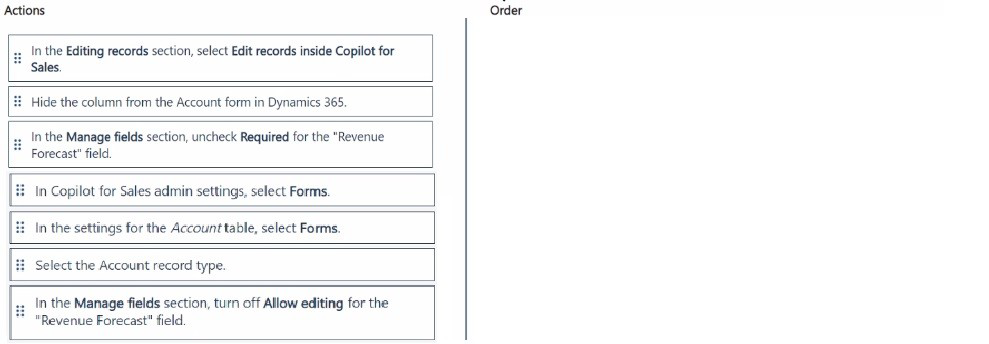
Explanation:
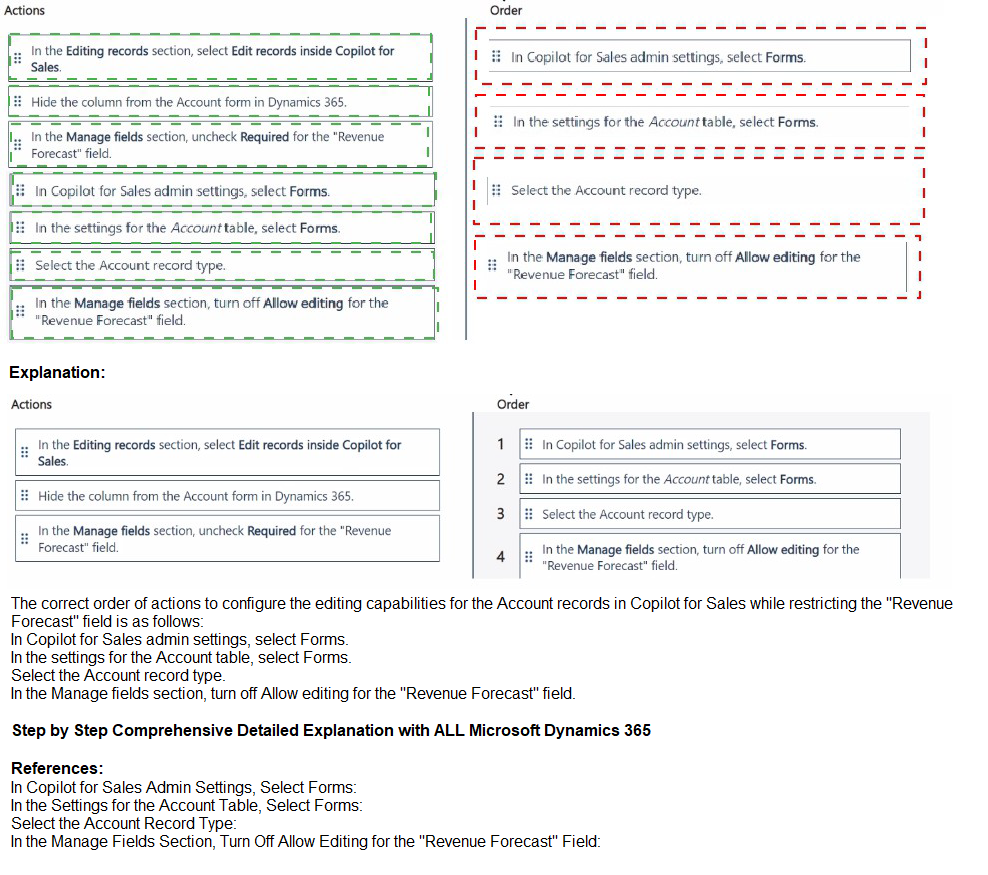
The requirements involve enabling Account record editing in Copilot for Sales while restricting edits to the Revenue Forecast field. This requires navigating through Copilot for Sales admin settings, selecting the appropriate record type, and configuring field-level permissions to prevent editing of the specific field while allowing other edits.
Correct Sequence:
In Copilot for Sales admin settings, select Forms: The first step is to access the correct administrative area where form and field configurations for Copilot for Sales are managed.
Select the Account record type: After accessing Forms, you must specify which record type you want to configure - in this case, Account records that sellers need to edit.
In the Manage fields section, turn off Allow editing for the "Revenue Forecast" field: This action directly addresses the VP's requirement by preventing edits to this specific field while keeping other fields editable.
In the Editing records section, select Edit records inside Copilot for Sales: Finally, enable the overall capability for Account record editing in Copilot for Sales, which will now apply with the Revenue Forecast field restricted.
Explanation of Sequence:
The sequence follows a logical order: navigate to the correct settings area, select the target record type, configure field-level restrictions, then enable the overall editing capability.
Field-level restrictions must be configured before enabling editing to ensure the restriction is in place when editing becomes available.
Enabling editing last ensures sellers don't gain access to edit the restricted field during the configuration process.
Incorrect Actions Not Used:
Hide the column from the Account form in Dynamics 365: This would hide the field entirely, not just prevent editing in Copilot for Sales. The requirement is specifically about Copilot for Sales, not Dynamics 365 forms.
In the Manage fields section, uncheck Required for the "Revenue Forecast" field: This changes required status, not edit permissions, and doesn't address the VP's requirement.
In the settings for the Account table, select Forms: This refers to Dynamics 365 form settings, not Copilot for Sales configuration.
Reference:
Microsoft Learn: Configure Copilot for Sales
Microsoft Learn: Manage field access in Copilot for Sales
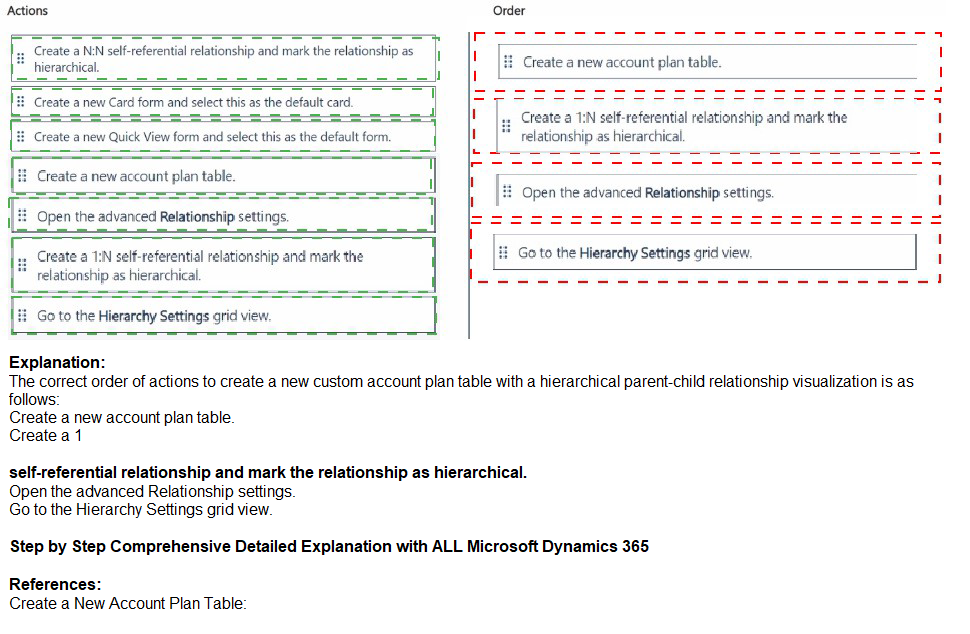
Your organization works with larger customers (accounts) that can have a single holding
and then many subsidiaries through different levels in a parent-child relationship.
The chief commercial officer wants the sales team to start creating different account plans
for each individual subsidiary.
You need to create a new custom account plan table so that records can have the same
parent-child relationships as the account records. The relationships must be able to be
visualized in a hierarchy.
Which four actions should you perform in sequence before saving and publishing your
changes' To answer, move the four appropriate actions from the list of actions to the
answer area. Arrange the four actions in the correct order.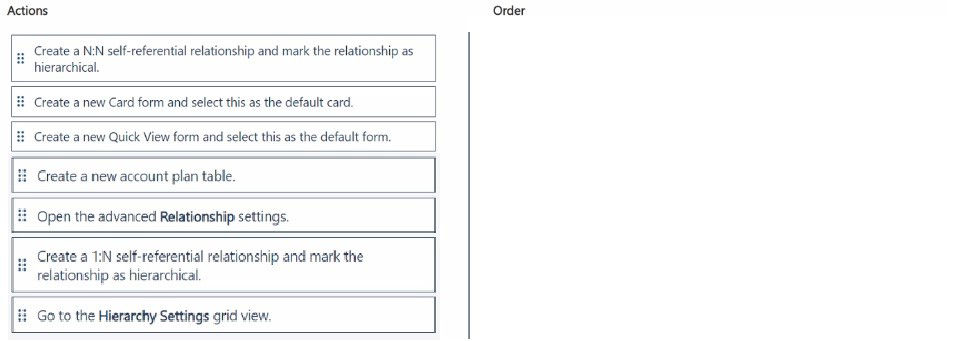
Explanation:
The requirement is to create a custom account plan table that mirrors the parent-child hierarchy structure of account records. This involves creating the table first, then establishing a self-referential relationship to enable hierarchical data organization, and finally configuring hierarchy settings to enable visualization of the relationship structure.
Correct Sequence:
Create a new account plan table: The first step must be creating the custom table that will store account plan records. Without the table, you cannot configure relationships or hierarchy settings.
Create a 1:N self-referential relationship and mark the relationship as hierarchical: After creating the table, you need to establish a relationship where account plan records can relate to other account plan records (parent-child). A 1:N self-referential relationship allows one record to be the parent of many child records.
Open the advanced Relationship settings: With the relationship created, you must access advanced settings to configure how the hierarchy will behave and be displayed.
Go to the Hierarchy Settings grid view: Finally, navigate to Hierarchy Settings to configure visualization options, such as which fields display in the hierarchy tree view, enabling users to see the parent-child structure graphically.
Explanation of Sequence:
Table creation must come first as relationships cannot be created without an existing table.
The 1:N self-referential relationship is the appropriate type for parent-child hierarchies where one parent can have multiple children.
Advanced settings provide access to hierarchy configuration options.
Hierarchy Settings finalizes the visualization configuration before saving.
Incorrect Actions Not Used:
Create a N:N self-referential relationship and mark the relationship as hierarchical: N:N relationships are for many-to-many connections, not hierarchical parent-child structures where each child has exactly one parent.
Create a new Card form and select this as the default card: Card forms are for displaying records in views like dashboards, not for establishing hierarchical relationships.
Create a new Quick View form and select this as the default form: Quick View forms display related record information but don't create hierarchical relationships between records of the same table.
Reference:
Microsoft Learn: Create and edit 1:N or N:1 table relationships
Microsoft Learn: Define hierarchical data with self-referential relationships
Microsoft Learn: Visualize hierarchical data
| Page 1 out of 6 Pages |
Microsoft Dynamics 365 Customer Experience Analyst Practice Exam Questions
These MB-280 practice questions with explanations help candidates learn how to analyze customer data and improve engagement strategies in Dynamics 365. The questions cover customer insights, data integration, segmentation, and reporting. Each explanation breaks down key concepts, helping learners understand how to interpret data and apply insights effectively. This approach promotes deeper learning and practical understanding. By practicing regularly, candidates can strengthen their analytical skills, identify knowledge gaps, and gain confidence in applying customer experience solutions in real-world and exam scenarios.MB-280 - Microsoft Dynamics 365 Customer Experience Analyst Official Exam Blueprint and Weight:
1. Configure Microsoft Dynamics 365 Customer Insights
Official Exam Weight: 20-25%
Subtopics: Configure Customer Insights environments, connect and manage data sources, configure customer profiles and identity resolution, manage data unification processes, configure customer segments and measures, implement consent and compliance settings, manage data refresh schedules, configure customer data enrichment, monitor data quality and accuracy, manage user access and security roles, configure customer insights settings and governance policies.
2. Implement Customer Data and Audience Management
Official Exam Weight: 25-30%
Subtopics: Create and manage customer segments, configure demographic behavioral and transactional segments, create predictive and AI-driven segments, manage customer journeys and audiences, configure customer attributes and measures, implement customer lifecycle analysis, identify customer engagement patterns, create customer scoring models, manage audience activation strategies, optimize customer targeting and personalization, monitor audience performance and effectiveness.
3. Configure and Manage Customer Journeys
Official Exam Weight: 20-25%
Subtopics: Create and manage customer journeys, configure triggers and journey orchestration, implement real-time marketing journeys, manage customer touchpoints and interactions, configure email SMS and push notification channels, implement event-driven customer experiences, create journey templates and reusable components, manage customer engagement workflows, monitor journey execution and performance, troubleshoot customer journey issues, optimize journey effectiveness and customer engagement.
4. Analyze Customer Data and Insights
Official Exam Weight: 15-20%
Subtopics: Create and manage analytics dashboards, analyze customer behavior and engagement metrics, configure customer intelligence reports, monitor customer lifetime value and retention metrics, analyze campaign performance, create custom measures and KPIs, identify trends and opportunities from customer data, use AI-generated insights and recommendations, monitor segment and audience performance, optimize customer engagement strategies using analytics.
5. Implement Integrations and Data Activation
Official Exam Weight: 10-15%
Subtopics: Configure integrations with Dynamics 365 applications, implement Microsoft Power Platform integrations, connect Customer Insights with Power BI, configure outbound data exports, activate customer data in external marketing platforms, implement real-time data integrations, manage APIs and connectors, configure event and interaction tracking, troubleshoot integration issues, monitor data synchronization and activation performance, optimize data sharing and customer engagement workflows.
| Domain | Title | Exam Weight |
|---|---|---|
| 1 | Configure Microsoft Dynamics 365 Customer Insights | 20-25% |
| 2 | Implement Customer Data and Audience Management | 25-30% |
| 3 | Configure and Manage Customer Journeys | 20-25% |
| 4 | Analyze Customer Data and Insights | 15-20% |
| 5 | Implement Integrations and Data Activation | 10-15% |
Customer Reviews
Customer Data Platforms are transforming marketing. The MB-280 exam covers audience segmentation, journeys, and analytics. MSmcqs.com practice exam helped me master the configuration and integration scenarios. I felt ready for every question type and passed with ease.
Amanda Foster, Customer Insights Consultant | San Francisco, CA