Free Microsoft MB-240 Practice Test Questions MCQs

Stop wondering if you're ready. Our Microsoft MB-240 practice test is designed to identify your exact knowledge gaps. Validate your skills with Microsoft Dynamics 365 for Field Service questions that mirror the real exam's format and difficulty. Build a personalized study plan based on your free MB-240 exam questions mcqs performance, focusing your effort where it matters most.

Targeted practice like this helps candidates feel significantly more prepared for Microsoft Dynamics 365 for Field Service exam day.

2500+ already prepared
Updated On : 3-Mar-2026
50 Questions
Microsoft Dynamics 365 for Field Service
4.9/5.0

Page 1 out of 5 Pages

Topic 1: Contoso Case studyGeneral Overview


Contoso is a large international manufacturing company that has offices around the world with service and scheduling departments in each office. In addition. Contoso has sates reps throughout the world.

Contoso has main offices in North America. Europe and Asia, with global headquarters based in Redmond, Washington, USA. Each of the regional offices has their own sales and service teams. The regional HQ locations also include sales and services leaders and executive management. Global HQ houses company executives for various departments, including sales and service.

Office hours are from 8:00 am to 6:00 pm. every day of the week except holidays, which have no work hours. This applies to all offices, using their local time zone. Third-party contractors handle work outside of normal work hours at a higher rate

Field Service staff
Contoso's service technicians around the world will be a combination of internal employees and third-party contractors.

• Pay type is Straight for regular work hours, and Overtime for work on holidays and after hours.

• All technicians have the capacity of handling just one job at a time, while supervisors can handle 2 jobs at a time.

Contoso's internal field service employees:

• Begin and end their workday at their home of record.

• Have a default office location / regional office.

• Are assigned to multiple territories.

All third-party contractors:

• Begin and end their workdays at their office location.

• Have a default office location / regional office.

• Are assigned to only one territory.

Dispatchers:

• Work at the Main office for their region

• Assigned to all territories in the region.

• Have privileges to customize their Schedule Boards.

All field service technicians will utilize the Field Service mobile app.

• Contoso employees will have full field service licenses, while third-party contractors will not.

• Field Service technicians will not have access to Leads. Opportunities or other salesspecific data.

• Dispatchers can see all data for their region, though they will mostly be scheduling for only one territory.

Contoso has several classes to distinguish the capability and training level of its field technicians. All work order bookings need to respect these classes and book resources accordingly.

Org structure setup
Contoso currently uses Dynamics 365 Customer Engagement for leads, opportunities, quotes and orders. There are currently 200 sales users in North America. 500 in Europe and 400 in the Asia-Pacific region.

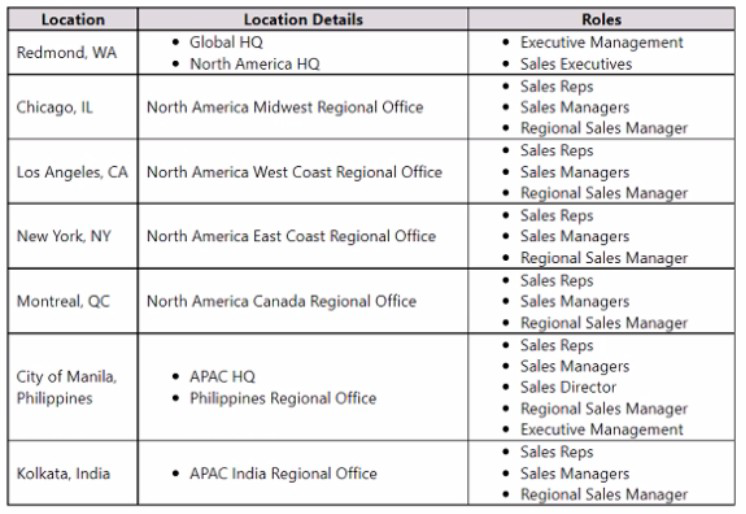
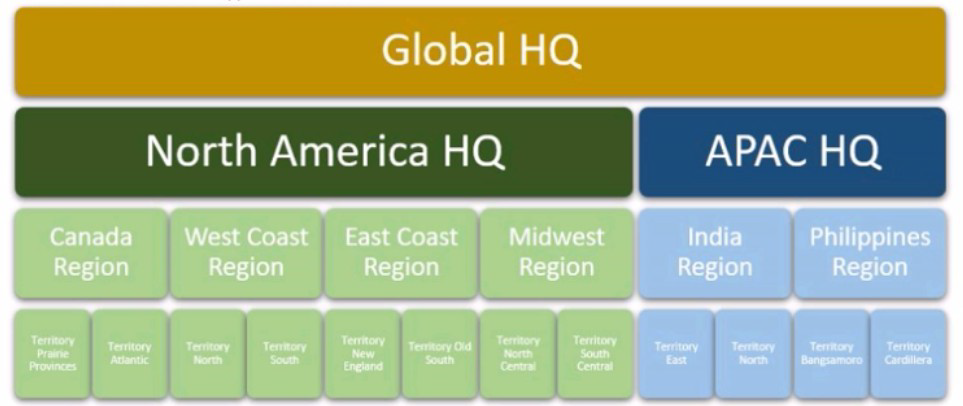
The Contoso physical environment is structured in the following manner, with the roles noted.


Field Service structure
Contosos field service technicians respond to all installation work orders with two human resources:

• One licensed technician (Level 3). and...

• One apprentice technician. Apprentices can be either Level 1 (new trainee) or Level 2 (halfway through training).

In many cases installation work also requires the use of specialty tools, depending on what is being installed The current system does not have any way to track the level of skill for each resource, nor the uses for the specialty tools. This is handled as "tribal knowledge." Preventative maintenance work orders can be handled by one resource if they are a Level

2. If the resource is a Level 1. they must be accompanied by a Level 3 resource, and vice versa.
All field service technicians are required to complete OSHA training annually. In their first year of apprenticeship they must complete the full 40-hour course. In the next 2 years they must complete the 8-hour refresher course. This cycle repeats every 3 years for the duration of their employment. In the current system, when a technician has finished with a work order, they turn in the paper copy with their notes to the dispatcher. The dispatcher then gives that information to a back-office employee, who will check the work order to ensure accuracy before creating an invoice. Contoso wishes to automate this exact process in the new system.

Customer base
About half of Contoso's customer base includes Not For Profit service organizations. The implications for billing are complex, so it's important that Tax Exempt Status be noted for all Accounts and flow through to all Work Orders. NFP Customers who are associated with government entities will pay for travel time; other customers will not. This information should flow from the Billing Account to all associated Service Accounts.

Most Contoso customers sign agreements for Preventative Maintenance. Contoso uses templates and incidents to ensure services standards are the same across all regions. Preventative Maintenance agreements include monthly inspection and quarterly cleaning and inspection, with billing occurring quarterly.

Remaining consistent
Contoso plans to keep the current data structure and extend it to the new Field Service functionality.

Field Service users will fall under the same organizational structure currently implemented for the sales staff.

• Field service technicians will only be able to see their assigned work orders and bookings.

• Dispatchers will be able to see all work orders and bookings for the region-

Planned changes
Contoso plans to implement Dynamics 365 Field Service with mobile access. They will be using incidents, work orders, bookings and invoicing. The following requirements were gathered during analysis:

1. Work Orders and Scheduling.
o Automated and suggestion-based scheduling.

o Scheduling based on required technician skills and number of technicians needed.

o Schedule resources based on location, minimizing travel time when possible.

o Technicians must be onsite within 3 hours of an emergency Work Order being assigned to them.

o The travel time should automatically update upon changing a booking.

2. Agreements
o Setup and create work orders, bookings and invoices for preventative maintenance with work orders automatically created 14 days before PM is due. o EscaJation of Work Orders based upon agreed customer commitment. o Ability to designate clients as Preferred, with special pricing.

3. Products and Services
o Warehousing and inventory management processes will be implemented, including tracking products moved onto trucks for installation at customer sites.

o Implement a parts return process that includes having a technician uninstall the part to be returned.

o Multiple price lists will be used, divided into Gold, Silver and Bronze levels, based on the spending level of each customer.

o Internal teams need the capability to associate a 3D image to a Customer Asset record.

o Products added to a work order should be set to Allocated.

4. Resources
o Implement Company Holidays for North American regions, o Implement Paid Time Off for all regions.

o Specialty equipment will be scheduled on work orders as needed.

o Training and skill levels will be noted as appropriate for resources.

5. System
o Geocoding will be activated throughout the system.

o Territories will be used for Accounts, Resources and Work Orders.

Technical requirements
Contoso identified the following technical requirements:

1. Invoking
o Auto creation of invoices upon work completion.

o The system must track the price of resources based on holidays and after-hours scenarios at a rate of one and a half times the no*mal billing rate.

o Travel time is billable for all field service technicians, pay type Travel, which should be noted on all Service Accounts.

2. Resources
o Contractor technicians require access to work order and customer details once assigned to a booking.

o Dispatchers need a schedule board for their region(s).

3. Products and Services
o All parts that are removed from a customer's equipment must be returned to the Main warehouse.

o Products to be marked as Assets will be configured accordingly.

o All products that will become Assets require instalation by a technician.

o All products are received into the Main warehouse.

4. Work Orders
o The ability to have templates for work orders; The templates will provide guidance for technicians along with recommended products and default services.

o Once a work order is posted it should no longer show on views.

o Contoso will use the "out of the box" work order statuses to begin, though they may be changed in later phases of the project.

5. Scheduling
o Once a work order is scheduled, do not change the time.

o Work Orders scheduled to technician(s) who do not have the desired skill set and level should show a warning.

6. Security and access
o Safeguards must be in place for the data on the Field Service Mobile App if a technician loses his mobile phone or tablet device, o The Field Service Administrator needs the ability to update the defaults for the schedule assistant.

7. Accounts
o Any Service Accounts that do not have a Billing Account noted should show a warning, o Any Billing Accounts that do not have a Price List noted should show a warning.

You are a Dynamics 365 for Field Service Administrator.

You have a requirement to make a custom attribute "Contract Status" required and to not allow invalid data to be entered in the attribute.

What are three ways that you can make an attribute required on a form within the Dynamics 365 for Field Service Mobile App and ensure invalid data cannot be entered?

Each correct answer presents a complete solution.

A. Create an OnSave rule, and display a message to the user if the specific field does not meet the required conditions.

B. Create an OnChange rule, and set a simple validation for a field to check whether the field contains data.

C. Create an Option Set with all possible options for the attribute.

D. Create an OnChange rule to highlight a field when it does not contain correct field data.

E. Create an OnSave rule to check any field's data, but without highlighting the field when the condition is not met.

A.   Create an OnSave rule, and display a message to the user if the specific field does not meet the required conditions.
C.   Create an Option Set with all possible options for the attribute.
E.   Create an OnSave rule to check any field's data, but without highlighting the field when the condition is not met.

Explanation:
This question asks how to enforce data validation for a custom field in the Field Service mobile app. The requirement has two parts: making the field required and preventing invalid data entry. The correct solutions must address both aspects. OnSave rules block invalid saves entirely, while Option Sets restrict input to valid values only.

Correct Option:

A. Create an OnSave rule, and display a message to the user if the specific field does not meet the required conditions.
An OnSave rule executes when the user attempts to save the record. By configuring it to check if the "Contract Status" field is blank or invalid, the rule can cancel the save operation and display a custom error message. This ensures the record cannot be saved with invalid data, effectively making the field required and enforcing data integrity at the moment of save.

C. Create an Option Set with all possible options for the attribute.
An Option Set restricts user input to a predefined list of valid values, eliminating the possibility of free-text invalid entries. When combined with setting the field requirement to "Business Required" at the system level, users cannot save the record without selecting a value. This approach prevents invalid data at the point of entry through data modeling.

E. Create an OnSave rule to check any field's data, but without highlighting the field when the condition is not met.
Although it lacks visual feedback, this OnSave rule still validates the field when the user saves. If the condition fails, the save is cancelled, preventing invalid data from being committed. This meets the core requirement of ensuring invalid data cannot be entered, even though the user experience is not optimal.

Incorrect Option:

B. Create an OnChange rule, and set a simple validation for a field to check whether the field contains data.
An OnChange rule triggers when the user modifies and leaves a field. While it can provide validation feedback, it does not block the save operation. The user could ignore the warning and still save the record with invalid data. This solution only partially addresses the requirement by providing feedback but not enforcement.

D. Create an OnChange rule to highlight a field when it does not contain correct field data.
Highlighting a field provides visual cues to the user but is a soft validation method. It does not prevent the user from saving the form with invalid data. The requirement specifically states to "not allow invalid data to be entered," which requires a mechanism that blocks the save, not just one that provides visual warnings.

Reference:

Microsoft Learn: Create validation rules and business logic in model-driven apps

Microsoft Learn: Configure mobile app forms and fields

Microsoft Learn: Understand field requirements and option sets

You are implementing Microsoft Dynamics 365 Field Service.

The customer wants to use the system to capture changes in various system readings when a technician is onsite servicing an asset.

What should you recommend?

A. Create asset categories and track the changes from each work order.

B. Use the Asset Category Log history to track the changes.

C. Train the field technicians to take detailed notes on the asset on the work order.

D. Use the Asset Property Log history to track the changes.

A.   Create asset categories and track the changes from each work order.

Explanation:
This question focuses on tracking asset reading changes during onsite service visits. The key requirement is to capture system readings or measurements taken by technicians while servicing an asset. Asset Categories in Dynamics 365 Field Service allow you to define specific properties or characteristics that can be tracked and logged during work order execution, making this the most appropriate solution.

Correct Option:

A. Create asset categories and track the changes from each work order.
Asset Categories enable you to define specific properties (such as pressure readings, temperature, or voltage) that can be associated with an asset. When technicians perform work orders, they can record values for these properties directly on the work order or during task completion. The system automatically tracks these readings over time, creating a historical record of changes. This provides structured, searchable data rather than unstructured notes, making it ideal for tracking system reading changes.

Incorrect Option:

B. Use the Asset Category Log history to track the changes.
This option is misleading because there is no specific "Asset Category Log history" feature in Dynamics 365 Field Service. Asset Categories themselves define the properties, but the actual tracking of changes to those properties is handled through Asset Properties or work order recordings. This option references a non-existent feature.

C. Train the field technicians to take detailed notes on the asset on the work order.
Relying on manual notes introduces inconsistency, human error, and unstructured data. Notes cannot be easily queried, reported on, or analyzed for trends. The requirement is to "capture changes" systematically, which implies structured data collection for future reference and analysis, not free-text entries.

D. Use the Asset Property Log history to track the changes.
While Asset Properties are the correct mechanism for defining asset characteristics, there is no specific "Asset Property Log history" feature that automatically tracks changes over time. Asset Properties store current values, but historical tracking of changes typically requires recording values against work orders or using IoT data. This option misrepresents how property history is actually captured.

Reference:

Microsoft Learn: Create and manage asset categories and properties

Microsoft Learn: Track asset readings and measurements

You implemented Microsoft Dynamics 365 Field Service for an electronics company.

The technician reports that they are unable to view the customer asset hierarchy and the functional location at the customer s location.

• While setting up the Dynamics 365 Field Service mobile app, you assigned the Field Service Resource security role to a technician.

• While working at the customer site, there were some internet connectivity issues and so the technician had to work offline.

Why was the technician unable to view customer asset hierarchy and functional location?

A. The security role assigned needs to be Field Service Admin

B. Internet connectivity is required.

C. The functional location still needs to be assigned to the work order.

D. The offline profile still needs to be published.

B.   Internet connectivity is required.

Explanation:
This question addresses offline capabilities in the Field Service mobile app. The technician was working offline due to internet connectivity issues but could not view asset hierarchy and functional location. While the Field Service Resource role is appropriate for technicians, offline access requires specific configuration to ensure data is available when disconnected from the network.

Correct Option:

B. Internet connectivity is required.
This option is incorrect as the answer. Internet connectivity is NOT required for the Field Service mobile app to function properly. The app is designed with robust offline capabilities that allow technicians to access work orders, customer information, assets, and functional locations without an active internet connection. The issue is not connectivity itself but rather what data was synchronized before going offline.

Incorrect Option:

A. The security role assigned needs to be Field Service Admin.
This is incorrect. Field Service Resource is the appropriate security role for technicians. The Field Service Admin role provides broader system configuration access that technicians do not need. The resource role includes sufficient privileges to view assets and functional locations both online and offline when properly configured.

C. The functional location still needs to be assigned to the work order.
This is incorrect. Functional locations are typically associated with customer accounts or assets, not directly assigned to work orders. If the functional location is properly configured in the system and synchronized to the mobile app, it should be visible regardless of work order assignment. This would not explain the inability to view the hierarchy.

D. The offline profile still needs to be published.
This is correct. For technicians to access data offline, an offline profile must be configured and published that includes the asset hierarchy and functional location entities. Without a published offline profile specifying what data to synchronize for offline use, the mobile app cannot make this information available when disconnected. This is the most likely reason for the issue described.

Reference:

Microsoft Learn: Set up offline profiles for mobile app

Microsoft Learn: Field Service security roles and permissions

Microsoft Learn: Work offline with Field Service mobile app

You are implementing a Microsoft Dynamics 365 Field Service solution for a customer who has the Field Service Dispatcher security role.

You recently built a custom work order form, but the customer is having trouble viewing it when they log into Dynamics 36S. You confirm that the form is set to Display to Everyone, but the customer is still not able to see the form.

You need to resolve this issue.

What should you do before selecting Save and Publish?

A. 1. Navigate to the work order form.

2. Select Enable Security Roles

3. Ensure Enabled for Fallback is selected.

B. 1. Navigate to the app designer.

2. In the site map designer, ensure the work order area is presen

C. 1. Navigate to the app designer.

2. Under the work order, ensure the custom form is set to be visible.

D. 1. Navigate to the work order form.

2. Select Enable Security Roles and Display to only these selected Security Roles

3. Ensure the Field Service Dispatcher role is applied to the form.

A.   1. Navigate to the work order form.

2. Select Enable Security Roles

3. Ensure Enabled for Fallback is selected.

Explanation:
This question addresses form visibility based on security roles in model-driven apps. Even when a form is set to "Display to Everyone," it may not appear for users if security role enablement has not been properly configured. The Enable Security Roles option controls which security roles can access specific forms, and enabling fallback ensures a form is available when others are not accessible.

Correct Option:

A. 1. Navigate to the work order form. 2. Select Enable Security Roles 3. Ensure Enabled for Fallback is selected.
This is the correct solution. In the form properties, the "Enable Security Roles" option must be configured even when using "Display to Everyone." Selecting "Enabled for Fallback" ensures this form serves as the default when users with other security roles access the system. Without enabling security roles on the form, it may not be visible to any users, including the Field Service Dispatcher, regardless of the display setting.

Incorrect Option:

B. 1. Navigate to the app designer. 2. In the site map designer, ensure the work order area is present.
This addresses site map visibility, not form visibility. The issue is that the custom form itself is not appearing, not that the work order area is missing from navigation. The site map determines which entities appear in the app, not which specific forms are displayed for those entities.

C. 1. Navigate to the app designer. 2. Under the work order, ensure the custom form is set to be visible.
App designer controls which forms are included in a specific app, but if the form is already set to "Display to Everyone" and still not visible, the issue is likely at the system level with security role enablement. App-level form visibility settings alone would not explain why a user with the correct role cannot see the form.

D. 1. Navigate to the work order form. 2. Select Enable Security Roles and Display to only these selected Security Roles 3. Ensure the Field Service Dispatcher role is applied to the form.
This would work but is not the best solution. The requirement states the form is set to "Display to Everyone," so restricting it to only selected roles contradicts the original configuration. Option A maintains the "Display to Everyone" intent while properly enabling security role access through the fallback mechanism.

Reference:

Microsoft Learn: Control form access with security roles

Microsoft Learn: Create and design model-driven app forms

Microsoft Learn: Understanding form order and fallback forms

You are a Dynamics 365 for Field Service Mobile customizer.

Your mobile technicians indicate that when in offline mode, they do not have access to the same data set that is available online. Offline mode contains less account and work order data, and users cannot see warehouses.

You need to determine which updates to make within the mobile project so that technicians can see the appropriate information.

Which three actions should you choose? Each correct answer presents a complete solution.

A. Update Synchronization setting to Always Full Sync.

B. Update entity Sync Filter.

C. Update View filters.

D. Update the Max Sync Records setting.

E. Update the entity Mode to Online and Offline.

B.   Update entity Sync Filter.
D.   Update the Max Sync Records setting.
E.   Update the entity Mode to Online and Offline.

Explanation:
This question addresses configuring the Field Service mobile app's offline capabilities. When technicians have less data offline than online, the issue relates to synchronization settings that control what data downloads to the device. Three specific configurations determine which entities are available offline, how many records sync, and which specific records are filtered for download.

Correct Option:

B. Update entity Sync Filter.
The Sync Filter determines which specific records of an entity are downloaded to the mobile device. By configuring filters on entities like Account and Work Order, you can ensure relevant records (such as those assigned to the technician or at nearby locations) are included in offline mode. This directly addresses users not seeing appropriate account and work order data.

D. Update the Max Sync Records setting.
The Max Sync Records setting controls the maximum number of records that can be downloaded per entity for offline access. If this limit is too low, technicians will not have access to all the records they need when offline. Increasing this value ensures more accounts, work orders, and warehouse records are available during offline mode.

E. Update the entity Mode to Online and Offline.
Entities must be set to "Online and Offline" mode to be available when the device is disconnected. If an entity like Warehouse is set to "Online Only," it will not sync to the device at all. Changing the mode ensures these entities are included in the offline data set and accessible without internet connectivity.

Incorrect Option:

A. Update Synchronization setting to Always Full Sync.
This is not a valid configuration option in the Field Service mobile app. Synchronization settings do not include an "Always Full Sync" option. The app uses incremental synchronization based on filters and records assigned to the technician, not a full sync of all system data.

C. Update View filters.
View filters control what data appears in lists within the app but do not affect what data is actually downloaded to the device during synchronization. Views only filter data that is already present on the device. To change what data is available offline, you must modify the sync filters, not the view filters.

Reference:
Microsoft Learn: Configure offline synchronization for mobile app

Microsoft Learn: Set up entity synchronization for Field Service mobile

Microsoft Learn: Manage sync filters and max records for offline

You are assigned to a Microsoft Dynamics 365 Field Service implementation for a Gym & Fitness company.

You need to distribute a survey to any customers who sign up for a monthly subscription.

The Customer Experience Manager wants to send the survey with a custom email address instead of using the default Dynamics 365 Customer Voice survey email address.

Which two actions should you perform? Each answer presents a complete solution. NOTE: Each correct selection is worth one point

A. Add a custom email address in the Microsoft Power Platform Admin Center.

B. Add and verify a domain in the Microsoft 365 Admin Center.

C. Add and verify a domain in the Microsoft Power Platform Admin Center.

D. Add a custom email address in the Microsoft 365 Admin Center.

B.   Add and verify a domain in the Microsoft 365 Admin Center.
D.   Add a custom email address in the Microsoft 365 Admin Center.

You are working with your customer to define their schedule board.

Your customer needs you to add or create additional views for their scheduling team.

Solution: Create or edit an existing view in the Bookable Resource Bookings Views, and add it to the Schedule Assistant.

Does this meet the goal?

A. Yes

B. No

B.   No

Explanation:
This question tests understanding of how views work with the Schedule Board and Schedule Assistant in Dynamics 365 Field Service. The goal is to add or create additional views for the scheduling team to use. However, modifying Bookable Resource Bookings views does not affect what appears on the Schedule Board, as these are different components with separate configuration methods.

Correct Option:

B. No
This is correct because the solution described does not meet the goal. Bookable Resource Bookings views control how booking records appear in entity lists and grids, not how resources or requirements appear on the Schedule Board. Schedule Board views and filters are configured directly within the Schedule Board settings, not through entity views. To add views for the scheduling team, you must customize the Schedule Board itself, not the underlying entity views.

Incorrect Option:

A. Yes
This is incorrect. Bookable Resource Bookings views are separate from Schedule Board views. The Schedule Board has its own configuration interface where you can create and customize resource views, requirement views, and map views. Adding views to Bookable Resource Bookings will not make them appear on the Schedule Board for the scheduling team to use.

Reference:
Microsoft Learn: Configure and customize the schedule board

Microsoft Learn: Understand bookable resource bookings views vs schedule board views

Microsoft Learn: Create additional schedule board tabs and views

You are implementing a Microsoft Dynamics 365 Field Service solution for a client.

The client needs to be able to view the Parent Asset and Master Asset when the Primary Incident Customer Asset is associated to a work order. The asset data should nor be stored directly on the work order. It should only be visible when the Customer Asset is selected.

Solution:

1. Create the Parent Asset and Master Asset on the work order.

2. Use a business rule to populate the fields from the Customer Asset.

Does this meet the goal?

A. Yes

B. No

B.   No

Explanation:
This question tests understanding of how asset relationships and work order associations work in Dynamics 365 Field Service. The goal is to view Parent Asset and Master Asset information when a Customer Asset is selected on a work order, without storing that data directly on the work order. The proposed solution incorrectly creates assets on the work order rather than leveraging existing asset relationships.

Correct Option:

B. No
This is correct because the proposed solution does not meet the goal. The requirement states that asset data should not be stored directly on the work order. However, step 1 instructs to "Create the Parent Asset and Master Asset on the work order," which would directly store this data on the work order. Additionally, Parent and Master Assets already exist as related records to the Customer Asset and can be viewed through lookups or form customizations without creating them again or using business rules to populate duplicate fields.

Incorrect Option:

A. Yes
This is incorrect. Creating Parent Asset and Master Asset fields directly on the work order violates the requirement that asset data should not be stored on the work order. The correct approach would be to customize the form to display read-only fields or sub-grids showing the related asset information from the selected Customer Asset, leveraging existing relationships rather than duplicating data.

Reference:

Microsoft Learn: Set up customer assets in Field Service

Microsoft Learn: Understand asset relationships (Parent and Master assets)

Microsoft Learn: Customize work order forms to display related asset information

Note: This question is part of a series of questions that present the same scenario. Each question in the series contains a unique solution that might meet stated goals. Some question sets might have more than one correct solution, while others might not have a correct solution.

After you answer a question in this section, you will NOT be able to return to it. As a result, these questions will not appear in the review screen.

You are a Dynamics 365 for Field Service system administrator.

You are configuring a new instance of Dynamics 365 for Field Service. The organization needs to accurately capture the cost of work order bookings.

Solution: You implement the following configuration changes:

1) Create Resource Pay Types for regular, holiday, overtime, travel, and breaks.

2) Assign an Hourly Markup percentage to each Resource Pay Type.

3) Assign Resource Pay Types to the applicable Pay Type.

4) Create Business Closures.

5) Create Bookable Resources with Hourly Rates and Work Hours.

Does this meet the goal?

A. Yes

B. No

A.   Yes

Explanation:
This question tests understanding of how to configure cost tracking for work order bookings in Dynamics 365 Field Service. The goal is to accurately capture the cost of work order bookings, which requires setting up the complete cost calculation infrastructure including pay types, hourly rates, work hours, and business closures that affect time reporting.

Correct Option:

A. Yes
This is correct because the solution includes all necessary components to capture booking costs. Resource Pay Types define different rate categories (regular, overtime, etc.). Hourly rates assigned to bookable resources establish base costs. Work hours define when resources are available. Business closures ensure time not worked isn't incorrectly costed. Assigning markup percentages to pay types allows for accurate cost calculation when different rates apply to different work scenarios.

Incorrect Option:

B. No
This is incorrect. The configuration described does meet the goal. Each step contributes to accurate cost capture: Pay Types categorize work time, hourly rates provide the base cost, work hours define billable periods, and business closures prevent incorrect costing during non-working days. This comprehensive setup ensures booking costs are calculated correctly based on actual work performed.

Reference:
Microsoft Learn: Configure resource pay types for cost calculation

Microsoft Learn: Set up bookable resource hourly rates

Microsoft Learn: Define work hours and business closures

You are a Dynamics 365 for Field Service Administrator and work for a manufacturing firm.

You are receiving support requests that field engineers are unable to see a custom area entitled “Parts Requests” within the Dynamics 365 Field Service Mobile App.

You need to troubleshoot the Dynamics 365 for Field Service mobile app to ensure that the field engineers are able to view the customizations created.

What are the three steps you can take to troubleshoot the issue reported? Each correct answer presents a complete solution.

A. Ensure that the Dynamics Mobile solution with the appropriate customizations has been published.

B. Synchronize the Dynamics 365 for Field Service Mobile App.

C. Ensure that a security role has been assigned to the project.

D. Verify that the impacted field engineers are enabled to use this project.

E. Ensure that the Woodford project with the appropriate customizations has been published.

B.   Synchronize the Dynamics 365 for Field Service Mobile App.
C.   Ensure that a security role has been assigned to the project.
E.   Ensure that the Woodford project with the appropriate customizations has been published.

Explanation:
This question addresses troubleshooting customizations in the Field Service mobile app, specifically when field engineers cannot see a custom area. The mobile app uses Woodford (Resco) for configuration, and issues typically relate to project publishing, security role assignment, and synchronization. These three steps directly address the most common causes of missing customizations.

Correct Option:

B. Synchronize the Dynamics 365 for Field Service Mobile App.
After customizations are published, mobile devices must synchronize to download the latest configuration changes. If engineers have not synced their devices recently, they may still be using an older version of the mobile project that does not include the "Parts Requests" area. Performing a manual sync ensures the latest customizations are applied to their devices.

C. Ensure that a security role has been assigned to the project.
In the Woodford configuration tool, mobile projects must have security roles assigned to control who can access the project. If no security role is assigned, or if the field engineers' roles are not included, they will not see the custom project or its contents when logging into the mobile app.

E. Ensure that the Woodford project with the appropriate customizations has been published.
The Field Service mobile app is configured using Woodford (Resco). Simply saving customizations in Woodford is not enough; the project must be explicitly published for changes to become available to mobile users. If the "Parts Requests" area was added but the project was never published, engineers will not see it.

Incorrect Option:

A. Ensure that the Dynamics Mobile solution with the appropriate customizations has been published.
This is incorrect terminology. The Field Service mobile app does not use "Dynamics Mobile solutions" for configuration. It uses Woodford projects. Publishing a solution in Power Apps would not affect the mobile app's custom interface. This option confuses standard Power Platform solution publishing with Woodford project publishing.

D. Verify that the impacted field engineers are enabled to use this project.
This is partially correct but redundant with option C. In Woodford, enabling users to access a project is done by assigning security roles, not by individually enabling users. Option C covers this requirement more accurately by specifying security role assignment, which is the actual mechanism for granting project access.

Reference:

Microsoft Learn: Configure the Field Service mobile app with Woodford

Microsoft Learn: Publish mobile project updates

Microsoft Learn: Assign security roles to mobile projects

Page 1 out of 5 Pages
12

Microsoft Dynamics 365 for Field Service Practice Exam Questions