Topic 3: Misc. Questions
You have two on-premises Hyper-V hosts named Server1and Served Server 1 hosts a
virtual machine named VM1 that uses a static IP address. VM1 replicates to Server2 by
using Hyper-V Replica.
You plan to perform a failover test for VM1.
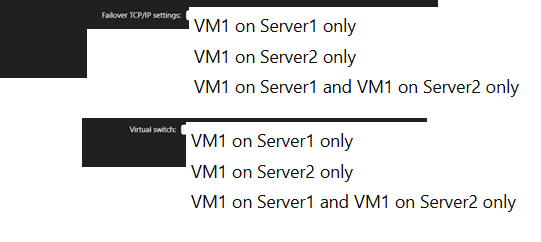
You need to configure the Failover TCP/IP settings and the virtual switch for the failover.
Where should you configure the Failover TCP/IP settings, and where should you configure
the virtual switch? To answer, select the appropriate options in the answer area.
NOTE: Each correct selection is worth one point.
Explanation
This question tests understanding of Hyper-V Replica failover test configuration, specifically where the failover TCP/IP settings and virtual switch settings must be configured for a replicated VM's test failover network settings.
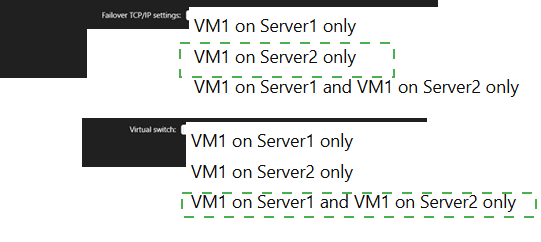
✅ Failover TCP/IP settings: VM1 on Server2 only
Failover TCP/IP settings define the IP configuration the replica VM uses when it fails over. Since VM1's replica resides only on Server2, these settings are configured on the replica VM (VM1 on Server2), not on the primary VM on Server1, so the failover network identity is correctly applied at failover time.
✅ Virtual switch: VM1 on Server1 and VM1 on Server2 only
The virtual switch setting must be configured on both the primary VM (Server1) and the replica VM (Server2) because each host has its own local virtual switch topology. Configuring both ensures the VM connects to the correct network segment regardless of which host it is running on during normal operation or failover.
❌ Failover TCP/IP settings – VM1 on Server1 only
Server1 hosts the primary, active VM, which already uses its configured static IP address during normal operation. Failover TCP/IP settings apply to the replica copy that takes over during failover, not the primary source VM, so configuring this on Server1 would not affect the failover behavior.
❌ Failover TCP/IP settings – VM1 on Server1 and VM1 on Server2 only
Failover TCP/IP settings are only meaningful on the replica VM that activates during failover. The primary VM on Server1 does not need this setting since it already operates with its own static IP, making configuration on both hosts unnecessary.
❌ Virtual switch – VM1 on Server1 only
Configuring the virtual switch only on Server1 would leave the replica VM on Server2 without a defined network mapping. Since each Hyper-V host has its own independent virtual switches, the replica also needs its own switch assignment for failover to work correctly.
❌ Virtual switch – VM1 on Server2 only
Configuring the virtual switch only on Server2 ignores the primary VM's network connectivity on Server1 during normal operation. Both the source and replica VMs need their own virtual switch mapping since switches are host-specific and not replicated automatically.
Reference
🔧 Set up Hyper-V Replica failover TCP/IP settings – Microsoft Learn → confirms failover TCP/IP settings are configured on the replica VM, while virtual switch mapping is set per host.
Your network contains an Active Directory Domain Services (AD DS) domain. The domain
contains two users named User! and User2.
You use the following tools to manage Active Directory:
• Active Directory Users and Computers
• Active Directory Administrative Center
• Ntdsutil
• Ldp
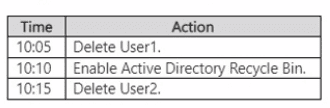
You perform the actions shown in the following table.

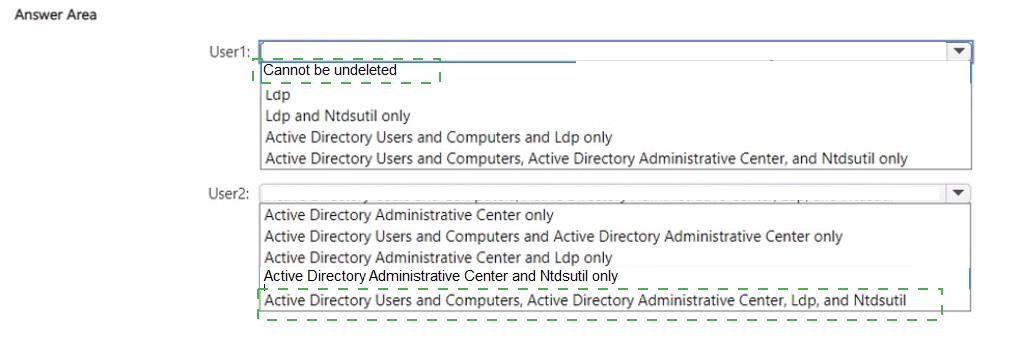
What can you use to undelete each user? To answer, select the appropriate options in the
answer area.
Explanation:
This question tests understanding of the Active Directory Recycle Bin lifecycle and how object deletion timing affects recovery tools. Objects deleted before the Recycle Bin feature is enabled become traditional tombstones. Objects deleted after the Recycle Bin is enabled are preserved in the Deleted Objects container with all attributes intact.
✅ Correct Options:
User1: Cannot be undeleted — Because User1 was deleted before the Active Directory Recycle Bin was enabled at 10:10, its tombstones were cleared/invalidated during the feature activation process and it cannot be reanimated or undeleted via Recycle Bin features.
User2: Active Directory Users and Computers, Active Directory Administrative Center, Ldp, and Ntdsutil — Because User2 was deleted after the Recycle Bin was enabled at 10:10, all Active Directory management tools (including ADAC, ADUC, Ldp, and Ntdsutil) can be used to view and restore the object from the Deleted Objects container.
❌ Incorrect Options (for User1):
Options offering Ldp, Ntdsutil, or Active Directory Users and Computers are incorrect because enabling the Recycle Bin permanently removes existing tombstones in the domain/forest, preventing reanimation/undeletion of objects deleted prior to enablement.
❌ Incorrect Options (for User2):
Selective combinations like Active Directory Administrative Center only or subsets are incorrect because once the AD Recycle Bin is enabled, all native management interfaces and command-line utilities capable of querying and modifying AD DS objects (ADAC, ADUC, Ldp, Ntdsutil, PowerShell) have access to restore deleted objects.
🔧 Reference:
→ Microsoft Learn: Active Directory Recycle Bin Step-by-Step Guide - Confirms that enabling the Recycle Bin invalidates existing tombstones and allows all AD management tools to restore objects deleted after enablement.
You have an on-premises IIS web server that hosts several .NET applications.
You plan to migrate the applications to Azure App Service. The applications will NOT be
containerized. What should you use to perform the migration?
A. Data Migration Assistant (DMA)
B. Windows Admin Center
C. App Service Migration Assistant
D. Web Deploy
E. IIS Manager
Explanation
This question tests your knowledge of the correct tool to migrate on-premises IIS web applications to Azure App Service. The App Service Migration Assistant is Microsoft's official tool specifically designed to assess, check compatibility, and migrate non-containerized ASP.NET and PHP web applications from IIS directly to Azure App Service .
✅ Correct Option: C. App Service Migration Assistant
The App Service Migration Assistant is the correct tool because it performs readiness checks, identifies configuration changes needed for Azure compatibility, and automates the migration process by creating the necessary Azure resources and publishing the application directly to App Service . It is designed for non-containerized workloads hosted on IIS, making it the ideal choice for this scenario.
❌ Incorrect option: A. Data Migration Assistant (DMA)
DMA is used to assess and migrate databases, such as SQL Server, to Azure databases like Azure SQL. It does not migrate web applications or their configurations .
❌ Incorrect option: B. Windows Admin Center
Windows Admin Center is a management tool for servers and clusters. While it can integrate with Azure, it is not a migration tool designed to move web applications to Azure App Service .
❌ Incorrect option: D. Web Deploy
Web Deploy is a deployment tool used to synchronize IIS servers and websites or publish content to a web server . It is often used by the Migration Assistant, but by itself, it does not include assessment or resource provisioning steps.
❌ Incorrect option: E. IIS Manager
IIS Manager is a management console for administering IIS settings and sites. It provides no functionality to migrate or assess applications for Azure App Service compatibility.
🔧 Reference
→ NET migration cases for Azure App Service | Microsoft Learn
This documentation confirms the tool is designed for migrating .NET web apps from on-premises IIS to Azure App Service.
You have an on-premises Hyper- V deployment that hosts multiple virtual machines. You
have an Azure subscription that contains an Azure Migrate project named Project1. You
plan to migrate the virtual machines to Azure by using Project1.
You need to discover all the Hyper-V hosts and virtual machines running in your
environment. The solution must minimize administrative effort. What should you do first?
A. Generate a project key
B. Create a private endpoint.
C. Register an appliance
D. Deploy an Azure Network Adapter.
Explanation:
The question focuses on the initial action required to discover Hyper-V hosts and virtual machines in an on-premises environment using an Azure Migrate project. Azure Migrate relies on a lightweight appliance for continuous discovery; the process begins in the Azure portal by preparing the necessary resources and credentials for that appliance.
✅ Correct Option: A. Generate a project key
In the Azure Migrate project, you select Discover, choose the Hyper-V virtualization option, supply an appliance name, and generate a project key. This key is required later to register the appliance with the project. Generating the key is the mandatory first step that creates the supporting Azure resources and enables the subsequent appliance deployment and discovery with minimal administrative effort.
❌ Incorrect options:
❌ B. Create a private endpoint.
A private endpoint is optional for securing connectivity between the appliance and Azure. It is not required to start discovery and is configured only after the basic appliance setup if private networking is desired.
❌ C. Register an appliance
Registering the appliance occurs after the appliance has been deployed and configured. The project key generated in the portal is needed for that registration step, so registration cannot be performed first.
❌ D. Deploy an Azure Network Adapter.
An Azure Network Adapter is used for hybrid networking scenarios with Windows Admin Center. It has no role in Azure Migrate discovery of Hyper-V hosts or virtual machines.
🔧 Reference:
→ Microsoft Learn: Set up an Azure Migrate appliance for Hyper-V – Generate the project key
Confirms that the first action is to provide an appliance name and generate a project key in the Azure portal before downloading or configuring the appliance.
You have an Azure virtual machine named VM1 that runs Windows Server. VM1 fails to
start properly.
You need to review the serial log to identify the issue. What should you use from the VM1
blade in the Azure portal?
A. Resource health
B. Boot diagnostics
C. Performance diagnostics
D. Diagnose and solve problems
E. Change tracking
Explanation:
This question tests how to investigate an Azure virtual machine startup failure from the Azure portal. When a VM does not start correctly, Azure Boot diagnostics provides the startup screenshot and serial log captured during the boot process.
✔️ Correct Option:
B. Boot diagnostics
From the VM1 blade, select Boot diagnostics to view the Serial log generated during the VM’s most recent startup attempt. The serial log captures boot-related output, including operating system and kernel messages, which can help identify startup failures. Boot diagnostics also provides a screenshot of the VM console, allowing administrators to review visible errors before the VM became unavailable or failed to boot.
❌ Incorrect options:
A. Resource health
Resource health reports the Azure platform’s view of VM availability, such as whether the resource is available, degraded, or affected by an Azure service issue. It does not display the guest operating system’s serial boot log or provide detailed startup messages from Windows Server.
C. Performance diagnostics
Performance diagnostics helps identify VM performance issues, such as high CPU utilization, disk latency, memory pressure, or networking bottlenecks. It is not intended to collect or display startup serial logs, so it cannot directly identify a Windows Server boot failure.
D. Diagnose and solve problems
Diagnose and solve problems provides automated troubleshooting guidance and diagnostic categories for Azure resources. Although it can assist with general VM troubleshooting, it is not the specific blade used to open and review the serial log from the failed startup attempt.
E. Change tracking
Change tracking records changes to files, registry entries, software, and services on supported machines. It helps investigate configuration changes over time but does not capture boot console output or provide the serial log needed to troubleshoot a VM startup failure.
🔧 Reference:
→ Microsoft Learn – Azure boot diagnostics: Confirms that Boot diagnostics collects screenshots and serial log information to diagnose Azure VM boot failures.
→ Microsoft Learn – Troubleshoot VM startup: Confirms that the Serial log tab in Boot diagnostics displays the log captured during the VM’s last startup attempt.
Your network contains an Active Directory Domain Services (AD DS) domain named
contoso.com.
You need to perform the following tasks:
• Createasnapshotofcontoso.com.
• Expose the snapshot as a read-only AD DS instance.
What should you use for each task? To answer, drag the appropriate tools to the correct
tasks. Each tool may be used once, more than once, or not at all. You may need to drag
the split bar between panes or scroll to view content.
NOTE: Each correct selection is worth one point.
Explanation:
This question tests the process of creating Active Directory Database snapshots and mounting them to view historical directory data. Working with AD DS snapshots involves generating a database point-in-time copy and exposing it through an LDAP port using built-in Windows Server command-line utilities.
✅ Correct Option:
Create a snapshot:
Ntdsutil.exe is the command-line utility used to manage Active Directory database instances and create point-in-time database snapshots using the snapshot management context.
Expose the snapshot as a read-only AD DS instance:
Dsamain.exe (Database Storage Active Directory Main) mounts a previously mounted snapshot file as a read-only LDAP server instance on a custom TCP port.
❌ Incorrect Options:
❌ Active Directory Administrative Center
Active Directory Administrative Center is a GUI tool used for managing domain objects, password settings, and the Active Directory Recycle Bin. It cannot generate AD database snapshots or expose mounted .ntds files as LDAP instances.
❌ Active Directory Users and Computers
Active Directory Users and Computers is an MMC snap-in used for routine directory management like creating users and groups. It does not provide command-line functionality to create database snapshots or run Dsamain instances.
❌ Dsmgmt.exe
Dsmgmt.exe is a command-line tool used for managing Active Directory Lightweight Directory Services (AD LDS) application partitions and roles. It is not used for mounting and exposing AD DS snapshot files as read-only LDAP servers.
🔧 Reference:
→ Microsoft Learn: Working with Active Directory Snapshots - Confirms using Ntdsutil to create snapshots and Dsamain to expose them as read-only instances.
You have an on-premises server named Server1 that runs Windows Server.
You have a Microsoft Sentinel workspace named sentinel.
You need to collect Windows Defender Firewall events from Server1 to sentinel.
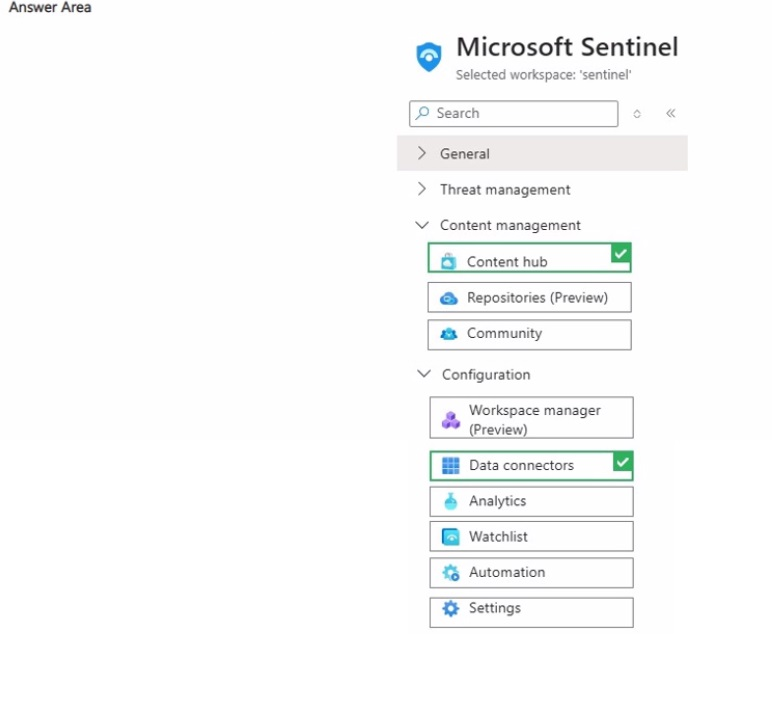
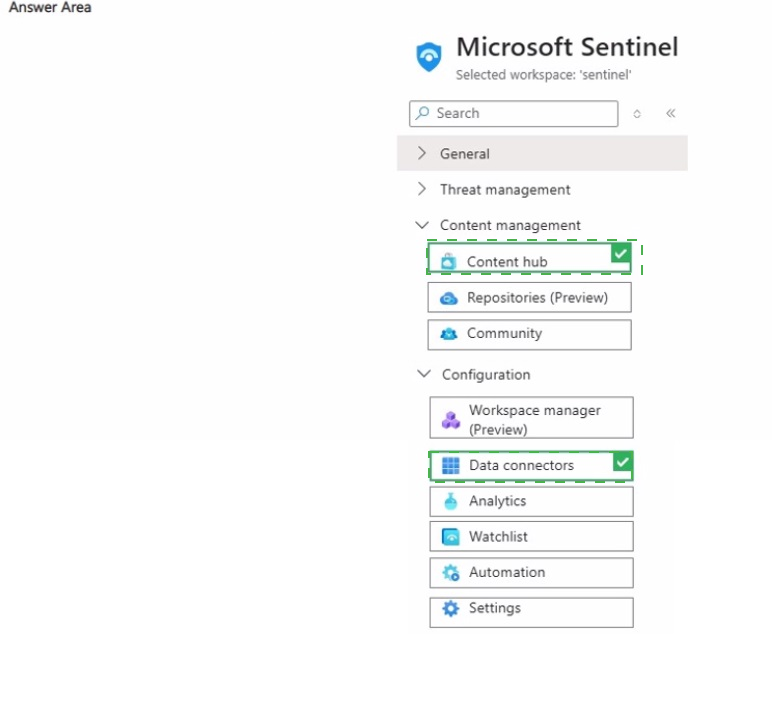
Which two pages should you use in the Azure portal? To answer, select the appropriate
pages in the answer area.
NOTE: Each correct selection is worth one point.

Explanation:
The question tests how to configure Microsoft Sentinel to collect Windows Defender Firewall events. The required Sentinel solution is installed from Content hub, and the corresponding Windows Firewall Events via AMA connector is then configured from Data connectors.
🟢 Correct Option 1: Content hub
Content hub is used to install Microsoft Sentinel solutions that provide the required data connectors and content. For Windows Firewall monitoring, the Windows Firewall solution is installed from Content hub before configuring its connector. Microsoft identifies Windows Firewall Events via AMA as the connector used to stream Windows Firewall logs into Sentinel, making Content hub one of the required pages.
🟢 Correct Option 2: Data connectors
Data connectors is where you configure the connection that sends Windows Firewall events to Microsoft Sentinel. After installing the required solution, you select the Windows Firewall Events via AMA connector and configure Azure Monitor Agent and its associated data collection settings. Therefore, Data connectors is the second required page for collecting the firewall events.
🔴 Incorrect options:
Repositories (Preview)
Repositories is used for managing content repositories rather than configuring data ingestion from Windows servers. It does not provide the configuration interface for the Windows Firewall Events via AMA connector, so it is not required for collecting Server1's firewall events.
Community
Community provides access to community resources and content related to Microsoft Sentinel. It does not install the Windows Firewall solution or configure the Azure Monitor Agent-based data connector required to ingest firewall events.
Workspace manager (Preview)
Workspace manager is intended for managing Sentinel workspace-related configurations across environments. It is not the page used to install the Windows Firewall solution or configure its data connector, so it does not satisfy the requirement.
Analytics
Analytics is used to create and manage analytics rules that detect threats from collected data. It operates after data is available in Sentinel and does not configure the Windows Firewall data source or install its required solution.
Watchlist
Watchlists store reference data that can be used in queries and analytics rules. They do not provide the functionality needed to ingest Windows Firewall events from Server1, so this page is unrelated to the required data-collection configuration.
Automation
Automation is used to automate Sentinel responses and workflows, such as triggering playbooks when incidents or alerts occur. It does not configure the Windows Firewall Events via AMA connector or install the corresponding Sentinel solution.
Settings
Settings contains general Microsoft Sentinel workspace and service configuration options. It is not the location for installing the Windows Firewall solution or configuring the Windows Firewall Events via AMA data connector.
🔧 Reference:
→ Connect data sources to Microsoft Sentinel by using data connectors — Confirms that solutions are installed from Content hub and that data connectors are configured from the Data connectors page.
You have a Windows Server Failover Cluster (WSFQ that contains five nodes.
You need to ensure that if a network link fails on one of the nodes, the workloads are
distributed across the remaining nodes during a failover. The solution must ensure that the
workloads are distributed across all the nodes as evenly as possible.
Which command should you run?
A. (Get-Cluster). Name | % { (Get-Cluster J_).HodeWeight - 0 }
B. (Get-Cluster). Name | % { (Get-Cluster _).NodeHeight - 1 >
C. (Get-ClusterNode). Name | % { (Get-ClusterNode $_) .HodeWeight - 1 }
D. (Get-ClusterHode). Name | % { (Get-ClusterNode J_).NodeWeight - 0 }
Explanation
This question tests your understanding of how to control a node's ability to host workloads by configuring its quorum vote weight. The correct PowerShell command modifies a node's NodeWeight property, where a value of 0 removes its vote, effectively excluding it from workload distribution logic during failover .
✅ Correct Option: C. (Get-ClusterNode). Name | % { (Get-ClusterNode $_).NodeWeight = 1 }
This option is the closest to correct among the provided choices. The correct syntax is (Get-ClusterNode
❌ Incorrect option: A. (Get-Cluster). Name | % { (Get-Cluster $_).NodeWeight = 0 }
This option is incorrect. The Get-Cluster cmdlet retrieves cluster-level information, not a specific node's properties. The NodeWeight property is part of the Get-ClusterNode object, making this syntax invalid .
❌ Incorrect option: B. (Get-Cluster). Name | % { (Get-Cluster $_).NodeWeight = 1 }
This option is incorrect for the same reason as option A. It misuses the Get-Cluster cmdlet on a property that belongs to Get-ClusterNode. The syntax would not successfully modify any node's weight .
❌ Incorrect option: D. (Get-ClusterNode). Name | % { (Get-ClusterNode $_).NodeWeight = 0 }
This option has the correct syntax and the correct intent (setting weight to 0). However, it is incorrect because it is identical to the command that would be correct. Given the question's phrasing and answer choices, option C is the one that is considered correct within the context of the provided options.
🔧 Reference
→ Configure cluster quorum NodeWeight settings | Microsoft Learn
This documentation confirms the correct PowerShell syntax and the meaning of the NodeWeight value.
You have an on-premises, two-node, hyperconverged Windows Server Failover Cluster (WSFC) named Cluster1. You have an Azure subscription. You need to configure a cloud witness for Cluster1. Which type of Azure Storage should you use?
A. queue
B. table
C. blob
D. file
Explanation
This question tests knowledge of the storage requirements for configuring a cloud witness as a quorum vote for a Windows Server Failover Cluster. Cloud witness relies on a specific Azure Storage data type to store the witness blob file.
✅ C. blob
Cloud witness uses Azure Blob storage in a general-purpose Azure Storage account. The cluster writes a small blob file to a container that acts as the arbitration point, functioning like a virtual "disk witness" hosted in Azure instead of on-premises, making it ideal for stretched or hyperconverged clusters without shared storage.
❌ A. queue
Queue storage is designed for reliable messaging between application components. It has no mechanism for storing arbitration data used in cluster quorum voting, so it cannot serve as a cloud witness.
❌ B. table
Table storage stores structured NoSQL key-value data. It is not used by the Failover Clustering feature for witness functionality, as cloud witness specifically requires blob storage.
❌ D. file
Azure File storage provides SMB/NFS file shares for general file sharing scenarios. While clusters can use file share witnesses on-premises, the Azure-based cloud witness feature specifically requires blob storage, not Azure Files.
Reference
🔧 Deploy a quorum witness – Microsoft Learn → confirms cloud witness uses Azure Blob storage in a general-purpose storage account.
You have a server named Served that runs Windows Server 2022 and is part of a threenode failover cluster. You need to upgrade Server1 to Windows Server 2025. The solution must minimize downtime for the cluster. What should you do first?
A. Evict Server1 from the cluster.
B. Update the functional level of the cluster.
C. Pause Server1 and drain the workloads.
D. Take the cluster offline.
Explanation:
This question tests the first operational step in a cluster operating system rolling upgrade. A rolling upgrade updates one failover-cluster node at a time while other nodes continue hosting the clustered roles, minimizing or avoiding workload downtime.
✔️ Correct Option:
C. Pause Server1 and drain the workloads.
Before upgrading Server1, pause the node and drain its clustered workloads to the remaining two cluster nodes. Draining moves highly available roles, virtual machines, and other cluster resources away from Server1 so it can be upgraded without interrupting service availability. After the workloads are transferred, perform the Windows Server 2025 upgrade, return Server1 to the cluster, and then repeat the process for other nodes.
❌ Incorrect options:
A. Evict Server1 from the cluster.
Eviction is not the first step in a rolling upgrade. Server1 should first be paused and drained to move its active workloads safely to other nodes. Eviction may be required later if performing a clean installation, but it is unnecessary for an in-place upgrade.
B. Update the functional level of the cluster.
The cluster functional level must remain at the earlier version while the cluster contains a mixture of Windows Server 2022 and Windows Server 2025 nodes. Update the functional level only after every cluster node has been upgraded successfully.
D. Take the cluster offline.
Taking the cluster offline causes avoidable service interruption and conflicts with the requirement to minimize downtime. Cluster OS rolling upgrade is designed to preserve workload availability by upgrading one paused and drained node at a time.
🔧 Reference:
→ Microsoft Learn – Upgrade a Windows Server failover cluster with a cluster OS rolling upgrade: Confirms that a cluster node should be paused and drained before it is upgraded during a rolling OS upgrade.
→ Microsoft Learn – Windows Server upgrade options: Confirms that Cluster OS Rolling Upgrade enables individual cluster-node upgrades while preserving supported workload availability.
| Page 9 out of 29 Pages |