Topic 3: Misc. Questions
Your on-premises datacenter contains a server named Server1 that runs Windows Server.
You install the System Insights feature on Server1.
You discover that some of the System Insights capabilities are NOT installed.
Which two capabilities should be installed manually on Server1? Each correct answer
presents part of the solution. NOTE: Each correct selection is worth one point.
A. Networking capacity forecasting
B. CPU capacity forecasting
C. Total storage consumption forecasting
D. Physical disk anomaly detection (IOPS)
E. Physical disk anomaly detection (Latency)
Explanation:
This question tests which System Insights capabilities are not included among the default capabilities. Windows Server includes CPU, networking, total storage, and volume consumption forecasting by default. Physical disk anomaly detection capabilities are additional capabilities that must be installed separately.
🟢 Correct Option:
D. Physical disk anomaly detection (IOPS)
Physical disk anomaly detection for IOPS is not one of the four default System Insights capabilities. System Insights can be extended with additional predictive capabilities that are installed separately. Therefore, if this capability is required on Server1, it must be added manually rather than being available automatically with the System Insights feature.
E. Physical disk anomaly detection (Latency)
Physical disk anomaly detection for Latency is also an additional System Insights capability rather than a default one. The default capabilities focus on CPU, networking, total storage, and volume consumption forecasting. Consequently, the latency anomaly-detection capability must be installed separately when that type of disk analysis is required.
🔴 Incorrect options:
A. Networking capacity forecasting
Networking capacity forecasting is one of the four default System Insights capabilities. It forecasts network usage for each network adapter, so it is already available after installing System Insights and does not need to be installed manually.
B. CPU capacity forecasting
CPU capacity forecasting is included by default with System Insights. It analyzes processor usage and forecasts future CPU capacity requirements, so it does not require a separate manual installation.
C. Total storage consumption forecasting
Total storage consumption forecasting is another default System Insights capability. It forecasts storage consumption across local drives, meaning Server1 receives this capability automatically when System Insights is installed.
🔧 Reference:
→ Microsoft Learn – System Insights Capabilities in Windows Server — Confirms that CPU, networking, total storage, and volume consumption forecasting are the four default capabilities.
→ Microsoft Learn – Add and Develop Capabilities in System Insights — Explains that additional predictive capabilities can be added separately to extend System Insights.
You have a cluster named Cluster! that contains two servers named Server! and Server2.
Cluster1 has Storage Spaces Direct enabled. Cluster1 contains a virtual disk named
Volume1 that is a 2-TB three-way mirror.
You discover that Volume! is full.
You connect a new 2-TB physical disk to each node of Cluster1.
You need to increase the size of Volume1. The solution must maintain resiliency.
How should you complete the script? To answer, select the appropriate options in the
answer area.
NOTE: Each correct selection is worth one point.
Explanation:
This question tests the procedure for expanding a Storage Spaces Direct (S2D) volume while maintaining its resiliency (a three-way mirror). The process involves two steps: first, add the new physical disks to the S2D storage pool, and then expand the virtual disk itself. For a three-way mirror, the volume can only be resized to a multiple of its resiliency's stripe size, making 2TB the correct choice.
✅ Correct Options:
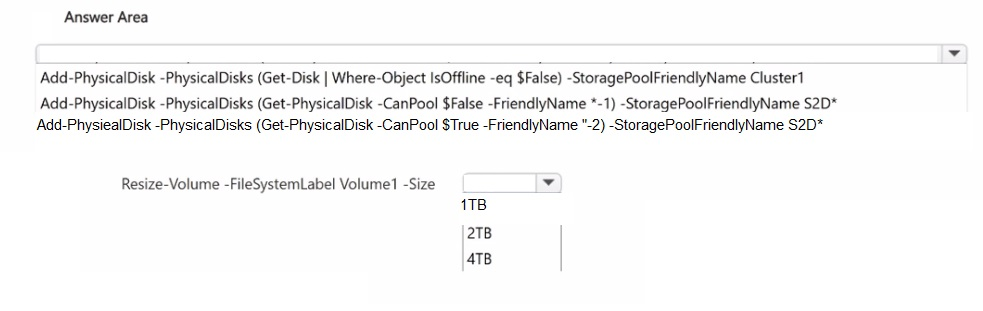
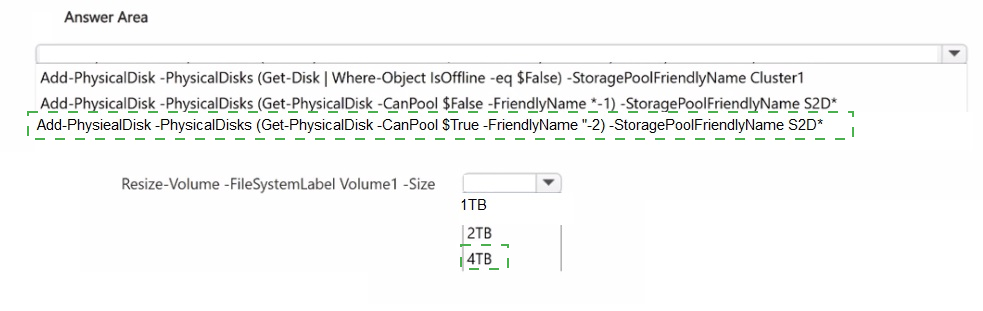
First Option - Add-PhysicalDisk -PhysicalDisks (Get-PhysicalDisk -CanPool $True -FriendlyName "*-2") -StoragePoolFriendlyName S2D*
This command correctly identifies and adds all new, available physical disks that can be pooled, as indicated by the -CanPool $True parameter and the specific friendly name pattern . This is the required first step before the volume can be expanded.
Second Option - 2TB
For a Storage Spaces Direct three-way mirror, the volume size must remain a multiple of the resiliency's data capacity. With the addition of two 2-TB disks, the pool can be expanded by 2 TB of usable space, allowing the volume to be resized to 4TB (from 2TB). You must choose the incremental size of 2TB .
❌ Incorrect options:
First Dropdown - Add-PhysicalDisk -PhysicalDisks (Get-Disk | Where-Object IsOffline -eq $False) -StoragePoolFriendlyName Cluster1
This command only filters for offline disks, which is insufficient and incorrect for identifying the new physical disks to add to the S2D pool.
First Dropdown - Add-PhysicalDisk -PhysicalDisks (Get-PhysicalDisk -CanPool $False -FriendlyName *-1) -StoragePoolFriendlyName S2D*
Using -CanPool $False explicitly excludes the new, available disks from being added, making the command ineffective.
Second Dropdown - 1TB & 4TB
1TB is not a multiple of the 2TB capacity added. 4TB represents the total new size, not the incremental increase to apply to the volume. The correct expansion amount is 2TB .
🔧 Reference:
→ Add-PhysicalDisk (Storage) | Microsoft Learn: Confirms that this cmdlet is used to add physical disks to a storage pool and details its key parameters like -CanPool.
Your network contain an Active Directory Domain Services (AD DS) domain named contoso.com. The domain was built by using domain controllers that run Windows Server 2025. You plan to deploy a custom app. The app will require a domain controller that runs a legacy version of Windows Server. What is the oldest version of Windows Server that you can use for the domain controller in contoso.com?
A. Windows Server 2012 R2
B. Windows Server 2016
C. Windows Server 2019
D. Windows Server 2022
Explanation:
This question tests knowledge of Active Directory Domain Services (AD DS) functional levels and the supported domain controller operating systems. When a domain is created using Windows Server 2025 domain controllers, the minimum (and default-compatible) functional level is Windows Server 2016. The functional level dictates the oldest OS version allowed for additional domain controllers.
✅ Correct Option:
B. Windows Server 2016
At the Windows Server 2016 domain functional level (the minimum for a new domain built with Windows Server 2025 DCs), supported domain controllers include Windows Server 2016, 2019, 2022, and 2025. Therefore, Windows Server 2016 is the oldest version that can be added as a domain controller in contoso.com.
❌ Incorrect options:
A. Windows Server 2012 R2
Windows Server 2012 R2 is not supported at the Windows Server 2016 functional level (or higher). It is only supported at the Windows Server 2012 R2 functional level.
C. Windows Server 2019
Windows Server 2019 is supported at the 2016 functional level, but it is not the oldest allowed version. Windows Server 2016 is older and still permitted.
D. Windows Server 2022
Windows Server 2022 is supported at the 2016 functional level, but it is not the oldest allowed version. Windows Server 2016 is older and still permitted.
🔧 Reference:
→ Microsoft Learn – Active Directory Domain Services functional levels
Confirms the interoperability matrix: at the Windows Server 2016 functional level, domain controllers can run Windows Server 2016 (or later); Windows Server 2012 R2 is not supported.
You have an on-premises server named Server1 that runs Windows Server. Server1
contains multiple file shares and has an IP address of 192.168.10.12.
You have an Azure subscription.
You need to migrate the Server1 file shares to an Azure virtual machine by using Storage
Migration Service. The solution must ensure that on-premises users can access the
migrated file shares by using the 192.168.10.12 IP address.
What should you include in the solution?
A. Azure Private DNS zones
B. Azure Private Link
C. Azure Extended Network
D. Azure virtual network peering
Explanation:
The question tests how to preserve an existing IP address when migrating file shares to an Azure VM. Azure Extended Network extends an on-premises subnet into an Azure virtual network, allowing the migrated server to retain its original IP address so existing users can continue accessing the shares without changing their configurations.
🟢 Correct Option:
C. Azure Extended Network
Azure Extended Network allows an Azure VM to use an IP address from an existing on-premises subnet. This is particularly useful when migrating workloads that must retain their original IP addresses. In this scenario, Server1 uses 192.168.10.12, and Extended Network enables the migrated Azure VM to continue using that address, allowing on-premises users to access the migrated file shares without modifying their access paths.
🔴 Incorrect options:
A. Azure Private DNS zones
Private DNS zones provide name resolution for resources within Azure virtual networks. They do not allow an Azure VM to retain and use the existing on-premises IP address 192.168.10.12 after migration.
B. Azure Private Link
Azure Private Link provides private connectivity to Azure services through private endpoints. It does not extend an on-premises subnet into Azure or allow a migrated VM to retain its original IP address.
D. Azure virtual network peering
Virtual network peering connects Azure virtual networks so resources can communicate across them. It does not extend an on-premises subnet into Azure or preserve the source server's IP address for the migrated workload.
🔧 Reference:
→ Azure Extended Network — Explains how Azure Extended Network enables Azure VMs to use IP addresses from an on-premises subnet.
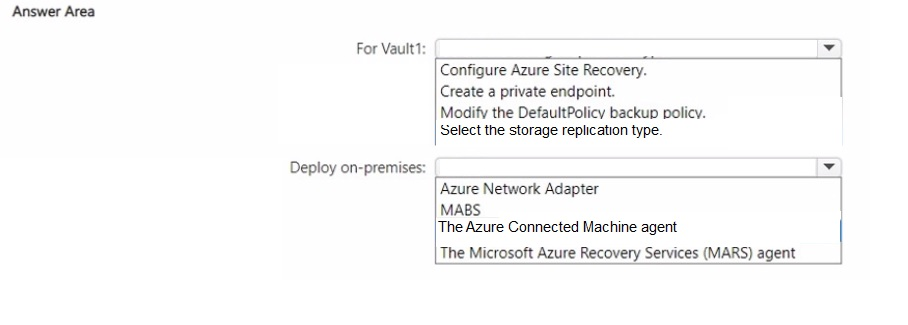
You have 50 on-premises servers that run Windows Server.
You have an Azure subscription that contains a Recovery Services vault named Vaultl.
You plan to back up the on-premises servers to Vault1 by using Microsoft Azure Backup
Server (MABS).
You need to configure prerequisites to support MABS. The solution must minimize costs.
What should you do for Vault1, and what should you deploy on-premises? To answer,
select the appropriate options in the answer area.
NOTE: Each correct selection is worth one point.
Explanation
This question tests the prerequisites for deploying Microsoft Azure Backup Server (MABS) to protect on-premises Windows Servers while keeping costs low. It checks both the required Recovery Services vault setting and the on-premises component that must be installed to enable MABS backups.
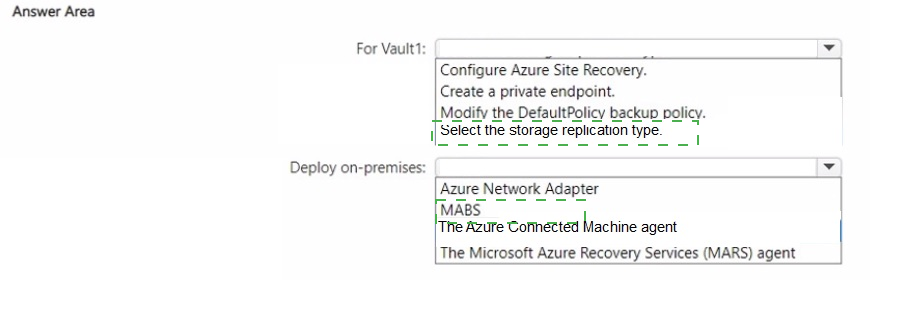
✅ Select the storage replication type
Vault1 requires the storage replication type to be configured because every Recovery Services vault must have its redundancy setting (such as locally-redundant storage) defined before backups can be sent to it. Choosing LRS instead of geo-redundant storage keeps replication costs low while still meeting the requirement to support MABS, satisfying the "minimize costs" condition without needing extra configuration steps.
✅ MABS
Microsoft Azure Backup Server itself must be deployed on-premises to protect the 50 on-premises Windows Servers, since MABS is the component that performs local backups and forwards protected data to Vault1. It requires no extra Azure licensing or infrastructure beyond the vault, making it the cost-effective on-premises deployment choice for this scenario.
❌ Configure Azure Site Recovery
Azure Site Recovery handles disaster recovery replication of VMs, not file/server backup, so it's unrelated to preparing Vault1 for MABS and adds unnecessary cost and complexity to a backup-only requirement.
❌ Create a private endpoint
A private endpoint only secures network traffic to the vault over a private connection. It's optional, adds cost, and isn't required simply to support MABS backups, so it fails the cost-minimization requirement.
❌ Modify the DefaultPolicy backup policy
Backup policies control schedule and retention settings after backups are already running; they aren't a prerequisite for enabling the vault to support a new MABS deployment.
❌ Azure Network Adapter
This isn't an actual Azure Backup or MABS component — no such adapter exists in this context, so it can't be the required on-premises deployment.
❌ The Azure Connected Machine agent
This agent onboards servers into Azure Arc for management and monitoring, not for backup via MABS, so it doesn't fulfill the deployment requirement here.
❌ The Microsoft Azure Recovery Services (MARS) agent
MARS backs up individual files and folders directly to a vault without MABS. It's an alternative backup method, not a component deployed alongside MABS.
Reference
🔧 Install and upgrade Azure Backup Server – Microsoft Learn → confirms MABS deployment and vault storage redundancy configuration as prerequisites for on-premises server backup.
You have two servers named Server1 and Server2 that run Windows Server and have the
Hyper-V role installed. You plan to deploy Hyper-V Replica between Server1 and Server2.
The deployment will use certificate-based authentication. You need to configure the
prerequisites for the Hyper-V Replica deployment.
Which two actions should you perform on each server? Each correct answer presents part
of the solution. NOTE: Each correct answer is worth one point.
A. Enable the Hyper-V Replica HTTP Listener (TCP-ln) firewall rule.
B. Create a self-signed certificate.
C. Enable the Hyper-V Replica HTTPS Listener (TCP-ln) firewall rule.
D. Install a trusted user certificate.
E. Install a trusted computer certificate.
Explanation:
Hyper-V Replica allows you to replicate virtual machines between Hyper-V hosts for disaster recovery. When deploying Replica using certificate-based authentication (HTTPS), traffic is encrypted over port 443, requiring local machine certificates and specific firewall rules enabled on both host servers to establish secure communications.
✅ Correct Option:
Option C:
Certificate-based authentication in Hyper-V Replica relies on HTTPS over TCP port 443. By default, the required firewall rule is created during Hyper-V installation but disabled. Enabling the Hyper-V Replica HTTPS Listener (TCP-In) rule permits inbound replication traffic through the host firewall on both sides.
Option E:
Certificate authentication requires a valid, trusted computer (machine) certificate installed in the Local Computer certificate store (LocalMachine\My) on each Hyper-V host. The certificate must support both Client and Server Authentication EKU and terminate at a trusted root authority.
❌ Incorrect options:
Option A:
The HTTP Listener rule operates over port 80 and is strictly used for Kerberos-based authentication, which is non-encrypted traffic. It does not support certificate-based HTTPS replication.
Option B:
Self-signed certificates are not supported for production Hyper-V Replica deployments as they are not inherently trusted across hosts and typically fail Mutual TLS requirements.
Option D:
Hyper-V services run under system context rather than a user session; therefore, a user-bound certificate installed in a user's personal store cannot be utilized for host-level HTTPS replication authentication.
🔧 Reference:
→ Microsoft Learn: Enable Hyper-V Replica on a single host
Confirms the required HTTPS firewall rule and computer certificate prerequisites for certificate-based authentication.
You have an Azure subscription. The subscription contains a virtual machine named
Serve1 that run Windows Server.
You create a new Log Analytics workspace named Workspace1. You need to collect
performance metrics for Server! by using Azure Monitor. What should you do next?
A. Regenerate the secondary key.
B. Install the Azure Connected Machine agent.
C. Create a data collection rule (DCR).
D. Deploy and configure Windows Event Forwarding.
E. Server1 that runs Windows Server.
Explanation:
To collect performance metrics from a virtual machine using Azure Monitor, you must define what data to collect and where to send it. A Data Collection Rule (DCR) is the central configuration that specifies the performance counters to gather and the Log Analytics workspace destination.
✅ Correct Option:
C. Create a data collection rule (DCR).
A DCR defines the data collection process for Azure Monitor Agent. When creating a DCR in the Azure portal, you add the target virtual machine, select "Performance Counters" as the data source, and set your Log Analytics workspace as the destination. The agent is automatically installed if needed.
❌ Incorrect options:
A. Regenerate the secondary key.
This action is related to managing access keys for storage accounts or workspaces, not for initiating performance data collection from a VM.
B. Install the Azure Connected Machine agent.
This agent connects non-Azure ("hybrid") machines to Azure for management. Since Server1 is already an Azure VM, this is unnecessary.
D. Deploy and configure Windows Event Forwarding.
This is a method for collecting Windows event logs, not performance metrics, and is a separate process from using Azure Monitor and Log Analytics.
🔧 Reference:
→ Collect data from a Windows computer in a hybrid environment | Microsoft Learn: Confirms that a DCR is used to collect performance counters from Azure VMs and Arc-enabled servers.
→ Collect performance counters with Azure Monitor Agent | Microsoft Learn: Details the specific process of creating a DCR with a Performance Counters data source.
Your network contains an Active Directory Domain Services (AD DS) domain. The domain
contains a server named Server1 that runs Windows Server 2025. All domain controllers
run Windows Server 2019. The domain contains a user named User1.
You need to ensure that User1 can promote Server1 to a domain controller. The solution
must follow the principle of least privilege.
Which groups should User1 be a member of?
A. Domain Admins only
B. Enterprise Admins only
C. Domain Admins and Schema Admins only
D. Domain Admins. Enterprise Admins, and Schema Admins
Explanation:
This question tests understanding of the group memberships required to promote a new domain controller running a newer Windows Server version than the existing domain controllers. Introducing a Windows Server 2025 DC into a forest where all DCs run Windows Server 2019 requires a schema and forest preparation step before promotion.
✅ D. Domain Admins, Enterprise Admins, and Schema Admins
Since Server1 runs a newer OS version than the existing 2019 domain controllers, the promotion process must extend the Active Directory schema (adprep /forestprep and /domainprep) automatically. This requires Schema Admins and Enterprise Admins membership for the schema and forest-wide updates, plus Domain Admins to complete the actual DC promotion.
❌ A. Domain Admins only
Domain Admins membership alone permits promoting a DC when the schema is already current, but it does not grant rights to extend the schema. Since Server1 introduces a newer OS version, schema preparation is required, so this membership is insufficient.
❌ B. Enterprise Admins only
Enterprise Admins allows forest-wide changes such as adprep /forestprep, but it does not include the domain-level rights needed to complete domain preparation and DC promotion, so it alone is not sufficient.
❌ C. Domain Admins and Schema Admins only
This omits Enterprise Admins, which is required to run the forest-wide schema extension (adprep /forestprep) needed when introducing a domain controller running a newer OS version than existing DCs.
🔧 Reference
→ Install a new Windows Server Active Directory forest – Microsoft Learn → confirms schema and forest preparation require Schema Admins and Enterprise Admins membership alongside Domain Admins for DC promotion.
Your on-premises network contains an Active Directory Domain Services (AD DS) domain.
The domain contains 100 servers that run Windows Server and are Azure Arc-enabled.
You have an Azure subscription.
You need to automatically change the password for the built-in local administrator account
on each computer in the domain. The solution must meet the following requirements:
• The password must change automatically every 30 days.
• Administrative effort must be minimized.
What should you use?
A. an Azure policy
B. a Password Settings Object (PSO)
C. Windows Local Administrator Password Solution (Windows LAPS)
D. group managed service accounts (gMSAs)
Explanation:
This question tests your ability to select the appropriate feature for securing local administrator accounts on domain-joined Windows Server systems. Windows LAPS automatically generates, rotates, and manages unique, complex passwords for built-in local administrator accounts across domain-connected computers and backs them up to Active Directory.
✅ Correct Option:
Windows LAPS is natively designed to manage and continuously rotate local administrator credentials. By configuring Group Policy settings for Windows LAPS, you can enforce automatic password changes at a specific interval (such as every 30 days) across all 100 domain servers with minimal administrative effort.
❌ Incorrect Options:
❌ A. an Azure policy
Azure Policy is used to audit and enforce compliance settings on Azure resources and Azure Arc-enabled servers. It cannot natively manage local Active Directory domain credentials or automatically rotate local administrator passwords.
❌ B. a Password Settings Object (PSO)
Password Settings Objects (Fine-Grained Password Policies) define password strength, complexity, and lockout settings for users and global security groups in Active Directory. They do not rotate local account passwords on host operating systems.
❌ D. group managed service accounts (gMSAs)
Group Managed Service Accounts (gMSAs) provide automated password management for domain-level service accounts running applications or background services. They cannot be assigned as the primary built-in local administrator account on endpoints.
🔧 Reference:
→ Microsoft Learn: Windows LAPS overview - Confirms that Windows LAPS automatically manages and rotates local administrator passwords on domain-joined devices.
Your on-premises network contains an Active Directory Domain Services (AD DS) domain.
The domain contains a scale-out file server (SOFS) cluster named Cluster1. Cluster1
contains four nodes that run Windows Server 2022.
You need to upgrade the nodes to Windows Server 2025. The solution must minimize the
downtime of Cluster1.
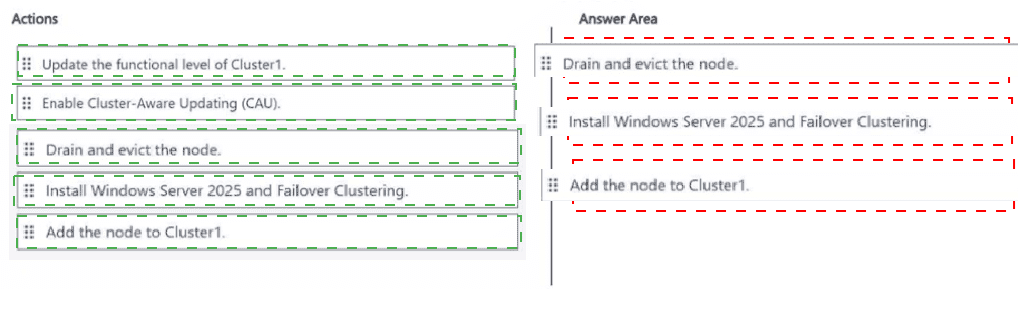
Which three actions should you perform on each node in sequence? To answer, move the
appropriate actions from the list of actions to the answer area and arrange them in the
correct order.
Explanation:
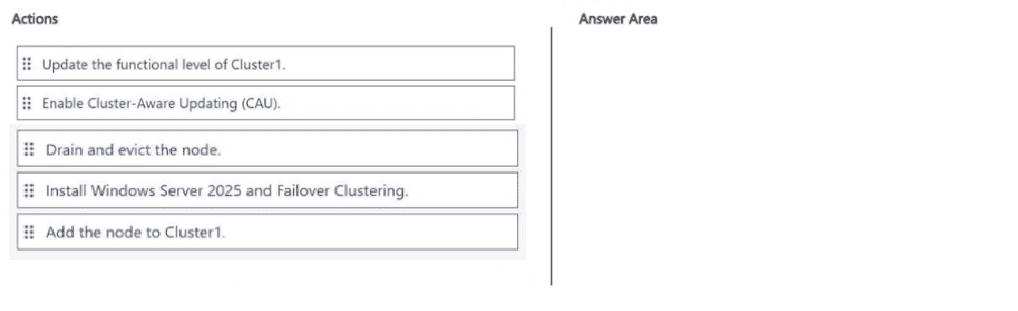
This is a Cluster OS Rolling Upgrade for a Scale-Out File Server (SOFS) cluster. To keep Cluster1 online with minimal downtime, you upgrade one node at a time while the remaining nodes continue serving clients. The functional level is raised only after every node has been upgraded. Cluster-Aware Updating (CAU) is used for patches, not for full OS version upgrades.
✅ Correct sequence on each node:
Drain and evict the node – Moves all roles/resources off the node and removes it from the cluster so it can be safely re-imaged or upgraded.
Install Windows Server 2025 and Failover Clustering – Performs a clean install (recommended) of the new OS and the Failover Clustering feature.
Add the node to Cluster1 – Joins the upgraded node back into the mixed-mode cluster.
After the last node is upgraded and rejoined, you update the cluster functional level (a one-time action that is not performed per node).
❌ Incorrect / out-of-sequence actions:
Update the functional level of Cluster1 – Performed only once, after all nodes are running Windows Server 2025. Doing it earlier breaks the rolling-upgrade process.
Enable Cluster-Aware Updating (CAU) – Used for applying Windows updates/patches in a coordinated way; it is not part of the OS version upgrade procedure.
🔧 Reference:
→ Microsoft Learn: Upgrade the OS of a Windows Server failover cluster by performing a cluster OS rolling upgrade
Confirms the per-node sequence (drain/evict → upgrade OS + Failover Clustering → rejoin) and that the functional level is raised only after all nodes are upgraded.
| Page 7 out of 29 Pages |