Topic 3: Misc. Questions
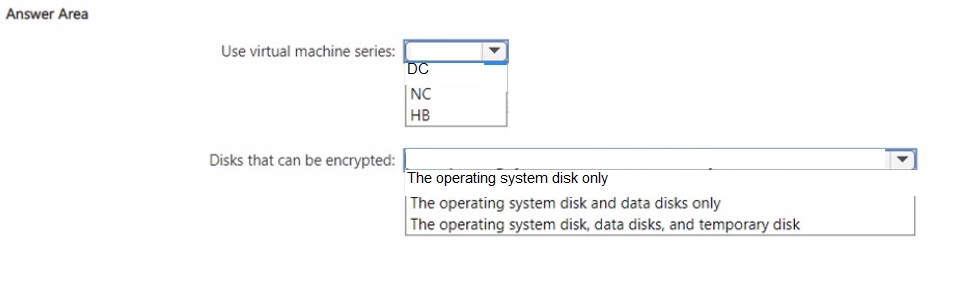
You plan to deploy an Azure confidential virtual machine named VM1. You need to ensure
that you can implement confidential disk encryption for VM1. What should you do? To
answer, select the appropriate options in the answer area. NOTE: Each correct selection is
worth one point.
 Explanation:
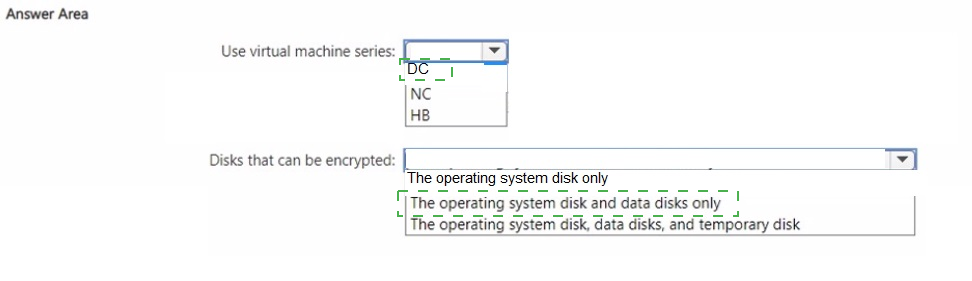
This question tests your understanding of deploying Azure confidential VMs and implementing confidential disk encryption. Confidential disk encryption is a specialized feature tied to specific VM series, and its support is currently limited to OS disks only.
✅ Correct Options:
DC:
The DC-series is purpose-built for Azure confidential VMs with native support for confidential disk encryption. These VMs use Intel TDX technology to provide hardware-based isolation, making them the only correct choice for VM1.
The operating system disk only:
Confidential disk encryption protects the OS disk by binding encryption keys to the VM's virtual TPM. The feature is designed specifically for OS disks on confidential VMs, not for data or temporary disks.
❌ Incorrect options:
NC:
The NC-series is designed for GPU-accelerated workloads, not confidential computing. It does not support confidential disk encryption.
HB:
The HB-series is optimized for high-performance computing (HPC) workloads and lacks the hardware isolation required for confidential disk encryption.
The operating system disk and data disks only:
Confidential disk encryption is currently limited to OS disks only. Data disks use other encryption methods like encryption at host or server-side encryption.
The operating system disk, data disks, and temporary disk:
While encryption at host covers temporary disks, confidential disk encryption does not. This option incorrectly overstates the scope of confidential disk encryption.
🔧 Reference:
→ DCesv6-series sizes - Azure Virtual Machines - Learn Microsoft: Confirms DC-series VMs are Azure confidential VMs with native support for confidential disk encryption.
→ Choose the right disk encryption option for Azure VMs - Learn Microsoft Training Module: Confirms confidential disk encryption applies to OS disks only for confidential VMs, while temp and data disks require other encryption options.
You have an on-premises server named Server1 that runs Windows Server and has the
Hyper-V server role installed. Server1 hosts a virtual machine named VM1 that runs
Windows Server.
You need to protect VM1 by using Azure Site Recovery. The solution must use Azure as
the disaster recovery site.
Which four actions should you perform in sequence? To answer, move the appropriate
actions from the list of actions to the answer area and arrange them in the correct order.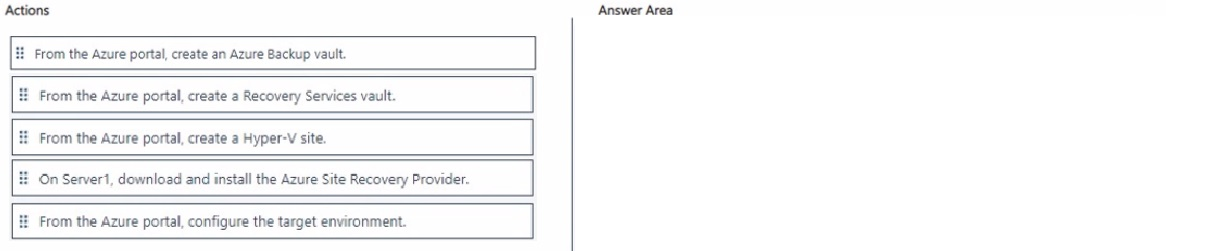
 Explanation:
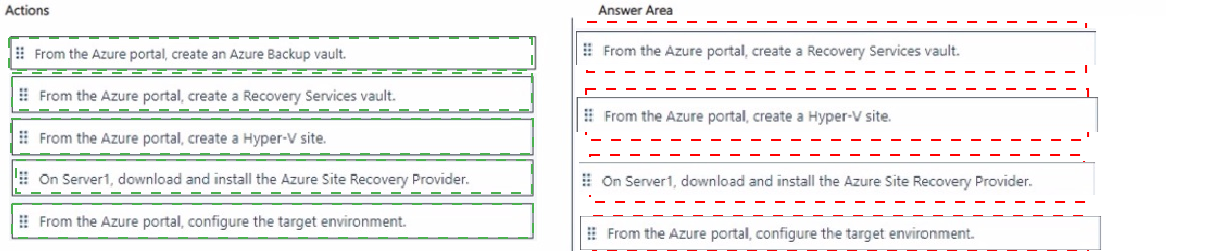
This question tests the correct sequence of steps required to enable Azure Site Recovery (ASR) for an on-premises Hyper-V virtual machine, using Azure as the disaster-recovery target. Azure Site Recovery requires a Recovery Services vault as the central configuration store. You then prepare the source environment (Hyper-V site + Provider) and finally configure the Azure target resources that will host the VM after failover.
✅ Correct Options (in sequence):
1. From the Azure portal, create a Recovery Services vault.
A Recovery Services vault is the mandatory first component. It stores all Site Recovery metadata, replication policies, and configuration data for the protected VMs. Without this vault, no further ASR configuration is possible.
2. From the Azure portal, create a Hyper-V site.
Inside the Recovery Services vault you create a Hyper-V site. This is a logical container that groups one or more on-premises Hyper-V hosts (or clusters). The site is later used when registering the hosts and enabling replication.
3. On Server1, download and install the Azure Site Recovery Provider.
You download the Azure Site Recovery Provider (and the Recovery Services agent) from the vault and install it on the Hyper-V host (Server1). During installation you register the host to the Hyper-V site using the vault registration key. This allows Azure Site Recovery to discover the VMs running on the host.
4. From the Azure portal, configure the target environment.
After the source host is registered, you configure the Azure-side resources that will be used at failover time (target storage account, virtual network, resource group, and failover settings). These settings define where and how the VM will be created in Azure during a disaster-recovery event.
❌ Incorrect options:
From the Azure portal, create an Azure Backup vault.
An Azure Backup vault is used exclusively for Azure Backup workloads. Azure Site Recovery requires a Recovery Services vault; the two vault types are not interchangeable.
🔧 Reference:
→ Microsoft Learn – Set up disaster recovery of on-premises Hyper-V VMs to Azure
Documents the required order of operations: create a Recovery Services vault → create a Hyper-V site → install and register the Site Recovery Provider on the Hyper-V host → configure the target Azure environment.
You have a Hyper-V failover cluster named Cluster1 that contains two nodes named Node1
and Node2, and a Hyper-V host named Host1.
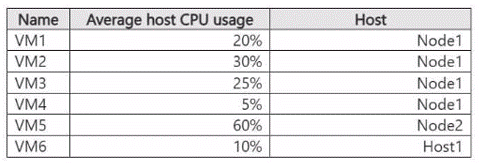
You have the virtual machines shown in the following table.
The Balancer settings for Cluster1 are shown in the following exhibit.
.png)
For each of the following statements, select Yes if the statement is true. Otherwise, select
No.
NOTE: Each correct selection is worth one point.
.png)
 Explanation
This question tests understanding of Hyper-V Dynamic Optimization (cluster load balancing) behavior, specifically how "Always load balance" versus scheduled/threshold-based balancing works, and when VMs automatically migrate between nodes based on host CPU usage and balancer aggressiveness settings.
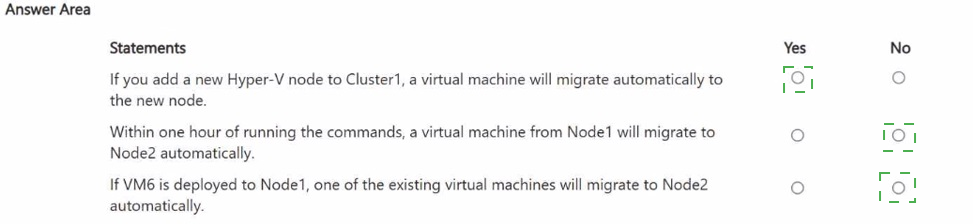
✅ If you add a new Hyper-V node to Cluster1, a virtual machine will migrate automatically to the new node — Yes
Automatic Balancing of Virtual Machines is enabled on Cluster1, and by default this triggers a rebalancing evaluation whenever cluster membership changes, such as adding a new node. Dynamic Optimization moves VMs to the newly added node if doing so improves resource distribution across the cluster, so migration would occur automatically here.
❌ Within one hour of running the commands, a virtual machine from Node1 will migrate to Node2 automatically — No
"Always load balance" is not selected, meaning balancing only runs on the default periodic interval rather than continuously or immediately after configuration changes. Node1's combined VM CPU usage (20+30+25+5=80%, averaging well under threshold per VM) doesn't clearly force an immediate migration within an hour under Medium aggressiveness.
❌ If VM6 is deployed to Node1, one of the existing virtual machines will migrate to Node2 automatically — No
VM6 shows only 10% average CPU usage while currently on Host1, a non-cluster host. Moving VM6 onto Node1 keeps overall Node1 utilization within acceptable Medium-aggressiveness thresholds, so Dynamic Optimization would not necessarily trigger an automatic migration of another VM immediately.
Reference
🔧 Cluster-Aware Updating and Dynamic Optimization overview – Microsoft Learn → confirms Dynamic Optimization rebalances VMs based on aggressiveness thresholds and triggers evaluation when nodes are added to a cluster.
Your network contains an on-premises Active Directory Domain Services (AD DS) domain
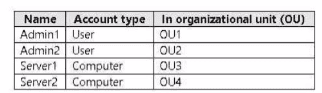
named contos.com. The domain contains the accounts shown in the following table.
The domain is configured to store BitLocker recovery keys in Active Directory.
* Admin1 turns on BitLocker Drive Encryption (BitLocker) for volume C on Server1.
* Admin1 moves Server1 to OU1.
* Admin2 turns on BitLocker for removable volume E on Server2.
* Admin2 moves removable volume E from Server2 to Server1 and unlocks the volume.
On which Active Directory object can you each BitLocker recovery key? To answer, select
the appropriate options in the answer area.
NOTE: Each correct selection is worth on point..png)
Explanation:
This question tests how BitLocker recovery information is stored in Active Directory Domain Services (AD DS). Recovery keys (and related information) are written as child objects of the computer object of the machine on which BitLocker was enabled. Moving a computer object or a removable volume does not relocate the existing recovery objects.
✅ Correct Options:
The BitLocker recovery key for volume C: Server1
Volume C is a fixed (operating-system) volume. When Admin1 enabled BitLocker on Server1, the recovery information was stored as a child object under the Server1 computer account. Moving Server1 to OU1 does not move or delete that child object, so the key remains on Server1.
The BitLocker recovery key for volume E: Server2
Volume E is a removable volume. When Admin2 enabled BitLocker on Server2, the recovery information was stored under the Server2 computer account (the domain is configured to store BitLocker recovery keys). Moving the volume to Server1 and unlocking it does not create a new recovery object or relocate the existing one, so the key remains on Server2.
❌ Incorrect options (implied):
Admin1 or Admin2
Recovery keys are never stored under user accounts; they are always child objects of computer accounts.
Server1 for volume E
Unlocking a removable volume on a different computer does not transfer the existing AD recovery object.
🔧 Reference:
→ Microsoft Learn – BitLocker recovery overview
States that BitLocker recovery information is stored as a child object of the computer object in AD DS and that old recovery keys remain with that computer object.
You have a server named Server1 that runs Windows Server and is hosted in a VMWare
environment. Server1 contains an ASP.NET application named Appl. Users access App1
by using the following URL: https://app1.contoso.com.
You need to use the integrated flow in Azure Migrate to migrate App1 to Azure App
Service. After the migration, users must be able to access App1 by using the same URL.
Which three actions should you perform in sequence? To answer, move the appropriate
actions from the list of actions to the answer area and arrange them in the correct order.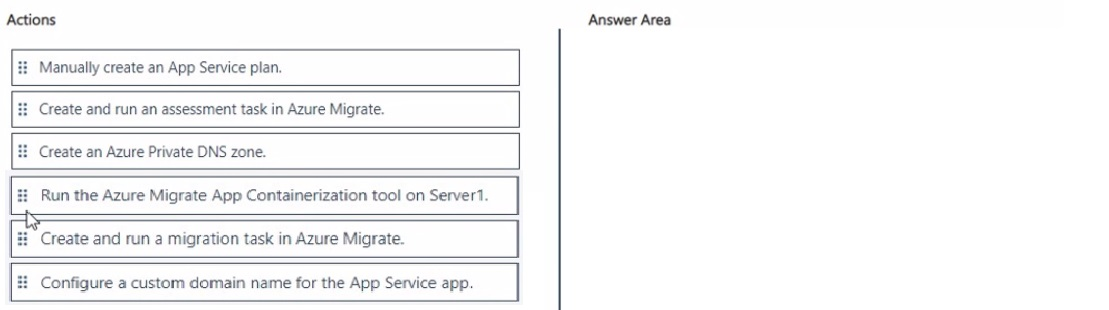
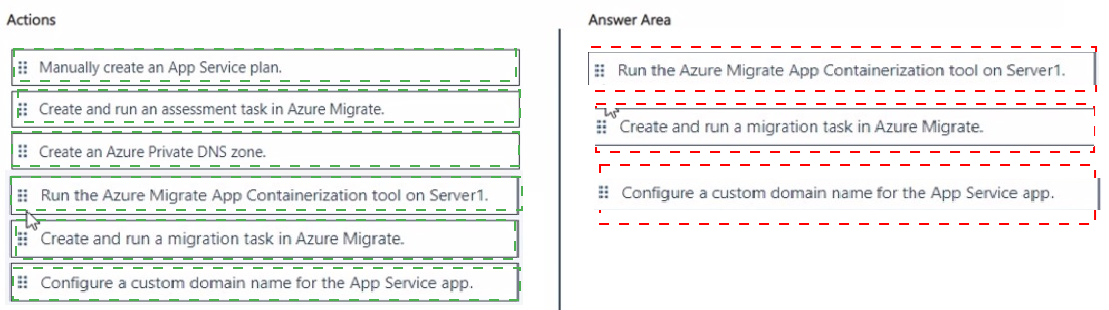 Explanation:
This question tests the correct sequence of steps when using Azure Migrate’s integrated (at-scale) flow to migrate an ASP.NET web app running on a VMware-hosted Windows Server to Azure App Service (native), while preserving the existing public URL. The integrated flow relies on discovery/assessment followed by a migration (replication) task; a custom domain is then required to retain the original hostname.
✅ Correct Options (in sequence):
1. Create and run an assessment task in Azure Migrate.
An assessment must be created and run first so Azure Migrate can evaluate the ASP.NET app’s readiness, recommend an App Service plan/SKU, and identify any blockers before migration can proceed.
2. Create and run a migration task in Azure Migrate.
After a successful assessment, you create and run the migration (replication) task in the Azure Migrate project. This moves the app content to a new App Service app (the flow creates the necessary App Service plan automatically).
3. Configure a custom domain name for the App Service app.
Once the app is running on App Service, you map the existing hostname (app1.contoso.com) as a custom domain so users continue to reach the application with the same URL.
❌ Incorrect options:
Manually create an App Service plan.
The integrated migration flow creates the App Service plan automatically; manual creation is unnecessary.
Create an Azure Private DNS zone.
A Private DNS zone is used for private-endpoint scenarios. The requirement is to keep the existing public URL, which is handled by a custom domain (CNAME/A record), not a private DNS zone.
Run the Azure Migrate App Containerization tool on Server1.
The App Containerization tool is a separate path used when you want to package the app as a Windows container. The question specifically requires the integrated (native App Service) flow, not containerization.
🔧 Reference:
→ Microsoft Learn – Modernize ASP.NET web apps to Azure App Service code
Describes the integrated flow: assess the web apps, then create and run the migration (replicate) task to Azure App Service native.
→ Microsoft Learn – Set up an existing custom domain in Azure App Service
Explains how to map an existing custom domain (such as app1.contoso.com) to an App Service app so the original URL continues to work after migration.
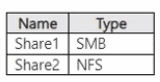
You have an on-premises server named Server1 that runs Windows Server and contains
the shares shown in the following table.
You have an Azure subscription named Sub1 that contains an Azure Storage Mover
resource named Mover1 and the storage accounts shown in the following table.
.png)
The storage accounts contain the resources shown in the following table.
.png)
For each of the following statements, select Yes if the statement is true. Otherwise, select
No.
NOTE: Each correct selection is worth one point.
.png)
 Explanation
This question tests understanding of Azure Storage Mover, specifically which source and destination combinations it supports when migrating on-premises SMB/NFS shares to Azure Storage. The key is knowing that Storage Mover only migrates into Azure file shares, not blob containers, and that source share type (SMB vs NFS) must be compatible with the target.
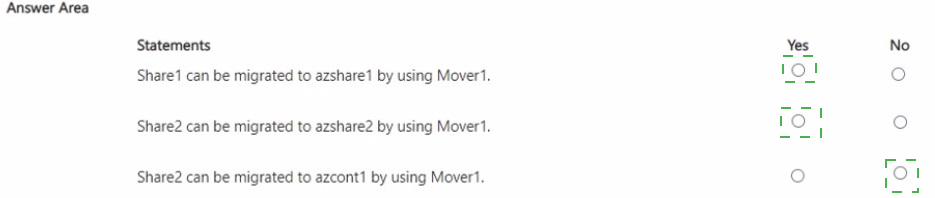
✅ Share1 can be migrated to azshare1 by using Mover1 — Yes
Share1 is an SMB share, and azshare1 is a file share hosted on storage1 (FileStorage, Premium). Azure Storage Mover fully supports migrating on-premises SMB shares to Azure file shares, making this a valid and supported migration path with no configuration conflicts.
✅ Share2 can be migrated to azshare2 by using Mover1 — Yes
Share2 is an NFS share, and azshare2 is a file share on storage2 (StorageV2, Standard). Storage Mover supports NFS-to-Azure-file-share migrations, so this pairing is valid, and the destination account type does not block the transfer.
❌ Share2 can be migrated to azcont1 by using Mover1 — No
Azcont1 is a Blob container, not a file share. Azure Storage Mover migrates on-premises file shares only into Azure file shares — it does not support migrating share data directly into blob containers, so this combination is unsupported regardless of the source share type.
Reference
🔧 What is Azure Storage Mover? – Microsoft Learn → confirms Storage Mover supports SMB and NFS share migrations only to Azure file share targets, not blob containers.
| Page 6 out of 29 Pages |