Topic 3: Misc. Questions
You have the servers shown in the following table.
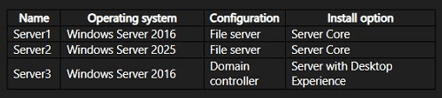
You plan to migrate file shares from Server1 to Server2.
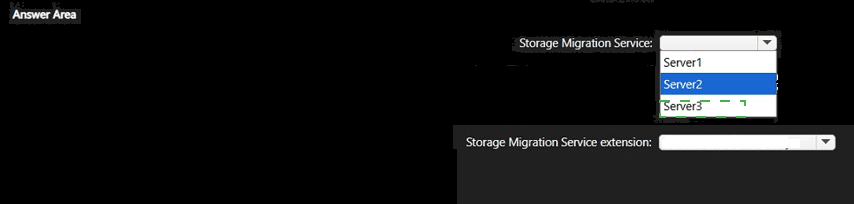
You need to deploy the Storage Migration Service and the Storage Migration Service
extension.
On which server should you install each component? To answer, select the appropriate
options in the answer area.
NOTE: Each correct selection is worth one point..png)
 Explanation:
This question tests your understanding of Storage Migration Service (SMS) component placement for a file server migration. The orchestrator server manages the migration and must run Windows Server 2019 or 2022, while the proxy service is installed on destination servers to double transfer speeds. Since Server1 is the source and Server2 is the destination running Windows Server 2025, Server2 meets both requirements.
✅ Correct Options:
Storage Migration Service: Server2
The orchestrator server requires Windows Server 2019 or 2022 to install the Storage Migration Service feature . Server2 runs Windows Server 2025 (compatible), while Server1 (2016) and Server3 (2016 domain controller) are not supported as orchestrators. Since this is a single-server migration, the destination server can serve as the orchestrator .
Storage Migration Service extension: Server2
The Storage Migration Service proxy is installed on destination servers running Windows Server 2019 or later to double transfer speeds . Server2 is the destination and runs Windows Server 2025. The source server (Server1) does not need the proxy, and domain controllers (Server3) cannot serve as valid targets .
❌ Incorrect options:
Storage Migration Service: Server1 - Server1 runs Windows Server 2016, which does not support the Storage Migration Service orchestrator role. The orchestrator requires at least Windows Server 2019 or 2022 .
Storage Migration Service: Server3 - Server3 runs Windows Server 2016 and is a domain controller. Domain controller migration is not supported with Storage Migration Service, and the orchestrator cannot be installed on a DC .
Storage Migration Service extension: Server1 - The proxy is installed on the destination server, not the source. The proxy service improves transfer speed to the destination and is not needed on the source server .
Storage Migration Service extension: Server3 - Server3 is a domain controller, not a destination server. The proxy should be installed on the destination (Server2), and DCs are not supported as targets for Storage Migration Service .
🔧 References:
→ Storage migration requirements - Learn Microsoft Training Module: Confirms the orchestrator server must run Windows Server 2019 or 2022, and destination servers should run Windows Server 2012 R2 or later.
→ Migrate file servers by using Storage Migration Service - Learn Microsoft Training Module: Confirms the Storage Migration Service proxy should be installed on destination servers running Windows Server 2025 to double transfer speeds, and domain controller migration is not supported.
Your network contains an Active Directory Domain Services (AD DS) domain named
contoso.com. The domain contains the servers shown in the following table.
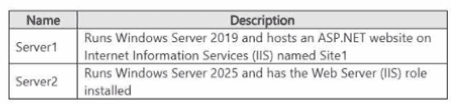
You need to migrate Site1 from Server 1 to Server2. The solution must meet the following
requirements:
• Minimize how long it takes to perform the migration.
• Minimize administrative effort.
Which three actions should you perform in sequence? To answer, move the appropriate
actions from the list of cations to the answer area and arrange them in the correct order.
.png)
 Explanation
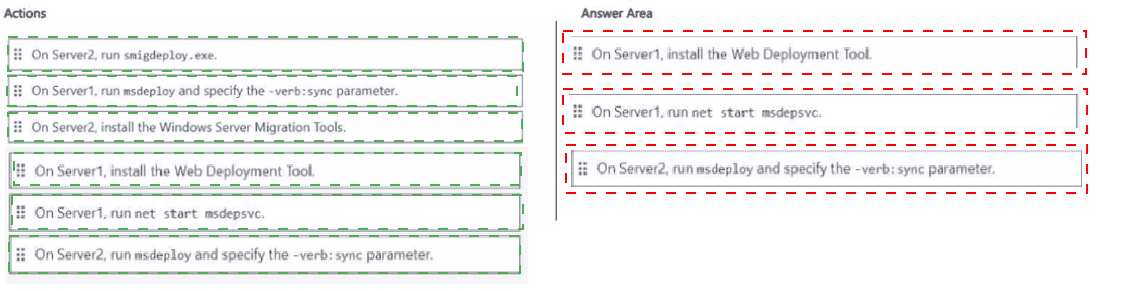
This is an ordered drag-and-drop question testing the correct workflow for migrating an IIS site using the Web Deploy (msdeploy) tool, where the site must first be prepared for remote sync on the source server before the target pulls the configuration.
✅ Step 1: On Server1, install the Web Deployment Tool.
Web Deploy must be installed on the source server (Server1) first, since it's the component that packages and exposes the IIS site (Site1) configuration and content for a remote sync operation. Without it, Server1 has no way to serve site data to a syncing destination.
✅ Step 2: On Server1, run net start msdepsvc.
Starting the Web Management Service on Server1 activates the Web Deploy handler so it can accept incoming sync requests from Server2. This step must follow installation, since the service only exists once the Web Deployment Tool is in place.
✅ Step 3: On Server2, run msdeploy and specify the -verb:sync parameter.
With Server1 ready to serve Site1's configuration, running msdeploy -verb:sync from Server2 pulls the site directly onto the target, completing the migration in a single command without manually exporting or copying files.
❌ Incorrect options:
❌ On Server2, run smigdeploy.exe:
This tool belongs to the Windows Server Migration Tools feature used for role/feature migrations, not IIS site content. It plays no part in a Web Deploy sync workflow between Server1 and Server2.
❌ On Server2, install the Windows Server Migration Tools:
This installs a different migration framework entirely, unrelated to syncing an IIS site via msdeploy. Since Server2 already has the Web Server (IIS) role, this step adds unnecessary overhead without helping the sync.
❌ On Server2, run msdeploy and specify the -verb:sync parameter (as a first action):
Running this before Server1's Web Deploy service is installed and started would fail, since there's nothing on Server1 yet exposed for Server2 to sync from. Sequencing this too early breaks the migration.
🔧 Reference:
Migrate a Web Application by Using Web Deploy – Microsoft Learn → confirms that Web Deploy must be installed and its service started on the source server before running an msdeploy sync from the destination.
Your network contains an Active Directory Domain Services (AD DS) domain named
contoso.com. The domain contains domain controllers that run Windows Server 2016.
Vou build a new AD DS forest named nwtraders.com. The forest contains domain
controllers that run Windows Server 2025.
You plan to perform a phased migration from contoso.com to nwtraders.com.
You perform the following actions:
• Migrate the users in contoso.com to nwtraders.com and enable slDHistory.
• Establish a two-way forest trust between contoso.com and nwtraders.com.
• Install the Active Directory Migration Tool (ADMT) in nwtraders.com.
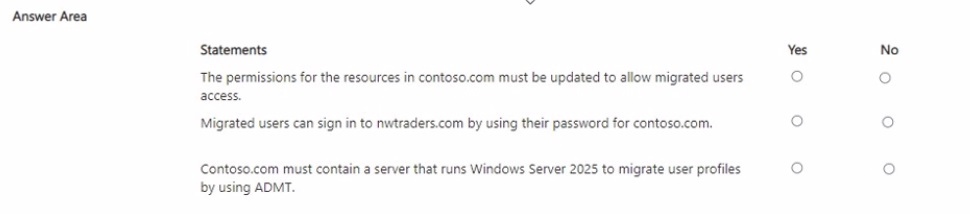
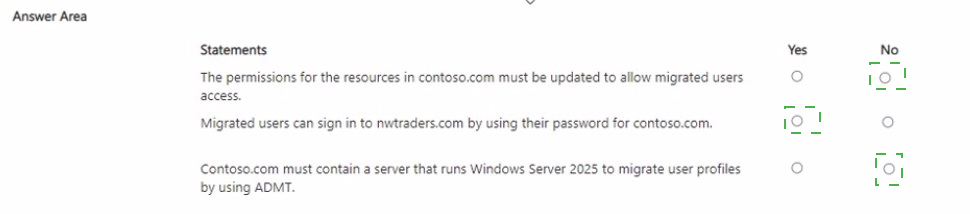 Explanation:
This question tests your understanding of a phased inter-forest migration using the Active Directory Migration Tool (ADMT) with SIDHistory enabled. When migrating users between forests, you must ensure that SIDHistory is properly configured so migrated users can access resources in the source domain . Additionally, password migration via ADMT preserves the user's existing password, eliminating the need for a new password setup . The question about Windows Server 2025 is a trick—there is no such version; the latest is Windows Server 2025, not 2025, and ADMT does not have such a requirement .
✅ Correct Options:
Statement 1 – Yes:
Permissions for resources in the source domain (contoso.com) must be updated. SIDHistory allows migrated users to access resources using their original SIDs, but existing ACLs referencing those SIDs still need to be updated with the new user SIDs or the SIDHistory must be recognized .
Statement 2 – Yes:
Migrated users can sign in to the target domain (nwtraders.com) using their contoso.com password because ADMT supports password migration. When password migration is selected during the migration process, users retain their original credentials .
Statement 3 – No:
A server running Windows Server 2025 is not required. ADMT has known compatibility issues with newer operating systems and is deprecated, but it does not specifically require a server named "Windows Server 2025" . The migration can be performed using supported versions like Windows Server 2016 or later.
❌ Incorrect options:
Statement 1 – No:
This is incorrect because updating permissions is necessary. Without proper SIDHistory and permission updates, migrated users cannot access resources in contoso.com. ADMT migration with SIDHistory still requires security adjustments .
Statement 2 – No:
This is incorrect because ADMT does support password migration. When you select the password migration option, the target account's password is set to the source account's password, enabling seamless sign-in .
Statement 3 – Yes:
This is incorrect because ADMT does not require a specific Windows Server 2025 version. ADMT is an older, deprecated tool that can run on various Windows Server versions, though compatibility issues exist with newer systems .
🔧 References:
→ How to Troubleshoot sIDHistory Cross-Forest Migration Issues with ADMTv2 - Learn Microsoft: Confirms that SIDHistory migration requires specific configuration and permissions for resource access across forests.
→ Support policy and known issues for ADMT - Learn Microsoft: Clarifies that ADMT has limited support and does not require Windows Server 2025, as it is a deprecated tool.
The servers run Windows Server and have the network configurations shown in the
following table.
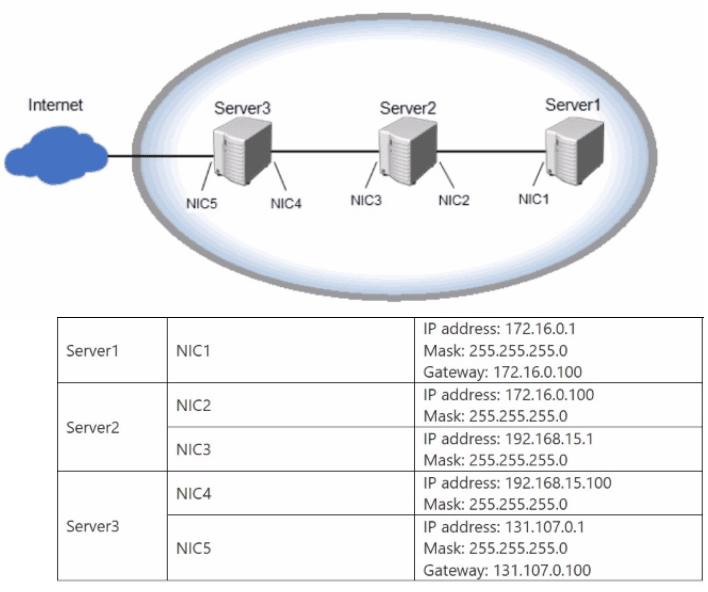
Server3 is configured as a NAT gateway. All the servers allow ICMP requests.
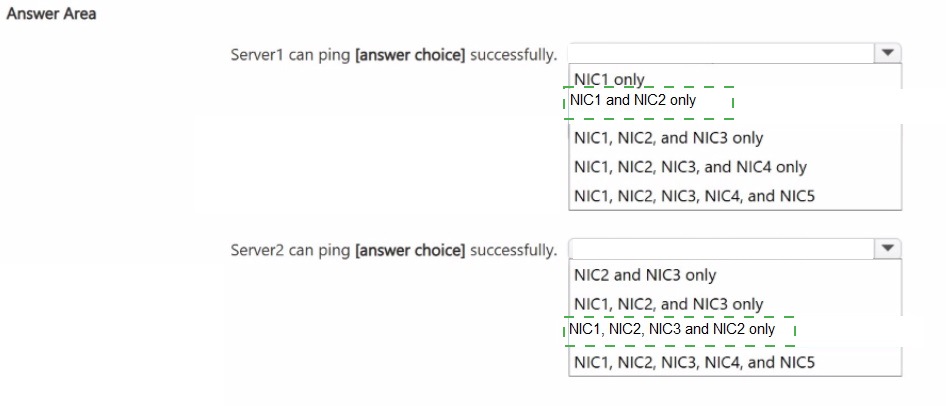
Use the drop-down menus to select the answer choice that completes each statement
based on the information presented in the graphic.
NOTE: Each correct selection is worth one point..png)
 Explanation
This is a matching-type question testing how default gateways, directly connected subnets, and routing/NAT roles determine reachability between hosts. Each server's IP configuration table shows which subnets it's directly connected to and whether a gateway is defined, and only Server3 is explicitly assigned as the NAT gateway.
✅ Server1 can ping NIC1 and NIC2 only.
Server1 has one interface (NIC1) on 172.16.0.0/24, the same subnet as Server2's NIC2, so it reaches NIC2 directly with no routing involved. Reaching NIC3 would require Server2 to forward traffic between NIC2 and NIC3, but no routing role is configured on Server2, so that forwarding never happens, capping Server1's reach at NIC1 and NIC2.
✅ Server2 can ping NIC1, NIC2, NIC3, and NIC4 only.
Server2 is directly connected to both 172.16.0.0/24 (NIC2) and 192.168.15.0/24 (NIC3), so it reaches NIC1 and NIC4 through same-subnet communication without needing any gateway. NIC5 sits on the separate 131.107.0.0/24 subnet, and since Server2 has no default gateway configured on either interface, it has no route to reach it.
❌ NIC1 only
This overlooks that NIC1 and NIC2 share the 172.16.0.0/24 subnet, so Server1 reaches NIC2 through ordinary same-subnet communication with no gateway or routing required. Limiting the answer to NIC1 alone ignores this direct reachability.
❌ NIC1, NIC2, and NIC3 only (for Server1)
Reaching NIC3 depends on Server2 forwarding packets between its NIC2 and NIC3 interfaces. Windows Server doesn't route between NICs by default, and only Server3 is set up as a NAT gateway here, so Server2 never performs that forwarding.
❌ NIC1, NIC2, NIC3, and NIC4 only (for Server1)
This assumes Server1 can already reach NIC3 through Server2, which fails since Server2 has no routing configured between its interfaces. With NIC3 unreachable, NIC4, the next hop on that same subnet, is unreachable too.
❌ NIC1, NIC2, NIC3, NIC4, and NIC5 (for Server1)
This includes every NIC in the topology, but ignores that Server2 doesn't forward between NIC2 and NIC3, and that NIC5 sits beyond Server3's NAT boundary, which translates outbound traffic rather than granting inbound reachability to Server1.
❌ NIC2 and NIC3 only
This only counts Server2's own interfaces and misses that NIC1 (same subnet as NIC2) and NIC4 (same subnet as NIC3) are both directly reachable, since same-subnet communication needs no gateway.
❌ NIC1, NIC2, and NIC3 only (for Server2)
This correctly includes NIC1 but omits NIC4, which sits on the same 192.168.15.0/24 subnet as NIC3 and is therefore just as directly reachable from Server2.
❌ NIC1, NIC2, NIC3, NIC4, and NIC5 (for Server2)
NIC5 is on the separate 131.107.0.0/24 subnet, reachable only through a gateway. Server2 has no default gateway configured on either interface, so it has no route there, making NIC5 unreachable despite Server3's NAT role.
🔧 Reference:
Routing and Remote Access Service (RRAS)
– Microsoft Learn → confirms that Windows Server routing between interfaces and NAT for internet access require the routing role to be explicitly configured, rather than happening automatically.
Your network contains an Active Directory Domain Services (AD DS) domain.
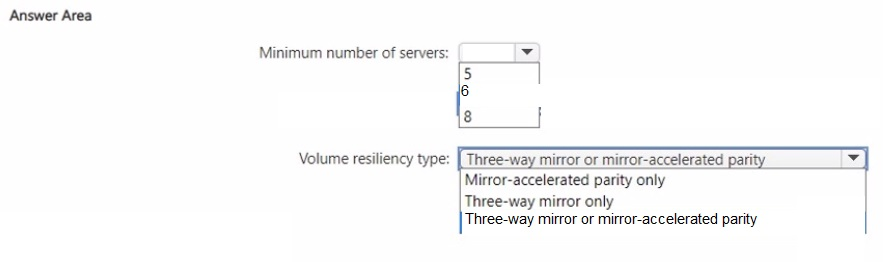
You need to implement a Storage Spaces Direct cluster. The solution must ensure that the
cluster supports delimiting the allocation of volumes.
What is the minimum number of servers required, and which type of resiliency is required
for the cluster volumes? To answer, select the appropriate options in the answer area.
NOTE: Each correct selection is worth one point.
 Explanation:
Delimiting volume allocation in Storage Spaces Direct allows you to specify a subset of servers for storing volume data, significantly improving fault tolerance against multiple server failures. Microsoft specifies strict prerequisites for enabling this feature to maintain proper data distribution and availability.
✅ Correct Option:
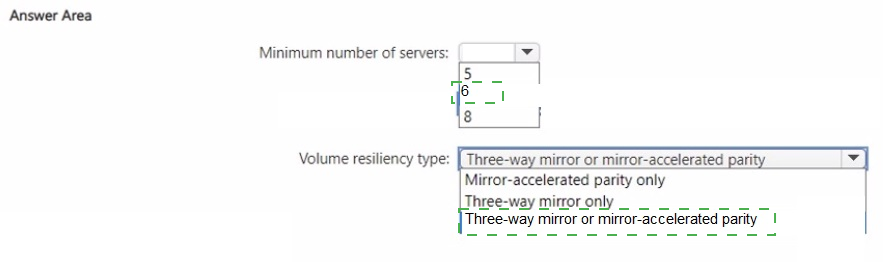
✅ Minimum number of servers: 6
Microsoft explicitly requires a cluster to have six or more servers to utilize delimited volume allocation. Because delimited allocation assigns volume copies to a smaller subset of nodes (minimum of four), having fewer than six total cluster nodes undermines the fault tolerance benefits and balance of storage overhead across the cluster.
✅ Volume resiliency type: Three-way mirror only
Delimited volume allocation is supported exclusively on volumes using three-way mirror resiliency. Three-way mirroring requires writing three distinct data copies across chosen fault domains, ensuring high availability even when restricting the allocation to a specific subset of servers within the cluster.
❌ Incorrect options:
❌ Minimum number of servers: 5 / 8
Selecting 5 servers fails to meet Microsoft’s explicit requirement of at least 6 cluster nodes for delimited volume allocation. While 8 servers is supported, it is not the minimum requirement asked for by the question.
❌ Volume resiliency type: Mirror-accelerated parity only / Three-way mirror or mirror-accelerated parity
Delimited allocation is explicitly unsupported for parity or mirror-accelerated parity resiliency types. Parity configurations depend on distributing data slabs and parity blocks across all available cluster nodes, making them incompatible with restricted subset allocation.
🔧 Reference:
→ Microsoft Learn: Storage Spaces Direct - Delimit Volume Allocation
Confirms prerequisites requiring a minimum of six servers and three-way mirror resiliency for delimited allocation.
| Page 5 out of 29 Pages |