Topic 3: Misc. Questions
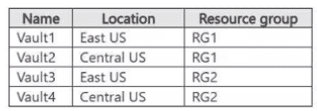
You have an Azure subscription that contains the Azure key vaults shown in the following
table.
You create a virtual machine that has the following configurations
• Name:VM1
• Resource group: RG1
• Azure region: East US
• Operating system: Windows Server
You need to enable Azure Disk Encryption for VM1. Which key vault can you use to store
the encryption key for VM1?
A. Vault1 only
B. Vault1 or Vault2 only
C. Vault1 orVault3only
D. Vault1, Vault2, Vault3, or Vault4
Explanation:
The question tests the Azure Disk Encryption Key Vault placement requirements. The Key Vault used for Azure Disk Encryption must be in the same Azure region and subscription as the VM. The resource group does not have to match the VM's resource group.
🟢 Correct Option: C. Vault1 or Vault3 only
VM1 is located in East US and the subscription contains all four vaults. Vault1 and Vault3 are both located in East US, so either can be used for Azure Disk Encryption. Their resource groups do not matter because a Key Vault can reside in a different resource group from the VM. Vault2 and Vault4 are in Central US and therefore cannot be used.
🔴 Incorrect Option: A. Vault1 only
Vault1 meets the regional requirement, but Vault3 also meets it. Azure Disk Encryption does not require the Key Vault to be in the same resource group as the VM. Therefore, limiting the answer to Vault1 incorrectly excludes Vault3.
🔴 Incorrect Option: B. Vault1 or Vault2 only
Vault1 is suitable because it is in East US. Vault2 is in Central US, however, while VM1 is in East US. Azure Disk Encryption requires the Key Vault and VM to be in the same region, so Vault2 cannot be used.
🔴 Incorrect Option: D. Vault1, Vault2, Vault3, or Vault4
Not all vaults are suitable. Vault2 and Vault4 are located in Central US, while VM1 is located in East US. Azure Disk Encryption requires the Key Vault and VM to be in the same region, excluding the Central US vaults.
🔧 Reference:
→ Microsoft Learn — Azure Disk Encryption for Windows VMs — Confirms that the Key Vault and VM must be in the same Azure region and subscription.
→ Microsoft Learn — Create and Configure a Key Vault for Azure Disk Encryption
— Confirms the regional requirement for the Key Vault used with Azure Disk Encryption.
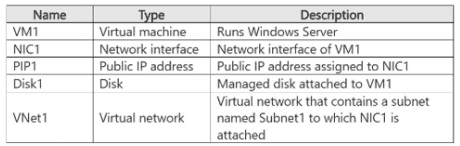
You have an Azure subscription named Sub1 that contains a resource group named RG1.
RG1 contains the resources shown in the following table.
Sub1 has Microsoft Defer>der for Servers enabled You are assigned the Contributor role
for Sub1. You need to implement just-in-time (JIT) VM access for VM1. What should you
do first?
A. Enable enhanced security in Microsoft Defender for Cloud.
B. Request the Owner role for Sub1.
C. Create a network security group (NSG).
D. Create an application security group.
Explanation:
This question focuses on the mandatory prerequisites for enabling just-in-time (JIT) VM access through Microsoft Defender for Cloud. JIT works by dynamically modifying network rules to open management ports (such as RDP 3389) only when access is requested and approved. The provided resources show VM1, its NIC, public IP, disk, and VNet/subnet, but no NSG or Azure Firewall is present.
✅ Correct Option:
C. Create a network security group (NSG).
JIT relies on an NSG (or Azure Firewall) attached to the VM’s network interface or subnet. Without one, Defender for Cloud marks the VM as Unsupported and cannot apply the temporary “deny all” and allow rules. Creating and associating an NSG is therefore the first required step so that JIT policies can be configured and enforced on VM1.
❌ Incorrect options:
A. Enable enhanced security in Microsoft Defender for Cloud.
Microsoft Defender for Servers is already enabled on Sub1. This activates the required plan (Plan 2) that includes the JIT feature. Enabling enhanced security again is redundant and does not address the missing network component needed for JIT to function.
B. Request the Owner role for Sub1.
The Contributor role already includes the necessary write permissions (Microsoft.Security/locations/jitNetworkAccessPolicies/write and Microsoft.Compute/virtualMachines/write) to create an NSG and configure JIT policies. Requesting Owner is unnecessary and does not solve the missing NSG prerequisite.
D. Create an application security group.
Application security groups help group NICs for cleaner NSG rule management, but they are optional. JIT does not require an ASG to operate; it depends directly on the presence of an NSG (or Azure Firewall) to modify inbound rules.
🔧 Reference:
→ Enable just-in-time access on VMs – Microsoft Defender for Cloud
Explicitly states that VMs missing a network security group (or Azure Firewall) are unsupported for JIT, confirming the NSG requirement.
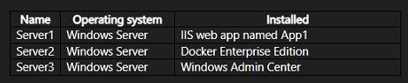
Your network contains an Active Directory Domain Services (AD DS) domain. The domain
contains the servers shown in the following table.
You need to migrate App1 to a Docker image on Server2.
Which three actions should you perform in sequence? To answer, move the appropriate
actions from the list of actions to the answer area and arrange them in the coned order..png)
 Explanation:
This question tests your understanding of migrating an IIS web application to a Windows container using Docker. The process involves three key phases: preparing the source server by installing the Web Deployment Tool, exporting the application as a package, and then using Windows Admin Center to containerize the application.
✅ Correct Sequence:
From Server1, install the Microsoft Web Deployment Tool.
The Web Deployment Tool is required on the source server (Server1) to create a web application package of App1. This tool supports exporting IIS applications, databases, and configurations into a single deployable package.
From Server1, export an application package.
After installing the Web Deployment Tool, you can run msdeploy to export App1 as a package. This package will contain the application binaries, IIS configuration, and content needed for containerization.
From Windows Admin Center, install the Containers extension and create a container image.
Windows Admin Center is installed on Server3. By installing the Containers extension, you can connect to Server2, create a container image from the exported package, and run it in a Docker container.
❌ Incorrect actions:
From Server2, install the Web Server (IIS) role.
This is unnecessary because container images can include IIS as part of the base image—there's no need to install the role manually on the Docker host. The container will run IIS internally.
From Server2, run the Add-AppPackage cmdlet.
This cmdlet is used for adding Windows app packages (like .appx) and is not relevant to IIS web application migration or containerization.
From Server1, run the Move-AppPackage cmdlet.
This cmdlet does not exist in Windows or PowerShell and is not applicable to web application migration.
🔧 References:
→ Web Deploy - Overview and Installation - Microsoft Learn: Confirms Web Deployment Tool is installed on the source server to export application packages.
→ Windows Admin Center - Container Extension - Microsoft Learn: Confirms Windows Admin Center Containers extension is used to create and manage container images on Docker hosts.
You have an Azure subscription that contains a network security group (NSG) named
NSG1 and a virtual network named VNet1. NSG1 contains only default security rules.
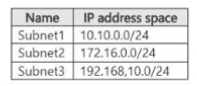
VNet1 contains the subnets shown in the following table.
The subscription contains virtual machines that run Windows Server as shown in the
following table.
.png)
You configure just-in-time (JIT) VM access as shown in the following exhibit.
.png)
for each of the following statements, select Yes if the statement is true. Otherwise, select
No.
NOTE: Each correct selection is worth one point.png)
 Explanation
This is a Yes/No matching question testing how the "Allowed source IPs" setting in a JIT port rule differs from default JIT behavior, and how JIT governs inbound access to a VM rather than outbound connections or existing sessions.
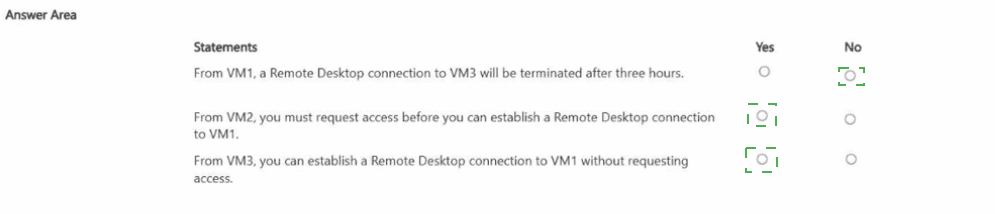
✅ Statement 1: No — a connection from VM1 to VM3 will not be terminated after three hours.
JIT VM access rules configured on VM1 govern inbound traffic reaching VM1, not outbound connections VM1 initiates toward other machines like VM3. Even where JIT time windows do apply, Microsoft's documentation confirms that connections already established when the window expires are not interrupted, so this statement is false on two counts.
✅ Statement 2: Yes — from VM2, you must request access before connecting to VM1.
VM2 sits in Subnet2 (172.16.0.0/24), which isn't part of the CIDR ranges (10.10.0.0/24, 192.168.10.0/24) pre-authorized on VM1's port 3389 rule. Since VM2 falls outside that pre-approved range, its traffic isn't automatically permitted, so a JIT request is still required as the access path.
✅ Statement 3: Yes — from VM3, you can connect to VM1 without requesting access.
VM3 sits in Subnet3 (192.168.10.0/24), which is explicitly listed in the Allowed source IPs for VM1's port 3389 rule. Specifying a fixed CIDR range like this pre-authorizes that source range for the port, so traffic from VM3 doesn't need to go through the standard JIT request-and-approve workflow.
❌ Incorrect alternatives:
❌ Statement 1 – Yes:
This assumes JIT time windows apply to traffic originating from VM1, but the configured rules protect inbound access to VM1, not connections VM1 makes outward, and active sessions aren't cut off regardless.
❌ Statement 2 – No:
This assumes VM2 has some pre-authorized path to VM1, but VM2's subnet isn't included in the CIDR range configured for port 3389, so it can't bypass the request process the way VM3 can.
❌ Statement 3 – No:
This overlooks that VM3's subnet is explicitly listed in the port 3389 rule's Allowed source IPs, which pre-authorizes that range rather than routing it through a manual request each time.
🔧 Reference:
Just-in-time virtual machine access in Microsoft Defender for Cloud – Microsoft Learn → confirms that JIT configures NSG rules to allow inbound traffic to specified ports from approved IP ranges, and that already-established connections aren't interrupted when the access window ends.
Your network contains two Active Directory Domain Services (AD DS) forests named
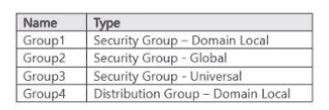
contoso.com and fabtikam.com. Contoso.com includes the groups shown in the following
table.
You need to migrate the groups to fabrikam.com by using ADMT.
Which groups can be migrated and which groups can have the sIDHistory attribute
populated after the migration?
.png)
 Explanation:
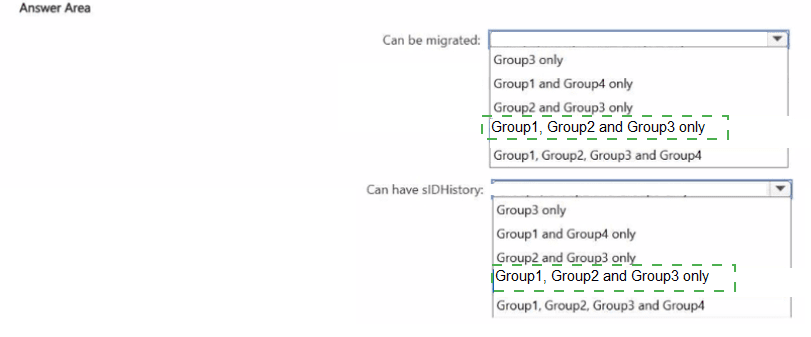
The question tests ADMT group migration and the requirements for populating the sIDHistory attribute. ADMT can migrate security-enabled groups, regardless of whether their scope is Domain Local, Global, or Universal. Distribution groups are not security principals and therefore are excluded.
🟢 Correct Option: Group1, Group2, and Group3 only
Group1, Group2, and Group3 are all security groups, so they can be migrated between forests using ADMT. Their scopes—Domain Local, Global, and Universal—do not prevent migration. Group4 is a Distribution Group, which is not security-enabled and cannot be used as a security principal. Therefore, only the first three groups can be migrated.
🟢 sIDHistory: Group1, Group2, and Group3 only
The sIDHistory attribute can preserve the previous SID of a security-enabled group during an inter-forest migration. Microsoft documentation confirms that DsAddSidHistory supports security-enabled Local, Global, Domain Local, and Universal groups, subject to scope and migration conditions. Because Group4 is a distribution group, it cannot have its SID preserved through sIDHistory.
🔴 Group4 — Distribution Group
Group4 cannot be migrated as a security group because it is a Distribution Group. Distribution groups are designed for email distribution and are not security-enabled, meaning they cannot function as security principals or be used for access control through ACLs.
🔧 Reference:
→ Microsoft Learn — Active Directory security groups — Confirms the difference between security and distribution groups and explains the available group scopes.
→ Microsoft Learn — Using DsAddSidHistory — Confirms which security-enabled group types can use the sIDHistory attribute.
Note: This question is part of a series of questions that present the same scenario. Each
question in the series contains a unique solution that might meet the stated goals. Some
question sets might have more than one correct solution, while others might not have a
correct solution.
After you answer a question in this section, you will NOT be able to return to it. As a result,
these questions will not appear in the review screen.
You have a failover cluster named Cluster1 that hosts an application named App1.
The General tab in App1 Properties is shown in the General exhibit. (Click the General
tab.)
The Failover tab in App1 Properties is shown in the Failover exhibit. (Click the Failover
tab.)
.png)
Server1 shuts down unexpectedly.
You need to ensure that when you start Server1, App1 continues to run on Server2.
Solution: From the General settings, you move Server2 up.
Does this meet the goal?
A. Yes
B. No
Explanation:
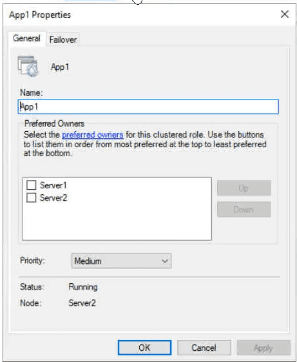
In Windows Server Failover Clustering, when a node (Server1) restarts, clustered roles will automatically fail back to their preferred owner if Allow failback is enabled on the Failover tab. Moving Server2 up in the General tab list does not prevent failback because the failback configuration explicitly dictates whether the role reverts to its primary node.
✅ Correct Option:
✅ B. No
Moving Server2 up in the General settings merely adjusts the order in the preferred owners list. Because Allow failback is configured to execute Immediately on the Failover tab, restarting Server1 will still trigger an automatic failback operation. To ensure App1 continues running on Server2, you must select Prevent failback instead.
❌ Incorrect options:
❌ A. Yes
Selecting "Yes" is incorrect because reordering nodes in the preferred owners interface does not override or disable the active automatic failback policy configured under the Failover settings tab.
🔧 Reference:
→ Microsoft Learn: Failover Cluster Role Failback Properties
Confirms that setting the failback policy to "Prevent failback" is required to prevent a clustered role from automatically returning to a restored node.
Your network contains an Active Director/ Domain Services {AD DS) domain named
contoso.com. The domain contains two sites named Site1 and Site2 and servers that run
Windows Server and are configured as shown in the following table.
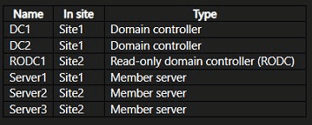
The domain contains a group named Group1 that contains Server3.
RODC1 has the Password Replication Policy shown in the following exhibit..png)
 Explanation:
This question tests your understanding of Read-Only Domain Controller (RODC) Password Replication Policy and authentication behavior. RODCs do not cache all passwords—only those for users in the Allowed RODC Password Replication Group are stored locally. Additionally, Group1 contains Server3, making it a member server in Site2, and site failover behavior depends on configured site links.
✅ Correct Options:
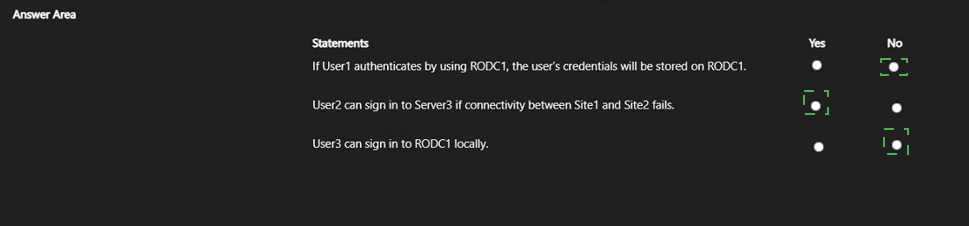
If User1 authenticates by using RODC1, the user's credentials will be stored on RODC1: No – The Password Replication Policy shows User1 is not listed in the Allowed RODC Password Replication Group. Therefore, User1's password is not cached locally on RODC1. When User1 authenticates, RODC1 will forward the authentication request to a writable domain controller.
User2 can sign in to Server3 if connectivity between Site1 and Site2 fails: Yes – Server3 is in Site2 and is a member of Group1. Since Group1 is in the Allow list, Server3's computer account password is cached on RODC1. Even with Site1–Site2 connectivity failure, Server3 can authenticate using RODC1 to sign in.
User3 can sign in to RODC1 locally: No – RODCs do not allow interactive logon by standard users. Only domain administrators who are members of the built-in Administrators group can log on locally to an RODC. User3 would need explicit administrative privileges, which are not indicated.
❌ Incorrect options:
If User1 authenticates by using RODC1, the user's credentials will be stored on RODC1: Yes – Credentials are only cached for users in the Allow list. User1 is not in the Allowed RODC Password Replication Group, so authentication will be forwarded and credentials are not stored.
User2 can sign in to Server3 if connectivity between Site1 and Site2 fails: No – Server3 is in the Allow group, so its credentials are cached locally on RODC1. This allows Server3 to authenticate during site link failure.
User3 can sign in to RODC1 locally: Yes – Interactive logon to an RODC is restricted to domain administrators. The scenario does not specify User3 has these elevated privileges, so local logon would be denied.
🔧 References:
→ Password Replication Policy for RODCs - Microsoft Learn: Explains that only accounts in the Allow group have their passwords cached on RODC.
→ Configuring RODC Password Replication Policies - Microsoft Learn: Details how RODC authentication works when credentials are not cached locally.
| Page 4 out of 29 Pages |