Topic 3: Misc. Questions
You have a server named Server1 that runs Windows Server.
For Server1, you enable the default App Control for Business policies in audit mode.
You need to ensure that specific third-party applications installed on Server1 are allowed to
run by using App Control for Business.
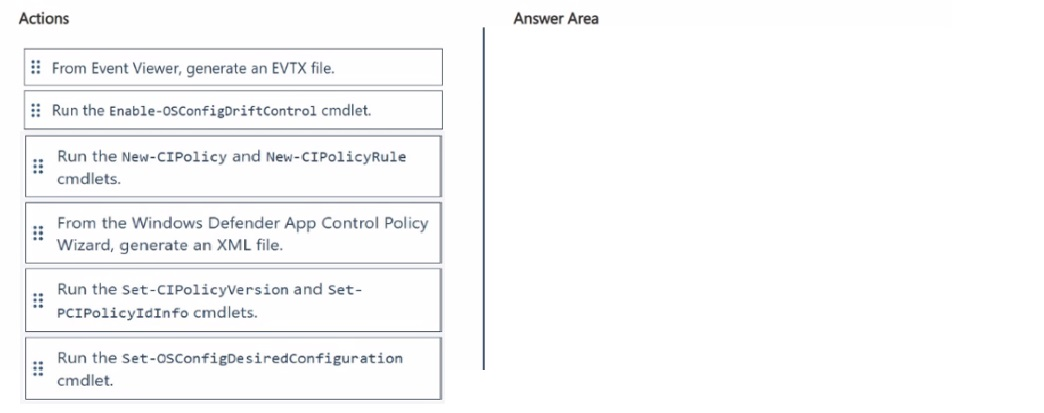
Which four actions should you perform in sequence? To answer, move the appropriate
actions from the list of actions to the answer area and arrange them in the correct order.
 Explanation:
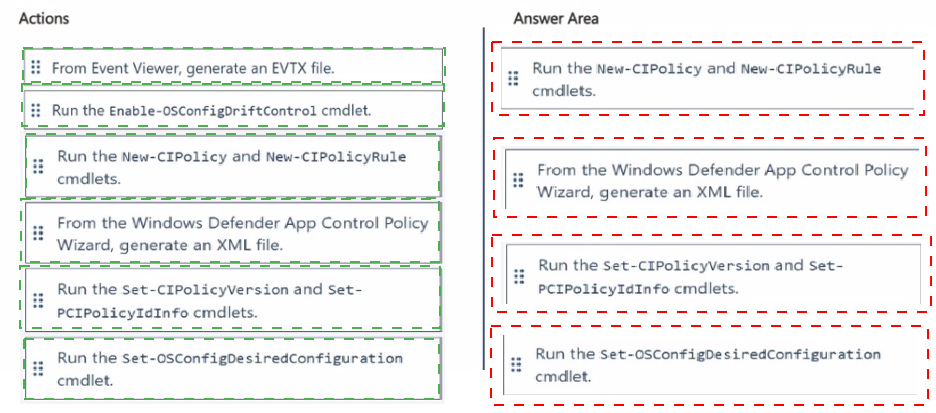
This question tests the OSConfig-based workflow for App Control for Business on Windows Server 2025, specifically how to build and deploy a supplemental policy that allows specific third-party apps after the default policy has been running in audit mode. The correct sequence follows Microsoft's documented process: capture what the apps actually did in audit mode, convert that evidence into an allow policy, finalize the policy's identity, then push it into effect on the server.
✅ Step 1 – From Event Viewer, generate an EVTX file.
With the default policy in audit mode, running the target third-party apps generates event ID 3076 entries under Applications and Services Logs\Microsoft\Windows\CodeIntegrity\Operational. Filtering on that event ID and exporting the log produces the .evtx file needed to build rules for those specific apps.
✅ Step 2 – From the Windows Defender App Control Policy Wizard, generate an XML file.
The Wizard's "Convert Event Logs to a Policy" feature parses the .evtx file, lets you add allow rules per file, and outputs a supplemental policy in XML format targeting exactly the third-party apps you captured.
✅ Step 3 – Run the Set-CIPolicyVersion and Set-CIPolicyIdInfo cmdlets.
These cmdlets reset the policy GUID, set the version, and assign a unique PolicyID and PolicyName to the generated XML, preparing it as a properly identified supplemental policy tied to the base policy.
✅ Step 4 – Run the Set-OSConfigDesiredConfiguration cmdlet.
This cmdlet (Set-OSConfigDesiredConfiguration -Scenario AppControl -Name Policies -Value $policyPath) pushes the finished supplemental policy into OSConfig so it takes effect on Server1, allowing the specified apps to run.
❌ Excluded actions:
Run the New-CIPolicy and New-CIPolicyRule cmdlets — This builds a base policy by scanning a reference computer's installed applications, a different method than converting captured audit events, so it isn't part of this event-log-driven workflow.
Run the Enable-OSConfigDriftControl cmdlet — This enables drift control monitoring to keep an applied configuration from being changed outside OSConfig; it plays no role in creating or deploying the supplemental allow policy itself.
🔧 Reference:
→ Configure App Control for Business by using OSConfig – Microsoft Learn — Confirms the EVTX capture → App Control Wizard XML → Set-CIPolicyVersion/Set-CIPolicyIdInfo → Set-OSConfigDesiredConfiguration sequence for deploying a supplemental App Control policy.
Your on-premises network contains an Active Directory Domain Services (AD DS) forest
named contoso.com. The forest contains the domains shown in the following table.

You create a user named User1 that has the following attributes:

You plan to move User1 to OU3 by using the Active Directory Migration Tool (ADMT).
Which attributes will change if User1 moves to OU3?
A. distinguishedName only
B. objectsioonly
C. objectGUID, and objectSID Only
D. distinguishedHame, objectSID, and whenCreated Only
Explanation:
This question examines the behavior of core Active Directory attributes when a user account is relocated between domains inside the same forest with the Active Directory Migration Tool (ADMT). User1 currently exists in OU1 of the contoso.com domain and will be moved to OU3 in the child domain east.contoso.com. Understanding which attributes are rewritten versus preserved during an intra-forest move is required to select the correct answer.
✅ Correct Option:
A. distinguishedName only
When ADMT performs an intra-forest move, the object is relocated rather than cloned. As a direct result, the distinguishedName attribute is completely rewritten to reflect the new organizational unit and the new domain naming context (for example, CN=User1,OU=OU3,DC=east,DC=contoso,DC=com). Among the choices provided, this is the only attribute that is guaranteed to change solely because of the relocation.
❌ Incorrect options:
B. objectSID only
Although the primary objectSID value is replaced with a new domain-specific SID (and the original SID is copied into the sIDHistory attribute), the distinguishedName also changes. Selecting only objectSID therefore omits a required change and is incomplete.
C. objectGUID, and objectSID Only
objectGUID is a permanent unique identifier that is preserved during an intra-forest ADMT move. Because the same object continues to exist, its GUID remains unchanged. Including objectGUID makes this option incorrect.
D. distinguishedName, objectSID, and whenCreated Only
The whenCreated attribute records the original creation timestamp of the object and is never updated by a move or migration operation. Adding whenCreated to the list of changing attributes renders this option incorrect.
🔧 Reference:
→ Microsoft Learn: Troubleshoot sIDHistory migration with ADMTv2
Confirms that intra-forest migrations preserve the objectGUID while assigning a new SID (original SID stored in sIDHistory) and updating the distinguishedName to the new location.
Your network contains an Active Directory Domain Services (AD DS) domain The domain
contains an organizational unit (OU) named OU1 and a user named User1.
You plan to deploy a Hyper V failover cluster named Cluster1.
You need to prestage the account for Cluster! and ensure that User1 can deploy Cluster1.
The solution must follow the principle of least privilege.
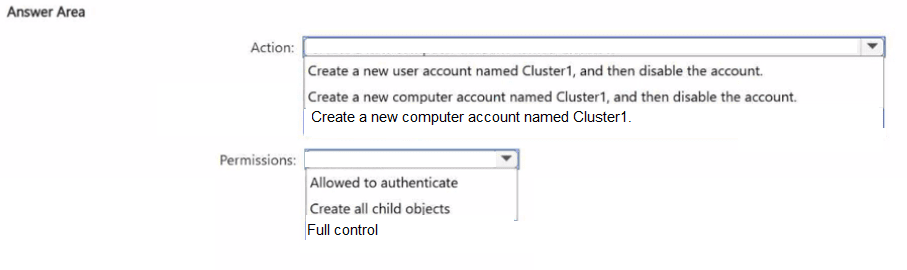
Which action should you perform, and which permissions should you grant to User1 for
Cluster1? To answer, select the appropriate options in the answer area
NOTE: Each correct selection is worth one point.
 Explanation:
This question tests your knowledge of prestaging a Cluster Name Object (CNO) in Active Directory Domain Services (AD DS). Prestaging allows an administrator without domain administrative rights to deploy a failover cluster by pre-creating the disabled cluster computer account and delegating full control over that account to the deployment user.
✅ Correct Option:
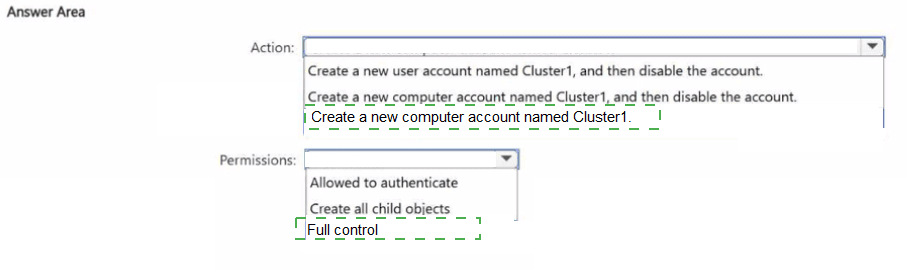
Action: Create a new computer account named Cluster1, and then disable the account.
To prestage a failover cluster in Active Directory, you must create a new computer account matching the cluster name (Cluster1) within the target Organizational Unit and explicitly disable the account. Disabling the account is a mandatory security requirement for CNO prestaging so that the Failover Cluster wizard can safely take ownership and enable it during cluster creation.
Permissions: Full control
To enable User1 to deploy the cluster without domain admin privileges, User1 must be granted Full Control permissions directly on the prestaged Cluster1 computer account. This enables the deploying user (User1) to configure properties, bind cluster identity, and grant the CNO the necessary permissions to create child Computer Objects (Virtual Computer Objects/VCOs) when cluster roles are configured.
❌ Incorrect options:
Action: Create a new user account named Cluster1, and then disable the account
A Failover Cluster Name Object (CNO) must be represented as a Computer Object in Active Directory, not a User Object. Creating a user account prevents the failover clustering service from registering the cluster identity properly.
Action: Create a new computer account named Cluster1 (without disabling)
Prestaging guidelines explicitly mandate that the computer account must be disabled upon creation. If left enabled, Active Directory setup validations fail during the cluster creation process because the wizard expects a disabled object reserved for binding.
Permissions: Allowed to authenticate
Granting Allowed to authenticate only permits authentication traffic against the account object and does not grant User1 the necessary rights to configure or take control of the prestaged computer account during cluster creation.
Permissions: Create all child objects
The "Create all child objects" permission is an OU-level permission rather than an object-level permission for the prestaged CNO. To allow User1 to set up the pre-created Cluster1 account under least privilege, User1 requires Full Control directly on the Cluster1 computer object itself.
🔧 Reference:
⇒ Microsoft Learn - Prestage Cluster Computer Objects in Active Directory Domain Services confirms that prestaging requires creating a disabled computer object for the CNO and assigning Full Control permissions to the user or account deploying the cluster.
Your network contains an Active Directory Domain Services (AD DS) domain. You plan to
protect high-privilege domain credentials by specifying the following:
• The lifetime of the Kerberos Ticket Granting Ticket (TGT)
• The conditions required for devices to request a TGT
What should you use, and what should you create? To answer, select the appropriate
options in the answer area.
NOTE: Each correct selection is worth one point.
 Explanation:
This question tests your knowledge of Active Directory features used to protect privileged credentials by controlling Kerberos TGT settings. It requires identifying both the correct management tool and the specific AD object needed to configure TGT lifetime and device access conditions.
✅ Correct Options:
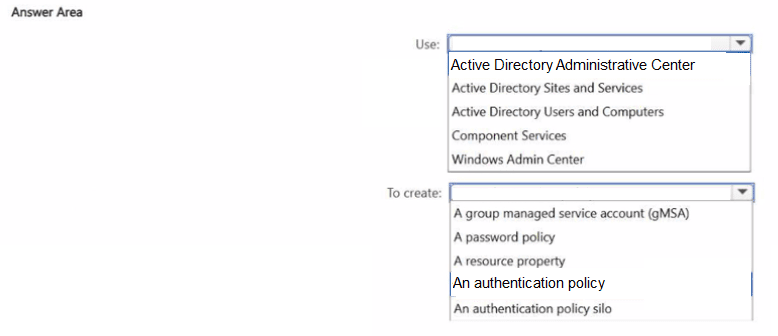
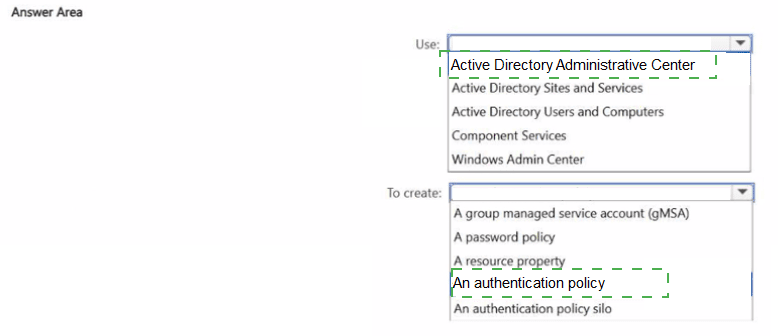
Use: Active Directory Administrative Center
ADAC provides the graphical interface for creating and managing authentication policies in AD DS. It allows administrators to configure TGT lifetime values and define access control conditions that restrict which devices can request a TGT for privileged accounts. This is the recommended GUI tool for this task.
To create: An authentication policy
An authentication policy defines the Kerberos TGT lifetime properties and authentication access control conditions for user, service, or computer accounts. It directly addresses both requirements: specifying TGT lifetime and restricting devices that can request a TGT for high-privilege credentials.
❌ Incorrect Options:
Use: Active Directory Users and Computers
ADUC is used for managing users, groups, and computers. It does not provide the interface to create authentication policies or configure TGT lifetime and device access conditions.
Use: Active Directory Sites and Services
This console manages AD replication topology, sites, and subnets. It has no functionality related to authentication policies or credential protection settings.
Use: Component Services
Component Services manages COM+ applications and distributed transactions. It is unrelated to Active Directory authentication policy configuration.
Use: Windows Admin Center
WAC is a modern server management tool but does not support creating or managing AD authentication policies. This task requires ADAC or PowerShell.
To create: A group managed service account (gMSA)
A gMSA provides automatic password management for service accounts. It does not configure TGT lifetime or device access conditions for user accounts.
To create: A password policy
Password policies define complexity, length, and expiration requirements. They do not control Kerberos TGT lifetime or device-based authentication restrictions.
To create: A resource property
Resource properties are used in Dynamic Access Control for classification and access conditions on files. They do not configure authentication or TGT settings.
To create: An authentication policy silo
A silo groups user, computer, and service accounts and assigns authentication policies to them. While related, the silo is a container—the authentication policy itself contains the TGT lifetime and access condition settings. The question asks what to create to specify these settings directly.
🔧 Reference:
→ Microsoft Learn – Authentication Policies and Authentication Policy Silos – Confirms that authentication policies define TGT lifetime and access control conditions, and are created using ADAC.
→ Microsoft Learn – Using Authentication Policies to Restrict Privileged User Account Logons – Details the steps to create authentication policies in ADAC for TGT lifetime and device restrictions.
You have an Azure subscription that contains an Azure key vault named Vault 1.
You deploy Azure Disk Encryption.
You configure Vault to support Azure Disk Encryption.
You need to ensure that you can encrypt Azure Disk Encryption artifacts before they are
written to Vault 1. The solution must provide the highest level of encryption.
How should you complete the command? To answer, select the appropriate options in the
answer area.
NOTE: Each correct selection is worth one point.

 Explanation:
This question tests how to create a Key Encryption Key (KEK) in Azure Key Vault for Azure Disk Encryption (ADE). ADE stores BitLocker Encryption Keys (BEKs) as secrets in the vault. To encrypt those ADE artifacts before they are written to the vault (providing an extra layer of protection), you create a KEK. The solution requires the highest level of encryption, so the KEK must be an HSM-protected RSA key of the maximum supported size.
✅ Correct Option:
key + RSA-HSM
The command must create a key (not a secret or certificate) because only a key can act as a KEK to wrap the ADE secrets. Azure Disk Encryption supports only RSA keys (Elliptic Curve is not supported). Selecting RSA-HSM with --size 4096 creates a 4096-bit RSA key protected by a Hardware Security Module, which is the strongest option available.
❌ Incorrect options:
certificate
A certificate cannot be used as a Key Encryption Key for Azure Disk Encryption. The parameters --kty and --size are also invalid for the certificate create command.
secret
Secrets store the actual BitLocker Encryption Keys (BEKs). The command is used to create the wrapping key (KEK), not the secret itself. Secrets do not support the --kty or --size parameters.
EC / EC-HSM
Azure Disk Encryption does not support Elliptic Curve keys. Only RSA (or RSA-HSM) keys are valid for use as a KEK.
RSA
A software-protected RSA key works but does not provide the highest level of encryption. RSA-HSM is required for HSM-backed protection.
🔧 Reference:
→ Microsoft Learn: Creating and configuring a key vault for Azure Disk Encryption
Confirms that a KEK must be an RSA key (generated with az keyvault key create --kty RSA --size 4096) and that ADE does not support Elliptic Curve keys. HSM-protected keys (RSA-HSM) provide the highest security.
You have a Windows Server 2022 Storage Spaces Direct cluster named Cluster1. Cluster1
has four nodes that contain virtual machines.
You need to perform an in-place upgrade of Cluster! to Windows Server 2025. The solution
must ensure that the virtual machines are always available during the upgrade.
In which order should you perform the actions? To answer, move all actions from the list of
actions to the answer area and arrange them in the correct order.
 Explanation:
This question tests your knowledge of performing a Cluster OS Rolling Upgrade on a Storage Spaces Direct (S2D) cluster while maintaining workload availability. To upgrade each node safely, running virtual machines and local storage operations must be evacuated and isolated prior to the operating system upgrade.
✅ Correct Option:
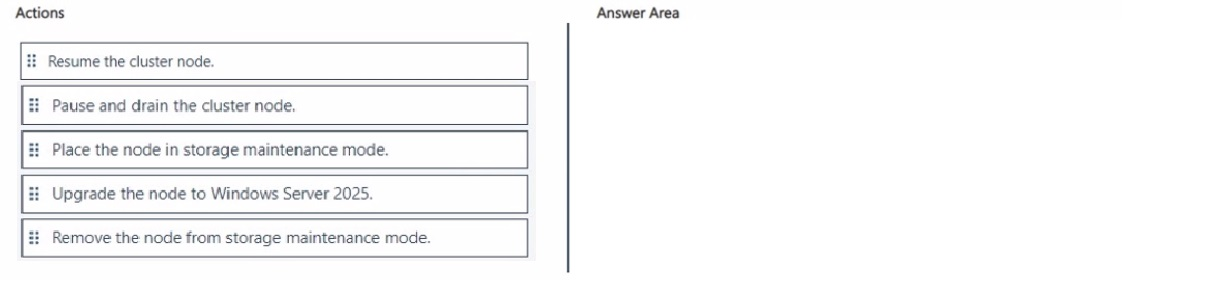
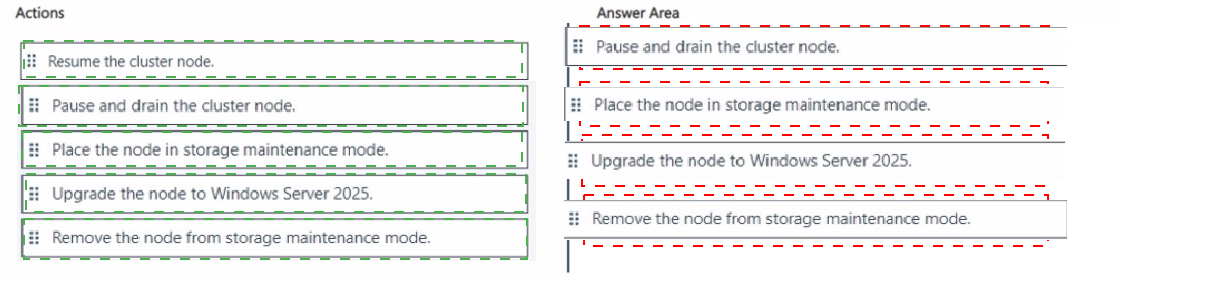
Step 1: Pause and drain the cluster node.
Pausing and draining the cluster node initiates a live migration of all active virtual machines from the target node to the remaining operational nodes in the cluster. This step ensures zero downtime for the running workloads before any maintenance activities or host reboots begin on the server.
Step 2: Place the node in storage maintenance mode.
Placing the host node into storage maintenance mode explicitly isolates its physical disks from the Storage Spaces Direct storage pool. This prevents the storage subsystem from treating the upcoming node restart and operating system upgrade as an unexpected disk failure or storage fault.
Step 3: Upgrade the node to Windows Server 2025.
With active virtual machines evacuated and physical storage safely suspended, the target node can now undergo the in-place operating system upgrade to Windows Server 2025. The server will reboot and complete the OS setup without impacting active workloads running on other cluster nodes.
Step 4: Remove the node from storage maintenance mode.
After the operating system upgrade finishes successfully and the node reboots into Windows Server 2025, removing the node from storage maintenance mode brings its local physical disks back online within the Storage Spaces Direct pool to begin data resynchronization.
Step 5: Resume the cluster node.
Resuming the cluster node returns it to full active cluster membership. Once resynchronization completes and health status normalizes, the node can resume hosting virtual machine workloads again, completing the rolling upgrade cycle for that specific node.
❌ Incorrect options:
Placing the node in storage maintenance mode before pausing and draining
Executing storage maintenance mode prior to draining the node can trigger storage access issues for virtual machines currently running on that server. Draining the node first guarantees that no active VM read/write operations rely on the host's local storage state during transition.
Upgrading the node to Windows Server 2025 without pausing or setting maintenance mode
Initiating an operating system upgrade on an active node forces an immediate system restart, causing ungraceful virtual machine shutdowns and unannounced storage disruption. Workload availability requires the node to be properly drained and isolated first.
Resuming the cluster node before removing it from storage maintenance mode
Attempting to resume cluster operations while the physical disks are still trapped in maintenance mode prevents Hyper-V and Storage Spaces Direct from properly allocating virtual machine storage, leading to failure when hosting roles.
🔧 Reference:
⇒ Microsoft Learn - Upgrade a Storage Spaces Direct cluster confirms the precise sequence for pausing, isolating storage, upgrading the OS, restoring storage mode, and resuming the node during an in-place rolling upgrade.
| Page 3 out of 29 Pages |