Topic 5: Misc. Questions
You have an Azure subscription that contains an Azure App Service plan named ASP1.
ASP1 uses the Basic B1 tier and hosts a web app named App1.
You need to create a backup solution for App1. The solution must meet the following
requirements:
• Perform a backup once every hour.
• Ensure that individual backups can be downloaded.
• Ensure that all deployment slots can be backed up.
• Minimize administrative effort and costs.
What should you do? To answer, select the appropriate options in the answer area.
NOTE: Each correct selection is worth one point.
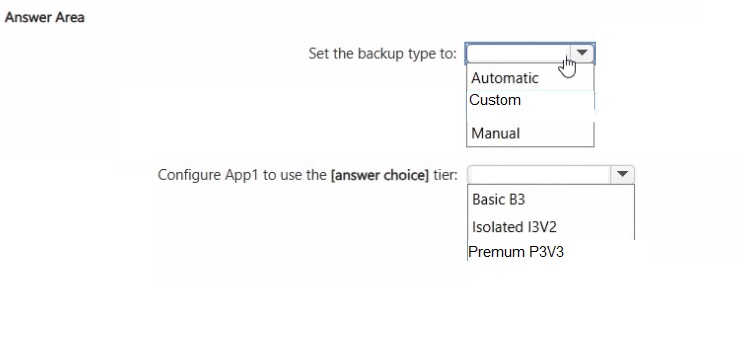
Explanation:
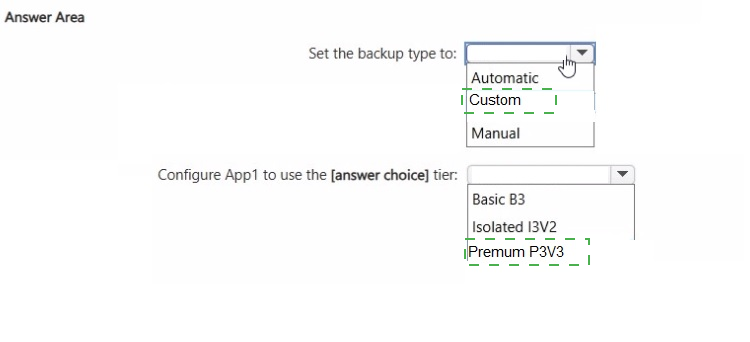
To configure the backup solution for App1 while meeting all the specific requirements, you must choose the appropriate backup type and service tier.
1. Set the backup type to: Custom
Frequency Requirement: The goal is to perform a backup once every hour.
Automatic backups in Azure App Service are managed by the platform, but they occur at fixed intervals (usually once a day) that you cannot configure to an hourly schedule.
Custom backups allow you to define your own schedule, supporting a frequency of up to once every hour.
Downloadability: Custom backups are stored in a Storage Account that you provide, which ensures you can easily access and download individual backup files (ZIP format).
Deployment Slots: Custom backups can be configured for the production slot and any additional deployment slots, ensuring full coverage of the application environment.
2. Configure App1 to use the tier: Premium P3V3
Tier Capability Check:
The current Basic (B1) tier does not support deployment slots or automated/custom backups.
Premium tiers (like P3V3) include support for deployment slots and the Custom Backup feature.
Why not Basic B3? While B3 is a higher Basic tier, the Basic tier as a whole does not support deployment slots or the backup features required for this scenario.
Why not Isolated I3V2? The Isolated tier supports all these features but is significantly more expensive and intended for high-scale, private networking requirements (App Service Environments). To minimize costs while meeting the technical requirements, the Premium tier is the most efficient choice.
Reference
Microsoft Documentation: Back up and restore your app in Azure App Service
Microsoft Documentation: App Service pricing tier overview
You have an Azure subscription that contains an Azure Data Lake Storage Gen2 account
named storage1. Storage1 contains semi-structured sales data in Parquet files.
You ingest transform, analyze, and visualize the sales data daily. During the
transformations, the data is referenced against Microsoft Dataverse and consumed by
Microsoft Power Bl.
You need to deploy a new data integration and analysis solution in Microsoft Fabric. The
solution must meet the following requirements:
• Minimize the duplication of data.
• Minimize how long it takes to generate reports in Power Bl.
What should you use to reference the Dataverse data and consume the transformed data
from Power Bl? To answer, select the appropriate options in the answer area. NOTE; Each
correct selection is worth one point.
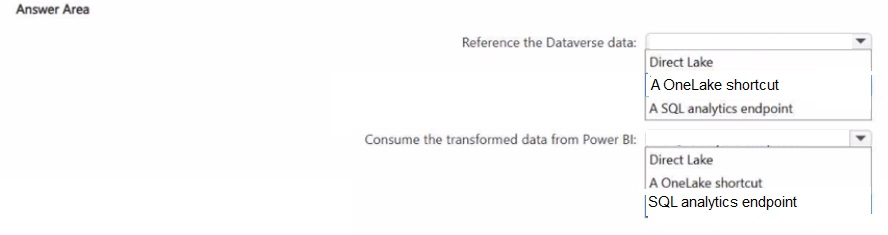
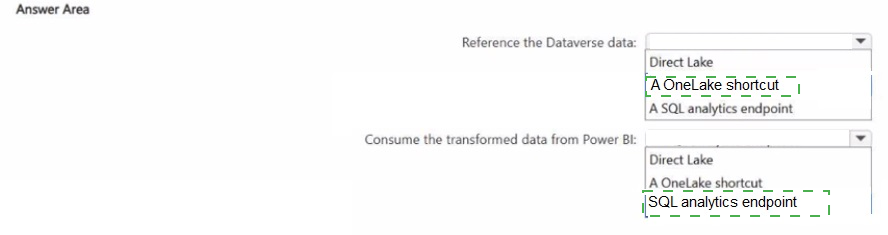
Explanation:
Answer: Reference the Dataverse data = A OneLake shortcut. Consume the transformed data from Power BI = Direct Lake. These choices minimize data duplication (shortcuts avoid copying Dataverse tables into OneLake) and give the fastest Power BI report experience (Direct Lake reads Delta tables in OneLake with very low refresh latency).
Why these selections meet the requirements
Minimize duplication of data: A OneLake shortcut to Dataverse creates a read-only pointer (shortcut) into Dataverse-managed lake data so you do not duplicate the Dataverse tables into OneLake or Fabric. This satisfies the “minimize duplication” requirement because Fabric can reference Dataverse data without an ETL copy.
Minimize Power BI report generation time: Direct Lake is a Power BI storage mode that queries Delta tables in OneLake and uses a lightweight metadata refresh (“framing”) rather than importing full datasets. It leverages the VertiPaq engine for interactive performance while avoiding long import refresh cycles, so reports render quickly. Use Direct Lake semantic models that point at the transformed Delta tables in OneLake.
Implementation notes and assumptions
Assumption: Dataverse is configured with the Managed Lake / Synapse Link or Link to Fabric so tables are available for OneLake shortcuts. If not, enable the Dataverse Link to Fabric feature first.
Recommended flow: Create OneLake shortcuts for Dataverse tables (no copy). Perform transformations in Fabric lakehouse (Spark/dataflows) to produce Delta tables in OneLake. Build Power BI semantic models in Direct Lake mode that reference those Delta tables for fastest report performance.
Limitations: Dataverse shortcuts are read-only; if you need writeback you must plan a different pattern. Direct Lake requires Fabric/OneLake Delta tables and appropriate capacity.
You have an Azure subscription.
You are designing a deployment solution for the Azure App Service web apps shown in the
following table.
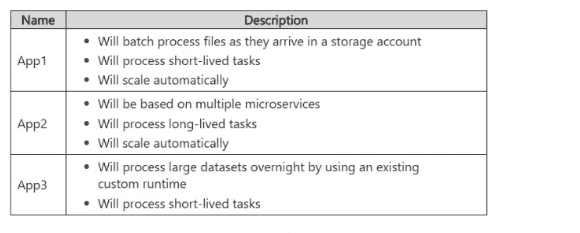
You need to recommend a compute solution for the apps.
What should you include in the recommendation for each app? To answer, drag the
appropriate recommendations to the correct apps. Each recommendation may be used
once, more than once, or not at all. You may need to drag the split bar between panes or
scroll to view content.
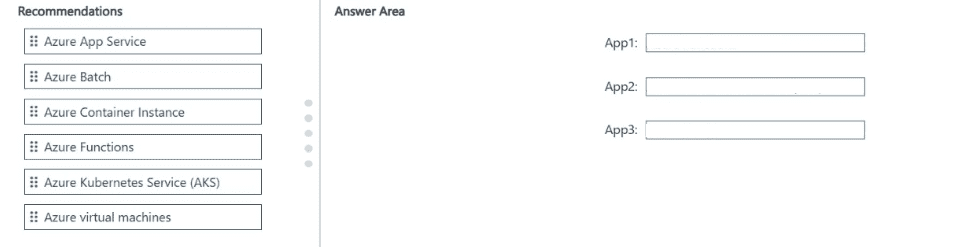
NOTE Each correct selection is worth one point.
Explanation
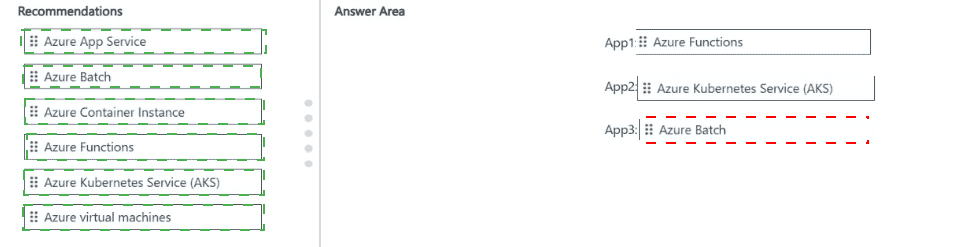
App1 → Azure Functions
Processes files as they arrive in a storage account → Perfect for event-driven triggers (Blob trigger).
Short-lived tasks → Serverless functions are designed for this.
Scale automatically → Functions have built-in auto-scaling (Consumption or Premium plan).
This is the most cost-effective and simplest option for short, event-based processing.
App2 → Azure Kubernetes Service (AKS)
Based on multiple microservices → AKS is the best platform for running and orchestrating multiple containerized microservices.
Long-lived tasks → Suitable for long-running processes (unlike Functions or Container Instances).
Scale automatically → AKS supports Horizontal Pod Autoscaler (HPA), Cluster Autoscaler, etc.
AKS gives you full orchestration capabilities needed for a microservices architecture.
App3 → Azure Batch
Process large datasets overnight → Azure Batch is purpose-built for large-scale, parallel batch computing jobs.
Uses an existing custom runtime → Batch supports custom container images or VM images with your own runtime.
Short-lived tasks (in the context of batch jobs) → Batch is excellent for scheduled, high-performance computing jobs that run and then shut down.
Much better than VMs (too manual) or Functions (not ideal for very large datasets or custom heavy runtimes).
Why Not the Others?
Azure App Service: Good for web apps, not for batch processing or microservices orchestration.
Azure Container Instances (ACI): Good for simple, short-lived containers, but lacks orchestration for microservices and advanced batch capabilities.
Azure Virtual Machines: Too much management overhead; not auto-scaling friendly for these scenarios.
You have an on-premises datacenter named Site1. Site1 contains a VMware vSphere
cluster named Cluster1 that hosts 100 virtual machines. Cluster1 is managed by using
VMware vCenter.
You have an Azure subscription named Sub1.
You plan to migrate the virtual machines from Cluster1 to Sub1.
You need to identify which resources are required to run the virtual machines in Azure. The
solution must minimize administrative effort.
What should you configure? To answer, drag the appropriate resources to the correct
targets. Each resource may be used once, more than once, or not at all. You may need to
drag the split bar between panes or scroll to view content.
NOTE: Each correct selection is worth one point.


Explanation:
To facilitate the migration using the standard Azure Migrate toolset, you must place the management and execution components in their correct environments:
1. Why the Azure Migrate Project belongs in Sub1:
The Azure Migrate project is a logical container and a service resource that lives within your Azure subscription (Sub1). It is used to store discovery, assessment, and migration metadata. You create this project in the Azure Portal to manage the entire migration lifecycle from the cloud side.
2. Why the Azure Migrate Appliance belongs in Cluster1:
The Azure Migrate appliance is a virtual machine (provided as an OVA template) that you deploy directly onto your on-premises VMware vSphere cluster (Cluster1).
It performs the local discovery of VMs.
It collects performance data for assessments.
It acts as the bridge to send data and VM disks to Azure during the migration process.
3. Addressing "Minimal Administrative Effort":
If the goal is to "minimize administrative effort" by maintaining the existing VMware operations, tools, and skillsets without refactoring the VMs for the Azure hypervisor, the architectural recommendation would often be Azure VMware Solution (AVS).
Azure VMware Solution private cloud: This would be the resource deployed in Sub1 to host the migrated VMs.
However, in the context of a standard "Azure Migrate" workflow (discovery and assessment), the Appliance and Project are the foundational resources required.
Key Takeaway for the Exam
When you see "Minimize administrative effort" in a VMware-to-Azure migration scenario:
If the goal is purely migration management: Use Azure Migrate Project (Cloud) and Appliance (On-premises).
If the goal is a seamless operational environment: Azure VMware Solution (AVS) is the primary recommendation because it allows you to run VMware natively in Azure without converting VM formats.
Reference
Microsoft Documentation: Azure Migrate appliance for VMware
Microsoft Documentation: About Azure VMware Solution
You have an Azure subscription.
You create a storage account that will store documents.
You need to configure the storage account to meet the following requirements:
• Ensure that retention policies are standardized across the subscription.
• Ensure that data can be purged if the data is copied to an unauthorized location.
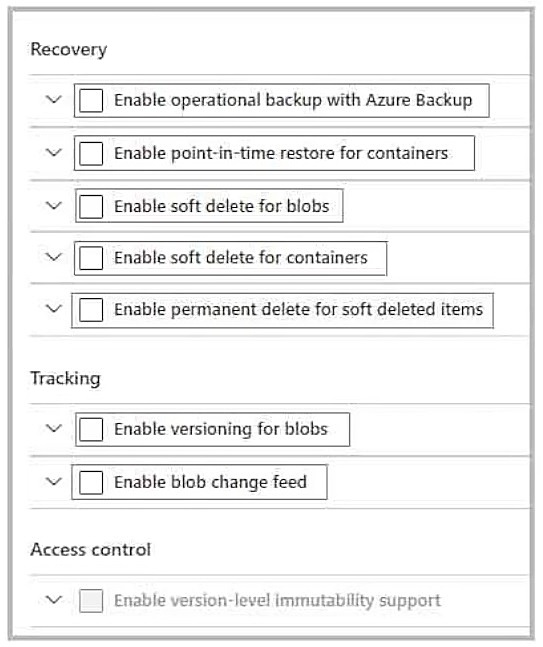
Which two settings should you enable? To answer, select the appropriate settings in the
answer area. NOTE: Each correct selection is worth one point.
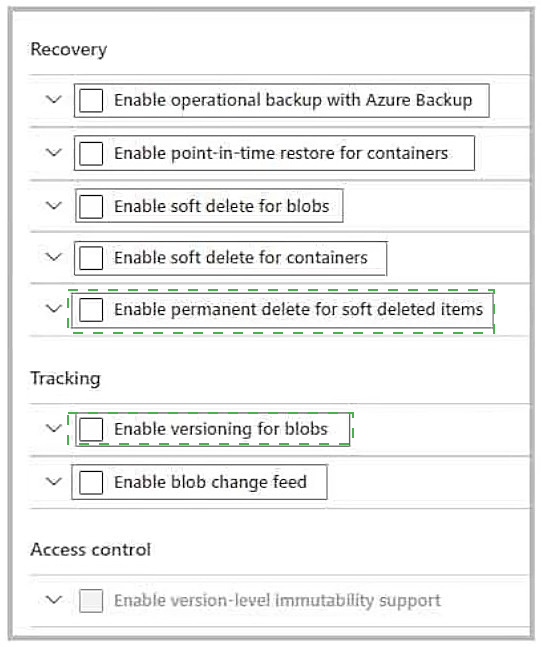
Explanation:
Enable operational backup with Azure Backup (Requirement: Standardize Retention Policies)
Why it fits: Azure Backup allows you to create a single, centralized backup policy that defines your retention rules. You can then associate this same policy with multiple storage accounts across your subscription. This ensures a consistent retention configuration everywhere, which directly fulfills the “standardized” requirement.
Supporting Rationale: While other features like blob versioning or soft-delete can be part of a data protection strategy, the operational backup solution is specifically designed to manage and apply consistent backup and retention policies across resources at scale.
Enable permanent delete for soft deleted items (Requirement: Purge Data)
Why it fits: When data is deleted, soft delete retains it for a configured period. If you need to ensure data can be immediately and irrevocably purged (for example, if it was leaked or copied to an unauthorized location), enabling this option allows you to permanently delete the soft-deleted data before the retention period expires.
Supporting Rationale: This feature directly grants the ability to perform a complete purge, which is essential for a rapid response to a data spillage scenario.
⚠️ Alternative Viewpoint and Considerations
It’s worth noting a common debated alternative that also makes logical sense:
Enable version-level immutability support – This is a prerequisite for using Azure Policy to enforce standardized immutability (WORM) retention policies across all storage accounts in a subscription.
Enable versioning for blobs – Combined with immutability, versioning ensures all previous states of a document are kept. If an unauthorized copy is discovered, you can rely on having a complete history, and the immutability policy prevents the deletion of those versions.
📚 Reference
The logic and community consensus for these specific answer choices are discussed in detail on platforms that aggregate exam preparation discussions.
You are building an Azure web app that will store the Personally Identifiable Information
(Pll) of employees.
You need to recommend an Azure SQL Database solution for the web app. The solution
must meet the following requirements:
• Maintain availability in the event of a single datacenter outage.
• Support the encryption of specific columns that contain Pll.
• Automatically scale up during payroll operations.
• Minimize costs.
What should you include in the recommendation? To answer, select the appropriate
options in the answer area.
NOTE: Each correct selection is worth one point.
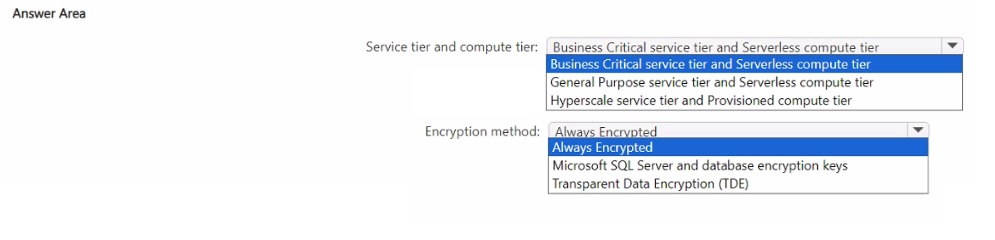
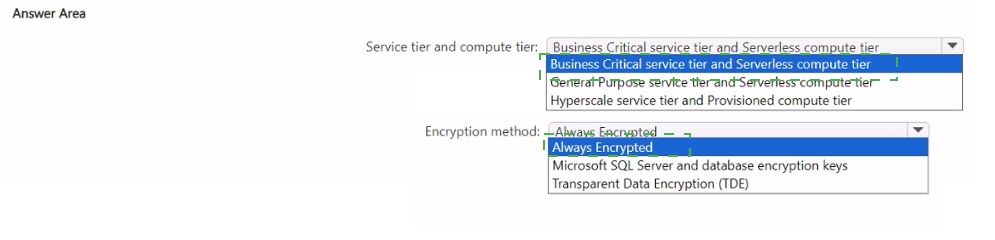
Explanation:
To meet the specific requirements for high availability, PII protection, and variable scaling while minimizing costs, here is the architectural breakdown for the recommendation:
1. Service tier and compute tier: General Purpose service tier and Serverless compute tier
Why General Purpose (Service Tier)?
The requirement is to maintain availability during a single datacenter outage. The General Purpose tier supports Zone Redundancy (available in specific regions). By enabling the zone-redundant configuration, Azure SQL Database automatically places replicas across different Availability Zones, protecting against a datacenter failure.
While Business Critical also offers this capability, it is significantly more expensive. Since the requirement is to minimize costs, General Purpose is the optimal choice.
Why Serverless (Compute Tier)?
The workload includes payroll operations, which are typically periodic (spiking once or twice a month).
The Serverless compute tier automatically scales compute (vCores) up during these active periods and scales back down (or even pauses) during inactive periods. This ensures you only pay for the resources used, directly addressing the "minimize costs" and "automatically scale" requirements.
2. Encryption method: Always Encrypted
Targeted PII Protection
The requirement explicitly mentions encrypting specific columns that contain PII (such as Social Security Numbers or bank details).
Always Encrypted vs. TDE
Transparent Data Encryption (TDE) encrypts the entire database at rest (the files on disk). It does not provide granular column-level protection or protect data from highly privileged users such as database administrators.
Always Encrypted ensures that sensitive data inside the columns is encrypted before it ever leaves the application. The database engine never sees the plaintext data. This makes it the preferred solution for protecting PII in Azure SQL.
Reference
Microsoft Documentation: Azure SQL Database Serverless
Microsoft Documentation: Always Encrypted - Database Engine
Microsoft Documentation: High availability for Azure SQL Database
You have an Azure subscription that contains the resources shown in the following table.
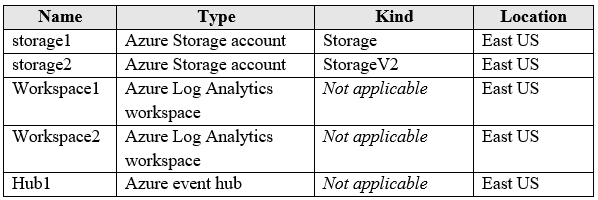
You create an Azure SQL database named DB1 that is hosted in the East US region.
To DB1, you add a diagnostic setting named Settings1. Settings1 archives SQLInsights to
storage1 and sends SQLInsights to Workspace1.
For each of the following statements, select Yes if the statement is true. Otherwise, select
No.
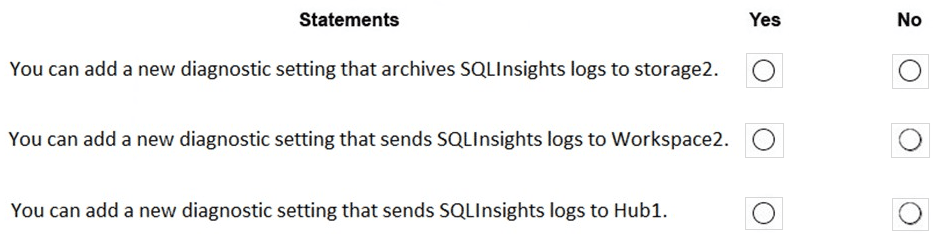
NOTE: Each correct selections is worth one point.
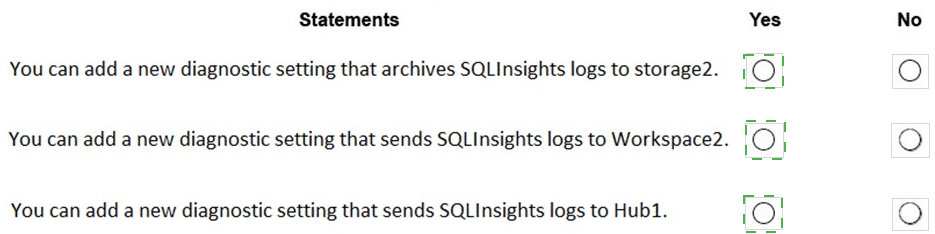
Explanation:
1. You can add a new diagnostic setting that archives SQLInsights logs to storage2.
Answer: Yes
A resource can have multiple diagnostic settings (up to 5). Each setting can specify its own storage account, Log Analytics workspace, or event hub. There is no restriction that a log category can only be archived to one storage account across settings. You can create a new setting that archives the same category (SQLInsights) to a different storage account (storage2). All resources are in the same region, so there is no blocking cross-region issue.
2. You can add a new diagnostic setting that sends SQLInsights logs to Workspace2.
Answer: Yes
Similar to above, you can send the same log category to multiple Log Analytics workspaces by creating separate diagnostic settings. The existing setting uses Workspace1, but a new setting can target Workspace2 without conflict.
3. You can add a new diagnostic setting that adds SQLInsights logs to Hub1.
Answer: Yes
Diagnostic settings support streaming logs to an Event Hub. There is no interdependency between existing storage or workspace destinations and adding an Event Hub destination. A new setting can stream SQLInsights to Hub1.
Reference
Create diagnostic settings in Azure Monitor – explains multiple settings per resource and destination flexibility.
You are designing a virtual machine that will run Microsoft SQL Server and contain two
data disks. The first data disk will store log files, and the second data disk will store data.
Both disks are P40 managed disks.
You need to recommend a host caching method for each disk. The method must provide
the best overall performance for the virtual machine while preserving the integrity of the
SQL data and logs.
Which host caching method should you recommend for each disk? To answer, drag the
appropriate methods to the correct disks. Each method may be used once, more than
once, or not at all. You may need to drag the split bar between panes or scroll to view
content.
NOTE: Each correct selection is worth one point.
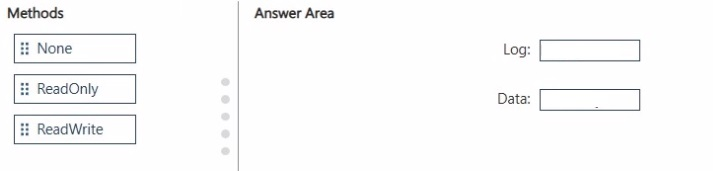
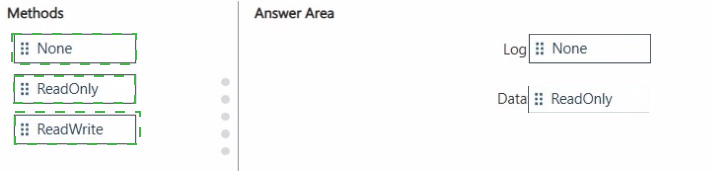
Explanation:
Key Reasoning
Log Files (None): SQL Server log operations are sequential and require immediate write-through to the disk to ensure ACID compliance. Enabling caching (Read or Write) on a log disk can cause data corruption during a power failure or crash because the write might be held in the host cache instead of being committed to the physical disk.
Data Files (ReadOnly): SQL data files benefit significantly from ReadOnly caching. It allows the VM to serve frequent read requests from the high-speed host SSD cache rather than the physical managed disk, reducing latency. ReadWrite caching is avoided for data files because it introduces the same risk of data loss or corruption as it does for logs.
Best Practices for SQL on Azure VMs
P40 Disks: These are Premium SSDs. Host caching is specifically designed to boost the performance of Premium and Standard SSD storage.
Integrity First: The rule is to never use Write caching for logs, and use ReadOnly caching for data files to balance performance and safety.
Reference
Performance best practices for SQL Server on Azure VMs
| Page 4 out of 36 Pages |