Free Microsoft AB-210 Practice Test Questions MCQs

Stop wondering if you're ready. Our Microsoft AB-210 practice test is designed to identify your exact knowledge gaps. Validate your skills with Accelerating Sales Pipelines with AI in Dynamics 365 questions that mirror the real exam's format and difficulty. Build a personalized study plan based on your free AB-210 exam questions mcqs performance, focusing your effort where it matters most.

Targeted practice like this helps candidates feel significantly more prepared for Accelerating Sales Pipelines with AI in Dynamics 365 exam day.

2690+ already prepared
Updated On : 12-Oct-2026
69 Questions
Accelerating Sales Pipelines with AI in Dynamics 365
4.9/5.0

Page 1 out of 7 Pages

Topic 1: AdventureWorks Case StudyBackgroundAdventureWorks Cycles is a global manufacturer of high-performance bicycles headquartered in Seattle. The company sells products through


Topic 1, AdventureWorks Case StudyBackgroundAdventureWorks Cycles is a global manufacturer of high-performance bicycles headquartered in Seattle. The company sells products through

distributors, specialty retailers, and a growing direct-to-consumer online channel. AdventureWorks Cycles recently expanded its product catalog to include the athlete package. This package includes a cycle, connected devices and subscription-based analytics services.

To support this expansion, the company wants to modernize its sales operations by implementing Microsoft Dynamics 365 Sales. The leadership team wants sellers to focus on building relationships with distributors and enterprise buyers rather than manually qualifying leads or assembling product packages.

The sales operations team is responsible for configuring the Dynamics 365 Sales environment. Their goal is to implement Al-driven processes that streamline the lead-to-cash workflow while ensuring that sellers can easily identify the most promising opportunities.

Current Environment AdventureWorks Cycles previously used a legacy CRM system that tracked leads and opportunities but lacked predictive intelligence or automated lead qualification. Sellers manually evaluate incoming leads, which creates delays and inconsistent prioritization.

The global sales team manages approximately 15,000 leads per month generated from marketing campaigns, trade shows, and partner referrals. Product data is stored in multiple systems. Product managers maintain products and pricing in spreadsheets. Information regarding custom relationships, competitor analysis, and region-specific marketing content is stored in a SharePoint site called the sales portfolio.

The organization has identified several challenges they want to resolve with a new solution:
Sellers often spend significant time researching leads that ultimately do not convert.
Regional managers require in-depth reporting using information from the sales pipeline and seller activities, the point-of-sale solution, website analytics, and the accounting system.
Multiple product offerings are difficult to manage because components are defined in different systems.
Team leads require real-time information on active opportunities, as well as visibility of seller's appointments and phone calls, without needing to navigate into multiple views.

All sellers are assigned Dynamics 365 Sales Enterprise licenses, Also, the CFO has requested that Copilot message packs are pre-purchased by using the Copilot Studio subscription license.

A Dynamics 365 sales sandbox environment has been in use for six months. There are 60 leads records with 30 records that are qualified and 20 that are disqualified. Ten of the qualified leads are over three months old.Business Requirements:AdventureWorks Cycles has defined the following business requirements for the production environment of Dynamics 365 Sales:

Sellers in all regions should be able to review the new mountaineer cycles. The cycles include economy and premium fittings. When creating opportunities, sellers should be able to select a metal type when adding a mountaineer cycle to an opportunity. The metal types include chrome, aluminum, and titanium.

Pricing managers must be able to create deals for the same products in their own currencies and at their own prices, without reference to the cost of the product. Sellers must be able to quickly view their own opportunities by phase.
Predictive scoring should be enabled for leads created within the last three months in the sandbox environment. This should provide seller training on the scoring's interpretation and usage.
A segment of leads named Hot is needed that will contain all leads where the source is phone, employee referral or partner. Leads from this segment should be distributed to sellers by using a round robin method.
Agents should not be able to take action on any data that is created in the production environment before they are started.
All sellers should be able to access disqualified leads.

Technical Information and Requirements:The new Dynamics 365 Sales environment must meet the following technical requirements:

Agents must use a dedicated service identity to execute write actions with a controlled security role in Dataverse.
The sales operations team lead must be assigned the Power Platform administrator role. The lead pricing manager must be assigned to the Microsoft 365 billing admin role. The vice president of sales must be assigned the Al admin role.

A sandbox and a production environment must be created. Both of the environments must be enabled for Al capacity, but usage should be capped on the sandbox environment.
A trial environment must be created, with the Sales Qualification Agent configured to business requirements.
Sellers must be assigned the security roles on the production environment only. All sellers must be assigned a customized version of the salesperson role. This role should grant read access only to the leads that the sellers own.
The EnableRoleBasedSystemViews property must be set to true for the production environment.

No Azure subscriptions are available in the tenant.

Issues:During early testing, the sales operations team identify the following issues:

The Sales Qualification Agent has disqualified several leads in the trial environment. The vice president of sales has requested to understand the reason for the disqualified leads.
Sellers are unable to create agents in the production environment.
Agent consumption has been unreliable. The company requires that Al capacity is always available to sellers

Note: This question is part of a series of questions that present the same scenario. Each question in the series contains a unique solution that might meet the stated goals. Some question sets might have more than one correct solution, while others might not have a correct solution.
After you answer a question in this section, you will NOT be able to return to it. As a result, these questions will not appear on the review screen.
You are deploying AI agents for a company using Microsoft Dynamics 365 Sales.
The company wants to ensure that AI usage is tracked and billed monthly.
The company requires that AI billing uses pre-paid credits.
You need to configure the billing based on the requirements.
Solution: Create a billing policy for the Dynamics 365 Sales environment.

A. Yes

B. No

B.    No

Explanation:

The solution does not meet the goal because creating a billing policy is not a valid configuration for tracking or billing AI usage with pre-paid credits in Dynamics 365 Sales.

Billing policies are a concept used in some Microsoft services (e.g., Azure Cost Management) to define rules for cost allocation and governance. However, they are not applicable to Dynamics 365 Sales or Power Platform for tracking AI credit consumption.

To track and bill AI usage with pre-paid credits in Dynamics 365 Sales, the correct actions include:
Purchasing AI credits (capacity add-ons) through the Microsoft 365 admin center.
Assigning AI capacity to the Dynamics 365 environment in the Power Platform admin center.
Monitoring AI credit consumption through the Power Platform admin center or Copilot Studio analytics.

Creating a billing policy does not:
Allocate AI capacity to the environment.
Track AI agent usage.
Enable pre-paid credit billing for AI services.

References:

Microsoft Learn – Dynamics 365 AI credits overview – Explains that AI capabilities are billed through pre-paid credits purchased via the Microsoft 365 admin center.

Note: This question is part of a series of questions that present the same scenario. Each question in the series contains a unique solution that might meet the stated goals. Some question sets might have more than one correct solution, while others might not have a correct solution.
After you answer a question in this section, you will NOT be able to return to it. As a result, these questions will not appear on the review screen.
You are deploying AI agents for a company using Microsoft Dynamics 365 Sales.
The company wants to ensure that AI usage is tracked and billed monthly.
The company requires that AI billing uses pre-paid credits.
You need to configure the billing based on the requirements.
Solution: Configure capacity overages to the billing plan on the Dynamics 365 Sales environment.
Does the solution meet the goal?

A. Yes

B. No

B.   No

Explanation:

The solution  does not meet the goal because configuring capacity overages does not enable pre-paid AI credit billing or monthly tracking of AI usage.

Capacity overages refer to scenarios where an organization exceeds its allocated storage or database capacity in Power Platform, and additional charges are incurred. This is a billing mechanism for storage and infrastructure, not for AI credits or AI agent usage.

To track and bill AI usage with pre-paid credits in Dynamics 365 Sales, the correct approach is:

* Purchase AI credits (also known as AI capacity add-ons) through the Microsoft 365 admin center.
* Assign AI capacity to the Dynamics 365 environment in the Power Platform admin center.
* Monitor AI credit consumption through the Power Platform admin center or Copilot Studio analytics.

Configuring capacity overages does not:

* Track AI agent usage.
* Enable pre-paid credit billing for AI services.
* Allocate AI capacity to the environment.

πŸ“š References:

* Microsoft Learn – Dynamics 365 AI credits overview – Explains that AI capabilities are billed through pre-paid credits purchased via the Microsoft 365 admin center.

Sales representatives work remotely and access Dynamics 365 Sales from mobile devices.
Meetings are created in Outlook for the sales team.
Users report that after installing the mobile app, they are unable to update meetings by setting the Regarding record in the mobile app.
You need to ensure users are able to track meetings to customer records without issues.
Which two actions should you perform? Each correct answer presents part of the solution. Choose two.
NOTE: Each correct selection is worth one point.

A. Enable server-side synchronization in your environment.

B. Approve the mailboxes for the users.

C. Configure a mobile offline profile.

D. Enable relevance search in Dataverse.

A.   Enable server-side synchronization in your environment.
B.   Approve the mailboxes for the users.

Explanation:

Users are unable to update meetings by setting the Regarding record in the mobile app. This issue is related to the synchronization of Outlook meetings with Dynamics 365 Sales. Meetings created in Outlook must be synchronized to Dynamics 365 to allow users to set the Regarding record and track them to customer records.

A. Enable server-side synchronization in your environment – Server-side synchronization is required to synchronize appointments, meetings, and emails between Outlook/Exchange and Dynamics 365. Without this enabled, meetings created in Outlook will not sync to Dynamics 365, and users cannot update the Regarding record in the mobile app.

B. Approve the mailboxes for the users – After enabling server-side synchronization, each user's mailbox must be approved in the Dynamics 365 mailbox configuration. This approval allows the system to synchronize email and appointment data for that user. If mailboxes are not approved, synchronization will not occur, and meetings will not be available in the mobile app for tracking.

❌ Why Other Options Are Incorrect:

C. Configure a mobile offline profile – A mobile offline profile defines which data is available offline on the mobile device. While this is useful for offline access, it does not affect the synchronization of meetings from Outlook. The issue is with synchronization, not offline availability.

D. Enable relevance search in Dataverse – Relevance search is a search feature that improves search results across records. It does not impact meeting synchronization or the ability to set the Regarding record. This is unrelated to the issue.

πŸ“š References:

* Microsoft Learn – Server-side synchronization – Explains how to enable synchronization for appointments and emails.

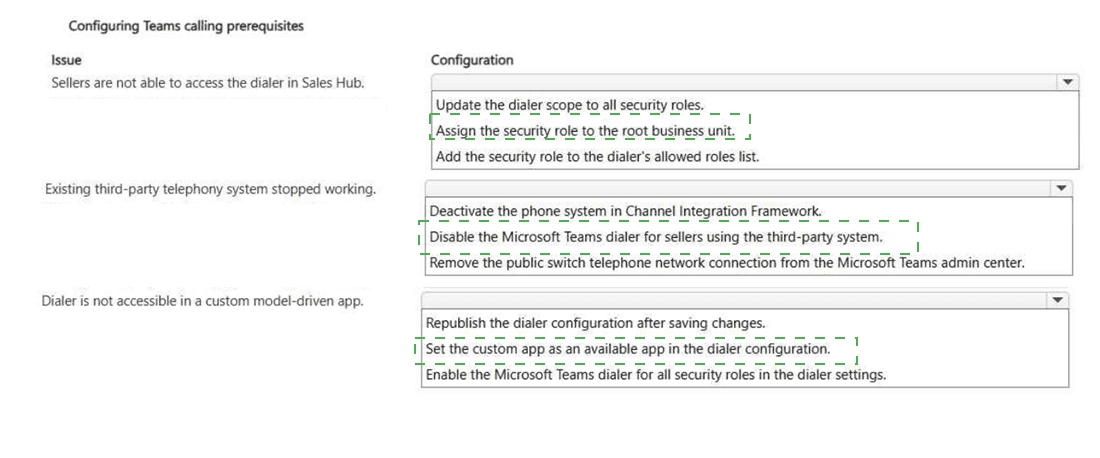
You are configuring Microsoft Teams calling for a company. The company uses Dynamics 365 Sales and Microsoft Teams. The Microsoft Teams dialer is enabled with all the prerequisites.

Sellers report the following issues:

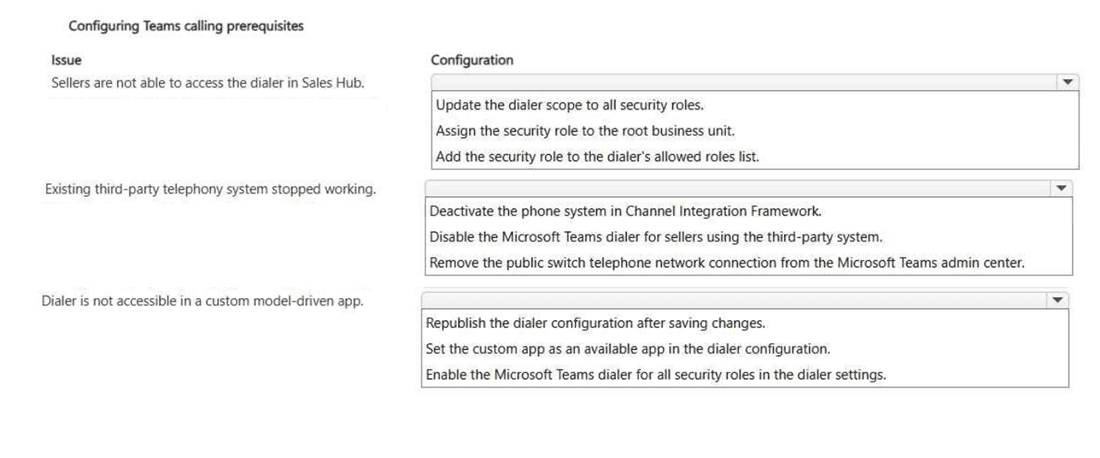
. The Microsoft Teams dialer is enabled and the security role is assigned in the dialer configuration, but sellers in the security role are not able to access the dialer in Sales Hub.
. Sellers report that their existing third-party telephony system stopped working in Sales.
. Sellers are able to use the Microsoft Teams dialer in Sales Hub, but sellers that are using a custom model-driven app are not able to access the dialer.

You need to resolve the issues.
How should you configure the Microsoft Teams dialer setup? To answer, select the appropriate options in the answer area.
NOTE: Each correct selection is worth one point.


Explanation:

Sellers in the security role are not able to access the dialer β†’ Add the security role to the dialer’s allowed roles list – Even though the security role is assigned to the users, the dialer configuration has an  allowed roles list that explicitly defines which roles can access the dialer. Simply assigning the role to users is not sufficient; the role must also be added to the dialer's allowed roles list to grant dialer access. This ensures that only specified roles can use the dialer.

Existing third-party telephony system stopped working in Sales β†’ Deactivate the phone system in Channel Integration Framework – When the Microsoft Teams dialer is enabled, it can conflict with existing third-party telephony systems integrated through the Channel Integration Framework (CIF). To resolve this, you must deactivate the phone system in the Channel Integration Framework. This disables the third-party integration, allowing the Teams dialer to function without conflicts.

Dialer is not accessible in a custom model-driven app β†’ Set the custom app as an available app in the dialer configuration – The Microsoft Teams dialer is not automatically available in all apps. For the dialer to appear in a custom model-driven app, you must set the custom app as an available app in the dialer configuration. This allows the dialer to be surfaced in the custom app's interface.

❌ Why Other Configurations Are Incorrect:

Update the dialer scope to all security roles – This is not the correct action for this issue. Scope determines which security roles can access the dialer, but the immediate fix for missing access is adding the specific role to the allowed list, not changing the scope globally.

Assign the security role to the root business unit – This is not related to dialer access. Business unit assignment determines data access, not the availability of the dialer feature.

Disable the Microsoft Teams dialer for sellers using the third-party system – This would disable the Teams dialer, which is the opposite of what you want. The issue is that the third-party system stopped working, so you should deactivate the third-party system, not disable Teams.

Remove the public switch telephone network connection from the Microsoft Teams admin center – This is an extreme action that would break all Teams calling, not just the integration with Sales. It is not the correct resolution.

Republish the dialer configuration after saving changes – This is a step to apply changes, but it does not address the specific issue of the custom app. Publishing is required after changes but is not the primary configuration for making the dialer available in a custom app.

Enable the Microsoft Teams dialer for all security roles in the dialer settings – This would grant dialer access to all roles, which is not secure or specific to the issue. The correct action is to add the specific security role to the allowed list.

πŸ“š References:

* Microsoft Learn – Configure Teams dialer allowed roles – Explains how to add security roles to the allowed list for dialer access.

A company uses Dynamics 365 Sales to manage opportunities using a custom form.
Sellers spend significant time manually reviewing information about opportunities before contacting customers.
You need to reduce the time required for reviewing opportunities.
What should you add to the form?

A. Opportunity summary

B. Up next

C. Health score

D. Predictive opportunity scoring

E. Timeline highlights

A.   Opportunity summary

Explanation:

Sellers spend significant time manually reviewing information about opportunities before contacting customers. To reduce this time, you should add the  Opportunity summary to the form. The Opportunity summary is an AI-powered component that provides a concise, contextual overview of the opportunity, including key details such as recent activities, upcoming tasks, and relevant insights.

A. Opportunity summary – This feature synthesizes information from the opportunity record, timeline, and related activities into a single, easy-to-read summary. It helps sellers quickly understand the current status of an opportunity without having to scroll through multiple sections or review each activity individually. This directly reduces the time required for opportunity review.

❌ Why Other Options Are Incorrect:

B. Up next – The "Up next" feature suggests the next best action for the seller (e.g., follow-up task, email, meeting). While helpful, it focuses on recommending an action rather than summarizing the opportunity's history and context, which is what the requirement asks for.

C. Health score – Health score is a measure of the overall health of an opportunity based on AI analysis. While it provides a quick indicator of deal health, it does not provide the comprehensive context or summary of the opportunity's history and activities.

D. Predictive opportunity scoring – Predictive opportunity scoring provides a score indicating the likelihood of winning an opportunity. It is useful for prioritization but does not summarize the opportunity's history or recent activities.

E. Timeline highlights – Timeline highlights show a few key activities from the timeline, but they are not as comprehensive or contextual as the Opportunity summary. The summary provides a more complete overview, including recent emails, meetings, tasks, and notes in a narrative format.

πŸ“š References:

Microsoft Learn – Opportunity summary – Explains how the Opportunity summary provides a contextual overview to help sellers quickly understand opportunities.

A sales team contacts customers to promote and sell products.
You need the sales team to place outbound calls directly from Dynamics 365 Sales records using Microsoft Teams.
You need to enable calling directly from records.
What should you configure?

A. Configure phone numbers for outbound calling.

B. Enable the Microsoft Teams dialer.

C. Install the Dynamics 365 Sales mobile app.

D. Enable Microsoft Teams meeting integration.

B.   Enable the Microsoft Teams dialer.

Explanation:

To place outbound calls directly from Dynamics 365 Sales records using Microsoft Teams, you must enable the  Microsoft Teams dialer. This feature integrates Teams calling capabilities directly into the Dynamics 365 Sales interface, allowing sellers to initiate calls from records (e.g., leads, opportunities, contacts) with a single click.

B. Enable the Microsoft Teams dialer – The Teams dialer must be enabled in the Dynamics 365 Sales settings. Once enabled, sellers see a call button on records, and clicking it initiates an outbound call through Teams. The call is automatically logged in the timeline, and if configured, call recordings and transcripts can be captured.

❌ Why Other Options Are Incorrect:

A. Configure phone numbers for outbound calling – Phone numbers are required for the dialer to function, but the primary action is enabling the dialer itself. Configuring phone numbers is a prerequisite or supporting task, not the main configuration. The question asks what you should configure to enable calling, which is the Teams dialer.

C. Install the Dynamics 365 Sales mobile app – The mobile app is a separate application for accessing Dynamics 365 on mobile devices. It does not enable the Teams dialer in the main Sales app. The Teams dialer can be used in both web and mobile environments, but installation of the mobile app is not required to enable the dialer.

D. Enable Microsoft Teams meeting integration – Teams meeting integration allows sellers to schedule and join Teams meetings from Dynamics 365 records. This is different from the dialer, which is used for direct outbound calls. Meeting integration does not enable outbound calling.

πŸ“š References:

* Microsoft Learn – Microsoft Teams dialer in Dynamics 365 Sales – Explains how to enable and use the Teams dialer for outbound calls.

You manage Dynamics 365 Sales for a company.
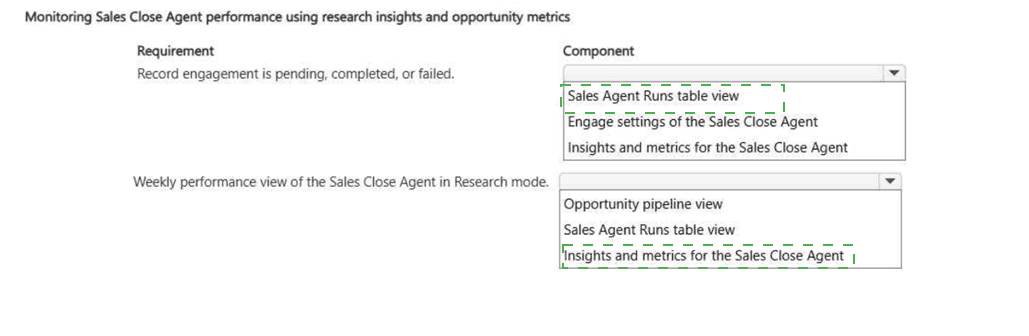
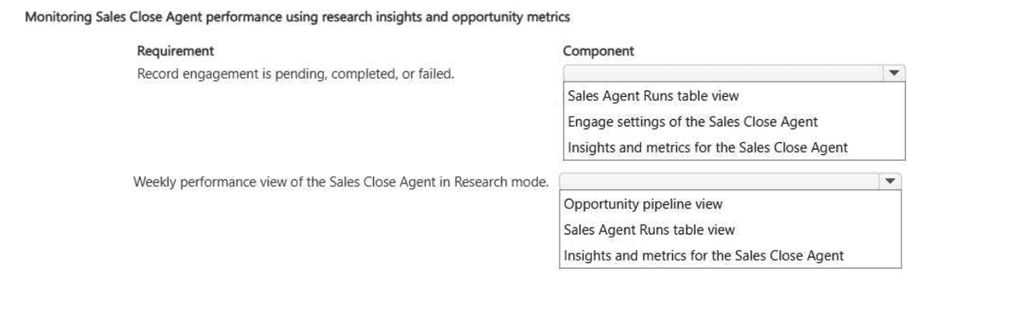
A sales manager wants a weekly performance view of the Sales Close Agent in Research mode.
The sales manager also reports that a specific Opportunity stopped receiving automated outreach from the Sales Close Agent in Engage mode.

You need to do the following:

. Determine if the engagement for the opportunity record is pending, completed, or failed.
. Provide a performance view that includes the Last refreshed and the time period filter.

You need to identify the correct monitoring metrics for each requirement.
Which metrics should you review? To answer, select the appropriate options in the answer area.
NOTE: Each correct selection is worth one point.


Explanation:

Determine if the engagement for the opportunity record is pending, completed, or failed β†’ Sales Agent Runs table view – The  Sales Agent Runs table view provides a detailed, record-level view of each engagement attempt made by the Sales Close Agent. It shows the status of each engagement for a specific opportunity, including whether it is  pending,  completed, or  failed. This view allows administrators and managers to drill into individual records to troubleshoot why a specific opportunity stopped receiving automated outreach.

Provide a weekly performance view that includes Last refreshed and the time period filter β†’ Insights and metrics for the Sales Close Agent – The  Insights and metrics dashboard provides an aggregated, high-level performance view of the Sales Close Agent. It includes key metrics such as total engagements, success rates, and failure rates. This dashboard also features a  Last refreshed timestamp (indicating when the data was last updated) and a time period filter (allowing users to view performance by week, month, or custom range). This is the correct place for a weekly performance view.

❌ Why Other Options Are Incorrect:

Engage settings of the Sales Close Agent – Engage settings are used to configure the agent's behavior (e.g., email templates, sequences, compliance rules). They do not provide performance metrics or engagement status for individual records.

Opportunity pipeline view – The pipeline view displays opportunities by stage and revenue but does not show engagement status (pending, completed, failed) or provide agent performance metrics. It is used for deal progression, not agent monitoring.

πŸ“š References:

* Microsoft Learn – Monitor Sales Close Agent – Explains how to use the Sales Agent Runs table view to check engagement status.

A company tracks opportunities using the pipeline view.
The sales managers want pipeline stages configured so they can quickly identify deal progress.

The configuration must meet the following requirements:

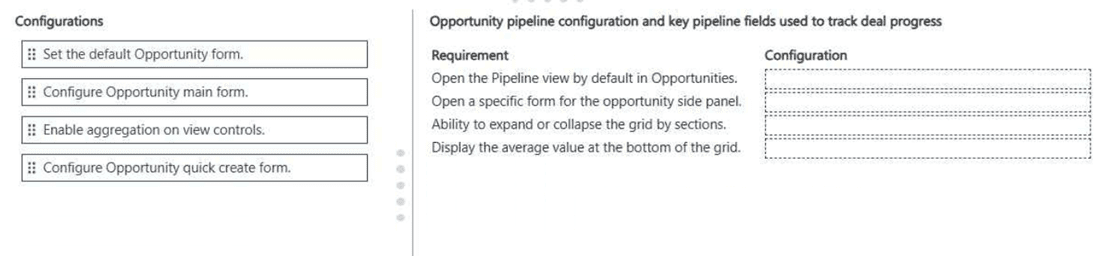
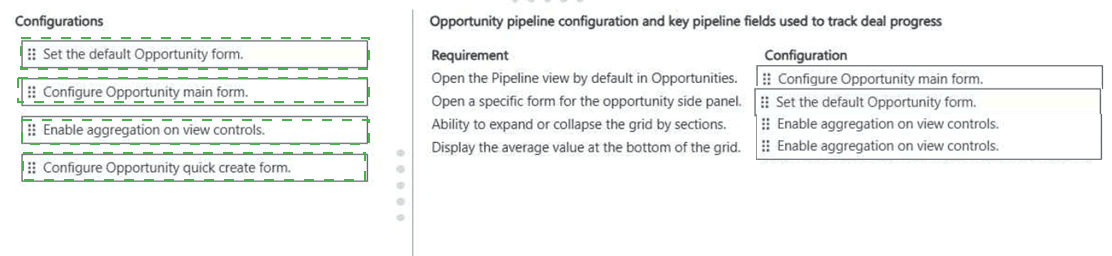
. Open the Pipeline view by default in Opportunities.
. Open a specific form for the opportunity side panel.
. Provide the ability to expand or collapse the grid by sections, for example Owner or Account.
. Display the average value at the bottom of the grid.

You need to identify the opportunity configuration.
Which configuration should you apply for each requirement? To answer, move the appropriate configurations to the correct requirements. You may use each configuration once, more than once, or not at all. You may need to move the split bar between panes or scroll to view content.
NOTE: Each correct selection is worth one point


Explanation:

Open the Pipeline view by default in Opportunities β†’ Set the default Opportunity form – The Pipeline view is a specific view within the Opportunity form. To ensure that sellers see the Pipeline view by default when they navigate to Opportunities, you must set the default Opportunity form to the one that includes the Pipeline view as the default view. This configuration determines which form and view are displayed first.

Open a specific form for the opportunity side panel β†’ Configure Opportunity main form – The side panel in the opportunity pipeline view displays details of the selected opportunity. To control which form appears in this side panel, you must configure the Opportunity main form. You can define the specific form that should be used for the side panel display, ensuring sellers see the right fields and layout.

Provide the ability to expand or collapse the grid by sections β†’ Configure Opportunity main form – The ability to expand or collapse grid sections (e.g., by Owner, Account, or Stage) is a property of the Opportunity main form. When you configure the main form, you can enable grouping and section expansion/collapse in the pipeline view. This setting is part of the form's grid configuration.

Display the average value at the bottom of the grid β†’ Enable aggregation on view controls – To display summary values (such as the average estimated revenue) at the bottom of the grid, you must enable aggregation on view controls. This setting allows you to configure column aggregations (e.g., Sum, Average, Min, Max) for the Pipeline view, which then appear in the grid footer.

❌ Why Other Configuration Is Incorrect:

Configure Opportunity quick create form – The quick create form is used for quickly creating new opportunities from other areas of the application. It is not used for configuring the Pipeline view, the side panel, grid sections, or aggregations. This is not applicable to any of the requirements.

πŸ“š References:

* Microsoft Learn – Configure pipeline view – Explains how to set default views and configure grid settings.

A sales company uses the Sales Qualification Agent to evaluate inbound leads. A sales manager updates the qualification criteria to better align with the target customer profile.

After the update, monitoring data shows the following:

. A shift in how leads are categorized compared to earlier results.
. Continued processing of incoming leads.
. No gaps in evaluation activity.

You need to interpret the monitoring data to understand the agent's behavior.
What should you conclude?

A. Changes in outcome distribution indicate that additional tuning may be required.

B. Differences between current and prior results indicate that earlier evaluations were incomplete.

C. Variation in categorization suggests that external factors are influencing lead evaluation.

D. Lead outcomes reflect updated evaluation criteria applied during processing.

D.   Lead outcomes reflect updated evaluation criteria applied during processing.

Explanation:

The sales manager updated the qualification criteria to better align with the target customer profile. The monitoring data shows:

* A shift in how leads are categorized compared to earlier results.
* Continued processing of incoming leads.
* No gaps in evaluation activity.

This data indicates that the agent is functioning as expected after the update.

D. Lead outcomes reflect updated evaluation criteria applied during processing – The shift in categorization is a direct result of the updated qualification criteria. The agent is now evaluating leads based on the new rules, which naturally changes how leads are classified (e.g., more leads may be disqualified or qualified based on the revised profile). Since processing continues without gaps, the agent is actively applying the new criteria to all incoming leads. This is expected and correct behavior.

❌ Why Other Options Are Incorrect:

A. Changes in outcome distribution indicate that additional tuning may be required – A shift in outcomes does not automatically mean additional tuning is required. The shift is expected because the criteria were intentionally updated. Additional tuning would only be needed if the outcomes were inconsistent or not aligned with business goals, but the data does not indicate that.

B. Differences between current and prior results indicate that earlier evaluations were incomplete – Differences between current and prior results do not mean earlier evaluations were incomplete. The differences are due to the criteria change, not because the previous evaluations were flawed or incomplete.

C. Variation in categorization suggests that external factors are influencing lead evaluation – The variation is not due to external factors; it is a direct result of the updated criteria. The agent is applying the new rules consistently, and external factors are not indicated by the data.

πŸ“š References:

* Microsoft Learn – Monitor Sales Qualification Agent – Explains how to interpret shifts in lead categorization after updating criteria.

Sellers at a company require access to Dynamics 365 Sales from mobile devices.
Some sellers cannot access records after installing the sales mobile app.
You need to ensure that the sellers can use the mobile application.
Which two components should you configure? Each correct answer presents part of the solution. Choose two.
NOTE: Each correct selection is worth one point.
A. Configure the mobile offline profile.

B. Configure inbound and outbound profiles.

C. Configure mobile security roles.

D. Assign appropriate user licenses.

C.   Configure mobile security roles.
D.   Assign appropriate user licenses.

Explanation:

When the Sales Close Agent encounters an engagement failure (e.g., an email fails to send, a task cannot be created, or an API call times out), it does not continuously retry indefinitely. Instead, the agent  stops retrying for that specific record to prevent duplicate or excessive processing.

B. Stops retrying for that record unless an administrator uses Apply changes in the agent settings to reprocess already-handled records – This is the correct behavior. Once an engagement fails, the agent marks the record and ceases further attempts. An administrator can then use the Apply changes option in the agent settings to reprocess previously handled (failed) records. This gives administrators control over retrying failed engagements without causing system performance issues or duplicate actions.

❌ Why Other Options Are Incorrect:

A. Retries once after 24 hours. If it fails again, the record is immediately marked Completed to prevent duplicate processing – The agent does not retry after 24 hours, nor does it mark failed records as "Completed." Completed status indicates successful processing, which would be misleading for failed engagements.

C. Retries indefinitely every few minutes until successful – Indefinite retries every few minutes would cause significant system load and performance degradation. The agent does not behave this way; it stops after failure to avoid resource exhaustion.

D. Retries up to three times within the next hour. If those attempts fail, the system retries over the next three days. If the agent continues to fail, it is marked as a failure – This describes a more complex retry policy that does not match the actual behavior of the Sales Close Agent. The agent does not have a multi-day retry window; it stops after the initial failure.

πŸ“š References:

* Microsoft Learn – Troubleshoot Sales Close Agent – Explains that failed engagements stop retrying and require administrator action to reprocess.

Page 1 out of 7 Pages
123

Accelerating Sales Pipelines with AI in Dynamics 365 Practice Exam Questions