Topic 2: Misc. Questions
You create workflows to automate business processes.
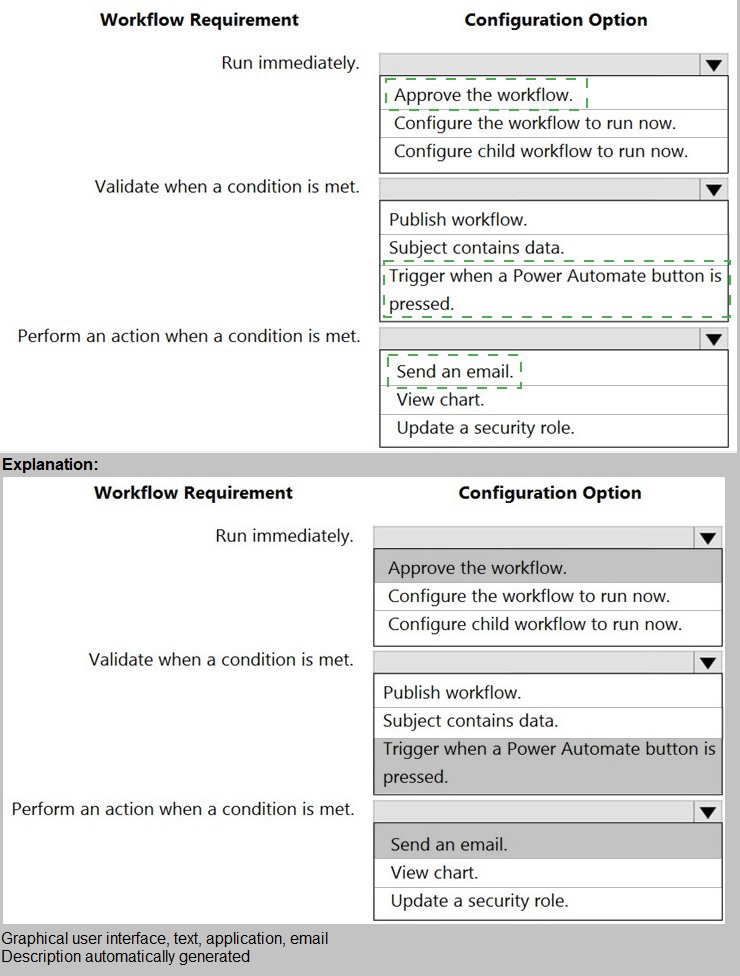
You need to create a workflow that automatically sends emails based on a mail merge template. The workflow must contain the following configurations:
Run immediately.
Validate when a condition is met.
Perform an action when a condition is met.
To answer, select the appropriate configuration in the answer area.
NOTE: Each correct selection is worth one point.

Explanation
This question tests your knowledge of classic Dataverse workflow configuration options. Workflows in Dataverse can be configured to run immediately (real-time workflows) and include conditional logic. The requirements specify three distinct configuration elements: when the workflow executes, how conditions are evaluated, and what action occurs when conditions are met. Each needs the appropriate selection from the available options.
Correct Answers:
Requirement 1: Run immediately
Action: Configure the workflow to run now
"Run immediately" in Dataverse workflows refers to real-time workflows that execute instantly when triggered, rather than as background processes. The correct configuration option to achieve this is to select "Run immediately" or "Configure the workflow to run now" in the workflow properties. This ensures the workflow executes in real-time when the trigger conditions are met.
Requirement 2: Validate when a condition is met
Action: Check Condition (Step 1)
In Dataverse workflow design, to validate when a condition is met, you add a "Check Condition" step. This allows you to specify logical conditions that must be true for subsequent actions to execute. The workflow evaluates these conditions at runtime and only proceeds down the conditional branch when the specified criteria are satisfied.
Requirement 3: Perform an action when a condition is met
Action: Send an email
The scenario specifically states the workflow must automatically send emails based on a mail merge template. When the condition is met, the appropriate action is to add a "Send an Email" step that uses the mail merge template to generate and send personalized emails using data from the record that triggered the workflow.
Incorrect Options:
Approve the workflow: This is for workflow approval processes, not for executing the workflow itself
Configure child workflow to run now: This runs a separate workflow, not the main workflow being configured
Publish workflow: This makes the workflow available but doesn't configure its execution timing
Subject contains data: This is a condition option, not an action
Trigger when a Power Automate button is pressed: This is for modern flows, not classic workflows
View chart: Not relevant to workflow configuration
Update a security role: While possible in workflows, doesn't meet the email requirement
Reference
Microsoft Learn: Classic Dataverse workflows overview
Microsoft Learn: Configure real-time workflows in Dataverse
Microsoft Learn: Use conditions in workflows
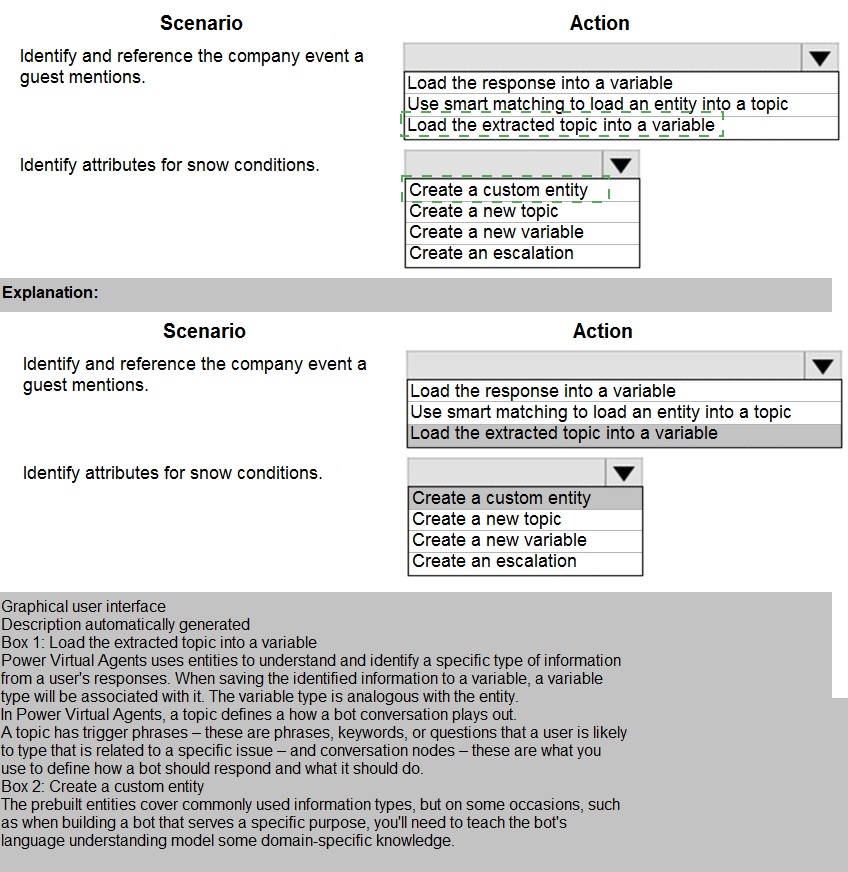
A guest asks about the start time of a specific scheduled event and wants to know what the snow conditions will be like during their stay.
You need to determine how to design the chat solution to answer those questions.
What should you do? To answer, select the appropriate options in the answer area. NOTE: Each correct selection is worth one point.
Explanation
This question tests your ability to design a Power Virtual Agents chatbot solution that can handle two distinct types of user inquiries. The first scenario requires identifying and referencing a specific company event mentioned by the guest. The second scenario involves capturing attributes about snow conditions. Each requires different design approaches using entities, variables, and conversation flow techniques.
Correct Answers:
Scenario 1: Identify and reference the company event a guest mentions
Action: Use smart matching to load an entity into a topic
When a guest mentions a specific event, the chatbot needs to recognize which event they're referring to. Smart matching allows the bot to identify the event from user input and load it as an entity value. This entity can then be referenced throughout the conversation to answer questions about that specific event, such as its start time. The entity provides a structured way to capture and reference the event information.
Scenario 2: Identify attributes for snow conditions
Action: Load the response into a variable
Snow conditions involve multiple attributes (e.g., depth, temperature, quality) that the guest may ask about. Rather than trying to create complex entities for every possible snow condition, loading the response into a variable allows the chatbot to capture the user's question and potentially use it to query a data source or pass to a Power Automate flow that retrieves current snow condition information.
Incorrect Options:
Load the extracted topic into a variable: Topics are conversation flows, not data that gets stored about user requests
Create a custom entity: While possible for event names, smart matching with existing entities is more efficient for identifying specific events
Create a new topic: Topics define conversation flows, not the method for capturing event identification
Create a new variable: Variables store data but don't identify entities on their own
Create an escalation: Escalation hands off to a human agent, which isn't required for these scenarios
Reference
Microsoft Learn: Use entities in Power Virtual Agents
Microsoft Learn: Use variables in Power Virtual Agents conversations
Microsoft Learn: Smart matching in Power Virtual Agents
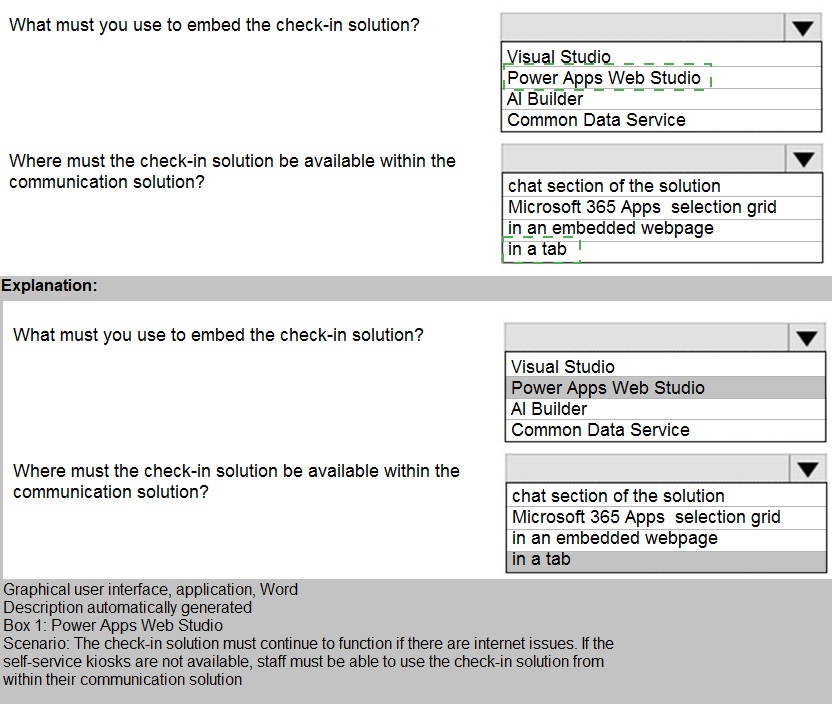
You need to embed the check-in solution into the communication solution. To answer, select the appropriate options in the answer area.NOTE: Each correct selection is worth one point

Explanation
This question focuses on embedding a custom solution (check-in functionality) into an existing communication solution, likely within Microsoft Teams. The scenario requires selecting both the appropriate development tool to create/embed the solution and the specific location within the communication solution where it should be made available for users to access.
Correct Answers:
What must you use to embed the check-in solution?
Action: Power Apps Web Studio
Power Apps Web Studio (also known as Power Apps Studio) is the primary design tool for creating and embedding canvas apps into Microsoft Teams. Since the check-in solution needs to be embedded into the communication solution, Power Apps Web Studio provides the capabilities to build the check-in app and integrate it directly with Teams through the "Add to Teams" functionality or by creating the app within the Teams environment.
Where must the check-in solution be available within the communication solution?
Action: in a tab
Microsoft Teams uses tabs to embed applications and content within channels or chats. For the check-in solution to be accessible within the communication solution, it should be added as a tab. This provides users with a dedicated, easily accessible location within the Teams interface where they can perform check-in functions without leaving the communication solution context.
Incorrect Options:
For embedding tool:
Visual Studio: This is for professional developers creating complex custom applications, not for quickly embedding Power Platform solutions into Teams
AI Builder: This is for adding AI capabilities, not for embedding solutions into Teams
Common Data Service: This is the data platform, not a tool for embedding solutions
For availability location:
chat section of the solution: Chat is for conversations, not for hosting embedded applications
Microsoft 365 Apps selection grid: This is for adding apps to the Teams app catalog, not for making them available within a specific communication solution
in an embedded webpage: While technically possible, tabs are the standard Teams pattern for embedding custom solutions
Reference
Microsoft Learn: Embed a canvas app as a tab in Microsoft Teams
Microsoft Learn: Create apps in Microsoft Teams with Power Apps
Microsoft Learn: Add tabs to Teams channels and chats
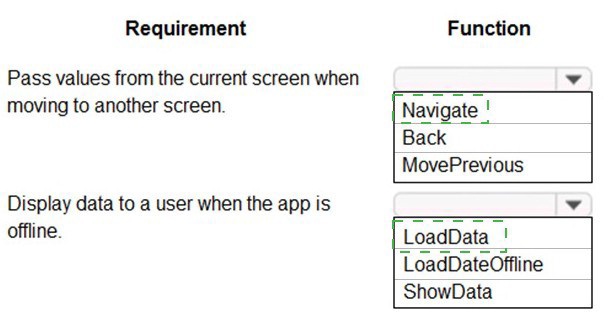
You are designing a canvas app that connects to Common Data Service.
You need to configure the app to meet the requirements and ensure that the canvas app is available offline.
What should you implement? To answer, select the appropriate options in the answer area.
NOTE: Each correct selection is worth one point.
Explanation
This question tests your knowledge of Power Apps canvas app functions for navigation and offline capabilities. The first requirement involves passing values between screens during navigation, which requires specific navigation functions. The second requirement involves displaying data when offline, which requires functions that can retrieve locally cached data from the device.
Correct Answers:
Requirement 1: Pass values from the current screen when moving to another screen
Function: Navigate
The Navigate function in Power Apps is used to change which screen is displayed. Importantly, Navigate accepts an optional argument that allows you to pass context variables to the destination screen. For example: Navigate(Screen2, ScreenTransition.Fade, {CustomerID: 123, CustomerName: "Text"}) passes values that can be referenced on the destination screen. This is the standard way to pass data between screens.
Requirement 2: Display data to a user when the app is offline
Function: LoadData
The LoadData function reads data that was previously saved to the device using the SaveData function. When building offline-capable apps, you use SaveData to cache Dataverse records locally, then use LoadData to retrieve that cached data when the device is offline. This function specifically loads collections from the local device storage, enabling offline data display.
Incorrect Options:
Back: This function returns to the previous screen but cannot pass new values to that screen. It only navigates backward without passing parameters.
MovePrevious: This is a gallery control function for navigating through records, not for screen navigation.
LoadDateOffline: This is not a valid Power Apps function. There is no such function in the Power Apps formula reference.
ShowData: This is not a specific Power Apps function for offline scenarios. It's a generic term, not an actual function name.
Reference
Microsoft Learn: Navigate function in Power Apps
Microsoft Learn: LoadData and SaveData functions in Power Apps
Microsoft Learn: Build offline-capable canvas apps
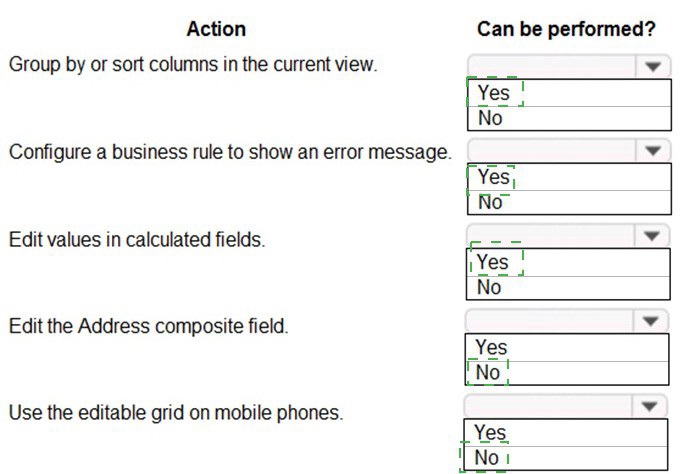
You implement an editable grid for the Account entity.
The business team provides the following list of features that they would like you to implement:
Group by or sort columns in the current view.
Configure a business rule to show an error message.
Edit values in calculated fields.
Edit the Address composite field.
Use the editable grid on mobile phones.
Which actions can you perform? To answer, select the appropriate options in the answer area.
NOTE: Each correct selection is worth one point
Explanation
This question tests your knowledge of editable grid (editable subgrid) capabilities and limitations in model-driven apps. Editable grids provide inline editing capabilities but have specific restrictions on what features are supported. Understanding these limitations is crucial for properly designing forms and communicating capabilities to business teams.
Correct Answers:
Group by or sort columns in the current view
Answer: No
Editable grids do not support grouping or sorting columns directly within the grid. While you can sort by clicking column headers in read-only grids, editable grids have limitations on interactive data manipulation features. Users cannot group data within an editable grid view.
Configure a business rule to show an error message
Answer: Yes
Business rules that show error messages are supported in editable grids. When a user enters invalid data that violates a business rule condition, the error message will display appropriately within the grid, providing real-time validation feedback to users as they edit records inline.
Edit values in calculated fields
Answer: No
Calculated fields are read-only in editable grids. Since calculated field values are determined by a formula based on other field values, they cannot be directly edited by users. If users need to change the result, they must edit the source fields that feed into the calculation.
Edit the Address composite field
Answer: No
Composite fields (like Address, which contains street, city, state, etc.) cannot be edited directly within an editable grid. Composite fields require the full form for editing as they consist of multiple component fields. In editable grids, composite fields appear as read-only.
Use the editable grid on mobile phones
Answer: No
Editable grids are not supported on mobile phones due to screen size constraints and touch interaction limitations. On mobile devices, the grid reverts to a read-only view, and users must open individual records to edit them. Editable grids are designed for desktop and tablet experiences with larger screens.
Reference
Microsoft Learn: Editable grids in model-driven apps
Microsoft Learn: Limitations of editable grids
Microsoft Learn: Use business rules with editable grids
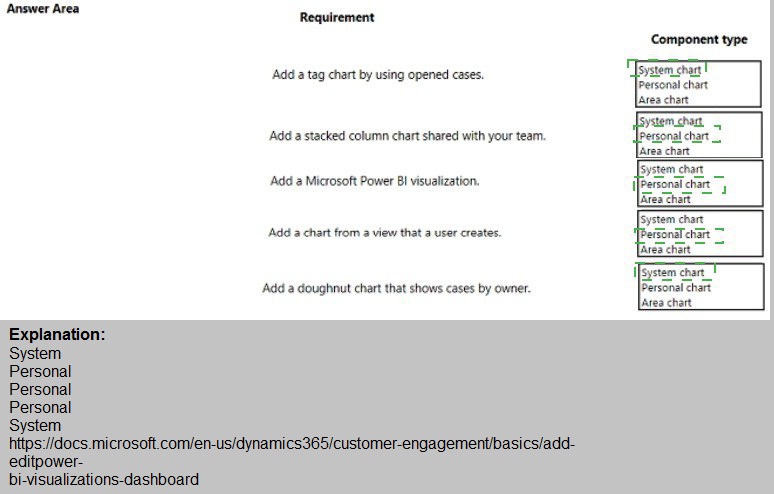
You ate a Dynamics 365 help desk administrator You need to create a dashboard that displays information on help desk cases that ate handled each week. Which dashboard components should you use? To answer, select the appropriate options in the answer area. NOTE: Each correct selection is worth one point.
Explanation
This question tests your understanding of dashboard component types in Dynamics 365/model-driven apps. Different chart types have different visibility and ownership scopes. System charts are available to all users, while personal charts are visible only to the user who created them. The requirements specify different sharing and ownership needs for each dashboard component.
Correct Answers:
Requirement 1: Add a tag chart by using opened cases
Component type: System chart
A tag chart (often a word cloud or similar visualization) showing opened cases should be a system chart so all help desk team members can see the same view of case openings. System charts are available organization-wide and provide consistent data visualization for all users.
Requirement 2: Add a stacked column chart shared with your team
Component type: System chart
Since the chart needs to be shared with your team, it must be a system chart. Personal charts are only visible to the individual who created them and cannot be shared with others. System charts can be seen by all users with appropriate permissions, making them the correct choice for team visibility.
Requirement 3: Add a Microsoft Power BI visualization
Component type: (No selection needed from the given options)
Power BI visualizations are added as Power BI tiles in dashboards and are not classified as system or personal charts. They are a separate component type that embeds Power BI reports directly into Dynamics 365 dashboards. The options provided (System chart, Personal chart, Area chart) do not apply to Power BI visualizations.
Requirement 4: Add a chart from a view that a user creates
Component type: Personal chart
When a user creates a chart from a view they have created, this results in a personal chart. Personal charts are user-specific and based on personal views. They are not visible to other users unless specifically shared, which aligns with the concept of a chart created from a user's personal view.
Requirement 5: Add a doughnut chart that shows cases by owner
Component type: System chart
A doughnut chart showing cases by owner should be a system chart to provide consistent ownership visibility across the entire help desk team. System charts ensure all team members see the same distribution of cases by owner, which is important for workload management and team coordination.
Reference
Microsoft Learn: Create and edit system charts in Dynamics 365
Microsoft Learn: Create personal charts in model-driven apps
Microsoft Learn: Add Power BI visualizations to dashboards
You have a business process flow (BPF) that interacts with the Account entity.
You configure a new version for the BPF and add a new stage at the beginning.
You need to identify the impact of the new version on the existing account records.
What is the outcome in each scenario? To answer, select the appropriate options in the
answer area. NOTE: Each correct selection is worth one point.

Explanation
This question tests your knowledge of Business Process Flow versioning behavior in Dynamics 365/Dataverse. When you create a new version of a BPF and add a stage at the beginning, existing records and new records behave differently. Understanding this distinction is crucial for managing process changes without disrupting ongoing work.
Correct Answers:
What happens to existing accounts?
Answer: Existing accounts show the old BPF.
When you activate a new version of a Business Process Flow, existing records that were already in progress continue to use the old BPF version. This ensures that work in progress is not disrupted by process changes. The old BPF remains associated with accounts that had already started the process, maintaining consistency for those records.
What happens to new accounts?
Answer: The new BPF is showing in a new account.
New accounts created after the new BPF version is activated will automatically use the new version of the Business Process Flow. The new BPF with the additional stage at the beginning will be applied to all new records, ensuring that new work follows the updated process from the start.
Why This Happens:
Process continuity: Existing records need to complete their current process without disruption
Version coexistence: Multiple BPF versions can be active simultaneously
Automatic assignment: New records automatically get the latest active version
Data integrity: Prevents data loss or process errors that could occur if in-progress records were forced into a new process structure
Reference
Microsoft Learn: Business process flows overview
Microsoft Learn: Versioning in business process flows
Microsoft Learn: Manage business process flow versions
| Page 3 out of 10 Pages |