Topic 2: Misc. Questions

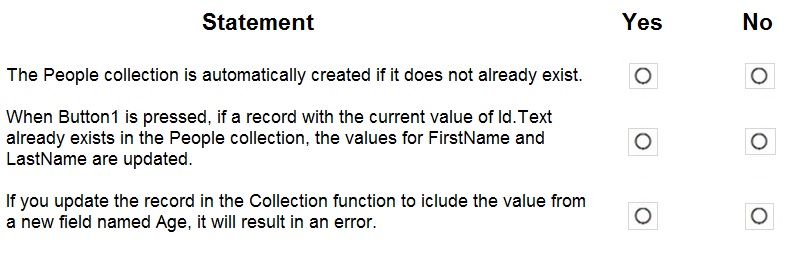
You have a canvas app that contains the following text input fields: Id, FirstName, LastName. The app also has a button named Button1 The OnSelect property for Button1 contains the following expression: Collect(People, {Id:Id.Text, FirstName:FirstName.Text, LastName:LastName.Text})
For each of the following statements, select Yes if the statement is true. Otherwise, select No. NOTE: Each correct selection is worth one point.


Explanation:
The question evaluates key behaviors of the Collect function in Power Apps canvas apps when used with a local collection named People. The OnSelect formula adds a record using values from text inputs without checking for duplicates or using upsert logic. Collections are temporary in-memory tables, and Collect behaves differently from Patch regarding creation, updates, and schema changes.

Correct Option:

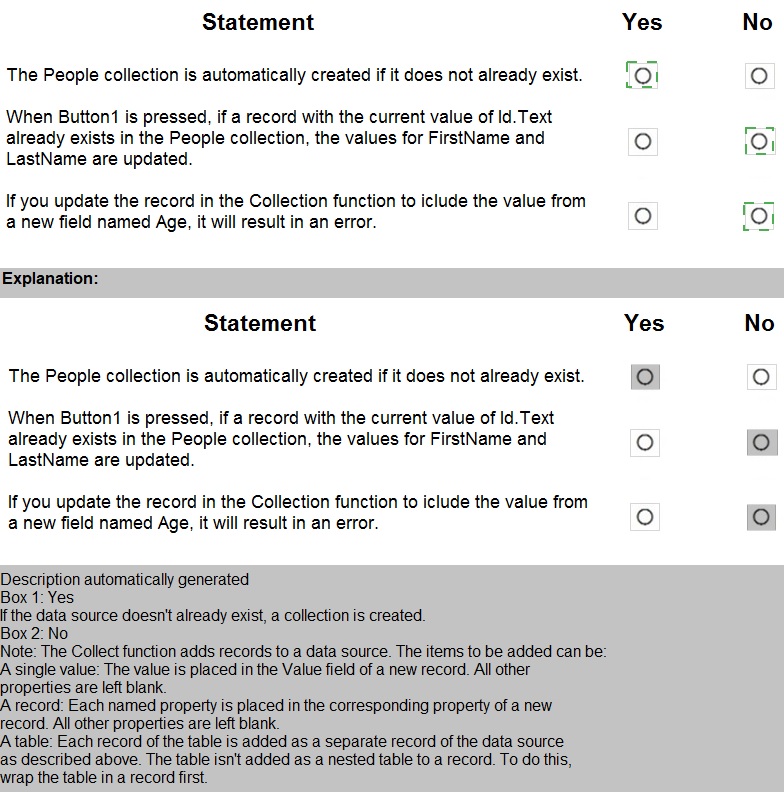
The People collection is automatically created if it does not already exist. → Yes
Collect automatically creates the collection if it doesn't exist — this is standard behavior for both Collect and ClearCollect when the first argument names a non-existent collection. No prior ClearCollect or explicit creation is required.

When Button1 is pressed, if a record with the current value of Id.Text already exists in the People collection, the values for FirstName and LastName are updated. → No
Collect always appends a new record — it never checks for existing records or updates them. To update (upsert), use Patch or Remove + Collect patterns. Pressing Button1 multiple times with the same Id creates duplicate records.

If you update the record in the Collection function to include the value from a new field named Age, it will result in an error. → No
Collections in Power Apps are schemaless — adding a new field (e.g., Collect(People, {Id:..., FirstName:..., LastName:..., Age:25})) adds the Age column to new records without error. Existing records get blank values in the new column; no schema enforcement causes errors.

Incorrect Option:
(All three statements above are evaluated; the "No" ones are incorrect statements.)

Reference:
Microsoft Learn: Collect, Clear, and ClearCollect functions — explicitly states: "If the data source doesn't already exist, a collection is created."

Note: This question is part of a series of questions that present the same scenario.
Each question in the series contains a unique solution that might meet the stated goals. Some question sets might have more than one correct solution, while others might not have a correct solution.
After you answer a question in this section, you will NOT be able to return to it. As a result, these questions will not appear in the review screen.
You administer the Microsoft 365 and Power Platform environments for Contoso, Ltd. The company has a model-driven app that is used to track customer interactions with employees. The app uses standard table types for customers. A user named Elisabeth Rice signs in to the app by using the following sign in name: Elisabeth.Rice@contoso.com.
After marriage, Elisabeth changes her legal name to Elisabeth Mueller.
You need to update the sign in name for the user without losing any application history.
Solution: From Dynamics 365 Settings, select Email Configuration. In the active mailbox for the user, update the name.
Does the solution meet the goal?

A. Yes

B. No

B.   No

Explanation
This question tests your knowledge of how to properly update user identity information in Microsoft 365 and Power Platform environments. The key requirement is updating the sign-in name (User Principal Name - UPN) while preserving application history. The solution incorrectly suggests using Dynamics 365 Settings and Email Configuration, which is not the correct method for changing a user's sign-in name.

Correct Option:

B. No
Correct: The solution does NOT meet the goal because user sign-in names (UPN) must be updated in the Microsoft 365 admin center or Azure Active Directory, not within Dynamics 365 settings. Dynamics 365 does not have the authority to change Azure AD user properties. Email Configuration in Dynamics 365 is for configuring email synchronization settings, not for changing user identity information.

Why the Solution Fails:

The proposed solution incorrectly identifies the location and method for updating a user's sign-in name. Key reasons why this fails:

Wrong administrative interface:
User sign-in names are managed in Microsoft 365 admin center or Azure AD, not in Dynamics 365

Incorrect feature:
Email Configuration is for email integration settings, not user identity management

No history loss:
When properly done through Azure AD, all application history is preserved because the underlying user record GUID remains the same even though the UPN changes

Proper method:
The correct approach is to modify the user's UPN in Microsoft 365 admin center, which automatically updates across all Microsoft services including Dynamics 365

Reference

Microsoft Learn: Change a user name and email address in Microsoft 365

Microsoft Learn: Manage user identities in Azure Active Directory

Microsoft Learn: How changes to Azure AD user properties affect Dynamics 365

You plan to implement Microsoft Dataverse.
You must track changes for two columns in the Account table. You must maintain a historical log of changes for the two columns and track only what is necessary. You configure the appropriate organization settings.
You need to configure the system to track changes for the two columns.
Which two actions should you perform? Each correct answer presents part of the solution.
NOTE: Each correct selection is worth one point.

A. Enable auditing for the Account table.

B. Enable auditing for the two specific columns.

C. Enable change tracking for the Account table.

D. Enable change tracking for the two specific columns.

A.   Enable auditing for the Account table.
B.   Enable auditing for the two specific columns.

Explanation
This question tests your understanding of two different but related concepts in Dataverse: auditing (historical logging of changes) and change tracking (synchronizing changes externally). The requirement specifically asks for maintaining a "historical log of changes" for two columns, which is exactly what auditing does. Change tracking serves a different purpose - it detects changes for data synchronization, not for maintaining viewable history.

Correct Options:

A. Enable auditing for the Account table
Correct: Auditing must first be enabled at the table (entity) level before it can be enabled for individual columns. This is a prerequisite step that turns on the auditing framework for the Account table. Without this, column-level auditing cannot function. The organization-level settings are already configured per the question, so enabling table-level auditing is the next required step.

B. Enable auditing for the two specific columns
Correct: After enabling auditing at the table level, you must explicitly enable auditing for each column you want to track. This meets the requirement to "track only what is necessary" by limiting auditing to just the two columns of interest rather than auditing all columns, which would consume more storage and create unnecessary audit history.

Incorrect Options:

C. Enable change tracking for the Account table
Incorrect: Change tracking is a different feature designed for synchronizing data with external systems. It detects which records have been created, updated, or deleted but does NOT maintain a historical log of changes. It simply provides a list of changed records since a previous version, without storing the actual change history or previous values.

D. Enable change tracking for the two specific columns
Incorrect: Change tracking cannot be enabled at the column level - it's a table-level feature only. Additionally, as noted above, change tracking does not fulfill the requirement for maintaining a historical log of changes, which requires auditing.

Reference
Microsoft Learn: Auditing in Dataverse

Microsoft Learn: Configure auditing for tables and columns

Microsoft Learn: Change tracking overview for Dataverse

A customer has a support website that includes FAQ pages, knowledge articles, and support content.
You plan to leverage an existing Power Virtual Agents bot to enhance and streamline existing support functionality for the existing support portal.
You need to create topics from existing website content. The process must minimize human errors during topic creation.
Which three actions should you perform in sequence? To answer, move the appropriate actions from the list of actions to the answer area and arrange them in the correct order.




Explanation
This question tests your knowledge of Power Virtual Agents topic creation from existing website content. Power Virtual Agents includes an AI-powered "Suggest topics" feature that can analyze a website and automatically generate topics based on the content found. This feature helps minimize human errors during topic creation by automating the process rather than requiring manual topic building.

Correct Sequence:

Step 1: Capture suggested topics
The first step is to use the "Suggest topics" feature in Power Virtual Agents. This feature crawls the specified support website (including FAQ pages, knowledge articles, and support content) and analyzes the content to identify potential topics. The AI examines the structure and content of the pages to determine what questions customers might ask and what topics should be created.

Step 2: Add selected topics to the chatbot
After the AI generates suggested topics, you review them and select which ones to add to your chatbot. This step allows you to filter out irrelevant or duplicate topics while keeping the valuable ones. The system creates the topics with pre-filled trigger phrases and conversation nodes based on the website content, significantly reducing manual effort.

Step 3: Enable the topics
Once the topics are added to the chatbot, they are typically created in a draft state. The final step is to enable them so they become active and available to respond to user queries. Enabled topics will trigger when user messages match their trigger phrases, providing automated responses based on the original website content.

Incorrect Actions:

Hover over the topic and select the Automate icon: This is not part of the initial topic creation process. This action might be used for other automation features within existing topics.

Identify the pre-filled trigger phases: This happens automatically during topic creation and is not a separate action step you need to perform. The AI pre-fills trigger phrases when it creates topics from website content.

Reference

Microsoft Learn: Create topics from existing content in Power Virtual Agents

Microsoft Learn: Suggest topics from your website in Power Virtual Agents

Microsoft Learn: Manage topics in Power Virtual Agents

You are designing a Power Virtual Agents chatbot for a store You need to teach the chatbot to acknowledge the store's product categories and the variations within specific categories.
You need to create custom entities to provide the chatbot with the knowledge of the
product categories.
Which features should you use? To answer, select the appropriate options in the answer
area.
NOTE: Each correct selection is worth one point.


Explanation
This question tests your understanding of entity and matching features in Power Virtual Agents. The scenario requires teaching the chatbot to recognize product categories and their variations. This involves two aspects: defining the actual categories (using entities) and enabling flexible recognition of how users might refer to them (using matching features). The example describes expanding matching logic, which points to fuzzy matching.

Correct Answers:

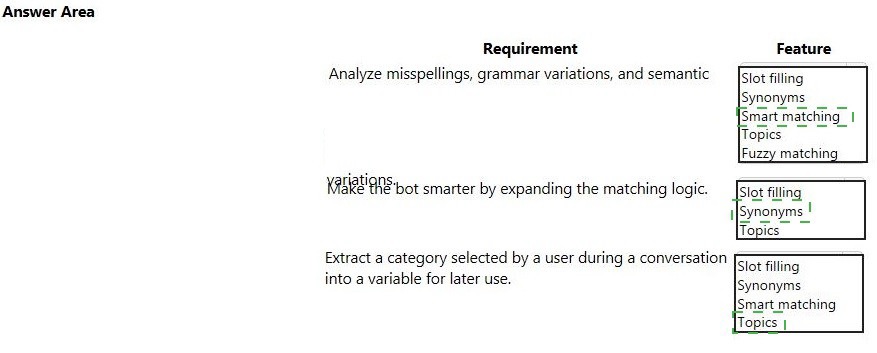
Requirement: Analyze misspellings, grammar variations, and semantic errors

Feature: Fuzzy matching
Fuzzy matching is specifically designed to handle variations in user input including misspellings, grammatical errors, and similar but not exact matches. When enabled, it allows the chatbot to recognize user intent even when the exact keywords aren't present or are slightly misspelled. This matches the "expanding the matching logic" described in the example with Xiaolei.

Requirement: Extract a category selected by a user during a conversation into a variable for later use

Feature: Slot filling
Slot filling is the feature that captures specific pieces of information (like product categories) from user responses and stores them in variables for later use in the conversation. When a user mentions a product category, slot filling extracts that value and saves it so the bot can reference it later, such as when showing products from that specific category.

Incorrect Options:

Synonyms: While synonyms help recognize alternative words for the same thing, they don't handle misspellings or grammar variations as comprehensively as fuzzy matching

Smart matching: This is a broader concept but not a specific feature selection in this context

Topics: Topics define conversation flows, not entity recognition or data extraction

Slot filling for the first requirement: Slot filling captures data but doesn't analyze input variations

Fuzzy matching for the second requirement: Fuzzy matching improves recognition but doesn't extract and store values for later use

Reference
Microsoft Learn: Use entities in Power Virtual Agents

Microsoft Learn: Configure fuzzy matching in Power Virtual Agents

Microsoft Learn: Use slot filling to capture information in conversations

A company deploys several model-driven apps. The company uses shared devices in their warehouse. The devices are always powered on. Users log on to the devices and then launch the apps to perform actions.
Unauthorized users recently uploaded several files after another user failed to log out of a device. The company needs to prevent these incidents from occurring in the future.
You need to configure the solution to prevent the reported security incidents.
What should you do? To answer, select the appropriate options in the answer area.
NOTE: Each correct selection is worth one point.


Explanation
This question presents two distinct security requirements based on a real incident. First, unauthorized access occurred because a user failed to log out of a shared device. Second, unauthorized users uploaded files they shouldn't have. Each requirement needs to be addressed with the appropriate administrative control point - session timeout settings and file type restrictions.

Correct Answers:

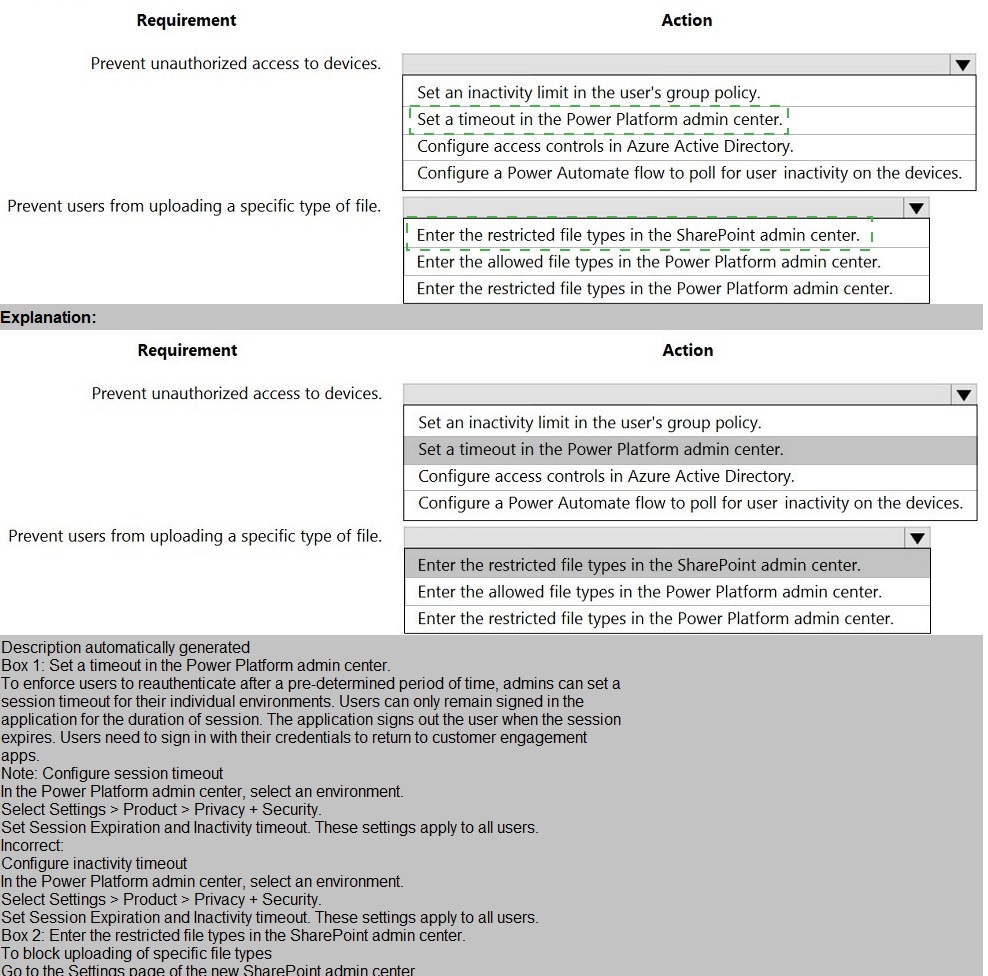
Requirement 1: Prevent unauthorized access to devices

Action: Set a timeout in the Power Platform admin center
The Power Platform admin center allows you to set session timeout and inactivity policies specifically for model-driven apps. This setting will automatically sign out inactive users after a specified period, preventing unauthorized access when users forget to log out from shared warehouse devices. This directly addresses the reported incident where one user's failure to log out led to unauthorized access.

Requirement 2: Prevent users from uploading a specific type of file

Action: Enter the restricted file types in the Power Platform admin center
File upload restrictions for model-driven apps are configured in the Power Platform admin center under environment settings. You can specify which file types are blocked from being uploaded as attachments or annotations. This prevents users from uploading unauthorized or potentially harmful file types, addressing the second part of the security incident.

Incorrect Options:

For Requirement 1 (Prevent unauthorized access):

Set an inactivity limit in the user's group policy: Group policy affects Windows logins, not model-driven app sessions. Users are already logged into Windows, so this wouldn't automatically sign them out of the app.

Configure access controls in Azure Active Directory: Azure AD controls authentication and conditional access, but doesn't manage app session timeouts.

Configure a Power Automate flow to poll for user inactivity: This is unnecessarily complex and not a supported or reliable method for enforcing app session timeouts.

For Requirement 2 (Prevent specific file types):

Enter the restricted file types in the SharePoint admin center: SharePoint settings don't control file uploads within model-driven apps attachments.

Enter the allowed file types in the Power Platform admin center: The setting uses restricted (blocked) file types, not allowed types, giving administrators more control by blocking specific dangerous extensions while allowing all others.

Reference

Microsoft Learn: Configure session timeout for model-driven apps

Microsoft Learn: Block file type uploads in Dataverse environments

Microsoft Learn: Environment settings in Power Platform admin center

You use Power BI Desktop to configure Power BI reports.
You need to create a canvas app that displays user account information and include the app in a Power BI report. Which three actions should you perform? Each correct answer presents part of the solution. NOTE: Each correct selection is worth one point.

A. From the Power Apps Insert menu, add a Power BI tile

B. From the Power BI Desktop menu, insert a Power Apps visual and include the required fields in the Power Apps data

C. Publish the report to the Power BI service

D. Connect to Common Data Service from Power BI Desktop

B.   From the Power BI Desktop menu, insert a Power Apps visual and include the required fields in the Power Apps data
C.   Publish the report to the Power BI service
D.   Connect to Common Data Service from Power BI Desktop

Explanation
This question tests your knowledge of integrating Power Apps with Power BI reports. Creating a canvas app that displays user account information and embedding it in a Power BI report requires a specific sequence of actions. You need to connect to your data source, add the Power Apps visual to your report, include the necessary fields, and then publish the report to make it available in the Power BI service.

Correct Options:

B. From the Power BI Desktop menu, insert a Power Apps visual and include the required fields in the Power Apps data
Correct: The Power Apps visual is a custom visual available in Power BI Desktop that allows you to embed a canvas app directly into a Power BI report. When you add this visual, you must specify which fields from your Power BI dataset should be passed to the Power Apps visual as input data. These fields will be available for your canvas app to use when displaying user account information.

C. Publish the report to the Power BI service
Correct: After creating your report in Power BI Desktop with the embedded Power Apps visual, you must publish it to the Power BI service. This makes the report accessible to others and allows the Power Apps visual to function properly. The Power Apps visual requires the report to be published to the service to establish the connection between the app and the report data.

D. Connect to Common Data Service from Power BI Desktop
Correct: Since the requirement is to display user account information, and the scenario implies this data likely resides in Common Data Service (Dataverse), you must first establish a connection to this data source in Power BI Desktop. This connection allows you to import or DirectQuery the user account data that will be used in your report and passed to the Power Apps visual.

Incorrect Options:

A. From the Power Apps Insert menu, add a Power BI tile
Incorrect: This action is reversed. You don't add Power BI tiles to Power Apps from the Insert menu. While you can embed Power BI tiles in Power Apps using the Power BI tile control, the question requires embedding a canvas app in a Power BI report, which uses the Power Apps visual in Power BI, not the other way around.

Reference

Microsoft Learn: Add a Power Apps visual to your report in Power BI

Microsoft Learn: Create a Power Apps visual in Power BI

Microsoft Learn: Connect to Dataverse from Power BI Desktop

You need to embed the FAQbot into the communication solution.
Which actions should you perform? To answer, select the appropriate options in the answer area. NOTE: Each correct selection is worth one point.

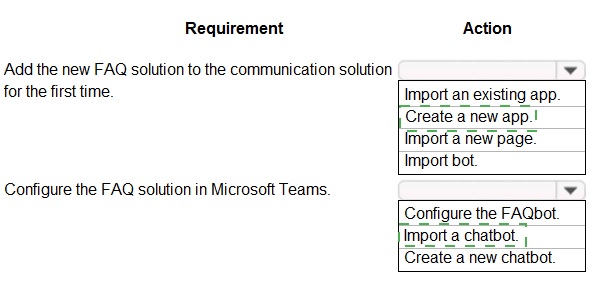


Explanation
This question focuses on adding a pre-built FAQ solution (FAQbot) to an existing communication solution in Microsoft Teams. FAQbot is a pre-configured chatbot template in Microsoft Teams that provides FAQ capabilities. Since this is the first time adding the FAQ solution, you need to import the existing template and then configure it for your specific needs, rather than building a new chatbot from scratch.

Correct Answers:

Requirement 1: Add the new FAQ solution to the communication solution for the first time

Action: Import an existing app
FAQbot is a pre-built template available in Microsoft Teams. To add it to your communication solution for the first time, you need to import this existing app rather than creating a new one from scratch. Microsoft Teams provides several pre-built app templates, including FAQbot, that can be imported and customized for your organization's needs.

Requirement 2: Configure the FAQ solution in Microsoft Teams

Action: Configure the FAQbot
After importing the FAQbot app, you need to configure it for your specific requirements. This includes setting up the knowledge base of questions and answers, customizing the appearance, and integrating it with your communication solution. Configuration involves populating the FAQ content, setting up user roles, and defining how the bot should respond to different queries.

Incorrect Options:

Create a new app: Not necessary since FAQbot is a pre-existing template specifically designed for FAQ scenarios

Import a new page: Pages are components within apps, not the primary method for adding a complete FAQ solution

Import bot / Import a chatbot: While FAQbot is a chatbot, the specific action is to import the existing app, not just the bot component

Create a new chatbot: Would require building FAQ functionality from scratch, which is unnecessary when FAQbot is available as a pre-built solution

Reference

Microsoft Learn: FAQ bot template for Microsoft Teams

Microsoft Learn: Add apps to Microsoft Teams

Microsoft Learn: Configure chatbots in Microsoft Teams

Note: This question is part of a series of questions that present the same scenario. Each question in the series contains a unique solution that might meet the stated goals. Some question sets might have more than one correct solution, while others might not have a correct solution.

After you answer a question in this section, you will NOT be able to return to it. As a result, these questions will not appear in the review screen.
You administer the Microsoft 365 and Power Platform environments for Contoso, Ltd. The company has a model-driven app that is used to track customer interactions with employees. The app uses standard table types for customers. A user named Elisabeth Rice signs in to the app by using the following sign in name: Elisabeth.Rice@contoso.com.
After marriage, Elisabeth changes her legal name to Elisabeth Mueller.
You need to update the sign in name for the user without losing any application history.
Solution: Delete the user account in the Power Platform admin portal and recreate the account by using the new name.
Does the solution meet the goal?

A. Yes

B. No

B.   No

Explanation
This question tests your understanding of how user identity changes affect application history in Power Platform. The requirement is to update the sign-in name while preserving all application history. Deleting and recreating a user account creates an entirely new identity with a new unique identifier (GUID), causing complete disassociation from all historical data, records, and permissions associated with the original account.

Correct Option:

B. No
Correct: The solution does NOT meet the goal because deleting and recreating the user account will result in complete loss of application history. When you delete a user account, all associations between that user and records (created by, modified by, owned by) are severed. The new account will have no connection to Elisabeth's previous interactions, customer records, or application history.

Why the Solution Fails:
New GUID created: Each user has a unique system identifier (GUID). Deleting and recreating generates a new GUID, making the system treat Elisabeth as a completely different user

Lost record associations: All records where Elisabeth was the owner, creator, or last modifier would show as "unknown user" or become disassociated

Permissions reset: All security role assignments and team memberships would need to be reconfigured

Proper method: The correct approach is to update the User Principal Name (UPN) in Microsoft 365 admin center, which preserves the underlying user identity and all associated history

Reference

Microsoft Learn: Change a user name and email address in Microsoft 365

Microsoft Learn: Delete and restore users in Power Platform

Microsoft Learn: User and identity management in Dataverse

You are designing a Power Virtual Agents chatbot.
The chatbot must be able to maintain customer information if the conversation topic changes during a dialog.
You need to configure variables to store customer name and email address.
Which type of variable should you create?

A. session

B. topic

C. bot

D. slot

C.   bot

Explanation
This question tests your understanding of variable scope in Power Virtual Agents. The requirement states that the chatbot must maintain customer information even when the conversation topic changes during a dialog. This means the variables need to persist across multiple topics, not just within a single topic. Different variable types have different scopes, and choosing the correct scope is essential for maintaining data throughout a conversation.

Correct Option:

C. bot
Correct: Bot variables (also called global variables) persist throughout the entire conversation session across all topics. When you store customer name and email in bot variables, this information remains available even when the conversation moves from one topic to another. This perfectly meets the requirement that the chatbot maintain customer information if the conversation topic changes during a dialog.

Incorrect Options:

A. session
Incorrect: There is no "session" variable type in Power Virtual Agents. Session is a conceptual term referring to the overall conversation instance, but it is not a variable scope option available for configuration.

B. topic
Incorrect: Topic variables only exist within the scope of a single topic. Once the conversation leaves that topic, any values stored in topic variables are lost. This would not meet the requirement of maintaining information when topics change.

D. slot
Incorrect: Slot filling is a technique used to capture information within a topic, but "slot" is not a variable type. Slot filling stores values in topic variables (or can be configured to store in bot variables), but the variable type itself is either topic or bot scope.

Reference

Microsoft Learn: Use variables in Power Virtual Agents

Microsoft Learn: Global variables across topics in Power Virtual Agents

Microsoft Learn: Manage conversation flow with topics and variables

Page 2 out of 10 Pages