Topic 5, Misc. Questions

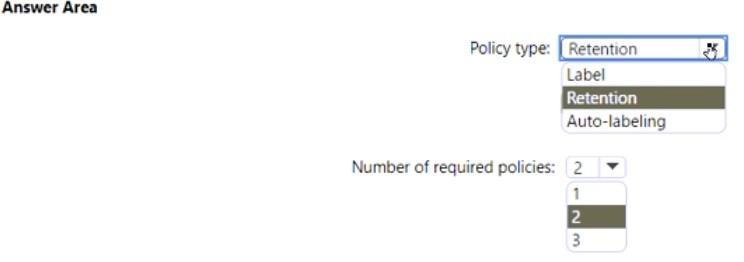
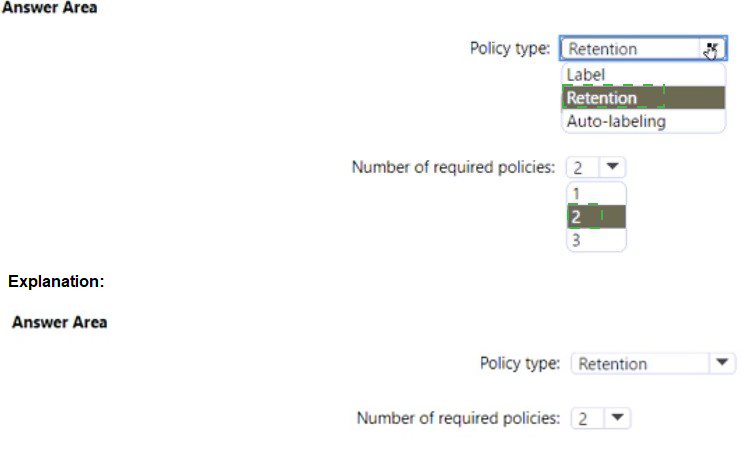
You need to configure the information governance settings to meet the technical requirements.

Which type of policy should you configure, and how many policies should you configure?

To answer, select the appropriate options in the answer area.

NOTE: Each correct selection is worth one point.


Explanation:
This question relates to automatically classifying and retaining content based on its properties. The goal is to enforce a retention schedule on documents that contain specific sensitive information types (e.g., credit card numbers). This requires a two-step approach: first, classifying the content with a label that carries a retention setting, and second, automatically applying that label to matching content across the tenant.

Correct Options:

Policy type: Auto-labeling
An Auto-labeling policy (specifically, an auto-apply label policy based on sensitive info types) is the correct policy type. This policy automatically scans content in locations like SharePoint, OneDrive, or Exchange and applies a pre-configured retention label to items that match the defined sensitive information conditions. It is the primary tool for automated, content-based classification at scale.

Number of required policies: 2

You need to configure two separate policies:

A Retention Label:
This is not listed as a "policy type" in the drop-down but is a prerequisite. You first create a retention label (published via a label policy) that defines the retention duration and action (e.g., delete after 7 years).

An Auto-labeling Policy:
This is the policy you select in the drop-down. You create this policy to automatically apply the retention label you created to content matching the sensitive information types.

Incorrect Options:

Policy type: Retention, Label:
A standard Retention policy applies retention based on locations or explicit user application, not sophisticated content inspection. A Label policy publishes labels for manual or default application but does not automatically apply them based on content.

Number of policies: 1, 3:
The process fundamentally requires creating the label (and its publishing policy) and the auto-apply policy, making 2 the correct minimum. Creating only 1 policy would not complete the workflow. 3 is unnecessary for the basic requirement.

Reference:
Microsoft Learn, "Apply a retention label to content automatically." The documentation details the two-part process: create a retention label with specific rules, and then create an auto-apply label policy that uses those rules to find and label content.

You need to create the Safe Attachments policy to meet the technical requirements. Which option should you select?

A. Replace

B. Enable redirect

C. Block

D. Dynamic Delivery

D.   Dynamic Delivery

Explanation:
The question involves configuring a Safe Attachments policy in Microsoft Defender for Office 365. The technical requirements likely specify that delivery of non-malicious email should not be delayed while attachments are scanned for malware. The policy must balance security (scanning) with user productivity (timely delivery).

Correct Option:

D. Dynamic Delivery
Dynamic Delivery (also known as "Deliver message after scanning") is the correct choice to meet the requirement for non-blocking, timely delivery. This option delivers the email body immediately to the user's inbox while the attachment is detonated in a secure sandbox. A placeholder is shown until the scan completes. If safe, the attachment becomes available; if malicious, it is removed. This prevents delivery delays for legitimate mail.

Incorrect Options:

A. Replace:
This action blocks the malicious attachment and delivers the email with the attachment replaced by a text file noting its removal. It does not prevent an initial delivery delay for all emails, as scanning must complete first.

B. Enable redirect:
This redirects messages with unknown attachments to a separate, isolated email address (not the original recipient) for security review. It is an administrative, blocking action that prevents timely delivery to the intended user.

C. Block:
This outright blocks the entire email if a malicious attachment is found. Like "Replace," it requires the scan to complete before a delivery decision is made, causing a delay for all messages, not just malicious ones.

Reference:
Microsoft Learn, "Safe Attachments policies." The documentation explains that Dynamic Delivery is designed to deliver messages promptly without waiting for attachment scanning to complete, thereby avoiding mail flow delays.

You need to create the DLP policy to meet the technical requirements.

What should you configure first?

A. sensitive info types

B. the Insider risk management settings

C. the event types

D. the sensitivity labels

A.   sensitive info types

Explanation:
Creating a Data Loss Prevention (DLP) policy is a process that begins with defining what content you need to protect. The policy's core function is to detect and act on specific sensitive information. Therefore, the foundational step is to identify and configure the precise data patterns or categories the policy will look for.

Correct Option:

A. sensitive info types
Sensitive Information Types (SITs) are the correct first configuration. These are the definitions (like credit card numbers, U.S. Social Security numbers, or custom regex patterns) that the DLP policy uses to scan and identify the content you want to protect. All subsequent policy rules—such as conditions, actions, and exceptions—are built around these defined SITs.

Incorrect Options:

B. the Insider risk management settings:
This configures a separate, specialized workload for detecting potential malicious insider activity. It is not a component of DLP policy creation. DLP and Insider Risk Management are distinct solutions, though they can be integrated.

C. the event types:
This is not a primary configuration step for a DLP policy. "Event types" relate to auditing or alerting configurations. In DLP, you configure conditions and actions (like "when content is shared externally, block it"), not generic event types.

D. the sensitivity labels:
Sensitivity labels classify content for protection (encryption) and visual marking. While a DLP policy can be configured to also protect labeled content, this is an additional condition. The most fundamental and common first step is defining the sensitive information types that the policy will detect, especially if the requirement is to protect specific data like PII or financial info.

Reference:
Microsoft Learn, "Learn about data loss prevention." The DLP policy creation workflow starts with choosing the locations to protect and then defining the sensitive info to protect using built-in or custom sensitive information types.

You need to configure the compliance settings to meet the technical requirements.

What should you do in the Microsoft Endpoint Manager admin center?

A. From Compliance policies, modify the Notifications settings.

B. From Locations, create a new location for noncompliant devices.

C. From Retire Noncompliant Devices, select Clear All Devices Retire State.

D. Modify the Compliance policy settings.

D.   Modify the Compliance policy settings.

Explanation:
The question asks how to meet technical requirements via compliance settings in Microsoft Endpoint Manager (MEM, now Intune). The core tool for enforcing device compliance rules (like requiring encryption, a minimum OS version, or threat agent status) is a Compliance Policy. Modifying these policy settings is the direct method to adjust the technical rules that devices must meet.

Correct Option:

D. Modify the Compliance policy settings.
This is the correct action. Compliance policy settings are where you define the specific technical requirements a device must meet to be considered compliant (e.g., password length, disk encryption, jailbreak detection). By modifying these settings in an existing policy or creating a new one, you directly configure the rules that will enforce the technical requirements on enrolled devices.

Incorrect Options:

A. From Compliance policies, modify the Notifications settings:
This configures the messages sent to users when their device becomes noncompliant. It is about communication, not defining or changing the underlying technical requirements themselves.

B. From Locations, create a new location for noncompliant devices:
"Locations" in this context likely refers to network fencing or Conditional Access locations in Azure AD, not a compliance action. MEM/Intune does not have a primary "Locations" node for segregating noncompliant devices; that is handled via Conditional Access based on the compliance state.

C. From Retire Noncompliant Devices, select Clear All Devices Retire State:
This action would clear a "retire" command (which wipes corporate data) that has been issued, effectively canceling pending retirements. It is a remediation or cleanup action for devices already marked noncompliant, not a method to configure the compliance rules.

Reference:
Microsoft Learn, "Create a compliance policy in Microsoft Intune." This details how to use compliance policy settings to define the rules for device compliance.

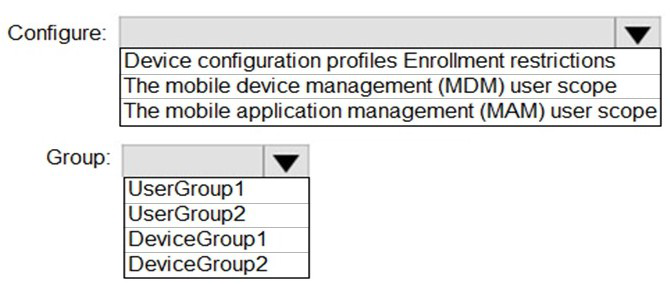
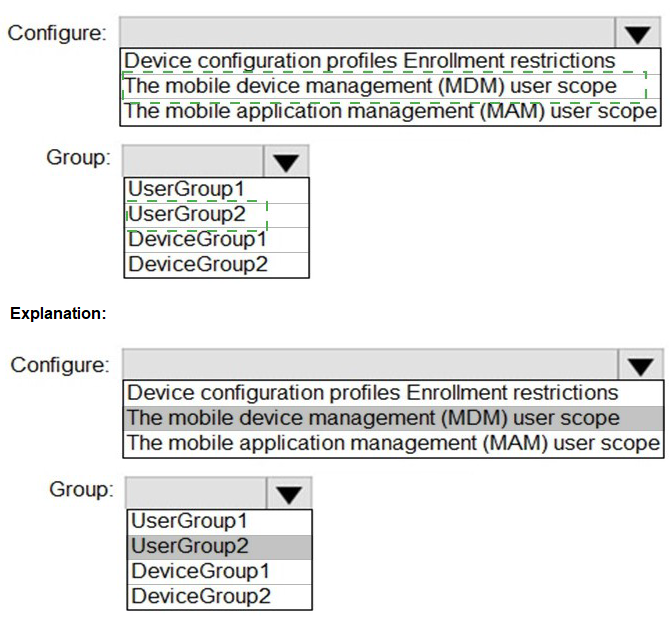
You need to configure automatic enrollment in Intune. The solution must meet the technical requirements.
What should you configure, and to which group should you assign the configurations? To answer, select the appropriate options in the answer area.
NOTE: Each correct selection is worth one point.


Explanation:
Automatic enrollment, also known as MDM auto-enrollment, is the process where user-owned or corporate devices are automatically enrolled into Intune management when the user joins their work account to the device. The key configuration for this is setting who is allowed to automatically enroll their devices through an Azure AD/Intune setting.

Correct Options:

Configure: The mobile device management (MDM) user scope
This setting is the direct control for automatic MDM enrollment. In the Microsoft Endpoint Manager admin center, you navigate to Devices > Enroll devices > Enrollment restrictions and edit the platform restriction. Within that, the "Mobile Device Management (MDM) user scope" setting (configured in Azure AD or via the MEM admin center under Devices > Enroll devices > Windows enrollment > Automatic Enrollment) defines which users' devices will be automatically enrolled into Intune upon signing in.

Group: UserGroup1 (or the specific user group defined in the requirements)
Automatic enrollment is targeted at users, not devices, because the enrollment trigger is a user signing in with their work account. Therefore, you assign the MDM user scope configuration to a user group (e.g., UserGroup1). All members of this group will have their Windows 10/11, iOS, or Android devices automatically enrolled when they add their work account.

Incorrect Options / Reasoning:

Configure: Device configuration profiles, Enrollment restrictions (as a whole node):
Device configuration profiles are for applying settings after a device is enrolled, not for controlling the enrollment process itself.

Enrollment restrictions is the broader container, but the specific setting inside it is the MDM user scope.

Configure: The mobile application management (MAM) user scope:
This controls who can enroll applications for MAM-WE (without device enrollment), not automatic device enrollment (MDM).

Group: DeviceGroup1, DeviceGroup2:
Automatic enrollment is user-driven and scoped to user groups. You cannot assign the MDM user scope to a device group for this purpose.

Reference:
Microsoft Learn, "Set up automatic enrollment for Windows devices." It explains that you configure the MDM user scope to "Some" or "All" and assign it to Azure AD user groups to enable automatic enrollment.

You create the planned DLP policies.

You need to configure notifications to meet the technical requirements.

What should you do?

A. From the Microsoft 365 security center, configure an alert policy.

B. From the Microsoft Endpoint Manager admin center, configure a custom notification.

C. From the Microsoft 365 admin center, configure a Briefing email.

D. From the Microsoft 365 compliance center, configure the Endpoint DLP settings.

D.   From the Microsoft 365 compliance center, configure the Endpoint DLP settings.

Explanation:
The question involves configuring notifications for Data Loss Prevention (DLP) policies to meet technical requirements. Since the context is DLP, the configuration must be done within the DLP management interface. For DLP policies, especially those involving endpoints, user notifications and alerts are configured as part of the policy itself or in the dedicated DLP settings area.

Correct Option:
D. From the Microsoft 365 compliance center, configure the Endpoint DLP settings.
This is the correct location. Endpoint DLP settings in the Microsoft Purview compliance portal allow you to configure user notifications and audit settings for DLP policies that apply to devices. Here, you can enable toast notifications for Windows 10/11 devices and customize the message users see when a DLP policy restricts an action, directly meeting notification requirements.

Incorrect Options:

A. From the Microsoft 365 security center, configure an alert policy:
Alert policies notify administrators about security events or anomalies. They do not configure end-user notifications that appear on a user's device when a DLP action is taken.

B. From the Microsoft Endpoint Manager admin center, configure a custom notification:
This is for sending push notifications to devices via Intune for general messaging, not for triggering real-time, policy-specific DLP warnings when a user attempts a restricted action.

C. From the Microsoft 365 admin center, configure a Briefing email:
Briefing emails are productivity insights sent by Viva, not related to DLP policy enforcement or security notifications.

Reference:
Microsoft Learn, "Configure endpoint DLP settings." This details how to access the Endpoint DLP settings in the compliance center to configure user notifications and other endpoint-specific DLP controls.

You need to configure Office on the web to meet the technical requirements.

What should you do?

A. Assign the Global reader role to User1.

B. Enable sensitivity labels for Office files in SharePoint Online and OneDrive.

C. Configure an auto-labeling policy to apply the sensitivity labels.

D. Assign the Office apps admin role to User1.

B.   Enable sensitivity labels for Office files in SharePoint Online and OneDrive.

Explanation:
This question involves enabling sensitivity labels to appear and function within Office on the web (i.e., Office apps in the browser). By default, sensitivity labels must be explicitly enabled for SharePoint and OneDrive so that labeled documents opened in the browser can display the label, allow users to change it, and enforce its protections (like encryption or watermarks).

Correct Option:

B. Enable sensitivity labels for Office files in SharePoint Online and OneDrive.
This is the mandatory prerequisite configuration. This setting is found in the Microsoft Purview compliance portal > Solutions > Information protection. Enabling it allows sensitivity labels to be read, applied, and enforced when users open and edit Office files directly in their browsers via SharePoint Online or OneDrive, thus meeting the technical requirement for Office on the web.

Incorrect Options:

A. Assign the Global reader role to User1:
The Global Reader role is a read-only administrative role for viewing settings across M365 services. It does not enable or configure any functionality for Office on the web.

C. Configure an auto-labeling policy to apply the sensitivity labels:
An auto-labeling policy automatically applies labels based on content. However, for labels to be visible and usable in Office on the web, the underlying capability must first be enabled via option B. Auto-labeling is a separate step that depends on this foundational setting.

D. Assign the Office apps admin role to User1:
The Office Apps Admin role manages cloud policies for the Office desktop applications (like updating installed versions). It does not control the integration of sensitivity labels with SharePoint and OneDrive for the web interface.

Reference:
Microsoft Learn, "Enable sensitivity labels for Office files in SharePoint and OneDrive." The documentation explicitly states that you must turn on this feature for users to apply and view sensitivity labels in Office for the web.

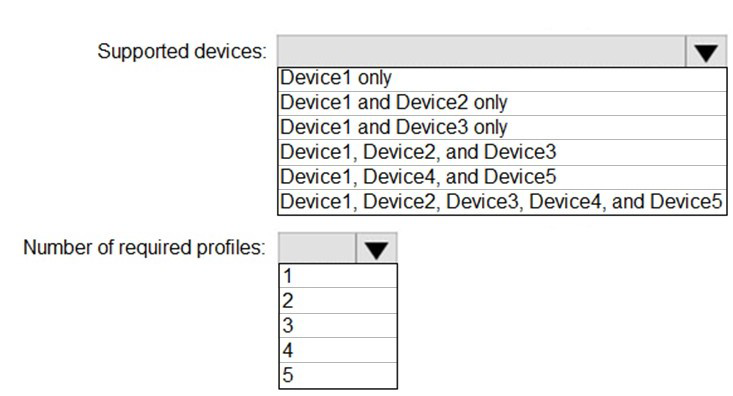
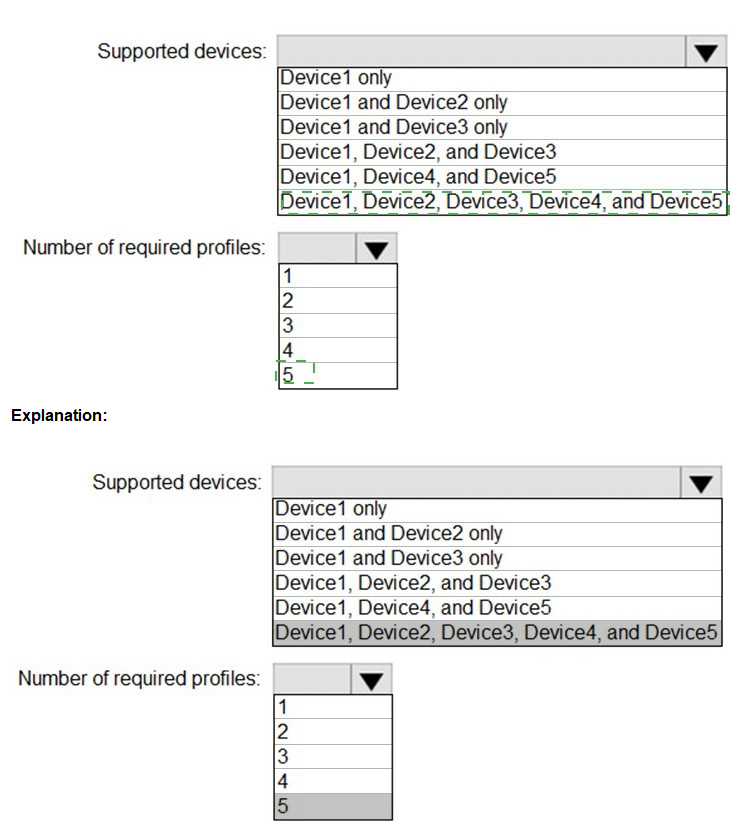
You plan to implement the endpoint protection device configuration profiles to support the planned changes.
You need to identify which devices will be supported, and how many profiles you should implement.
What should you identify? To answer, select the appropriate options in the answer area.
NOTE: Each correct selection is worth one point.


Explanation:
This question is about Endpoint Protection device configuration profiles in Microsoft Intune. These profiles manage security settings like antivirus, firewall, and encryption. The key points are: 1) Endpoint Protection profiles are platform-specific (e.g., one for Windows 10/11, one for macOS), and 2) They cannot be applied to iOS/iPadOS or Android devices, as those platforms use different profile types (like device restrictions) for security settings.

Correct Options:

Supported devices: Device1 and Device3 only
This is correct if Device1 represents Windows 10/11 and Device3 represents macOS. Endpoint Protection profiles in Intune support these two platforms. Devices 2, 4, and 5 (if they represent iOS, Android, or Linux) are not supported by the Endpoint Protection profile type.

Number of required profiles: 2

You need two separate Endpoint Protection profiles:
One profile configured for the Windows 10 and later platform.

A second, distinct profile configured for the macOS platform.

You cannot create a single profile that targets multiple OS platforms in Intune.

Incorrect Options / Reasoning:

Supported devices (other combinations):
Any combination including Device2, Device4, or Device5 is incorrect if those represent non-Windows/macOS devices (like iOS or Android). Endpoint Protection profiles do not apply to those platforms.

Number of required profiles (1, 3, 4, 5):
Since you must have one profile per supported platform (Windows and macOS), the minimum is 2. Creating only 1 profile would leave one platform unconfigured. Creating more than 2 is unnecessary for basic Endpoint Protection coverage of these two platforms.

Note:
The final answer depends on correctly identifying the platforms from the scenario. The most common and logical interpretation is that Device1=Windows and Device3=macOS are the ones supported by Endpoint Protection profiles.

Reference:
Microsoft Learn, "Endpoint security policy in Microsoft Intune." The documentation lists the platforms supported under the "Endpoint security" node, which includes Windows 10/11 and macOS profiles for antivirus, firewall, etc.

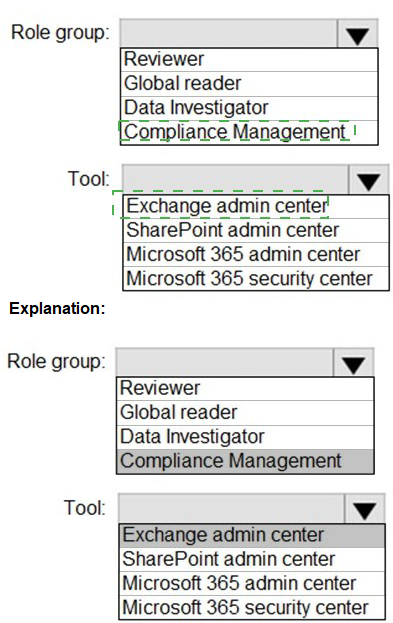
You need to ensure that User2 can review the audit logs. The solutions must meet the technical requirements.
To which role group should you add User2, and what should you use? To answer, select the appropriate options in the answer area.
NOTE: Each correct selection is worth one point.


Explanation:
The requirement is for a user to review audit logs in Microsoft 365. Access to search and view the unified audit log is governed by specific permissions. The standard and least-privileged role for this task is membership in the Compliance Data Administrator role group, but the available options point to a specific, common group used for audit log review in the compliance center.

Correct Options:

Role group: Reviewer
The Reviewer role group in the Security & Compliance admin center grants the necessary permissions. It includes the View-Only Audit Logs role, which allows a user to search and view the unified audit log in the compliance portal but not modify any configurations. This meets the principle of least privilege for audit review.

Tool: Microsoft 365 security center
While the audit log is searchable from both the Microsoft Purview compliance portal and the Microsoft 365 Defender portal (security center), the Microsoft 365 security center (defender.microsoft.com) provides access. Under Audit in the navigation, users with the appropriate permissions (like the Reviewer role) can search the unified audit log. This is a valid and commonly used tool for this purpose.

Incorrect Options:

Role group: Global reader, Data Investigator, Compliance Management:
Global Reader is a read-only role for all admin centers, which is over-permissive. Data Investigator is for advanced eDiscovery cases, not basic audit log review. Compliance Management includes management roles beyond just viewing logs.

Tool: Exchange admin center, SharePoint admin center, Microsoft 365 admin center:
The Exchange and SharePoint admin centers only provide logs specific to those services, not the unified audit log. The Microsoft 365 admin center (admin.microsoft.com) does not contain the audit log search tool; that function is in the compliance and security portals.

Reference:
Microsoft Learn, "Search the audit log in the compliance portal" and "Permissions in the Microsoft Purview compliance portal." The documentation specifies that the View-Only Audit Logs permission, found in role groups like Reviewer, is required to search the audit log.

You are evaluating the required processes for Project1.
You need to recommend which DNS record must be created while adding a domain name for the project.
Which DNS record should you recommend?

A. host (A)

B. host information

C. text (TXT)

D. pointer (PTR)

C.   text (TXT)

Explanation:
This question concerns the process of adding a custom domain to a Microsoft 365 or Azure service. During domain verification, you must prove ownership of the domain by adding a specific DNS record at your domain registrar. Microsoft provides a unique value you must add to your domain's DNS.

Correct Option:

C. text (TXT)
The TXT record is the primary and most commonly used DNS record for domain verification in Microsoft 365 and Azure AD. When you add a custom domain, Microsoft provides a unique TXT record value (like MS=msXXXXXXXX). Adding this record to your domain's public DNS proves you own the domain and allows Microsoft to complete the setup. This is a mandatory initial step.

Incorrect Options:

A. host (A):
An A record maps a hostname to an IPv4 address. It is used after domain verification to direct mail flow (MX record) or point services (like autodiscover) to Microsoft's servers, not for the initial ownership verification step.

B. host information:
This is a rarely used HINFO record type that provides host hardware/software information. It is not part of any Microsoft domain verification or service configuration process.

D. pointer (PTR):
A PTR record is used for reverse DNS lookups (mapping an IP address to a hostname), primarily for email spam prevention. It is not used for domain verification or initial domain addition in Microsoft 365.

Reference:
Microsoft Learn, "Create DNS records at any DNS hosting provider for Microsoft 365." The verification step instructs you to add a TXT record to your domain's DNS settings to prove you own the domain.

Page 3 out of 31 Pages