Topic 5, Misc. Questions
Your company has a Microsoft E5 tenant.
The company must meet the requirements of the ISO/IEC 27001:2013 standard.
You need to assess the company’s current state of compliance.
What should you use?
A. eDiscovery
B. Information governance
C. Compliance Manager
D. Data Subject Requests (DSRs)
Explanation:
Microsoft Compliance Manager is the dedicated tool within the Microsoft 365 compliance center designed specifically for this purpose: assessing and managing your organization's compliance with regulatory standards and data protection laws.
Here’s why it is the correct choice:
Purpose-Built for Compliance Assessment: Compliance Manager provides a compliance score and a detailed dashboard that helps you assess your current compliance posture against various standards, including ISO/IEC 27001:2013.
Pre-built Assessments: It includes pre-configured templates for common regulations and standards. You can select the ISO 27001 assessment template, which will list all the required controls from the standard.
Shared Responsibility Model: It clearly delineates Microsoft's actions to implement controls (which you get automatically) and the improvement actions that your organization must perform. This allows you to see exactly where your company stands in meeting the requirements of the standard.
Why the other options are incorrect:
A. eDiscovery:
This is a tool for identifying, holding, and exporting content for legal cases and investigations. It is not used for broad compliance assessment against international standards.
B. Information governance:
This is a set of features (like retention labels and policies) used to manage the lifecycle of your data (how long to keep it, when to delete it). While crucial for meeting specific aspects of a standard, it is not a tool for performing an overall compliance assessment.
D. Data Subject Requests (DSRs):
This refers to the process of finding and acting on personal data in response to requests from individuals (like the "right to be forgotten" under GDPR). It is a specific action for data privacy regulations, not a tool for assessing overall compliance with ISO 27001.
Reference:
Microsoft Docs: Microsoft Compliance Manager
The documentation states: "Compliance Manager can help you throughout your compliance journey... assess your compliance posture by providing a risk-based compliance score... [and] built-in templates for common regional and industry standards, such as ISO 27001."
Key Takeaway:
When you need to measure, track, and assess your organization's adherence to a specific compliance standard or regulation, you use Compliance Manager.
You have a Microsoft 365 tenant.
You plan to implement Endpoint Protection device configuration profiles.
Which platform can you manage by using the profile?
A. Ubuntu Linux
B. macOS
C. iOS
D. Android
Explanation:
An Endpoint Protection device configuration profile in Microsoft Intune is specifically designed to manage core operating system security features. The available settings are platform-specific.
Here’s a breakdown of what this profile type manages and why macOS is the correct answer:
macOS: The Endpoint Protection profile for macOS allows you to configure a wide range of native macOS security settings, including:
macOS Firewall settings (incoming connections, stealth mode).
Gatekeeper (allowing apps downloaded from specific locations).
FileVault disk encryption.
Password policies (like complexity and expiration).
Why the other options are incorrect:
A. Ubuntu Linux:
Intune does not have a dedicated "Endpoint Protection" profile type for Linux distributions like Ubuntu. Linux device management in Intune is primarily focused on compliance policies and custom configuration profiles (using scripts or settings catalogs), not a pre-defined, consolidated Endpoint Protection template.
C. iOS:
For iOS (and iPadOS), security settings like passcode requirements and device restrictions are configured using a Device Restrictions profile, not an "Endpoint Protection" profile. The "Endpoint Protection" profile type is not available for the iOS platform in Intune.
D. Android:
Similar to iOS, core security settings for Android Enterprise devices are managed through Device Restrictions profiles or dedicated Device Owner profiles. The "Endpoint Protection" profile type is not used for Android.
Reference:
Microsoft Docs: Endpoint protection settings for macOS in Intune
This documentation explicitly lists the settings you can configure using an Endpoint Protection profile for macOS, confirming it is the intended platform for this specific profile type.
Key Takeaway:
The "Endpoint Protection" device configuration profile in Intune is primarily for configuring native OS security features on Windows 10/11 and macOS devices. For mobile platforms like iOS and Android, you use Device Restrictions profiles.
You have a Microsoft 365 E5 tenant that connects to Microsoft Defender for Endpoint. You have devices enrolled in Microsoft Intune as shown in the following table.

Devices that can be onboarded to Microsoft Defender for Endpoint Microsoft Defender for Endpoint (MDE) supports a wide range of platforms, but not all.
Device1 (Windows 10): Yes. Windows 10 is fully supported for MDE onboarding.
Device2 (Windows 8.1): Yes. Windows 8.1 is a supported platform for Microsoft Defender for Endpoint.
Device3 (iOS):
No. While there is a Microsoft Defender for Endpoint app for iOS, it does not provide the same deep OS-level integration and risk signal required for this specific scenario. The risk level used for Conditional Access is generated by the full MDE sensor, which is available for Windows, macOS, Linux, and Android.
Device4 (Android): Yes. Android is a supported platform for Microsoft Defender for Endpoint. Therefore, Devices 1, 2, and 4 can be onboarded.
Endpoint security policies that must be configured To use MDE risk levels to block noncompliant devices, you need a combination of policies that work together:
Device Configuration Profile: This is used to onboard the devices to Microsoft Defender for Endpoint. You deploy a profile that contains the MDE configuration script/settings to each device platform (Windows, Android). This allows the devices to send risk signals to MDE.
Device Compliance Policy: This is the core of the solution. You create a compliance policy with a rule that states: "Device is marked as noncompliant if the Microsoft Defender for Endpoint risk level is Medium, High, or Severe." This rule translates the MDE risk signal into a compliance state in Intune.
Conditional Access Policy: This is the enforcement mechanism. You create a Conditional Access policy that targets your cloud apps (like Exchange Online, SharePoint). The policy's grant control is set to "Require device to be marked as compliant." This policy checks the device's compliance status from Intune. If the device is noncompliant (due to a high MDE risk level), access is blocked.
Using only one or two of these components is insufficient. All three are required to create the automated flow: MDE detects risk -> Intune marks device noncompliant -> Conditional Access blocks access.
Reference:
Microsoft Docs: Supported operating systems and platforms for Microsoft Defender for Endpoint
Microsoft Docs: Enable Microsoft Defender for Endpoint integration - This details the process of using a device configuration profile for onboarding and a compliance policy for the risk level rule.
You have a Microsoft 365 E5 subscription.
You plan to implement records management and enable users to designate documents as regulatory records.
You need to ensure that the option to mark content as a regulatory record is visible when you create retention labels.
What should you do first?
A. Configure custom detection rules
B. Create an Exact Data Match (EDM) schema
C. Run the Sec-RegulacoryComplianceUI cmdlet
D. Run the Sec-LabelPolicy cmdlet
Explanation:
The option to classify content as a regulatory record is a special, highly restrictive retention label type that is hidden by default in the Microsoft 365 compliance center. It is designed for organizations that must comply with strict regulations where records cannot be altered or deleted after classification, even by administrators.
To make this option visible when creating new retention labels, you must first enable it by running the Set-RegulatoryComplianceUI PowerShell cmdlet.
Here’s the process:
Connect to the Security & Compliance Center PowerShell: You must use a PowerShell module specifically for the compliance center.
Run the Command: Execute the Set-RegulatoryComplianceUI -Enabled $true command.
Effect: After running this command, the "Regulatory record" option will appear in the retention label settings, allowing you to create labels that mark content as immutable regulatory records.
Why the other options are incorrect:
A. Configure custom detection rules: This is a feature in Microsoft Purview for creating custom alerts based on specific activities. It is unrelated to records management and retention labels.
B. Create an Exact Data Match (EDM) schema: This is a feature used for Data Loss Prevention (DLP) to create highly sensitive information types based on a database of exact values. It has no connection to enabling regulatory record labels.
D. Run the Set-LabelPolicy cmdlet: This cmdlet is used to publish existing sensitivity labels or retention labels to users. It cannot be used to enable the regulatory record feature in the UI; it only works with labels that have already been created.
Reference:
Microsoft Docs: Learn about retention policies and retention labels - Regulatory records
This documentation explicitly states: "To display the option to mark content as a regulatory record, you must first run the Set-RegulatoryComplianceUI PowerShell cmdlet... This setting enables the option in your organization for you to create retention labels that mark content as regulatory records."
Key Takeaway:
The ability to create regulatory record labels is a powerful feature with strict immutability guarantees. Because of its power and legal implications, Microsoft hides it by default and requires an administrator to intentionally enable it via PowerShell before it becomes visible in the compliance center UI.
You have a Microsoft 365 E5 subscription that contains the devices shown in the following table.


Microsoft Defender Vulnerability Management (MDVM) has specific platform support for its different capabilities. The "operating system" in this context refers to the underlying Windows OS kernel.
Detect operating system vulnerabilities This requirement refers to discovering vulnerabilities within the OS itself (e.g., missing Windows security updates, CVEs).
Device1 (Windows 11): Yes. MDVM provides comprehensive OS vulnerability assessment for Windows 11.
Device2 (Windows 10): Yes. MDVM provides comprehensive OS vulnerability assessment for Windows 10.
Device3 (Android): Yes. MDVM for mobile (part of Defender for Endpoint) can detect OS-level vulnerabilities on Android devices, such as out-of-date OS versions with known security flaws.
Device4 (iOS): No. Due to Apple's platform restrictions, MDVM on iOS is limited to app-based vulnerability assessments and network protection. It cannot perform a deep OS-level vulnerability scan like it can on Windows and Android.
Therefore, Devices 1, 2, and 3 can be assessed for OS vulnerabilities.
Perform a configuration assessment of the operating system This requirement refers to checking the device's security configuration against a baseline (e.g., checking if BitLocker is enabled, if a firewall rule is misconfigured, or if a specific security setting is disabled). This is a more advanced feature of MDVM.
Device1 (Windows 11): Yes. MDVM includes built-in configuration assessment for Windows 11 security baselines.
Device2 (Windows 10): Yes. MDVM includes built-in configuration assessment for Windows 10 security baselines.
Device3 (Android):No. While MDVM can detect Android OS vulnerabilities, its capability for deep OS configuration assessment (like checking specific system settings against a desired state) is limited compared to Windows.
Device4 (iOS):No. For the same reasons as above, deep OS configuration assessment is not available for iOS.
Therefore, only the Windows devices (Device1 and Device2) can undergo a full operating system configuration assessment.
Reference:
Microsoft Docs: Microsoft Defender Vulnerability Management capabilities per platform
This documentation outlines the specific vulnerability management features available for each operating system, highlighting the differences between Windows, macOS, Linux, Android, and iOS. It confirms that advanced capabilities like security configuration assessment are primarily available for Windows.
You have a Microsoft 365 E5 tenant that contains 500 Windows 10 devices. The devices are enrolled in Microsoft intune.
You plan to use Endpoint analytics to identify hardware issues.
You need to enable Window health monitoring on the devices to support Endpoint analytics. What should you do?
A. Configure the Endpoint analytics baseline regression threshold.
B. Create a configuration profile.
C. Create a Windows 10 Security Baseline profile
D. Create a compliance policy.
Explanation:
Endpoint Analytics in Microsoft Intune (part of Microsoft 365 E5) provides insights into device performance, boot times, application reliability, and hardware-related issues.
For Endpoint Analytics to collect diagnostic and reliability data, Windows Health Monitoring (WHM) must be enabled on the Windows 10 or Windows 11 devices.
You enable Windows Health Monitoring through an Intune configuration profile — not through compliance, baseline, or analytics settings.
Why a Configuration Profile is Required
Windows Health Monitoring (WHM) is a Windows data-collection capability that sends diagnostic signals (e.g., boot performance, reliability data, and update health) to Intune and Endpoint Analytics.
To enable WHM, an Intune administrator must:
Go to Intune admin center → Devices → Configuration profiles → Create profile.
Choose:
Platform: Windows 10 and later
Profile type: Templates → Windows Health Monitoring
Configure the settings:
Enable Windows Health Monitoring: ✅
Scope (for data collection): Select Endpoint analytics (and optionally “Windows Updates”).
Reporting frequency: Choose daily, weekly, or custom interval.
Assign the profile to the targeted device groups (e.g., “All Windows 10 devices”).
Once this profile is applied, devices begin sending telemetry to Endpoint Analytics. Endpoint Analytics then provides insights such as:
Device boot and sign-in times
Hardware bottlenecks (CPU, disk, RAM)
Update-related reliability data
Without enabling WHM via a configuration profile, Endpoint Analytics cannot receive OS-level performance data.
❌ Why Other Options Are Incorrect
A. Configure the Endpoint analytics baseline regression threshold – Incorrect
This threshold determines when a device’s performance deviates from a baseline (used for performance comparison and anomaly detection).
It does not enable telemetry or data collection. Without WHM enabled through a configuration profile, Endpoint Analytics will have no data to compare.
Reference: Microsoft Learn – Endpoint analytics overview
C. Create a Windows 10 Security Baseline profile – Incorrect
Security Baselines apply predefined Windows security settings (e.g., password policies, firewall, Defender, BitLocker).
They do not manage data-collection or health-monitoring features.
Security Baselines harden endpoints but do not feed data into Endpoint Analytics or enable WHM.
D. Create a compliance policy – Incorrect
A compliance policy evaluates whether a device meets organizational standards (e.g., encryption enabled, OS version).
Compliance policies do not enable data-collection mechanisms or diagnostic reporting.
They can leverage Endpoint Analytics’ “Device Score” for compliance metrics but rely on WHM for the underlying data.
iew
Example:
Open Intune admin center → Devices → Configuration profiles → Create profile.
Platform: Windows 10 and later.
Profile type: Templates → Windows Health Monitoring.
Enable Windows Health Monitoring: Yes.
Scope: Select Endpoint analytics.
Reporting frequency: Choose 1 day (or appropriate interval).
Assign the profile to the Windows 10 device group.
Wait for the policy to apply; devices will begin reporting health data to Endpoint Analytics.
After 24–48 hours, the Endpoint Analytics dashboard under Reports → Endpoint Analytics will show device performance and reliability data.
Benefits of Enabling Windows Health Monitoring
Detects hardware bottlenecks (slow disk, low memory).
Identifies drivers and OS versions causing reliability issues.
Tracks login and boot-time performance trends.
Supports proactive device remediation.
Helps IT administrators prioritize hardware refreshes or OS upgrades.
References:
Microsoft Learn –
Enable Windows Health Monitoring in Intune
Microsoft Learn –
Endpoint analytics overview
Note: This question is part of a series of questions that present the same scenario.
Each question in the series contains a unique solution that might meet the stated goals. Some question sets might have more than one correct solution, while others
might not have a correct solution. After you answer a question in this section, you will NOT be able to return to it. As a result, these questions will not appear in the review screen.
Your network contains an on-premises Active Directory domain named contoso.com. The domain contains the users shown in the following table.

User2 fails to authenticate to Azure AD when signing in as user2@fabrikam.com.
You need to ensure that User2 can access the resources in Azure AD.
Solution: From the on-premises Active Directory domain, you set the UPN suffix for User2 to @contoso.com. You instruct User2 to sign in as user2@contoso.com.
Does this meet the goal?
A. Yes
B. No
Explanation:
The solution meets the goal. The core of the problem is that the Azure AD tenant is named contoso.com. Azure AD Connect is synchronizing the on-premises Active Directory domain contoso.com to this tenant.
A fundamental rule of Azure AD Connect synchronization is that only users whose User Principal Name (UPN) suffix matches a verified domain in the Azure AD tenant can be synchronized.
From the exhibit:
The Azure AD tenant has the verified domain contoso.com.
There is no indication that fabrikam.com is a verified domain in the Azure AD tenant.
Therefore, User2 with UPN user2@fabrikam.com is failing to synchronize to Azure AD, which is why they cannot authenticate.
The solution corrects this by:
Changing User2's on-premises UPN suffix from @fabrikam.com to @contoso.com.
After the next synchronization cycle, Azure AD Connect will successfully synchronize User2 to Azure AD with the new UPN user2@contoso.com.
User2 can then successfully authenticate to Azure AD using user2@contoso.com.
This is a standard and effective method for resolving synchronization and authentication issues for users with UPNs that do not match a verified domain in the target Azure AD tenant.
Reference:
Microsoft Docs: Azure AD Connect: Prerequisites
Key Takeaway:
For a user to be synchronized from on-premises AD to Azure AD, their UPN suffix must be a domain that is added and verified in the Azure AD tenant. If it is not, changing the UPN suffix to a verified domain is the correct resolution.
You have a Microsoft 365 E5 tenant that contains the users shown in the following table.


The ability to install an app from the private store depends on two factors:
Having the appropriate role in the Microsoft Store for Business.
Being a member of a group that the app is assigned to (if the app's availability is restricted).
Let's analyze each user:
User1:
Role: Basic Purchaser. This role allows a user to acquire free apps and install apps that are assigned to them.
Group Membership: Member of Group1.
App Availability: App1 is available only to Group3.
Conclusion: Since User1 is not a member of Group3, they cannot see or install App1 from the private store. The answer is No.
User2:
Role: Purchaser. This is an admin role for procuring apps for the organization. It does not, by itself, grant permissions to install apps from the private store. To install apps, a user needs the Basic Purchaser role.
Group Membership: Member of Group2.
App Availability: App1 is available only to Group3.
Conclusion: User2 lacks the Basic Purchaser role required for installation and is also not in the correct group (Group3). Therefore, User2 cannot install App1. The answer is No.
User3:
Role: Basic Purchaser. This role grants the necessary permission to install apps.
Group Membership: Member of Group3.
App Availability: App1 is available specifically to Group3.
Conclusion: User3 has the correct role and is a member of the group to which the app is assigned. Therefore, User3 can install App1 from the private store. The answer is Yes.
Reference:
Microsoft Docs: Manage access to private store apps - This explains how to make apps available to specific groups.
Key Takeaway:
The Basic Purchaser role is required for end-users to install apps. The Purchaser role is for administrative purchasing. Even with the correct role, a user can only install an app if they are a member of a group the app is assigned to (if group assignment is used).
Your company has a Microsoft 365 E5 tenant.
Users at the company use the following versions of Microsoft Office:
• Microsoft 365 Apps for enterprise
• Office for the web
• Office 2016
• Office 2019
The company currently uses the following Office file types:
• .docx
• .xlsx
• .doc
• xls
You plan to use sensitivity labels. You need to identify the following:
• Which versions of Office require an add-in to support the sensitivity labels.
• Which file types support the sensitivity labels.
What should you identify? To answer, select the appropriate options in the answer area,
NOTE: Each correct selection is worth one point.
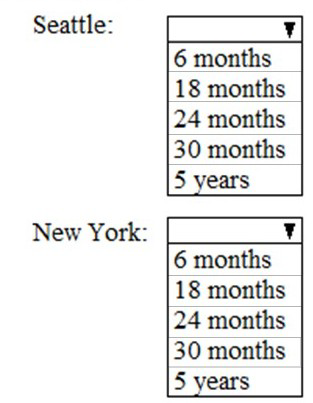

Office versions that require an add-in Sensitivity labels are built directly into the following versions of Office, requiring no add-in:
Microsoft 365 Apps for enterprise: Has native, built-in support for sensitivity labels.
Office for the web: Has native, built-in support for sensitivity labels.
The following versions require the Azure Information Protection (AIP) unified labeling client add-in to apply and view sensitivity labels:
Office 2016: Requires the AIP add-in for sensitivity label support. Office 2019: Requires the AIP add-in for sensitivity label support.
Therefore, only Office 2016 and Office 2019 require an add-in.
Office file types that support the sensitivity labels Sensitivity labels use modern, cloud-based metadata and encryption. They are fully supported only by the modern, XML-based Office file formats:
.docx: Supports sensitivity labels.
.xlsx: Supports sensitivity labels.
The legacy, binary file formats do not support sensitivity labels:
.doc: Does not support sensitivity labels. To use labels, the file must be saved in the .docx format.
.xls: Does not support sensitivity labels. To use labels, the file must be saved in the .xlsx format.
Therefore, only the modern file types .docx and .xlsx support sensitivity labels.
Reference:
Microsoft Docs: Enable sensitivity labels for Office files in SharePoint and OneDrive - This discusses support for modern file formats.
Microsoft Docs: Azure Information Protection unified labeling client - Version release history - This client is the required add-in for Office 2016 and Office 2019.
Key Takeaway:
For the best and most integrated experience with sensitivity labels, users should be on Microsoft 365 Apps and use modern file formats (.docx, .xlsx, .pptx).
You have a Microsoft 365 E5 tenant
You create a data toss prevention (DLP) policy to prevent users from using Microsoft Teams to share internal documents with external users.
To which two locations should you apply the policy? To answer, select the appropriate locations in the answer area.
NOTE: Each correct selection is worth one point.
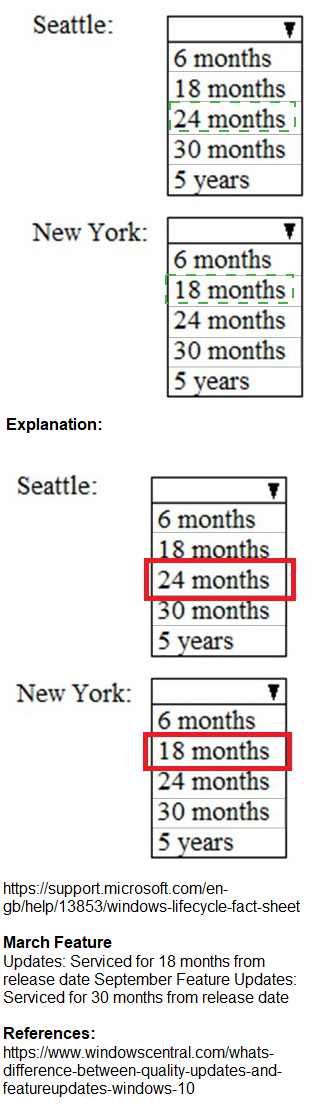

When a user shares a file in a Microsoft Teams chat or channel, the file is not stored within the "Teams" service itself. Instead, it is stored in a SharePoint site behind the scenes.
Files shared in a Teams channel are stored in the SharePoint site associated with that team.
Files shared in a private or group chat are stored in the OneDrive for Business account of the user who initiated the file upload.
Therefore, to effectively prevent the sharing of internal documents through Teams, the DLP policy must monitor and enforce rules at the storage layer—which is SharePoint Online and OneDrive for Business.
Applying the policy directly to the "Teams chat and channel messages" location would allow the DLP policy to monitor and protect the conversation content (the text of the messages), but it would not be sufficient to protect the files being shared within those conversations. To protect the files, you must target SharePoint and OneDrive.
Reference:
Microsoft Docs: Learn about data loss prevention in Teams
This documentation explicitly states: "When a DLP policy for Teams is created, it's implemented in the associated SharePoint sites and OneDrive accounts... DLP for Teams doesn't require any specific configuration beyond choosing the Teams location when you create a DLP policy. However, SharePoint sites and OneDrive accounts must also be included in the policy."
Key Takeaway:
To protect files shared in Microsoft Teams with a DLP policy, you must always include the SharePoint sites and OneDrive accounts locations. The "Teams" location primarily covers the text-based chat messages.
| Page 2 out of 31 Pages |
| MS-102 Practice Test |