Topic 2, Contoso, Ltd
Case study
This is a case study. Case studies are not timed separately. You can use as much
exam time as you would like to complete each case. However, there may be additional ase studies and sections on this exam. You must manage your time to ensure that you
are able to complete all questions included on this exam in the time provided.
To answer the questions included in a case study, you will need to reference information
that is provided in the case study. Case studies might contain exhibits and other resources
that provide more information about the scenario that is described in the case study. Each
question is independent of the other questions in this case study.
At the end of this case study, a review screen will appear. This screen allows you to review
your answers and to make changes before you move to the next section of the exam. After
you begin a new section, you cannot return to this section.
To start the case study
To display the first question in this case study, click the Next button. Use the buttons in the
left pane to explore the content of the case study before you answer the questions. Clicking
these buttons displays information such as business requirements, existing environment,
and problem statements. When you are ready to answer a question, click the Question
button to return to the question.
Background
Overview
You are a developer for Contoso, Ltd. The company has a social networking website that is
developed as a Single Page Application (SPA). The main web application for the social
networking website loads user uploaded content from blob storage.
You are developing a solution to monitor uploaded data for inappropriate content. The
following process occurs when users upload content by using the SPA:
• Messages are sent to ContentUploadService.
• Content is processed by ContentAnalysisService.
• After processing is complete, the content is posted to the social network or a rejection
message is posted in its place.
The ContentAnalysisService is deployed with Azure Container Instances from a private
Azure Container Registry named contosoimages.
The solution will use eight CPU cores.
Azure Active Directory
Contoso, Ltd. uses Azure Active Directory (Azure AD) for both internal and guest accounts.
Requirements
ContentAnalysisService
The company’s data science group built ContentAnalysisService which accepts user
generated content as a string and returns a probable value for inappropriate content. Any
values over a specific threshold must be reviewed by an employee of Contoso, Ltd.
You must create an Azure Function named CheckUserContent to perform the content
checks.
Costs
You must minimize costs for all Azure services.
Manual review
To review content, the user must authenticate to the website portion of the
ContentAnalysisService using their Azure AD credentials. The website is built using React
and all pages and API endpoints require authentication. In order to review content a user
must be part of a ContentReviewer role. All completed reviews must include the reviewer’s
email address for auditing purposes.
High availability
All services must run in multiple regions. The failure of any service in a region must not
impact overall application availability.
Monitoring
An alert must be raised if the ContentUploadService uses more than 80 percent of
available CPU cores.
Security
You have the following security requirements:
Any web service accessible over the Internet must be protected from cross site
scripting attacks.
All websites and services must use SSL from a valid root certificate authority.
Azure Storage access keys must only be stored in memory and must be available
only to the service.
All Internal services must only be accessible from internal Virtual Networks
(VNets).
All parts of the system must support inbound and outbound traffic restrictions.
All service calls must be authenticated by using Azure AD.
User agreements
When a user submits content, they must agree to a user agreement. The agreement allows
employees of Contoso, Ltd. to review content, store cookies on user devices, and track
user’s IP addresses.
Information regarding agreements is used by multiple divisions within Contoso, Ltd.
User responses must not be lost and must be available to all parties regardless of
individual service uptime. The volume of agreements is expected to be in the millions per
hour.
Validation testing
When a new version of the ContentAnalysisService is available the previous seven days of
content must be processed with the new version to verify that the new version does not
significantly deviate from the old version.
Issues
Users of the ContentUploadService report that they occasionally see HTTP 502 responses
on specific pages.
Code
ContentUploadService

You are a developer for a Software as a Service (SaaS) company. You develop solutions
that provide the ability to send notifications by using Azure Notification Hubs.
You need to create sample code that customers can use as a reference for how to send
raw notifications to Windows Push Notification Services (WNS) devices. The sample code
must not use external packages.
How should you complete the code segment? To answer, drag the appropriate code
segments to the correct locations. Each code segment may be used once, more than once,
or not at all. You may need to drag the split bar between panes or scroll to view content.
NOTE: Each correct selection is worth one point.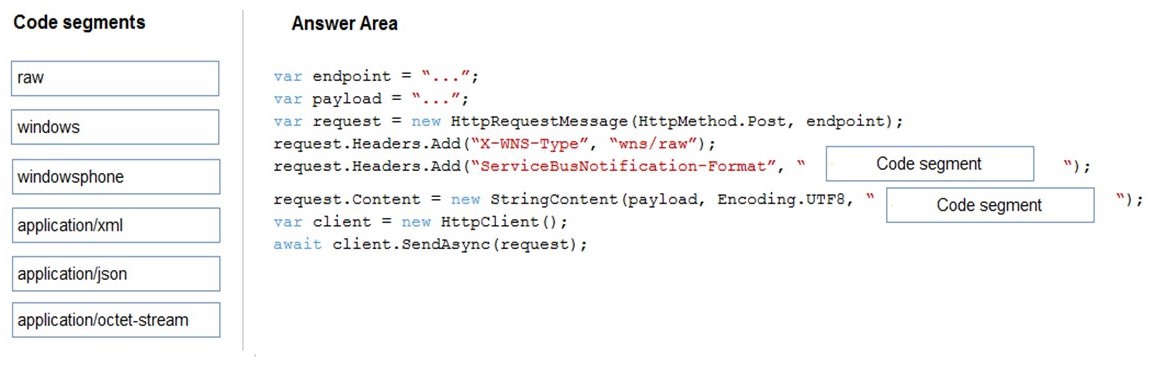
Explanation:
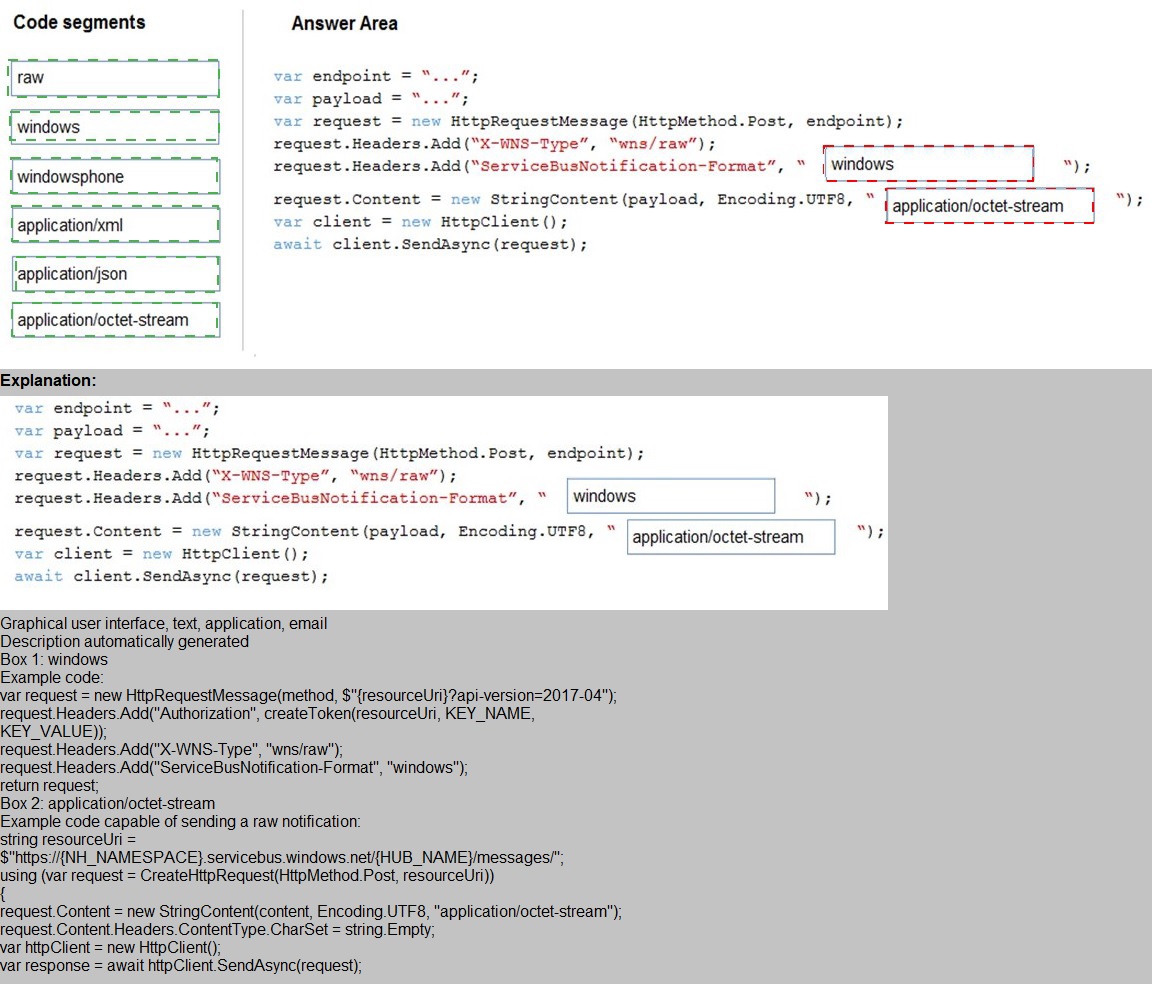
This question tests your knowledge of Azure Notification Hubs direct send approach for raw notifications to WNS devices. When sending raw notifications without using external SDKs, you must construct the HTTP request manually using the Notification Hubs REST API. The ServiceBusNotification-Format header specifies the platform format, and Content-Type must match the payload format. For WNS raw notifications, the format is windows and the content type is application/octet-stream.
Correct Order:
Code segment 1: windows
The ServiceBusNotification-Format header must be set to windows when targeting WNS devices. This tells Azure Notification Hubs that the notification is intended for the Windows platform. Using raw or windowsphone would be incorrect — raw is the WNS header value, not the Notification Hubs format header.
Code segment 2: application/octet-stream
Raw notifications to WNS require application/octet-stream as the content type. This indicates binary or opaque data that the device receives and processes directly. Using application/xml or application/json would imply structured data, which is not the correct MIME type for raw WNS notifications.
Incorrect Code Segments:
raw – This is the value for the X-WNS-Type header (already correctly set to wns/raw), not the ServiceBusNotification-Format header. Using it here would cause the request to fail.
windowsphone – This format targets Windows Phone (WP8) devices using MPNS, not WNS for Windows UWP apps.
application/xml / application/json – These are structured content types used for template or toast notifications, not for raw notifications.
Reference:
Send raw notifications with REST API
Notification Hubs REST APIs
WNS raw notifications
You develop a containerized application. You plan to deploy the application to a new Azure
Container instance by using a third-party continuous integration and continuous delivery
(CI/CD) utility.
The deployment must be unattended and include all application assets. The third-party
utility must only be able to push and pull images from the registry. The authentication must
be managed by Azure Active Directory (Azure AD). The solution must use the principle of
least privilege.
You need to ensure that the third-party utility can access the registry.
Which authentication options should you use? To answer, select the appropriate options in
the answer area.
NOTE: Each correct selection is worth one point.
Explanation:
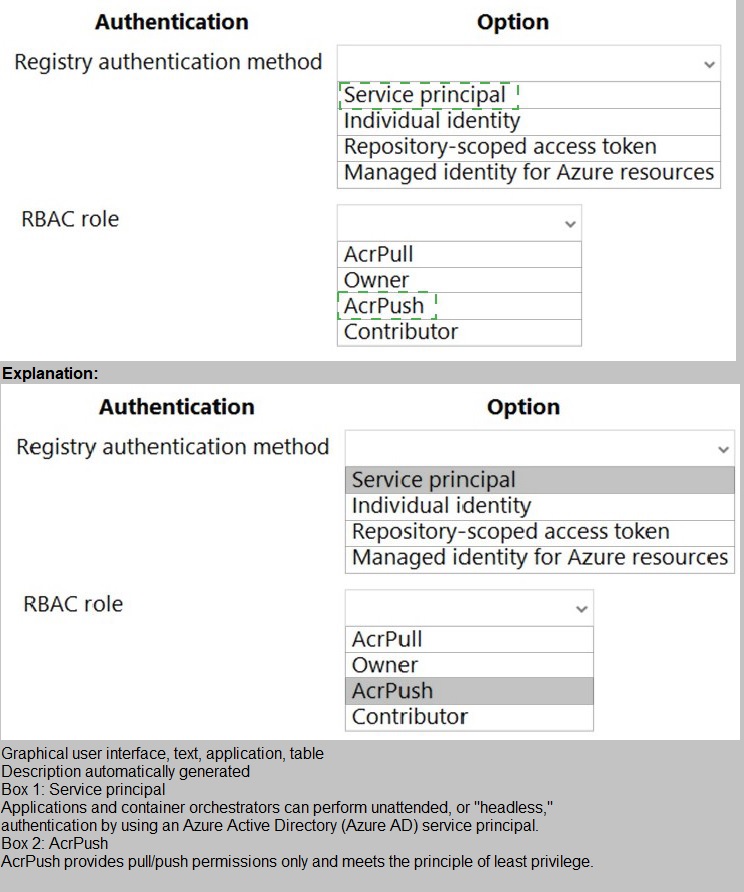
This question tests your knowledge of Azure Container Registry (ACR) authentication methods and RBAC roles. The requirements specify unattended deployment, Azure AD-managed authentication, and least privilege — the utility must only push and pull images. A service principal is the appropriate Azure AD identity for unattended CI/CD scenarios, and the AcrPush role grants both push and pull permissions without excess privileges.
Correct Option:
Authentication method: Service principal
A service principal is an Azure AD identity designed for automated, unattended scenarios such as CI/CD pipelines. It supports client credentials and certificate-based authentication, meets the Azure AD-managed requirement, and can be assigned granular RBAC roles. This is the correct choice for third-party utility access.
RBAC role: AcrPush
The AcrPush role allows both pull and push operations to the container registry. This meets the requirement that the utility must be able to push and pull images. It follows the principle of least privilege — AcrPush grants only the necessary permissions without granting broader subscription-level access like Contributor or Owner.
Incorrect Option:
Authentication method: Individual identity
Individual user identities (Azure AD user accounts) require interactive sign-in and are not suitable for unattended CI/CD scenarios. They also violate the principle of least privilege when used in automation and are not designed for service-to-service authentication.
Authentication method: Repository-scoped access token
Repository-scoped tokens are scoped to specific repositories but are not managed by Azure AD. They are ACR-specific tokens that do not meet the requirement that authentication must be managed by Azure AD.
Authentication method: Managed identity for Azure resources
Managed identities are ideal for Azure-hosted resources (e.g., Azure VMs, App Services, AKS). However, the third-party CI/CD utility is external and cannot use an Azure-assigned managed identity. This option is not applicable.
RBAC role: AcrPull
AcrPull grants pull-only permissions. Since the utility must both push and pull images, this role is insufficient. It violates the functional requirement.
RBAC role: Owner / Contributor
These roles grant broad management permissions over the registry and even the resource group or subscription. They far exceed the required push/pull scope and violate the principle of least privilege.
Reference:
Authenticate with Azure Container Registry
ACR roles and permissions
Authenticate with service principal
You plan to create a Docker image that runs an ASP.NET Core application named
ContosoApp. You have a setup script named setupScript.ps1 and a series of application
files including ContosoApp.dll.
You need to create a Dockerfile document that meets the following requirements:
Call setupScripts.ps1 when the container is built.
Run ContosoApp.dll when the container starts.
The Dockerfile document must be created in the same folder where ContosoApp.dll and setupScript.ps1 are stored.
Which five commands should you use to develop the solution? To answer, move the
appropriate commands from the list of commands to the answer area and arrange them in
the correct order.
Explanation:
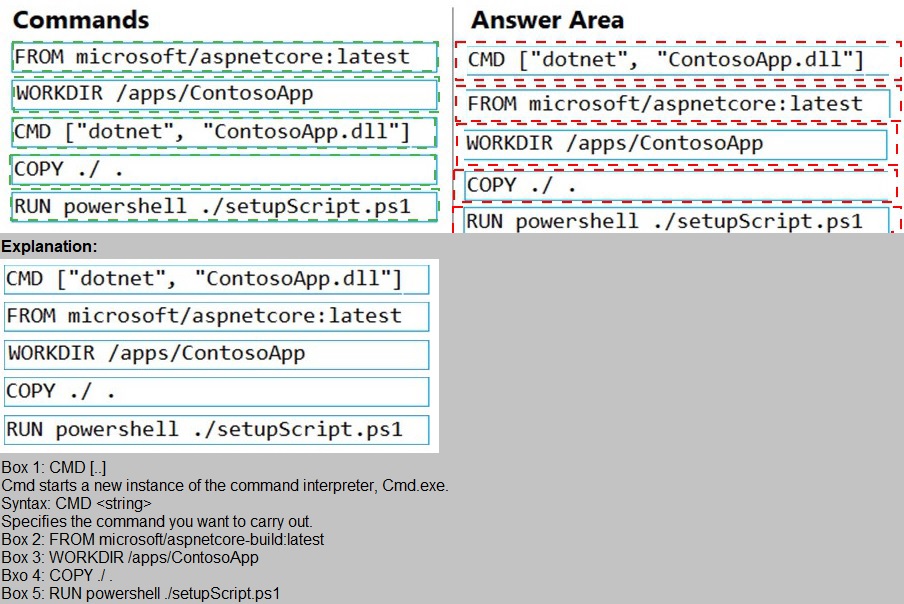
This question tests your knowledge of writing efficient and correct Dockerfiles for ASP.NET Core applications. The requirements specify that setupScript.ps1 must run during build time, and ContosoApp.dll must run at container startup. The correct order of Dockerfile instructions ensures the working directory is set, files are copied, the setup script executes, and the application entry point is properly defined.
Correct Order:
1. FROM microsoft/aspnetcore:latest
This specifies the base image. For ASP.NET Core applications, microsoft/aspnetcore or mcr.microsoft.com/dotnet/aspnet is appropriate. This instruction must be the first line in any Dockerfile.
2. WORKDIR /apps/ContosoApp
Sets the working directory inside the container. All subsequent commands (COPY, RUN, CMD) will execute from this directory. This ensures the application files are placed in the correct location.
3. COPY . /
Copies all application files from the build context (current directory) to the root of the container filesystem. Since WORKDIR is set to /apps/ContosoApp, the files are copied there. This includes ContosoApp.dll and setupScript.ps1.
4. RUN powershell ./setupScript.ps1
Executes the setup script during the build phase (when the image is built). This meets the requirement that setupScript.ps1 runs when the container is built. Changes made here are persisted in the image layer.
5. CMD ["dotnet", "ContosoApp.dll"]
Defines the default command to execute when the container starts. This runs the ASP.NET Core application. This meets the requirement to run ContosoApp.dll at container startup.
Incorrect Order / Placement Considerations:
The CMD instruction must come after all build-time instructions (COPY, RUN) to ensure the application is present when the container starts.
Placing CMD before COPY would result in a missing file error at runtime.
Placing RUN after CMD would never execute during build, as CMD is not used during image build.
Reference:
Dockerfile reference
Dockerizing ASP.NET Core applications
Dockerfile best practices
You have an application that uses Azure Blob storage.
You need to update the metadata of the blobs.
Which three methods should you use to develop the solution? To answer, move the
appropriate methods from the list of methods to the answer area and arrange them in the
correct order.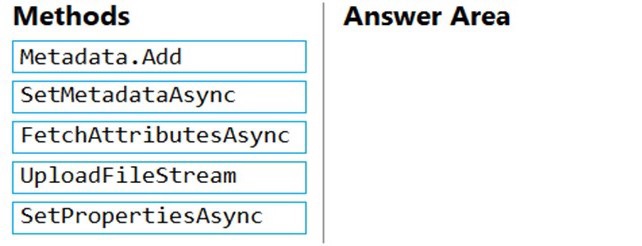
Explanation:
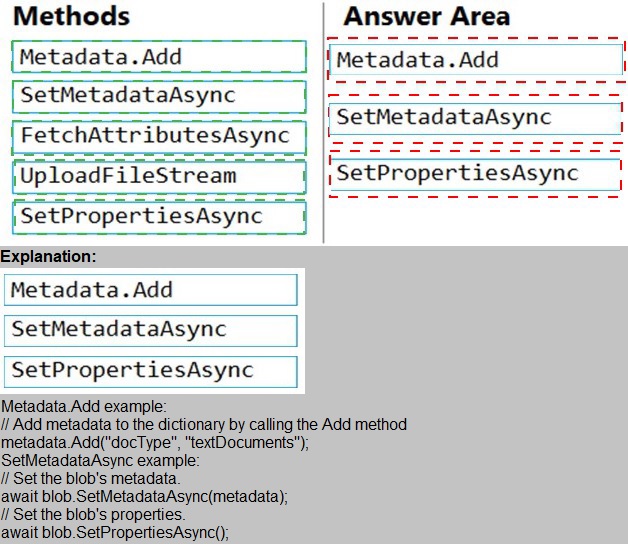
This question tests your knowledge of updating blob metadata using the Azure Storage SDK. Metadata is stored as name-value pairs on a blob. To update metadata, you must retrieve the blob's existing attributes, add or modify metadata, and then save the changes back to the blob. The correct sequence follows the typical read-modify-write pattern required by the SDK.
Correct Order:
1. FetchAttributesAsync
This method populates the blob's metadata and properties on the client object by calling the blob service. Before modifying metadata, you must fetch the current attributes to ensure you are working with the latest state. Without this call, the metadata collection may be empty or outdated.
2. Metadata.Add
After fetching attributes, you add or update key-value pairs in the blob's metadata collection. This operation is performed locally on the client object. For example: blob.Metadata.Add("key", "value"). No changes are sent to the server yet.
3. SetMetadataAsync
This asynchronous method commits the local metadata changes to Azure Blob Storage. It sends the updated metadata collection to the server, replacing any existing metadata. This is the final step that persists the changes.
Incorrect Methods / Out of Order:
SetPropertiesAsync – This method updates blob properties (e.g., content type, cache control), not metadata. While related, it is not the correct method for updating metadata.
UploadFileStream – This method uploads file content to a blob, overwriting the blob data. It does not update metadata and is unrelated to the requirement.
Placing SetMetadataAsync before Metadata.Add would have no effect, as no new metadata has been added locally.
Placing FetchAttributesAsync after Metadata.Add risks overwriting metadata changes if the fetch is called after local modifications.
Reference:
Set blob metadata
SetMetadataAsync method
FetchAttributesAsync method
You develop and deploy an Azure Logic App that calls an Azure Function app. The Azure
Function App includes an OpenAPI (Swagger) definition and uses an Azure Blob storage
account. All resources are secured by using Azure Active Directory (Azure AD).
The Logic App must use Azure Monitor logs to record and store information about runtime
data and events. The logs must be stored in the Azure Blob storage account.
You need t
o set up Azure Monitor logs and collect diagnostics data for the Azure Logic
App.
Which three actions should you perform in sequence? To answer, move the appropriate
actions from the list of actions to the answer area and arrange them in the correct order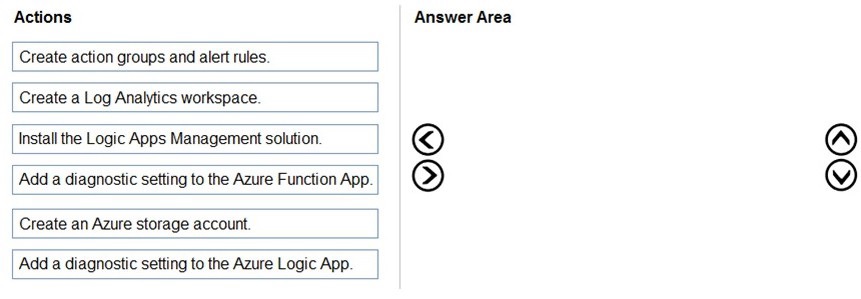
Explanation:
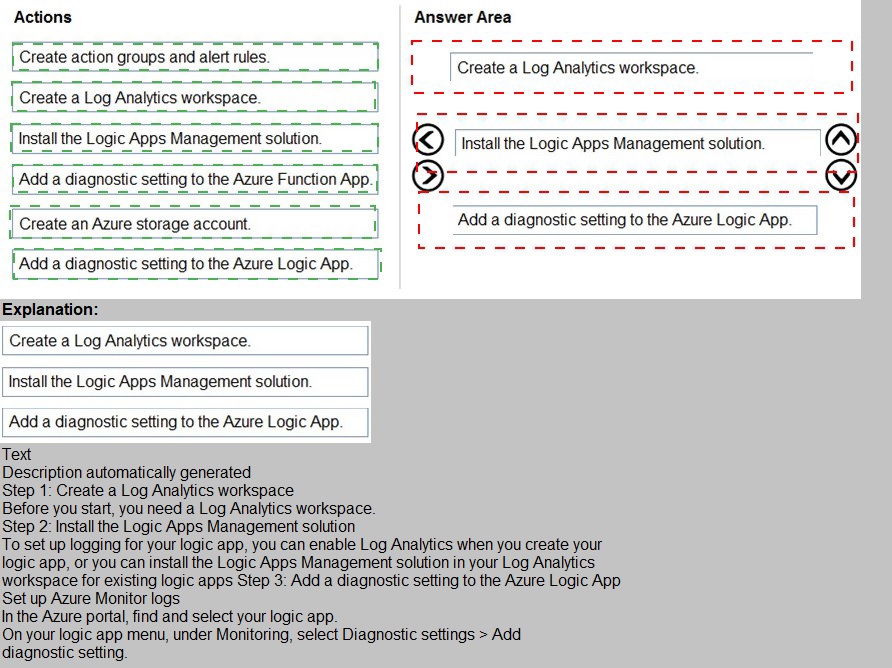
This question tests your knowledge of configuring Azure Monitor diagnostics for Azure Logic Apps with log storage in Blob Storage. The requirements specify that runtime data and events must be recorded using Azure Monitor logs and stored in the Azure Blob storage account. The correct sequence involves creating the log destination, enabling diagnostics, and routing the logs to Blob Storage.
Correct Order:
1. Create an Azure storage account.
The logs must be stored in an Azure Blob storage account. Before you can configure diagnostics, you need to have a storage account created as the destination for the logs. This matches the requirement that logs be stored in Blob Storage.
2. Create a Log Analytics workspace.
Azure Monitor logs require a Log Analytics workspace to collect, query, and analyze log data. Although the requirement mentions storing logs in Blob Storage, Azure Logic App diagnostics also support sending logs to Log Analytics for advanced monitoring. This step is necessary to enable the diagnostics settings.
3. Add a diagnostic setting to the Azure Logic App.
This action configures the Logic App to send runtime data and events to the specified destinations — in this case, the Blob Storage account and optionally the Log Analytics workspace. This is the step that actually enables log collection for the Logic App.
Incorrect Actions / Out of Order:
Add a diagnostic setting to the Azure Function App – The requirement specifically asks to collect diagnostics data for the Azure Logic App, not the Function App. This action is unnecessary for the given goal.
Install the Logic Apps Management solution – This solution is used for monitoring and managing Logic Apps at scale but is not required for basic diagnostics configuration. It is an optional add-on, not a prerequisite.
Create action groups and alert rules – Action groups and alerts are used for notifications and automated responses to monitoring data, not for collecting or storing log data. This step comes after logs are flowing.
Reference:
Enable diagnostics logging for Azure Logic Apps
Diagnostic settings in Azure Monitor
Troubleshoot Azure Logic Apps with Azure Monitor logs
You are developing an application that uses a premium block blob storage account. You are optimizing costs by automating Azure Blob Storage access tiers.
You apply the following policy rules to the storage account. You must determine the implications of applying the rules to the data. (Line numbers are included for reference only.)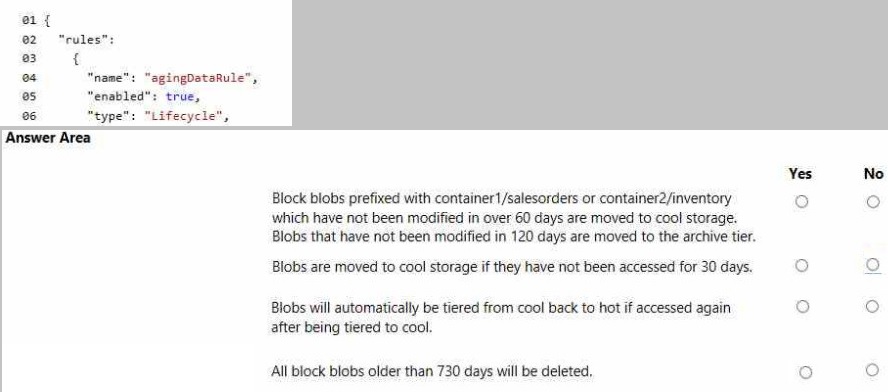
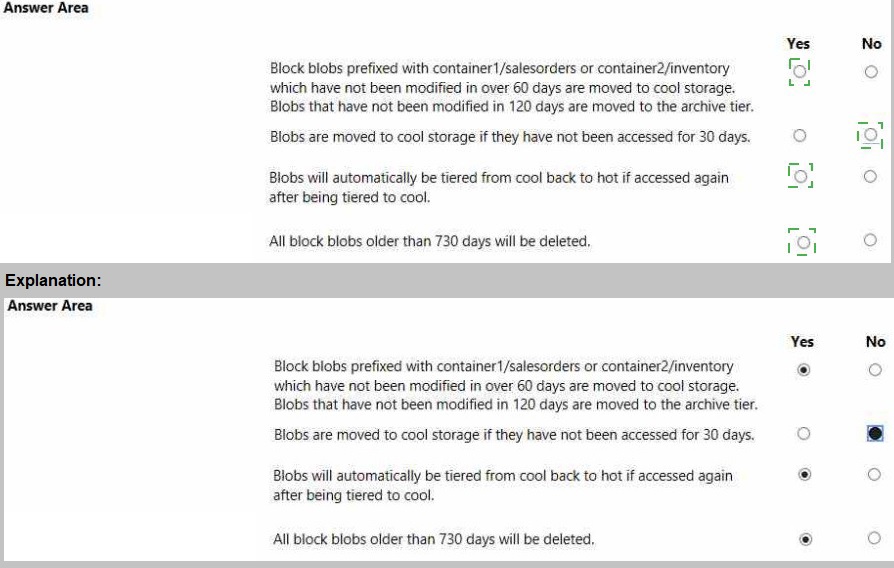
Explanation:
This question tests your understanding of Azure Blob Storage lifecycle management policies and their supported actions. Lifecycle rules can move blobs to cool, cold, or archive tiers, and delete blobs after specified time periods. However, they cannot move blobs back to a hotter tier (auto-tiering up) and cannot be applied conditionally to unaccessed time—only last modified time is supported. Premium block blob storage also has specific limitations.
Answer Evaluation:
1. Block blobs prefixed with container1/salesorders or container2/inventory which have not been modified in over 60 days are moved to cool storage.
✅ Yes
Lifecycle rules support filtering by blob prefix and moving blobs based on "days since last modification" to cool tier. This is fully supported in GPv2 and premium block blob accounts with lifecycle management enabled.
2. Blobs that have not been modified in 120 days are moved to the archive tier.
✅ Yes
Moving blobs to the archive tier based on last modification date is a standard lifecycle rule action. This is supported provided the blob is not in a premium account with page blobs and the archive tier is enabled.
3. Blobs are moved to cool storage if they have not been accessed for 30 days.
❌ No
Azure Blob Storage lifecycle rules do not support conditions based on "last accessed date." The only available time condition is "days since last modification." While access tracking is available as a preview feature, it cannot be used in lifecycle policies at this time.
4. Blobs will automatically be tiered from cool back to hot if accessed again after being tiered to cool.
❌ No
Lifecycle management policies are one-way only. Blobs can be moved to cooler tiers but cannot automatically be promoted to hotter tiers. Rehydration from archive to hot/cool requires manual copy or tier change operation.
5. All block blobs older than 730 days will be deleted.
✅ Yes
Lifecycle policies support blob deletion based on age (days since last modification). This rule can be applied globally to all blobs or filtered by prefix. It is a valid and commonly used retention policy.
Reference:
Azure Blob Storage lifecycle management
Supported lifecycle rule actions
Premium block blob storage support
Last access time tracking (preview)
You are developing an Azure-hosted e-commerce web application. The application will use
Azure Cosmos DB to store sales orders. You are using the latest SDK to manage the sales
orders in the database.
You create a new Azure Cosmos DB instance. You include a valid endpoint and valid
authorization key to an appSettings.json file in the code project.
You are evaluating the following application code: (Line number are included for reference
only.)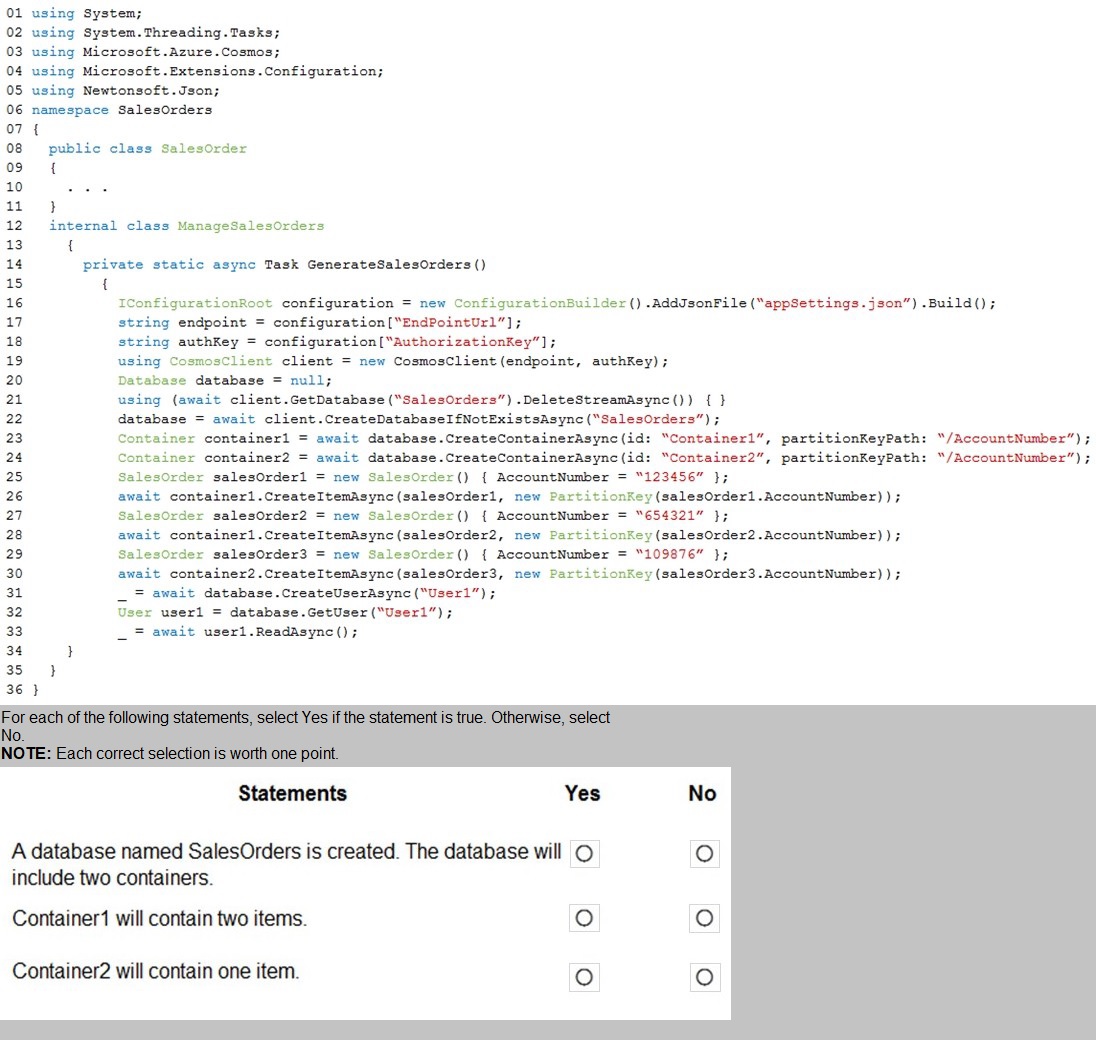
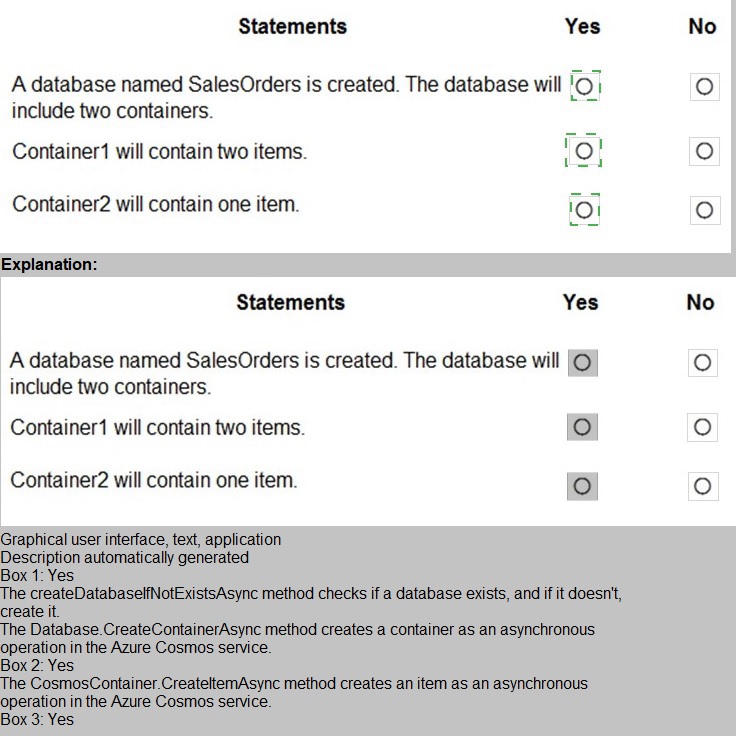
Explanation:
This question tests your ability to trace the execution flow of Cosmos DB SDK code, particularly the behavior of DeleteStreamAsync() and error handling. The key here is understanding that calling DeleteStreamAsync() on a non-existent database does not throw an exception — it simply returns a response with IsSuccessStatusCode = false. The code does not check this status, so the subsequent CreateDatabaseIfNotExistsAsync() still executes and creates the database. However, the error in the using block syntax causes compilation failure, preventing any runtime execution.
Code Analysis:
Line 19:
using (CosmosClient client = new CosmosClient(endpoint, authKey));
❌ Error: The semicolon ends the using statement immediately. The subsequent lines are not inside the using block. This is a compilation error.
Line 21:
using (await client.GetDatabase($"SalesOrders").DeleteStreamAsync()) {
This attempts to delete the database if it exists. Since this is a new Cosmos DB instance, the database does not exist. DeleteStreamAsync() returns a response with IsSuccessStatusCode = false, but does not throw. The code continues.
Line 22:
database = await client.CreateDatabaseIfNotExistsAsync($"SalesOrders");
Creates the SalesOrders database since it does not exist.
Lines 23-24:
Creates Container1 and Container2 with partition key /AccountNumber.
Lines 26, 28, 30:
Creates three items in Container1. No items are created in Container2.
Statement Evaluation:
1. A database named SalesOrders is created.
✅ Yes
Line 22 creates the database using CreateDatabaseIfNotExistsAsync(). Even though the prior delete operation failed, it did not prevent database creation.
2. The database will include two containers.
✅ Yes
Lines 23 and 24 explicitly create Container1 and Container2. Both are created successfully under the SalesOrders database.
3. Container1 will contain two items.
❌ No
Lines 26, 28, and 30 create three items in Container1 (AccountNumbers: 123456, 654321, 109876). Therefore, Container1 contains three items, not two.
4. Container2 will contain one item.
❌ No
No items are ever created in Container2. The code only creates items in Container1. Container2 remains empty.
Important Note:
Due to the compilation error on line 19, this code will not run at all. In a strict exam context, if the question assumes the code executes, the above analysis applies. However, the syntax error means none of the runtime behavior occurs. The question expects you to evaluate the intended logic assuming the syntax is corrected.
Reference:
CosmosClient class
Database.DeleteStreamAsync
CreateDatabaseIfNotExistsAsync
You develop an application. You plan to host the application on a set of virtual machines
(VMs) in Azure.
You need to configure Azure Monitor to collect logs from the application.
Which four actions should you perform in sequence? To answer, move the appropriate
actions from the list of actions to the answer area and arrange them in the correct order.
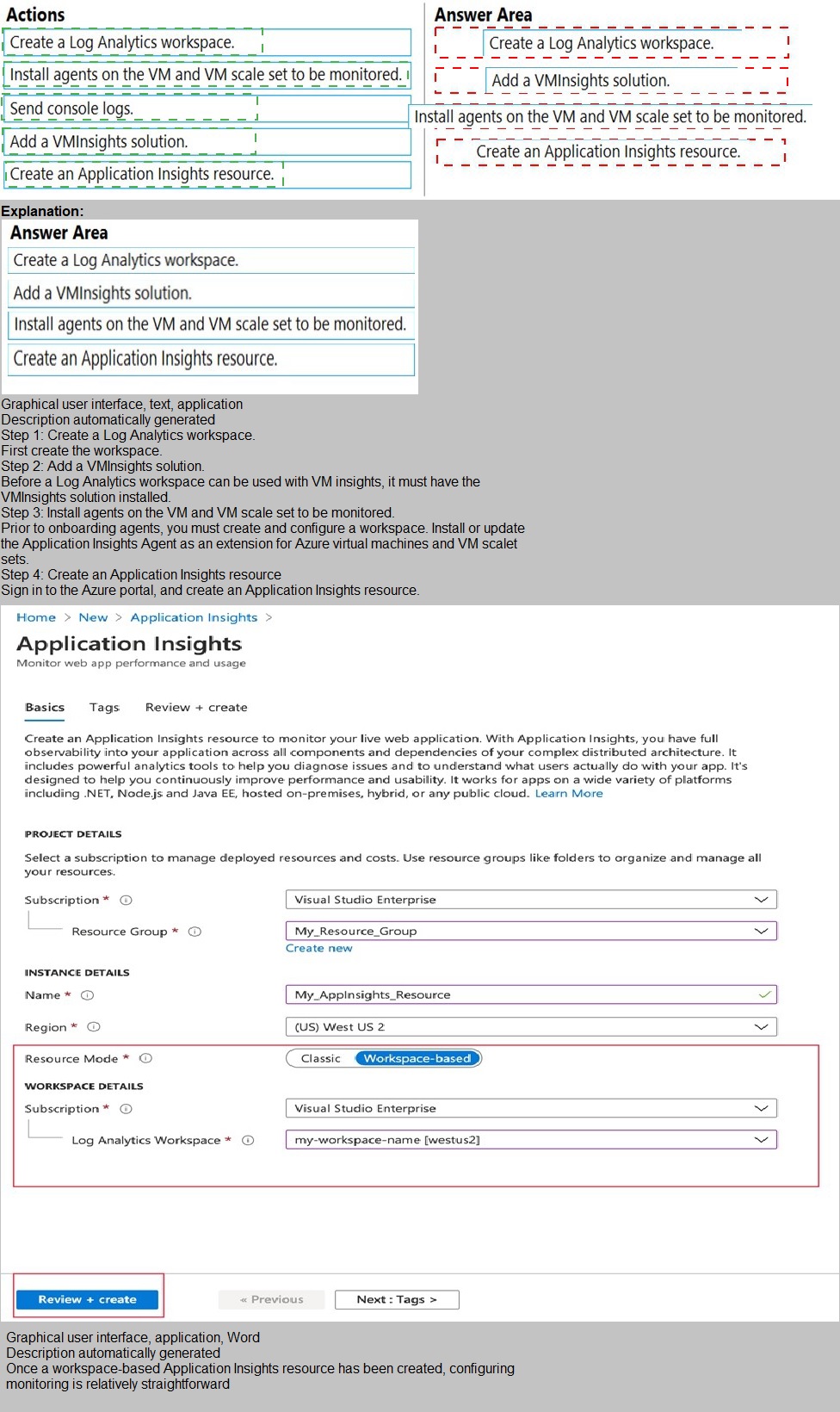
Explanation:
This question tests your knowledge of configuring Azure Monitor to collect application logs from Azure VMs and VM scale sets. The requirements focus on collecting logs from the application, not just infrastructure metrics. To collect application logs, performance data, and dependency monitoring, you need to enable Azure Monitor for VMs (VM Insights) , which requires a Log Analytics workspace, the VM Insights solution, and the Log Analytics agent installed on the VMs.
Correct Order:
1. Create a Log Analytics workspace.
A Log Analytics workspace is the central data repository for Azure Monitor logs. Before you can collect any log data, you must create a workspace to store and query the logs. This is the foundational step.
2. Add a VMInsights solution.
The VM Insights solution (also known as Azure Monitor for VMs) must be added to the Log Analytics workspace. This solution enables monitoring of VM performance, processes, dependencies, and application logs. It installs the Map and Performance dashboards and enables the collection of detailed telemetry.
3. Install agents on the VM and VM scale set to be monitored.
To collect application logs and performance data, the Log Analytics agent must be installed on each VM and VM scale set instance. This agent forwards data to the Log Analytics workspace. VM Insights also requires the Dependency Agent for network connection mapping, which is typically included in this step.
4. Send console logs.
After agents are installed and the VM Insights solution is added, you must configure data collection settings to specify which logs to collect — including application console logs, event logs, and custom logs. This step actually enables the flow of log data from the application to Azure Monitor.
Incorrect Actions / Out of Order:
Create an Application Insights resource – Application Insights is for monitoring live web applications, typically integrated into application code. It is not installed on VMs via agents and is not the correct tool for collecting VM application logs in this scenario.
Placing "Send console logs" before installing agents – Console logs cannot be sent until the Log Analytics agent is installed and configured on the target VMs.
Placing "Install agents" before creating the Log Analytics workspace – Agents require a workspace to connect to; without a workspace, the installation cannot complete successfully.
Reference:
Azure Monitor for VMs (VM Insights) overview
Log Analytics agent overview
Collect custom logs with Azure Monitor
Enable VM Insights
| Page 2 out of 28 Pages |