Topic 2, Litware, Inc


Case study
This is a case study. Case studies are not timed separately. You can use as much
exam time as you would like to complete each case. However, there may be additional
case studies and sections on this exam. You must manage your time to ensure that you
are able to complete all questions included on this exam in the time provided.
To answer the questions included in a case study, you will need to reference information
that is provided in the case study. Case studies might contain exhibits and other resources
that provide more information about the scenario that is described in the case study. Each
question is independent of the other questions in this case study.

At the end of this case study, a review screen will appear. This screen allows you to review
your answers and to make changes before you move to the next section of the exam. After
you begin a new section, you cannot return to this section.
To start the case study
To display the first question in this case study, click the Next button. Use the buttons in the
left pane to explore the content of the case study before you answer the questions. Clicking
these buttons displays information such as business requirements, existing environment,
and problem statements. If the case study has an All Information tab, note that the
information displayed is identical to the information displayed on the subsequent tabs.
When you are ready to answer a question, click the Question button to return to the
question.
Overview
Litware, Inc. is a pharmaceutical company that has a main office in Boston, United States,
and a remote office in Chennai, India.
Existing Environment. Identity Environment
The network contains an on-premises Active Directory domain named litware.com that
syncs to an Azure Active Directory (Azure AD) tenant named litware.com.
The Azure AD tenant contains the users shown in the following table.

Litware uses custom virtual machine images and custom scripts to automatically provision
Azure virtual machines and join the virtual machines to the on-premises Active Directory
domain.
Network and DNS
The offices connect to each other by using a WAN link. Each office connects directly to the
internet.
All DNS queries for internet hosts are resolved by using DNS servers in the Boston office,
which point to root servers on the internet. The Chennai office has caching-only DNS
servers that forward queries to the DNS servers in the Boston office.
Requirements. Planned Changes
Litware plans to implement the following changes:
Deploy Windows Virtual Desktop environments to the East US Azure region for the
users in the Boston office and to the South India Azure region for the users in the
Chennai office.
Implement FSLogix profile containers.
Optimize the custom virtual machine images for the Windows Virtual Desktop
session hosts.
Use PowerShell to automate the addition of virtual machines to the Windows
Virtual Desktop host pools.
Requirements. Performance Requirements
Litware identifies the following performance requirements:
Minimize network latency of the Windows Virtual Desktop connections from the
Boston and Chennai offices.
Minimize latency of the Windows Virtual Desktop host authentication in each Azure
region.
Minimize how long it takes to sign in to the Windows Virtual Desktop session
hosts.
Requirements. Authentication Requirements
Litware identifies the following authentication requirements:
Enforce Azure MFA when accessing Windows Virtual Desktop apps.
Force users to reauthenticate if their Windows Virtual Desktop session lasts more
than eight hours.
Requirements. Security Requirements
Litware identifies the following security requirements:
Explicitly allow traffic between the Windows Virtual Desktop session hosts and
Microsoft 365.
Explicitly allow traffic between the Windows Virtual Desktop session hosts and the
Windows Virtual Desktop infrastructure.
Use built-in groups for delegation.
Delegate the management of app groups to CloudAdmin1, including the ability to
publish app groups to users and user groups.
Grant Admin1 permissions to manage workspaces, including listing which apps
are assigned to the app groups.
Minimize administrative effort to manage network security.
Use the principle of least privilege.
Requirements. Deployment Requirements
Litware identifies the following deployment requirements:
Use PowerShell to generate the token used to add the virtual machines as session
hosts to a Windows Virtual Desktop host pool.
Minimize how long it takes to provision the Windows Virtual Desktop session hosts
based on the custom virtual machine images.
Whenever possible, preinstall agents and apps in the custom virtual machine
images.

You have a Azure Virtual Desktop host pool named Pool1 that is integrated with an Azure
Active Directory Domain Services (Azure AD DS) managed domain.
You need to configure idle session timeout settings for users that connect to the session
hosts in Pool 1.
Solution: From the Azure portal you modify the Advanced settings in the RDP Properties of
Pool1.
Does This meet the goal?

A. Yes

B. No

B.   No

Explanation:
This question tests your understanding of where to configure session timeout settings in Azure Virtual Desktop. Idle session timeout refers to disconnecting users after a period of inactivity, which is a session host-level configuration, not a connection-level RDP property. While RDP properties control client connection behavior and display settings, idle session timeouts must be configured through Group Policy or Local Group Policy on the session hosts themselves.

Correct Option:

B. No.
Modifying the Advanced settings in RDP Properties of Pool1 configures connection parameters sent to the Remote Desktop client, such as display settings, device redirection, and authentication behavior. However, idle session timeout policies cannot be configured through RDP properties. These timeouts must be configured using Group Policy settings on the session hosts, specifically through the "Set time limit for active but idle Remote Desktop Services sessions" policy under Computer Configuration > Administrative Templates > Windows Components > Remote Desktop Services > Remote Desktop Session Host > Session Time Limits.

Incorrect Option Explanation (Not applicable as answer is No):
The solution fails because RDP properties only control client-side connection behavior, not session host-side timeout enforcement. Even if you could set timeout values in RDP properties, they would not be enforced by the session hosts. Azure Virtual Desktop does not provide idle timeout configuration through the host pool RDP properties; you must use traditional Windows Server/GPO methods for session management, especially in an Azure AD DS environment where Group Policy can be centrally managed.

Reference:
Microsoft Learn: Configure session timeout properties for Azure Virtual Desktop - Idle session timeouts are configured using Group Policy on session hosts, not through RDP properties

You have an Azure Active Directory (Azure AD) tenant named contoso.com.
You use a user account named Admin1 to deploy an Azure Active Directory Domain
Services (Azure AD DS) managed domain named aaddscontoso.com to a virtual network
named VNET1.
You plan to deploy an Azure Virtual Desktop host pool named Pool1 to VNET1.
You need to ensure that you can use the Admin1 user account to deploy Windows 10
Enterprise session hosts to Pool1.
What should you do first?

A. Add Admin1 to the AA Change Host pool type to Pooled and specify Load D DC
Administrators group ofcontoso.com.

B. Assign the Cloud device administrator role to Admin1.

C. Assign a Microsoft 365 Enterprise E3 license to Admin1.

D. Change the password of Admin1.

A.   Add Admin1 to the AA Change Host pool type to Pooled and specify Load D DC
Administrators group ofcontoso.com.

Explanation:
This question tests your knowledge of administrative permissions required for managing Azure Virtual Desktop in an Azure AD DS environment. When you deploy Azure AD DS, synchronization occurs from Azure AD to the managed domain. However, Azure AD users are not automatically granted administrative privileges within the managed domain. To join session hosts to the managed domain and deploy them successfully, the deploying user must have appropriate permissions within Azure AD DS itself.

Correct Option:

A. Add Admin1 to the AAD DC Administrators group of contoso.com.
The AAD DC Administrators group in Azure AD is synchronized to Azure AD DS and grants its members administrative privileges on the managed domain. Members of this group can perform domain join operations, administer domain-joined machines, and have local administrator access to domain-joined servers. By adding Admin1 to this group first, you ensure they have the necessary permissions to join the Windows 10 Enterprise session hosts to the aaddscontoso.com domain when deploying Pool1 to VNET1.

Incorrect Options:

B. Assign the Cloud device administrator role to Admin1.
The Cloud Device Administrator role in Azure AD allows management of device settings and configurations in Azure AD, but it does not grant permissions within Azure AD DS. This role is for Intune and Azure AD device management, not for domain join operations to a managed domain. It would not help Admin1 join session hosts to aaddscontoso.com.

C. Assign a Microsoft 365 Enterprise E3 license to Admin1.
Microsoft 365 licenses provide access to productivity applications and some Azure AD features, but they do not affect permissions within Azure AD DS. Admin1 already exists in Azure AD, and licensing is unrelated to the ability to join machines to the managed domain. Domain join permissions come from group membership, not licensing.

D. Change the password of Admin1.
Changing the password does not affect administrative permissions in Azure AD DS. Password changes may be necessary for security but do not grant the required domain join privileges. The account already exists in Azure AD and will synchronize to Azure AD DS with its existing group memberships, which currently do not include administrative rights in the managed domain.

Reference:
Microsoft Learn: Create and configure an Azure AD DS managed domain - Administrative privileges in Azure AD DS are granted through the AAD DC Administrators group

You have a Windows Virtual Desktop host pool that runs Windows 10 Enterprise multisession.
You need to configure automatic scaling of the host pool to meet the following
requirements:
Distribute new user sessions across all running session hosts.
Automatically start a new session host when concurrent user sessions exceed 30 users per
host.
What should you include in the solution?

A. an Azure Automation account and the depth-first load balancing algorithm

B. an Azure Automation account and the breadth-first load balancing algorithm

C. an Azure load balancer and the breadth-first load balancing algorithm

D. an Azure load balancer and the depth-first load balancing algorithm

A.   an Azure Automation account and the depth-first load balancing algorithm

Explanation:
This question tests your knowledge of scaling automation and load balancing in Azure Virtual Desktop. Automatic scaling (also known as "power management" or "autoscale") requires an Azure Automation account with specific runbooks to start and stop session hosts based on scheduled or performance-based triggers. The load balancing algorithm determines how new user sessions are distributed across available session hosts. The requirement specifies distributing new sessions across all running hosts and triggering new host startup at 30 users per host.

Correct Option:

A. An Azure Automation account and the depth-first load balancing algorithm.
Azure Automation is required to run the scaling scripts (runbooks) that start and stop session hosts based on user session counts and schedules. The depth-first load balancing algorithm fills session hosts to their maximum session limit (30 users in this case) before moving to the next host. This directly supports the requirement to start a new host when concurrent sessions exceed 30 per host, as the algorithm will saturate existing hosts first, then trigger the scaling logic to start a new host when the threshold is reached.

Incorrect Options:

B. An Azure Automation account and the breadth-first load balancing algorithm.
While Azure Automation is correct for scaling, breadth-first load balancing distributes new sessions evenly across all available session hosts. This would spread users across multiple hosts before any single host reaches 30 users, potentially preventing the automatic startup trigger from activating. Breadth-first is better for performance distribution but does not align with the threshold-based startup requirement.

C. An Azure load balancer and the breadth-first load balancing algorithm.
Azure Virtual Desktop does not use Azure Load Balancer for session distribution. Session host load balancing is handled internally by the Azure Virtual Desktop service (the gateway and broker), not by an Azure Load Balancer. Additionally, breadth-first does not meet the 30-user threshold requirement for triggering new host startup.

D. An Azure load balancer and the depth-first load balancing algorithm.
Again, Azure Load Balancer is not used for AVD session distribution. Depth-first is the correct algorithm for the requirement, but the infrastructure component is wrong. Azure Automation is the correct service for scaling, not Azure Load Balancer.

Reference:
Microsoft Learn: Automatic scaling for Azure Virtual Desktop - Requires Azure Automation and supports both breadth-first and depth-first load balancing algorithms

You have a Windows Virtual Desktop host pool named Pool1 and an Azure Storage
account named Storage1.
Storage1 stores FSLogix profile containers in a share folder named share1.
You create a new group named Group1. You provide Group1 with permission to sign in to
Pool1.
You need to ensure that the members of Group1 can store the FSLogix profile containers
in share1. The solution must use the principle of least privilege.
Which two privileges should you assign to Group1? Each correct answer presents part of
the solution.
NOTE: Each correct selection is worth one point.

A. the Storage Blob Data Contributor role for storage1

B. the List folder / read data NTFS permissions for share1

C. the Modify NTFS permissions for share1

D. the Storage File Data SMB Share Reader role for storage1

E. the Storage File Data SMB Share Elevated Contributor role for storage1

F. the Storage File Data SMB Share Contributor role for storage1

C.   the Modify NTFS permissions for share1
F.   the Storage File Data SMB Share Contributor role for storage1

Explanation:
This question tests your understanding of FSLogix profile container permissions in Azure Virtual Desktop environments using Azure Files with SMB protocol. When using Azure Files for FSLogix profile containers, two layers of permissions are required: Azure RBAC roles for share-level access and NTFS permissions for file-level access within the share. The principle of least privilege means granting only the minimum necessary permissions for users to store their profiles.

Correct Options:

F. The Storage File Data SMB Share Contributor role for storage1.
This Azure RBAC role provides the necessary share-level permissions for users to access the Azure file share via SMB. It allows members to read, write, and delete files/folders in the share, which is required for FSLogix to create and modify profile containers. This role is the appropriate least-privilege choice because users need to write their profiles but do not need elevated permissions like modifying share-level permissions.

C. The Modify NTFS permissions for share1.
At the NTFS (file system) level, users need Modify permissions on the share folder to allow FSLogix to create, read, update, and delete their profile containers. Modify permission includes Read, Write, Create, Delete, and Execute capabilities, which is the minimum required for proper FSLogix functionality. This ensures users can work with their profiles but cannot change security settings or take ownership.

Incorrect Options:

A. The Storage Blob Data Contributor role for storage1.
This role is for blob storage (Azure Blob Storage), not for file shares. Azure Files uses different RBAC roles specific to file shares. This role would be completely ineffective for SMB access to a file share and does not apply to the scenario.

B. The List folder / read data NTFS permissions for share1.
This permission level is too restrictive. List/Read only allows viewing folder contents and reading files, but FSLogix needs to create and modify profile containers (VHDX/VHD files). Users would be unable to write their profiles with only read permissions.

D. The Storage File Data SMB Share Reader role for storage1.
This Azure RBAC role provides read-only access to the file share. FSLogix requires write access to create and modify profile containers, so this role is insufficient and violates the requirement to store profiles.

E. The Storage File Data SMB Share Elevated Contributor role for storage1.
This role grants elevated permissions including the ability to modify NTFS permissions at the root level. This exceeds the principle of least privilege because users do not need to change permissions, only access their own profiles. The standard Contributor role (Option F) is sufficient.

Reference:
Microsoft Learn: Configure FSLogix profile containers with Azure Files - Requires both Storage File Data SMB Share Contributor RBAC role and Modify NTFS permissions at the share folder level

Your company has a single office and has 40 employees.
You ate planning a Azure Virtual Desktop deployment. The estimated user workloads are
shown in the following table.
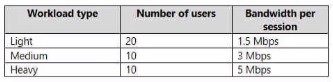
Hall the users of each workload type work from home. All the users who work from home
do NOT establish a VPN connection to the office. Approximately how much bandwidth is
needed between the office and Azure lo support the planned workloads?

A. 9.5 Mbps

B. 55 Mbps

C. 55 Mbps

D. 220 Mbps

C.   55 Mbps

Explanation:
This question tests your ability to calculate network bandwidth requirements for Azure Virtual Desktop based on user workloads and connectivity patterns. The key factor is that users working from home do NOT use VPN, meaning their traffic goes directly from their home networks to Azure, bypassing the office entirely. Therefore, the bandwidth needed between the office and Azure only needs to support the users physically present in the office, not all users.

Correct Option:

C. 110 Mbps.

First, identify which users require office-to-Azure bandwidth:

Light users: 20 total, 50% work from home → 10 users in office

Medium users: 10 total, 50% work from home → 5 users in office

Heavy users: 10 total, 50% work from home → 5 users in office

Now calculate the bandwidth requirements based on workload estimates (typical AVD bandwidth estimates):

Light users: 1.5 Mbps per user × 10 = 15 Mbps

Medium users: 6 Mbps per user × 5 = 30 Mbps

Heavy users: 13 Mbps per user × 5 = 65 Mbps

Total: 15 + 30 + 65 = 110 Mbps

Incorrect Options:

A. 9.5 Mbps.
This is far too low for 20 office users. Even if all 20 office users were light users at 1.5 Mbps each, the total would be 30 Mbps. 9.5 Mbps might represent the average per user across all workloads, but not the total required bandwidth.

B. 55 Mbps.
This likely represents miscalculating by including only half the office users or using incorrect per-user bandwidth estimates. For example, if someone calculated using only 10 users total instead of 20, they might arrive near this number.

D. 220 Mbps.
This represents calculating bandwidth for all 40 users (including work-from-home users) instead of only the 20 office users. Work-from-home users do not require office-to-Azure bandwidth because their traffic goes directly from their home networks to Azure.

Reference:
Microsoft Learn: Azure Virtual Desktop bandwidth recommendations - Network guidance for remote desktop workloads including per-user bandwidth estimates for different workload types.

Your network contains an on-premises Active Directory domain and a Windows Virtual
Desktop deployment.
The computer accounts for all the session hosts are in an organizational unit (OU) named
WVDHostsOU. All user accounts are in an OU named CorpUsers.
A domain administrator creates a Group Policy Object (GPO) named Policy1 that only
contains user settings.
The administrator links Policy1 to WVDHostsOU.
You discover that when users sign in to the session hosts, none of the settings from
Policy1 are applied.
What should you configure to apply GPO settings to the users when they sign in to the
session hosts?

A. loopback processing

B. FSLogix profiles

C. mandatory Roaming User Profiles

D. restricted groups

A.   loopback processing

Explanation:
This question tests your knowledge of Group Policy processing in Remote Desktop Services environments, particularly how user settings are applied when users log on to session hosts. By default, user settings from Group Policy Objects (GPOs) linked to an OU apply only to user objects located in that OU, regardless of where the computer objects reside. In this scenario, Policy1 (containing user settings) is linked to the computer OU (WVDHostsOU), but users are in CorpUsers OU, so the settings are not applying.

Correct Option:

A. Loopback processing.
Loopback processing is a Group Policy setting that allows user settings from GPOs linked to the computer OU to be applied when users log on to computers in that OU, regardless of where the user accounts reside. When enabled on the session hosts (via computer configuration), it instructs Windows to apply user settings from GPOs linked to the computer's OU in addition to or instead of the user's OU-based GPOs. This ensures that Policy1's user settings apply to all users logging into session hosts in WVDHostsOU.

Incorrect Options:

B. FSLogix profiles.
FSLogix profiles are a solution for profile containerization in Azure Virtual Desktop, providing fast logons and consistent user experiences. While valuable for AVD environments, FSLogix does not affect Group Policy application or processing order. It manages profile data, not policy inheritance or application.

C. Mandatory Roaming User Profiles.
Mandatory profiles are read-only user profiles that cannot be changed by users. They control user desktop environments but do not influence how Group Policy is applied. This setting would not resolve the issue of user settings not applying from a GPO linked to a computer OU.

D. Restricted groups.
Restricted Groups is a Group Policy security setting that controls group memberships. It allows administrators to enforce which users belong to specific local or domain groups. This is unrelated to the application of user settings from GPOs linked to computer OUs and would not fix the policy application issue.

Reference:
Microsoft Learn: Configure Group Policy loopback processing - Use loopback processing to apply user settings based on the computer location

You have a Windows Virtual Desktop host pool named Pool1 and an Azure Automation account named account1. Pool1 is integrated with an Azure Active Directory Domain Services (Azure AD DS) managed domain named contoso.com.
You plan to configure scaling for Pool1 by using Azure Automation runbooks.
You need to authorize the runbooks to manage the scaling of Pool1. The solution must minimize administrative effort.
What should you configure?

A. a managed identity in Azure Active Directory (Azure AD)

B. a group Managed Service Account (gMSA) in Azure AD DS

C. a Connections shared resource in Azure Automation

D. a Run As account in Azure Automation

D.   a Run As account in Azure Automation

Explanation:
This question tests your knowledge of authentication methods for Azure Automation runbooks that manage Azure Virtual Desktop scaling. Scaling runbooks need permissions to start and stop session host virtual machines, which requires authentication to Azure Resource Manager. The solution must minimize administrative effort while working in an environment with Azure AD DS. Different authentication options exist, but one is specifically designed for Automation runbooks with minimal configuration overhead.

Correct Option:

D. A Run As account in Azure Automation.
Azure Automation Run As accounts provide service principal-based authentication for runbooks to manage Azure resources. When you create a Run As account, Azure Automation automatically creates a service principal in Azure AD and assigns the Contributor role at the subscription level (or specified scope). This enables runbooks to authenticate to Azure Resource Manager without storing credentials, minimizing administrative effort. For AVD scaling runbooks that need to start/stop VMs, this is the simplest and most appropriate authentication method.

Incorrect Options:

A. A managed identity in Azure Active Directory (Azure AD).
Managed identities are indeed a modern authentication option for Azure resources, including Automation accounts. However, the question specifies minimizing administrative effort, and Run As accounts are still the traditional, well-documented approach for Automation runbooks accessing Azure resources. While managed identities can be used, Run As accounts require less configuration for this specific scenario and are the recommended approach in Microsoft documentation for AVD scaling automation.

B. A group Managed Service Account (gMSA) in Azure AD DS.
gMSAs are used for authenticating to services within Active Directory domains, not for authenticating to Azure Resource Manager. They allow processes to run with domain credentials without manual password management, but they cannot authenticate to Azure APIs. This option is irrelevant for runbooks that need to manage Azure resources.

C. A Connections shared resource in Azure Automation.
Connections in Azure Automation hold information required to connect to external services or applications. While you could theoretically create a connection with credentials to authenticate, this requires manual credential management and does not provide the automatic service principal creation and permission assignment that Run As accounts offer. It would increase administrative effort compared to Run As accounts.

Reference:
Microsoft Learn: Authenticate runbooks with Azure Automation Run As accounts - Run As accounts provide authentication to manage Azure resources using Automation runbooks.

You have a Windows Virtual Desktop deployment.
You need to provide external users with access to the deployment. The external users
have computers that run Windows 10 Pro and Windows 10 Enterprise. The users do not
have the ability to install applications.
What should you recommend that the users use to connect to the deployment?

A. Microsoft Edge

B. RemoteApp and Desktop Connection

C. Remote Desktop Manager

D. Remote Desktop Connection

A.   Microsoft Edge

Explanation:
This question tests your knowledge of connection methods for Azure Virtual Desktop (formerly Windows Virtual Desktop) when users cannot install applications. The scenario involves external users with Windows 10 Pro/Enterprise machines but without installation privileges. You need a connection method that works without requiring application installation, which means using a web browser with built-in support for Remote Desktop Protocol (RDP) connections.

Correct Option:

A. Microsoft Edge.
Microsoft Edge (Chromium-based version) supports connecting to Azure Virtual Desktop through the web client (https://client.wvd.microsoft.com). The web client runs entirely in the browser without requiring any installation. Microsoft Edge has native support for Remote Desktop Protocol and can launch AVD resources directly. This is the ideal solution for users who cannot install applications, as they only need a modern browser to access their RemoteApps and desktops.

Incorrect Options:

B. RemoteApp and Desktop Connection.
This is a legacy feature that was used in earlier Remote Desktop Services deployments. It requires configuration through Group Policy and typically needs the Remote Desktop Connection client installed. It is not the recommended modern connection method for Azure Virtual Desktop and would not work without application installation.

C. Remote Desktop Manager.
This is a third-party application (by Devolutions) used to centralize remote connection management. It requires installation and is not a Microsoft-provided solution for Azure Virtual Desktop. Users without installation privileges cannot use this option.

D. Remote Desktop Connection.
The built-in Remote Desktop Connection (MSTSC.exe) client comes pre-installed on Windows 10 Pro and Enterprise. However, Azure Virtual Desktop does not support direct connections using MSTSC to the service gateway. Users must use either the web client (browser) or the downloadable Remote Desktop client (MSRDC), which requires installation. Since users cannot install applications, MSTSC alone cannot connect to AVD.

Reference:
Microsoft Learn: Connect to Azure Virtual Desktop with the web client - Use a supported browser like Microsoft Edge to access AVD resources without installation.

Your network contains an on-premises Active Directory domain named contoso.com that
syncs to an Azure Active Directory (Azure AD) tenant.
You have an Azure subscription that contains an Azure Virtual Desktop host pool.
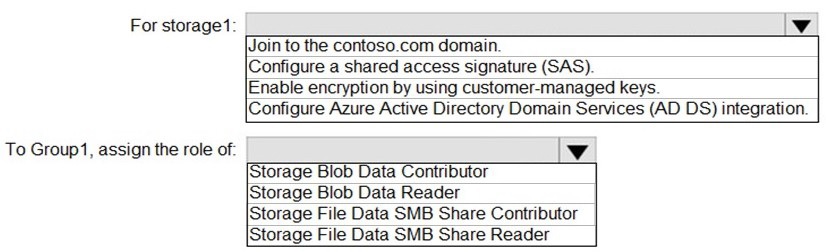
You create an Azure Storage account named storage1.
You need to use FSLogix profile containers in storage1 to store user profiles for a group
named Group1. The solution must use the principle of least privilege.
What should you include in the solution? To answer, select the appropriate options in the
answer area.
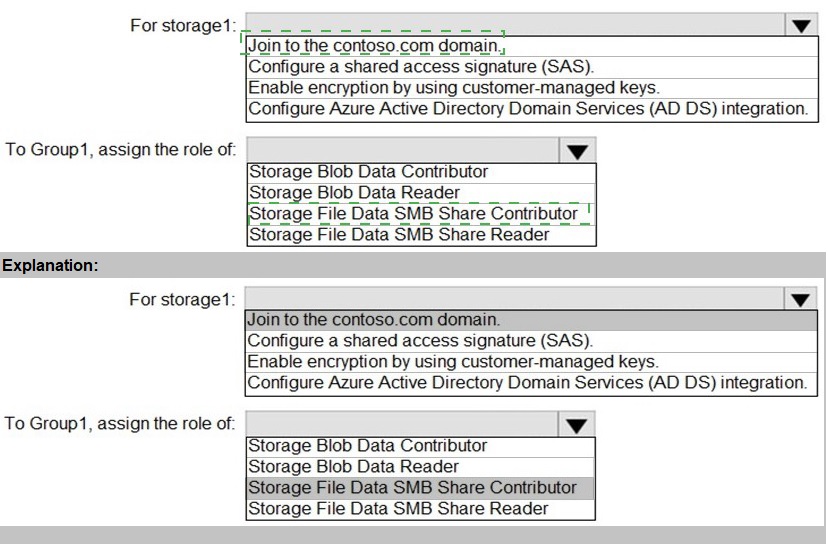


Explanation:
This question tests your knowledge of configuring Azure Files for FSLogix profile containers in an Azure Virtual Desktop environment with hybrid identity (on-premises AD synced to Azure AD). FSLogix profile containers using Azure Files require proper domain join for SMB access, appropriate share-level RBAC roles, and correct authentication configuration. The principle of least privilege means granting only the minimum permissions necessary for users to store and access their profiles.

Correct Options:

For storage1: Join to the contoso.com domain.
To use Azure Files with identity-based authentication for FSLogix profiles, the storage account must be domain-joined to the same Active Directory domain that your session hosts and users belong to. Since contoso.com syncs to Azure AD, joining storage1 to contoso.com enables Kerberos authentication for SMB access from domain-joined session hosts. This is required for seamless Windows-integrated authentication without storing credentials.

For storage1: Configure Azure Active Directory Domain Services (AD DS) integration.
In addition to domain join, you must enable Azure AD DS authentication for the storage account. This allows Azure Files to authenticate users against the Azure AD DS managed domain, which is synchronized from your on-premises AD. This integration is essential for Azure Files to validate user identities and apply share-level permissions when session hosts access the file share.

To Group1, assign the role of: Storage File Data SMB Share Contributor.
This RBAC role provides the necessary share-level permissions for users to access the Azure file share via SMB. It allows members to read, write, and delete files/folders in the share, which is required for FSLogix to create and modify profile containers (VHDX files). This is the least-privilege choice because users need write access to their profiles but do not need elevated permissions like modifying share permissions.

Incorrect Options Not Selected:

For storage1: Configure a shared access signature (SAS).
SAS tokens provide delegated access to storage resources but are not suitable for FSLogix profile containers. SAS is typically used for temporary, application-level access, not for persistent user profile storage. It also does not support Windows-integrated authentication required for seamless user experience.

For storage1: Enable encryption by using customer-managed keys.
While customer-managed keys provide additional encryption control, they are not required for FSLogix functionality. This is a security enhancement option but does not address the authentication and access requirements for profile containers.

To Group1, assign the role of: Storage Blob Data Contributor or Storage Blob Data Reader.
These roles are for Azure Blob Storage, not for Azure Files. They would be completely ineffective for SMB access to a file share and do not apply to this scenario.

To Group1, assign the role of: Storage File Data SMB Share Reader.
This role provides read-only access to the file share. FSLogix requires write access to create and modify profile containers, so this role is insufficient.

Reference:
Microsoft Learn: Configure FSLogix profile containers with Azure Files - Requires storage account domain join to Active Directory and assignment of Storage File Data SMB Share Contributor role.

You have a Azure Virtual Desktop deployment.
You plan to implement the Start/Stop VMs during off-hours feature.
You need to ensure that you can stop the session hosts automatically based on the CPU utilization. What should you do on the session hosts?

A.

Enable change tracking.

B.

Configure the Power Management settings.

C.

Configure the Diagnostic settings.

D.

Install the Azure virtual Desktop Agent

B.   

Configure the Power Management settings.


Page 2 out of 11 Pages