Topic 2: Misc. Questions
You have ah SAP environment on Azure that contains a single-tenant SAP NANA server at instance 03.
You need to monitor the network throughput from an SAP application server to the SAP HANA server.
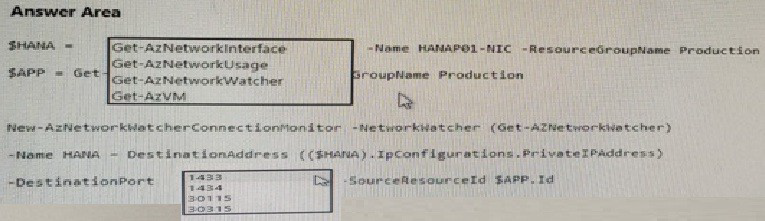
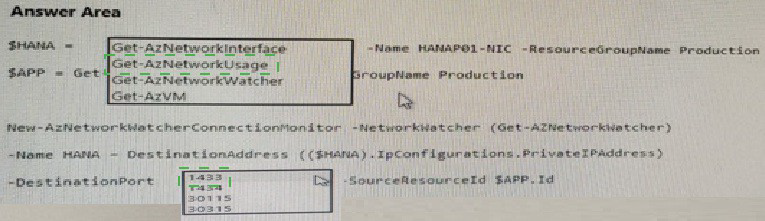
How should you complete the script? To answer, select the appropriate options in the answer are.
NOTE: Each correct selection is worth one point.
Explanation:
This question requires completing a PowerShell script to monitor network throughput from an SAP application server to an SAP HANA server using Azure Network Watcher Connection Monitor. The SAP HANA instance is at instance 03, which determines the correct destination port. SAP HANA uses different ports for different services, and the port number must match the instance number specified.
Correct Option:
First box: Get-AzVM
To monitor network throughput between an application server and an HANA server, you need the resource IDs of both VMs. Get-AzVM retrieves the virtual machine objects. The script later uses $APP.Id and $HANA.IpConfigurations.PrivateIPAddress, indicating that both VM objects must be obtained first using Get-AzVM commands.
Second box: 30115
SAP HANA instance 03 uses specific port numbers based on the instance number. For HANA, the index server (SQL/MDX port) is calculated as 3
Incorrect Option:
First box alternatives: Get-AzNetworkInterface, Get-AzNetworkUsage, Get-AzNetworkWatcher, GroupName Production
Get-AzNetworkInterface retrieves NIC details but not the VM resource IDs needed for SourceResourceId. Get-AzNetworkUsage shows quota usage. Get-AzNetworkWatcher retrieves the Network Watcher object but isn't the first step. "GroupName Production" is not a valid cmdlet. The script needs VM objects first.
Second box alternatives: 1433, 1434, 30315
Port 1433 is SQL Server default, not HANA. Port 1434 is SQL Server browser service. Port 30315 would be for instance 03 with a different calculation (3
Reference:
SAP Note 2680804: "SAP HANA: Port Numbers for SAP HANA"
Microsoft Docs: "Get-AzVM"
Microsoft Docs: "New-AzNetworkWatcherConnectionMonitor"
You plan to deploy an SAP NetWeaver landscape that will use SQL Server on Azure virtual machines. The database tier must meet the following requirement
Maintain database availability in the event of a single Azure datacenter
Maximize IOPS-
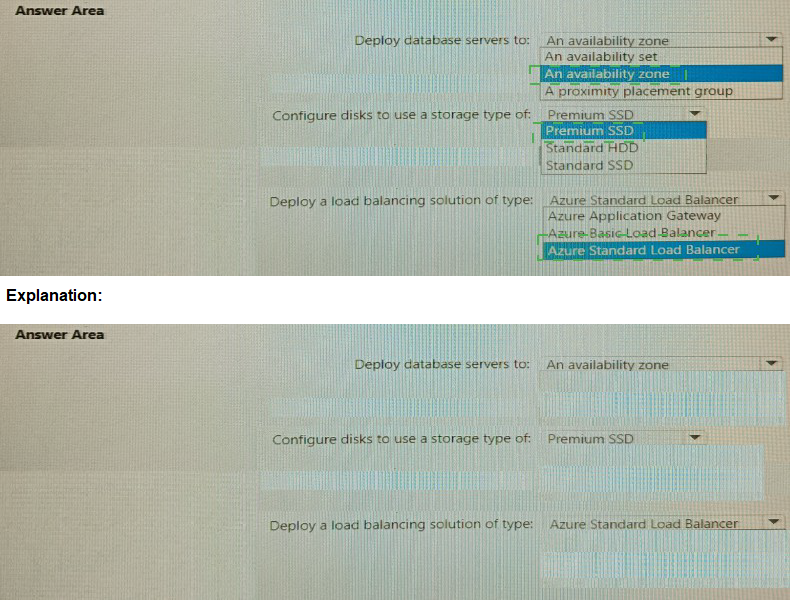
How should you configure the database tier? To answer, select the appropriate options in the answer area.
NOTE Each correct selection is worth one point.

Explanation:
The requirements specify maintaining database availability during a single Azure datacenter failure (zonal resilience) and maximizing IOPS for SQL Server on Azure VMs. Availability Zones provide datacenter-level fault tolerance, Premium SSD delivers high IOPS, and Standard Load Balancer supports cross-zone traffic. The answer must align with these three pillars: placement, storage, and load balancing.
Correct Option:
Deploy database servers to: An availability zone
Availability Zones protect against a complete datacenter failure by placing VMs in physically separate zones within a region. For SQL Server Always On availability groups, deploying replicas across zones ensures database availability even if one zone fails. This meets the requirement for datacenter-level resilience.
Configure disks to use a storage type of: Premium SSD
Premium SSD provides consistent low-latency and high IOPS performance essential for SQL Server database workloads. It maximizes IOPS for transaction logs and data files, meeting the requirement for high throughput. Standard SSDs offer lower IOPS, and Standard HDD is unsuitable for production SQL Server.
Deploy a load balancing solution of type: Azure Standard Load Balancer
Standard Load Balancer supports cross-zone load balancing and is required for SQL Server Always On availability group listeners when using Availability Zones. It provides the necessary health probes and floating IP functionality for seamless failover between zones, unlike Basic Load Balancer which lacks zonal support.
Incorrect Option:
Deploy database servers to alternatives: An availability set
Availability sets protect against rack-level failures within a single datacenter but cannot survive a full datacenter outage. Since the requirement is to maintain availability during a single Azure datacenter failure, availability sets are insufficient. Availability Zones are required for datacenter-level resilience.
Configure disks to use a storage type of alternatives: Standard HDD, Standard SSD
Standard HDD provides low IOPS and high latency, making it unsuitable for SQL Server database workloads. Standard SSD offers better performance than HDD but still falls short of the maximum IOPS requirement. Only Premium SSD delivers the high IOPS needed for production SQL Server databases.
Deploy a load balancing solution of type alternatives: Azure Application Gateway, Azure Basic Load Balancer
Application Gateway is a layer-7 load balancer for web traffic, not designed for SQL Server availability group listeners. Basic Load Balancer lacks availability zone support and advanced features like HA ports and floating IP required for cross-zone SQL Server failover configurations.
Reference:
Microsoft Docs: "Azure Availability Zones"
Microsoft Docs: "Azure Premium SSD"
Microsoft Docs: "Azure Standard Load Balancer and Availability Zones"
Microsoft Docs: "SQL Server Always On availability groups overview"
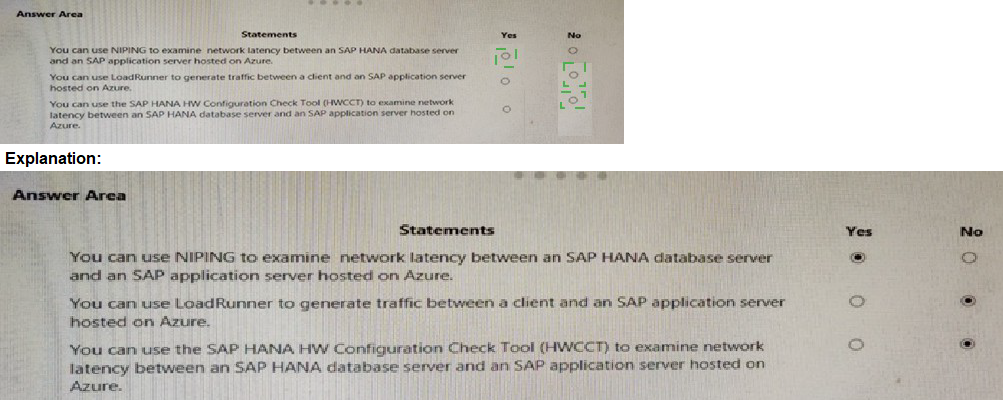
For each of the following statements, select yes if the statement is true. Otherwise, select No.
NOTE: Each correct selection is worth one point.

Explanation:
These statements assess knowledge of tools for measuring network latency and generating traffic in SAP environments on Azure. NIPING is an SAP tool specifically for network diagnostics, LoadRunner is a third-party performance testing tool, and HWCT is for hardware validation, not network latency measurement.
Correct Option:
Statement 1: You can use NIPING to examine network latency between an SAP HANA database server and an SAP application server hosted on Azure. → Yes
NIPING (Network Ping) is an SAP tool designed to measure network latency and packet loss between SAP systems. It can be used to test connectivity and performance between SAP HANA database servers and application servers, regardless of whether they are hosted on Azure or on-premises. This makes it a valid tool for examining network latency in Azure-deployed SAP landscapes.
Statement 2: You can use LoadRunner to generate traffic between a client and an SAP application server hosted on Azure. → Yes
LoadRunner is a performance testing tool that can simulate user traffic against SAP applications. It supports SAP GUI and web-based SAP interfaces, making it capable of generating load between client systems and SAP application servers hosted on Azure. This is commonly used for performance validation before and after migration.
Statement 3: You can also use the SAP HANA HW Configuration Check Tool (HWCT) to examine network latency between an SAP HANA database server and an SAP application server hosted on Azure. → No
The SAP HANA Hardware Configuration Check Tool (HWCT) is designed to validate hardware configurations for SAP HANA, including CPU, memory, and storage performance. It does not measure network latency. Network latency testing is outside its scope, making this statement incorrect.
Reference:
SAP Note 500235: "Network Ping (NIPING) – A Diagnosis Tool for Network Problems"
SAP Note 1943937: "Hardware Configuration Check Tool for SAP HANA"
Micro Focus Documentation: "LoadRunner for SAP Applications"
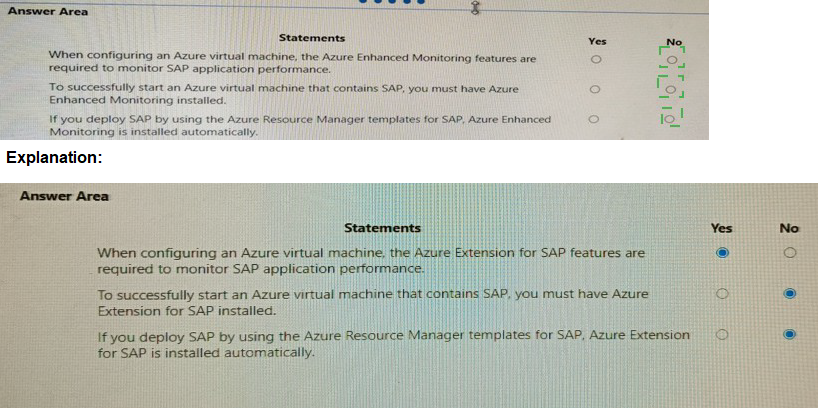
for each of the following statements, select Yes if the statement is true. Otherwise. select No.
NOTE: Each correct selection is worth one point.

Explanation:
Azure Enhanced Monitoring (also known as the Azure Monitoring Extension for SAP) provides additional telemetry for SAP workloads but is not mandatory for basic VM operations. These statements test understanding of when this extension is required, its role in VM startup, and its behavior in automated deployments.
Correct Option:
Statement 1: When configuring an Azure virtual machine, the Azure Enhanced Monitoring features are required to monitor SAP application performance. → No
Azure Enhanced Monitoring is not required for basic SAP application performance monitoring. SAP provides its own monitoring tools like SAP EarlyWatch Alert, ST03, and CCMS. Azure Enhanced Monitoring provides additional Azure-specific metrics but is optional. Standard SAP monitoring can function without it.
Statement 2: To successfully start an Azure virtual machine that contains SAP, you must have Azure Enhanced Monitoring installed. → No
Azure Enhanced Monitoring has no role in VM startup. Azure VMs start independently of any guest OS extensions. The extension provides monitoring data after the VM is running but does not affect the boot process or VM availability. SAP applications will start normally without it.
Statement 3: If you deploy SAP by using the Azure Resource Manager templates for SAP, Azure Enhanced Monitoring is installed automatically. → Yes
The Azure Resource Manager quickstart templates for SAP (such as the SAP IDES templates) automatically include and configure the Azure Enhanced Monitoring Extension. This is done to provide out-of-the-box Azure-specific monitoring for SAP workloads, collecting metrics like disk IOPS and network throughput for better visibility.
Reference:
Microsoft Docs: "Azure Enhanced Monitoring Extension for SAP"
SAP Note 2191498: "SAP on Azure: Using Azure Enhanced Monitoring Extension"
GitHub: "Azure SAP Automated Deployment"
You have an SAP environment that contains the following components:
- Enhancement Package 6 for SAP ERP Central Component 6.0 (SAP ECC 0)
- Servers that runs SUSE Linux Enterprise Server 12 (SIES 12)
- Databases on IBM D82 5
- SAP Solution Manager 1
You plan to migrate the SAP environment to Azure.
For each of the following statements, select Yes if the statement is true. Otherwise, select No.
NOTE: Each correct selection is worth one point.

Explanation:
This question assesses compatibility of specific SAP components with Azure deployment based on SAP and Microsoft support policies. SAP Note 1928533 is the authoritative source for supported SAP products on Azure, covering application versions, operating systems, and database platforms.
Correct Option:
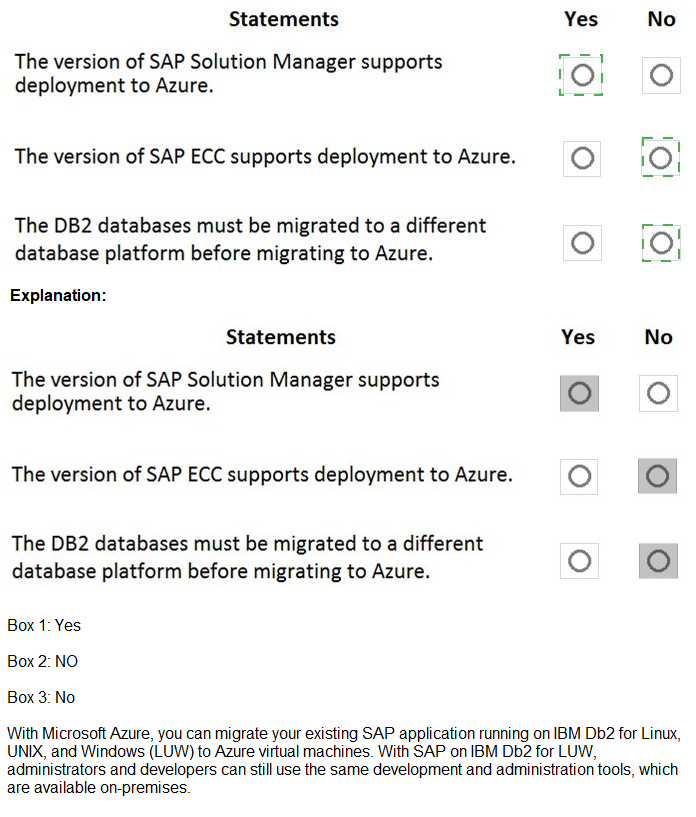
Statement 1: The version of SAP Solution Manager supports deployment to Azure. → Yes
SAP Solution Manager 7.1 and higher are supported on Azure. The question mentions "SAP Solution Manager 1" which likely refers to SAP Solution Manager 7.1 (as "1" might indicate the major release). SAP Solution Manager is fully supported on Azure VMs, provided the underlying operating system and database combinations are also supported per SAP Note 1928533.
Statement 2: The version of SAP ECC supports deployment to Azure. → Yes
SAP ECC 6.0 with Enhancement Package 6 is supported on Azure. SAP Note 1928533 confirms that SAP ECC 6.0 is supported on Azure VMs when running on supported operating systems (like SLES 12) and databases. This is a common version for migrations, and Azure supports it without requiring application upgrades.
Statement 3: The DB2 databases must be migrated to a different database platform before migrating to Azure. → No
IBM DB2 is supported on Azure for SAP workloads. SAP Note 1928533 lists IBM DB2 as a supported database on Azure for various SAP applications, including SAP ECC. DB2 can run on Azure VMs with supported operating systems like SLES. No migration to a different database platform is required.
Reference:
SAP Note 1928533: "SAP Applications on Azure: Supported Products and Azure VM types"
SAP Note 1613970: "IBM DB2 on Azure: Support Overview"
Microsoft Docs: "SAP workloads on Azure: Supported scenarios"
You are planning an SAP NetWeaver deployment on Azure. The database tier will consist of two Azure virtual machines that have Microsoft SQL Server 2017 installed. Each virtual machine will be deployed to a separate availability zone.
You need to perform the following:
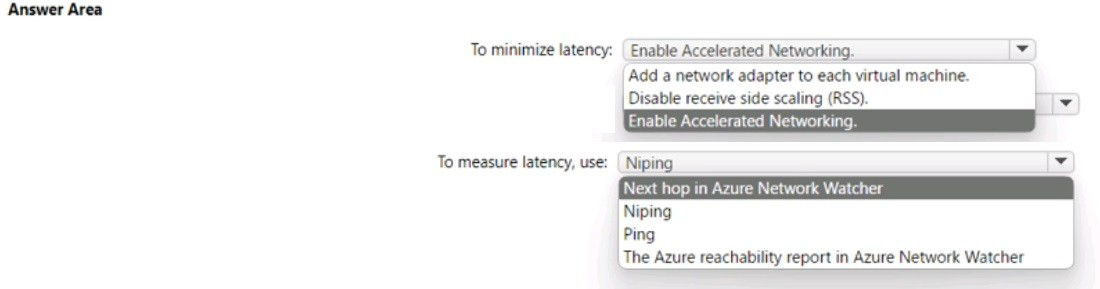
Minimize network latency between the virtual
Measure network latency between the virtual
What should you do? To answer, select the appropriate options in the answer area. NOTE: Each correct selection is worth one point.
Explanation:
The scenario involves two SQL Server VMs in different Azure Availability Zones requiring minimized and measurable network latency. For low latency, Azure provides Accelerated Networking to optimize network path performance. For measurement, SAP's Niping tool is designed specifically for SAP workload network testing between application and database tiers.
Correct Option:
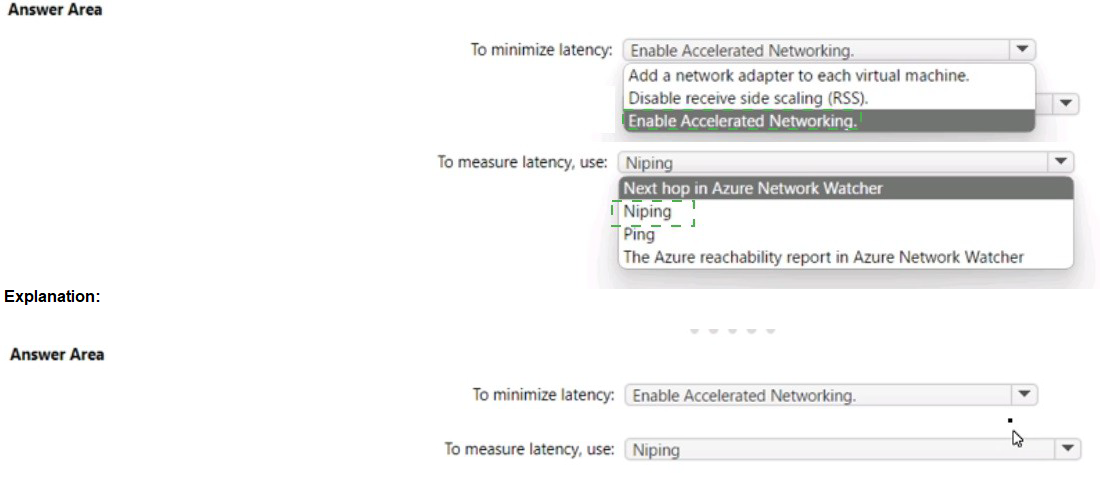
To minimize latency: Enable Accelerated Networking
Accelerated Networking enables single-root I/O virtualization (SR-IOV) on Azure VMs, bypassing the host virtual switch to provide direct access to the physical NIC. This significantly reduces network latency and jitter between VMs, including across Availability Zones. For SQL Server Always On availability groups, this is critical for performance.
To measure latency, use: Niping
Niping (Network Ping) is an SAP tool specifically designed to measure network latency and throughput between SAP systems. It provides more accurate measurements for SAP workloads than standard ping, as it tests the actual network path and can simulate SAP protocol traffic. This makes it ideal for validating network performance between database VMs.
Incorrect Option:
To minimize latency alternatives: Add a network adapter to each virtual machine, Disable receive side scaling (RSS)
Adding network adapters does not reduce latency and can complicate configuration. Disabling RSS may actually increase latency as it reduces the VM's ability to process parallel network traffic efficiently. Both options are incorrect for minimizing latency.
To measure latency alternatives: Next hop in Azure Network Watcher, Ping, The Azure reachability report in Azure Network Watcher
Next hop helps trace routing paths but doesn't measure latency. Ping provides basic ICMP latency but lacks SAP-specific testing capabilities. Azure reachability report shows latency between regions and IP ranges but is not designed for intra-subnet or inter-VM measurements needed for SQL Server availability groups.
Reference:
Microsoft Docs: "Accelerated Networking for Linux and Windows VMs"
SAP Note 500235: "Network Ping (NIPING) – A Diagnosis Tool for Network Problems"
SAP Note 2015553: "SAP on Azure: Supported Products and Azure VM types"
You have an on-premises deployment of SAP HANA. You plan to migrate the deployment to Azure.
You need to identify the following from the last six months:
The number of active users The database performance
What should you do? To answer, select the appropriate options in the answer area.
NOTE: Each correct selection is worth one point.
Explanation:
To plan an SAP HANA migration to Azure, historical data on active users and database performance is essential for right-sizing Azure resources. SAP provides tools to collect and analyze this information. The correct approach involves accessing existing SAP monitoring data rather than running new sizing tools or performance tests.
Correct Option:
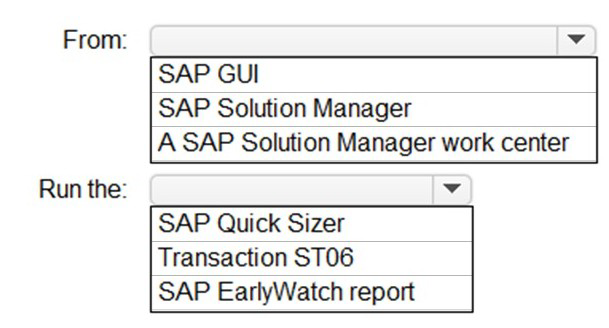
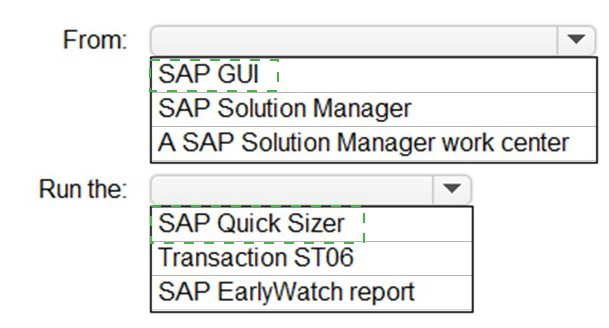
From: SAP Solution Manager
SAP Solution Manager is the central platform for monitoring SAP landscapes. It stores historical performance data, including active user counts and database performance metrics, for up to several months or years depending on retention settings. Accessing historical data through Solution Manager provides the most comprehensive view of workload patterns needed for migration planning.
Run the: SAP EarlyWatch report
The SAP EarlyWatch report is a proactive performance analysis tool that runs regularly in SAP systems. Historical EarlyWatch reports contain detailed information about system usage, including active user statistics and database performance metrics like response times, buffer quality, and SQL statement analysis. Reviewing these reports from the last six months provides accurate workload characterization.
Incorrect Option:
From alternatives: SAP GUI, A SAP Solution Manager work center
While SAP GUI can access many transactions, it does not centrally store historical data across multiple months. A Solution Manager work center is a valid access point, but the question specifies selecting from the given options, and "SAP Solution Manager" is the more precise answer covering all work centers.
Run the alternatives: SAP Quick Sizer, Transaction ST06
SAP Quick Sizer is for estimating future hardware needs based on business parameters, not for analyzing historical usage. Transaction ST06 shows current operating system metrics but does not provide historical data from the last six months. Only the SAP EarlyWatch report contains historical performance records.
Reference:
SAP Help Portal: "SAP EarlyWatch Alert"
SAP Help Portal: "SAP Solution Manager"
Microsoft Docs: "SAP workloads on Azure: Planning and deployment checklist"
You need to connect SAP HANA on Azure (Large Instances) to an Azure Log Analytics workspace.
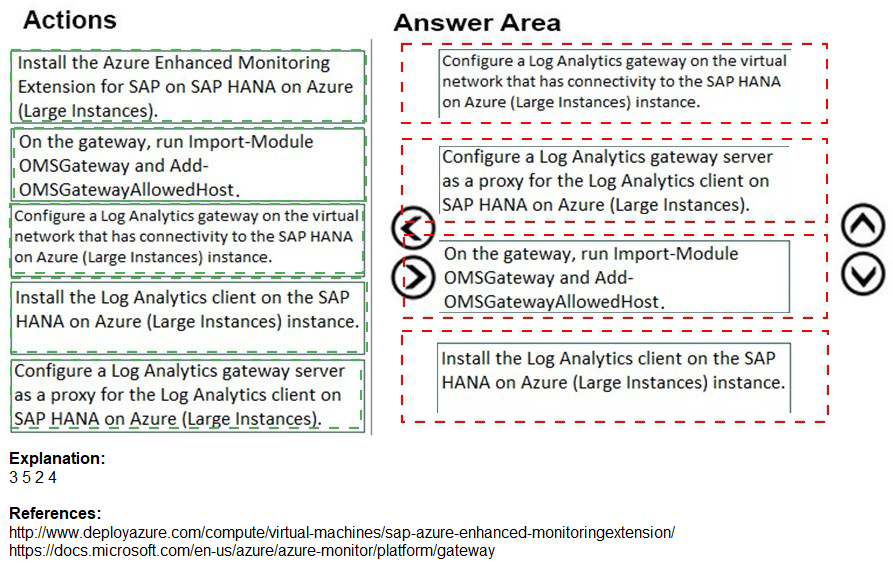
Which four actions should you perform in sequence? To answer, move the appropriate actions from the list of actions to the answer area and arrange them in the correct order.

Explanation:
Connecting SAP HANA on Azure (Large Instances) to a Log Analytics workspace requires a specific sequence because Large Instances are not directly connected to Azure’s management plane. They reside in a separate Microsoft-managed tenant and require a gateway in your virtual network for connectivity. The correct order involves setting up the gateway, allowing hosts, installing the client, and configuring proxy settings.
Correct Order.
1. Configure a Log Analytics gateway on the virtual network that has connectivity to the SAP HANA on Azure (Large Instances) instance.
The first step is establishing a Log Analytics gateway in your Azure virtual network that can route traffic to the Large Instance. The Large Instance is connected to this virtual network via ExpressRoute, so the gateway acts as the bridge.
2. On the gateway, run Import-Module OMSGateway and Add-OMSGatewayAllowedHost.
Once the gateway is configured, you must import the OMS Gateway module and add the Large Instance host as an allowed host. This authorizes the Large Instance to communicate through the gateway.
3. Install the Log Analytics client on the SAP HANA on Azure (Large Instances) instance.
With the gateway ready and configured, you now install the Log Analytics agent (client) directly on the Large Instance. This requires access to the instance, typically via SSH.
4. Configure a Log Analytics gateway server as a proxy for the Log Analytics client on SAP HANA on Azure (Large Instances).
Finally, you configure the Log Analytics client on the Large Instance to use the gateway server as a proxy. This directs all monitoring data through the gateway to your Log Analytics workspace.
Incorrect Action:
Install the Azure Enhanced Monitoring Extension for SAP on SAP HANA on Azure (Large Instances).
This extension is for standard Azure VMs running SAP, not for Large Instances. Large Instances are bare-metal servers managed by Microsoft and do not support VM extensions.
Reference:
Microsoft Docs: "Connect HANA Large Instances to Azure"
Microsoft Docs: "Log Analytics gateway"
Microsoft Docs: "SAP HANA on Azure (Large Instances) monitoring"
| Page 3 out of 22 Pages |